Your website usually feels fine until the day it doesn't. Orders stop coming through. Clients ring because the homepage looks wrong. Your contact form sends junk. Or you log in and realise you can't trust what's on the server anymore.
That's why most advice on how to protect website assets misses the core issue. Prevention matters, but Australian SMBs also need to stay trading when something goes wrong. Security isn't just about blocking attacks. It's about keeping the business running, restoring access safely, and limiting the mess when a problem gets through.
Table of Contents
- Responding to the Unthinkable Website Security Threats
- Building Your Essential Security Foundation
- Erecting a Digital Fortress with Firewalls
- Deploying Active Defence with Malware Scanning
- Creating Your Safety Net with Backups and Recovery
- Actionable Checklists for Your Website Platform

Performance you can feel, backed by clients who depend on it. Read how our support and uptime create long‑term customer success.Power Your Business with Better Hosting
Responding to the Unthinkable Website Security Threats
A lot of owners still treat website security as a technical tidy-up job for later. That's risky. The Australian Signals Directorate's Annual Cyber Threat Report 2023–24, cited here, recorded more than 87,400 cybercrime reports, or one report every 6 minutes, with small businesses still frequent targets.
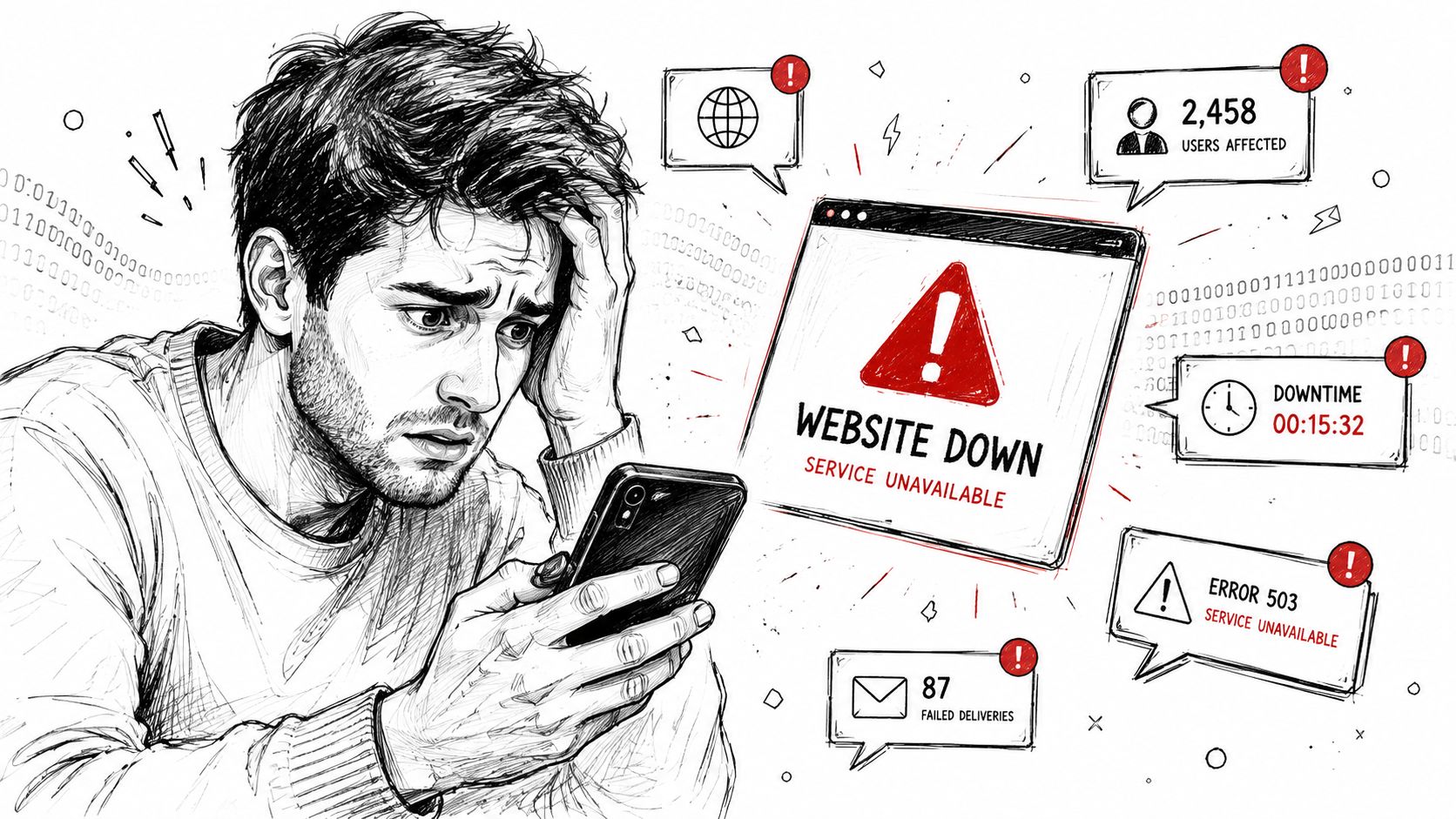
For a local business, that doesn't translate into abstract risk. It means your booking form, checkout, member area, quote request page, or client portal can become the point of failure. When that happens, the damage usually spreads beyond the website itself. Staff lose time, customers lose confidence, and recovery becomes urgent.
Practical rule: Treat your website like a business system, not a brochure. If it helps customers pay, enquire, book, or log in, it needs protection and a recovery path.
The good news is that most common failures aren't mysterious. They usually come from a short list of problems:
- Weak access controls let the wrong person into admin areas.
- Old plugins or software leave known holes open.
- Poor separation between systems means one compromise spreads further.
- Untested backups create false confidence.
- No incident process turns a manageable problem into downtime chaos.
If your site is already acting strangely, speed matters more than guesswork. In that case, get the infection assessed and contained before making random changes. A dedicated WordPress malware removal service is often the right next step when you suspect code injection, defacement, or a hidden backdoor.
Website protection works best as a layered playbook. Lock down access. Filter bad traffic early. scan for what slips through. Then make sure you can recover cleanly. That sequence is what keeps an incident from becoming a business stoppage.
Building Your Essential Security Foundation
Most websites don't need a complicated security stack first. They need the basics done properly and kept that way.
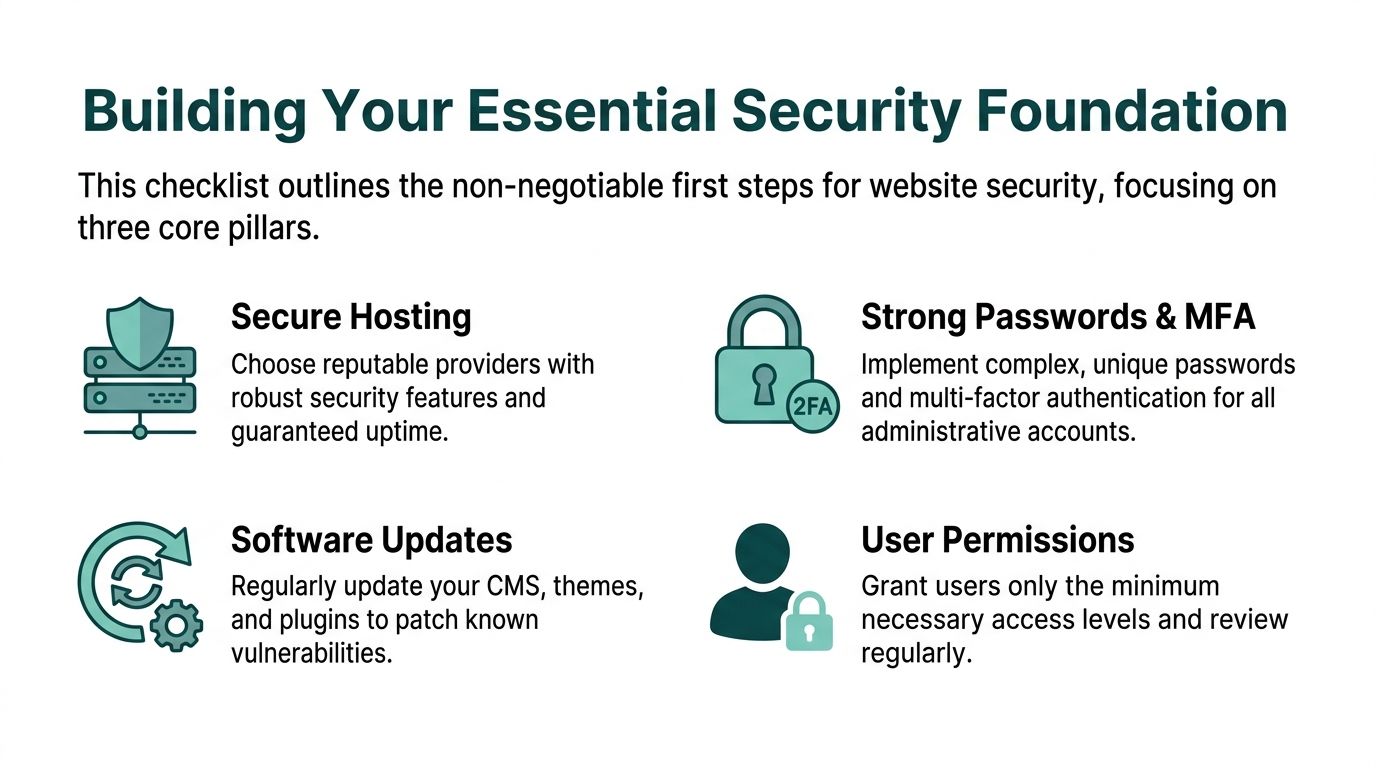
Start with encryption and account control
SSL/TLS is the minimum standard now. It encrypts traffic between the visitor and your site, which matters for logins, forms, checkouts, and any page where users submit information. If your certificate is broken, expired, or inconsistently forced across the site, you create unnecessary trust and security problems.
Just as important is who can log in.
A secure setup looks like this:
- Use unique passwords for every admin, hosting, email, and CMS login.
- Turn on MFA for privileged accounts, especially admins, developers, and billing users.
- Reduce account sprawl by removing old staff logins, temporary contractor users, and unused admin accounts.
- Limit privileges so people only get the access they need.
One of the most overlooked parts of protecting your digital presence is that website security and data handling overlap. If you want a broader non-hosting perspective on protecting your digital assets, that resource is useful because it frames security as an operational issue, not just a technical setting.
A lot of SMBs make one avoidable mistake here. They share one admin login across staff or agencies. That kills accountability and makes incident response messy. Individual accounts are easier to monitor, revoke, and review.
Keep software boring and current
Outdated software is one of the easiest ways to get compromised. CMS core files, plugins, themes, extensions, and server-side packages all need attention. The right mindset is boring maintenance. No drama. No long update gaps. No abandoned add-ons sitting around because “they might be needed later”.
If you haven't used a plugin, theme, or module in months, remove it. Disabled isn't the same as harmless.
Use this shortlist as your baseline:
| Control | What to do | Business benefit |
|---|---|---|
| SSL/TLS | Make sure every public page and login uses HTTPS | Protects data in transit and customer trust |
| MFA | Require it for admin and privileged users | Reduces the risk from stolen passwords |
| Updates | Patch CMS core, plugins, themes, and server software regularly | Closes known holes before they're abused |
| Permissions | Give users the lowest access they need | Limits damage if an account is compromised |
If you run WordPress, a managed environment can make this simpler because the hosting layer, plugin hygiene, and monitoring tend to work better together. This guide to WordPress security hosting is relevant if you want the hosting side aligned with the basics above.
Good security foundations aren't glamorous. They're repeatable. That's why they work.
Host your website with our 5-star rated, cPanel website hosting plans.
Super fast servers, with security included and hosted in your choice of Australian Data Center.
View cPanel Plans
Erecting a Digital Fortress with Firewalls
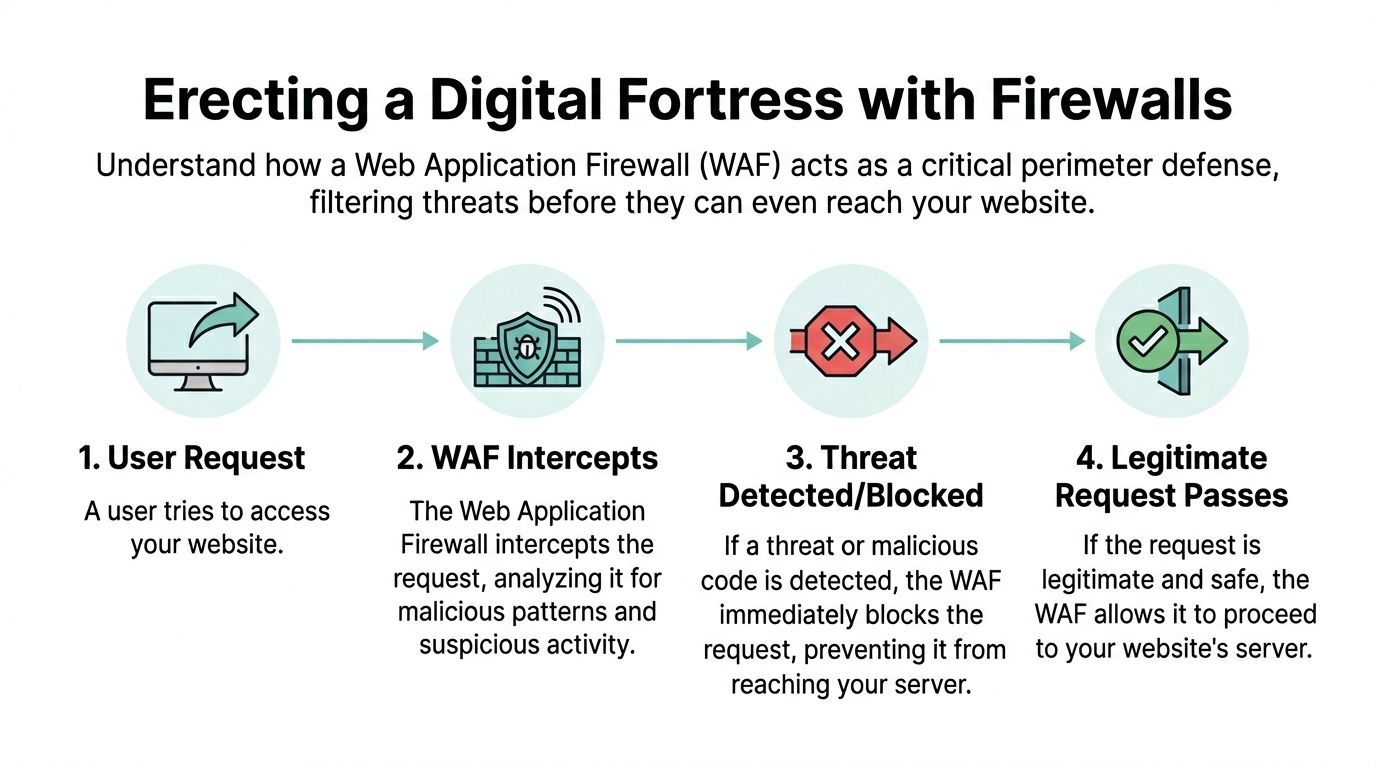
A firewall earns its keep before WordPress, Magento, custom PHP, or ASP.NET has to do any work. That's a significant value. It filters junk early so your application spends less time dealing with traffic that should never have reached it.
What a firewall actually does
Government guidance on website protection recommends defensive architecture. That means placing the web server behind a proxy or WAF, separating it from other tiers where possible, and restricting privileged access with proper controls and monitoring, as outlined in this website security guidance.
In plain English, that means:
- Put a protective layer in front of the site.
- Don't expose every backend component directly.
- Keep admin access tight.
- Watch logs and alerts for unusual behaviour.
For SMBs, that architecture matters more than fancy dashboards. A good WAF can inspect requests and block common malicious patterns before they hit the app. DDoS filtering aims to keep the site reachable during traffic floods or abusive request bursts. That's especially useful for ecommerce sites, campaign landing pages, and customer portals where availability matters as much as confidentiality.
A hosting service with DDoS protected web hosting can give smaller businesses this perimeter layer without requiring in-house network engineering.
What firewalls do not solve
A firewall is not a complete answer.
A WAF should sit in front of disciplined access control, patching, and log review. It doesn't replace them.
Here's where people get caught out:
- It won't fix weak passwords or shared admin logins.
- It won't patch a vulnerable plugin you've ignored for months.
- It won't clean an already-infected site unless you pair it with detection and response.
- It won't tell you whether your restore process works after an incident.
A practical firewall setup also needs sensible tuning. If you're too loose, junk gets through. If you're too aggressive, you block legitimate customers, payment callbacks, or admin actions. This is why security needs context. A brochure site, a WooCommerce store, and a client portal don't all need the same rule set.
The right way to think about firewalls is perimeter reduction. They shrink your exposed surface and absorb bad traffic earlier. That's important. It's just not the whole job.
Deploying Active Defence with Malware Scanning
Even with strong access controls and a firewall, things can still slip through. A compromised plugin, a reused password, a poisoned upload, or a hidden backdoor added months ago can remain undetected until something breaks. That's where malware scanning matters.
What scanning should look for
Good malware scanning does more than search for obvious malicious files. It should look for suspicious code patterns, altered core files, web shells, injected scripts, hidden redirects, and files that don't belong where they are. On content-managed sites, it should also help identify changes that weren't part of any normal update or release.
For SMBs, the practical goal is simple. Find the problem before a customer does.
Automated scanning is useful because manual checks are inconsistent. People forget. They get busy. They assume the site is fine because the homepage loads. Meanwhile, malicious code can hide in a theme file, a plugin directory, a scheduled task, or a writable folder nobody has reviewed in ages.
A sensible active-defence routine includes:
- Scheduled malware scans across files and application areas.
- File change monitoring so unexpected edits get flagged.
- Quarantine or cleanup workflows for known malicious code.
- Alerting that goes to someone who will act on it.
How to handle a malware finding
The first mistake is panic editing. Owners often start deleting files at random, reinstalling plugins blindly, or restoring from an old backup without understanding what happened. That can make evidence disappear and leave the actual access path open.
Use a controlled response instead:
- Isolate first by restricting admin access and limiting further change if possible.
- Confirm scope so you know whether the issue sits in files, database content, user accounts, or multiple places.
- Remove the persistence path such as rogue users, writable abuse points, or vulnerable components.
- Clean or restore carefully from a known-good state.
- Patch and harden afterwards so the same route can't be used again.
Some hosting stacks include server-side malware detection and active protection tools such as Imunify360. That can help, especially when combined with sensible permissions and regular patching. But don't treat any scanner as magical. Scanners catch a lot. They don't replace investigation when a site has clearly been tampered with.
The practical test is whether your scanning process gives you clean next actions. If an alert lands in your inbox and you still don't know what to do, the tool isn't enough on its own.
Creating Your Safety Net with Backups and Recovery
Most business owners feel reassured once backups are “on”. That confidence is often misplaced. A backup is only useful if you can restore the right version, in the right order, without reintroducing the same problem.
Backups are not the recovery plan
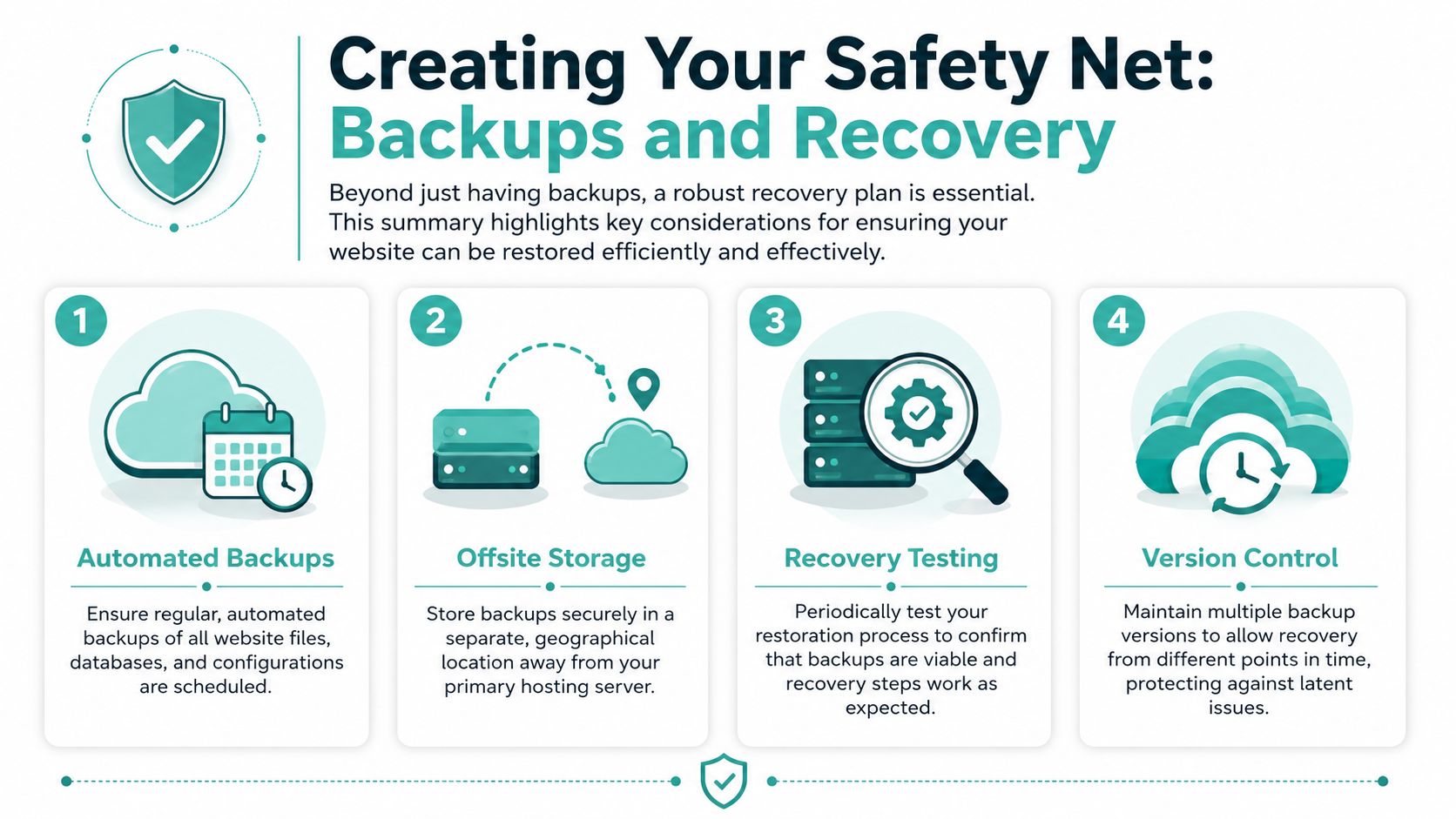
Australian government guidance stresses segregation, redundancy, and a secure account recovery process so operations can continue and access can be restored safely after an incident, as noted in this guidance on developing and managing your website.
That's the part generic advice usually skips. It tells you to keep backups, but not how to recover when admin access is compromised, when your latest backup also contains malware, or when one system can come back online but another shouldn't.
Recovery confidence comes from testing, not from seeing the word "backup" in a control panel.
A resilient setup usually has these qualities:
- Separate components so a problem in one layer doesn't automatically take down everything else.
- Redundant copies stored away from the primary environment.
- Multiple restore points so you're not forced to recover from a contaminated snapshot.
- Secure account recovery so control returns to the right people without opening another hole.
If backup and continuity matter for your site, it's worth reviewing business backup options that include off-site handling and restoration support, not just raw file copies.
A practical recovery checklist
A simple recovery process beats an ambitious one nobody follows. Document it in plain language. Keep it where the right people can access it during an outage.
Use this checklist:
Define what must come back first
For some businesses it's checkout. For others it's the enquiry form, booking engine, or client login area. Recovery priorities should follow revenue and customer service, not technical neatness.Know what “clean” looks like
Keep a record of approved plugins, themes, modules, integrations, admin users, and normal scheduled tasks. Without that baseline, it's hard to tell whether a restored site is trustworthy.Test a restore before you need one
Restore to a safe staging environment and verify the site loads, logins work, forms submit, and key integrations behave normally.Separate technical and business contacts
Know who approves takedown decisions, who speaks to customers, and who handles hosting or developer coordination.Review account recovery
If the main admin email is inaccessible or the owner's phone is lost, can you still recover control safely?
Here's a useful way to frame decisions during an incident:
| Situation | Wrong move | Better move |
|---|---|---|
| Homepage defaced | Rush into live edits | Preserve access, assess scope, then restore cleanly |
| Malware alert | Delete random files | Confirm entry point and persistence first |
| Locked out of admin | Create shortcuts around security | Use secure account recovery and role review |
| Backup available | Assume it's safe to restore | Check timing and test the restore path |
That's how to protect website operations in practice. Not by pretending breaches never happen, but by making sure they don't stop the business for longer than necessary.
Register your new domain name at competitive market prices including free domain add-ons like privacy, DNS Hosting, Custom Nameservers and Forwarding.
Always the best price and no nasty renewal price hikes.
Register A Domain Name
Actionable Checklists for Your Website Platform
General advice helps, but platform-specific action is where owners usually get traction. Different stacks fail in different ways. The checklist for a WordPress brochure site isn't the same as one for a cPanel-managed reseller account or an ASP.NET application with separate app logic.
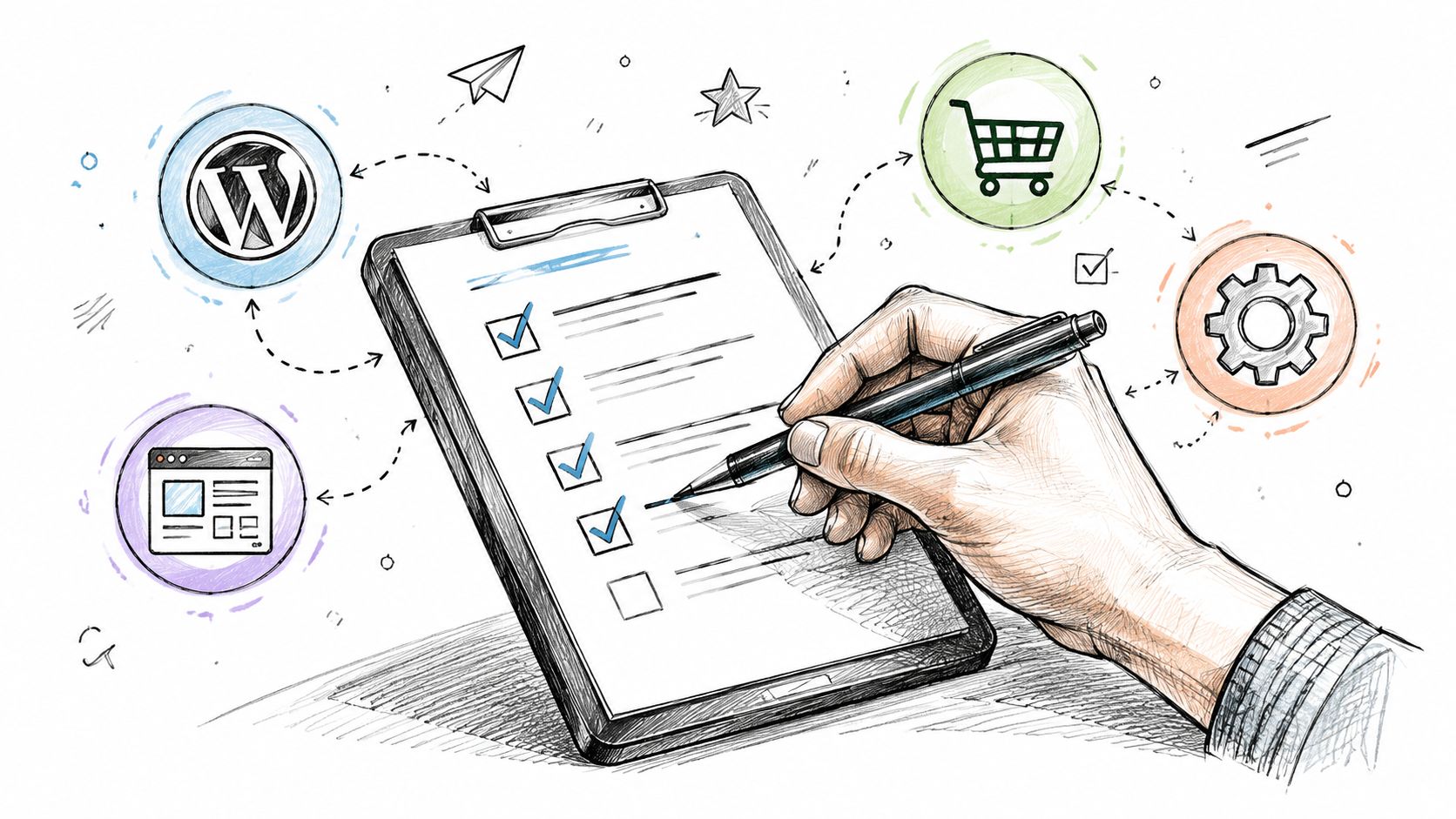
WordPress checklist
WordPress security problems usually come from plugin sprawl, weak admin hygiene, and neglected maintenance.
Use this shortlist:
- Audit plugins and themes. Remove anything unused, abandoned, or duplicated in function.
- Review admin users. Downgrade roles where possible and delete old accounts.
- Protect the login path. Pair strong passwords with MFA and avoid using the same credentials anywhere else.
- Update routinely. Core, themes, and plugins should move together as part of maintenance, not as a once-a-year cleanup.
- Check file integrity. Unexpected edits in core or theme files deserve a closer look.
- Use staging for risky changes. Security incidents often start after hurried live edits.
If you want a practical service layer around updates, monitoring, and routine hardening, WordPress maintenance support can reduce the number of manual tasks that get skipped.
cPanel checklist
cPanel gives site owners a lot of control. That's useful, but it also means more places to leave a gap open.
Focus on these areas:
- Harden account access by using unique credentials and MFA where available.
- Review file manager habits. Avoid leaving old zip archives, installer files, or test scripts in public directories.
- Clean up databases and users. Remove database users that no longer serve a live application.
- Check email accounts. Old mailboxes and weak passwords can become side doors into the account.
- Limit cron jobs and scripts to known tasks. If you can't explain what a scheduled process does, investigate it.
- Use backups deliberately. Know which restore points matter for each hosted site.
A common cPanel mistake is treating one hosting account like a junk drawer. Old staging copies, forgotten subdomains, and test installs increase exposure without giving the business anything useful back.
ASP.NET checklist
ASP.NET environments need the same basic security disciplines, but the details differ. Configuration, deployment handling, and application permissions matter more than plugin hygiene.
Check these items:
- Separate environments so development and live systems don't blur together.
- Lock down privileged access to the smallest group possible.
- Review application permissions so the app can only read and write where it needs to.
- Remove old deployments and deprecated application files from the live server.
- Protect configuration files and check that sensitive settings aren't exposed through sloppy deployment.
- Log application behaviour so unusual access patterns are visible during troubleshooting.
The safest website is usually the one with the fewest moving parts, the fewest privileged users, and the clearest recovery process.
If you're choosing a provider, assess them on practical controls rather than marketing language. For example, UpTime Web Hosting offers Australian-hosted plans with free SSL, malware scanning, DDoS-protected firewalls, encrypted off-site nightly backups, cPanel, WordPress, and ASP.NET hosting. Those features matter because they map directly to the controls discussed above.
Security work gets easier when the checklist matches the platform. That's how website protection stays maintained instead of becoming another document nobody opens.
If you want local hosting that aligns with a practical security and recovery workflow, UpTime Web Hosting offers Australian-based hosting options for WordPress, cPanel, and ASP.NET environments, along with SSL, malware scanning, DDoS-protected firewalls, and off-site backups. The useful next step is simple. Review your current setup against the checklists above and close the gaps that would hurt most during an outage or compromise.