You're probably here because your WordPress site is live, your content looks fine, and then a browser throws up a Not Secure warning. For an Australian small business, that's not a minor technical issue. It's the moment a customer hesitates before submitting a quote request, logging in, or finishing a checkout.
The good news is that getting a free SSL certificate for WordPress is no longer a complicated project or an expensive add-on. On most Australian hosting plans, it's already built in. The part that still catches people out is everything after installation: switching WordPress to HTTPS properly, fixing mixed content, and making sure renewal won't fail unnoticed later.
Table of Contents
- Why Your WordPress Site Needs That Padlock Icon
- The Easiest Path Your Free SSL via Your Host
- Alternative Free SSL Methods for WordPress
- Forcing HTTPS and Fixing Mixed Content Errors
- Verifying Your SSL and Managing Renewals
- Your Secure Australian Website Is Ready
- Frequently Asked Questions About Free WordPress SSL

Performance you can feel, backed by clients who depend on it. Read how our support and uptime create long‑term customer success.Power Your Business with Better Hosting
Why Your WordPress Site Needs That Padlock Icon
A visitor lands on your site, sees your branding, likes what you offer, then notices the browser warning. That warning does more damage than most business owners realise because it appears before trust has even had a chance to form.
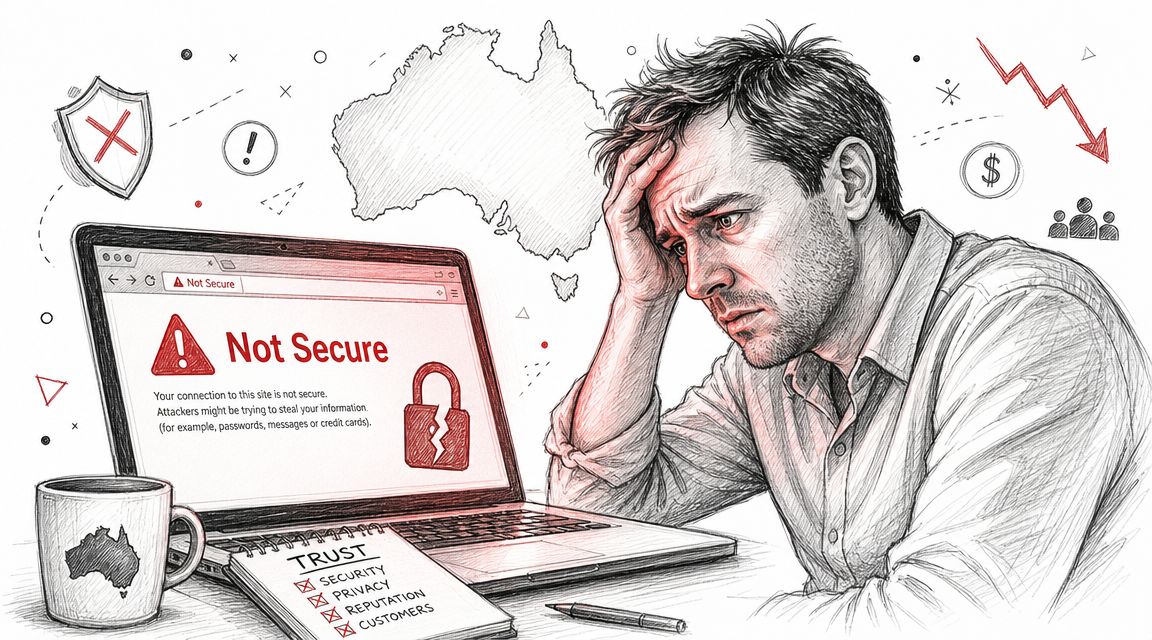
For WordPress, an SSL certificate is what enables HTTPS and the padlock icon. In plain English, it encrypts traffic between your visitor's browser and your server. That matters for online stores, membership sites, login pages, enquiry forms, and even a basic brochure site collecting leads. If someone types details into your website, they expect that connection to be secure.
Trust starts before a customer reads a word
Australian customers are used to secure-by-default websites now. If your site looks unsecured, many won't stop to work out whether the risk is real or just a setup problem. They'll leave.
Three practical reasons matter most:
- Customer confidence: People are more comfortable filling in forms, creating accounts, or paying when the browser shows HTTPS.
- Professional presentation: A modern business site is expected to load securely by default.
- Platform compatibility: More WordPress plugins, gateways, and integrations behave properly when the whole site runs under HTTPS.
Practical rule: If your site accepts logins, enquiries, or payments, SSL isn't optional.
Free SSL is now the baseline
This isn't a premium feature anymore. Let's Encrypt reports that it secures more than 700 million websites worldwide and is run by the nonprofit ISRG, which is a strong sign that free certificates are now part of the normal web security baseline, not a niche workaround (Let's Encrypt project overview).
For Australian WordPress owners, that changes the decision completely. You don't need to ask whether SSL is worth paying extra for. You need to make sure it's enabled, working properly, and paired with a full HTTPS setup. If you want a plain-English refresher on what changes when a site moves from HTTP to HTTPS, this HTTP vs HTTPS guide is a useful starting point.
The Easiest Path Your Free SSL via Your Host
For most site owners, the easiest way to get a free SSL certificate for WordPress is through the hosting account, not through WordPress itself. If your host already supports Let's Encrypt or AutoSSL in cPanel, use that first.
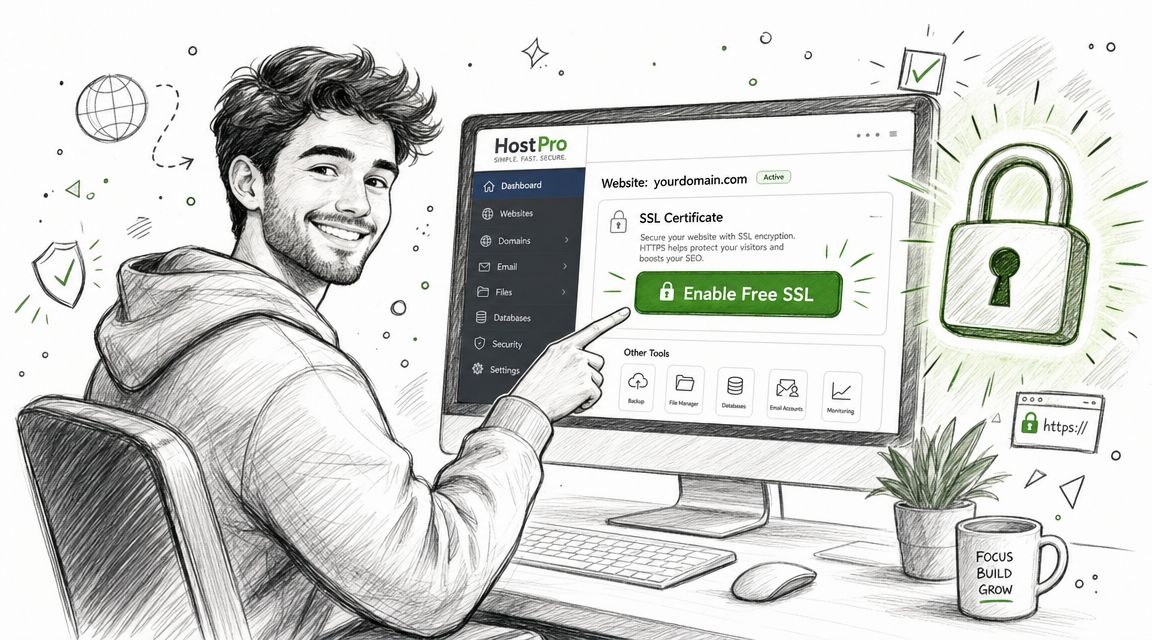
Australian hosting plans increasingly include complimentary Let's Encrypt SSL by default, which has made HTTPS deployment a normal hosting feature rather than a paid add-on (free SSL on hosting plans). That's the setup most small businesses should take advantage of.
Why host-level SSL is usually the cleanest option
When SSL is issued at hosting level, the certificate sits where it belongs, on the server handling the site. That usually means:
- Less manual work: You're not trying to solve server tasks from inside WordPress.
- Cleaner renewals: AutoSSL tools generally handle renewals in the background.
- Fewer plugin dependencies: If a plugin breaks or gets removed, your certificate isn't tied to it.
- Better fit for multiple sites: Agencies and businesses with several domains can manage SSL from one place.
If you're choosing hosting with this in mind, look for plans that already include cPanel and free SSL as standard, such as Australian WordPress hosting with cPanel support.
Typical cPanel steps for WordPress owners
The exact labels can vary slightly between hosts, but the process is usually straightforward.
Log in to cPanel
Open your hosting control panel and look for SSL/TLS Status, AutoSSL, or a similarly named SSL section.Check your domain is listed correctly
You want to see the main domain and, where relevant, the www version listed in the account.Run the SSL tool
If there's a button such as Run AutoSSL, Issue, or Install, click it and let the process finish.Wait for provisioning
Some accounts issue almost immediately. Others need a little time, especially if DNS changes were made recently.Test the HTTPS version of your site
Visithttps://yourdomainin the browser and check whether the certificate loads without warnings.Update WordPress settings
In WordPress admin, go to Settings > General and change both the WordPress Address and Site Address to HTTPS if they still show HTTP.Force redirection
Make sure anyone who visits the old HTTP version is automatically redirected to HTTPS.
A practical example: a local trades business might have a simple brochure site with a contact form. In that case, host-level SSL plus a redirect is usually enough. An online shop with WooCommerce has a bit more to check, especially carts, checkout, account pages, and any third-party scripts.
The easiest SSL install is the one your hosting stack can renew and manage without extra moving parts.
What to check if it doesn't issue straight away
Most failed SSL requests come down to a handful of common issues:
| Problem | What it usually means | What to do |
|---|---|---|
| Domain doesn't validate | DNS still points elsewhere or hasn't settled | Confirm the domain is pointed to the hosting account |
| One version works, one doesn't | Only apex or www is covered | Check both domain variants are included |
| Issue button runs but nothing changes | AutoSSL hasn't completed yet | Wait, then recheck the SSL status section |
| Site loads HTTPS but warns | Certificate is fine, content isn't | Move on to mixed content fixes |
If you're using cPanel, don't overcomplicate the first pass. Issue the certificate at hosting level, confirm the domain versions, then switch WordPress over properly. That order avoids a lot of headaches later.
Host your website with our 5-star rated, cPanel website hosting plans.
Super fast servers, with security included and hosted in your choice of Australian Data Center.
View cPanel Plans
Alternative Free SSL Methods for WordPress
Host-level SSL is still the default recommendation, but it's not the only route. Some WordPress owners prefer a plugin-assisted setup. Others already run their site through Cloudflare and want SSL handled there.
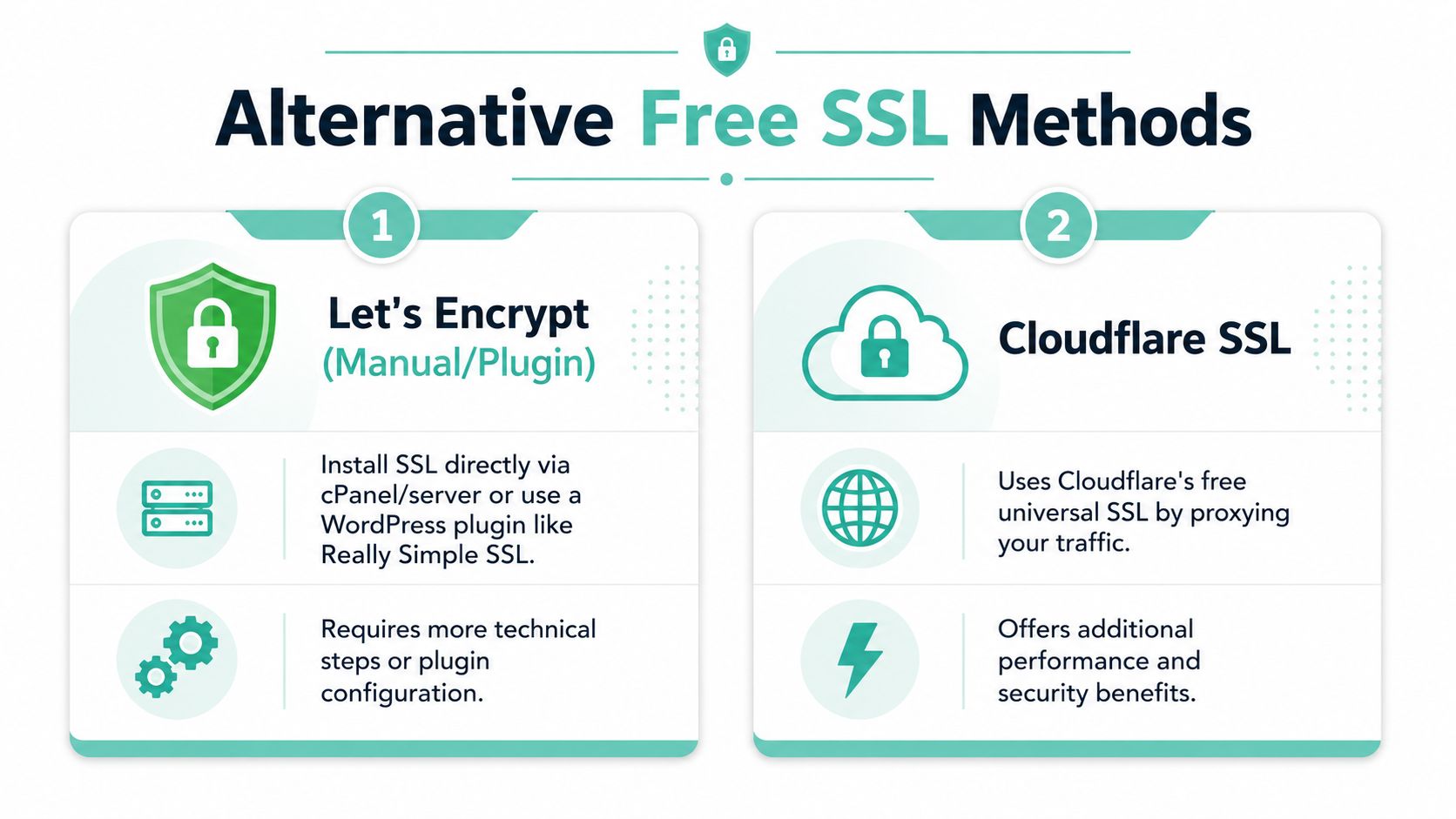
Plugin-based SSL inside WordPress
A plugin can help when the certificate already exists but WordPress still needs help recognising HTTPS consistently. Tools like Really Simple SSL are often used to detect SSL, update settings, and handle redirect behaviour.
This approach suits site owners who are comfortable inside the WordPress dashboard but not inside cPanel. It's often handy after a server-side certificate is already active.
The trade-offs are worth being honest about:
- Good for convenience: It can tidy up redirects and some common HTTPS issues quickly.
- Less ideal as a crutch: If the server certificate isn't properly installed, a plugin won't fix the underlying problem.
- Another dependency: If the plugin is disabled, some behaviours may stop.
If you're on a Plesk-based setup rather than cPanel, this knowledge base guide for installing free SSL on Plesk is a more reliable starting point than trying to solve everything from inside WordPress.
Cloudflare SSL for edge protection
Cloudflare's free SSL can be useful when you also want CDN and traffic filtering benefits. It secures the connection between the visitor and Cloudflare's network, and depending on your mode, it can also support secure connections back to the origin server.
In this context, many small businesses make a mistake. They turn on Cloudflare, select a loose SSL mode, see the site load, and assume the job is done. Sometimes it isn't.
A simple way to think about the common modes:
| Method | Visitor to Cloudflare | Cloudflare to server | Best use |
|---|---|---|---|
| Flexible | Secure | Not fully secured to origin | Temporary workaround only |
| Full | Secure | Secure, assuming origin has SSL | Better for proper end-to-end setup |
For business sites handling logins, orders, and account data, you want genuine end-to-end encryption, not just a padlock at the edge.
Which method makes sense for your setup
The right option depends on how your site is built:
- Single WordPress site on standard hosting: Use the host's free SSL first.
- Plesk or custom panel environment: Issue the certificate at panel level, then clean up WordPress settings.
- Cloudflare already in front of the site: Match Cloudflare mode to your origin certificate properly.
- Temporary redirect or migration cleanup: A plugin can help smooth the final switch to HTTPS.
What usually doesn't work well is mixing methods without a plan. Server SSL, plugin redirects, CDN rewriting, and custom rules can start fighting each other. That's when you get redirect loops, odd login behaviour, or partial HTTPS.
Forcing HTTPS and Fixing Mixed Content Errors
This is the part many guides skip. The certificate is installed, you visit the site, and the browser still complains. Usually that means mixed content.
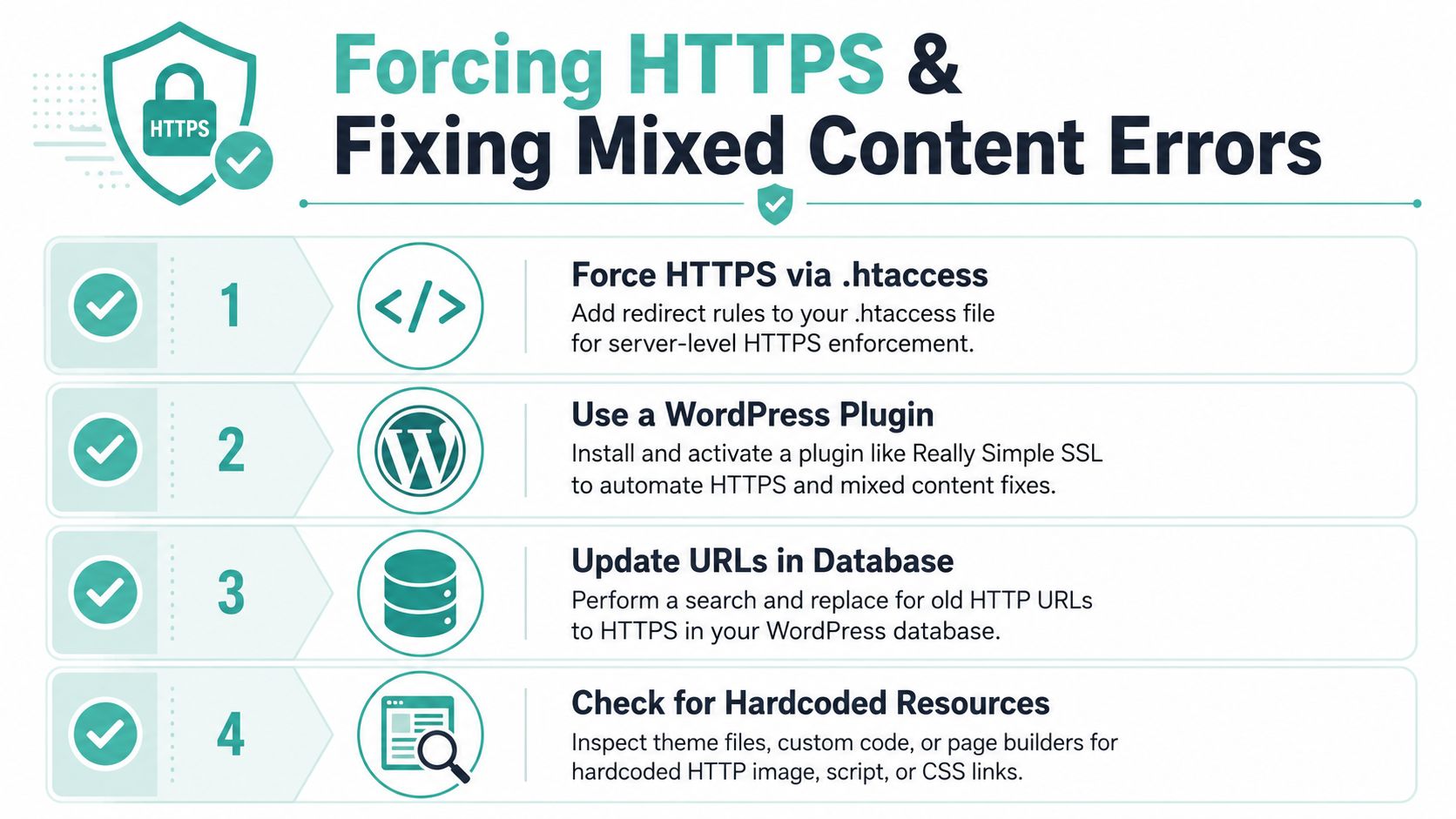
Mixed content happens when the page loads over HTTPS but some images, scripts, stylesheets, or embedded resources still load over HTTP. Guides often stop at installation, but mixed content, plugin conflicts, and broken login flows are common problems after SSL is enabled, and even short HTTPS mistakes can affect trust and transactions for Australian users doing everyday business online (common post-installation SSL issues).
Why the padlock still doesn't appear
WordPress sites often store full URLs in several places. That includes settings, media references, page builder content, theme options, and plugin fields.
If any of those still call http://, the browser sees a mismatch. The certificate may be valid, but the page isn't fully secure yet.
A valid certificate and a fully clean HTTPS site are not the same thing.
A practical fix order that works
Don't start by editing random files. Use a clean sequence.
Update the main site URLs
In WordPress admin, go to Settings > General and make sure both the WordPress Address and Site Address use HTTPS.Force HTTP to HTTPS redirection
Set the redirect at server level so old bookmarks and search results always land on the secure version. If you need cPanel-specific help, this cPanel guide to redirect HTTP to HTTPS covers the basic approach.Run a search and replace in the database
Use a reputable tool such as Better Search Replace to update old internal URLs from HTTP to HTTPS. This is often what fixes media files and old page content.Clear all caches
Clear any caching plugin, server cache, CDN cache, and then test again in a private browser window.Check key pages manually
Test the homepage, contact page, login page, checkout, account area, and any landing pages built with page builders.
Where mixed content usually hides
A lot of problems come from the same handful of places:
- Theme settings: Logos, background images, favicon paths.
- Page builders: Buttons, image blocks, saved templates.
- Old posts or pages: Hardcoded absolute links.
- Plugins: Forms, chat widgets, analytics snippets, sliders.
- Custom code: Header scripts, footer scripts, or template files.
If the warning remains, inspect the page in your browser tools and look for the blocked resource. That usually tells you exactly which file or setting still points to HTTP.
For more advanced users, a manual database cleanup and theme review is often the permanent fix. For less technical users, a plugin can help with the final cleanup, but it shouldn't replace correcting the root issue.
Verifying Your SSL and Managing Renewals
Once the padlock appears, don't stop there. A secure site needs a quick verification pass and a renewal plan that won't fail unnoticed in the background.
How to confirm the certificate is working
Start with the browser itself.
- Open the HTTPS version directly: Don't rely on a redirect test alone.
- Click the padlock: Confirm the browser recognises the connection as secure.
- Check both domain versions: Test the main domain and the www version if you use both.
- Visit important pages: Home, forms, logins, cart, checkout, and account pages.
If your host provides an SSL status page in the control panel, compare what the browser shows with what the account shows. Those two checks together catch most basic problems.
Renewals are where real problems start
The biggest risk with free SSL usually isn't getting the first certificate issued. It's keeping renewals working. Let's Encrypt certificates expire every 90 days, so automatic renewal is essential. If renewal fails, browsers can flag the site as insecure, which can affect email, payments, and reputation for Australian SMEs (renewal risks with Let's Encrypt).
That's why hosting-level automation matters so much. If your SSL is tied into AutoSSL or a managed control panel workflow, renewals are usually much smoother than manual issue-and-forget setups.
Watch for this: a site that worked perfectly for months can still fail overnight if renewal automation breaks.
If a browser starts showing warnings later, don't assume your WordPress install changed. Check the certificate expiry first.
A short troubleshooting checklist
If renewal or trust fails, work through these checks in order:
- Domain coverage: Make sure both apex and www versions still resolve the way you expect.
- Validation path: If the CA can't validate the domain, renewal may fail.
- Port access: Temporary blocks or firewall rules can interfere with validation.
- Server binding: On self-managed stacks, the certificate may not be attached to the right virtual host.
- Certificate chain: Some setups need the intermediate chain bundled correctly.
- Recent DNS changes: If you changed records just before renewal, wait for them to settle and then test again.
When the browser throws a privacy warning, this guide to fixing “your connection is not private” errors can help you narrow down whether the problem is expiry, configuration, or mixed HTTPS behaviour.
Register your new domain name at competitive market prices including free domain add-ons like privacy, DNS Hosting, Custom Nameservers and Forwarding.
Always the best price and no nasty renewal price hikes.
Register A Domain Name
Your Secure Australian Website Is Ready
A free SSL certificate for WordPress is now part of a normal, professional website setup in Australia. The practical path is usually simple: issue the certificate through your host, switch WordPress fully to HTTPS, force redirects, and clean up mixed content properly.
That last part matters. Plenty of sites have a valid certificate but still show warnings because old HTTP assets were left behind. Others work fine at first and then break later because renewal wasn't automated or checked.
If your site now loads cleanly over HTTPS, shows the padlock, and sends every old HTTP request to the secure version, you've done the important work. Your visitors see a business that takes trust seriously, and your WordPress site is in much better shape for forms, logins, sales, and day-to-day use.
Frequently Asked Questions About Free WordPress SSL
Is a free SSL certificate secure enough for a business WordPress site
For most small business WordPress sites, yes. A free domain-validated certificate from Let's Encrypt encrypts traffic between the browser and server and is suitable for contact forms, logins, and standard eCommerce use. The bigger issue usually isn't whether the certificate is free. It's whether the site is configured properly and renews on time.
How long does it take to install a free SSL certificate for WordPress
If your host provides SSL in cPanel or a managed panel, it can be quite quick. The actual timing depends on whether your domain already points to the right server and whether WordPress still needs HTTPS cleanup afterwards. The certificate install is often the easy part. Redirects and mixed content checks usually take longer.
What should I do if HTTPS works but the padlock still doesn't show
That usually points to mixed content. Check whether images, scripts, stylesheets, theme assets, or page builder content still load over HTTP. Then update the WordPress site URLs, run a database search and replace if needed, clear caches, and retest your key pages in a fresh browser session.
If you want local help sorting out SSL, WordPress hosting, cPanel setup, or those frustrating post-installation issues, UpTime Web Hosting offers Australian hosting with free SSL included on relevant plans, plus local support for business websites that need a clean HTTPS setup without the usual runaround.