
You've probably opened a website setting, seen a file called Robots.txt, and wondered whether it's important or just one more technical thing you can ignore. That's a common spot for small business owners, especially when you're already juggling hosting, email, pages, online bookings, and trying to show up in Google.
Robots.txt matters, but not in the way many people think. It won't lock down private pages. It won't magically fix rankings. What it does is much more practical. It gives search engine crawlers clear instructions about where they should and shouldn't spend time on your site.
If you run a business website in Australia, that can help you keep crawlers focused on the pages that matter, avoid wasted requests on low-value areas, and reduce the risk of messy crawl behaviour after redesigns or migrations. The trick is knowing what Robots.txt can do, what it can't do, and how to put the file in the right place on your hosting account.
Table of Contents
- What Is a Robots.txt File Anyway?
- Decoding the Robots.txt Language
- Robots.txt Examples for Common Setups
- Best Practices and Critical Mistakes to Avoid
- How to Test Your Robots.txt File
- Deploying Your Robots.txt on UpTime Hosting
- Frequently Asked Questions About Robots.txt

Performance you can feel, backed by clients who depend on it. Read how our support and uptime create long‑term customer success.Power Your Business with Better Hosting
What Is a Robots.txt File Anyway?
Think of your website like a shopfront with a few public areas and a few work-only areas. Customers should see your products, service pages, and contact details. They don't need to wander into admin folders, test pages, or search result URLs created by your site.
A Robots.txt file is the set of instructions you leave for automated visitors such as search engine crawlers. It sits at the root of your website and tells those bots where they're welcome to crawl and where they should stay out.
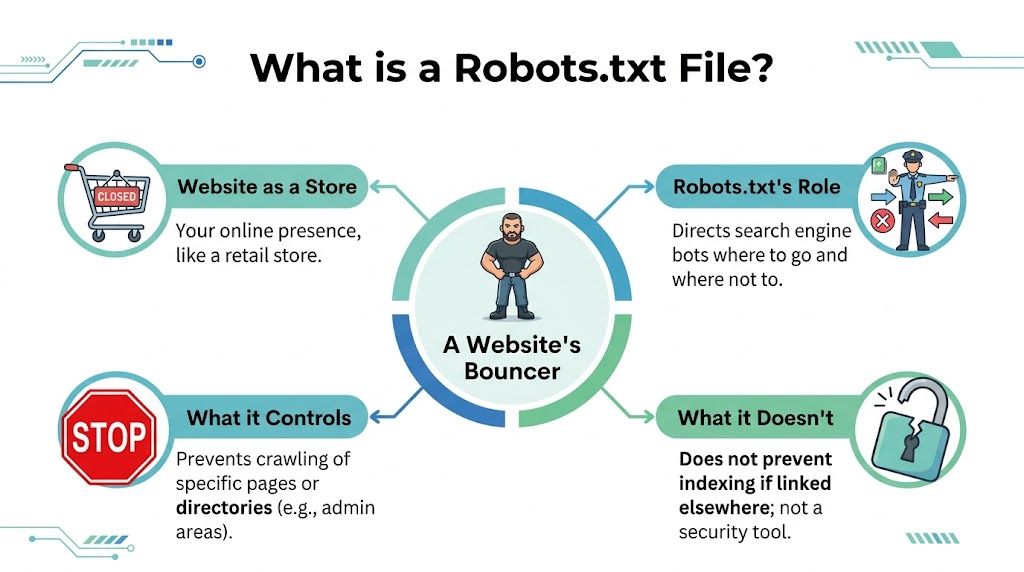
For Australian businesses, the most important idea is simple. Robots.txt controls crawling, not indexing. Google's documentation is clear that Robots.txt is mainly used to avoid overloading a site with requests, and a page that's blocked in Robots.txt can still stay discoverable in search unless you use noindex or password protection, as explained in this overview of how Robots.txt guides crawlers and sitemap discovery.
That single distinction causes a lot of confusion.
What Robots.txt does well
Robots.txt is useful when you want to guide bot traffic sensibly. For example:
- Reduce clutter: Stop crawlers wasting time on admin paths, internal search pages, or temporary folders.
- Focus attention: Help bots spend more effort on key service, product, and location pages.
- Point to your sitemap: You can include a sitemap line so crawlers can find your main content more efficiently.
- Manage each host properly: If your business uses multiple subdomains, each one needs its own Robots.txt file.
What Robots.txt does badly
This file is not a lock.
If you place a private PDF, staging page, or sensitive folder on a public server and only block it in Robots.txt, you haven't secured it. Some bots may ignore the file, and people who know the address may still reach the content directly.
Practical rule: Use Robots.txt to guide polite crawlers. Use passwords or proper access controls to protect anything private.
That matters for small businesses because it's easy to assume “disallow” means “hidden”. It doesn't.
If you're learning SEO at the same time, this distinction becomes even more useful. A practical primer on SEO for hosted business websites can help connect crawl control with broader visibility work like content structure and page discoverability. And if you want a plain-English example of how search visibility decisions differ by industry, this mattress industry marketing guide is a good reminder that not every page deserves the same search treatment.
The simplest way to think about it
A good mental model is this:
Robots.txt is a traffic sign for bots, not a roller door with a key.
That mindset helps you avoid two expensive mistakes. First, blocking important pages by accident. Second, trusting Robots.txt to protect content it was never designed to protect.
Decoding the Robots.txt Language
Robots.txt looks technical at first glance, but the language is quite small. The hard part isn't learning many commands. The hard part is being precise, because the file is picky about format.
Google's Robots.txt specification says the file must be a UTF-8 plain-text document placed at the top-level path such as /robots.txt, and Google applies a 500 KiB processing limit, meaning anything after that point is ignored. It also reads directives as field: value pairs, with case-insensitive field names, as detailed in Google's Robots.txt file format specification.
Where the file lives
If the file isn't at the root of the site, crawlers won't treat it as the site's Robots.txt file.
That means you want it in the main web-accessible location so visitors and bots can reach it at:
https://yourdomain.com.au/robots.txt
Not in a random folder. Not as a Word document. Not as a page inside your CMS editor.
For businesses running multiple properties, remember that a file on one host doesn't automatically cover another. Your main site, shop subdomain, or blog subdomain each need their own setup where relevant.
The core directives
Most small business websites only need a few lines.
Here are the main building blocks:
User-agentidentifies which crawler the rule applies to.Disallowtells that crawler not to fetch a path.Allowcreates an exception inside a broader blocked area.Sitemappoints crawlers to your XML sitemap.#comments let you leave notes for humans reading the file later.
A basic example looks like this:
User-agent: *
Disallow: /admin/
Sitemap: https://yourdomain.com.au/sitemap.xml
The asterisk in User-agent: * means “all crawlers”.
A more specific example might look like this:
User-agent: *
Disallow: /private/
Allow: /private/public-brochure.pdf
That tells crawlers to stay out of /private/ except for one file.
A quick reference table
| Directive | Purpose | Example |
|---|---|---|
User-agent | Tells the file which bot a rule applies to | User-agent: * |
Disallow | Blocks crawling of a path | Disallow: /cart/ |
Allow | Permits a path inside a broader blocked section | Allow: /images/public-logo.png |
Sitemap | Points crawlers to your XML sitemap | Sitemap: https://yourdomain.com.au/sitemap.xml |
# | Adds a human-readable comment | # Block internal search pages |
Small syntax details that trip people up
This file is simple, but it's not forgiving.
A few common points of confusion:
- Plain text only. Rich text editors can add hidden formatting that breaks the file.
- Keep it tidy. Very large files can cause lower rules to be ignored once the processing limit is reached.
- Comments help future you. A short note beside unusual rules makes later troubleshooting much easier.
- Be careful with broad blocks. A single slash can change everything.
For example, these lines mean very different things:
Disallow: /
That blocks everything.
Disallow:
That allows everything.
Allow: /
That also allows everything.
If you've ever looked at a Robots.txt file and thought, “That seems too short to matter,” that's normal. Good Robots.txt files are often brief. Clear beats clever.
Host your website with our 5-star rated, cPanel website hosting plans.
Super fast servers, with security included and hosted in your choice of Australian Data Center.
View cPanel Plans
Robots.txt Examples for Common Setups
Most business owners understand Robots.txt faster when they see a real example. The file has been in use for over 20 years, and its core directives are still the familiar User-agent, Disallow, and Allow. A rule such as Disallow: / blocks everything, while an empty Disallow: or Allow: / permits full crawling, as outlined in this summary of the long-running Robots.txt standard and directive behaviour.

The simple allow-all file
For many small brochure-style websites, the best starting file is minimal:
User-agent: *
Disallow:

Sitemap: https://yourdomain.com.au/sitemap.xml
This says, “All bots can crawl the site.” It's often better than inventing restrictions you don't need.
A local accountant, café, plumber, or consultant site with only a few public pages usually fits this pattern. If all pages are meant to be found and there aren't messy faceted filters or search result URLs, keeping the file open and simple avoids accidental blocking.
A practical WordPress example
A common WordPress setup might look like this:
User-agent: *
Disallow: /wp-admin/
Allow: /wp-admin/admin-ajax.php

Sitemap: https://yourdomain.com.au/sitemap.xml
This is a practical pattern for a standard content site. It discourages crawler access to the admin area while allowing a file that some site functions may need.
If you run WordPress and want the platform itself kept healthy as well as crawlable, a regular WordPress maintenance routine helps because plugin changes, theme edits, and staging leftovers can all affect how clean your public site structure looks to crawlers.
A tidy WordPress site usually produces a tidy Robots.txt file. The opposite is often true as well.
A static website example
A small HTML site often needs almost nothing:
User-agent: *
Disallow:

Sitemap: https://yourdomain.com.au/sitemap.xml
If you've uploaded a hand-built site with a few service pages, an about page, and a contact form, there may be no reason to block anything at all.
Sometimes owners overcomplicate this by trying to disallow image folders, CSS files, or script folders. That usually creates more trouble than benefit, especially if those resources help search engines understand the page layout.
An eCommerce example
Online stores usually generate more URL clutter. Search filters, internal search results, sort parameters, and temporary campaign folders can make crawling messy.
A simplified example:
User-agent: *
Disallow: /search/
Disallow: /cart/
Disallow: /checkout/
Disallow: /account/

Sitemap: https://yourdomain.com.au/sitemap.xml
That setup can make sense for public product pages while keeping low-value customer-only or process-only areas out of crawler traffic.
The key is not to block category pages or product pages you want discovered. If you're unsure, start conservative. It's safer to allow too much than to block the wrong commercial pages.
An ASP.NET Windows hosting example
Businesses running Windows-based sites often have a mix of public pages and application paths. A practical example could be:
User-agent: *
Disallow: /admin/
Disallow: /account/
Disallow: /app_data/

Sitemap: https://yourdomain.com.au/sitemap.xml
The exact folders vary by build, so don't copy this blindly. Check your real public URL structure first. If a path isn't publicly exposed, you may not need a Robots.txt rule for it at all.
The broader lesson is this. Write rules for public URL paths that crawlers can request, not internal server concepts that don't affect public crawling.
Best Practices and Critical Mistakes to Avoid
A bad Robots.txt file can subtly damage a site. Not because it looks dramatic, but because a single wrong rule can stop crawlers reaching the pages you truly want discovered.
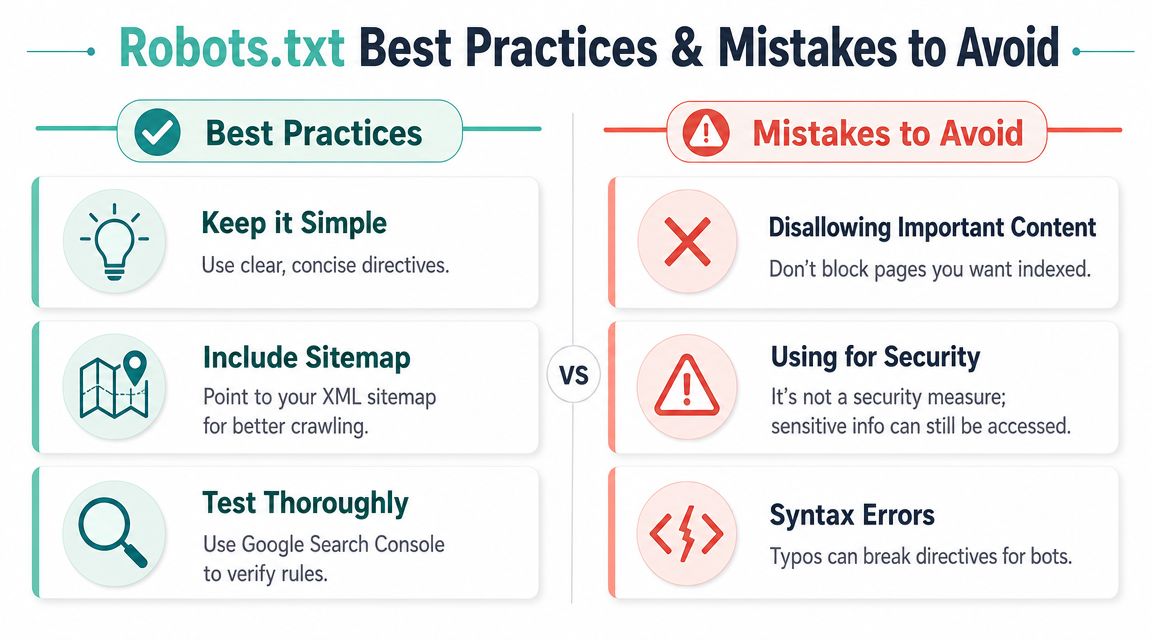
Google is direct on this point. Robots.txt is not a way to keep a page out of Google Search. A Disallow rule may stop crawling while a URL remains discoverable through links, so businesses that need a page de-indexed should use noindex or password protection instead, according to Google's guidance on crawling, indexing, and Robots.txt.
What to use instead of Robots.txt for privacy
If the page is private, protect it properly.
That means using:
- Password protection for staff-only or client-only areas
- Appropriate CMS privacy settings where available
- Server-side access controls for sensitive resources
If the page is public but you don't want it indexed, then a noindex approach is the right tool. The important part is matching the tool to the job.
A blocked page in Robots.txt can still cause confusion if other sites link to it. You may end up with a URL visible in search without Google fully fetching the page content.
Mistakes that quietly cause problems
Some errors show up again and again on business sites.
- Blocking the whole site by accident:
Disallow: /is fine on a development environment. It's a disaster on a live site. - Hiding login or private areas with Robots.txt alone: That's not security. It's just a signpost that tells polite bots to stay away.
- Blocking useful resources: If crawlers can't access important styling or script files, they may struggle to understand the page properly.
- Forgetting subdomains: A rule on the main site won't automatically control your blog, shop, or booking subdomain.
- Leaving old rules after a redesign: Migrations often move folders, rename paths, or create redirects that make old rules harmful.
One related issue people run into is a 403 error, where access is denied for reasons unrelated to crawl guidance. If you're troubleshooting whether a page is blocked by Robots.txt or by the server itself, this guide to understanding HTTP 403 errors helps separate crawler instructions from actual access restrictions.
Key check: If the content must stay private, don't ask whether Robots.txt is enough. It isn't.
A safer operating checklist
A cautious approach works best.
- Start with the fewest rules possible. Most small sites don't need a long file.
- Only block low-value crawl paths. Admin areas, cart pages, or internal search paths are common examples.
- Leave a sitemap line. That gives crawlers a clean path to your important URLs.
- Review after every redesign or migration. File paths that used to make sense may now block the wrong content.
- Test before and after publishing. The cost of checking is low. The cost of getting it wrong can be high.
The best Robots.txt file is usually boring. That's a compliment.
How to Test Your Robots.txt File
Testing saves headaches. A Robots.txt rule can look harmless in a text editor and still block something important once it's live.
What to check before testing
Before you open any tool, confirm a few basics:
- The file is reachable at the root: yourdomain.com.au/robots.txt
- It's plain text: no hidden formatting from a word processor
- The key URLs are listed separately somewhere: homepage, service pages, blog posts, cart, account area, and any location pages
That short prep work makes testing much faster because you're checking real business-critical URLs, not random examples.
Testing with Google Search Console
Google Search Console is the most practical place to validate how Google sees your setup. If you haven't connected your domain yet, this UpTime knowledge base article on confirming domain ownership for Google helps you get access first.
Once you're in:
- Open the relevant property for the exact domain or subdomain you're testing.
- Review the Robots.txt content that Google can fetch.
- Test specific URLs one by one, especially pages that matter to revenue or leads.
- Check the result carefully. You want to know whether a URL is allowed or blocked, and by which rule.
- Edit and retest if a result surprises you.
If a service page, location page, or product page comes back blocked, pause and fix the rule before leaving the file in production.
Test the pages that make money first. Home page, core services, product pages, and your contact path matter more than edge-case URLs.
One more practical habit helps. Test again after major changes such as plugin updates, site restructures, CMS migrations, or subdomain launches. Robots.txt problems often appear after a technical change, not after the day the file was first written.
Register your new domain name at competitive market prices including free domain add-ons like privacy, DNS Hosting, Custom Nameservers and Forwarding.
Always the best price and no nasty renewal price hikes.
Register A Domain Name
Deploying Your Robots.txt on UpTime Hosting
Once your file is ready, deployment is mostly about putting it in the correct root location for the hosting environment you use. The most common problem isn't the content of the file. It's uploading it to the wrong place or forgetting that a subdomain needs its own file.
That matters even more after redesigns and migrations. Digital.gov notes that stale Robots.txt rules are a common problem, that each subdomain needs its own file, and that rules don't automatically transfer across hosts. Their guidance for businesses includes auditing each subdomain, confirming the root file on every host, testing redirects through disallowed paths, and checking that important landing pages aren't blocked, as described in this resource on managing Robots.txt across subdomains and site changes.

Uploading with cPanel File Manager
If your site uses cPanel, this is usually the easiest path.
- Log in to cPanel.
- Open File Manager.
- Go to the site's web root, often
public_htmlfor the main domain. - Check whether a
robots.txtfile already exists. - Upload your file or create a new plain-text file named
robots.txt. - Save it, then open
yourdomain.com.au/robots.txtin a browser to confirm it loads.
If you'd like a visual walkthrough of the upload process itself, this guide to uploading your website into cPanel using File Manager is a handy reference.
Uploading with FTP
Some business owners work with a developer, and some agencies still prefer FTP for quick file changes.
The rule is the same. Connect to the website, open the correct root folder for the specific domain, and upload robots.txt there. After upload, load the file in a browser and test the live version.
If your site has add-on domains or subdomains, make sure you're in the right document root. Putting one file in the main account root won't automatically govern every hosted property.
Using Sitejet
Website builders can be less obvious because they hide the file system from you.
If you're using Sitejet, look for the SEO or site settings area that allows Robots.txt management or custom crawl directives. The key point stays the same. The final published site needs a plain-text Robots.txt accessible at the root URL for that site.
If the builder offers a field rather than direct file access, enter your content carefully and publish changes. Then confirm the live file loads correctly in the browser.
Deploying on VPS or custom stacks
Managed VPS users often have more control and therefore more ways to put the file in the wrong place.
Check which web root your stack uses for the live domain. Then place robots.txt in that public root. If you run multiple vhosts, containers, or separate app instances, validate each host individually.
This is also the setup where stale files tend to linger after migrations. If content moved from one subdomain to another, review both ends. Old disallow rules can survive long after the business has forgotten they exist.
Deploying on ASP.NET Windows hosting
On Windows hosting with IIS, upload or create robots.txt in the public root of the site so it resolves directly from the domain root.
Then verify:
- The file is publicly accessible
- The MIME handling doesn't interfere with plain text delivery
- The site serves the file without redirect loops or permission issues
For applications with separate admin paths, customer account areas, or app folders, review the live public URLs rather than assuming folder names match your development structure.
Frequently Asked Questions About Robots.txt
Do I need a Robots.txt file if my site is small?
Usually, yes. Even a simple file that allows crawling and lists your sitemap gives crawlers a clear starting point.
Does one Robots.txt file cover all my subdomains?
No. Each subdomain needs its own file if it serves content independently.
Should I block my whole site during development?
You can temporarily use a full block while a site is not meant for crawling, but don't rely on that as security. If the site is private, use password protection as well.
Can different bots treat my rules differently?
Yes. Well-behaved crawlers generally follow the protocol, but not every bot will behave the same way. That's why Robots.txt is guidance, not enforcement.
What if I redesign my site?
Review the file straight away. Old blocked paths, redirects, and changed folder structures can create crawl issues after launch.
If you want local hosting that makes website management simpler, UpTime Web Hosting offers Australian-based hosting for cPanel, WordPress, ASP.NET Windows, Sitejet, and VPS setups, backed by local support. If you're updating your Robots.txt file as part of a broader site cleanup or migration, having responsive hosting support close to home can make the technical side much less stressful.