Is Your Website an Open Invitation for Attackers?
You've poured time and money into your business website. But a single security oversight, an outdated plugin, a weak password, or a misconfigured server, can undo it all overnight. For many Australian small businesses, website security feels overwhelming, but ignoring it is a risk you can't afford. This actionable checklist demystifies the process, giving you 10 clear, prioritised steps to lock down your site, protect your customers' data, and secure your online reputation.
If you're running a WordPress site, an online store, a booking system, or even a simple brochure website with contact forms, you're already handling business-critical information. That might include customer enquiries, invoice emails, login credentials, or order details. Attackers don't care whether your business is large or small. They care whether your setup is easy to exploit.
That matters even more in Australia. In FY 2024 to 2025, small and mid-sized businesses faced 15% more cyber incidents than the previous year, and the average cost of a single breach reached $29,000, according to Adl99's cyber security checklist for Australian SMBs. A practical website security checklist helps you reduce avoidable risk before you end up dealing with downtime, data loss, customer distrust, and a messy recovery.
Table of Contents
- 1. Secure Communications
- 2. Implement Strong Password Policies and Multi-Factor Authentication
- 3. Keep Software, Plugins, and Themes Updated
- 4. Configure Regular Automated Backups with Offsite Storage
- 5. Set Up Web Application Firewalls and DDoS Protection
- 6. Perform Regular Security Audits and Vulnerability Scans
- 7. Implement Principle of Least Privilege
- 8. Monitor Logs and Set Up Security Alerts
- 9. Secure Database Configuration and SQL Injection Prevention
- 10. Create and Maintain a Security Policy and Incident Response Plan
- 10-Point Website Security Comparison
- Turn Your Checklist into a Lasting Security Culture

Performance you can feel, backed by clients who depend on it. Read how our support and uptime create long‑term customer success.Power Your Business with Better Hosting
1. Secure Communications
SSL is the obvious starting point, but many Australian businesses stop too early. They install a certificate, see the padlock, and assume the job's done. It often isn't. Mixed-content pages, hardcoded HTTP links, and unsecured email settings still leave gaps attackers can use.
That gap is common locally. Business.gov.au's cyber security checklist guidance notes that 68% of Australian small businesses still operate with mixed-content pages that bypass sitewide SSL enforcement, which is exactly the kind of issue a basic setup misses. If your site handles enquiries, payments, or account logins, end-to-end encryption matters for both trust and Privacy Act obligations.
Use HTTPS properly across the whole site
A proper HTTPS setup means more than issuing a certificate. Your server needs to force HTTP to HTTPS, your CMS needs the correct site URL, and your internal assets need to load securely.
A common example is a WordPress site on local hosting that shows a padlock on the homepage but throws browser warnings on the checkout or contact page because an old image, script, or form action still loads over HTTP. With hosting that includes free SSL, such as UpTime Web Hosting, the certificate part is simple. The primary work is checking the whole site after activation.
Protect your domain from email spoofing
If your domain sends invoices, booking confirmations, or support replies, you also need SPF, DKIM, and DMARC. Without them, attackers can impersonate your business and send fake payment requests that look convincing to customers.
Practical rule: Roll out DMARC gradually. Start with monitoring, then tighten to quarantine, then reject once you're confident your legitimate mail is passing.
Use tools such as SSL Labs for HTTPS testing and MXToolbox for mail checks. If you're using cPanel, follow UpTime's guide to implementing SPF, DKIM, and DMARC in cPanel so your website and your email reputation are protected together.
2. Implement Strong Password Policies and Multi-Factor Authentication

Weak passwords are still one of the easiest ways into a business website. The problem isn't just "password123". It's reused passwords, shared logins, old staff accounts, and admin access left protected by a single factor.
The Australian Cyber Security Centre is very clear here. Its small business cyber security checklist.pdf) states that implementing MFA on all critical accounts reduces the risk of unauthorised access by up to 99.9%. For Australian SMBs, that's one of the highest-impact changes you can make quickly.
Make MFA mandatory for critical access
Start with your hosting account, domain registrar, Microsoft 365 or Google Workspace admin, WordPress administrators, payment systems, and any database or cloud dashboards. If one of those gets compromised, the attacker usually doesn't need a second weakness.
For Australian SMBs with 10 or more staff, CX IT Services' cybersecurity checklist for Australian businesses recommends phishing-resistant MFA such as authenticator apps or hardware keys over SMS. That's sound advice in practice. SMS is better than nothing, but app-based verification is harder to intercept and easier to standardise across a team.
What works better than password rules alone
Password expiry rules on their own often create bad habits. Staff start making tiny variations of the same password, writing credentials down, or reusing patterns. A password manager plus MFA works better for most businesses.
Try this setup:
- Use unique admin logins: Give each staff member their own account. Don't share one "admin" user across the business.
- Store backup codes safely: Keep recovery codes in a business password manager, not in someone's inbox.
- Secure hosting access first: Turn on 2FA before you delegate cPanel or billing access to staff. UpTime has a knowledge base guide for setting up two-factor authentication that makes this straightforward.
A digital agency, for example, might allow content staff into WordPress but require stronger controls for hosting, DNS, and database access. That's the right split. Not every login carries the same risk.
Host your website with our 5-star rated, cPanel website hosting plans.
Super fast servers, with security included and hosted in your choice of Australian Data Center.
View cPanel Plans
3. Keep Software, Plugins, and Themes Updated
Most website compromises aren't dramatic zero-day stories. They're boring, predictable failures. An old plugin stays installed. A theme hasn't been updated for months. A business delays patches because nobody wants to break the site before a campaign launch.
That's why updates need a routine. Leaving software untouched is effectively betting that no one will probe the known weaknesses in your stack. That's a bad bet if your website processes leads, customer records, or online orders.
Update with a process, not panic
A good update process is simple. Turn on automatic updates where appropriate, test major changes on staging, and remove anything you no longer use. Unused plugins and themes aren't harmless. If they're installed, they still expand your attack surface.
One common scenario is an eCommerce site that updates WooCommerce core but leaves an older payment extension in place because "it still works." Another is a marketing site with six form plugins installed over time, even though only one is active. Those leftovers become liabilities.
Use this working rule:
- Update the core platform promptly: WordPress core, your theme framework, and critical plugins shouldn't sit pending.
- Test risky changes first: Page builders, checkout tools, membership plugins, and custom-coded themes deserve a staging check.
- Delete what you don't need: Deactivating isn't enough. Remove old plugins, dormant themes, and abandoned extensions completely.
A tidy plugin list is a security control, not just a maintenance preference.
If you want a practical walkthrough for site owners and junior admins, UpTime's WordPress update guide for plugins, themes, and core files is a useful reference. For many SMBs, the win isn't advanced tooling. It's keeping the basics current every week.
4. Configure Regular Automated Backups with Offsite Storage
If your website is hacked today, how fast can you restore it to a clean state? Most businesses don't know. That's a problem, because recovery time often matters more than the original infection.
The ACSC advises businesses to keep a minimum of three copies of data, meaning the live site plus two backups, in its checklist for small businesses. That backup discipline is one of the clearest differences between a stressful incident and a manageable one. A backup isn't just a file. It's your exit plan.
Backups only matter if restore works
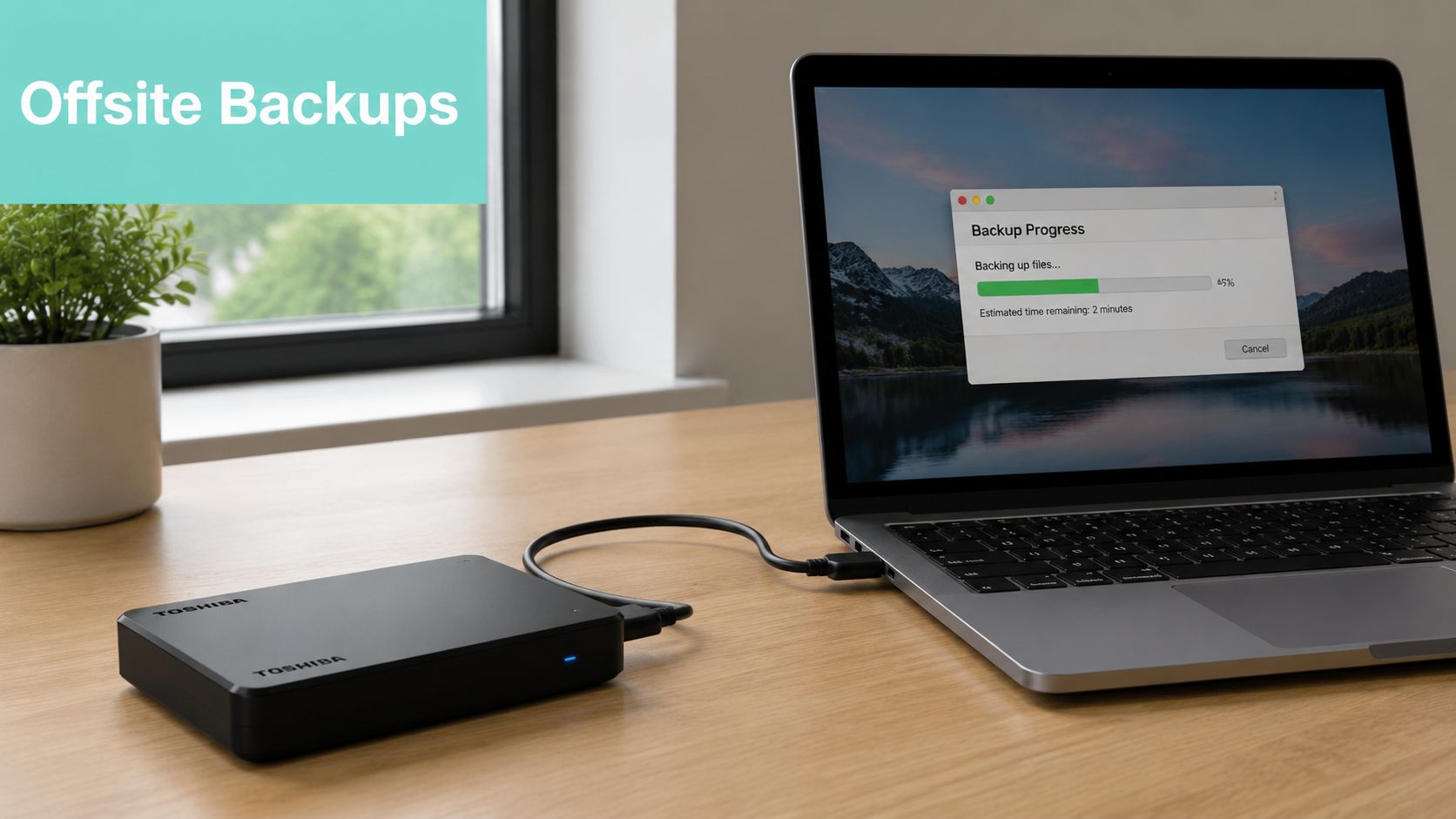
The strongest setup for an SMB website is automated offsite backup with regular restore testing. On-host backups are useful, but they shouldn't be your only copy. If a server fails, a hosting account is corrupted, or ransomware spreads, you want another clean location to restore from.
A practical example is an online store that pushes product changes daily. Nightly encrypted backups protect against plugin failures, bad updates, and malicious file changes. A service-based business with fewer content changes might still need daily database backups if enquiries and bookings arrive through forms.
What works in practice:
- Automate backups: Manual backups get forgotten when business gets busy.
- Store copies offsite: Keep backups separate from the live hosting environment.
- Test restores regularly: Restore to staging so you know the files, database, and configuration all come back cleanly.
UpTime includes encrypted nightly backups on many plans, which takes a lot of administrative burden off small teams. If you want the hosting-side basics explained clearly, read UpTime's overview of off-site backup for websites.
5. Set Up Web Application Firewalls and DDoS Protection
A WAF sits between your website and incoming traffic. It filters malicious requests before they hit your application, which matters because many attacks aren't complex. They're automated, repetitive, and opportunistic. If your site doesn't block them early, your CMS and server do the hard work instead.
Hosting choice matters. A local business site usually doesn't need a complex enterprise security stack, but it does need sensible default protection. Built-in WAF and DDoS shielding are far more useful than a long list of optional extras you never configure.

Use hosting-level protection first
If your host already includes DDoS-protected firewalls, enable and understand them before piling on multiple plugins. Too many overlapping tools can cause false positives, performance issues, and troubleshooting headaches.
A simple example is a WordPress site that uses ModSecurity at the server level and then adds targeted application rules for login abuse, suspicious uploads, and exploit patterns. That's usually more effective than relying only on a frontend plugin.
Good firewall practice looks like this:
- Turn on WAF protection immediately: Don't wait until suspicious traffic appears.
- Review logs monthly: Look for recurring blocked requests, odd paths, and countries you don't serve.
- Whitelist carefully: Only exempt trusted services or offices that need direct access.
Most SMB sites don't need more tools. They need fewer tools configured properly.
If you want a plain-English explanation of how this works in hosting, UpTime's web application firewall guide is worth reading. For many businesses, this is one of the easiest high-value steps on the website security checklist.
Register your new domain name at competitive market prices including free domain add-ons like privacy, DNS Hosting, Custom Nameservers and Forwarding.
Always the best price and no nasty renewal price hikes.
Register A Domain Name
6. Perform Regular Security Audits and Vulnerability Scans
Security controls drift over time. A plugin gets added for a campaign, a former contractor account stays active, file permissions change during troubleshooting, or a staging copy ends up indexed and forgotten. Regular audits catch the quiet problems that don't announce themselves.
The ACSC checklist also recommends staff education, emergency planning, and joining its Partnership Program for threat alerts. That broader approach matters because a scan alone won't tell you whether your team is still following safe practices, or whether your response process works under pressure.
What to check during each audit
Run a mix of automated scans and manual reviews. Automated tools help you find malware signatures, known vulnerabilities, and integrity issues. Manual reviews help you spot business-context mistakes, like a forgotten subdomain, a public admin panel, or a contact form sending sensitive data insecurely.
A quarterly audit for a small business site should usually include:
- User review: Check who still has access to hosting, CMS, email, DNS, and payment tools.
- Software review: Confirm core software, plugins, themes, and server components are current.
- Exposure review: Look for test pages, open directories, weak file permissions, and public admin paths.
- Recovery review: Confirm backups complete successfully and restore procedures are documented.
Quarterly access reviews are especially valuable. The ACSC notes in its checklist that removing unused permissions through quarterly reviews can shrink a business's attack surface by as much as 80%, which makes access cleanup one of the highest-return audit tasks. If your audit only scans for malware but never checks permissions, it's incomplete.
7. Implement Principle of Least Privilege
Not everyone in your business needs admin access. Yet many websites are set up that way because it's convenient in the moment. A designer gets full WordPress access to adjust a banner. A marketing contractor gets cPanel because "it was faster." Months later, those permissions are still there.
Least privilege fixes that. Each user gets only the access needed for their role, and nothing more. When an account is compromised, the damage stays contained.
Tight permissions reduce damage
This is especially important on WordPress, cPanel, FTP, and databases. An editor should be able to publish content without installing plugins. A junior developer may need staging access without production credentials. Your bookkeeper may need invoice visibility without DNS or domain control.
The ACSC checklist supports a zero-trust model and recommends strict file permissions such as 644 for files and 755 for directories. Those settings won't solve every problem, but they stop a lot of unnecessary exposure and unauthorised changes at the file level.
A sensible permissions model usually includes:
- Separate privileged accounts: Use one account for daily work and another for rare admin tasks.
- Restrict FTP and folder access: Create scoped cPanel or SFTP users instead of handing out master credentials.
- Review dormant accounts: Remove old staff, agencies, and developers as part of regular account cleanup.
One overlooked issue on Australian business sites is public staff email exposure. Digital Defense Fund's website security checklist guide notes that 54% of Australian small business websites publicly list employee emails, which makes credential harvesting easier and creates a direct path into staff accounts. Least privilege helps limit the fallout if one of those inboxes gets targeted.
Experience Microsoft 365 Business Standard for free for 30 days.
Up to 25 users with full access to email, OneDrive and Teams. Includes full versions of desktop apps of Outlook, Word, Excel, PowerPoint and more.
Try Microsoft 365
8. Monitor Logs and Set Up Security Alerts
Most attacks don't begin with a homepage defacement. They begin with signs in the logs. Repeated failed logins. POST requests to odd paths. Plugin file changes at strange hours. Unexpected spikes in traffic from locations that don't match your customers.
If nobody is watching, those signals get missed. That's why log monitoring belongs on every website security checklist, even for small sites.
Catch problems while they're still small
You don't need a full security operations centre to improve detection. Start with practical alerts from your hosting panel, CMS, and firewall. Failed login notifications, suspicious file change alerts, and unusual traffic warnings are enough to give most small businesses a useful early warning layer.
A real-world example is a brochure site with a contact form and no online payments. It still benefits from alerts because attackers often use simple sites as footholds for spam, redirects, or phishing pages. A quick alert about new PHP files in an uploads directory can stop a bigger cleanup later.
Useful monitoring habits include:
- Keep logs long enough to investigate: Don't let logs rotate away before you've reviewed an incident.
- Alert on admin activity: Password changes, new admin accounts, and plugin installations should never go unnoticed.
- Watch for traffic anomalies: Sudden spikes can point to bots, scraping, brute-force attempts, or denial-of-service activity.
For businesses managing larger teams or multiple systems, role separation helps here too. Good role based access control makes alerting more meaningful because privileged actions come from a smaller, more accountable set of users.
9. Secure Database Configuration and SQL Injection Prevention
Your database often contains the most sensitive part of your website. Customer records, order data, form submissions, and user accounts all sit there. Yet many SMB websites still treat the database as something the CMS "just handles in the background."
That attitude creates risk. If an attacker reaches the database through a vulnerable plugin, insecure form handling, or excessive database permissions, the consequences are usually serious.
Treat the database as a separate security layer
Start with the basics. Use separate database users per application where possible, give each user the minimum required privileges, and keep credentials strong and unique. Don't reuse the same database login across unrelated sites or staging environments.
On the application side, parameterised queries and proper input validation matter. A developer who concatenates user input directly into SQL is effectively handing attackers a chance to manipulate queries. In WordPress projects, stick to core sanitisation and database functions rather than writing quick custom shortcuts.
Use this checklist for database hardening:
- Use prepared statements: Treat user input as data, not executable SQL.
- Limit database privileges: Most applications don't need full administrative rights.
- Log unusual query behaviour: Unexpected spikes, failed queries, or odd access patterns deserve investigation.
- Isolate environments: Production, staging, and development shouldn't share the same credentials.
Australian businesses also need to think about privacy obligations here. If your site stores personal information, insecure database handling isn't just a technical problem. It can become a legal and reputational one under the Privacy Act. The database deserves the same attention you give the visible parts of the website.
10. Create and Maintain a Security Policy and Incident Response Plan
Security fails fastest when nobody knows who should act. A plugin gets compromised, malware appears, customer emails bounce, or the website starts redirecting visitors. One staff member calls the developer. Another restores an old backup. Someone else changes passwords in the wrong order. The result is confusion, lost evidence, and a slower recovery.
A short, usable incident response plan fixes that. It doesn't need enterprise language. It needs clear decisions, clear owners, and current contact details.
Decide the response before the incident
Your policy should define who approves technical changes, how credentials are managed, how updates are handled, what gets backed up, and when outside support is contacted. Your incident plan should cover the first hours after detection: isolate the site, preserve logs, notify internal contacts, verify backups, and decide whether customer notification is required.
This matters in Australia because recovery isn't guaranteed after a serious breach. The Adl99 analysis notes that 60% of breached SMBs in Australia were unable to recover their operations fully after an incident, which is a strong reminder that preparation matters before something goes wrong.
Include these practical elements:
- Assign named roles: Incident coordinator, technical lead, communications lead, and business owner.
- Record service contacts: Hosting support, developer, domain registrar, payment provider, and legal or privacy adviser if relevant.
- Prepare message templates: Internal updates, customer notifications, and holding statements save time when pressure is high.
If you need a framework for documenting the response process itself, this guide on how to create a robust incident plan is a useful starting point. Pair that with ACSC guidance and your host's support paths so the plan fits your actual environment.
10-Point Website Security Comparison
| Item | Implementation complexity | Resource requirements | Expected outcomes | Ideal use cases | Key advantages |
|---|---|---|---|---|---|
| Secure Communications: SSL/TLS, HTTPS, SPF, DKIM, DMARC | Moderate, DNS and certificate setup; DMARC monitoring | Low–Moderate, SSL certs, DNS access, reporting tools | Encrypted traffic, higher trust/SEO, reduced email spoofing | Websites, eCommerce, organisations that send email from their domain | Prevents interception and spoofing; improves deliverability and compliance |
| Implement Strong Password Policies and MFA | Low–Moderate, policy rollout and MFA enrolment | Low, authenticator apps, training, backup-code management | Dramatic reduction in account takeover risk | All user/admin accounts, hosting and CMS access | Strong defence against credential attacks with minimal user friction |
| Keep Software, Plugins, and Themes Updated | Low–Moderate, scheduling, staging and testing required | Moderate, staging environment, update automation, testing time | Fewer known vulnerabilities; improved stability and compatibility | CMS sites, plugin-heavy deployments, managed hosting | Closes known CVEs and reduces malware attack surface |
| Configure Regular Automated Backups with Offsite Storage | Low, enable and configure backups and retention | Moderate, offsite storage, encryption keys, periodic restore tests | Rapid recovery from data loss, ransomware resilience | eCommerce, critical data sites, agencies managing clients | Minimises downtime and preserves data integrity for recovery |
| Set Up Web Application Firewalls (WAF) and DDoS Protection | Moderate, integration and rule tuning needed | Moderate–High, managed WAF/DDoS service, monitoring | Blocks web attacks and mitigates volumetric traffic | High-traffic sites, public apps, eCommerce during peak events | Real-time protection against SQLi/XSS and DDoS with low user impact |
| Perform Regular Security Audits and Vulnerability Scans | Moderate–High, automated scans plus manual review | Moderate, scanning tools, analyst time, remediation effort | Early detection of vulnerabilities and configuration issues | Compliance-driven organisations and periodic security maintenance | Finds issues before exploitation and supports audit evidence |
| Implement Principle of Least Privilege (User Access Control) | Moderate, role mapping and RBAC implementation | Low–Moderate, access controls, periodic reviews | Reduced lateral movement and accidental or unauthorised changes | Multi-user teams, staging/production separation, agencies | Limits impact of compromises and simplifies offboarding/audits |
| Secure Database Configuration and SQL Injection Prevention | Moderate–High, developer changes and hardening | Moderate, developer time, query monitoring, encryption | Prevents SQL injection and unauthorised data access | Dynamic sites, custom applications, eCommerce stores | Protects customer data and supports privacy/PCI compliance |
| Create and Maintain a Security Policy and Incident Response Plan | Moderate–High, drafting, training and testing required | Moderate, staff time, exercises, documentation upkeep | Faster, coordinated incident response and regulatory compliance | Any organisation seeking formalised security posture | Reduces confusion in incidents and demonstrates due diligence |
| Monitor Logs and Set Up Security Alerts | Moderate, log collection, retention and alert tuning | Moderate, storage, SIEM/monitoring tools, analyst capacity | Early detection of suspicious activity and forensic trails | Active sites, organisations requiring audit trails | Enables rapid detection, investigation and compliance reporting |
Turn Your Checklist into a Lasting Security Culture
Completing this checklist is a huge step towards a more secure website. But security isn't a one-time task. It's an ongoing commitment. The businesses that stay safer over time aren't the ones that buy the most tools. They're the ones that build a repeatable routine around the basics.
That starts with priorities. If your website still lacks enforced HTTPS, strong unique passwords with MFA, and a reliable update process, focus there first. Those three controls address some of the most common entry points into small business websites and don't require a large internal IT team to put in place.
From there, strengthen recovery and visibility. Automated offsite backups, firewall protection, vulnerability scans, and log alerts give you resilience. If something slips through, and eventually something usually does, you have a far better chance of detecting it early and recovering cleanly. That's the practical value of a strong website security checklist. It reduces both the likelihood of compromise and the chaos that follows.
Australian businesses also need to think beyond generic global advice. Your obligations sit in a local context. The Privacy Act, ACSC guidance, secure handling of customer information, and common Australian attack patterns should shape your setup. For example, protecting staff email identities, using phishing-resistant MFA where appropriate, and making sure SSL is enforced sitewide all matter in ways many basic checklists barely address.
The best systems are the ones your team will maintain. A beautifully written policy that nobody follows won't help. A complex stack of plugins that nobody understands won't help either. Clear ownership, monthly reviews, quarterly access checks, tested backups, and sensible hosting defaults are what usually work for SMBs.
Security becomes manageable when each task has an owner, a schedule, and a simple pass-or-fail check.
If you're the owner-operator, don't try to solve everything in one sitting. Pick the first three tasks and complete them this week. Turn on SSL and verify every page is secure. Enforce MFA on hosting, email, and admin accounts. Update your CMS, plugins, and themes, then remove anything you don't use. Those actions create immediate risk reduction.
If you manage a team, make security part of operations rather than a side project. Add access reviews to your quarterly calendar. Keep your backup restore steps documented. Train staff to recognise phishing and suspicious login prompts. Review alerts instead of ignoring them. Good security isn't dramatic. It's consistent.
A secure website is a trusted website. Customers may never notice your backups, your WAF rules, or your file permissions. They will notice if your site is down, your emails are spoofed, or their data is exposed. Trust is hard to build and easy to lose. This checklist helps you protect it.
If you want a simpler way to put this website security checklist into practice, UpTime Web Hosting gives Australian businesses a strong starting point with local hosting, free SSL, encrypted off-site nightly backups, malware scanning, DDoS-protected firewalls, cPanel tools, and local support. If you'd rather spend less time piecing together security basics and more time running your business, it's a practical hosting platform built for exactly that.