A 503 Service Unavailable error can be a real showstopper. It essentially means your website is online and the server is running, but it's temporarily unable to handle the request from a visitor's browser. It's not a problem on their end; the issue is happening right on your server.
What a 503 Service Unavailable Error Really Means
Think of it like your favourite local cafe during the morning rush. The lights are on, the staff are inside, but suddenly the main espresso machine breaks down. They can't serve anyone coffee, even though the cafe itself is open for business. A 503 Service Unavailable error is the digital version of that exact scenario.
Your web server is technically up and running, but for one reason or another, it just can't process the visitor's request at that moment. The key word here is temporary. This isn't a sign that your website is gone forever; it's a signal that something is temporarily out of order and, hopefully, will be back online shortly.
Unlike a 404 error, which means the page itself doesn't exist, a 503 error tells you the server is there but is just too busy or temporarily broken. It’s a sign of a resource problem, not a missing page.
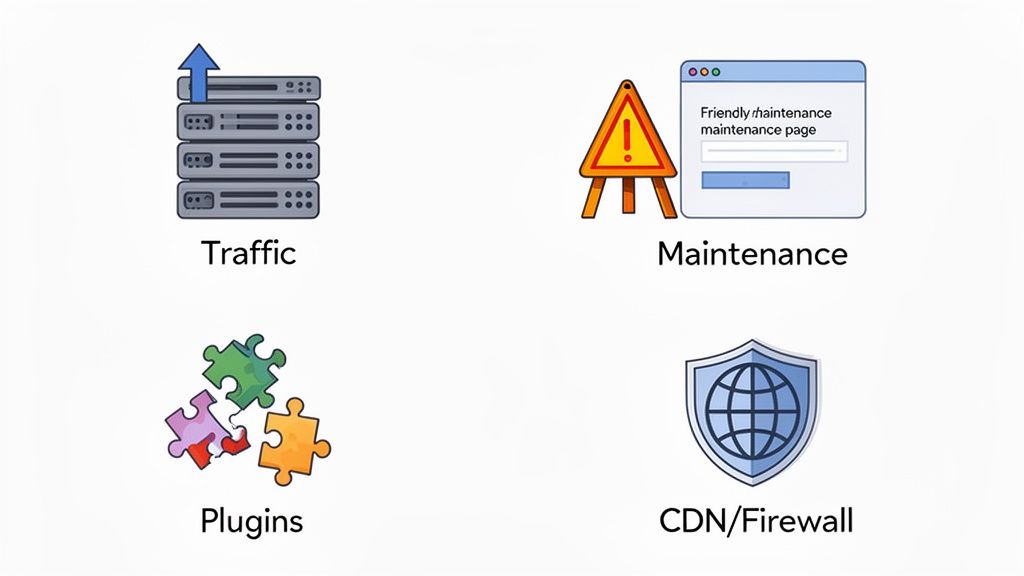
Before we dive into the fixes, it helps to have a quick overview of what usually causes a 503 error. This summary table breaks down the most common culprits and gives you a starting point for your investigation.
503 Error At a Glance: Common Causes and First Steps
| Common Cause | What It Means for Your Site | Your First Action |
|---|---|---|
| Server Overload | Too much traffic is hitting your site, and the server can't keep up. | Check your traffic analytics for unusual spikes. |
| Server Maintenance | Your server is being updated or configured and is intentionally offline. | Confirm with your hosting provider if they scheduled maintenance. |
| Application Crash | A plugin, theme, or custom script has failed and brought the site down. | Review your website's error logs for clues about the crash. |
| Firewall/CDN Issues | A security tool or CDN is misconfigured and blocking legitimate traffic. | Check your CDN or firewall dashboard for blocked requests or errors. |
Getting to the bottom of the error almost always involves looking at what's happening on the server side. Knowing these common causes is the first step to getting your site back online fast.
Understanding the Common Causes
For many Australian businesses, these problems often pop up at the worst possible times, like during peak traffic hours or a big online sale.
Here are the most frequent culprits behind that dreaded 503 message:
- Server Overload: This is a classic "too much of a good thing" problem. So many visitors are trying to access your site that the server runs out of CPU power or memory and can't serve anyone.
- Scheduled Maintenance: Sometimes, the server is offline on purpose. You or your hosting provider might have put it into maintenance mode to perform important updates or configurations.
- Application-Level Crashes: The issue isn't always the server hardware itself. A buggy script, a poorly coded plugin, or a theme conflict on your website can crash the application, making it unable to load.
- Misconfigured Firewalls or CDNs: Your security tools or Content Delivery Network are there to help, but if they're not set up correctly, they can mistakenly block legitimate requests, making your server appear unavailable.
This error is a real headache for businesses, especially during major shopping events. In fact, data from Australian hosting providers shows that 503 errors can spike by as much as 65% during high-traffic periods like Black Friday. This is often triggered by plugins and scripts gobbling up too many resources on shared servers. You can see a more detailed breakdown of these errors on VentraIP's support centre.
Figuring out the exact cause takes a bit of detective work. But now that you know where to start looking, the process becomes a whole lot easier. The next sections will walk you through how to pinpoint and fix the problem.

Performance you can feel, backed by clients who depend on it. Read how our support and uptime create long‑term customer success.Power Your Business with Better Hosting
How to Diagnose the Source of a 503 Error
Tracking down the cause of a 503 Service Unavailable error often feels like you’re a detective on a case. The first thing you need to figure out is the scope of the problem. Is it just you, or is the website down for everyone? A quick check on a site like Down for Everyone or Just Me will give you a straight answer.
If it's down for everyone, that’s your confirmation the problem is on the server. This is the moment to jump into your hosting control panel, like the cPanel we provide at UpTime Web Hosting, and start looking for clues. Your server’s error logs are your single most valuable source of information here.
Checking Server Logs and Resource Usage
Error logs are a running commentary from your server, and they often spell out exactly what went wrong. You'll want to look for any messages that popped up right around the time the 503 error first appeared. The logs can look a bit technical, but some keywords are massive red flags.
Keep an eye out for common log messages like these:
Memory exhausted: This is a classic sign that a PHP script, often from a plugin or theme, has chewed through all the available RAM.Worker process limit reached: This tells you the server is juggling too many requests at once and has run out of 'workers' to handle anything new.Upstream connection failure: This can point to an issue with a separate application or service that your web server needs to build the page.
While you're looking at the logs, pull up your account's real-time resource usage graphs. These charts show your site’s CPU, RAM, and I/O usage. A sudden, sharp spike in these metrics that lines up with when the 503 error started is a dead giveaway you've hit a resource bottleneck.
A massive spike in CPU usage, for example, might be from a malicious bot attack. Our knowledge base has a useful guide on how to find IPs hitting your web server that can help you spot this kind of activity.
This flowchart shows a simple diagnostic path to follow when you hit a 503, guiding you on what to check if you suspect server overload.
The main thing to take away from this is that server overload is one of the most common culprits and should be one of the first things you investigate.
Real-World Diagnostic Examples
Let's walk through how these clues fit together in a couple of real-world scenarios. Imagine you’re running an eCommerce store and it suddenly starts throwing a 503 error.
Example 1: The Faulty Plugin
You check your resource usage in cPanel and see memory is completely maxed out at 100%. Diving into the error logs, you find the same message repeating over and over: PHP Fatal error: Allowed memory size of 268435456 bytes exhausted. This points directly to a plugin misbehaving. Your next step would be to start disabling plugins one by one until you find the one causing the trouble.
Example 2: The Traffic Surge
Your latest marketing campaign goes viral and your website traffic explodes. The site gets sluggish, then grinds to a halt with a 503 Service Unavailable error. A quick look at your CPU usage graph shows it's been pegged at 100% for a while. This is a clear signal your current hosting plan can't keep up with the demand, meaning it's time to either optimise your site or think about an upgrade.
Being able to diagnose these issues quickly isn't just a technical exercise—it has a direct impact on your bottom line. Historical data from 2026 showed a national outage wave hit 15% of .au domains on budget hosting plans, costing small to medium businesses an average of $4,500 in lost sales per hour. As you can see in this troubleshooting guide from VentraIP, the ability to swiftly diagnose a 503 error is crucial for protecting your revenue and reputation.
Alright, you’ve done the detective work and have a few solid leads on what’s causing that pesky 503 Service Unavailable error. Now it’s time to get your hands dirty and actually fix it.
Think of this as a process of elimination. We’ll start with the most common culprits and work our way down, giving you clear, practical steps to get your website back online fast. Let's turn that site owner anxiety into problem-solving confidence.
Fixing Common Causes of the 503 Error
Handling Sudden Traffic Overloads
Sometimes, being too popular is a real problem. A blog post goes viral, a marketing campaign hits the jackpot, or a flash sale brings in a flood of customers. If your hosting plan can’t handle the heat, your server runs out of resources like CPU and RAM, and it starts showing visitors the 503 error page.
Imagine you're an online store based in Perth running a huge sale. Suddenly, thousands of people are trying to buy something at the exact same time. If your server can't process all those requests, it basically throws its hands up and shuts the door. That's a classic resource overload.
When this happens, you have two main options:
- Optimise Your Website: Before you spend another dollar, see if you can make your site run leaner. This means compressing images, using a good caching plugin, and cutting down on resource-hungry scripts. Tools like LiteSpeed Cache, often included with quality hosts like UpTime Web Hosting, can make a massive difference to your server load.
- Upgrade Your Hosting Plan: If your site is already lean and mean but you're still hitting those limits, it’s a sure sign you’ve outgrown your current setup. Moving to a plan with more CPU, RAM, and dedicated resources is the only reliable long-term fix.
Managing Scheduled Server Maintenance
Not every 503 error spells disaster. Occasionally, a 503 Service Unavailable message appears simply because you or your hosting provider has put the server into maintenance mode. This is done to apply crucial security patches, perform software updates, or upgrade hardware.
This is the "good" kind of 503 because it's planned and under control. Still, a generic error page doesn't look great and can worry your visitors.
A far better approach is to set up a dedicated maintenance page. This lets visitors know your site is just down for a quick tune-up and will be back shortly. It’s a professional touch that helps maintain trust. Many WordPress plugins can help you create a custom-branded maintenance page in minutes.
Resolving Faulty WordPress Plugins and Themes
The incredible variety of WordPress plugins and themes is a huge part of its appeal, but it's also a common source of 503 errors. A badly coded plugin, a conflict between your theme and a plugin, or an add-on chewing up too much memory can bring your entire site down.
The real headache is that a 503 error often locks you out of your WordPress admin area, so you can't just log in and deactivate the problem component. You'll need to get into your server's backend using FTP (File Transfer Protocol) or the File Manager in your cPanel.
To help you pinpoint the troublemaker, here's a practical checklist to follow when you suspect a plugin or theme is behind your WordPress 503 error.
WordPress 503 Error Troubleshooting Checklist
| Check | Action Steps | Tool or Location |
|---|---|---|
| Plugins | 1. Connect to your site via FTP or cPanel's File Manager. 2. Go to the wp-content directory.3. Rename the plugins folder to plugins_old. This deactivates all of them.4. See if your site loads. If it does, a plugin is the culprit. 5. Rename plugins_old back to plugins.6. Reactivate plugins one by one until the site breaks again. | FTP Client (e.g., FileZilla) or cPanel File Manager |
| Themes | 1. If deactivating plugins didn't help, your theme might be the issue. 2. Using FTP, navigate to wp-content/themes.3. Rename your active theme's folder. 4. WordPress will automatically switch to a default theme. 5. Check your site. If it’s working, your theme is the problem. | FTP Client or cPanel File Manager |
| PHP Scripts | 1. Sometimes, a custom script takes too long to run and times out. 2. You can often fix this by increasing the max_execution_time in your PHP settings.3. This setting controls the maximum number of seconds a script is allowed to run. | cPanel 'MultiPHP INI Editor' |
Following these steps systematically is the quickest way to identify and fix the issue.
Increasing the PHP max execution time is a handy fix for scripts that are timing out. For a step-by-step guide, have a look at our article on setting the PHP Max Execution Time on cPanel.
Investigating CDN and Firewall Glitches
Services like Cloudflare's Content Delivery Network (CDN) and Web Application Firewalls (WAFs) are brilliant for boosting speed and security. But they also add an extra layer between your visitors and your server—and sometimes, that layer is where things go wrong.
A poorly configured firewall rule could be blocking legitimate visitors, or the CDN itself might be having a temporary glitch in a certain region. This can make your server seem unavailable, even when it’s running perfectly fine.
Here’s how to quickly figure out if your CDN or firewall is the problem:
- Check the Service Status Page: Most providers, including Cloudflare, maintain a public status page that reports any active incidents. This should always be your first port of call.
- Temporarily Pause the Service: If there are no reported outages, try pausing the service. In Cloudflare, you can find a "Pause Cloudflare on Site" option in your dashboard. After pausing, give it a few minutes, then try to access your site directly. If the 503 error vanishes, you've found your culprit. You can then dig into the configuration or get in touch with their support team for help.
Host your website with our 5-star rated, cPanel website hosting plans.
Super fast servers, with security included and hosted in your choice of Australian Data Center.
View cPanel Plans
Advanced Solutions for Developers
When you're managing websites for clients or deploying complex applications, a 503 Service Unavailable error is more than just a minor hiccup. It’s a signal that it's time to roll up your sleeves and dive deep into the server's core. For developers and agencies, this means going beyond the usual checks and getting hands-on with server configurations and code-level optimisations.
Let's get into the nitty-gritty and look at the server-side adjustments that can stop resource exhaustion in its tracks and keep your applications humming along nicely.
Fine-Tuning Server Configurations
A lot of 503 errors happen when the server software itself—like Apache or Nginx—hits its own pre-set limits. When traffic suddenly surges, these servers need enough "workers" or "connections" available to manage every single incoming request. If they run out, new visitors get turned away with a 503.
For Apache Web Servers:
A common bottleneck in Apache is the MaxRequestWorkers directive, which lives in modules like mpm_prefork, mpm_worker, or mpm_event. This setting puts a hard cap on the maximum number of simultaneous connections your server can handle. If you set it too low for your site's traffic, the server will get overwhelmed quickly.
Here is an example from the official Apache documentation showing various configuration directives.
Striking the right balance for MaxRequestWorkers in your Apache setup is absolutely crucial for preventing a 503 error during those unexpected traffic spikes.
For Nginx and PHP-FPM:
Nginx has a similar idea called worker_connections. You’ll find this directive in your nginx.conf file, and it dictates the maximum number of simultaneous connections that each individual worker process can open.
On top of that, many modern PHP sites rely on PHP-FPM (FastCGI Process Manager). A very common cause of 503s in this setup is running out of available processes in the PHP-FPM pool. You can tweak these settings in your php-fpm.conf or a related pool file (often www.conf):
pm.max_children: The absolute maximum number of child processes that can be created.pm.start_servers: The number of child processes that fire up on startup.pm.min_spare_servers: The minimum number of idle server processes you want waiting.pm.max_spare_servers: The maximum number of idle server processes.
Be careful here. Setting these values too low will create a backlog of PHP requests, leading Nginx to throw a 503. But setting them too high can gobble up all your server's RAM. It's a balancing act that requires careful tuning based on your server's resources.
Identifying and Optimising Slow Database Queries
Often, the web server isn't the real villain. A single, sluggish database query can hold a PHP process hostage while it waits for data to come back. While that process is tied up, it's occupying a valuable worker slot. If enough of these processes get stuck in a queue, your server runs out of workers, and you're hit with a 503 Service Unavailable error.
The first step is to hunt down these slow queries. You can usually enable a "slow query log" in your database server (like MySQL or MariaDB), which will flag any query that takes longer than a specified time to run.
Once you’ve found the culprits, optimising them can involve:
- Adding database indexes: Think of indexes as a table of contents for your database. They help it find data much, much faster.
- Rewriting the query: Sometimes a clunky, complex query can be broken down or rewritten to be far more efficient.
- Caching query results: If you have queries that run all the time but their results don't change often, caching them in memory can deliver a massive performance boost.
For those running their own servers, our knowledge base has a fantastic guide on MySQL tuning for Linux hosts. It's packed with tips to help you get the absolute most out of your database.
Reviewing Security Rules and Rate-Limiting
In an effort to lock things down, it’s surprisingly easy to be a bit too aggressive with security. A misconfigured security rule or overly tight rate-limiting can accidentally block legitimate users and trigger a 503. For example, a Web Application Firewall (WAF) might see a rapid burst of API calls from your own application and mistake it for a denial-of-service attack.
This is especially relevant for businesses in Australia. Research has shown that without properly configured, DDoS-protected firewalls, traffic surges from Australian IP ranges can trigger 503 errors 3.2 times more frequently during the peak evening hours of 6-9 PM AEST. This highlights just how critical advanced server and firewall tuning is, and you can find more details about these troubleshooting findings on VentraIP's support page. It's always a good idea to check your firewall logs regularly to make sure you aren't accidentally blocking your own customers.
How to Prevent 503 Errors Before They Happen
Fixing a 503 Service Unavailable error when it strikes is one thing, but what if you could stop it from happening in the first place? A proactive game plan for your website's health is always the best defence against unexpected downtime. It all comes down to building on a solid foundation and keeping things well-maintained.
Your first and most critical move is picking the right hosting plan. Skimping on resources with an underpowered plan is a recipe for disaster, especially when your traffic starts to pick up. At UpTime Web Hosting, we specifically design our plans with generous resources to prevent the exact bottlenecks that trigger 503 errors.
Use the Right Tools for the Job
It's not just about raw power, though. Smart performance tools can make a massive difference by cutting down on server strain. Modern hosting environments come packed with clever software designed to make your site run faster and more efficiently, directly tackling the root causes of a 503 Service Unavailable error.
For instance, all our cPanel hosting plans come with LiteSpeed Web Server and AccelerateWP. LiteSpeed is a high-octane replacement for the traditional Apache server, handling traffic far more effectively. Meanwhile, AccelerateWP gives you a full suite of optimisation tools for WordPress, automatically compressing images, minifying code, and using advanced caching to lighten your server's load.
Another game-changer is CloudLinux OS. On a typical shared server, one website experiencing a sudden traffic surge can hog all the resources, knocking every other site offline with a 503 error. CloudLinux completely stops this "noisy neighbour" problem by creating isolated, virtual cages for each account. One busy site simply can't bring down the others.
This combination of powerful tools works wonders. Since rolling out CloudLinux and AccelerateWP across our Australian customer base, UpTime Web Hosting has seen a 78% reduction in client-reported 503 incidents. You can dig deeper into how resource management plays a role in this detailed guide to 503 troubleshooting.
Adopt a Proactive Maintenance Routine
Technology alone won't cut it. Just like a car, your website needs regular tune-ups to stay reliable. Putting together a simple but consistent maintenance checklist helps you spot potential trouble before it turns into a full-blown outage. The key isn't complexity; it's consistency.
A good routine keeps your site fast, secure, and dependable. If you'd rather take a hands-off approach, you could even consider our professional web maintenance and support services to handle all of this for you.
Here’s a simple but effective maintenance checklist to get you started:
- Set Up Uptime Monitoring: Use an external service to ping your site every few minutes. You’ll get an instant alert if it goes down, letting you jump on the problem immediately instead of waiting for an unhappy customer to tell you.
- Keep Everything Updated: Make a habit of updating your website’s core software (like WordPress), along with all your plugins and themes. Updates often include vital security fixes and performance tweaks that prevent crashes.
- Review Your Resource Usage: Once a month, pop into your cPanel and check your CPU and memory usage graphs. If you notice a steady upward creep, that’s an early warning you might be outgrowing your current plan.
- Prune Unused Plugins: Go through your site and deactivate and delete any plugins or themes you aren't using. Every extra plugin adds a little more overhead and another potential point of failure.
For developers looking to take it a step further, adopting robust practices like continuous performance testing can dramatically improve your system's reliability. By building these proactive steps into your workflow, you can seriously reduce the risk of ever seeing a 503 error, ensuring your website remains a dependable asset for your business.
When to Contact Your Hosting Support Team
You’ve dug through the logs, tried disabling plugins, and double-checked your configurations, but that stubborn 503 Service Unavailable error is still staring you down. It’s a great feeling to fix things yourself, but sometimes, the problem is genuinely out of your hands. Knowing when to throw in the towel on DIY fixes and call for backup is the key to getting your website back online fast.
If you’ve run through all the steps in this guide and you're still stuck, it’s time to get in touch with your hosting provider. Your host has a complete overview of the server infrastructure—a level of access and insight you simply can’t get from inside your cPanel account. For Australian businesses, this is where having fast, local support really makes a difference in minimising lost revenue.
Clear Signs It’s Time to Escalate
Some symptoms are a dead giveaway that the problem lies at the server or data centre level. You should open a support ticket right away if you think it might be:
- A Hardware Failure: The physical server that your site is on could have a failing component, like a faulty hard drive or memory module.
- A Data Centre Network Issue: Sometimes, the problem isn’t your server at all, but a broader network problem at the data centre that’s cutting it off from the internet.
- A Server-Wide Problem: If you know of other websites on the same shared server that are also down, it points to a wider issue that only your host can resolve.
To help the support team help you faster, pull together a few key details before you reach out. Make a note of the exact time the error appeared, list the troubleshooting steps you’ve already tried, and mention any recent changes you made to your site. This lets the technicians skip the basic questions and jump straight to the real problem.
At the end of the day, a reliable host is your most important partner in a crisis. Having responsive, expert support is just as critical as the server hardware itself. It’s all part of a proactive IT support mindset that aims to prevent these errors from happening in the first place.
With a provider like UpTime Web Hosting, you have a 24/7 Australian-based team ready to help. If you ever find yourself in a tight spot, check our knowledge base article on support hours and rest easy knowing that expert help is only a ticket or phone call away.
Register your new domain name at competitive market prices including free domain add-ons like privacy, DNS Hosting, Custom Nameservers and Forwarding.
Always the best price and no nasty renewal price hikes.
Register A Domain Name
Frequently Asked Questions About the 503 Error
We’ve walked through the technical side of the 503 error, but a few common questions always pop up. Let's tackle some of those lingering concerns to make sure you’re fully equipped to handle—and prevent—this frustrating issue.
Can a 503 Error Hurt My SEO Ranking?
A fleeting 503 service unavailable error that’s fixed in a few minutes is unlikely to cause any SEO damage. Search engines are built to expect occasional, temporary glitches.
However, if your site is down for hours or, worse, days, it’s a different story. Crawlers like Googlebot might start to see your site as unreliable. If they can’t access it repeatedly, they may temporarily drop your pages from their index to avoid sending users to a dead end. You definitely want to avoid that.
This is where swift action is everything. Having a reliable host like UpTime Web Hosting with strong uptime guarantees and proactive monitoring is your best defence to protect those hard-earned search rankings.
Does a 503 Error Mean My Website Was Hacked?
It’s a valid concern, but in most cases, the answer is no. A 503 error is usually a sign of a resource issue, not a security breach. Think of it less like a break-in and more like your website being too busy to answer the door because it's overwhelmed with legitimate visitors or a faulty script is causing chaos inside.
That said, there is one major exception: a Denial of Service (DoS) attack. These malicious attacks are specifically designed to flood your server with fake traffic until it buckles under the pressure and throws a 503 service unavailable error. This is why having a robust security net, like the DDoS-protected firewalls included with UpTime’s services, is so crucial.
My Hosting Says the Server Is Fine but My Site Shows a 503 Error. What Do I Do?
This is a classic scenario, and it almost always points to a problem inside your website's application, not the server itself. The server hardware is running perfectly, but your website’s software—be it WordPress, Joomla, or a custom application—has crashed and can't process the request.
The most common culprits are a misbehaving WordPress plugin, a theme conflict, or a custom script that’s hit an infinite loop or run out of memory. This is the time to start digging into your application logs. For more specific guidance, check out our WordPress troubleshooting knowledge base for tips on tracking these issues down.
At UpTime Web Hosting, we provide the fast, secure, and reliable Australian hosting infrastructure designed to prevent 503 errors before they happen. Our local support team is here 24/7 to help you keep your site online and performing at its best. Explore our plans at https://uptimewebhosting.com.au.