When you try to visit a website and are met with a "DNS servers not responding" error, it simply means your device's request to find the website's address got lost somewhere along the way.
Think of the Domain Name System (DNS) as the internet's phonebook. This error is like finding the phonebook temporarily unavailable, preventing your browser from connecting the domain name you typed (like google.com) to its actual online address.
What This DNS Error Actually Means
At its core, the "DNS servers not responding" message signals a communication breakdown. Your computer, phone, or tablet sent out a request to a DNS server, but for some reason, it didn't get a reply. Don't panic—this isn't necessarily a major issue. It's often caused by minor, temporary glitches that are surprisingly easy to fix.
The problem could stem from a few different places along the communication chain:
- Your Device: A simple software bug or a slightly misconfigured network setting.
- Your Browser: An outdated or cluttered browser cache holding onto old, incorrect information.
- Your Router: Your home or office Wi-Fi router might be overwhelmed or just need a quick restart to clear its head.
- Your ISP: The DNS servers provided by your Internet Service Provider could be temporarily down or experiencing issues.
This decision tree gives you a good visual guide for narrowing down the problem. The first step is to figure out if the error is happening on just one website or all websites to determine if the issue is with your browser or your broader network connection.
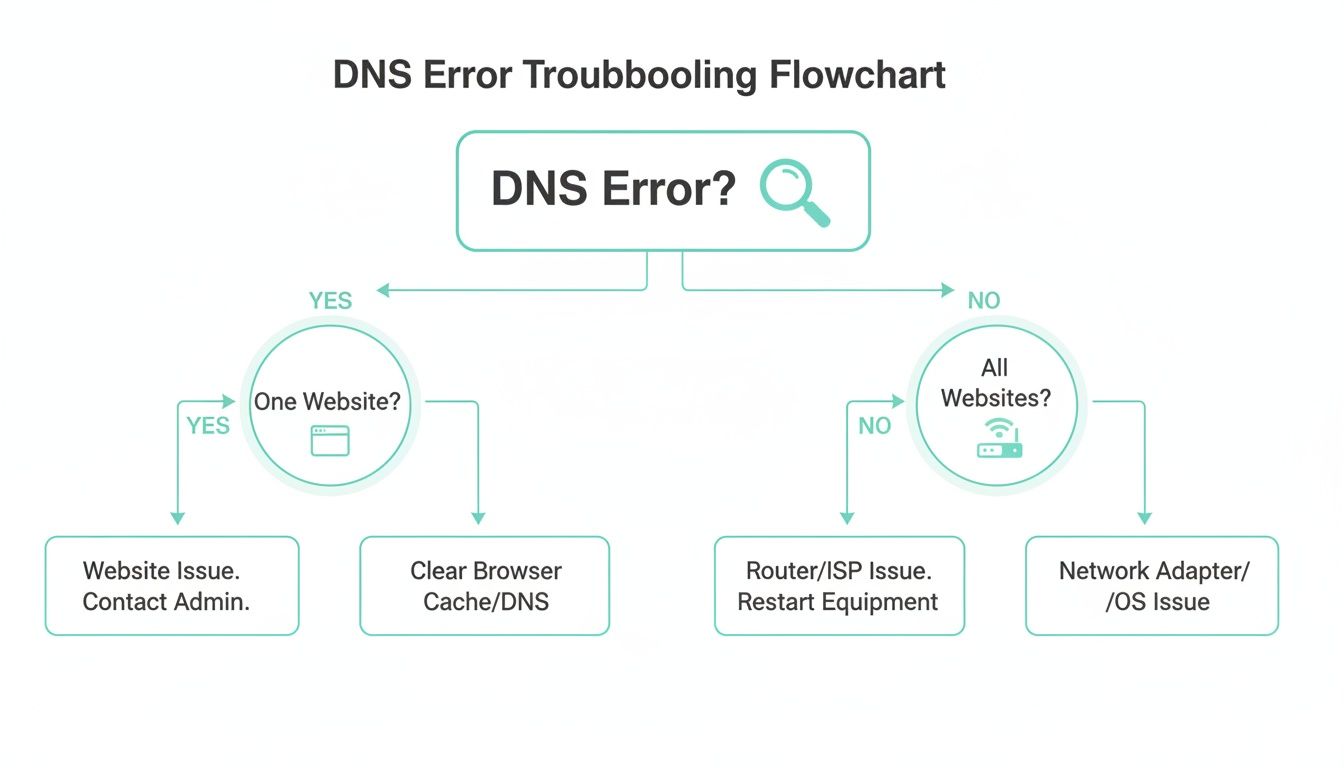
As the flowchart shows, isolating the issue to a single site usually points towards a browser-level fix. If it’s happening everywhere, you’ll want to start by troubleshooting your router.
Why Is All This So Important?
Slow or unresponsive DNS can severely impact your online experience, making even the fastest internet connection feel sluggish. We see this a lot in Australia, where geographic distance and network latency can be a real challenge.
Performance benchmarks show that a top-tier provider can achieve response times under 35ms for 97% of all queries, which is what you need for a snappy, smooth browsing experience. When servers fail to respond that quickly, websites load slowly, and frustration builds.
Key Takeaway: A "DNS not responding" error is more of an inconvenience than a disaster. It's a common and fixable problem that points to a simple lookup failure, not a broken internet or a hacked website.
Before you dive into complex solutions, remember that the simplest fixes are often the most effective. Knowing the potential causes helps you approach the problem methodically, starting with the most likely culprits first.
For an extra layer of protection, you can also explore how a DNS filter can secure your network from malicious threats before they ever reach you.
Quick Fix Cheat Sheet for DNS Errors
When you're faced with a DNS error, it helps to have a quick reference guide. I've put together this table to help you match common symptoms with their likely causes and the first thing you should try to fix them.
| Symptom | Likely Cause | First Action to Take |
|---|---|---|
| Can't access a single, specific website. | Your browser's cache is holding onto old DNS data. | Clear your browser cache and cookies. |
| Can't access any websites on one device. | The device's DNS cache needs to be flushed. | Restart the device or flush its DNS cache. |
| No internet access on any device on the network. | Your router is frozen or has a temporary glitch. | Unplug your router for 60 seconds, then plug it back in. |
| Websites load intermittently or very slowly. | Your ISP's default DNS servers are overloaded. | Switch to a public DNS server like Google (8.8.8.8) or Cloudflare (1.1.1.1). |
This cheat sheet covers the most frequent scenarios I see. By starting with these simple steps, you can often resolve the "DNS servers not responding" error in just a few minutes without needing to call for technical support.

Performance you can feel, backed by clients who depend on it. Read how our support and uptime create long‑term customer success.Power Your Business with Better Hosting
Device-Specific Fixes for Windows, macOS, and Mobile
When the "DNS servers not responding" error only pops up on a single device, the culprit is almost always hiding in that machine's specific settings. It can feel like a complex network problem, but the solutions are usually quite straightforward—often just a matter of clearing out a corrupted local cache or untangling a confused network configuration.
Let's walk through the most effective, hands-on fixes for your operating system.

Think of this as a guided tour rather than just a dry list of steps. When you understand why these fixes work, you'll be much better equipped to troubleshoot network issues down the track.
Clearing the Way on Windows
For Windows users, the number one suspect is a stale DNS cache. Your computer keeps a temporary log of recent website lookups to speed up browsing, but this cache can easily become outdated or corrupted. When that happens, you get connection errors. Flushing it forces your PC to grab fresh, correct data from the DNS servers.
You'll need to use the Command Prompt, a powerful built-in tool. Don't worry, it's simpler than it sounds.
- Find the Tool: Open your Start Menu and type "cmd". You’ll see "Command Prompt" appear. Right-click on it and choose "Run as administrator" to make sure you have the right permissions.
- Run the Commands: In the black window that pops up, you'll type a few simple commands to clear out old network data and ask your router for a new configuration. Type
ipconfig /flushdnsand press Enter. Then, typeipconfig /releaseand press Enter, followed byipconfig /renewand press Enter.
This process gives your computer’s network connection a completely clean slate. If you get stuck or prefer a visual walkthrough, the official Microsoft Support knowledge base has detailed instructions.
Troubleshooting on macOS
On a Mac, the approach is a bit different, but it targets the same core problems. A key technique here is renewing your DHCP lease, which often resolves DNS issues instantly.
Basically, this action tells your Mac to discard its current network address (its IP address) and request a brand new one from your router. When it does that, it also gets fresh DNS server information.
Practical Tip: Renewing the DHCP lease is a lifesaver if you frequently move your MacBook between different Wi-Fi networks, like from your home to a local café. It clears out any conflicting network info that might have been carried over from the last connection.
You can do this by heading to System Settings > Network. Select your active connection (like Wi-Fi), click Details, then head to the TCP/IP tab and click Renew DHCP Lease. For more advanced sleuthing, Apple has a fantastic guide to using Wireless Diagnostics to analyse your connection.
Fixing DNS on Mobile Devices
Mobile devices aren't immune to DNS gremlins, especially when you're jumping between Wi-Fi and mobile data. For both iOS and Android, the most reliable fix is often the simplest: reset your network settings.
This sounds drastic, but it's a powerful fix. It will wipe your saved Wi-Fi passwords and Bluetooth connections, but it also clears out any corrupted DNS or network configurations causing the headache.
- For iOS (iPhone/iPad): Go to Settings > General > Transfer or Reset iPhone > Reset > Reset Network Settings.
- For Android: The exact path can vary a little depending on your phone's manufacturer, but it's generally found under Settings > System > Reset options > Reset Wi-Fi, mobile & Bluetooth.
This reset forces your phone to establish completely new connections to both Wi-Fi and mobile networks, which usually clears up even the most stubborn DNS errors right away.
Tweaking Your Browser and Router Settings
If you’ve checked your device and everything looks fine, the next logical place to hunt for the problem is your web browser and router. These two are the gateways to your online world, and believe me, small glitches here are some of the most common culprits behind a “DNS server not responding” error. Most of the time, a simple clean-up or a quick settings change is all it takes to get you back online.
Let's start with your browser. Over time, it collects a cache of data to help websites load faster on return visits. While that's usually a good thing, this cache can get corrupted or hang onto old, outdated DNS information, leading to those frustrating errors, often for just one or two specific sites. Clearing it out is a fast and surprisingly effective first step.

A Fresh Start for Your Browser Cache
Every browser handles this a bit differently, but the idea is the same. You’re telling it to forget all the old data and fetch a brand-new version of the website, including its correct, current DNS address.
- Google Chrome: Jump into Settings > Privacy and security > Clear browsing data. Make sure you tick "Cached images and files" and, from the time range drop-down, select "All time".
- Mozilla Firefox: Head to Settings > Privacy & Security, find the "Cookies and Site Data" section, and click "Clear Data…". Just be sure "Cached Web Content" is selected.
- Safari (macOS): With Safari open, look for the Develop menu in the top menu bar and choose "Empty Caches". If you can't see the Develop menu, you'll need to enable it first in Safari > Settings > Advanced.
The Right Way to Reboot Your Router
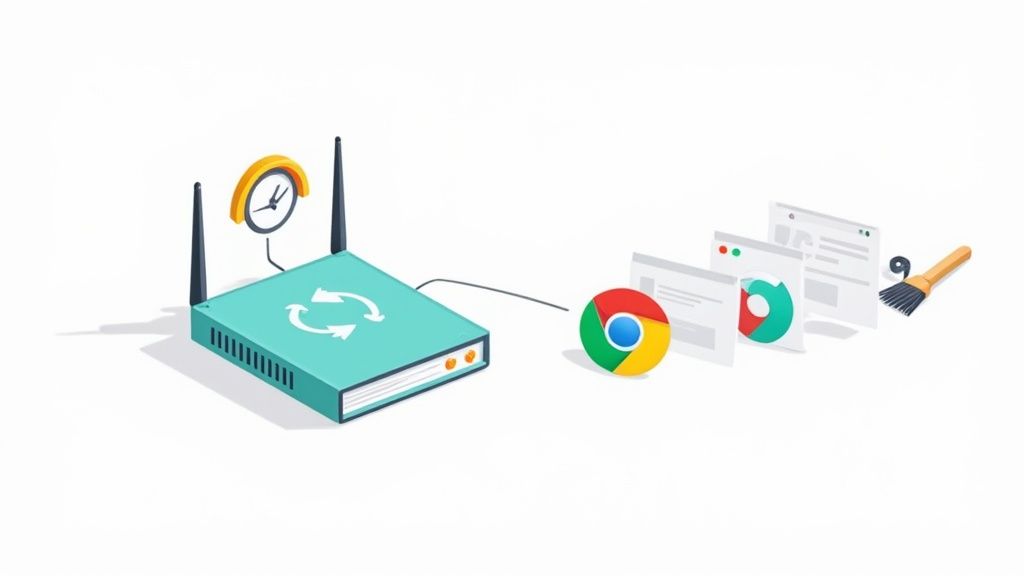
If clearing your browser’s cache didn't do the trick, your router is the next component to look at. A lot of people just flick the power switch off and on, but that isn't always enough. To really clear its memory and fix any temporary bugs, you need to do a proper power cycle.
The 60-second power cycle is crucial. You have to physically unplug both your router and your modem from the wall socket and wait for a full minute. This makes sure all the residual power drains away and the internal components get a complete reset, giving it a truly fresh start when you plug it all back in.
Once you’ve plugged it back in, give it a few minutes for all the lights to stabilise before you try connecting again. It’s a simple process, but you'd be surprised how many network headaches it solves.
Upgrading Your DNS for Better Performance
Do you find yourself running into the "DNS servers not responding" error pretty often? If so, the default DNS servers from your Internet Service Provider (ISP) might be the problem—they can be slow or just plain unreliable. Switching over to a public DNS provider is a fantastic long-term fix that often improves both your connection speed and its reliability.
This is a particularly big deal for us here in Australia. Our internet infrastructure's global ranking means DNS performance can really vary. It's common to see big fluctuations in response times from distant servers, which leads to packet loss and timeouts—all things that your computer sees as a non-responsive DNS.
Two of the most popular and trusted public DNS services are:
- Cloudflare:
1.1.1.1and1.0.0.1(known for being incredibly fast and privacy-focused) - Google:
8.8.8.8and8.8.4.4(known for rock-solid reliability)
You can usually change these settings right inside your router’s admin panel. The best part is that this one change applies to every single device connected to your network. Of course, DNS is just one piece of the puzzle; there are many other ways to improve your internet speed.
Host your website with our 5-star rated, cPanel website hosting plans.
Super fast servers, with security included and hosted in your choice of Australian Data Center.
View cPanel Plans
Server Side DNS Checks for Website Owners
So, your visitors are reporting that dreaded "DNS servers not responding" error when they try to load your website. Your first instinct might be to assume it's a problem on their end, but what if it's not? Sometimes, the root cause is actually a misconfiguration with your own domain. Before you start troubleshooting with your visitors, it's a smart move to do a few quick checks on your server to make sure everything is pointing in the right direction.
This all comes down to verifying your domain's nameservers. Think of nameservers as the signposts of the internet; they tell everyone's browsers where to go to find your website's files. If those signposts are pointing the wrong way, your website becomes impossible to find.
Verifying Your Nameservers and DNS Records
First up, you need to confirm what nameservers your domain is currently using. You can do this in seconds with a free online tool like DNS Checker. Just pop in your domain name, and it'll show you the nameservers being reported from different locations across the globe. The key is to make sure these match the ones provided by UpTime Web Hosting.
If the nameservers check out, your next port of call is the specific DNS records inside your hosting control panel. For getting your website online, two records are absolutely critical:
- A Record: This is the big one. It points your domain name (like
yourwebsite.com.au) directly to your hosting server's IP address. - CNAME Record: This record is an alias, often used to make sure the
wwwversion of your site (e.g.,www.yourwebsite.com.au) points correctly to the main domain.
Having the wrong IP address in your A record is a surprisingly common culprit for site-specific DNS errors. We've put together detailed instructions on how to check and update these settings in our knowledge base, so you can see exactly how to manage DNS records within cPanel.
Real-World Example: We had a client launch a brand-new website recently, but in the excitement, they forgot to update their A record after moving from their old host. Visitors were getting DNS errors left and right because the domain was still pointing to the old, offline server's IP. A quick tweak in their cPanel had the issue sorted in minutes.
Understanding DNS Propagation Delays
Sometimes, everything is set up perfectly, but things still aren't working. This is where DNS propagation comes in. When you make changes to your DNS—whether it's updating nameservers or modifying an A record—the update isn't instant. It has to spread across the entire internet.
This process, called DNS propagation, can take anywhere from a few hours up to 48 hours to fully complete worldwide. During this window, you might find that some visitors can access your site without a hitch while others get a "DNS servers not responding" error. It all depends on which DNS server their computer happens to ask. Patience is your best friend here. If you've double-checked your settings and they're correct, the best thing to do is often just wait it out.
And remember, for website owners, a full server-side DNS health check also involves verifying email authentication records to keep your emails out of spam folders. It's well worth the time to understand DKIM vs DMARC DNS records to ensure a complete and professional setup.
Making sure your DNS settings are spot on is a crucial part of maintaining the consistent availability we promise in our 99.9% uptime guarantee on web hosting.
When It’s Time to Call in the Experts: ISP vs. Hosting Support
You’ve tried everything on the list, and you’re still staring at that dreaded “DNS servers not responding” error. It’s frustrating, but don’t worry – it’s time to call for backup.
The trick is knowing who to call. Is this a problem for your Internet Service Provider (ISP) or for us, your web host? Getting this right from the start will save you a ton of time and get you a solution much faster. It all comes down to the scope of the problem.
If you can’t get to any website on any device connected to your Wi-Fi, the problem is almost certainly with your ISP. This points to a wider network issue or a problem with the DNS servers they provide for your internet connection.
Reaching Out to Your Internet Service Provider
Before you dial their number, a little bit of prep work can make the support call go so much more smoothly. Tech support teams usually follow a script, so having the answers ready before they even ask will cut right to the chase.
It’s a good idea to have this info handy before you call:
- A quick list of what you’ve already tried, like restarting the router or clearing your DNS cache.
- The exact error message you’re seeing.
- Confirmation that it’s happening on multiple devices (e.g., your laptop and your phone).
- Your account number or the primary phone number linked to your account.
In Australia, our geography plays a surprisingly big part in DNS performance. Australia ranks #55 globally for internet speed, which means relying on distant DNS servers can easily lead to timeouts. These timeouts often show up as a "DNS servers not responding" error, even when your internet connection seems fine. A high-performance local DNS can make all the difference, highlighting just how critical a provider's local infrastructure is.
When to Contact UpTime Web Hosting Support
Now, if the internet is working fine for everything except your own website, that’s a different story. When people can’t access your specific domain, the issue is likely on the hosting side of things. That's our cue to step in and investigate for you.
To help our support team nail down the problem quickly, please have these details ready when you get in touch:
- Your primary domain name.
- The exact error message your visitors are seeing.
- Any recent changes you might have made to your DNS settings or nameservers.
With this information, we can jump straight into your server-side configuration and check for any issues with your records or nameserver settings. Getting you back online fast is what our UpTime Premium Support commitment is all about.
Got Questions About DNS Errors? We've Got Answers
When a "DNS servers not responding" error pops up, it can feel a bit random and confusing, especially when the symptoms don't seem to make sense. To help you get to the bottom of it, we've pulled together some of the most common questions we hear. This should give you the confidence to figure out what's really going on and fix it.
Why Is This Error Only Happening On One Device?
This is a classic sign that the problem is with the device itself, not your whole network. When one computer or phone can't connect while others are cruising along just fine, the culprit is usually a corrupted local DNS cache or some wonky network settings on that specific device.
Think of it this way: each device has its own little address book for websites. Sometimes, that address book gets scrambled. For example, your laptop might act up after you've used it on the café's public Wi-Fi, but your phone, which has been happily connected to your home network all day, works perfectly. In nearly every case like this, a quick DNS flush or a network settings reset on the laptop will sort it out.
Is It Safe To Change My DNS Server To Google Or Cloudflare?
Yes, absolutely. In fact, it's not just safe—it's often a smart move that can give your internet a noticeable boost. Public DNS providers like Google (8.8.8.8) and Cloudflare (1.1.1.1) are run by massive, reputable tech companies and are built for one purpose: to be incredibly fast, secure, and reliable.
They are often a significant improvement over the default servers your internet provider gives you. It's like switching from a standard paper phonebook to a premium, instantly updated digital directory. Many people find that making the switch not only fixes persistent DNS errors but makes their everyday browsing feel much snappier. If you're curious, Cloudflare has a great breakdown of what 1.1.1.1 is.
This is especially true here in Australia, where network latency can sometimes be a pain. Using a highly responsive public DNS can shave precious milliseconds off the time it takes to look up a website's address, which makes the whole internet feel quicker.
How Do I Know If The Problem Is My Computer Or My Router?
Here’s a simple test you can do in about ten seconds. If you're seeing the error on your computer, just grab your smartphone and try to visit a website using the same Wi-Fi network.
- If your phone connects without a hitch: The problem is almost certainly on your computer.
- If your phone can't connect either: The issue is likely with your router or a wider outage from your Internet Service Provider (ISP).
This quick check immediately points you in the right direction, saving you from the frustration of trying fixes that were never going to work in the first place. For more general advice on troubleshooting, the Australian Government's eSafety Commissioner offers a handy guide on getting your tech sorted.
At UpTime Web Hosting, our goal is to give our customers the knowledge they need to confidently manage their websites and online services. For fast, secure, and dependable Australian hosting backed by expert local support, take a look at our solutions today.
Learn more about our web hosting plans
Article created using Outrank