When you see the dreaded “Error establishing a database connection” message, it’s a showstopper. It means your WordPress website has lost its ability to communicate with its MySQL database.
Essentially, all your site's valuable content—every post, page, and setting—lives in that database. The core WordPress software needs to tap into it to build and display your web pages for visitors. When that connection breaks, the whole site comes crashing down because it simply can't retrieve the information it needs to function.
What the Database Connection Error Actually Means
At its heart, this error is a communication breakdown. I like to think of it like a car. Your WordPress files are the engine, and your database is the fuel tank. They are two separate but absolutely essential parts.
The wp-config.php file acts as the fuel line, holding the exact coordinates for the engine to find and draw from the fuel tank. If that fuel line gets blocked, cracks, or is pointed in the wrong direction, the engine can't get any fuel, and the car won't start. That's precisely what's happening to your website.
This problem is particularly nasty because it locks you out of everything—not just the public-facing side of your site, but your WordPress admin dashboard (/wp-admin) too. This makes it a high-priority issue to fix. The good news is that the causes are usually pretty straightforward, often boiling down to a simple configuration mistake.
Common Causes of the Error
Several things can trigger this specific error. While it looks intimidating, my experience shows the root cause is typically one of a handful of common culprits. Knowing what they are helps you narrow down where to start looking for a fix.
Let's quickly run through the most frequent reasons you'll see this error:
- Incorrect Database Credentials: A simple typo in your
wp-config.phpfile is the number one cause. One wrong character in the database name, username, password, or host, and the connection will fail every time. For example,define( 'DB_USER', 'my_user ' );with an accidental space at the end will cause the connection to fail. - Database Server Unresponsive: Your web hosting server, which runs the database software, might be temporarily down or just overloaded, perhaps from a sudden spike in traffic after a successful marketing campaign.
- Corrupted Database: It happens. A plugin update that goes wrong or an unexpected server shutdown can sometimes corrupt your WordPress database tables, leaving them unreadable.
- Corrupted WordPress Files: In some rarer cases, the core WordPress files themselves can become corrupted, which messes with the entire connection process.
This plain, unstyled error page is a clear signal that WordPress couldn't even load its basic theme files because the initial database connection failed right out of the gate.
To help you troubleshoot, here’s a quick summary of what might be going on.
Common Causes of a Database Connection Error
| Potential Cause | Common Symptoms | First Place to Check |
|---|---|---|
| Incorrect Credentials | The error appears immediately after a site migration or server change. | Your site’s wp-config.php file. |
| Database Server is Down | Your website is down, and you can't access cPanel or phpMyAdmin either. | Your hosting provider's status page or control panel. |
| Corrupted Database | The error message appears on the front-end, but /wp-admin shows a different error, like "One or more database tables are unavailable." | The WordPress database repair tool or phpMyAdmin. |
| Traffic Spike | Your site was working fine, but suddenly went down during a period of high traffic (like after sending a newsletter). | Your hosting account's resource usage stats. |
Knowing the likely suspect helps you jump straight to the right fix without wasting time on the wrong ones.
Key Takeaway: My best advice is not to panic when you see this error. It almost never means your content is gone forever. It simply means the pathway to access that content is temporarily broken. In most cases, it’s something you can fix by checking a few key settings.
For those running sites on specialised platforms, learning more about the intricacies of a good setup can be beneficial. For deeper insights, check out our straightforward guide to WordPress hosting, which explains how a properly configured environment helps prevent such issues.

Performance you can feel, backed by clients who depend on it. Read how our support and uptime create long‑term customer success.Power Your Business with Better Hosting
Running Your Initial Diagnostics
Before you start tearing into configuration files or hitting up support, a few quick diagnostic checks can often point you straight to the source of that dreaded "error establishing database connection." This first look is all about figuring out the scope of the problem, and trust me, it can save you a massive amount of time.
Your first move should be to check two different parts of your website. See if the error appears on both the public-facing side (e.g., yourdomain.com.au) and the WordPress login page, which you'll usually find at yourdomain.com.au/wp-admin. The results of this simple test can tell you a lot.
If both the front end and the admin area show the exact same "error establishing a database connection" message, it's a strong sign the problem is with your database credentials or an unresponsive server. But if you see a different error on the /wp-admin page, you're likely dealing with a completely different beast.
Check for a Corrupted Database
A different error message on the login page is a classic sign of database corruption. You might see something along the lines of, "One or more database tables are unavailable. The database may need to be repaired."
Believe it or not, this is actually good news. It means WordPress can still talk to the database, but some of the internal tables that store your content have been damaged. This can happen after a plugin update goes wrong or if your server shuts down unexpectedly. Luckily, WordPress has a built-in repair tool for this exact situation.
To switch it on, you'll need to add a single line of code to your wp-config.php file. You can get to this file using the File Manager in your hosting control panel or with an FTP client.
Add the following line just before the /* That's all, stop editing! Happy publishing. */ comment in your wp-config.php file:
define('WP_ALLOW_REPAIR', true);
Once you've saved that change, head over to this specific URL in your browser: https://yourdomain.com.au/wp-admin/maint/repair.php.
You'll land on a page with two options.
- Repair Database: This is the quicker option. It runs a check for common table issues and tries to fix them.
- Repair and Optimize Database: This does everything the first option does, but it also optimises the tables for better performance. It takes a little longer but can give your site a small boost.
When you're dealing with an urgent outage, just click Repair Database to get your site back online as quickly as possible. When it’s done, check your site again. In many cases, the error will be gone.
Security Warning: Once your database is successfully repaired, you must remove the
define('WP_ALLOW_REPAIR', true);line from yourwp-config.phpfile. If you leave it in, you're creating a security risk, as anyone can access the repair page without needing to log in.
This visual decision tree can help you figure out if the problem is more likely with your config files or the server itself.
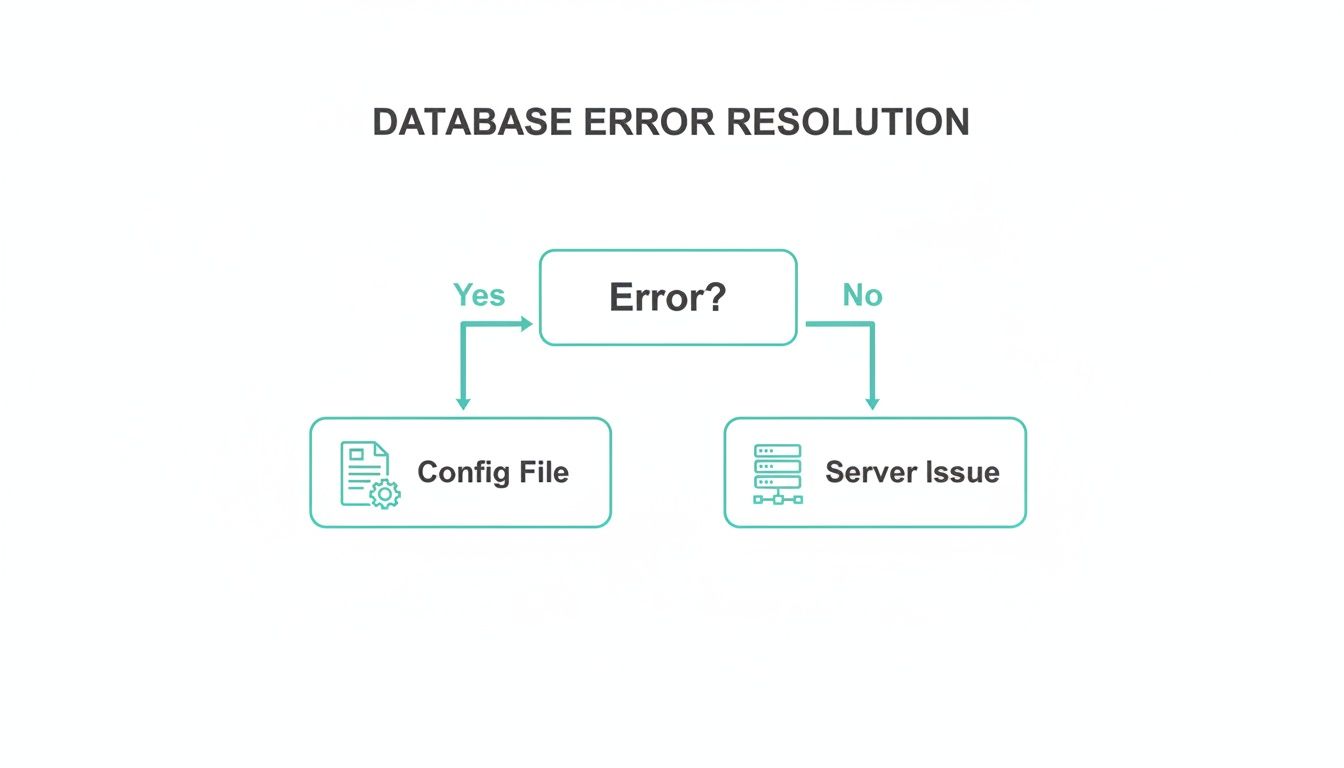
As the flowchart shows, the specific error message you're seeing is a massive clue that guides your next troubleshooting steps.
Proactive Diagnostic Approaches
While the built-in repair tool is brilliant for fixing things after they've broken, a more proactive approach can stop these issues from happening in the first place. This is where monitoring comes in.
Using dedicated Database Performance Monitoring Tools is a smart move for running initial diagnostics and spotting potential issues before they cause connection errors. These tools can alert you to slow queries or resource bottlenecks that might eventually cause your database server to fall over.
For UpTime Web Hosting customers, our platform includes built-in monitoring tools you can access right from your client area. You can check your resource usage and server status directly from your dashboard. For more detailed instructions, check out our knowledge base article on how to monitor your hosting resources. Keeping an eye on your resource limits helps you anticipate problems, especially before a big traffic spike.
Checking Your WordPress Database Credentials
When you’re hit with the dreaded "error establishing database connection" message, it’s easy to think the worst. But in my experience, the problem is often surprisingly simple—a single misplaced character in your website's most critical configuration file. This file, wp-config.php, is the bridge between your WordPress installation and your database, and it’s the very first place you should look.
Think of it like having the wrong address for a package. The courier can try all day, but that package is never going to arrive. In the same way, if WordPress has even slightly incorrect details for the database, it simply can't connect, and your site goes dark.
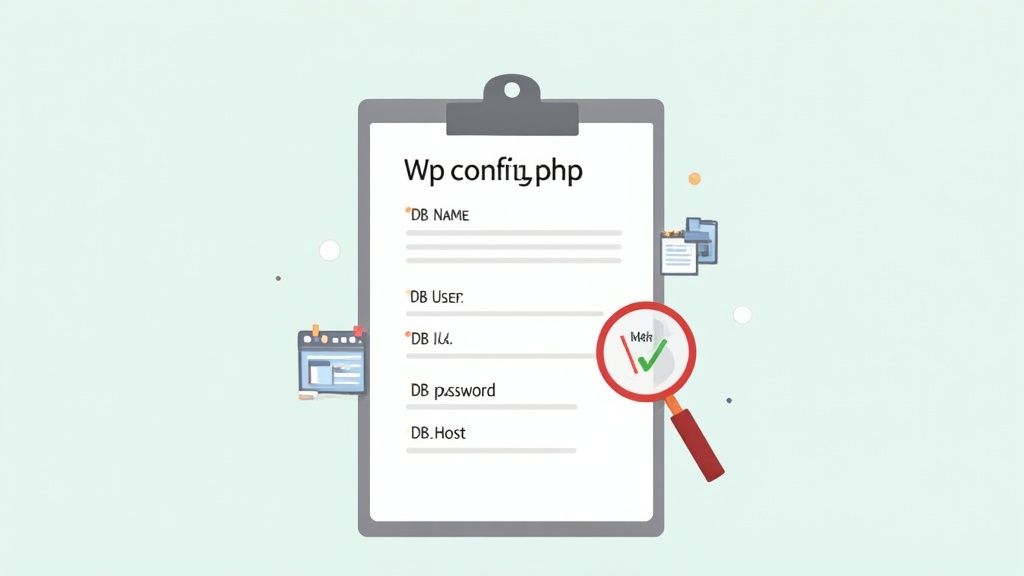
This single file holds four vital pieces of information that must be perfectly accurate for the connection to work. Let’s walk through how to find this file and check each of these credentials against the correct details in your hosting account.
Finding and Understanding Your wp-config.php File
The wp-config.php file sits in the root directory of your WordPress installation, which is usually called public_html or www. You can get to it in a couple of ways:
- File Manager in cPanel: This is the most straightforward method. Just log in to your UpTime Web Hosting account, open cPanel, and head over to the "File Manager".
- FTP/SFTP Client: If you prefer using tools like FileZilla or Cyberduck, you can connect to your server that way and navigate to your site's root directory.
Once you’ve opened the file, you'll see a block of code with various definitions. Don't get overwhelmed; you only need to focus on these four lines:
define( 'DB_NAME', 'your_database_name' );define( 'DB_USER', 'your_username' );define( 'DB_PASSWORD', 'your_password' );define( 'DB_HOST', 'localhost' );
A simple typo in any of these values is, without a doubt, the most common culprit behind a database connection error. Now, let’s go find the correct information to compare them against.
Cross-Referencing Credentials in cPanel
With your wp-config.php file open, you need to check its contents against the actual database details stored in your hosting account. For UpTime Web Hosting customers using cPanel, this is a breeze.
Jump into your cPanel dashboard, look for the Databases section, and click on MySQL Databases. This page is your source of truth.
- Find Your Database Name and User: You'll see a "Current Databases" table listing all the databases on your account. The
DB_NAMEin your config file must exactly match a name in the "Database" column. TheDB_USERneeds to match an entry in the "Privileged Users" column for that specific database. For example, your cPanel username isuptim123. Your database might be nameduptim123_wp45and the useruptim123_user. Make sure those full names are in the file. - Check the Database Host: For the vast majority of hosting setups, including ours, the
DB_HOSTis simplylocalhost. This just tells WordPress that the database is on the same server. If this is set to anything else, it’s a good idea to change it back tolocalhostunless you’ve been specifically told otherwise by a developer or our support team.
Getting these details right is critical. A recent report revealed that human error was responsible for 37% of notifiable data breaches in Australia, often stemming from misconfigured database links in web applications. It really underscores why these credentials need to be spot-on.
What to Do If the Password Is Wrong
There's one credential you can't check directly: the DB_PASSWORD. For security reasons, cPanel won't show you the current password. If you suspect the password is the problem (or you have no idea what it is), the best thing to do is reset it.
In the MySQL Databases section of cPanel, scroll down to "Current Users".
- Find the database user linked to your website.
- Click Change Password.
- Use the Password Generator to create a new, strong password.
- Carefully copy this new password.
- Click the final Change Password button to save it.
Now, head back to your wp-config.php file and paste this new password between the single quotes for the DB_PASSWORD value. Save the file and reload your website. If the credentials were the issue, your site should pop right back up. For other troubleshooting scenarios, diving into dedicated WordPress-specific guidance can provide deeper insights beyond just credential checks.
Pro Tip: When you copy and paste your credentials, be extra careful not to include any extra spaces before or after the values inside the single quotes. Even one tiny space will cause the connection to fail and bring back that "error establishing database connection" message.
So, you've meticulously combed through your wp-config.php file and confirmed every credential is spot on. What's next? It's time to look beyond your WordPress installation and consider the environment it lives in. That dreaded "error establishing database connection" message isn't always a simple typo; sometimes, the problem is with your hosting server itself.
Your website’s database relies on a service called MySQL. If that service stops or gets overwhelmed, your site simply has nothing to connect to, which triggers the error. This happens more often than you'd think, especially on shared hosting plans where server resources are split between many different users.
Is Your Database Server Down or Overloaded?
A quick way to investigate is to see if other database-driven parts of your hosting are still working. If the database server is truly down, nothing that needs it will work.
Here’s how you can quickly check what’s going on:
- Try accessing phpMyAdmin: Log into your cPanel account and find the phpMyAdmin icon. If it loads up without a hitch, you know the database server is running. But if you see an error here too, it’s a massive red flag pointing to a server-side problem.
- Check other sites on the same server: If you host more than one website on the same account, pop over and see if they're also showing a database error. If they are, it’s almost certainly a server issue that's out of your hands.
Another common culprit is a sudden, massive surge in traffic. While it's exciting to go viral, a big traffic spike can flood your server with more database requests than it can handle, causing it to freeze up. This is a classic growing pain for sites on entry-level plans that are starting to outgrow their resource limits.
How to Check Your Service Status
For our UpTime Web Hosting customers, we've got tools to help you figure out if there's a known issue with our services. Before you even think about lodging a support ticket, a quick glance at your client area can often give you an immediate answer.
Just log into your UpTime Web Hosting client area and find the "Network Status" page. We post real-time updates there about any scheduled maintenance or unexpected outages affecting our servers. This should always be your first stop if you suspect a server problem.
Expert Tip: When you contact support, telling them you've already checked your credentials and tried to access phpMyAdmin can seriously speed things up. It immediately lets the support agent know you've ruled out the most common user-side mistakes, so they can jump straight into server-side diagnostics.
The security of these server connections is also critical. A recent analysis pointed out that Australian data breaches claimed on dark web sites shot up by 48% in 2025, with many attacks targeting insecure database links. You can learn more about these threats and why secure connections matter in this report on Australian data breaches.
Contacting Support with the Right Information
If all signs point to a server issue, or if you’ve simply run out of ideas, it's time to get in touch with our support team. Giving us clear, concise information will help us sort out your issue much, much faster.
When you open a support ticket, make sure to include:
- The name of the website that's down.
- A quick description of the error.
- The troubleshooting steps you've already taken (e.g., "I've verified my
wp-config.phpcredentials and checked for database corruption").
This bit of context helps our technical team skip the basic checks and get right to the core of the problem. For those who are regularly pushing the limits of shared hosting, it might be a good time to look into our high-performance Australian WordPress hosting on cPanel, which provides more dedicated resources to handle traffic spikes and prevent these kinds of database overloads.
Host your website with our 5-star rated, cPanel website hosting plans.
Super fast servers, with security included and hosted in your choice of Australian Data Center.
View cPanel Plans
Advanced Fixes and Prevention Strategies
So, you’ve checked your database credentials and you know the server is up and running, but that dreaded "error establishing a database connection" message is still staring you in the face. It's a frustrating spot to be in, and it usually means the problem is a bit deeper. Often, the culprit is a poorly coded plugin or a theme that's either overwhelming or corrupting the connection to your database.
The real goal here isn't just to fix the error for now, but to stop it from happening again. This is where a proactive mindset comes in. By focusing on database optimisation, solid backup plans, and good security habits, you can make this error a thing of the past.
Identifying a Problematic Plugin or Theme
One of the most common hidden causes of this error is a faulty plugin or theme. They can flood your database with excessive requests or contain code that clashes with WordPress core or other plugins, effectively severing the connection. Since your WordPress dashboard is out of action, you'll need to get your hands dirty with either an FTP client or your hosting's File Manager to find the source of the trouble.
The diagnostic process is surprisingly simple: we're going to deactivate everything at once by renaming the main plugin folder.
- Log in to your site using an FTP client (like FileZilla) or open the File Manager in your cPanel. You'll want to navigate to the
public_htmlfolder. - From there, open the
wp-contentdirectory. - Find the folder named
pluginsand rename it to something likeplugins_old.
Now, head back to your website and reload the page. If the error is gone, congratulations—you've just confirmed a plugin was the problem. To pinpoint exactly which one, rename plugins_old back to plugins. Then, go inside that folder and start renaming each individual plugin folder, one by one. Check your site after each rename until the error disappears again.
If disabling all the plugins didn't solve it, the same logic applies to your theme. Try renaming your active theme's folder inside wp-content/themes. This forces WordPress to fall back to a default theme (like Twenty Twenty-Four), which will instantly tell you if your theme was at fault.
Proactive Prevention Through Backups and Maintenance
Fixing the error is only half the battle. Making sure it doesn't come back is what really matters. Without a doubt, the single most important preventative measure you can have is a reliable backup strategy. With a recent backup on hand, you can restore your website to a perfectly working state in just a few minutes, skipping hours of stressful troubleshooting.
Key Insight: Think of backups as your website's insurance policy. You hope you never have to use them, but when disaster strikes, they're invaluable for a quick recovery. A good backup can turn a major crisis into a minor inconvenience.
Here at UpTime Web Hosting, all our plans come with automatic nightly backups stored securely off-site. Our customers can restore their entire website—files and database included—with just a single click from their client area. If you want more hands-off protection, our WordPress maintenance plans take care of all the updates, security, and backups for you.
Strengthening Your Database Security
Good security is fundamental to preventing database errors and protecting your data. A weak or compromised database isn't just prone to connection failures; it’s a massive target for hackers. This isn't just a theoretical risk. In 2024, Australia saw a 25% jump in data breaches, with a significant number tracing back to insecure database connections.
To keep your site safe, there are a few essential security practices you should implement right away:
- Use Strong Database Passwords: Never, ever use weak passwords like "admin" or your domain name. Jump into cPanel and use the password generator to create a long, random, and complex password for your database user.
- Keep Everything Updated: Make a habit of regularly updating your WordPress core files, themes, and plugins. These updates often contain critical security patches that close vulnerabilities before they can be exploited.
- Change the Default Table Prefix: When you're setting up a new WordPress site, change the default
wp_table prefix to something random, likewp_a8f5k_. This simple step makes it much harder for automated scripts to target your database in an attack.
By adopting these advanced tricks and preventative measures, you can shift from being reactive to proactive, ensuring your website stays stable, secure, and free from that frustrating "error establishing a database connection."
Still Have Questions About Database Connection Errors?
After you’ve wrestled with an "error establishing a database connection" and won, it’s normal to have a few questions lingering. Just fixing the problem is one thing, but understanding why it happened in the first place is the key to stopping it from happening again. Let's tackle some of the most common questions we get from our customers.
Can a Bad Plugin or Theme Update Really Cause This Error?
Yes, it absolutely can. While a typo in your wp-config.php file is often the first suspect, a dodgy plugin or theme update is a close second. It usually plays out in one of two ways.
First, a poorly coded update might start hammering your database with too many requests, pushing it past its limits and causing the server to cut the connection. The second, and more common scenario, is a conflict. An update might clash with the WordPress core files or another plugin, triggering a fatal error that severs the line of communication between your website and its database.
This is exactly why we always stress the importance of using well-supported plugins and themes from reputable developers. And for major updates, it's always a smart move to test them on a staging site first. If you'd rather not deal with the hassle, our WordPress Maintenance Plan can take care of all that for you.
What Are the Key Steps to Prevent This Error from Coming Back?
Prevention is always better than a cure, especially when your website's uptime is on the line. Once you’ve sorted out the immediate problem, it’s time to shift your focus to being proactive.
Here are the essential things you can do to minimise the risk of this error popping up again:
- Invest in Quality Hosting: Your hosting environment is your first and best line of defence. Our hosting is optimised specifically for WordPress, with server resources carefully managed to avoid the kinds of overloads that often trigger database errors.
- Keep Regular Backups: This one is non-negotiable. With our automatic nightly backups, you can restore your site to a working state in minutes. It turns a potential catastrophe into a minor inconvenience.
- Keep Everything Updated: Make a habit of regularly updating WordPress itself, along with your plugins and themes. Updates often contain crucial security patches and bug fixes that prevent conflicts and vulnerabilities.
- Lock Down Your Credentials: Never, ever use default or easy-to-guess database passwords. A strong, unique password is a simple but powerful way to protect your database from being compromised.
My Pro Tip: I always tell people to treat their website like a car. It needs regular servicing to run reliably. Consistent backups, timely updates, and good hosting are the digital equivalent of an oil change and a tune-up—they keep everything humming along smoothly.
I'm Stuck. What Info Should I Give Your Support Team?
If you’ve tried everything on your list and you’re still staring at that dreaded error message, it's time to bring in the experts. To help our support team get to the bottom of it as fast as possible, clear and detailed information is king. A vague ticket like "my site is down" just leads to a lot of back-and-forth.
Instead, when you reach out to us, try to include these details:
- Your Domain Name: Tell us the exact website that’s having the issue.
- The Exact Error Message: Confirm that it’s the "Error establishing a database connection" message.
- What You Did Recently: Let us know if you just migrated the site, updated a plugin, or even if you haven't touched a thing.
- What You’ve Already Tried: This is the most important part. Something like, "I've already checked my
wp-config.phpcredentials and tried the WordPress database repair tool, but it's still not working" is incredibly helpful.
Giving us this context allows our technicians to skip the basic checks you've already done and jump straight to more advanced diagnostics on our end. It saves everyone time and gets your site back online much, much faster.
At UpTime Web Hosting, we're committed to providing a secure and stable environment that helps prevent these frustrating errors from occurring in the first place. With our robust infrastructure, automatic backups, and expert local support, you can focus on your business, not on troubleshooting. https://uptimewebhosting.com.au
Article created using Outrank