You're usually not reading an article like this because everything is going smoothly. You're reading it because your current host feels slow, support is hard to reach, your invoices are messy, or you've been told “it's just a simple migration” and you don't quite believe it.
That instinct is healthy. A website migration can be smooth, but only if you treat it like an operations job, not just a file copy. For most Australian small businesses, the actual challenge isn't moving a few folders. It's keeping the site stable, keeping email flowing, and making sure customers don't land on a half-working version while DNS catches up.
If you've been searching for how to migrate website to new host, this guide walks through the process the way a technician would explain it over the phone. Plain English, practical steps, and the traps that catch people on their first move.
Table of Contents
- Your Pre-Migration Game Plan
- Executing the Website Transfer
- Nailing the DNS, SSL, and Email Cutover
- Go-Live Testing and Final Checks
- Common Migration Hurdles and How to Solve Them
- Frequently Asked Questions

Performance you can feel, backed by clients who depend on it. Read how our support and uptime create long‑term customer success.Power Your Business with Better Hosting
Your Pre-Migration Game Plan
Most migrations go wrong before the migration starts. The damage usually comes from missing credentials, no verified backup, the wrong hosting plan, or cutting over too early.
Good planning removes most of that risk. If you're moving an Australian business site, especially one with forms, logins, bookings, or online orders, think of prep work as the job that protects revenue.
Know what you're actually moving
Start with the reason for the move. Slow support, old infrastructure, no local presence, confusing pricing, and bundled services that make changes risky are all common reasons to switch.
Then identify the site type:
| Site type | What usually needs moving | Main risk |
|---|---|---|
| Static site | Files only | Missing assets or file paths |
| WordPress or CMS | Files plus database | Broken database connection or old URL references |
| eCommerce site | Files, database, email considerations | Orders, customer accounts, and mail disruption |
| Windows or ASP.NET site | Application files, database, app settings | IIS or database configuration mismatch |
For dynamic websites, staging first is the safer method. The most reliable approach is to build the full site on the new host, test it on a temporary URL, and only switch DNS after you know it's working, as outlined in GoDaddy's migration workflow for transferring to a new host.
Practical rule: If you haven't seen the migrated site working on the new server, it isn't ready for DNS cutover.
Build your migration pack before you touch anything
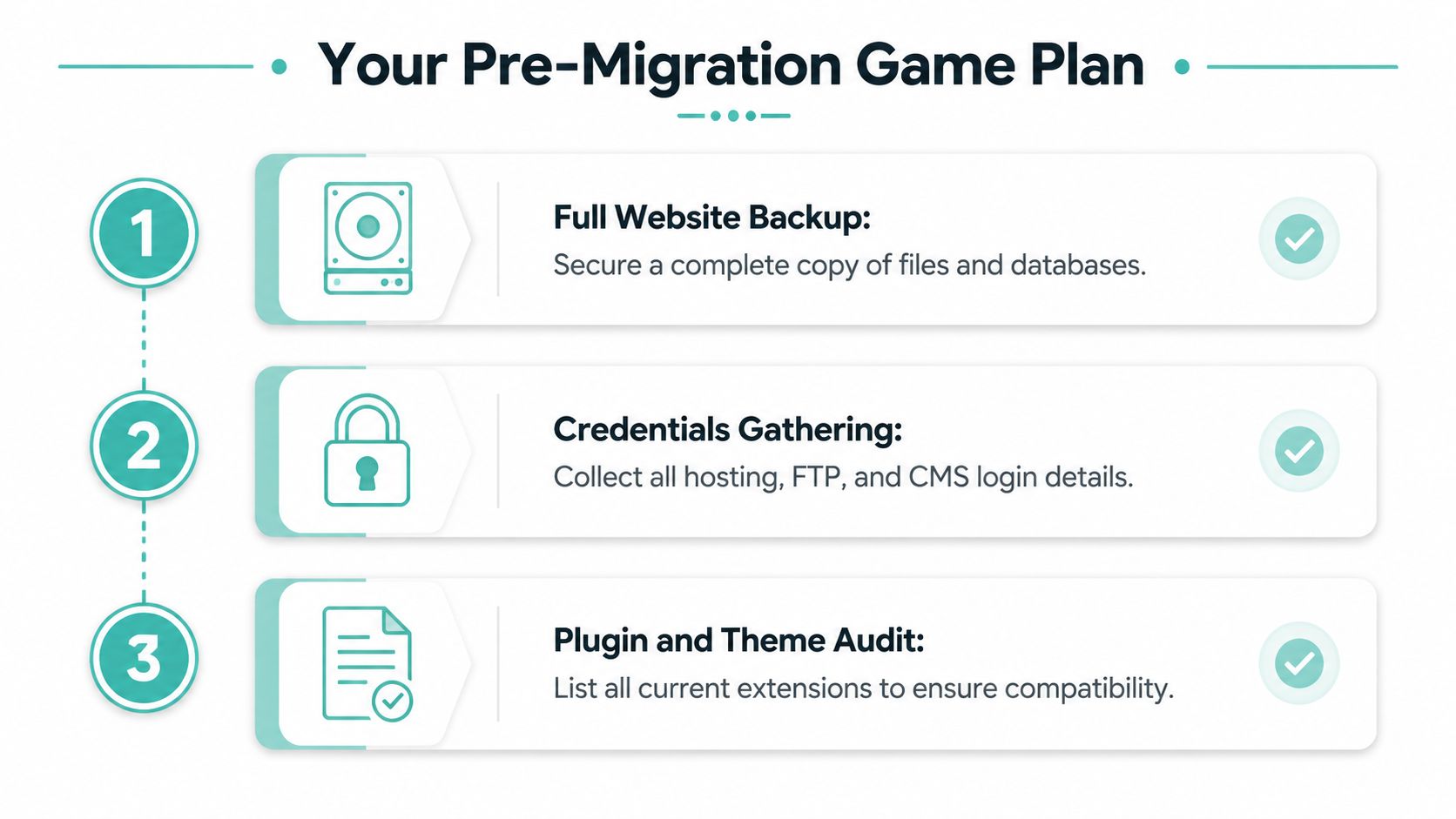
A clean migration pack saves hours. Put everything in one secure document or password manager entry so you're not scrambling during the move.
Use this checklist:
- Hosting access: Your current hosting login, control panel access, FTP or SFTP details, and any database login details.
- Domain access: Registrar login and whoever controls DNS. The migration isn't finished until DNS is changed.
- CMS access: WordPress admin, Joomla admin, Drupal admin, or any other CMS login.
- Email details: Mailboxes, aliases, forwarders, mailing lists, and where the email is currently hosted.
- Website inventory: Active plugins, themes, custom code snippets, cron jobs, form handlers, and payment integrations.
- Backup confirmation: A full backup of files and database, plus a quick check that the backup can be opened or restored.
If you want a working checklist you can follow line by line, UpTime has a practical website migration checklist that includes the usual handover items.
One outside resource that's also useful if you're still comparing environments before the move is this guide to find the best web hosting Australia offers. It's handy for checking what features matter for local businesses, such as support access, server location, and whether pricing is presented clearly.
Choose the new hosting environment carefully
A migration is the wrong time to “make it fit” on a plan that doesn't suit the site. Match the hosting to the application.
A few practical examples:
- Small brochure site on PHP: Standard cPanel hosting is usually enough.
- WordPress with WooCommerce: Use a WordPress-ready environment and make sure backups, PHP compatibility, and caching are sorted.
- Legacy business app on Microsoft stack: Use Windows hosting that supports ASP.NET and the right database setup.
- Agency or multi-site setup: Check add-on domains, staging options, and account isolation before moving.
For Australian businesses, local hosting also changes the support experience. If something goes sideways during business hours, local support and a reachable phone line matter a lot more than a generic ticket queue in another timezone. It also helps when pricing is shown with GST included, because you can compare plans without trying to decode what the final bill will really be.
Executing the Website Transfer
The transfer itself is the hands-on part of the job. You're moving the site into a new server environment without losing content, settings, or the business tools tied to the domain.
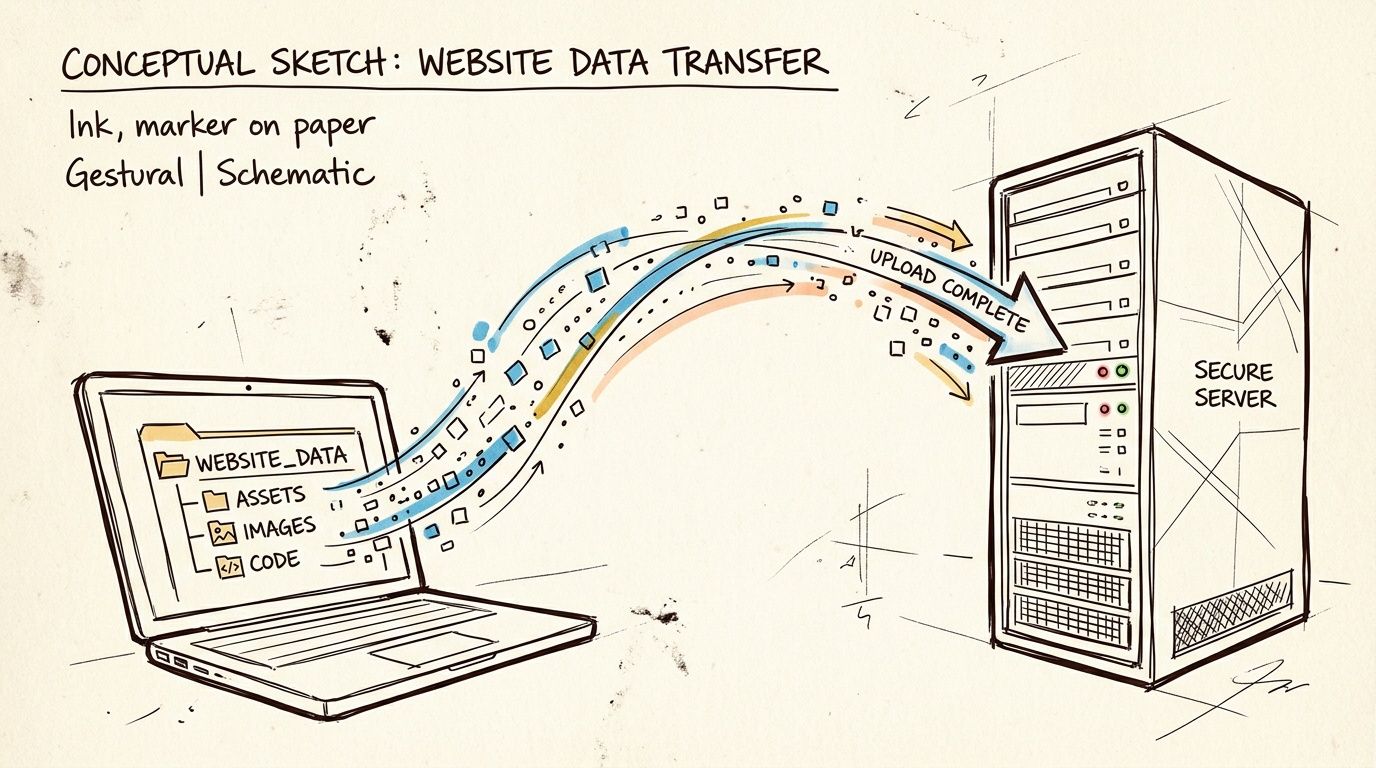
For most sites, that means two separate items need to arrive intact. The website files and the database. Static sites may only have files to copy, while WordPress, booking systems, and online stores also depend on a database for pages, users, orders, and settings, as outlined in GoDaddy's guide to website file and database migration.
One trap catches small business owners more often than the file copy itself. They move the site, then discover later that email accounts, forwarders, or mail settings were never accounted for. The full cutover happens in the next stage, but the transfer stage is where you confirm what needs to be recreated so nothing is missed during business hours.
For cPanel websites
If the old host and new host both use cPanel, the cleanest option is usually a full account backup and restore. That preserves more than just the public website. It can also carry across databases, email account structure, cron jobs, and account-level settings, depending on how the source server is configured.
A sensible workflow looks like this:
- Create a full cPanel backup on the old host.
- Download a local copy so you have something independent of the server.
- Restore the backup on the new host, or ask the new host to do it.
- Review databases, email accounts, domain settings, and application files.
- Test the site privately on the new server before any public change.
If you need the exact menu path, UpTime's guide to create and download a full cPanel account backup is worth having open before you start.
What tends to work well:
- Full-account restores between standard cPanel environments
- Moving the site before making design or plugin changes
- Checking PHP version and extensions early
What regularly causes problems:
- Assuming every cPanel host uses the same mail routing or backup format
- Forgetting cron jobs, subdomains, or custom DNS records
- Restoring the site and skipping form tests or outbound email checks
A cPanel restore can look fine at first glance and still fail in production if the new server is running a different PHP version, missing a required module, or handling mail differently.
For WordPress websites
WordPress migrations usually fall into two camps. A plugin-based move for straightforward sites, or a manual move for larger or more customised builds.
Plugin-based move
A migration plugin is often the quickest option for a standard business site. It suits:
- Brochure sites
- Blogs
- Small WordPress sites without unusual server rules
- Sites that don't have oversized media libraries or complex custom tables
The main advantage is speed. Good migration plugins can also update old URLs inside the database, which saves a lot of cleanup work later.
The downside is reliability on larger sites. Big media folders, tight server limits, and long import jobs can trigger timeouts. If that happens, stop guessing and switch to a manual method rather than retrying the same failed import for hours.
Manual WordPress move
Manual migration takes longer, but it gives more control. I'd choose it for a WooCommerce store, an older site with years of plugin changes, or any job where the business cannot afford a messy surprise after cutover.
The order matters:
- Copy the files: Use FTP, SFTP, or file manager access.
- Export the database: Save the database as an
.sqlfile. - Import the database: Load that export into the new host.
- Create or confirm the database user: The new server needs the correct credentials.
- Edit
wp-config.php: Update the database name, username, password, and host details. - Test on a temporary URL or staging copy: Confirm the site works before the DNS change.
Use this checklist during the move:
| Task | Why it matters |
|---|---|
| Back up files | Keeps themes, plugins, uploads, and custom code safe |
| Export database | Preserves posts, pages, users, settings, and order data |
Update wp-config.php | Connects WordPress to the correct database |
| Check permalinks | Helps fix broken internal paths |
| Run URL search and replace | Removes old domain references stored in the database |
The failures I see most often are not dramatic server crashes. They're leftover references to the old domain buried in settings tables, page builders, plugin options, or hard-coded theme files. Those can break images, redirects, forms, payment callbacks, and login flows.
Check these items before calling the transfer done:
- Media library images
- Contact forms and redirect pages
- Navigation menus
- Checkout, cart, and account pages
- Plugins that store full URLs in their settings
If several people have worked on the site over the years, assume there are hard-coded paths until testing proves otherwise.
For Windows and ASP.NET websites
Windows hosting moves need a bit more care because the application often depends on settings outside the visible file tree.
The transfer usually includes:
- Application files
- Database export and import
- Connection strings
- Email settings
- Server-side runtime or application pool settings
A few details matter more than they first appear.
- Database compatibility: An MSSQL application needs a matching setup on the new host.
- Config files: Review connection strings and environment-specific values after import.
- Permissions: Some apps need write access for uploads, logs, or generated files.
- Rewrite behaviour: Friendly URLs can stop working if rewrite rules are missing or different.
For developer-managed sites, staging is the safest place to confirm logins, forms, reports, and file uploads. For business owners without an internal developer, this is also where responsive local support helps. During an Australian migration window, being able to ring a 1300 number and speak to someone in your timezone is far more useful than waiting overnight for a reply while the site or mail system sits half-moved.
If you're unsure which transfer method suits the site, managed migration help is often money well spent. UpTime Web Hosting offers migration assistance for customers moving from cPanel or Plesk-style environments, which is especially useful when the website transfer and the mail setup both need to be handled carefully before cutover.
Host your website with our 5-star rated, cPanel website hosting plans.
Super fast servers, with security included and hosted in your choice of Australian Data Center.
View cPanel Plans
Nailing the DNS, SSL, and Email Cutover
Friday afternoon is when many small business owners feel the pressure. The new site is loaded, everyone wants the switch done before Monday, and one wrong DNS record can send the website one way and your email somewhere else. The website usually recovers. Lost enquiries and bounced invoices are harder to clean up.
For Australian businesses, email is often the part that gets missed. The domain might power your website, Microsoft 365 or Google Workspace, a few old POP or IMAP mailboxes, scanner-to-email, and a forgotten forwarder that still catches leads from a directory listing. If those records are not mapped before cutover, the site can go live while mail breaks without anyone noticing.
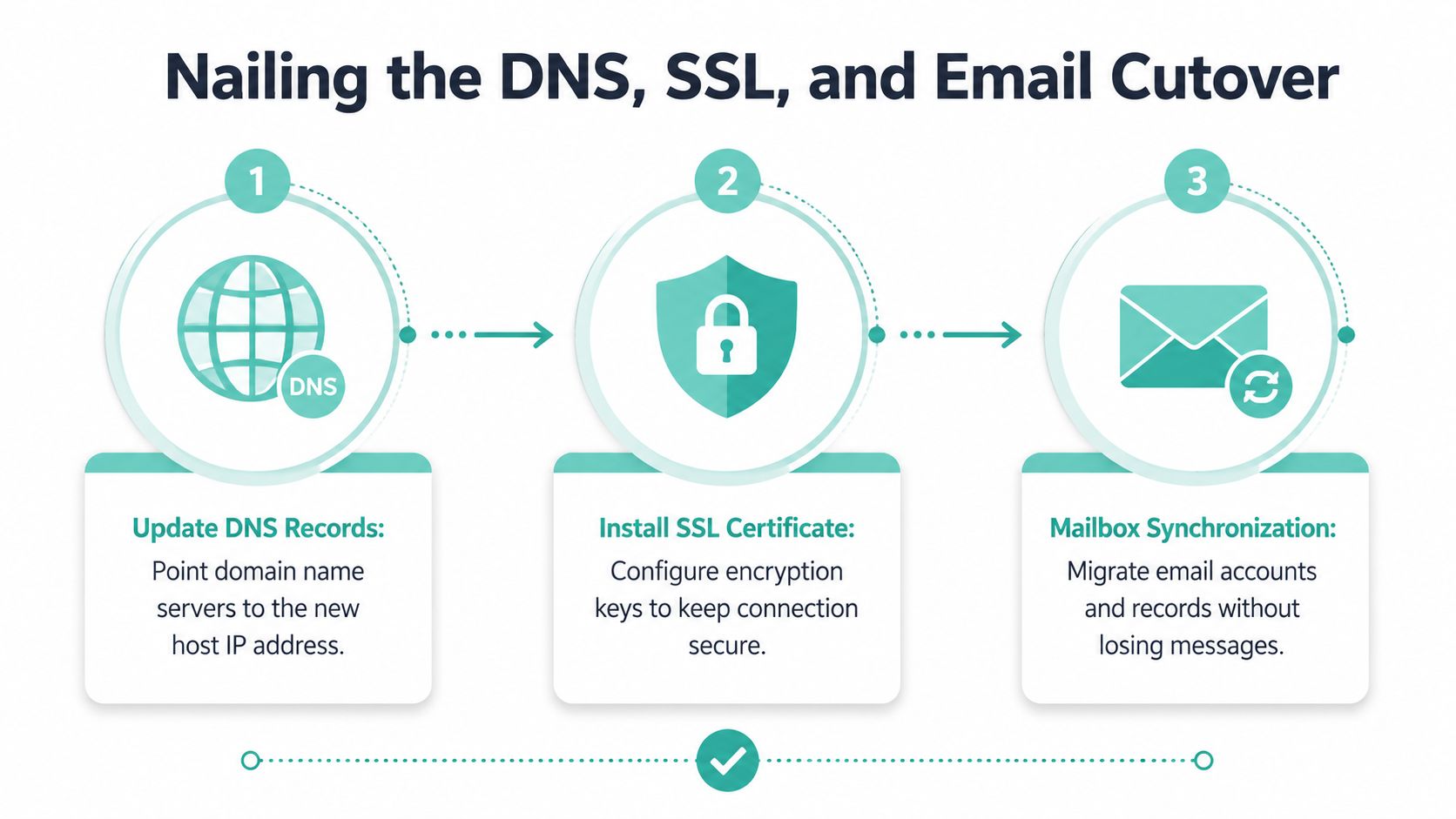
Change DNS with a plan, not in a rush
DNS controls where traffic goes, but updates do not appear everywhere at once. Some visitors will reach the new server first. Others will still hit the old one for a while, depending on their provider and cached records.
That overlap is normal. Plan for it.
Use this order:
- Finish the site copy and database sync.
- Test the new site on a preview URL or hosts file override.
- Confirm the live domain is ready on the new server.
- Install SSL before public traffic arrives.
- Update only the records that need to change.
- Keep the old hosting active until traffic and services settle.
A common mistake is changing nameservers instead of editing the specific DNS records you need. Nameserver changes can pull email, subdomains, and third-party services into the move all at once. If your mail is staying with Microsoft 365, Google Workspace, or another provider, a full nameserver switch can break mail flow unless every existing record is recreated correctly.
For first-time migrations, I usually recommend the safer option. Change the website records first. Leave mail where it is unless there is a clear reason to move it at the same time.
Have SSL ready before the cutover window
SSL needs to be working on the new host before the public switch. If the certificate is added after DNS changes, some visitors can hit security warnings during the exact period you want confidence.
Check four things before cutover:
- The main domain loads over HTTPS
- WWW and non-WWW versions behave consistently
- Redirects point to the preferred secure version
- Old hard-coded HTTP assets are cleaned up
If the padlock disappears after migration, the certificate is not always the problem. Mixed content is the usual culprit. An old theme file, image path, script, or font can still call the insecure URL and trigger warnings even though the certificate itself is fine.
On locally hosted Australian infrastructure, SSL issuance and renewals are usually straightforward, but timing still matters. During a business-hours migration, being able to ring a 1300 support number and ask someone to check the certificate, DNS zone, and virtual host in real time is far more useful than waiting in a ticket queue while customers see browser warnings.
Treat email as its own migration project
Website hosting and email routing are connected by the domain, but they are separate services. That distinction saves a lot of pain.
Before you touch MX records, document the current mail setup in plain English:
- every mailbox
- aliases and forwarders
- mailing lists or shared inboxes
- which provider currently handles mail
- SPF, DKIM, and DMARC records
- devices or apps that send mail, such as scanners, CRMs, and contact forms
Then choose your cutover method.
| Cutover option | What it suits | Main trade-off |
|---|---|---|
| Move the website first and leave email on the current provider | First migrations, business-critical inboxes, limited internal IT support | Two services to manage for a while |
| Move website and email in the same window | Small setups with only a few mailboxes and good preparation | More coordination, more points of failure |
| Change nameservers and move everything together | Experienced admins with a complete DNS inventory | Highest chance of missing a mail record |
For many small businesses, the calmest path is simple. Move the website. Confirm the site is stable. Then move email in a separate step once the new mailboxes, clients, and DNS records are ready.
If mailboxes are coming across to the new service, follow UpTime's guide on migrating existing emails to your new service. It helps you avoid the classic problem where DNS is updated before the destination mailbox exists.
Protect outbound mail and form delivery
Inbound email gets the attention because staff notice missing messages fast. Outbound mail is where hidden issues show up.
After any mail change, check:
- MX records for inbound delivery
- SPF so your authorised sender services are listed correctly
- DKIM so signed mail passes provider checks
- DMARC so reporting and policy still match your setup
- Website forms so contact submissions reach the right mailbox
Your website might be live and look fine while quote forms stop arriving, password reset emails fail, or invoices land in spam. Test with an external address, not just between two staff accounts on the same domain.
One more practical point. If you are comparing hosts during this stage, GST-inclusive pricing and local support matter more than they do on a normal day. During cutover, nobody wants to discover extra charges for migration help or spend the evening translating overseas support replies into business decisions. UpTime's local infrastructure and Australian support hours make that window easier to manage, especially when the job includes both the site and a careful mail transition.
Keep the old service active until the website is serving correctly, mail is flowing in both directions, and no forgotten device or form is still pointing at the old setup. That overlap costs a little more for a short period, but it is usually cheaper than missing customer email.
Go-Live Testing and Final Checks
Friday afternoon is when small business owners usually feel the pressure. The site is loading, staff want the all-clear, and the question is no longer “did the files copy?” It's “can customers buy, book, call, and email us without anything going missing?” That is the standard for go-live.
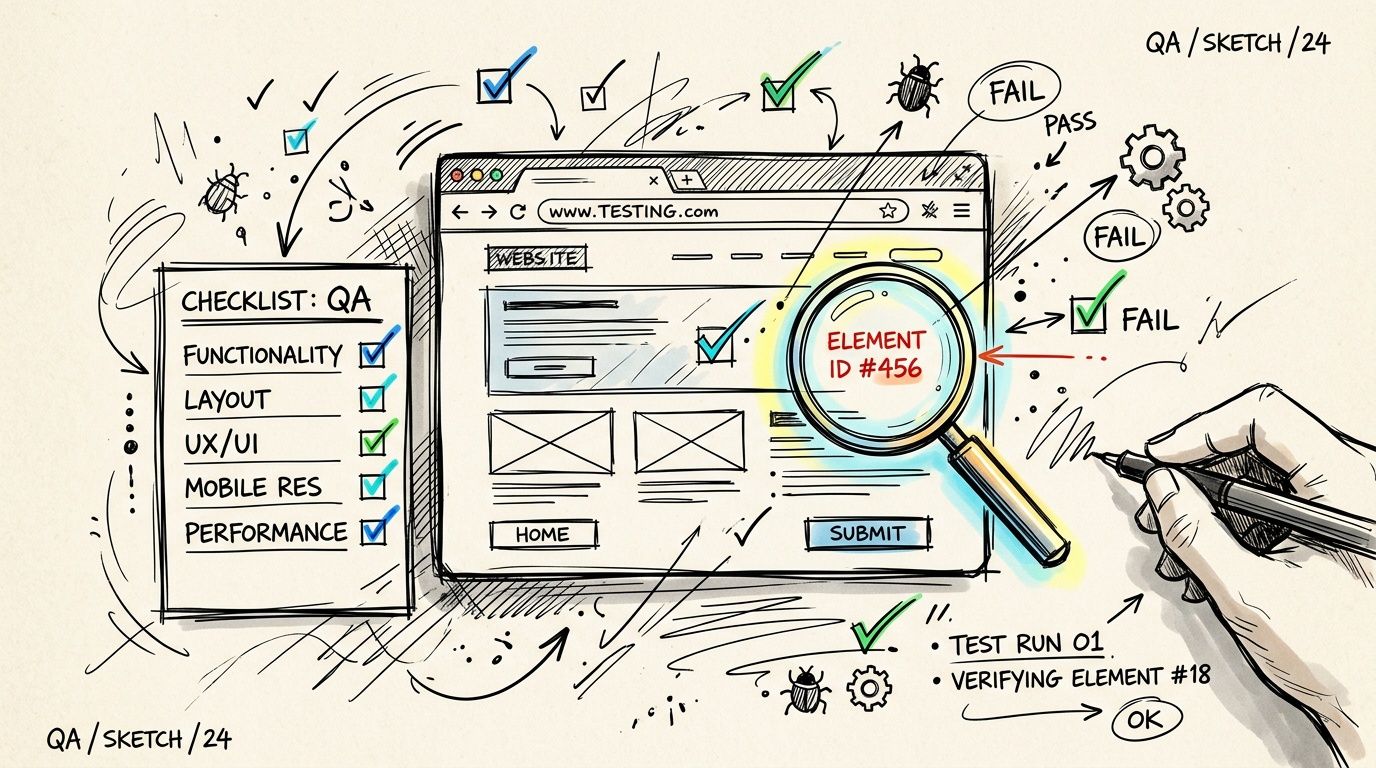
Check the public site like a customer would
Open the site in a private browser window and test it from the front end. Avoid relying on an admin session, because cached logins and saved cookies can hide problems that real visitors will hit straight away.
Work through one full customer journey, then test the supporting pages around it.
- Core pages: Home, about, services, contact, blog, terms, privacy, and any landing pages you use in ads
- Navigation: Header menu, footer links, buttons, breadcrumbs, and any links inside banners or featured sections
- Lead capture: Contact forms, quote requests, booking forms, newsletter sign-ups, and thank-you pages
- Customer actions: Login, logout, password reset, account area, cart, checkout, and payment confirmation
- Design and scripts: Images, icons, fonts, sliders, pop-ups, embedded maps, and chat widgets
- Security: Confirm every page stays on HTTPS and there are no mixed-content warnings
If one office computer still shows the old version while your phone shows the new one, DNS caching is usually the culprit. Keep a guide on how to flush DNS cache on your device handy so you can verify the live result without guessing.
For WordPress sites, pay close attention to broken links and missing assets after launch. If visitors are hitting page-not-found errors, Mr. Green Marketing's 404 error solutions is a useful troubleshooting reference.
Confirm the business still works behind the scenes
A website can look fine and still fail the business test.
Check the jobs that happen after a visitor clicks submit or pays an invoice. Confirm quote requests arrive in the right mailbox, autoresponders send properly, order notifications reach staff, payment gateways complete, and any CRM or booking integration still records the enquiry. If your business depends on email, test with an address outside your domain as well as an internal one. That catches filtering and delivery issues your staff might miss.
This is also where local support matters. During a migration window, being able to ring a 1300 number and speak to an Australian technician can save a lot of time when a form, mailbox, or SSL setting needs attention quickly. UpTime's local infrastructure and support coverage are especially handy if your customers are in Australia and you need fast confirmation that both the site and email are behaving properly.
Keep the old hosting account active until checks are clean
Do not cancel the old service the moment the homepage loads on the new host.
Keep it running for a short overlap while you test real traffic, watch for customer reports, and confirm no forgotten device, mailbox, script, or integration is still pointing at the old server. That extra spend is usually minor compared with the cost of missed leads, failed orders, or support time spent chasing odd one-off issues.
The final sign-off is simple. The public site works, forms and transactional emails arrive, staff can do their day-to-day tasks, and no one is still being served the old environment. Once those boxes are ticked, you can shut down the previous host with confidence.
Common Migration Hurdles and How to Solve Them
A migration can be technically correct and still trip over a few small settings. The good news is that most post-move problems leave clear clues if you check the symptom first and trace it back methodically.
The site loads but looks broken
A half-working site usually means files arrived, but some references still point to the old environment. On WordPress, that often shows up as missing images, broken styling, login loops, or links that send you back to the previous domain or folder path.
Check the database for old URLs and hard-coded paths in page builders, theme settings, and widgets. If the site was moved from HTTP to HTTPS at the same time, old asset paths can also make pages look incomplete. For 404s after the move, start with permalink settings, rewrite rules, and file paths. If you need a second reference, Mr. Green Marketing's 404 error solutions covers common causes clearly.
Database errors and white screens
“Error establishing a database connection” is one of the most common migration faults, especially after a manual import. A blank white screen can point to the same family of problem, or to a PHP version mismatch or fatal error hidden from public view.
Check these items in order:
- Database name
- Database username and password
- Database host or server name
- Application config file settings
- Whether the database import completed cleanly
- PHP version and required extensions on the new host
For WordPress, start with wp-config.php. For Joomla, Magento, custom PHP apps, or older business systems, inspect the application's main config file and confirm the new server has the right runtime settings. This guide to error establishing database connection troubleshooting is a handy checklist if you want to work through the common causes quickly.
HTTPS warnings and mixed content
If the certificate is installed but the browser still shows a warning, the page is usually pulling some files over an old insecure URL. That can be a logo, font, JavaScript library, tracking script, or a hard-coded image buried inside a page builder block.
Look in theme options, header and footer scripts, canonical settings, and any plugin that stores full URLs. Then clear the site cache, CDN cache, and browser cache before testing again. I see plenty of people fix the setting but test too early and assume the problem is still live.
Email works on one device but not another
This catches small businesses more often than the website move itself. The mailbox may be fine on the server, while one laptop or phone is still trying to talk to the old host with saved settings.
Check whether the device is using the correct incoming and outgoing mail server, the right ports, and the current password. Then confirm where mail is meant to live. Microsoft 365, Google Workspace, cPanel mail, and hosted Exchange all behave differently during a migration, and mixing those up can leave staff receiving mail on one device and sending from another.
If mail is business-critical, keep a written list of every mailbox, forwarder, alias, autoresponder, scanner, and website form address before the move. That sounds basic, but it prevents the classic problem where the director's inbox works and the sales@ or accounts@ address stops delivering without anyone noticing. During an Australian business-day cutover, having local support and a 1300 number to call matters because email faults tend to show up as real customer complaints, not tidy technical alerts.
Slow site after the move
A site can be fully online and still feel sluggish. That usually comes down to server location, missing caching, an outdated PHP setting, or heavy plugins that behaved differently on the old host.
For Australian businesses, local infrastructure makes a noticeable difference for local visitors and staff using admin panels all day. Check page caching, object caching if your app supports it, image compression, and whether the new hosting plan matches the site's actual workload. Cheap plans can look fine on a pricing page, but if they do not include the resources you need, the migration swaps one problem for another. GST-inclusive pricing also helps you compare the actual monthly cost without surprises.
Work through the issue one symptom at a time. Most migration problems come back to one missed setting, one old record, or one service, especially email, still pointing at the previous host.
Register your new domain name at competitive market prices including free domain add-ons like privacy, DNS Hosting, Custom Nameservers and Forwarding.
Always the best price and no nasty renewal price hikes.
Register A Domain Name
Frequently Asked Questions
How much downtime should I expect?
If the migration is staged properly and DNS is only updated after testing, downtime can be minimal. The goal is to avoid visible disruption rather than “flip and hope”.
Will migrating affect SEO?
A host move by itself doesn't automatically damage search visibility. Problems usually come from broken redirects, missing pages, mixed content, or changing URLs without cleaning up references.
How long should I keep the old hosting account active?
Keep it active through the overlap period and until you've confirmed the new site, forms, and email are all working normally. Don't cancel just because the homepage loads on your laptop.
Do I move the website and email at the same time?
Not always. If email is business-critical, keeping mail stable while the website moves can reduce risk. Many first-time migrations are smoother when those jobs are handled in a controlled sequence.
Who should perform the migration?
That depends on the site. A simple cPanel site is often manageable for a confident user. A WordPress shop, custom CMS, or Windows business app usually benefits from technical help.
What should I prepare before asking a host to migrate it?
Have your current hosting login, domain access, CMS login, and email details ready. The migration only moves quickly when the credentials and service map are complete.
If you'd rather not juggle backups, staging, DNS timing, and mailbox checks yourself, UpTime Web Hosting is one Australian option to consider for local hosting, migration help, email services, and support access during the cutover window.