Picking the right theme for your WooCommerce store is one of those make-or-break decisions. It goes way beyond just aesthetics; the theme you choose is the very engine of your online shop, influencing everything from the customer experience right through to your sales figures.
Think of it less as a 'skin' and more as a powerful business tool that can either drive growth or hold you back.
What Makes a Great Australian WooCommerce Theme
When you're setting up a WooCommerce store for the Australian market, you need to think beyond just finding a design you like. Your theme is the foundation of your entire e-commerce operation. It has a direct say in your site speed, how much trust you build with shoppers, and, ultimately, your conversion rates.
For any Australian business, this means putting a premium on performance on local servers and making sure your theme plays nicely with Aussie-specific tools and payment gateways.
A great theme works like a well-oiled machine, integrating perfectly with WooCommerce and all your essential plugins. A poorly chosen one, on the other hand, can feel like you're trying to drive with the handbrake on. It slows your site to a crawl, causes frustrating plugin conflicts, and sends potential customers running for the hills. It’s the difference between a smooth, enjoyable shopping journey and a clunky, abandoned cart.
Core Pillars of a High-Performing Theme
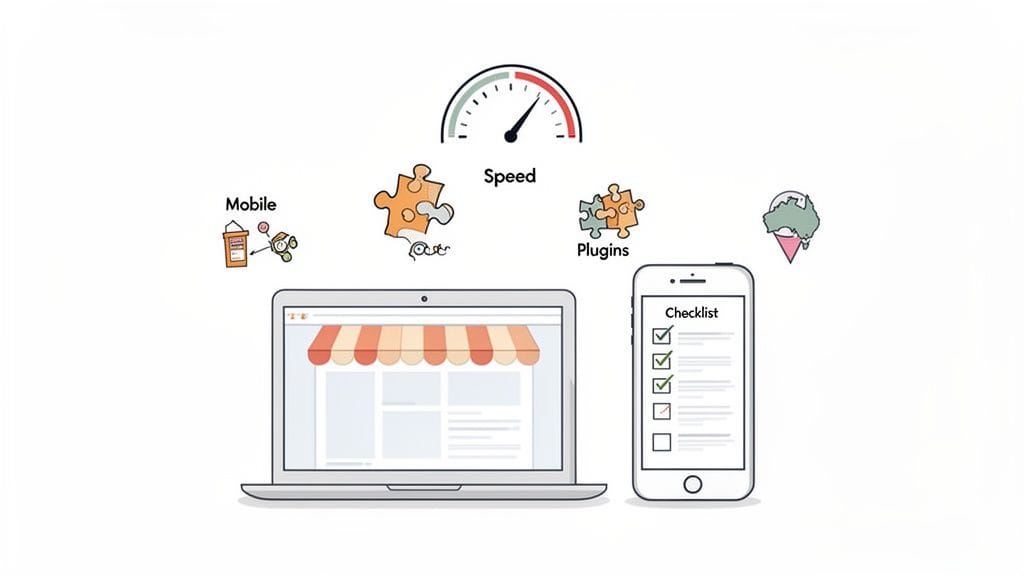
To build a successful online store from the ground up, you need a theme that truly delivers in a few key areas. I always tell my clients to focus on these four pillars:
- Performance and Speed: How your theme is coded has a massive impact on how fast your pages load. A lightweight, clean-coded theme will perform much better on Australian hosting, which is absolutely critical for keeping local shoppers engaged and boosting your Google rankings.
- Mobile Responsiveness: A huge chunk of online shopping happens on smartphones. Your site has to look and work flawlessly on any device, not just be a shrunken-down version of your desktop site. A truly responsive theme automatically adjusts its layout, images, and menus for a perfect mobile experience.
- Plugin Compatibility: Your store will lean on plugins for all sorts of things, from payments to shipping. A good theme guarantees compatibility with the big WooCommerce extensions and popular Australian plugins. For example, your theme should work seamlessly with plugins for Australia Post, Afterpay, or local payment providers without causing errors.
- SEO Friendliness: A theme built with clean code, proper heading structures, and schema markup gives you a huge head start in search engine rankings. This makes it so much easier for Australian customers to find your products on Google.
The proof is in the numbers. In the buzzing Australian e-commerce scene, the right WooCommerce theme has become a secret weapon for small and medium businesses. As of early 2026, Australia is home to over 12,543 active WooCommerce stores, growing at a healthy 2.9% monthly rate. This boom shows just how much appeal the platform has, especially when it’s powered by an optimised theme that meets the need for speed Aussie shoppers demand.
Your theme isn't just a pretty face for your store; it's the engine room. Choosing a fast, reliable, and well-supported theme is hands down the best investment you can make in your e-commerce future. It makes your life easier, cuts down on technical headaches, and lets you focus on what really matters—growing your business.
While a theme built specifically for WooCommerce comes with all the e-commerce bells and whistles, it’s still built on WordPress. Getting your head around what makes a good WordPress theme in general can give you some valuable insight. If you're interested, we have a great guide on choosing the best theme for WordPress, as many of the same core principles apply here.
Essential Checklist for Your WooCommerce Theme
Use this quick-reference table to evaluate themes against the most important criteria for your Australian WooCommerce store.
| Evaluation Criteria | What to Look For | Why It Matters for Australian Stores |
|---|---|---|
| Performance | Lightweight code, minimal requests, and fast demo sites (check with Google PageSpeed Insights). | Fast load times are crucial for keeping impatient Aussie shoppers from bouncing and for ranking well in Google.com.au. |
| Mobile-First Design | Test the demo on your phone. Is navigation easy? Are buttons easy to tap? Is text readable? | With over 80% of Australians shopping online via mobile, a poor mobile experience is a guaranteed sales killer. |
| Plugin Compatibility | Explicitly states compatibility with WooCommerce, major page builders, and essential plugins. | Ensures you can easily add Australian payment gateways (Afterpay, Zip) and shipping methods (Australia Post) without conflicts. |
| SEO Features | Clean HTML, correct heading structure (H1, H2, H3), and built-in schema markup for products. | Helps your products show up in Google search and Shopping results, driving organic traffic from local customers. |
| Regular Updates & Support | Check the theme’s changelog. Is it updated frequently? What do reviews say about the developer’s support? | Guarantees your site stays secure and compatible with new versions of WordPress and WooCommerce, preventing future problems. |
| Customisation Options | A user-friendly theme options panel or integration with the WordPress Customiser. | Allows you to easily change colours, fonts, and layouts to match your brand without needing to hire a developer for every little tweak. |
Having this checklist handy can save you a world of trouble. It forces you to look past a pretty design and really dig into whether a theme has the solid technical foundation your business needs to succeed.

Performance you can feel, backed by clients who depend on it. Read how our support and uptime create long‑term customer success.Power Your Business with Better Hosting
How to Find and Install Your New Theme
Alright, you know what to look for in a great theme. Now comes the fun part: finding the perfect one for your business and getting it set up. Your hunt for a quality theme for WooCommerce will probably lead you down a few common paths. Think of it like deciding where to shop for an outfit – you could go to a huge department store, a curated boutique, or straight to the designer's workshop.
The official WordPress.org theme directory is often the first stop. It’s packed with thousands of free themes, and many are designed with WooCommerce in mind. The big plus here? Every single theme has passed a review by the WordPress team, so you know it meets basic coding standards and is secure.
But if you’re after more powerful features and the peace of mind that comes with dedicated support, it’s worth looking at premium options. Marketplaces like ThemeForest or the shops of independent developers are fantastic sources. Yes, they come with a price tag, but you're paying for more than just a pretty design. You get advanced customisation, unique features, and professional support, which can be an absolute lifesaver when you hit a snag.
Sourcing Your Perfect WooCommerce Theme
When you're browsing, it's easy to get wowed by the flashy demo sites. But to avoid a theme that looks great on the surface but becomes a headache later, you need to do a bit of detective work.
- Read the Reviews: Don't just skim them. Focus on reviews from the last 6-12 months. Are people happy with recent updates? How quickly does the developer respond to support tickets? This tells you a lot about their current service.
- Check the "Last Updated" Date: If a theme hasn’t been touched in over a year, that’s a major red flag. It could mean compatibility issues with new versions of WordPress or WooCommerce, leaving your site vulnerable.
- Analyse the Developer's Reputation: On a marketplace, look at the developer's entire portfolio. Someone with a long track record of well-maintained themes is a much safer bet than a new seller with a single, flashy product.
Doing this homework is especially important in the Australian e-commerce space. WooCommerce is a huge player here, powering around 15.6% of the country's top online stores as of 2026. With roughly 167,000 active installations, choosing a unique and reliable premium theme is a smart move to stand out from the crowd. You can dig deeper into WooCommerce's market position on RedStag Fulfillment.
Installing Your New Theme
Once you’ve found "the one," getting it installed is pretty straightforward. The method just depends on whether you grabbed a free theme or invested in a premium one.
For free themes from the WordPress.org directory:
Just head to your WordPress dashboard and go to Appearance > Themes. Click the "Add New" button, search for the theme by name, and then click "Install" followed by "Activate." Simple as that.
For premium themes downloaded as a .zip file:
The process starts the same. Go to Appearance > Themes and click "Add New." But this time, you’ll click the "Upload Theme" button at the top. From there, just choose the .zip file you downloaded from the provider, click "Install Now," and once it's uploaded, hit "Activate."
Pro Tip: Never, ever activate a new theme on your live website without testing it first. A staging site is a safe, private copy of your store where you can play around, find any conflicts, and fix issues without your customers ever seeing a thing. We have a simple guide on how to create a staging site for your WordPress website in our knowledge base.
Customising Your Theme and Core Store Pages
With your new WooCommerce theme installed and activated, the real work begins. This is where you move past the default settings and start shaping a storefront that truly reflects your brand. The best place to start is the WordPress Customiser.
You’ll find it under Appearance > Customise. This tool is brilliant because it gives you a live preview of your changes as you make them. It's the spot to upload your logo, set your brand's colour palette, and pick the fonts that will connect with your customers. Nailing these basics is the first step towards creating a professional and consistent shopping experience.
Tailoring Key WooCommerce Pages
While a sharp logo and the right colours are a great start, the real money is made on your core store pages. These are the pages where customers interact with your products, so a generic, out-of-the-box layout simply won't cut it if you want to maximise conversions.
Think about your Shop page – it’s your digital shop window. Instead of just a long, scrolling list of items, consider how your customers actually shop. For a clothing store, a practical example is using a theme that allows for a clean grid layout with advanced filtering options for size, colour, and style, helping shoppers quickly find exactly what they’re looking for.
Your Product pages are your online sales assistants. Use your theme’s settings or a page builder to add more than just a single image and a price. For example, you could add a section for customer reviews, an FAQ dropdown to answer common questions ("Do you ship to rural WA?"), or a detailed size guide to help cut down on returns. The goal is to answer every question before a customer even thinks to ask it.
Enhancing the Checkout Experience
The cart and checkout pages are where a surprising number of sales are either won or lost. A clunky, slow, or untrustworthy process is one of the biggest reasons for cart abandonment. This is where small, thoughtful customisations can make a massive difference.
A simple but incredibly powerful trick is to add trust badges to your checkout page. Seeing logos for secure payment options like Afterpay and Zip, alongside major credit cards and a clear SSL security seal, instantly puts anxious Aussie shoppers at ease. This small visual cue can seriously boost their confidence and encourage them to complete their purchase.
Here are a few other practical ideas for optimising these crucial pages:
- Simplify the Cart: Check if your theme has an option for a mini-cart or a slide-out cart. This lets customers see what they’ve added without navigating away from the page they’re on, creating a much smoother journey.
- Streamline Checkout Fields: Can your theme customise the checkout form? If so, get rid of any non-essential fields. If you’re only selling digital products, for example, you have no need for a shipping address.
- Add Helpful Information: Pop a small text block near the payment section with a link to your returns policy or a contact number for support. This can be just the thing to overcome any last-minute hesitation.
Once you’ve got your theme dialled in, you can take its functionality even further. A great next step is to explore some must-have WooCommerce plugins to add features like advanced shipping rules or customer loyalty programs. Many of the top plugins for WordPress websites also integrate seamlessly with WooCommerce to boost your marketing and SEO efforts.
Host your website with our 5-star rated, cPanel website hosting plans.
Super fast servers, with security included and hosted in your choice of Australian Data Center.
View cPanel Plans
Optimising Your Theme for Speed and Security
Choosing a gorgeous theme for WooCommerce is a great start, but it’s only half the job. A beautiful storefront won't do you much good if it’s slow, clunky, or an open door for security threats. Making sure your theme is optimised for both speed and security isn’t just a tech task—it’s how you build trust with Aussie shoppers and climb up the search engine rankings.
A fast-loading theme has a real, measurable impact on your sales. Slow sites are frustrating, and that frustration leads directly to abandoned carts. For UpTime Web Hosting customers, this is where our built-in performance tools become your secret weapon.
Supercharge Your Store with Caching
One of the most powerful ways to speed up your site is with caching. Think of it this way: instead of your server building every page from scratch for every single visitor, a caching tool saves a ready-to-go static version. This simple step drastically cuts down server load and makes your whole site feel incredibly quick.
Here at UpTime Web Hosting, all our plans include LiteSpeed Cache and AccelerateWP right out of the box. These tools are powerful server-side services that work in tandem to automatically fine-tune your theme’s code, minify its CSS and JavaScript files, and even optimise your database.
- LiteSpeed Cache: This isn't your average plugin. It's a server-level cache that's smart enough to handle dynamic WooCommerce content—like shopping carts and personalised pages—without breaking a sweat.
- AccelerateWP: This feature pushes optimisation even further. It refines your theme's assets and slashes database queries to squeeze every last drop of performance out of your site.
A snappy theme is vital for both user experience and SEO. To further improve website speed, it's worth looking into advanced techniques that go beyond your theme's basic settings. You can also get a deeper understanding of how this tech works by reading our guide on improving WordPress speed with a cache plugin.
This infographic gives a great visual of how to bring your theme to life, covering everything from the initial setup to the final launch.
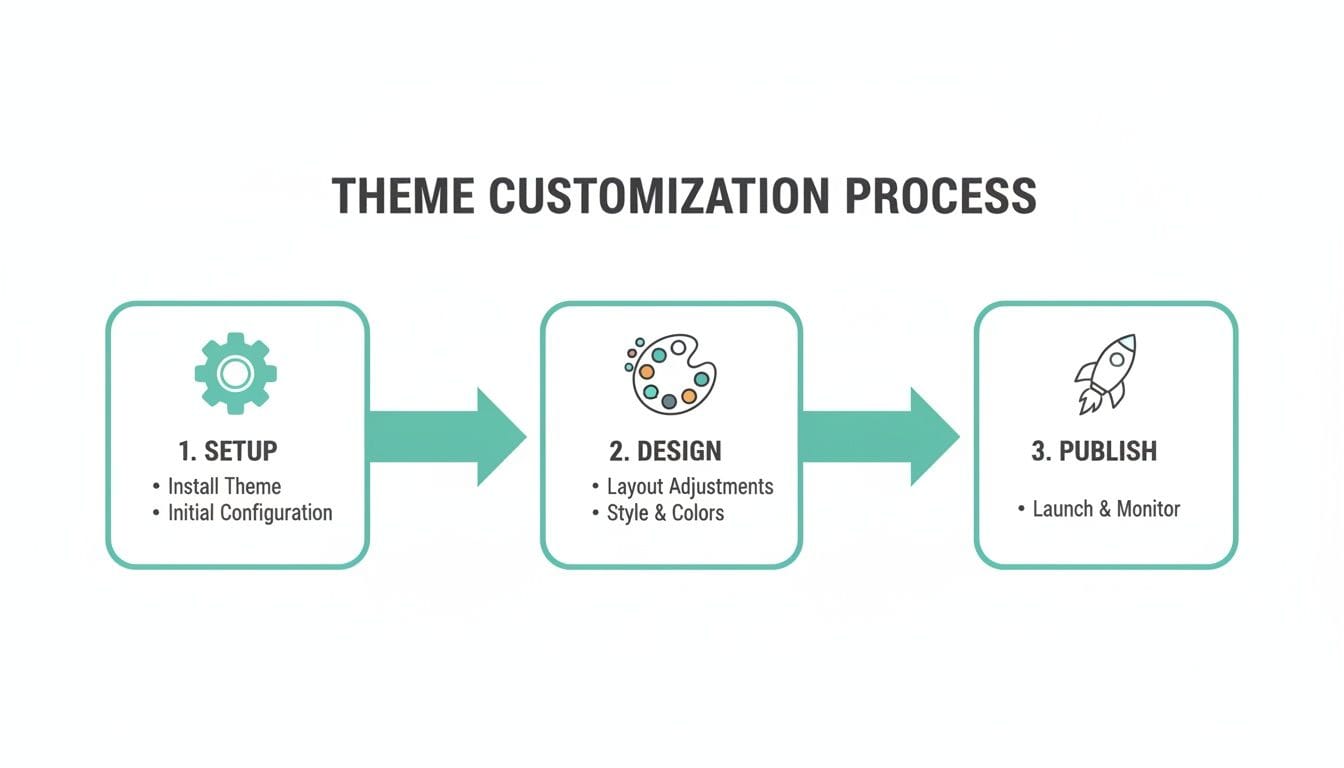
As you can see, optimisation isn't something you tack on at the end; it’s a core part of the entire design and publishing journey.
Fortifying Your WooCommerce Store
When it comes to e-commerce, security is completely non-negotiable. A single breach can shatter the trust you’ve built with customers and ruin your brand's reputation overnight. While your theme plays a part—outdated or poorly coded ones can open up security holes—it's your hosting environment that acts as the main line of defence.
Your store's security is a partnership between your theme, your plugins, and your hosting. While you manage updates for your theme and plugins, we provide a fortified environment with multiple layers of protection to keep your business safe.
The incredible rise of WooCommerce, especially with theme-driven stores, has seen active installations jump by over 300% globally since 2020. This trend is strong here in Australia too, which is now the world’s 14th largest eCommerce market, with online spending forecast to reach a staggering AU$65 billion.
To support this growth, every UpTime Web Hosting account comes with these essential security services built-in, at no extra cost:
- Free SSL Certificates: This encrypts the connection between your customers and your store, giving them the little padlock icon that says it's safe to shop.
- DDoS-Protected Firewall: We shield your site from malicious attacks designed to overwhelm it and take it offline.
- Regular Malware Scanning: Our systems actively scan your theme and site files for any threats, alerting you if anything suspicious is found.
- Nightly Off-Site Backups: You get total peace of mind, knowing you can quickly restore your entire store if anything ever goes wrong.
Troubleshooting Common Theme Issues
It’s a moment every online store owner dreads. You make a small change, update a plugin, and suddenly your beautifully designed site is broken. Maybe it’s a minor visual glitch, or perhaps you’re staring at the infamous "white screen of death."
Whatever the problem, it’s easy to panic. But trust me, most theme-related issues are fixable if you know where to look. The key is to approach it methodically to find the source of the conflict without making things worse.
Diagnosing Plugin and Theme Conflicts
A huge percentage of website problems come down to a simple conflict. It’s usually a plugin clashing with another plugin, or a plugin that just doesn’t play nice with your theme.
The most dramatic symptom is the white screen of death (WSOD), where your site completely fails to load. The fastest way to diagnose this is to see if a plugin is the culprit.
If you can still get into your WordPress dashboard, head to the Plugins section. Select all of your active plugins, and in the bulk actions menu, choose Deactivate. Go check your site. If it’s back online, you’ve found your problem area—it’s one of those plugins. Now, just reactivate them one by one, reloading your site each time. When the site breaks again, you’ve found the troublemaker.
Can't get into your dashboard? No problem. You’ll just need to use your hosting control panel’s File Manager or an FTP client. Find the wp-content folder and rename the plugins folder to something like plugins_old. This immediately deactivates every plugin. If your site springs back to life, you know it was a plugin issue. You can then rename the folder back to plugins, log into your dashboard, and start reactivating them individually to pinpoint the offender.
If you get stuck trying to solve a tricky issue, don't waste hours feeling frustrated. Our UpTime Web Hosting support team is always here to give you a hand.
Handling Custom Style and Update Issues
Other common headaches are custom styles that suddenly vanish or a theme update that completely scrambles your layout. This is almost always caused by caching or unexpected changes in the theme's code.
Custom CSS Not Applying: The first and simplest step is always to clear your caches. That means your browser cache, any caching plugins like LiteSpeed, and your CDN if you’re using one. If the problem persists, use your browser’s "Inspect" tool. It will show you if another style rule is overriding your custom code, and you might just need to make your CSS selector a bit more specific to win the battle.
Theme Updates Breaking Layouts: This is precisely why you should never update a theme on your live store without testing it first. A staging site is your best friend here. Always run the update on a staging copy of your site to catch any problems before your customers do. You can learn how to safely update your theme in our knowledge base. If an update does go wrong on your live site, you can restore from a recent backup or get in touch with the theme developer for support.
Remember, developers release theme updates for a reason—often to patch security holes or maintain compatibility with WordPress and WooCommerce. Putting off updates can leave your store vulnerable, so having a safe process for applying them is non-negotiable.
Your Final Pre-Launch Checklist
You're on the home stretch. Your new theme for WooCommerce is customised, the pages are polished, and everything feels ready for launch. But before you hit that 'go live' button, it's worth taking a moment for one last, detailed check. Think of this as your final quality control pass—it’s your best protection against those little launch-day hiccups that can spoil a customer's first impression.
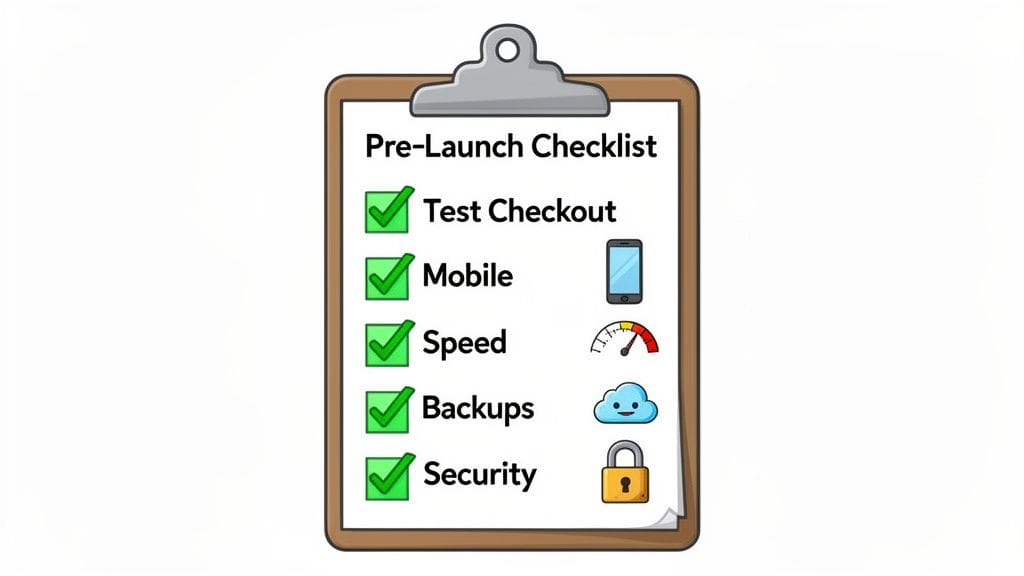
This isn't the time for big, sweeping changes. Instead, it’s about carefully walking through the entire customer journey, from browsing a product to finalising a purchase, to catch any small glitches that could otherwise cost you sales.
Test the Entire Checkout Process
Without a doubt, the most critical part of your online store is the checkout. This is where you make money, so it absolutely has to work perfectly. The only way to be sure is to run a real transaction from start to finish.
- Add a product to your cart. Does the cart icon update instantly? Is it easy to get to the cart page to view or edit the contents?
- Move on to the checkout page. Check that all the form fields are clear and straightforward. Crucially, make sure Australian states and postcodes are working as they should.
- Test your payment gateways. A practical example would be setting up a test product for $1 and processing a real purchase using your own credit card. If you offer other options like Afterpay or Zip, test those too. Did the payment process smoothly and land you on an order confirmation page?
- Check the confirmation emails. Did you (as the "customer") get an order confirmation email? Did you (as the store owner) get a new order notification? Make sure they look professional and are easy to understand.
Seriously, don't skip this. It's the only way to be 100% certain that your customers can actually pay you.
Perform Device and Performance Checks
Your store won't just be viewed on a desktop computer. People will be browsing on their phones while on the train or on a tablet from their couch. What looks great on your monitor might be unusable on a smaller screen.
Don't just resize your browser window to test for mobile responsiveness. Grab your actual smartphone. This is the only way to see how interactive elements like menus and buttons truly feel to the touch. A menu that's easy to click with a mouse can sometimes be a nightmare to tap accurately with a thumb.
Finally, give your site's performance one last look. After all your optimisation work, you want to see those efforts pay off. Run your homepage and a product page through a tool like Google PageSpeed Insights. A strong score here confirms you’re delivering a fast, snappy experience for every visitor.
Final Security and Backup Confirmation
Before you launch is the perfect time to double-check your safety nets. Log in to your UpTime Web Hosting control panel and quickly confirm two things:
- Your SSL Certificate is Active: Pull up your website and look for the padlock icon in your browser's address bar. If you need a refresher, our handy SSL Set-Up Checklist for cPanel can walk you through the verification steps.
- Your Backups are Scheduled: Make sure your automated nightly backups are switched on. This is your ultimate insurance policy, offering complete peace of mind that you can restore your site if anything unexpected happens after you go live.
Once you’ve ticked off everything on this list, you can launch your new store with confidence, knowing you’ve done everything possible to create a secure, smooth, and professional shopping experience from day one.
Got a few lingering questions about picking the right WooCommerce theme? You're not alone. When you're trying to build the perfect online store for your Aussie business, it’s easy to get bogged down in the details.
We see these questions pop up all the time with our clients, so let's clear them up.
Can I Just Use Any Old WordPress Theme for My Store?
Technically, yes, but it’s a recipe for disaster. While WooCommerce might work on a basic level with any WordPress theme, you'll quickly run into problems. Think broken layouts, missing "Add to Cart" buttons, and a checkout page that looks like it was designed in the 90s. It’s just not a professional look.
For a reliable and polished store, you absolutely need a theme that’s built specifically for WooCommerce. These themes come with all the essential e-commerce templates pre-styled and ready to go, plus they often include handy features designed to help you sell more.
What’s a Realistic Budget for a Good Theme?
Costs can swing wildly, but in this space, you definitely get what you pay for. Here’s a quick breakdown:
- Free Themes: You can find some solid free options on the WordPress.org directory. They’re a great starting point if you're on a shoestring budget, but you’ll likely find their customisation options and support are quite limited.
- Premium Themes: A quality premium theme will usually set you back between $50 and $100 AUD. This is typically a one-time fee that includes 6-12 months of developer support and lifetime updates, which is fantastic value.
Investing a small amount in a premium theme often saves you a headache—and a lot of money—down the track. You'll spend less time and cash on extra plugins or hiring a developer to fix things.
If you're just testing the waters or running a simple store, a free theme can be a smart choice. But if your online store is the core of your business, investing in a premium theme with dedicated support is one of the best decisions you can make.
What Are "Block Themes" and Should I Be Using One?
Block themes are the next big thing in WordPress, allowing you to design your entire site—header, footer, and everything in between—using the visual block editor. WooCommerce is even building its own official "Woo Block Theme" to modernise the store-building experience. They offer incredible design freedom.
So, should you jump on board right now? It really depends. Block themes are powerful, but they're still the new kid on the block and can have a bit of a learning curve. For most business owners heading into 2026, a classic, well-supported premium theme is still the safer, more reliable bet. If you're curious, you can dig deeper into these developments in our knowledge base.
How Can I Tell if a Theme Is Actually Fast?
Don't just take the developer's marketing spiel for it—run your own tests. Every decent theme provides a live demo site you can play with.
Grab the URL from the demo and plug it into a tool like Google's PageSpeed Insights. Pay close attention to the mobile score; you're looking for a number above 80. A fast demo is a great sign the theme is built on clean, lightweight code.
Common Questions About WooCommerce Themes
Picking a theme is a big decision, and it’s natural to have questions. To make things easier, we've put together this quick-reference table answering the most common queries we hear from Australian business owners just like you.
| Question | Answer |
|---|---|
| How do I install a WooCommerce theme? | If it’s a free theme from WordPress.org, you can install it directly from your WordPress dashboard under Appearance > Themes > Add New. For a premium theme, you’ll download a .zip file from the developer and upload it using the Appearance > Themes > Add New > Upload Theme button. |
| Can I change my theme later? | Yes, but it’s not always a simple switch. Changing themes can break your site's layout and functionality, especially if your old theme used a lot of custom shortcodes or a specific page builder. It's always best to test a new theme on a staging site first. |
| What's the difference between a theme and a plugin? | Think of a theme as your website's overall design and layout—the "look and feel." A plugin adds specific features or functionality, like a contact form, SEO tools, or a payment gateway. Your theme controls the appearance, while plugins add the capabilities. |
| Do I need a "page builder" with my theme? | Not necessarily, but many premium themes come bundled with one (like Elementor or WPBakery). Page builders give you drag-and-drop control to create custom page layouts without any code. They offer great flexibility but can sometimes add extra weight to your site, so make sure it's a well-optimised one. |
| Is support included with a premium theme? | Almost always. Most premium themes offer 6 to 12 months of dedicated support from the developers with your purchase. This is incredibly valuable for troubleshooting issues or getting advice. You can usually extend support for an additional fee. |
Hopefully, that table gives you the quick answers you need to move forward with confidence. Choosing the right theme is the first step, and pairing it with the right hosting is the next.
Ready to build a fast, secure, and high-converting store? With UpTime Web Hosting, you get the perfect foundation for any WooCommerce theme. Our Australian-based hosting is optimised for speed with LiteSpeed Cache and AccelerateWP, plus you get free SSL, nightly backups, and expert local support to keep your business running smoothly.