A lot of Australian site owners are in the same spot right now. The server is in Sydney or Melbourne, the hosting plan looks fine on paper, but the site still feels slower than it should when customers hit product pages, category archives, or the homepage during busy periods.
That gap usually isn't the server alone. It's the gap between raw server capacity and how efficiently your site serves repeat requests. That's where LiteSpeed cache settings for cPanel matter. When it's configured properly, cPanel gives you direct access to the controls that decide whether your WordPress site responds quickly, stays fresh, and avoids the common cache mistakes that break carts, stale content, or logged-in sessions.
For Australian businesses, the regional detail matters. A generic overseas setup guide won't help much when your visitors are concentrated in Sydney, Melbourne, Perth, or Brisbane, and your store has local peak traffic patterns, local WooCommerce behaviour, and shared hosting resource limits under CloudLinux. The settings need to match the way Australian sites run.
Why Your Australian Website Needs More Than Just Fast Servers
Local hosting helps, but it doesn't fix everything on its own.
A Melbourne service business can host locally and still deliver a sluggish experience if every homepage request rebuilds through PHP and the database. A Perth retailer can have a modern theme and still lose shoppers if category pages, banners, and product grids keep regenerating instead of being served from cache.
Local infrastructure is only the starting point
Most site owners first notice the problem in a practical way. The site loads quickly in the admin area after an update, then starts feeling inconsistent for customers. One request is fine. The next one drags. Mobile visitors feel it first.
That’s why caching matters. It turns repeated page requests into something the server can deliver far more efficiently, instead of rebuilding the same content over and over. If you're already focused on website speed optimisation for Australian users, LiteSpeed is the layer that often makes the rest of the stack pay off.
A fast Australian server is helpful. A fast Australian server with correctly tuned cache rules is what visitors actually notice.
Slow pages cost more than patience
When pages hesitate, businesses don't just lose a bit of polish. They lose enquiries, form submissions, and online sales momentum. The business impact is broader than many owners expect, and the same commercial logic applies whether your customers are in Perth, Sydney, or regional centres. A useful outside perspective on how a slow website costs your business explains that cost clearly, even though the example market is different.
For Australian sites, there’s another issue. International advice often assumes a one-size-fits-all cache setup. That usually ignores local traffic timing, local data centres, and whether you should favour freshness over maximum cache duration.
Where LiteSpeed fits in
LiteSpeed works well in cPanel because the controls are accessible and practical. You can enable caching from the account level, manage WordPress installs without command-line work, and keep site-specific rules separate from server-wide behaviour.
That makes it useful for:
- Sydney tradie sites that mostly serve brochure content and want pages delivered quickly
- Melbourne WooCommerce stores that need cached product and category pages, but must keep cart and checkout dynamic
- Agency cPanel accounts managing several WordPress sites with different update patterns
- Shared hosting users who need speed gains without pushing resource usage into avoidable trouble
The server location gives you the foundation. Cache configuration is what turns that into a quicker experience for real visitors.

Performance you can feel, backed by clients who depend on it. Read how our support and uptime create long‑term customer success.Power Your Business with Better Hosting
Activating LiteSpeed Web Cache Manager in cPanel
The first job is simple. Make sure LiteSpeed caching is enabled at the account level inside cPanel.
Where to find it
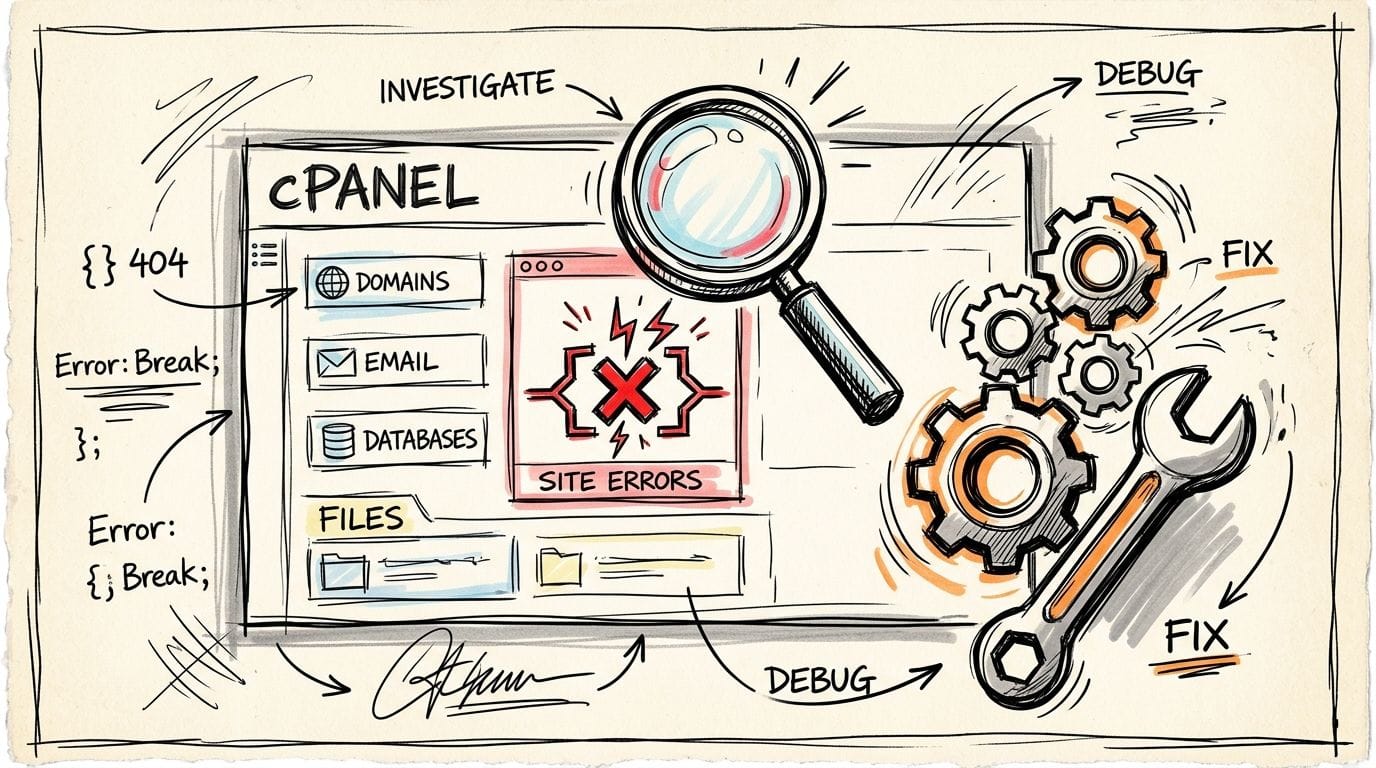
In most cPanel layouts, open the Advanced section and look for LiteSpeed Web Cache Manager. That tool is the account-level control panel for LSCache on your hosting account.
If you’re on local cPanel hosting and want the standard environment these controls are designed for, this overview of web hosting services with cPanel shows the type of setup where the manager is available.
Once you open the manager, you'll usually see options related to WordPress cache management. On a typical Australian cPanel account, the practical sequence is:
- Log in to cPanel
- Open LiteSpeed Web Cache Manager
- Go to WordPress Cache
- Run a scan for WordPress installations
- Select the site or sites you want to enable
- Enable the cache plugin
That process is straightforward, and on cPanel setups in Australian environments it’s the normal starting point before any plugin-level tuning.
What this manager actually controls
The manager isn't a performance gimmick. It acts as the bridge between the web server and the CMS integration.
Without it, users often install a caching plugin and assume caching is active. Sometimes the plugin is present, but the server-level path isn’t performing the heavy lifting. The manager helps avoid that mismatch.
It’s also useful when you manage more than one WordPress install under the same account. Instead of treating each site as a separate mystery, you can see what’s enabled and bring them under the same cache framework from one place.
CloudLinux users need to be a bit more selective
A lot of Australian shared hosting runs on CloudLinux, and that changes how aggressive you should be. Resource caps are there for a reason. Over-caching, unnecessary variation rules, or enabling everything blindly can create avoidable overhead.
One useful finding from the CloudLinux side is that post-2025 LiteSpeed updates emphasise Vary Group for user roles, yet AU developers report 30% performance gains by excluding admin caches entirely on CloudLinux to avoid vary-induced overhead (InterServer).
Practical rule: Don’t optimise wp-admin the same way you optimise public pages. Admin traffic is different, and on shared CloudLinux plans it can create more overhead than benefit.
A cleaner approach is to enable public-facing cache first, leave logged-in and admin scenarios conservative, and only expand the scope when you know how the site behaves.
A quick activation checklist
Before moving into plugin presets, verify these basics:
- The manager can see your site: If the scan doesn’t find the install, check whether the WordPress files are in the expected path.
- Only one page-cache system is active: Multiple page caches tend to cause inconsistent headers and stale behaviour.
- You know whether the site is brochure-style or transactional: That decision affects how far you can push LSCache later.
- You’re ready to test after enabling: Cache activation isn’t the finish line. It’s the point where proper tuning starts.
Easy WordPress Optimisation with LSCache Presets
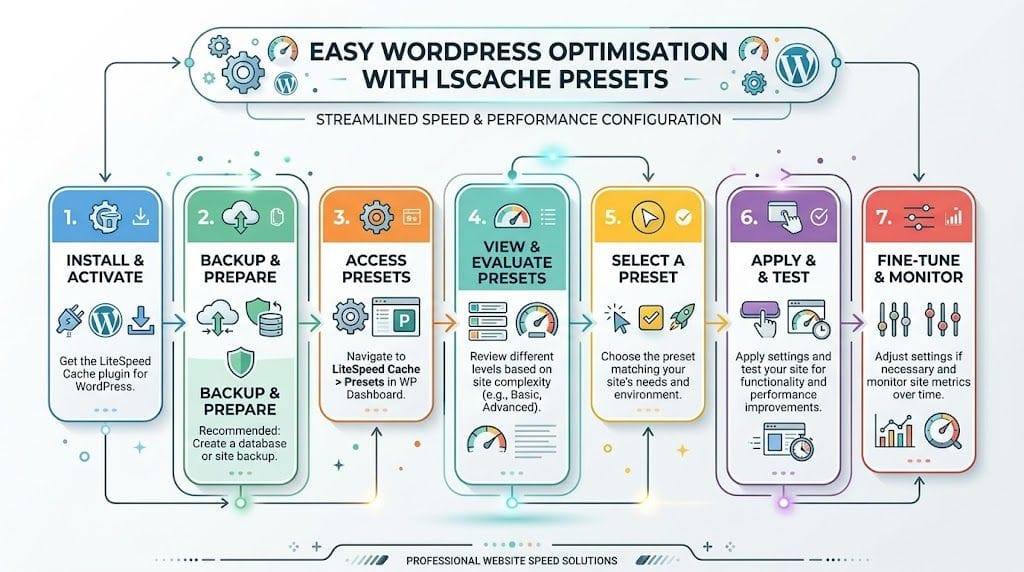
For most Australian businesses using WordPress, the gains quickly become visible. Once LiteSpeed Web Cache Manager has enabled the plugin path, the next step is to configure the plugin inside WordPress without overcomplicating it.
Start in cPanel, then move into WordPress
The practical workflow is:
- Open cPanel
- Go to LiteSpeed Web Cache Manager
- Use the WordPress Cache scan
- Enable the selected installation
- Log in to WordPress admin
- Open the LiteSpeed Cache plugin dashboard
- Apply a sensible preset and test the site
If you want the host-side steps in a straightforward support format, this guide to Set Up LiteSpeed with WordPress.html) is the right place to confirm the sequence.
For local cPanel environments, this workflow matters because the cPanel manager handles the connection at the hosting level, while the plugin handles the application-level behaviour inside WordPress.
Which preset usually makes sense
Most site owners should start with Advanced rather than jumping straight to the most aggressive option.
Why? Because the fastest settings on paper aren't always the fastest usable settings in production. Australian business sites often run booking plugins, quote forms, WooCommerce widgets, or theme builders that don't appreciate over-aggressive optimisation.
A practical way to think about presets:
- Advanced works for most brochure sites, blogs, and many WooCommerce stores as a starting point
- Aggressive can be useful when the site is relatively standard and you've tested front-end behaviour carefully
- Extreme is for controlled environments, not for blind activation on a live business site
If a Melbourne professional services site mainly serves static content and lead forms, Advanced is usually the right first move. If a Sydney online store has custom cart fragments, account logic, and product filters, Advanced is also the safer place to begin. You can tighten later.
The settings that matter more than the preset label
Preset names are useful, but the meaningful gains usually come from a few specific controls.
One verified recommendation is clear: the default public cache TTL is one week, or 604800s, and advanced tuning should keep "Serve Stale" off for fresh content during peak AEST hours. Activating Object Cache with Redis or Memcached can yield 10x query speedups, and you should purge all cache via the manager after making changes (YouTube walkthrough).
That gives you a practical priority list.
Public cache first
For normal public pages, let LiteSpeed do what it's good at. Cache the front-facing content so repeat visitors and repeat requests aren't forcing PHP to rebuild the same page.
Keep freshness in mind
For Australian business hours, stale content can become a real issue. If the site changes frequently during the day, don't treat "Serve Stale" as a default win. It can be the wrong trade-off.
Use object cache where it fits
Object cache is especially valuable on:
- WooCommerce stores with category filters, product lookups, and dynamic elements
- Membership sites with repeated database reads
- Content-heavy WordPress installs with lots of plugin logic
- Brochure sites with heavy builders that still hit the database harder than expected
Redis or Memcached won't replace page cache. They complement it. When a request can't be served as a full page cache hit, object cache helps reduce the work involved in generating the response.
On local WordPress hosting, the biggest mistake isn’t under-configuring LSCache. It’s enabling every performance switch at once and having no idea which one broke the page.
What to test after applying a preset
Don’t stop at activation. Open the public site in a private browser window and test the parts that matter.
Check these in order:
- Homepage and menu behaviour: Make sure styling and navigation still load properly.
- Forms and lead capture elements: Test quote forms, contact forms, callbacks, and embedded widgets.
- Mobile layout: A desktop pass doesn't mean the mobile front end survived optimisation.
- WooCommerce flow: Product page, cart, checkout, account area.
- Logged-out vs logged-in behaviour: Public cache should never leak personalised content.
A practical example
If you're running a Sydney trades business site on WordPress, you can usually enable LSCache, apply a safe preset, leave advanced front-end tweaks conservative, and get a faster public site without much drama.
If you're running a Melbourne WooCommerce store, the sequence should be tighter. Enable page cache, add object cache if available, keep dynamic paths excluded, and avoid treating minify and combine settings as automatic wins.
The point isn't to chase every toggle. The point is to get a stable cache hit pattern on the pages that earn traffic and revenue.
Host your website with our 5-star rated, cPanel website hosting plans.
Super fast servers, with security included and hosted in your choice of Australian Data Center.
View cPanel Plans
Tuning TTLs and Purge Rules for an Australian Audience
Presets get you started. TTL and purge rules decide whether the cache behaves like a helpful accelerator or a source of stale content.
For Australian websites, this matters because many businesses have predictable daily rhythms. A café in Melbourne updates specials. A Perth retailer changes stock visibility. A Sydney store runs short campaign windows. The wrong TTL doesn't just affect speed. It affects what customers see.
What TTL really controls
TTL means time to live. In simple terms, it's how long a cached version can be served before the server considers it expired, unless a purge happens first.
A longer TTL is usually fine for content that rarely changes. A shorter TTL is safer for pages with time-sensitive offers, product visibility, or rotating content blocks.
That doesn't mean every page should get a tiny TTL. In practice, very short TTLs can force too many regenerations and reduce the value of caching.
Recommended Cache TTLs for Australian Websites
| Content Type | Recommended TTL (Seconds) | Rationale |
|---|---|---|
| Static service pages | 604800 | Works well for pages that rarely change and benefit from long-lived cache. |
| Blog posts and evergreen articles | 604800 | Suitable when updates are occasional and purge rules handle edits. |
| Homepage with changing promotions | 3600 | Shorter cache helps keep featured content current through the day. |
| Private or session-based content | 3600 | A shorter private cache window is safer for user-specific behaviour. |
| Public WooCommerce pages during active trading | 120 | Keeps catalogue and promotional content fresh where updates are frequent. |
These values align with the verified guidance available for public cache, private cache, and short public TTL handling in Australian WooCommerce scenarios.
Why Australian eCommerce often needs a stricter freshness policy
A common global recommendation is to serve stale pages more aggressively for speed. That’s not always the right call for local stores.
One contrarian but practical recommendation is to disable "Serve Stale" for AU eCommerce because showing outdated product pages can hurt conversions, with Australian performance data tying freshness-first setups to a 15% reduction in cart abandonment (Online Media Masters).
For a Sydney or Melbourne store, that trade-off makes sense. If the shopper sees an old stock state, an outdated promo, or a stale pricing block, you've created friction at the worst point in the session.
Fresh product information usually matters more than squeezing out a marginally quicker response from stale content.
Purge rules need to match the site, not the plugin defaults
Auto-purge is useful, but broad purges can become expensive. If every small content change blows away too much cache, the site spends more time rebuilding than serving.
Good purge behaviour usually looks like this:
- Post updates purge related content only: The edited page, relevant archives, and linked content should refresh without flushing the whole site.
- Store updates target affected views: Product, category, and high-impact landing pages should refresh when needed.
- Bulk changes are handled deliberately: If you import products or make broad theme changes, purge once, then test, rather than purging repeatedly during the process.
- Peak-period changes stay disciplined: Boxing Day, EOFY, or campaign launches are the wrong time for random manual purging every few minutes.
A local way to think about content timing
For many Australian business sites, use this simple split:
Stable pages
Service pages, about pages, location pages, and long-form articles can live with a long public TTL. Let them stay cached and let purge events handle actual edits.
Semi-dynamic pages
Homepages, campaign landing pages, and featured category pages often need shorter TTLs because the visible content changes more often.
Transactional paths
Cart, checkout, account, and any page driven by user session data should be excluded or handled very conservatively.
If you need to clear cache manually after updates, this cPanel guide for clearing the LiteSpeed cache is useful to keep handy.
The mistake that causes the most trouble
The biggest TTL mistake isn't setting them too high. It's treating all URLs the same.
A brochure site homepage and a WooCommerce checkout flow should never share the same caching logic. Once you separate stable pages from transactional pages, LiteSpeed cache settings for cPanel become much easier to manage sensibly.
Advanced LiteSpeed Troubleshooting in cPanel
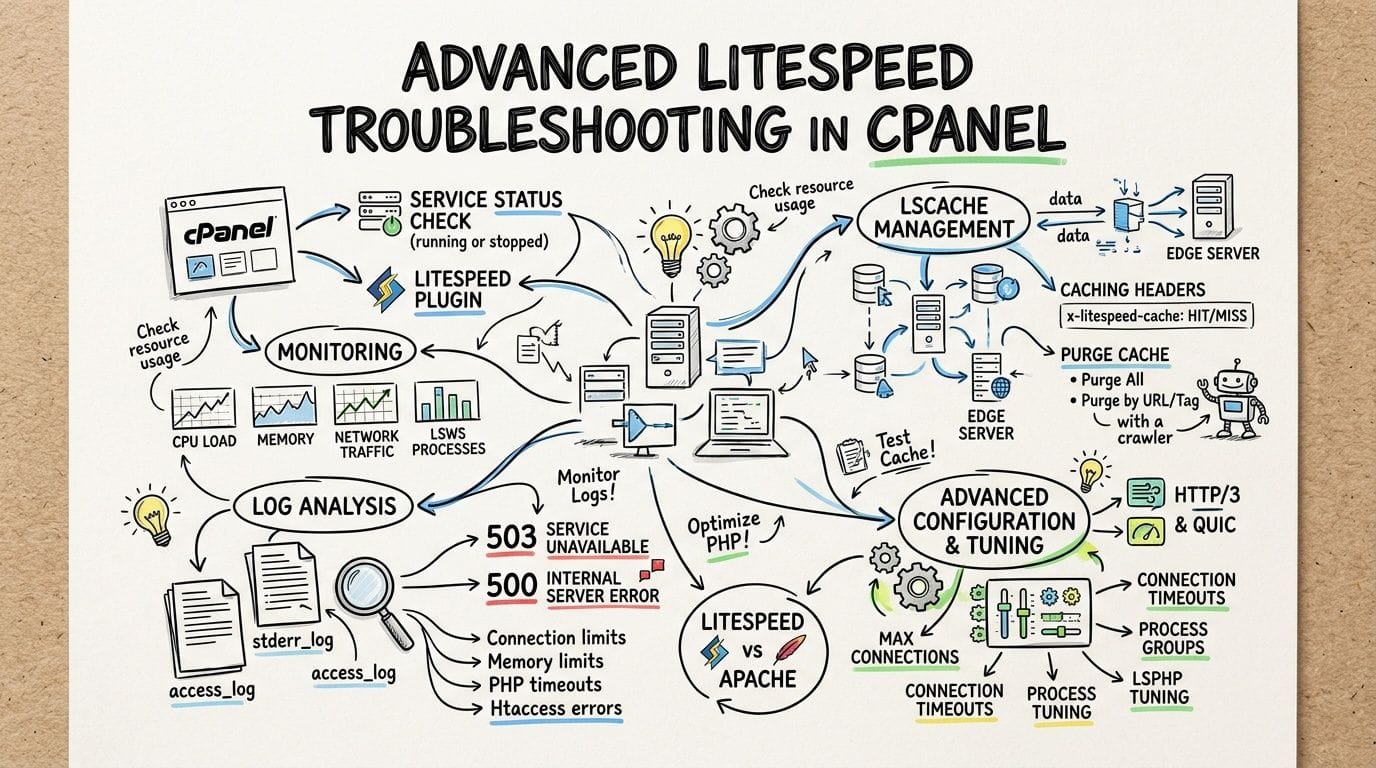
When LiteSpeed is configured properly, it’s quiet. When it isn’t, you’ll usually notice one of three things. The cache doesn’t seem to hit, the front end breaks after optimisation, or dynamic pages start behaving like static ones.
Check whether caching is working at all
Start with the browser, not guesswork.
Open developer tools, load the page, and inspect the response headers for the main document. You're looking for evidence that LiteSpeed is serving the page from cache rather than rebuilding it every time. If behaviour is inconsistent across reloads, test while logged out and in a private window.
If the site is behind additional optimisation layers, simplify the path before diagnosing. Test the origin behaviour first. Then reintroduce the extras.
Minify and combine problems usually look like front-end bugs
A site can appear “cached” and still be badly optimised.
The common signs are:
- Broken layouts: CSS minification or exclusions weren't handled cleanly
- Delayed menus or sliders: JavaScript defer or delay settings are too aggressive
- Missing styling on selected pages: Combined assets don't play well with a builder or theme condition
- Checkout issues: Dynamic scripts are being delayed or cached where they shouldn't be
On modern HTTP/2 setups, combining files isn't always the smart move. In Australian hosting examples, HTTP/2 parallel loading has outperformed file concatenation in AU tests, so if combining CSS or JS creates instability, don't cling to it as a badge of optimisation. Remove the risky setting and keep the site functional.
If a site is fast but the cart button stops working, it isn’t optimised. It’s broken.
WooCommerce exclusions aren't optional
For cPanel setups in Australian data centres, one verified configuration recommendation is specific and useful: set LiteSpeed Connection Timeout to 60s, Max Connections to about 2000 scaled to vCPU, exclude /cart and /checkout in .htaccess, and keep public page TTLs around 120s. Benchmarks from the same source say this setup helps WooCommerce sites handle AU Black Friday traffic without TTFB spikes over 200ms (NinjaWeb AU).
That matters because WooCommerce problems often aren't caused by the product pages. They're caused by session-driven paths being cached or partially cached when they should remain dynamic.
A sensible troubleshooting order is:
- Confirm cart and checkout are excluded
- Test with all page optimisation extras reduced
- Purge cache after each meaningful change
- Retest as a logged-out shopper
- Check category, product, cart, and checkout separately
Keep AU network conditions in mind
For sites hosted in Sydney or Melbourne, avoid assuming every external acceleration layer helps equally. If a feature introduces unnecessary distance for a local audience, it can work against the low-latency advantage of an Australian server.
That’s why some local setups prefer direct local server hits instead of piling on remote cache layers for every request. The best result often comes from a well-tuned origin cache, restrained front-end optimisation, and clean exclusions for dynamic URLs.
Shared hosting troubleshooting is usually about restraint
On CloudLinux-backed cPanel plans, the most reliable fix is often to reduce moving parts:
- Disable extras you can't verify
- Keep admin caching conservative
- Avoid crawler-heavy behaviour on small shared plans
- Purge after meaningful edits, not constantly
- Exclude dynamic URLs before chasing benchmark scores
The more transactional the site becomes, the more careful the configuration needs to be. A local business brochure site and a busy WooCommerce store shouldn’t be debugged the same way.
Your Path to a Faster Australian Website
The best LiteSpeed cache settings for cPanel aren't the most aggressive ones. They're the settings that suit the site, the traffic pattern, and the way Australian visitors use it.
A Sydney brochure site usually benefits from long-lived public cache and very little fuss. A Melbourne store needs more discipline around TTLs, object cache, purge behaviour, and exclusions. A Perth agency account needs consistency across multiple WordPress installs without creating extra CloudLinux overhead.
That’s the value of getting this right. You reduce repeated PHP work, keep public pages quick, stop stale commercial content appearing at the wrong time, and avoid breaking the parts of the site customers interact with most.
If search visibility is part of the goal, performance should sit alongside the broader basics. A practical primer like Start SEO is useful because speed helps, but it works best when the rest of the site is organised properly too.
For WordPress users who want local infrastructure with these features available in the usual hosting stack, this page on Australian WordPress hosting gives the relevant local context.
One provider option in this category is UpTime Web Hosting, which includes LiteSpeed, cPanel, CloudLinux and Australian server locations. That matters because the cache layer works best when the hosting environment already supports it cleanly.
The payoff is straightforward. Faster repeat loads. More stable WooCommerce behaviour. Better handling during local traffic peaks. Fewer support tickets caused by stale or over-cached pages.
If you want a local hosting setup that supports LiteSpeed properly and keeps your site close to Australian visitors, take a look at UpTime Web Hosting. It offers Australian cPanel hosting with LiteSpeed, CloudLinux, WordPress support, and local server locations that suit businesses serving customers in Sydney, Melbourne, Brisbane, and Perth.