Your site probably didn't outgrow shared hosting all at once. It usually happens in stages. The admin area gets sluggish, backups feel heavier, plugin updates make you nervous, and the first real traffic spike reminds you that your hosting account is sharing resources with plenty of other sites.
For a lot of Australian businesses, that's the moment a WordPress VPS migration stops being a technical nice-to-have and becomes an operational job that needs to be done properly. If you want to migrate WordPress to VPS without breaking the live site, the work is less about one clever trick and more about sequence, testing, and cutover discipline. Done well, it's controlled. Done poorly, it's a scramble through DNS, file permissions, SSL, and database settings while customers hit refresh.
Table of Contents
- Is It Time to Leave Shared Hosting Behind?
- Your Pre-Migration Checklist and Plan
- Provisioning Your New UpTime VPS Environment
- Transferring Your WordPress Site and Database
- The Final Cutover Minimising Downtime
- Post-Migration Tuning for Peak Australian Performance

Performance you can feel, backed by clients who depend on it. Read how our support and uptime create long‑term customer success.Power Your Business with Better Hosting
Is It Time to Leave Shared Hosting Behind?
Most site owners don't wake up wanting a VPS. They want a WordPress site that loads consistently, survives plugin updates, and doesn't throw resource errors when a campaign lands well. Shared hosting is fine for that at the start. It becomes limiting when the site turns into a core business asset.
That situation is common in Australia because the business base is heavily made up of smaller operators. The Australian Bureau of Statistics reported that businesses with 0–19 employees made up 97.4% of all Australian businesses in June 2023, which is a big reason WordPress-to-VPS migration is a mainstream growth step rather than an edge case for large tech teams alone, as noted in this migration overview citing ABS business data.
If you're still on shared hosting for smaller WordPress sites, the pressure signs are usually practical:
- Admin tasks feel delayed: Updating plugins, generating backups, and editing pages takes longer than it should.
- Traffic spikes expose limits: A promotion, email send, or social mention causes visible slowdown.
- Security feels too generic: You want more control over the stack, not just a one-size-fits-all account.
- Plugin conflicts hurt harder: On a crowded shared environment, a poorly behaved plugin can become much more painful to diagnose.
What a VPS actually changes
A VPS gives you isolated resources, more control over PHP and database behaviour, and a cleaner path for hardening and caching. That doesn't automatically mean the site becomes fast or secure overnight. It means you now have a proper environment to tune.
Practical rule: Move to a VPS when the site has become important enough that predictable behaviour matters more than the convenience of a very basic hosting plan.
For Australian businesses, there's another layer to the decision. If your customers are local, hosting location affects the experience they get. A VPS migration only makes sense when it supports the audience you serve, not when it just sounds more advanced on paper.
Your Pre-Migration Checklist and Plan
A safe migration starts before any files move. For most Australian business sites, the biggest risks are not technical surprises on the VPS itself. They are the small details nobody wrote down, such as where email is routed, which plugin licence needs reactivating, or which DNS record was added two years ago during a rushed setup.
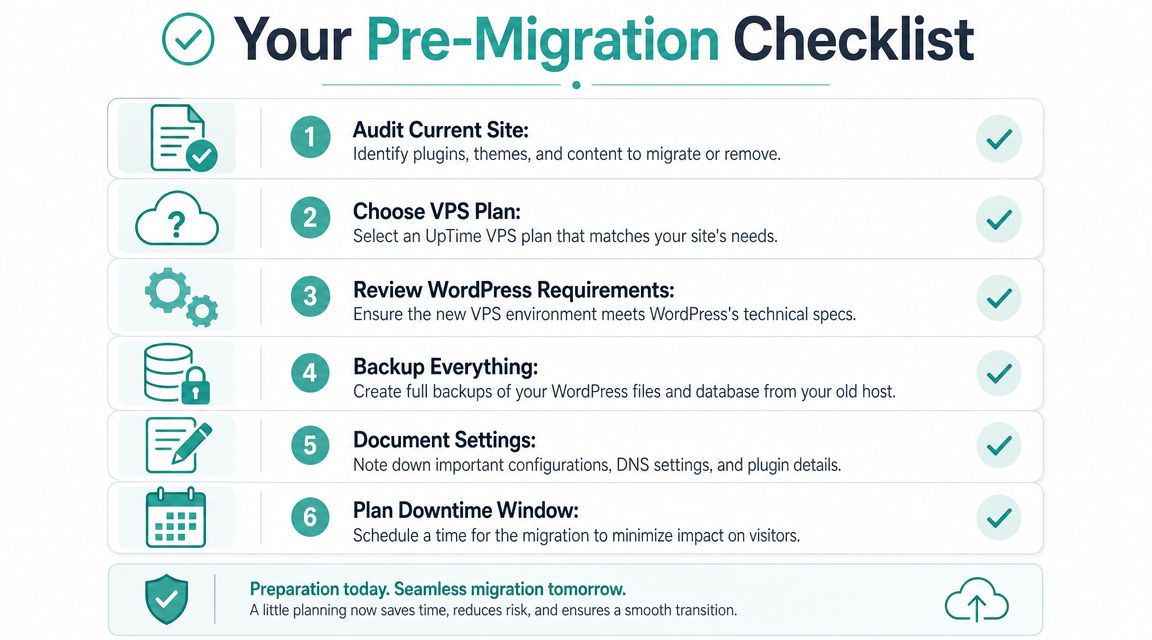
Start with a written record of the current site. A detailed website migration checklist for WordPress hosting changes helps because migrations fail in the margins, not in the obvious steps. Document your DNS records, active plugins, theme settings, cron jobs, redirects, SMTP or form delivery settings, CDN rules, licence keys, and any custom code living in functions.php or a snippets plugin.
If the site sends leads from contact forms, takes bookings, or processes WooCommerce orders, list those paths separately. They need testing later under time pressure, and memory is useless at that point.
Back up first, then prove the backup works
Take a full copy of the WordPress files and a separate export of the database before you touch anything. Store both away from the current hosting account so a server-side issue does not take your rollback option with it.
Use a quick verification process:
- Download the full site files from the current server.
- Export the live database.
- Save both copies to separate storage.
- Open the archive and confirm the expected folders and files are present.
- Open the SQL export and confirm it is readable.
I treat unchecked backups as incomplete work. A backup only matters if you can restore from it.
One more practical step helps during a low-downtime move. Lower your DNS TTL ahead of the migration window if your provider allows it. That gives you faster propagation when cutover day arrives, which matters when your customers are in Australia and expect the site to stay available through business hours.
Clean the site before you copy it
A VPS gives you a better environment. It does not fix years of clutter.
Review what is worth moving:
- Unused plugins: Remove anything inactive or abandoned.
- Old themes: Keep the active theme and one fallback if needed.
- Staging leftovers and zip files: Delete old exports, test folders, and forgotten backups from web-accessible directories.
- Custom code: Record where it lives and why it exists.
- Media bloat: Flag oversized files and duplicate uploads that will slow the transfer and eat storage.
This step pays off twice. The migration is faster, and the new VPS is easier to secure and tune. On UpTime Managed VPS plans, that cleaner starting point also makes LiteSpeed caching rules and AccelerateWP recommendations easier to apply after the move.
Size the VPS for the site you actually run
Do not size the server by guessing, and do not size it only for today's quiet periods. Look at how the site behaves during normal business activity. A brochure site with a contact form has very different needs from a WooCommerce store, a bookings site, or a membership setup with logged-in users.
Use the current hosting account as a clue. Check disk usage, database size, traffic patterns, plugin count, and how often the admin area slows down during updates or content edits. Then leave headroom. Tight server sizing often looks cheaper until backups run long, plugin updates stall, or checkout pages slow down under load.
A simple planning view helps:
| Site characteristic | What it usually means for VPS planning |
|---|---|
| Mostly brochure pages | Lower ongoing load, simpler caching |
| WooCommerce or bookings | More dynamic requests, more careful cache rules |
| Heavy page builders | Higher PHP and database demand |
| Large media library | More storage and longer transfer time |
| Frequent admin edits | Need for stable backend performance |
For a first migration, the safer choice is rarely the smallest plan that might cope. It is the plan that gives you room for traffic spikes, backups, malware scans, and plugin updates without the whole site feeling tight. That is one reason many Australian businesses start with a managed VPS. You get the control benefits of VPS hosting, with local support available if sizing or service tuning needs adjusting once the site is live.
Host your website with our 5-star rated, cPanel website hosting plans.
Super fast servers, with security included and hosted in your choice of Australian Data Center.
View cPanel Plans
Provisioning Your New UpTime VPS Environment
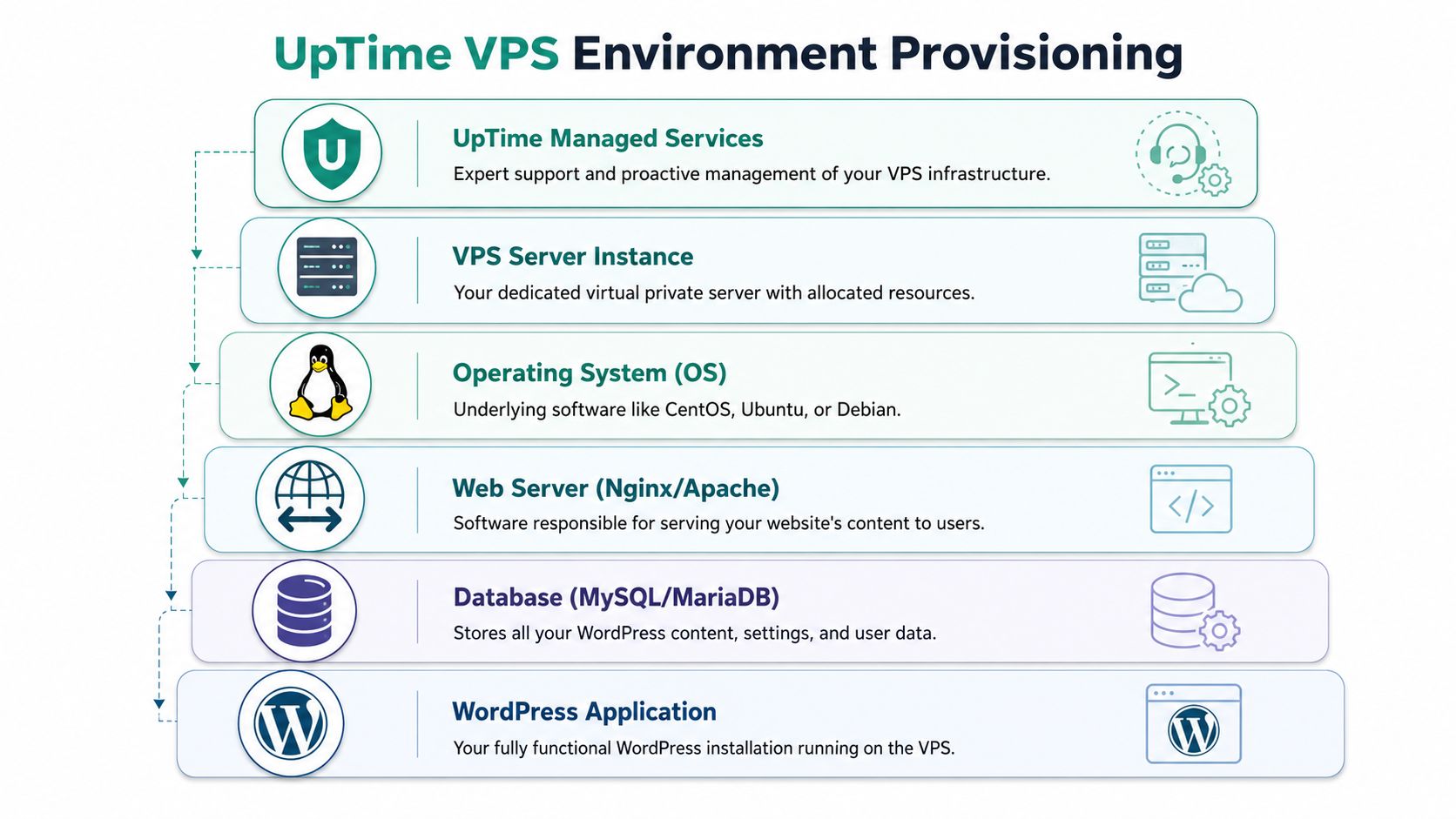
Provisioning a new VPS is where many business owners expect things to become very technical. In practice, the important part is understanding what must be in place before the WordPress site is copied across. You don't need to become a Linux administrator overnight, but you do need to know what the environment is supposed to do.
What the new environment should include
For a WordPress VPS, the essentials are straightforward:
- Linux operating system: Stable and well-supported.
- Web server: For WordPress, LiteSpeed makes sense because it supports efficient server-level caching.
- PHP: Matched to the site's plugin and theme requirements.
- MariaDB or MySQL: The database layer that holds posts, settings, users, orders, and plugin data.
- SSH access: So you can inspect, transfer, and troubleshoot cleanly.
At this stage, managed VPS hosting in Australia is often the practical option for businesses that need VPS benefits without taking on every server admin task themselves. The point isn't to avoid learning. It's to avoid turning a site migration into an unpaid full-time operations role.
Secure the basics before the site arrives
A new VPS should not receive production traffic before you've handled the basic hardening work. That usually includes firewall rules, SSH hygiene, software updates, and confirming only the required services are exposed.
Keep your setup priorities in this order:
- Patch the server first: Start with current package updates.
- Restrict traffic: Use a firewall such as UFW so only expected services are reachable.
- Create proper user access: Avoid doing all work permanently as root.
- Confirm the web stack is live: The web server, PHP, and database should all be running before migration starts.
- Prepare SSL support: Even before cutover, know how certificates will be issued once DNS points across.
A lot of first-time VPS users spend too long tweaking minor config values before they've covered these basics. Don't. Good defaults plus clean access controls will get you further than random online tuning tips.
If you can't explain why a config change is needed, leave it alone until the site is live and tested. Migration day isn't the time for experiments.
Managed hosting changes what you need to do
This is where tooling matters. A managed environment that includes LiteSpeed, malware scanning, off-site backups, firewalling, and support reduces the amount of custom server work required after the move. That's particularly helpful for WordPress because performance tuning and security hardening are often treated as separate projects when they should really be part of the hosting decision from the start.
For Australian businesses, local support also changes the experience. When DNS, SSL, or permissions don't behave the way you expected, having help in your own market and time zone is more useful than reading a generic forum thread written for a completely different stack.
Transferring Your WordPress Site and Database
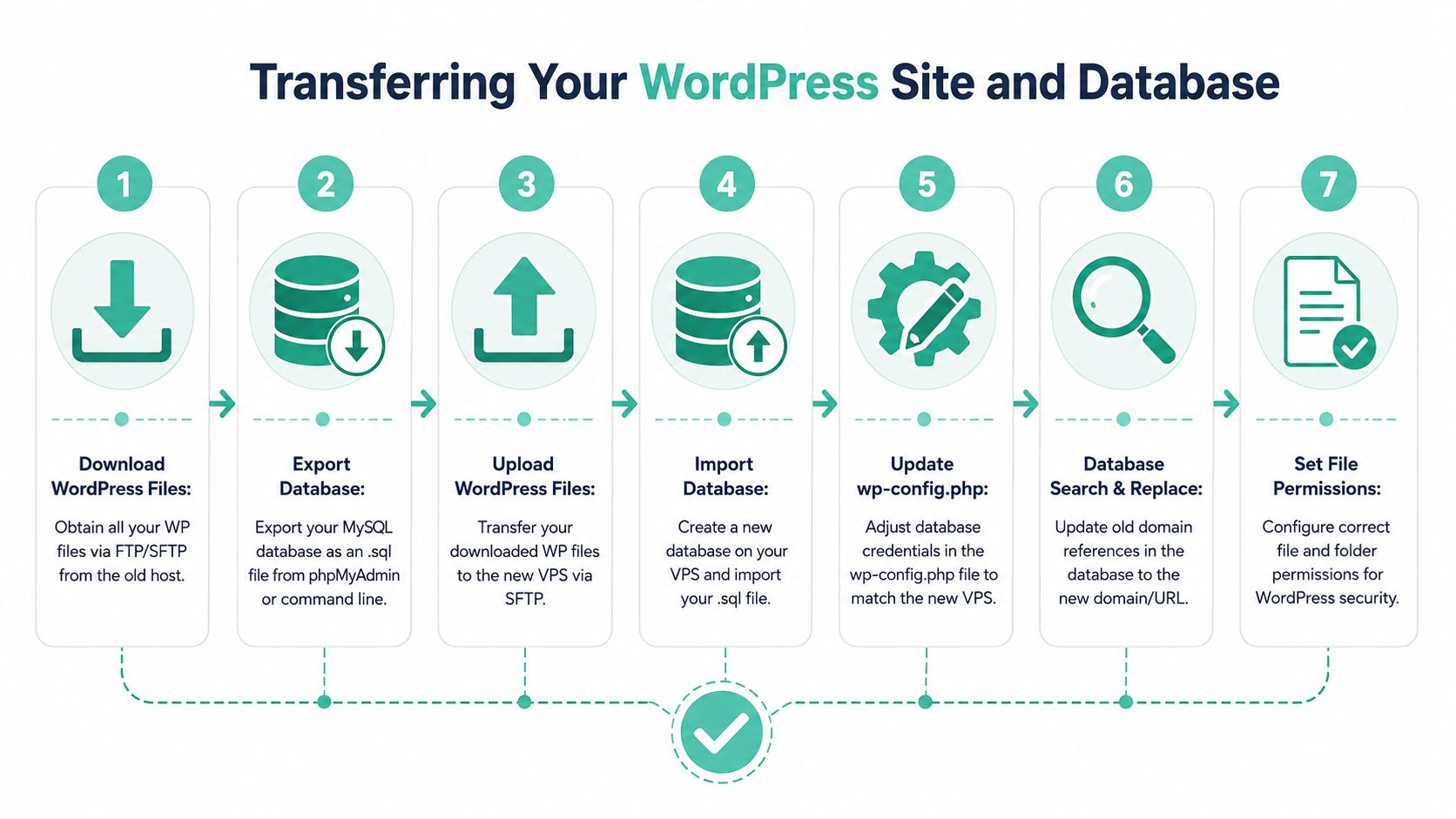
This is the part people usually mean when they say they want to migrate WordPress to VPS. In reality, you're moving two different things that must meet correctly on the new server: the files and the database. If either side is incomplete, the site won't behave properly.
A reliable WordPress backup guide is worth keeping open while you work, especially if you need to confirm that the backup includes uploads, themes, plugins, and the correct database export.
Move the files carefully
You can transfer files with an SFTP client such as FileZilla, which is fine for many small and medium sites. For larger sites or repeat syncs, rsync is usually cleaner because it can be run again to copy only changes.
Typical file transfer options:
- SFTP approach: Simple, visual, and suitable if you prefer not to work in the terminal.
- Rsync approach: Better when the site is large or when you want a final sync close to cutover.
- Host-managed migration path: Useful when the old host uses a common panel and the new environment supports assisted migration.
Whichever method you use, transfer the full WordPress install, including wp-content, uploads, themes, plugins, and hidden files such as .htaccess if your setup uses them.
Export and import the database cleanly
Export the database from the old host with phpMyAdmin or mysqldump, then import it into a newly created database on the VPS. Keep the names and credentials documented, as many migrations fail due to undocumented details.
The practical sequence is well established. A standard WordPress-to-VPS migration involves backing up, provisioning the VPS, transferring files, importing the database, updating wp-config.php, and verifying permissions, with common permission settings of 755 for folders and 644 for files as described in this OVH migration guide for VPS moves.
A simple terminal workflow usually looks like this in principle:
- Export the old database to an SQL file.
- Create a fresh database and database user on the VPS.
- Import the SQL file into that new database.
- Check for import warnings before moving on.
Update configuration and permissions
Once the database is in place, edit wp-config.php so WordPress points to the new database name, user, and password. In many VPS setups, DB_HOST is usually set to localhost. After that, inspect file ownership and permissions.
Use this as your quick check:
| Item | Recommended setting |
|---|---|
| Directories | 755 |
| Files | 644 |
| Database host | usually localhost |
wp-config.php | updated with new DB credentials |
If the site is also changing domain or URL structure, you may need a database search and replace for old references inside content, builder data, widgets, or plugin settings. Handle that carefully. Serialized data can break if you use the wrong tool.
Broken images and odd redirects after migration often come from stale URLs inside the database, not from the file transfer itself.
The Final Cutover Minimising Downtime
Friday afternoon is the wrong time to discover your DNS change sent half your customers to the old server and half to the new one. The final cutover is the part that needs the most discipline, because a site can look perfect in testing and still misbehave once real traffic starts hitting it.
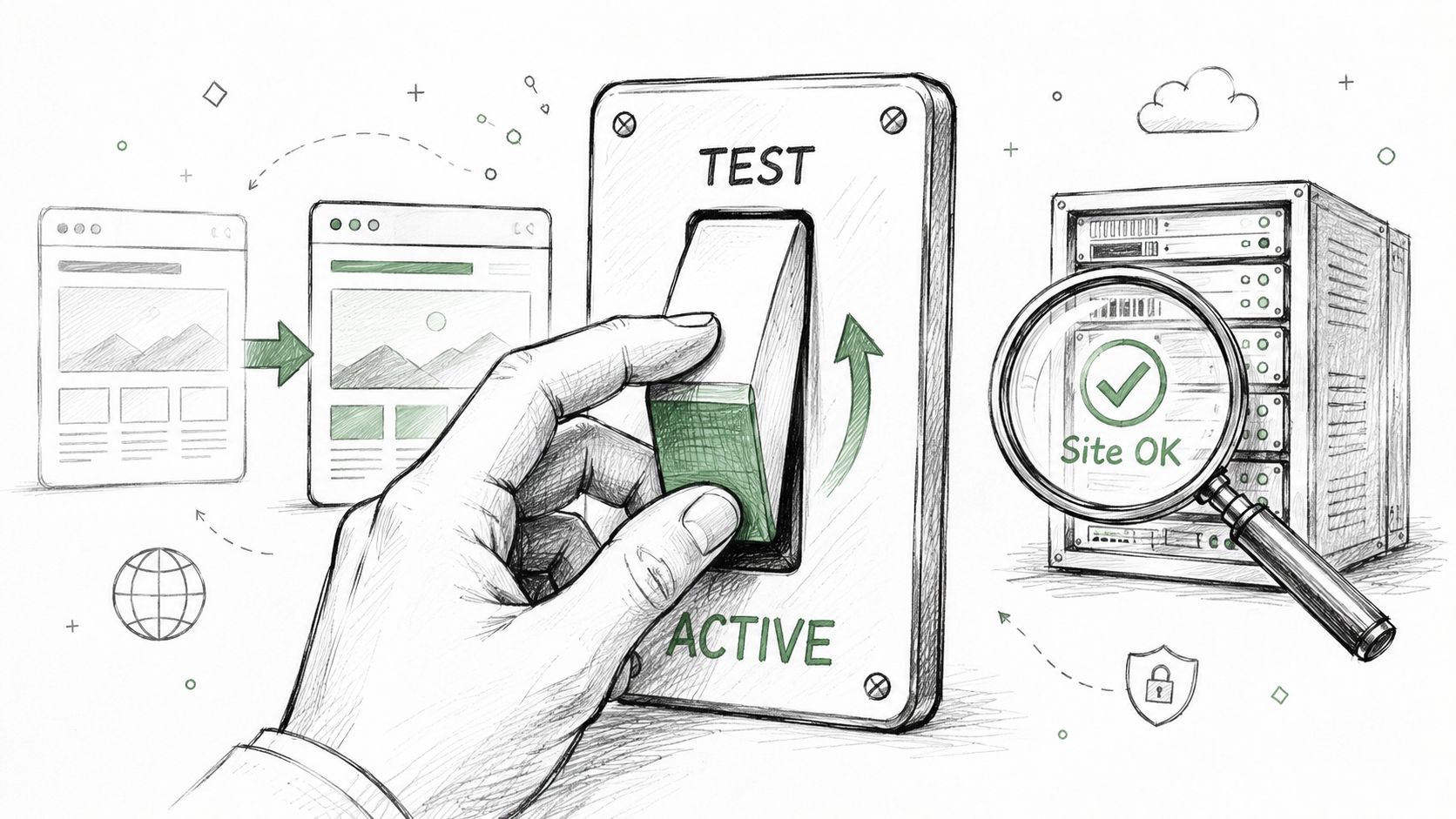
The goal is simple. Send visitors to an already-tested VPS, keep changes on the old host to a minimum, and leave yourself a clean rollback path if anything odd turns up. For Australian businesses, timing matters too. Cut over outside your busiest local trading window, and you reduce the risk of missed orders, bookings, or enquiries while DNS caches refresh.
Test the live domain on the VPS before anyone else sees it
Use your local hosts file to force your own computer to load the domain from the new VPS before public DNS changes. That lets you test the actual domain, not a temporary URL that may hide SSL, redirect, or plugin issues.
Check the parts of the site that affect revenue and enquiries first:
- Key public pages: Home, services, location pages, contact page
- Admin access: Login, plugin pages, media uploads, scheduled tasks
- Forms and outbound mail: Contact forms, quote requests, notifications
- Store or booking flow: Cart, checkout, payment gateway, booking confirmation
- HTTPS behaviour: Redirects, padlock status, mixed content warnings
- Third-party services: SMTP, payment providers, reCAPTCHA, CDN, APIs
This is also the point to confirm performance from an Australian visitor's perspective. If you are moving to an UpTime VPS with LiteSpeed and AccelerateWP enabled, the site should already feel sharper under load, but test it properly from local connections and real pages, not just the homepage. If you want a benchmark to compare against after launch, UpTime's guide to website speed optimisation for Australian users gives you a practical checklist.
Prepare DNS so the switch happens faster
DNS propagation is never fully under your control, but you can make it less painful. Lower the TTL on the main DNS record well before cutover so resolvers stop caching the old answer for long periods. A short TTL gives you a quicker switchover and a quicker recovery if you need to point traffic back.
The sequence I recommend is straightforward:
- Reduce the TTL ahead of time.
- Freeze content changes if the site updates frequently.
- Take one final database or file sync if needed.
- Update only the DNS records required for the move.
- Leave the old hosting online while traffic drains over.
Keep the old environment in read-only practice, if not technically read-only. If staff are still publishing posts, changing products, or processing orders on the old server after DNS starts shifting, you create split data. That is where low-downtime migrations turn messy.
Watch the first hour closely
After the DNS update, check the site from multiple networks. Mobile data and office broadband often resolve at different times, which is useful during verification. Log in to WordPress, submit a form, place a test order if the site is transactional, and confirm new uploads land on the VPS, not the old server.
Managed VPS hosting helps here because the server side is easier to verify quickly. In UpTime's environment, having local support, LiteSpeed, and a stack already tuned for WordPress removes a lot of the last-minute guesswork that slows down first-time migrations.
Finish SSL and keep rollback available
Issue or reissue the SSL certificate on the new VPS as soon as the domain is resolving correctly there. Then test the HTTPS version directly, including www and non-www if both need to work. A site that loads over HTTP but throws certificate warnings is not finished.
Do not cancel the old host on day one.
Leave it active long enough to catch delayed DNS caches, old cron jobs, forgotten mail routes, or plugin callbacks still pointing at the previous server. If a problem appears, you want a short, controlled rollback option instead of a late-night rebuild.
Register your new domain name at competitive market prices including free domain add-ons like privacy, DNS Hosting, Custom Nameservers and Forwarding.
Always the best price and no nasty renewal price hikes.
Register A Domain Name
Post-Migration Tuning for Peak Australian Performance
Getting the site live on a VPS is only half the job. The other half is making sure the move improves the experience for Australian visitors. That's where plenty of migrations fall short. The site is technically on a VPS, but it isn't materially faster, easier to manage, or more stable.
Local hosting matters more than the VPS label
A VPS is not automatically the right answer if the new server is in the wrong place or the site's real bottleneck is poor optimisation. As one migration analysis points out, moving to a VPS doesn't guarantee better performance for Australian users if the server isn't local, because latency still matters and an offshore self-managed VPS can be slower than well-optimised local hosting for an Australian audience, as explained in this discussion of WordPress migration, locality, and VPS trade-offs.
That's the part generic advice often misses. Australian businesses don't need a VPS in the abstract. They need a stack that suits Australian traffic patterns, local customers, and realistic support needs.
A better post-migration question is this:
| If you changed hosting, did you also improve these? | Why it matters |
|---|---|
| Server location | Reduces avoidable latency for local users |
| Caching method | Lowers PHP and database work |
| Plugin discipline | Prevents slow admin and front-end bloat |
| Database cleanliness | Reduces slow queries and stale options |
| Ongoing support path | Helps when SSL, email, or cutovers need attention |
If those areas are still weak, a VPS alone won't rescue the site.
Use server-level caching instead of plugin guesswork
This is where LiteSpeed Cache earns its place. On a LiteSpeed-based stack, the plugin can work with the web server itself rather than trying to fake performance improvements entirely inside PHP. That usually makes caching cleaner and more predictable than stacking random optimisation plugins on top of each other.
Practical starting points after migration:
- Enable page caching: Good for brochure sites and many content-heavy WordPress installs.
- Set cache exclusions carefully: WooCommerce carts, checkout pages, and logged-in user areas must be treated differently.
- Optimise images and assets carefully: Compress, defer, and minify only after testing. Over-optimisation breaks themes more often than people expect.
- Purge cache after major changes: Especially after URL replacements, SSL fixes, or theme updates.
For teams that want broader tuning help after the server move, website speed optimisation for Australian users is the right follow-on task. The migration gets the site onto stronger infrastructure. The tuning work is what makes the new infrastructure pay off.
If your hosting stack includes AccelerateWP, use it methodically rather than turning on every optimisation switch at once. Start with one category of changes, test the public pages and logged-in flows, then continue. The safest performance work is incremental and observable.
A fast site is usually the result of fewer moving parts, not more. When three optimisation plugins overlap, the first thing to remove is complexity.
Run a real post-migration check
Don't stop at “homepage loads”. That isn't a valid acceptance test for a business website.
Use a checklist that matches how the site makes money or captures enquiries:
- Submit every form: Confirm delivery and thank-you behaviour.
- Test user actions: Logins, password resets, account pages, bookings, or checkout.
- Review critical pages manually: Home, service pages, contact, cart, checkout, landing pages.
- Check media and links: Missing files and old URLs show up here.
- Inspect plugin integrations: Payment gateways, SMTP, CRM forms, analytics, search console, and any API-driven feature.
- Keep the old host available briefly: It gives you a rollback path while final edge cases are found.
That final point is underrated. A migration is not finished when DNS changes. It's finished when the site has run cleanly on the new VPS long enough that you trust it.
If you'd rather not handle the move alone, UpTime Web Hosting offers Australian-hosted WordPress and VPS services, local support, and migration help for eligible cPanel or Plesk moves, which can simplify the transfer, cutover, and post-migration tuning work for a first VPS upgrade.