You log into WordPress to update a page, and there it is. A notice telling you your PHP version needs attention. If your site still loads, it's tempting to leave it for later and get on with the work that feels urgent.
That's usually when trouble starts.
For an Australian small business website, PHP isn't some background technical detail you can safely ignore. It affects whether your theme keeps working, whether your plugins behave properly, and whether your hosting environment stays aligned with current WordPress requirements. If you run bookings, enquiries, online orders, or lead forms through your site, a rushed PHP change can break something important. A delayed PHP change can leave you stuck on an ageing setup.
The safe path sits in the middle. Check what you're running, choose the right target version, test first, and keep a rollback option ready.
Table of Contents
- That WordPress PHP Update Notice What It Means For You
- Why Your WordPress PHP Version Is So Critical
- PHP Versions Explained for WordPress Owners
- How to Check Your Current PHP Version
- Your Staged Upgrade Checklist Before You Click Update
- How to Safely Upgrade PHP on UpTime Web Hosting
- Post-Upgrade Testing and Your Rollback Strategy

Performance you can feel, backed by clients who depend on it. Read how our support and uptime create long‑term customer success.Power Your Business with Better Hosting
That WordPress PHP Update Notice What It Means For You
It usually starts at the worst possible time. You log in to update a page, check an order, or swap a staff photo, and WordPress shows a PHP warning across the dashboard. It is easy to treat it like background noise, especially if the site still looks fine from the front.
That notice is closer to a safety warning than a housekeeping reminder.
A common example is a small Brisbane business site that was built a few years ago and then left alone because it was doing the job. It might run a page builder, a form plugin, WooCommerce or a booking tool, an SEO plugin, and a theme with custom settings no one wants to disturb. Everything appears stable until one update tips the balance. A payment form fails, emails stop sending, or a staff member sees a blank screen instead of the dashboard.
The PHP notice is WordPress telling you the server side foundation is getting old enough to cause compatibility and security trouble. It does not mean your site is broken today. It means the gap between your current setup and what modern WordPress software expects is getting wider.
For cPanel users, the risky part is not only staying on an old version. It is switching straight to the newest version without checking whether your theme and plugins are ready. PHP works like the engine under the bonnet. If you swap it for a newer model without checking the fittings, some parts connect cleanly and some do not.
That is why the goal is to choose the right next version, not only the latest one listed in cPanel.
If you host with UpTime Web Hosting, this matters even more because the change itself is quick inside cPanel. The quick part can create false confidence. The safe part happens before the click. You confirm backups, check plugin and theme compatibility, pick a sensible target version, and test after the switch so you can roll back calmly if needed.
A good rule for Aussie business owners is simple. Treat a PHP warning like a scheduled service reminder for a work vehicle. You would not ignore it for six months, and you would not replace parts at random either. You would check what fits, line up a safe time to do the work, and make sure you can get back on the road fast if something goes wrong.
Why Your WordPress PHP Version Is So Critical
PHP is easy to ignore because visitors never see it. But WordPress uses it constantly behind the scenes to build pages, run plugins, process forms, and connect your database content to the page a customer sees in their browser.
PHP is the engine behind WordPress
A simple way to think about PHP is as your site's operating system layer for WordPress. You can update WordPress itself, but if the underlying PHP branch is too old or mismatched, parts of the site may behave unpredictably. Newer plugins are usually developed and tested against more current PHP versions, not old ones that are hanging around for legacy reasons.
That's why the current version mix matters. One WordPress usage snapshot reported that 42.91% of WordPress sites were still running PHP 7.4, according to this WordPress statistics summary. That figure tells you two things. First, many site owners are still dealing with the same migration problem you are. Second, a large chunk of the web is still sitting on an older branch, which is exactly why plugin compatibility headaches keep turning up during upgrades.
The three business risks
The first issue is security. Once a PHP branch reaches end of life, it no longer receives security support from its maintainers. If your website stays on that branch, you're relying on ageing software while also expecting modern protection.
The second is performance. Even when a site appears fine on the front end, old PHP can contribute to sluggish admin screens, slower plugin processing, and a less efficient hosting environment. You won't always notice it in one dramatic event. You feel it as friction. Updates take longer, dashboards feel heavier, and problem plugins become harder to diagnose.
The third is compatibility. Many users encounter issues here. You update one plugin, or WordPress core updates itself, and suddenly a custom function in your theme starts failing because the old PHP version doesn't handle something the same way.
A safe php version WordPress update is mostly about compatibility management, not button-clicking.
If you only remember one thing, remember this. PHP changes affect the whole WordPress stack. Theme, plugins, forms, ecommerce, caching, and admin tools all sit on top of it. That's why a staged approach matters more than speed.
Host your website with our 5-star rated, cPanel website hosting plans.
Super fast servers, with security included and hosted in your choice of Australian Data Center.
View cPanel Plans
PHP Versions Explained for WordPress Owners
A lot of WordPress owners get tripped up here because the labels sound close together, but they answer different questions. One label tells you whether WordPress can run on a PHP version. Another tells you which version is a sensible target. A third tells you the branch is old enough that staying put starts adding risk.
That difference matters when you are choosing a safe upgrade path in cPanel. For an Aussie business site, the right move is usually the newest version your WordPress release, theme, and plugins have handled well in testing. That is often different from picking the highest number in the list.
What supported recommended and end of life actually mean
Supported means WordPress core can operate on that PHP version. It does not promise your booking plugin, checkout flow, custom theme code, or old page builder will behave properly on it.
Recommended means WordPress is signalling a practical target for current sites. As noted earlier, the present baseline sits at PHP 8.3 or higher. That is a useful reference point, but it is still only one part of the decision.
End of life means the PHP branch is no longer receiving its normal security updates from the PHP maintainers. If your site is still on one of those older branches, treat that as a maintenance job that needs a plan, not something to leave for a quiet month that never arrives.
Here is the part that often causes confusion. WordPress compatibility is tied to the WordPress version you are running, not just to PHP in general. The WordPress hosting handbook maps full compatibility by release, so the safest answer to "what php version should WordPress use?" is usually this: choose the newest version that is fully compatible with your current WordPress release and has tested cleanly with your plugin stack.
That is a bit like fuel for a work ute. Premium is not always the right choice just because it costs more or sounds newer. You use the grade the engine is built to run well on.
WordPress PHP version status 2026
Here's the practical view for site owners planning an upgrade.
| PHP Version | Status for WordPress owners | Practical advice |
|---|---|---|
| PHP 7.4 | Old branch that needs review | Keep only as a short-term fallback while you prepare and test an upgrade |
| PHP 8.0 | Past its useful life for long-term planning | Avoid using it as your target version |
| PHP 8.1 | Still workable for some older site stacks | Use only if newer versions expose plugin or theme issues |
| PHP 8.2 | Common middle ground during staged upgrades | Good fallback if 8.3 causes compatibility problems |
| PHP 8.3 | Current baseline target for many WordPress sites | A strong first choice for many production websites |
| PHP 8.4 | Suitable where WordPress and plugins have been tested on it | Good option if your stack is ready |
| PHP 8.5 | Newer, but not automatically safer for every site | Choose it only after checking real compatibility |
For many small business sites on cPanel, PHP 8.3 is the sensible starting target, with PHP 8.2 as the backup option if one or two older plugins are not ready. That approach keeps the upgrade practical and lowers the chance of breaking forms, checkout pages, or member logins on the live site.
If you are on UpTime Web Hosting and want to see what your account can switch to inside cPanel, check Configuring PHP and Website Resources.
If your site brings in leads, bookings, or sales, choose the newest PHP version your actual site has tested cleanly on. That is usually the safest version, not simply the latest one.
How to Check Your Current PHP Version
Before you change anything, confirm what your site is using now. Don't guess. Plenty of owners assume they're on one version because they changed it once years ago, while the active domain or folder is using something else instead.
Check it inside WordPress
In the WordPress dashboard, go to Tools and then Site Health. Open the Info tab and look for the Server section. You'll see the current PHP version listed there.
This method is handy because it confirms what the site itself sees. If WordPress is showing a warning and Site Health confirms an older branch, you've got a clear starting point.
For a walkthrough with screenshots, use Check PHP Settings in WordPress.
Check it in cPanel
If you prefer checking at the hosting level, log in to cPanel and look for the PHP selector tool. On many cPanel setups, this appears as Select PHP Version or a similar option.
Once inside, you'll usually see the active version for the domain or account and the available versions you can switch to. The hosting control panel is where the change happens. Site Health tells you what is running. cPanel tells you what you can move to.
A quick comparison between the WordPress dashboard and cPanel is worthwhile. If both show the same PHP version, you know you're looking at the right environment before doing any upgrade work.
Your Staged Upgrade Checklist Before You Click Update
The safest PHP upgrades start well before the version switch. Most breakages happen because owners jump straight into cPanel, choose the newest number, and hope WordPress sorts itself out.
Pick the target version before you touch anything
This is the decision that matters most. The latest available PHP version is not automatically the right one for a live WordPress site.
WordPress compatibility guidance changed over time, and the important detail is support level, not just availability. The WordPress Core handbook notes that WordPress 6.9 offered full support for PHP versions up to 8.3 but only beta support for PHP 8.5, which means going straight to 8.5 could introduce instability on production sites, as explained in the PHP compatibility and WordPress versions handbook.
That's why I usually suggest this order of thinking:
- Check your WordPress core version first.
- Identify the highest fully compatible PHP version for that release.
- Check your theme and key plugins against that target.
- Only consider a newer branch after staging tests pass.
If your site runs modern plugins and a current WordPress release, PHP 8.3 is often a sensible practical target because it aligns with current WordPress requirements. If your setup is older or heavily customised, PHP 8.2 can be a useful stepping stone while you clean up plugin issues.
Your pre-flight checklist
Before changing the php version WordPress uses, run through this list.
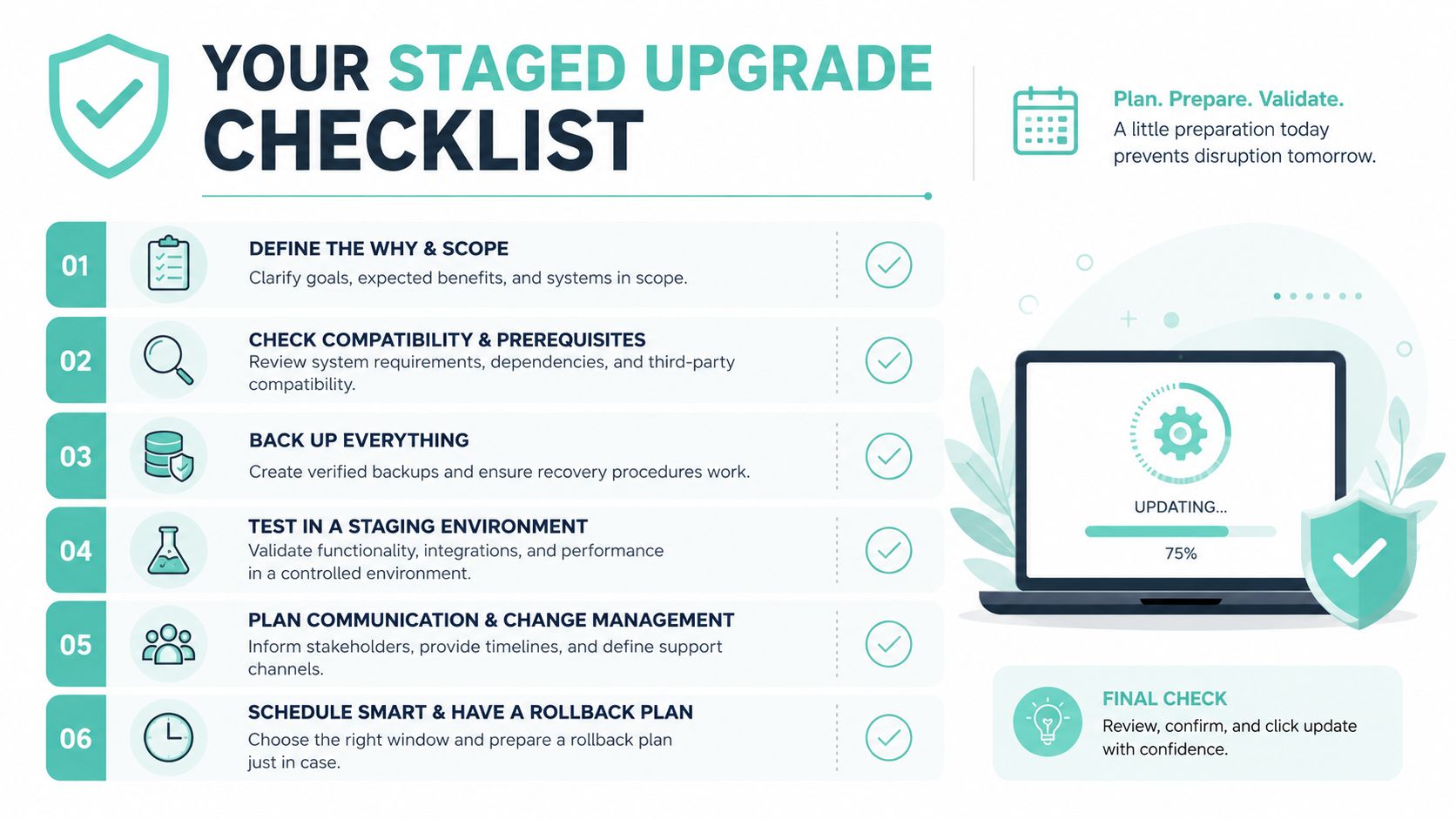
- Take a full backup: Make sure files and database are both covered. A backup is what turns a scary upgrade into a reversible task.
- List your must-work features: Homepage, contact form, checkout, booking flow, member login, quote request form, and anything else that matters commercially.
- Audit plugins and themes: Look for old add-ons, abandoned plugins, or custom theme code that hasn't been reviewed in years.
- Update what's safe to update first: Running a very old plugin stack and changing PHP at the same time makes troubleshooting harder.
- Test on staging: A clone of the site lets you catch fatal errors before your customers do. UpTime customers can use Create a staging site for your WordPress website to test safely before touching the live site.
- Write down your current version: If you need to roll back quickly, you won't want to rely on memory.
Don't combine a PHP upgrade with theme redesigns, plugin swaps, and checkout changes on the same day.
That single habit prevents a lot of wasted troubleshooting. When one variable changes at a time, the cause of any problem is much easier to spot.
Register your new domain name at competitive market prices including free domain add-ons like privacy, DNS Hosting, Custom Nameservers and Forwarding.
Always the best price and no nasty renewal price hikes.
Register A Domain Name
How to Safely Upgrade PHP on UpTime Web Hosting
It often goes like this. You log into WordPress on a quiet Tuesday morning, plan to make one small improvement, then realise the site is still running on an older PHP version. The update itself only takes a minute in cPanel, but choosing the wrong version can leave you with a broken form, a blank page, or a plugin that stops behaving.
That is why the goal here is not “latest at all costs”. It is the right version for your WordPress site, your theme, and the plugins your business depends on.
If your hosting account uses cPanel, sign in and open the dashboard. If you want help finding the right menu, using cPanel on UpTime hosting shows where the PHP tools usually sit.
The safe cPanel path
On most UpTime Web Hosting accounts, the setting you need will appear as Select PHP Version or a similar PHP management tool. Open that first and check which domain or folder you are editing. This matters on multi-site or addon-domain accounts, where changing the wrong path is an easy mistake.
Then make the change in this order:
- Check the current PHP version and write it down.
- Choose the target version you already tested, or the version you selected during planning because it matches your WordPress and plugin stack.
- Apply the change in cPanel.
- Clear any caching layers so you are seeing fresh output from the new PHP version.
- Open the live site in a private browser window and load your key pages straight away.
If your hosting environment offers a compatibility check, use it before or during the change. Some WordPress-friendly platforms include tools that scan plugins and themes for likely PHP issues. That is useful as an early warning, but it is still only a warning light. Your staging results and your own checks matter more.
Choose the version that fits, not the newest one
A newer PHP release is usually a good direction, but there is a difference between “newer” and “best for this site today”. A small business site with an older booking plugin may run happily on one supported version and fail on the next.
A practical way to think about it is car fuel. Premium sounds better, but if your engine is built for regular unleaded, the right choice is the one the engine is designed to handle. PHP works the same way with WordPress, themes, and plugins.
As noted earlier, WordPress support for newer PHP branches arrives in stages. So if your site is not fully up to date, the safer move is often to upgrade to the newest version your setup has already handled well in testing, rather than jumping straight to the latest option shown in cPanel.
Right after the switch
Once cPanel saves the new version, treat that as the start of verification, not the finish line.
Load the homepage first. Then check one admin page, one plugin settings page, and one feature that brings in enquiries or sales. If something fails, switch back to the previous PHP version while the issue is still fresh and easy to trace.
That quick rollback habit saves a lot of stress. It also helps you separate “the PHP version caused this” from “this plugin was already overdue for attention.”
Post-Upgrade Testing and Your Rollback Strategy
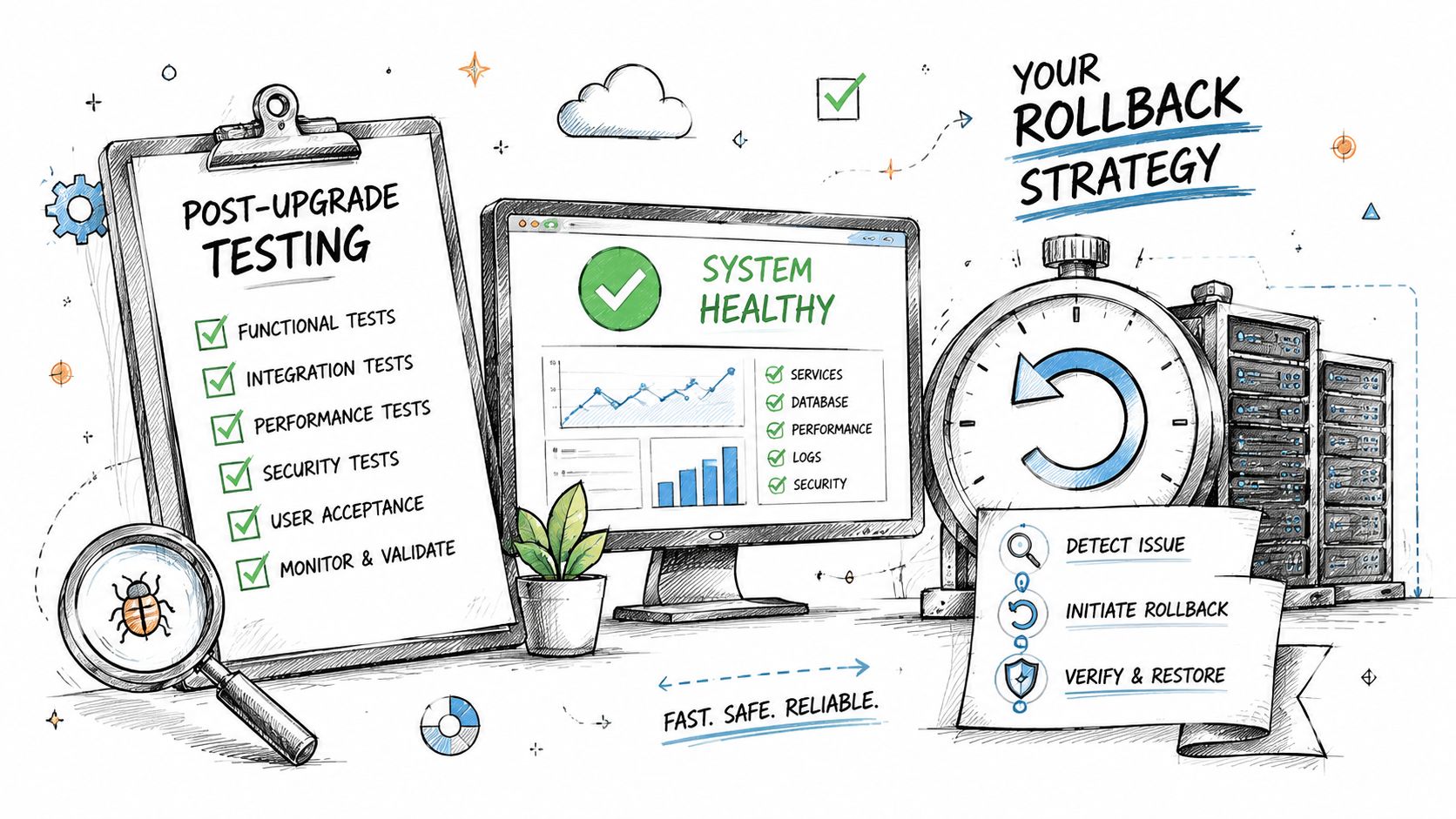
A PHP upgrade isn't complete when the site loads once. It's complete when the parts your business relies on still work properly.
What to test first
Start with the public side of the site. Open the homepage, your main service pages, contact page, and blog if you use one. Click through menus, open images, and make sure nothing obvious is broken.
Then move to the functions that matter commercially:
- Forms: Submit a real test enquiry and confirm the message arrives.
- WooCommerce or ecommerce tools: Add a product to cart and walk through the checkout flow as far as you safely can.
- Membership or login areas: Test sign-in, password reset, and account pages.
- Bookings or quote tools: Run one complete test so you know the workflow still behaves properly.
- Admin functions: Edit a page, update a post, and open plugin settings pages.
If you want a safety net before doing any live changes, create a restorable copy first. UpTime's guide to Create a snapshot backup for WordPress is useful for that.
If a site loads but forms, checkout, or logins fail, the upgrade is not successful yet.
How to roll back calmly
If something goes wrong, don't start disabling random plugins in a panic. Go back to cPanel and change the PHP version back to the previous working one. Because you wrote down the original version before the upgrade, this should be quick.
After rollback, confirm the site is stable again. Then diagnose methodically. The usual culprits are older plugins, custom code in the theme, or add-ons that were never tested against the newer PHP branch. If you already tested on staging, compare what changed between the staging copy and the live environment.
The key point is this. A rollback is not failure. It's part of a safe maintenance process. Good hosting workflows assume reversibility. That's what lets you make necessary changes without gambling on your live website.
If your site needs a safer path for WordPress maintenance, UpTime Web Hosting provides Australian-based hosting with cPanel, WordPress tools, staging guidance, backups, and local support options that can help you plan PHP changes more carefully instead of rushing them on a live business site.