You’ve just signed up for hosting, your welcome email has landed, and you’re staring at a button for cPanel. That’s a normal place to start. Most small business owners don’t need a lesson in server administration. They need to know where to click, what matters first, and how to avoid making a mess of their website or email.
Using cPanel is simpler once you stop thinking of it as something technical and start treating it like your website’s control centre. It’s where you upload files, create email accounts, install WordPress, check traffic, turn on SSL, restore backups, and manage the day-to-day parts of hosting without touching command line tools.
That widespread use isn’t accidental. cPanel is active on over 1.06 million websites, with 506,554 websites in the United States currently using it, and 5.26 million websites identified as cPanel customers across hosting providers, according to BuiltWith’s cPanel usage data. For a small Australian business, that matters because you’re not learning an obscure system. You’re learning a dashboard that’s already familiar to developers, agencies, support teams, and hosting staff around the world.
If you’re still sorting out the basics behind domains and hosting, this plain-English guide on how domain hosting works for SMBs is worth reading before you change anything inside your account.
Table of Contents
- Welcome to Your UpTime Hosting Control Centre
- Mastering Core Website Management Tasks
- Installing Apps and Managing Databases
- Securing Your Site with SSL and Backups
- Optimising Performance for Australian Audiences
- Advanced Tools and Website Migrations
- Frequently Asked Questions About Using cPanel

Performance you can feel, backed by clients who depend on it. Read how our support and uptime create long‑term customer success.Power Your Business with Better Hosting
Welcome to Your UpTime Hosting Control Centre
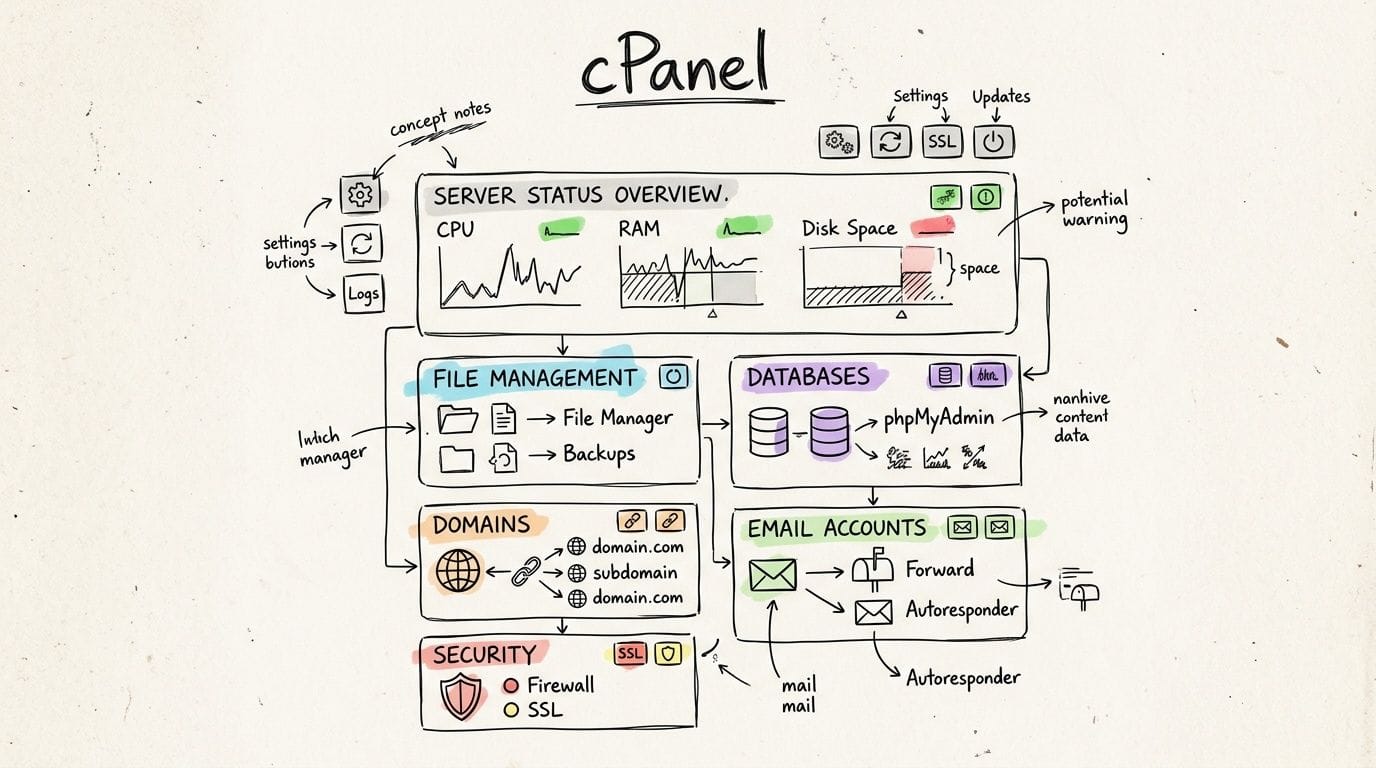
The first time you log in, cPanel can look busier than it really is. There are icons for files, email, databases, domains, security, metrics, and software. New users often think they need to understand every tool before they begin. You don’t.
Getting into cPanel the easy way
The cleanest starting point is your client area. If you haven’t logged in before, use UpTime’s guide for logging in to cPanel from the client portal. That route matters because it reduces the chance of using the wrong login page or mixing up account passwords.
Once you’re inside, do three things first:
- Confirm the main domain. Make sure the account is showing the website you expect to manage.
- Find the search bar. cPanel has a lot of icons, but the search bar gets you to the right tool faster.
- Check the right sidebar or account summary. That area usually tells you the current domain, storage usage, and quick account details.
Practical rule: Don’t click through every menu on day one. Start with the tools tied to your current task, then leave the rest alone until you need them.
What cPanel is actually for
For a small business, cPanel usually ends up handling six jobs: website files, domains, email, app installs, security, and backups. That’s the work that keeps your site online and your business communication organised.
A café owner might use it to upload a PDF menu and create staff email addresses. A trades business might add a contact form site on WordPress and protect it with SSL. An agency might use it to manage multiple domains and stage content updates before going live.
The dashboard becomes far less intimidating once you treat each icon as a tool with one clear purpose. You don’t need to master everything at once. You need to know which panel solves today’s problem.
Mastering Core Website Management Tasks
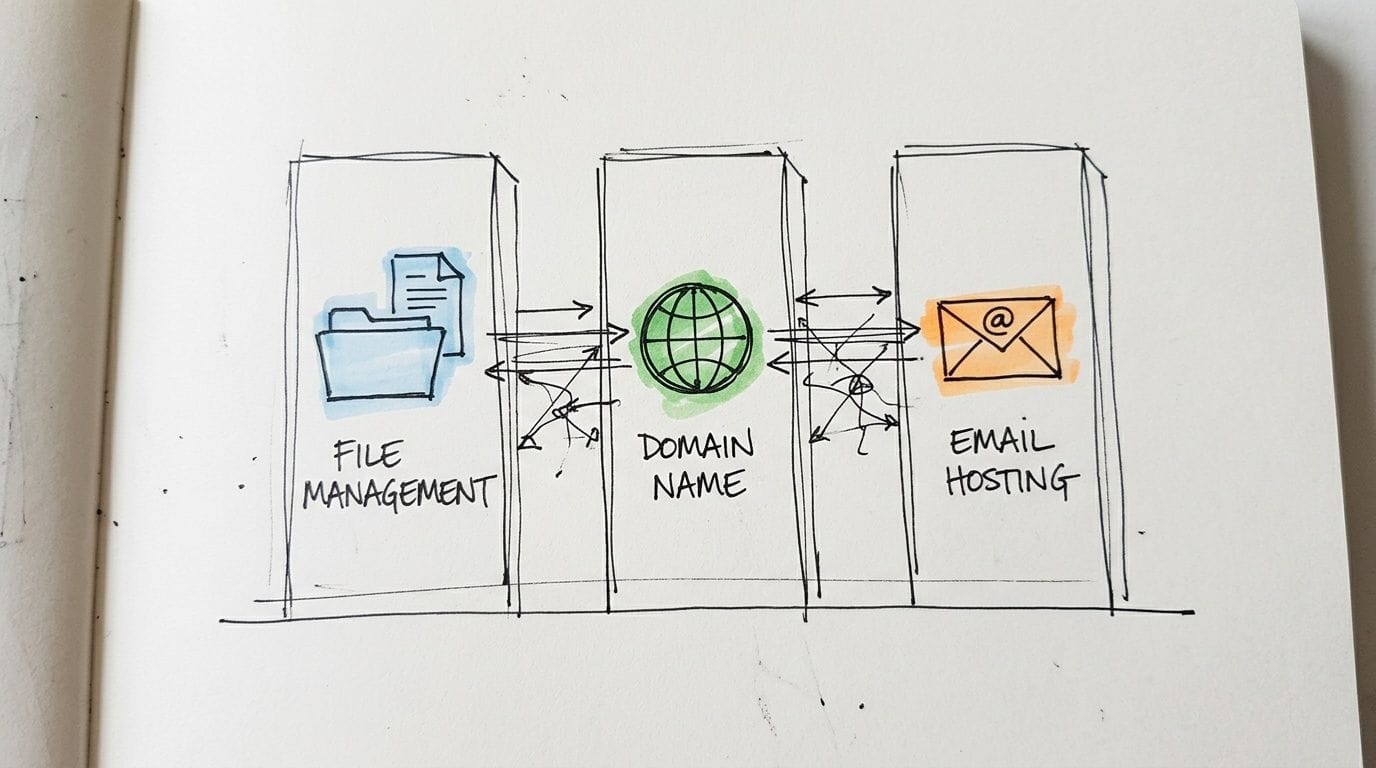
Most day-to-day hosting work falls into three buckets. You either need to change a file, manage a domain, or fix email. If you can do those confidently, using cPanel stops feeling technical and starts feeling routine.
Files that make your site visible
The File Manager is one of the most useful parts of cPanel because it behaves like a normal folder system. If you’ve ever dragged a file into a folder on your computer, the idea is the same.
The folder most businesses need to know is public_html. That’s commonly where the live website files sit for the main domain. If you upload a logo, a PDF brochure, or a simple holding page, that’s often where it goes.
A practical example helps. Say your restaurant wants to replace an old menu PDF with a new one. The safe way to do it is:
- Upload the new file first so you can confirm the name and location.
- Keep filenames tidy using lowercase words and hyphens rather than spaces.
- Check before deleting because removing the wrong file can break links already shared on social media or in email campaigns.
If you’re editing an existing website, be careful with direct changes to theme files, plugin folders, or configuration files unless you know exactly what they do. File Manager is fast, but fast also means it’s easy to overwrite something important.
Domains and subdomains without confusion
A lot of business owners get stuck here because the labels sound more technical than they are.
A subdomain is just a separate section under your main domain. Examples include a blog, shop, help centre, or client portal. If your main business site is already running, a subdomain gives you a clean place to launch something new without rebuilding the whole site.
An addon domain is usually used when you want a different website on the same hosting account. That’s common when one business owns several brands, campaign sites, or side projects.
Here’s a quick reference you can keep in mind:
| What you want to do | cPanel Section to Use | Primary Function |
|---|---|---|
| Upload or replace website content | File Manager | Manage files and folders for live sites |
| Add a separate website | Domains | Connect and manage another domain on the account |
| Create a blog or shop under your main site | Domains | Set up a subdomain for a new section |
| Create staff email addresses | Email Accounts | Add and manage mailbox logins |
| Redirect messages to another inbox | Forwarders | Send mail on to a different address |
A common mistake is adding a domain before deciding where its files should live. Decide the folder structure first. It avoids confusion later when two sites start sharing the wrong content.
Professional email setup
Business email is where cPanel becomes immediately practical. A branded address looks more trustworthy than a personal inbox, and it keeps staff communication tied to the business rather than an individual person’s account.
Typical setups include:
- Named mailboxes such as sales, accounts, bookings, or support.
- Forwarders for roles that multiple people need to monitor.
- Autoresponders for leave periods, seasonal closures, or enquiry acknowledgements.
For the actual setup steps, use UpTime’s guide to create an email address in cPanel. It’s the right place to start if you’re setting up a new mailbox for the first time.
What works well is keeping mailbox names role-based where possible. If a staff member leaves, you won’t need to rebuild your contact details across your website, invoicing, and printed material. What doesn’t work is creating too many similar inboxes with overlapping purposes. That usually leads to missed messages and internal confusion.
Host your website with our 5-star rated, cPanel website hosting plans.
Super fast servers, with security included and hosted in your choice of Australian Data Center.
View cPanel Plans
Installing Apps and Managing Databases
There’s a big difference between uploading a few static files and running a proper content-managed website. Once you want blog posts, contact forms, product pages, or staff editing access, you’ll usually install an app such as WordPress.
Launching WordPress with Softaculous
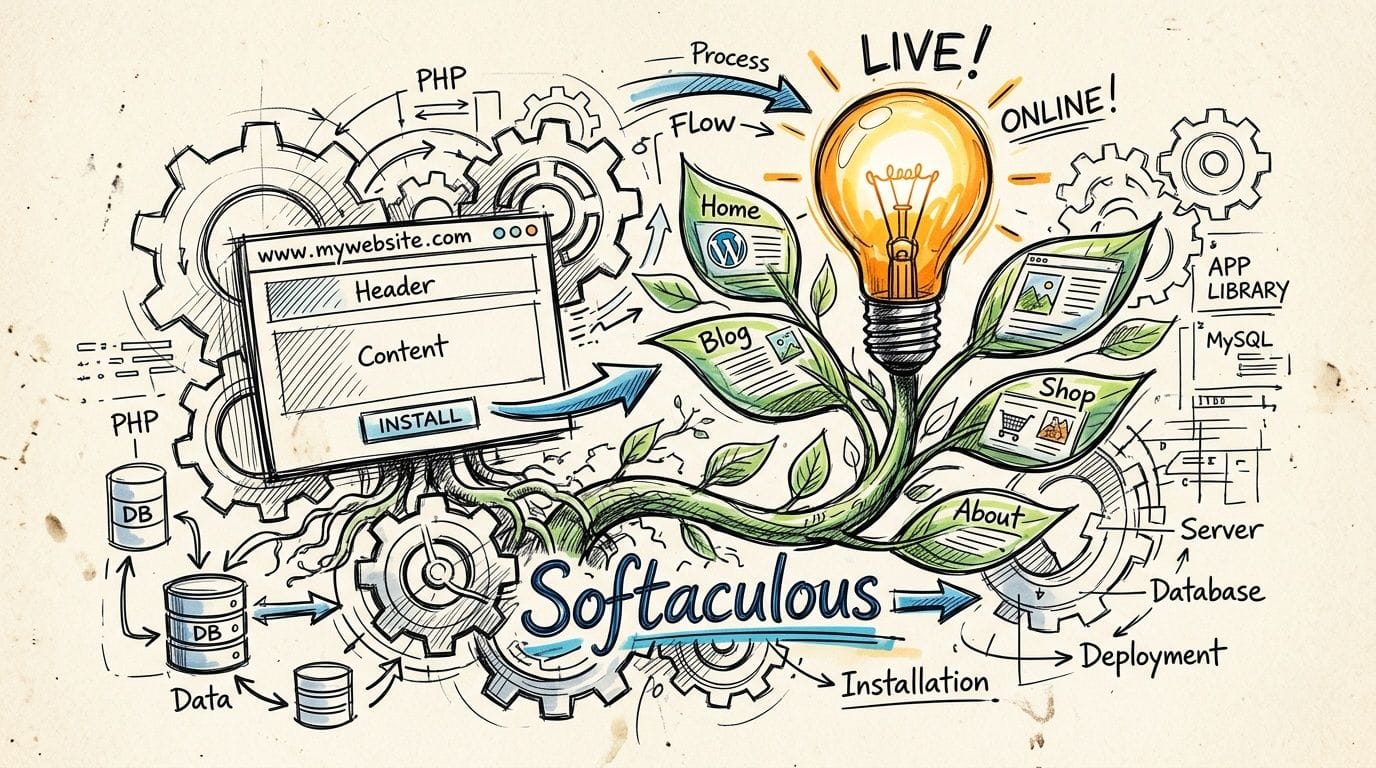
In most cPanel setups, Softaculous Apps Installer is the quickest path from empty hosting to working site. It removes the manual steps that usually trip people up, such as creating a database, connecting it correctly, and placing the application files in the right location.
The process is straightforward:
- Open Softaculous from cPanel.
- Choose WordPress from the applications list.
- Select your domain or subdomain carefully so the site installs in the right place.
- Set your admin login details and store them somewhere safe.
- Complete the install and log in to the new WordPress dashboard.
If you’re planning to extend that site later, plugin management matters. This guide to Ship Restrict WordPress plugin installation is a useful example of the general plugin workflow after WordPress is live.
What works is keeping the install clean at the start. Use one theme, only the plugins you need, and a strong admin password. What doesn’t work is installing every plugin that looks interesting on day one, then trying to figure out later which one caused layout issues or login conflicts.
What a database does
A database is the storage layer for dynamic websites. Your posts, pages, user accounts, settings, product data, and form entries usually live there. If files are the visible shell of the site, the database is the organised record behind it.
That’s why WordPress, Magento, and similar platforms need more than uploaded files. They also need a database and a database user with the right permissions.
When you need to create one manually, the MySQL Database Wizard is easier than doing it piece by piece. The safe pattern is simple:
- Create the database
- Create a database user
- Assign the user to the database
- Give the user the needed privileges
- Record the details securely
Working habit: Name databases and users so you can tell what they belong to later. Vague names are manageable with one site and frustrating with several.
If you ever need to bring in a large export from an old site or another environment, this guide on importing a large MySQL database is the practical reference to keep handy.
Securing Your Site with SSL and Backups
Most small businesses think about security after something breaks. That’s backwards. The easier and cheaper approach is to lock down the obvious risks before your site starts collecting enquiries, payment details, booking requests, or customer information.
Check your SSL before you do anything else
The first security check is whether your site loads with HTTPS and shows a valid certificate. In cPanel, the SSL area gives you a direct way to confirm whether a certificate has been issued and attached to the domain properly.
If you need a practical reference while checking your setup, use this SSL setup checklist for cPanel. It’s the sort of page worth bookmarking because SSL issues are common after a new launch, migration, or domain change.
This isn’t just a browser trust issue. For Australian businesses handling customer data, security configuration matters from a compliance perspective as well. cPanel’s own sysadmin guidance recommends disabling outdated TLS versions so only newer protocols remain active, and that practice helps reduce attack surface for businesses working under the Privacy Act 1988, as outlined in cPanel’s security checklist for sysadmins.
Use backup tools like you expect trouble
Backups aren’t a nice extra. They’re what turn a bad update, accidental deletion, or hacked file into a manageable job instead of a business interruption.
When backup access is available through cPanel, learn the difference between these restore types:
- Full account restore for major failures where the whole site needs to roll back.
- Single file restore for accidental edits or deletions.
- Database restore for broken content or app-level issues.
- Downloadable backup copy for keeping your own offline archive.
A lot of site owners assume the host has backups and leave it there. That’s not enough. You should know where the restore tool sits in cPanel and what kind of recovery it offers before you need it in a hurry.
Simple security tools worth using
You don’t need to become a security specialist to use the basic protection tools well. A few cPanel features are especially practical for small business sites.
- IP Blocker helps stop repeated nuisance traffic from obvious bad actors.
- Leech Protection is useful where password-protected directories are shared with staff or clients.
- Password and user hygiene matters more than people think. Weak or reused passwords still cause plenty of avoidable trouble.
If you’re managing multiple users, restrict access based on what each person needs. The broader the access, the easier it is for one mistake to become a site-wide problem.
Optimising Performance for Australian Audiences
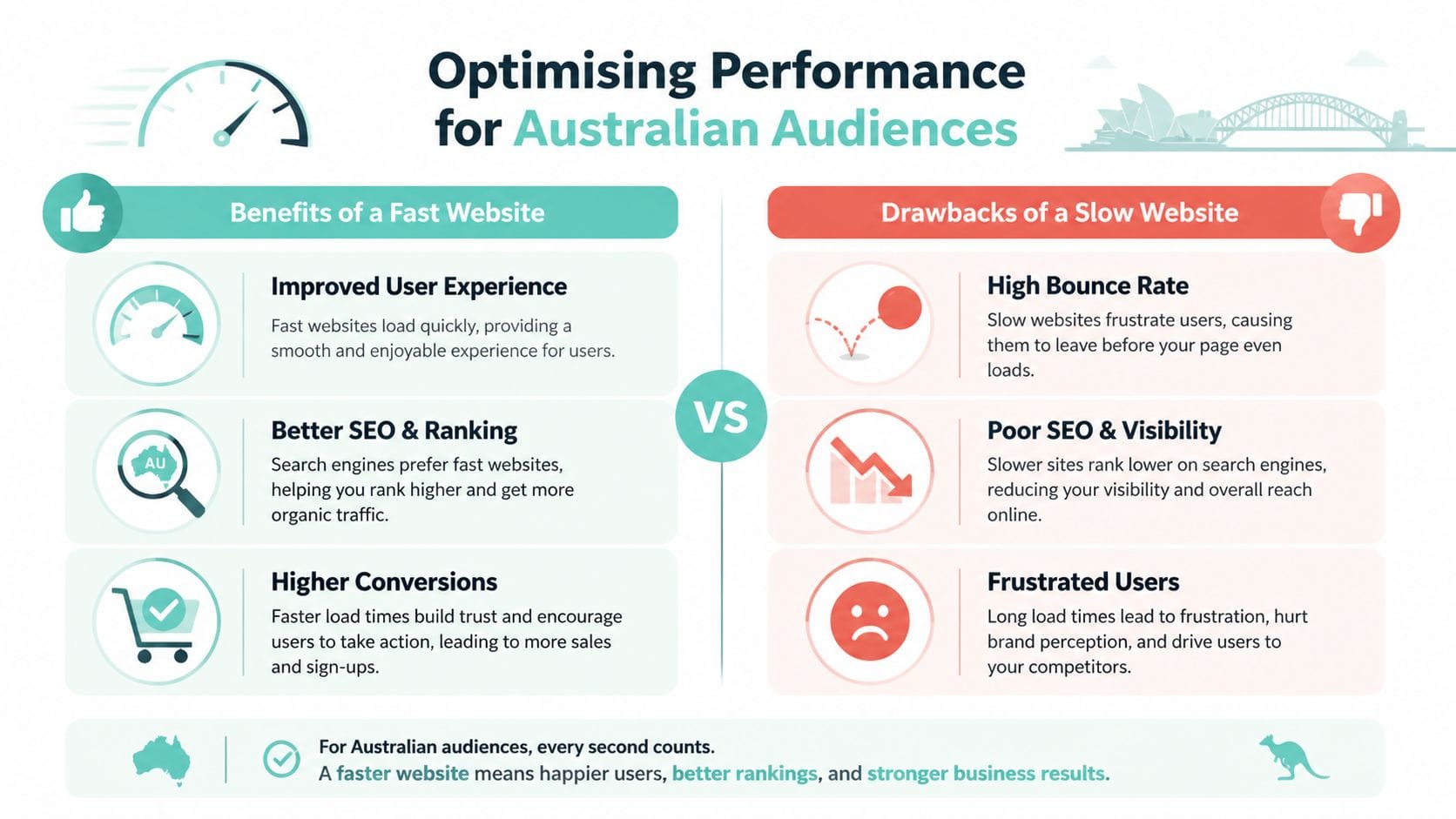
A Sydney customer on a fast office connection and a regional customer on mobile data can hit the same page and have very different experiences. Inside cPanel, the job is to reduce avoidable server work, keep page delivery efficient, and make sure your hosting stack is doing its share for local visitors.
Start with caching
For WordPress sites, LiteSpeed Web Cache Manager is usually the first place to look. Done properly, caching cuts repeated PHP and database work, which lowers load on the account and helps pages reach visitors faster.
This matters most on brochure sites with heavy image use, tradie sites with service pages across multiple suburbs, and online stores that get regular product and cart traffic. The practical rule is simple. Use one clear caching approach, avoid piling multiple cache plugins on top of each other, and test after every change.
If you want the settings that are worth checking first, use this guide to LiteSpeed Cache settings for cPanel.
Within the UpTime environment, this setup has a clear advantage for Australian businesses. LiteSpeed support, AccelerateWP, and local infrastructure mean you are not trying to force performance out of a generic stack that was never tuned for it. That saves time in support, and it usually means fewer workarounds.
Use metrics instead of guessing
The Metrics area in cPanel is more useful than many first-time site owners expect. AWStats can show visitor patterns, referral sources, HTTP status codes, browser types, operating systems, and geographic trends, as outlined in this cPanel statistics guide.
Use that data before changing plugins, themes, or optimisation settings. A slow site at 8 pm may point to traffic spikes. Slow product pages might come back to oversized images or a plugin issue. Repeated 404s often mean broken internal links, old campaign URLs, or missing files after an update.
Don’t optimise blind. A slow site can come from poor plugins, oversized images, excessive redirects, or server strain. Metrics help you separate the actual cause from guesses.
What to watch in real traffic data
A few AWStats areas are consistently useful for small business owners:
- Visitor timing shows when your audience is active, which helps with maintenance windows and campaign timing.
- Referrers show whether leads are arriving from search, social platforms, partner sites, or direct visits.
- HTTP status codes help you spot broken pages, redirect problems, and wasted crawl activity.
- Locations and devices give context for layout, image sizing, and mobile usability.
Performance affects more than load time. It shapes whether a customer stays, enquires, or gives up and tries the next business in Google. If you want the business side of that equation as well, these Everglow's insights for business owners pair well with the performance work you can do in cPanel.
Register your new domain name at competitive market prices including free domain add-ons like privacy, DNS Hosting, Custom Nameservers and Forwarding.
Always the best price and no nasty renewal price hikes.
Register A Domain Name
Advanced Tools and Website Migrations
Once the site is stable, cPanel starts offering workflow tools rather than just maintenance tools. These are the features people grow into. You won’t use all of them, but the right one can save a lot of repetitive work.
Tools you’ll use once the basics are stable
Git Version Control is useful if a developer is maintaining custom code, templates, or deployable project files. It’s less relevant for a simple brochure site that’s edited only through WordPress. If you do use Git, treat it as a code workflow tool, not a substitute for proper site backups.
Cron Jobs help automate repeated tasks. That can include cleanup scripts, scheduled reports, maintenance routines, or app-specific jobs. What works is scheduling only the tasks you understand and documenting what each one does. What doesn’t work is copying timing rules from the internet and forgetting about them until they cause duplicate processing or unexpected load.
A cleaner way to migrate a site
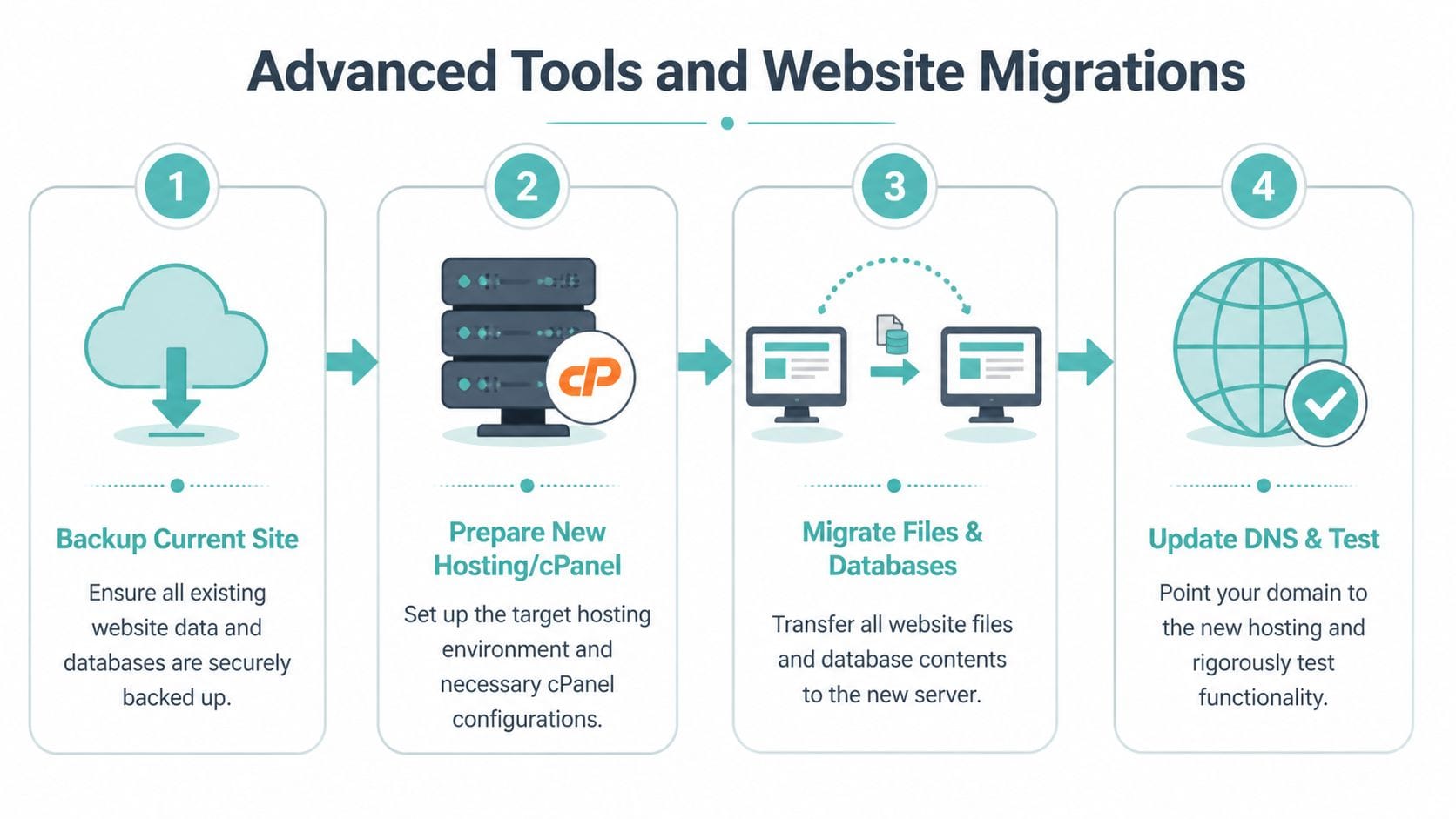
Migrations go smoothly when they’re organised in the right order. The rough workflow is usually:
- Collect the current site assets including files, database exports, and any mailbox details you need to preserve.
- Prepare the destination environment so the domain structure, application requirements, and account settings are ready.
- Move files and databases carefully rather than rushing straight to public launch.
- Test before final cutover with forms, images, links, admin access, and email behaviour.
Most migration mistakes come from impatience. People move files but forget the database. They import the database but leave old paths or broken configuration values. Or they point the domain too early and start debugging on a live audience.
Why access logs matter after migration
Raw access logs are one of the most practical troubleshooting tools after a move. They can show whether bots are reaching important pages, whether errors are spiking, and whether redirect issues are creating unnecessary work on the server.
That’s where quick wins matter. Expert guidance on cPanel raw log review notes that fixing high-traffic 404 errors with redirects can reduce unnecessary server load by 15 to 25%, and it highlights checks such as validating crawler responses and spotting 5xx correlations with slower pages in this overview of raw access log analysis.
If a migrated site feels off but nothing obvious is broken, logs often tell the story faster than visual inspection.
Frequently Asked Questions About Using cPanel
A new business owner logs into cPanel, sees dozens of icons, and worries one wrong click will take the site offline. That concern is normal. In practice, cPanel is manageable once you know which areas matter day to day and which ones are better left alone until you need them.
Within UpTime hosting, that usually means focusing on the tools tied to uptime, mail, security, and site speed for Australian visitors. You do not need to learn the whole dashboard at once.
Is cPanel only for developers
No. Small business owners use cPanel every day for jobs like setting up email accounts, checking SSL status, updating files, managing domains, and installing WordPress or other apps.
Some tools do carry more risk. If you are looking at SSH access, Git version control, PHP configuration, cron jobs, or database privilege settings, pause first. Those areas are useful, but they are less forgiving than standard account tasks.
What if I break something
Start by checking what changed. If you updated one file or mailbox setting, the fix is often simple. If you removed core website files, edited configuration values, or changed a database, the recovery process is more serious and may need support.
A safe workflow helps:
- Change one thing per step so problems are easier to trace
- Download a copy first before replacing files
- Run or confirm a backup before plugin, theme, or database work
- Keep notes if more than one staff member uses the account
Small changes are easier to reverse.
On UpTime plans, this matters even more because many customers are running live business sites with local traffic, enquiries, and email flowing through the same account. A rushed edit at midday can affect sales, forms, and mailbox access at the same time.
Should I use File Manager or FTP
Use File Manager for quick jobs inside the browser. It is well suited to replacing an image, editing a basic file, checking folder structure, or uploading a small asset without opening extra software.
Use FTP or SFTP for larger transfers, repeated development work, or full site file moves. You get better visibility during long upload sessions, and failed transfers are easier to spot.
The trade-off is simple. File Manager is faster for small admin tasks. FTP gives you more control when the workload is bigger.
Do I need every feature in the dashboard
No. Most small business users come back to the same handful of tools:
- File Manager for direct file changes
- Domains for aliases, redirects, and domain setup
- Email Accounts for creating and managing mailboxes
- Softaculous for app installation
- SSL and security tools for certificate checks and account protection
- Metrics for a quick read on traffic and errors
- Backup tools for recovery before risky changes
The rest can wait. In UpTime accounts, that focused approach works well because performance features like LiteSpeed and AccelerateWP do much of the heavy lifting in the background, so you can concentrate on the parts of cPanel that affect daily operations.
When should I ask support for help
Ask early if the task involves mail delivery problems, failed SSL renewals, database imports, DNS changes, restore requests, or a live website issue you cannot afford to get wrong.
That is not a sign you are stuck. It is good hosting practice.
Support is also worth using when performance drops for Australian customers and the cause is unclear. Slow admin pages, odd caching behaviour, plugin conflicts, or server-side settings are easier to sort out when someone familiar with the hosting environment can review the account and point you to the right fix.
Using cPanel well comes down to judgment. Know which tools are safe for routine work, know which ones affect live services, and ask for help before a small mistake turns into a longer outage. For most UpTime customers, that approach gets the best value from cPanel without turning routine website management into a technical chore.