Your website was fine yesterday. This morning, a customer clicks through from Google, sees a browser warning, and backs out before the homepage even loads properly. If your site takes bookings, sells products, or just collects enquiries, that kind of interruption hurts fast.
For many Australian business owners, SSL certificate renewal only gets attention when something breaks. That's understandable. When HTTPS is working, it fades into the background. But renewal isn't just an admin task anymore. With certificate lifetimes getting shorter over the next few years, leaving renewals to memory, inbox reminders, or a once-a-year checklist is becoming risky.
An SSL certificate is what lets your site load over HTTPS and show visitors that their connection is encrypted. If that certificate expires, browsers stop treating your site as trustworthy. The fix is usually straightforward, but only if you know which renewal path you're on and what must happen in the right order.
Table of Contents
- The Silent Deadline That Can Sink Your Website
- Renewal Prep Checking Expiry and Choosing Your Path
- The Manual Renewal Workflow Generating a CSR and Validating
- Installation and Verification Get Your New Certificate Live
- Best Practices and Troubleshooting Common Renewal Headaches
- Frequently Asked Questions About SSL Renewal
- My hosting plan includes free SSL. Do I still need to worry about renewal?
- How long does SSL certificate renewal take?
- What happens if I forget to renew?
- Can I use a certificate bought elsewhere on my hosting account?
- Should I renew with the same CSR as last time?
- I run WordPress. Is this a WordPress problem or a hosting problem?

Performance you can feel, backed by clients who depend on it. Read how our support and uptime create long‑term customer success.Power Your Business with Better Hosting
The Silent Deadline That Can Sink Your Website
A certificate expiry usually shows up at the worst possible time. Someone tries to pay an invoice, submit a contact form, or log in to webmail, and instead of seeing your brand, they see a warning page. Most visitors won't investigate. They leave.
What expiry looks like in the real world
For a small business, the damage isn't only technical. It's commercial. A retail site can look abandoned. A professional services firm can appear careless with client data. Even a simple brochure site starts sending the wrong signal if the browser says the connection isn't private.
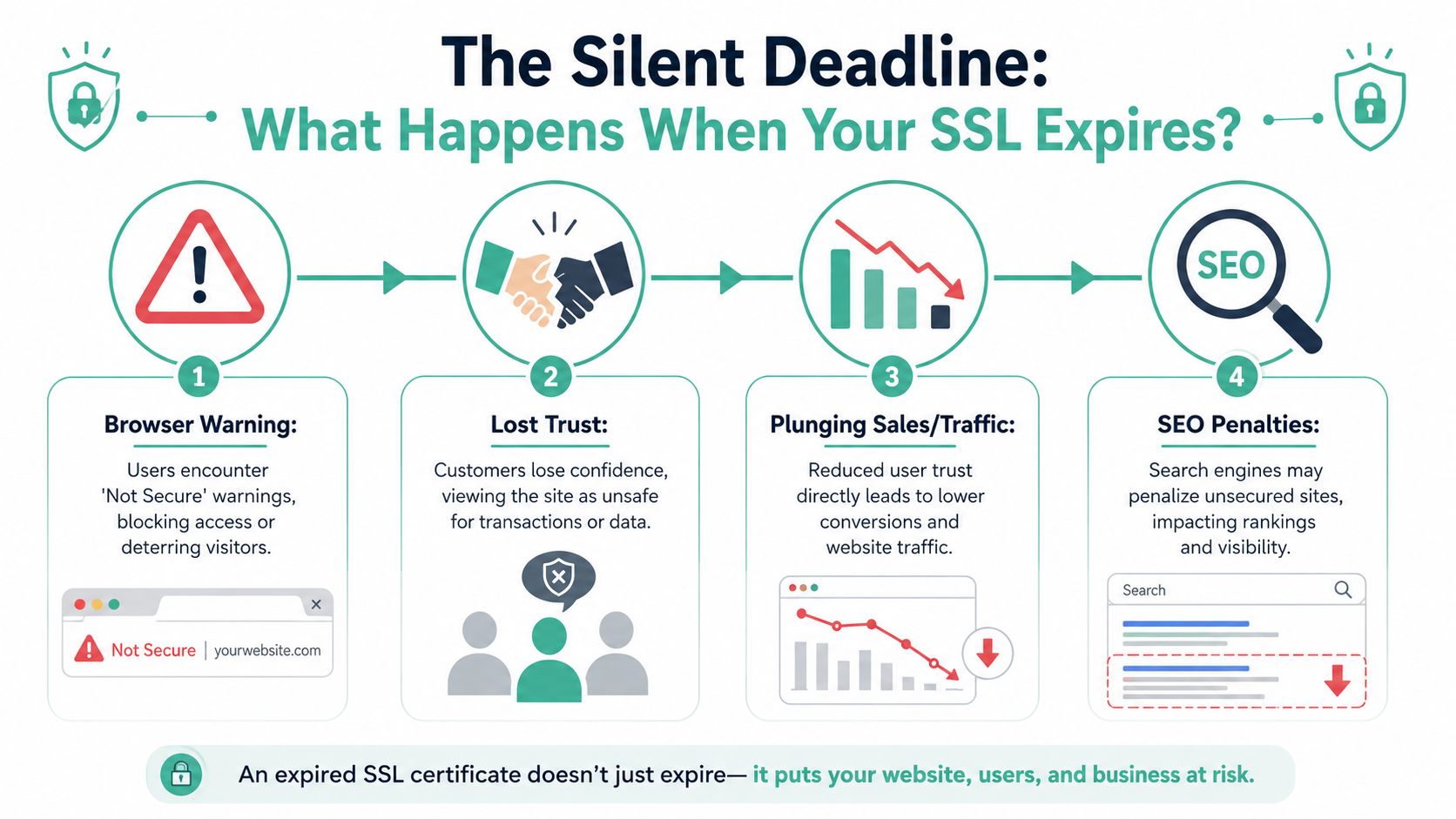
The awkward part is that owners often assume renewal means “I paid for it” or “the certificate was issued”. That's not enough. If the live website is still serving the old certificate, visitors still get the warning.
Practical rule: If a browser shows a certificate warning, treat it like downtime. The site may still technically respond, but for customers it's effectively broken.
If you also manage your domain renewals manually, it's worth reviewing that process at the same time. Businesses often discover expiry risks in more than one place once they start checking their website stack. UpTime clients who want to review domain timing can do that through domain renewal options for hosted services.
Why Australian businesses need a tighter renewal habit
There's another reason this matters more now. Australia's domain and certificate ecosystem is heading into a faster renewal cycle because the CA/Browser Forum approved phased reductions in SSL/TLS certificate lifetimes. Domain and IP validation data reuse drops from 398 days to 200 days for certificates issued on or after March 15, 2026, then to 100 days from March 15, 2027, and to 10 days from March 15, 2029. In the same schedule, publicly trusted certificates move from the current 398-day maximum lifetime toward a 47-day maximum by March 2029, which means manual renewal gets much harder to manage reliably for Australian site owners, as outlined in this summary of the new SSL certificate renewal rules.
That near-term pressure starts well before 2029. The 2026 change alone cuts the validation reuse window roughly in half, so businesses that still depend on inbox reminders, old contacts, or ad hoc server access are going to feel the squeeze sooner than they expect.
Here's what tends to work:
- Automated issuance where possible. This removes the “someone forgot” problem.
- A clear owner for each certificate. One person or team should know what renews, where, and how.
- A final live-site check after every renewal. That's the step many people skip.
What doesn't work is assuming the old annual rhythm will be enough.
Renewal Prep Checking Expiry and Choosing Your Path
Before renewing anything, confirm what certificate the website is serving right now. Don't start by ordering a replacement. Start by checking the live endpoint.
Check the certificate before you touch anything
In most browsers, you can inspect the certificate details directly from the address bar. The wording varies a bit, but the path is usually similar:
- Open your website over HTTPS and click the padlock icon.
- Open the connection or certificate details from the security panel.
- Look for the expiry date, the hostname, and who issued it.
- Check whether the certificate matches the domain visitors use. That includes the www and non-www version if both should work.
That quick check answers three useful questions. Is the certificate close to expiry? Is the correct hostname covered? Is the site using the certificate you think it is?
Here's a visual reference from an UpTime-hosted environment.
If your site uses several subdomains, note them down before you renew. A missed hostname is one of the most common reasons a “successful” renewal still leaves part of the site broken.
Choose between automated and manual renewal
Most small businesses should choose automation unless there's a clear reason not to. If your hosting account supports AutoSSL or another managed issuance method, that's usually the cleanest option for brochure sites, WordPress sites, and standard business email and web hosting setups.
A wildcard certificate can make sense when you need broader hostname coverage across subdomains. If that's your setup, review wildcard SSL certificate options for hosting accounts before renewing so you don't order the wrong type.
A simple comparison helps:
| Renewal path | Good fit for | Watch-outs |
|---|---|---|
| Automated SSL | Standard business sites, WordPress, cPanel hosting | You still need to confirm DNS, hostname coverage, and live deployment |
| Manual commercial CA renewal | Businesses with policy requirements, specific certificate products, or custom workflows | More moving parts, more chances to miss validation or installation |
The right choice isn't the fanciest certificate. It's the one you can renew and deploy consistently without scrambling every expiry cycle.
Signs you should lean manual include internal approval requirements, a commercial certificate already tied to a business process, or mixed infrastructure where not everything sits on the same hosting platform. If none of that applies, don't overcomplicate it.
A practical rule of thumb is simple. If you're logging into a CA portal, copying files around, and waiting on validation emails every time, you need a documented process. If you're relying on automation, you still need periodic checks so you know it's renewing and installing as expected.
Host your website with our 5-star rated, cPanel website hosting plans.
Super fast servers, with security included and hosted in your choice of Australian Data Center.
View cPanel Plans
The Manual Renewal Workflow Generating a CSR and Validating
If you've chosen manual renewal, the first real task is generating a CSR, or Certificate Signing Request. This is the piece of text you submit to the certificate authority so it can issue the new certificate for your domain.
Generate a fresh CSR every time
Don't recycle the last CSR just because it's sitting in an old ticket or folder. Best practice is to generate a new CSR at renewal time because it creates a new public and private keypair. Re-using an old CSR is a security shortcut that should be avoided, and a renewal still requires re-validation and re-installation regardless of the CSR source, as noted in DigiCert's renewal guidance.
In cPanel, you'll usually find this under SSL/TLS. The exact menu name can vary slightly by theme, but the process is familiar:
- Common Name. Enter the hostname the certificate is for. For example,
www.yourbusiness.com.auor the main domain if that's the version you serve. - Organisation. Use your registered business or trading name if your certificate type calls for it.
- City or Locality. Enter your Australian city or suburb in a consistent business format.
- State or Province. Use the state or territory, such as NSW, VIC, QLD, SA, WA, TAS, ACT, or NT.
- Country. Australia.
- Passphrase. Only use one if your environment and process are designed for it. Many shared hosting users leave this blank because it adds handling complexity later.
After cPanel generates the CSR, keep three things organised: the CSR text, the private key, and a note of exactly which hostname set you're renewing.
A simple pre-flight checklist helps avoid bad orders:
- Check the hostname list. If the site uses
www, non-www, a shop subdomain, or other named services, confirm what must be covered. - Check your contacts. If validation relies on email, make sure the monitored address is still active and accessible.
- Check server access. Have login access ready for installation before you start the order.
If you want a cPanel-oriented reference before placing the order, the SSL set up checklist for cPanel is a useful sanity check.
What validation usually looks like
Once you submit the CSR to your CA, the next step is validation. For most small business renewals, people often experience delays during this step rather than getting permanently stuck.
Common validation methods include:
Email validation
The CA sends a message to an approved address for the domain. This is simple when those inboxes are active and someone is watching them. It's frustrating when they aren't.DNS validation
You add a verification record to the domain's DNS zone. This is often reliable if you control DNS and know where it's hosted.HTTP file validation
The CA asks you to place a verification file at a specific path on the website. This can work well, but it depends on the web server serving the file exactly as expected.
When validation stalls, the cause is usually ordinary admin drift. Old inboxes, changed DNS access, or a hostname list that no longer matches the live site.
For Australian businesses with staff turnover, agency handovers, or older hosting setups, that admin drift is common. Renewal guides often treat validation like a button click. In practice, it's where outdated assumptions show up.
If your certificate covers multiple names, double-check them before you approve the issue. It's far easier to correct a SAN list before installation than after browsers start hitting the wrong hostname with the wrong certificate.
Installation and Verification Get Your New Certificate Live
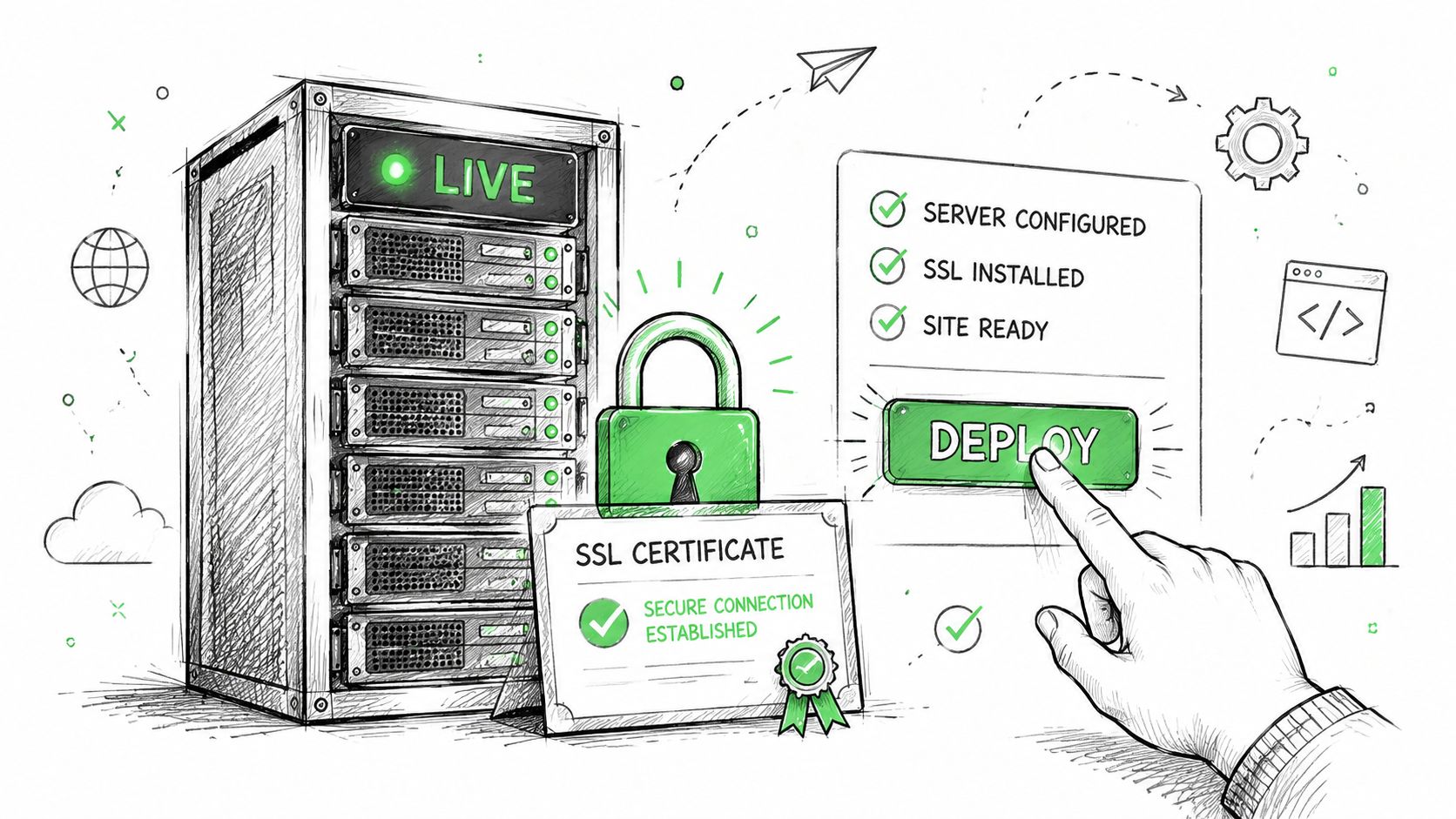
A certificate isn't renewed when the CA sends you files. It's renewed when the live site serves the new certificate correctly.
That sounds obvious, but at this stage, many jobs go sideways. The certificate gets issued successfully, someone uploads part of it, and the website still presents the expired chain. From the customer's side, nothing has improved.
Installation is where most renewal jobs succeed or fail
For Australian sites, the practical workflow is to inventory expiring certificates, generate a fresh CSR, complete CA validation, install the new certificate, and only then remove the old one. That order matters because leaving the old certificate installed until the new one is verified helps avoid a preventable HTTPS outage during switchover, as explained in Sectigo's renewal and automation guide.
The risky step usually isn't the CA approval itself. It's binding the replacement certificate properly to the web server, control panel, or reverse proxy that serves traffic.
Renewal is only finished when the live endpoint presents the new certificate, the chain validates cleanly, and the intended hostname is covered.
A practical install path for cPanel and IIS
On a typical cPanel hosting account, installation usually happens through the SSL/TLS area or a certificate install interface tied to the domain. The exact layout depends on theme and hosting configuration, but the core pieces are the same:
- The certificate itself. This is the newly issued server certificate.
- The private key. This must match the CSR that generated the order.
- The CA bundle or intermediate chain. This helps browsers build trust to a known root.
A clean install process usually looks like this:
- Paste or upload the new certificate into the install form.
- Confirm the correct private key is selected or detected.
- Add the CA bundle if your platform doesn't populate it automatically.
- Install to the correct domain or virtual host.
- Leave the old setup in place until you've confirmed the new one is live.
For WordPress site owners on hosted cPanel accounts, many certificate problems aren't about WordPress at all. They come from the web server certificate sitting underneath it. If your plan includes managed SSL handling, free SSL for WordPress hosting can reduce the amount of manual work involved.
For Windows Hosting customers using IIS, the shape is similar even though the screens are different. Import the certificate into the correct store, bind it to the right site in IIS, and confirm the HTTPS binding points at the replacement certificate rather than the expired one. If the site uses multiple bindings or host headers, check each one carefully.
This is the point where a managed workflow can help. UpTime Web Hosting supports cPanel, WordPress, managed VPS, and Windows hosting environments, so the practical path varies by service. On simple cPanel accounts, AutoSSL often reduces the manual handling. On custom or externally purchased certificates, you still need the install and post-install checks.
The checks you should never skip
After installation, test the live site externally. Don't rely on what the control panel says. The browser and an outside scanner are what matter.
Use this quick verification list:
- Open the live site in a browser and inspect the served certificate details.
- Confirm the hostname and SANs match the domain visitors use.
- Check the served chain with an external TLS scanner so you know the intermediate chain is complete.
- Visit several pages over HTTPS and look for mixed-content warnings, especially on WordPress sites with older themes or plugins.
- Retest redirects so HTTP sends visitors to HTTPS cleanly.
A few failure patterns show up again and again:
| Symptom | Likely cause | First fix |
|---|---|---|
| Browser still shows expiry | New certificate issued but not bound to the live site | Recheck the install target and active binding |
| Name mismatch warning | Wrong hostname or missing SAN | Reissue or install the certificate that covers the correct names |
| Chain warning | Intermediate certificate missing | Install the CA bundle or full chain |
| Some pages insecure | Mixed content from old asset URLs | Update hard-coded HTTP resources |
If the new certificate is installed and the site still looks wrong from your office, test from another network or private browsing window. Local caching can make a completed renewal look unfinished.
Best Practices and Troubleshooting Common Renewal Headaches
SSL problems usually come from process, not mystery. The businesses that handle renewal smoothly tend to follow the same habits each time.
Habits that prevent certificate stress
If you manage one site, it's tempting to keep the process in your head. If you manage several, that stops working fast. A short written checklist is far more reliable than memory.
The basics that consistently help are:
- Start early. Give yourself enough room to deal with changed contacts, missing hostnames, or delayed validation.
- Prefer automation where it fits. Standard business sites don't benefit from manual hassle if automated renewal is available.
- Keep a hostname inventory. List the exact names each certificate must cover.
- Store certificate records sensibly. Keep order details, install notes, and renewal ownership where the next person can find them.
- Test after every change. A certificate marked issued is not the same as a live site serving it correctly.
One headache that catches owners off guard is the browser message that the connection isn't private even after they think they've renewed everything. That usually points to an installation, hostname, or mixed-content issue rather than a billing problem. If you run into that, troubleshooting the “your connection is not private” warning gives a practical checklist.
Common errors and the fastest fix
Some renewal issues sound alarming but are usually straightforward once you know what they mean.
A certificate warning rarely means “hack”. Most of the time it means the server is presenting the wrong certificate, an incomplete chain, or content is still loading over HTTP.
Use this if-this-then-that guide:
If the certificate is valid but the browser says the name is wrong
Check whether the certificate covers the domain version the visitor used.wwwand non-wwwmismatches are common.If the certificate looks installed but scanners report an incomplete chain
Revisit the CA bundle or intermediate certificate. Many installs fail without clear indication at this point.If only some pages show warnings
Scan the page source or theme settings for hard-coded HTTP assets like images, scripts, or stylesheet links.If auto-renewal should have happened but didn't
Check whether the domain still resolves correctly, whether DNS changed recently, and whether the hosting platform can still validate the site.If renewal depends on email validation and nobody got the message
Verify that the approval inbox still exists and is monitored, or switch to DNS or HTTP validation if your CA allows it.
For mixed environments, renewal ownership matters almost as much as the certificate itself. The University of Rochester's FAQ highlights that direct commercial renewal can involve significant manual steps, while a centralised service can reduce friction and turnaround time to about 24 hours, which is a useful reminder that your renewal model should fit your environment rather than just your buying history, as described in their SSL certificate FAQ.
If you can diagnose the issue from the browser and a scanner, you can often fix it yourself. If the problem sits in server bindings, CA chain handling, or a hosting-level automation failure, that's the point to raise a support ticket or call your hosting provider.
Register your new domain name at competitive market prices including free domain add-ons like privacy, DNS Hosting, Custom Nameservers and Forwarding.
Always the best price and no nasty renewal price hikes.
Register A Domain Name
Frequently Asked Questions About SSL Renewal
My hosting plan includes free SSL. Do I still need to worry about renewal?
You still need awareness, but not the same level of manual work. If your plan uses automated SSL, the main job is making sure the domain, DNS, and site setup still allow the platform to renew and install the certificate properly. It's still smart to spot-check the live certificate from time to time.
How long does SSL certificate renewal take?
Automated renewal can be fairly hands-off when everything is configured correctly. Manual renewal varies more because validation, hostname review, and installation all have to line up. A key variable usually isn't certificate issuance. It's whether the right person has access to approve and deploy it.
What happens if I forget to renew?
Visitors can see browser security warnings, forms and checkout activity can drop off, and staff may lose confidence in whether the site is safe to use. The exact symptom varies, but the business effect is the same. Customers hesitate or leave.
Can I use a certificate bought elsewhere on my hosting account?
In many cases, yes. The key questions are whether the hosting environment supports manual installation, whether you have the correct certificate files and matching private key, and whether the certificate covers the right hostnames.
Should I renew with the same CSR as last time?
No. A fresh CSR is the safer practice because it creates a new keypair. Re-using an old CSR may feel convenient, but it's not the better habit.
I run WordPress. Is this a WordPress problem or a hosting problem?
Usually the certificate itself sits at the hosting or web server level, not inside WordPress. WordPress can still contribute to mixed-content warnings if old HTTP links remain in themes, plugins, or content.
If you'd rather avoid certificate surprises, UpTime Web Hosting offers Australian hosting with cPanel, WordPress, Windows hosting, support channels for SSL-related issues, and service options that suit both automated and manual certificate workflows.