In short
WordPress updates fail for different reasons, so first identify whether WordPress cannot save content, download an update package, write files, or finish maintenance mode. Back up the site, copy the exact error, then check Site Health, disk space, file ownership, REST API access, plugin conflicts and logs in that order.
Key takeaways
- The block editor’s “not a valid JSON response” error points to a REST API response problem, not necessarily a failed software-package update.
- WordPress core, plugin and theme updates need outbound access, writable filesystem paths and enough free storage to download, unpack and install the package.
- A stale
.maintenancefile can leave the public site showing “Briefly unavailable for scheduled maintenance” after an interrupted update. - Back up both files and the database before changing permissions, deactivating plugins or replacing core files.
- Do not set folders to 777; WordPress says correct permissions vary according to server ownership and hosting configuration.
Table of contents
- Why is my WordPress update not working?
- What should you do before trying the update again?
- Which error message should you diagnose first?
- How do you test a publishing or valid JSON failure?
- How do you fix plugin, theme or core update failures?
- What if WordPress is stuck in maintenance mode?
- When should you stop troubleshooting and contact the host?
- What else do site owners ask about failed WordPress updates?
- What is the safest next step?
Why is my WordPress update not working?
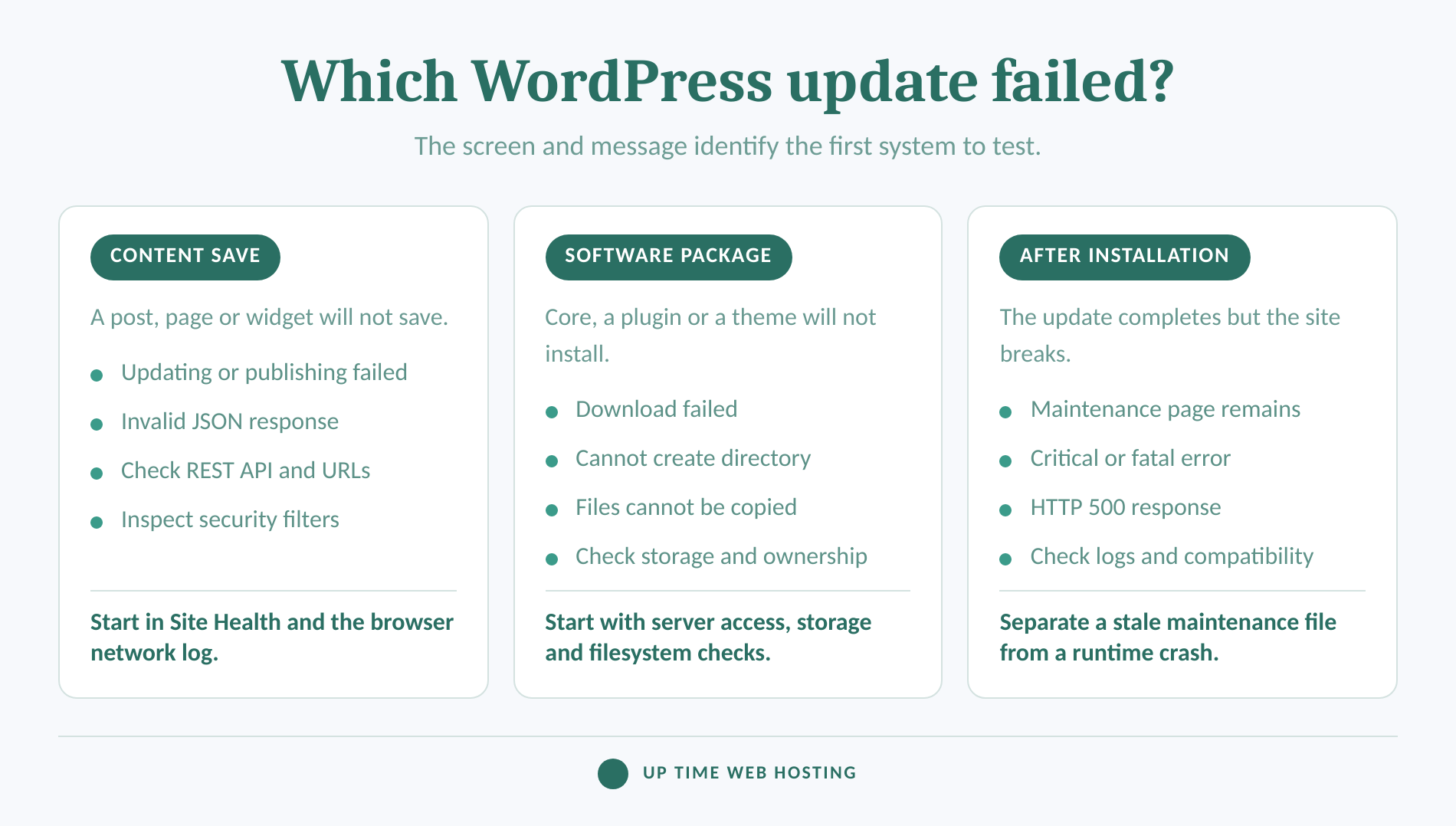
WordPress uses the word “update” for several separate operations, and each operation can fail in a different part of the system. Identify the screen where the message appeared before clearing caches, changing permissions or pressing the button again.
First, place the failure into one of these groups:
- A post, page or widget will not save. Messages such as “Updating failed”, “Publishing failed” or “The response is not a valid JSON response” usually concern communication between the editor and the WordPress REST API.
- A plugin, theme or WordPress core package will not install. Messages about downloads, directories, copying files, signatures or an unavailable package concern the software updater and server environment.
- The public site is stuck in maintenance mode. The update started but WordPress did not remove its temporary
.maintenancefile normally. - The update completed, but the site now shows a critical or fatal error. The files may have installed successfully, but the new code is incompatible with another component or the current server environment.
An editor error does not prove that WordPress core or a plugin package failed. A post can fail to save while Dashboard > Updates continues to work normally.
For the normal update workflow and terminology, start with the site’s WordPress update basics, then return to the matching failure path below.
The words around the failure tell you whether to inspect the REST API, the software updater, maintenance mode or runtime compatibility.

Performance you can feel, backed by clients who depend on it. Read how our support and uptime create long‑term customer success.Power Your Business with Better Hosting
What should you do before trying the update again?
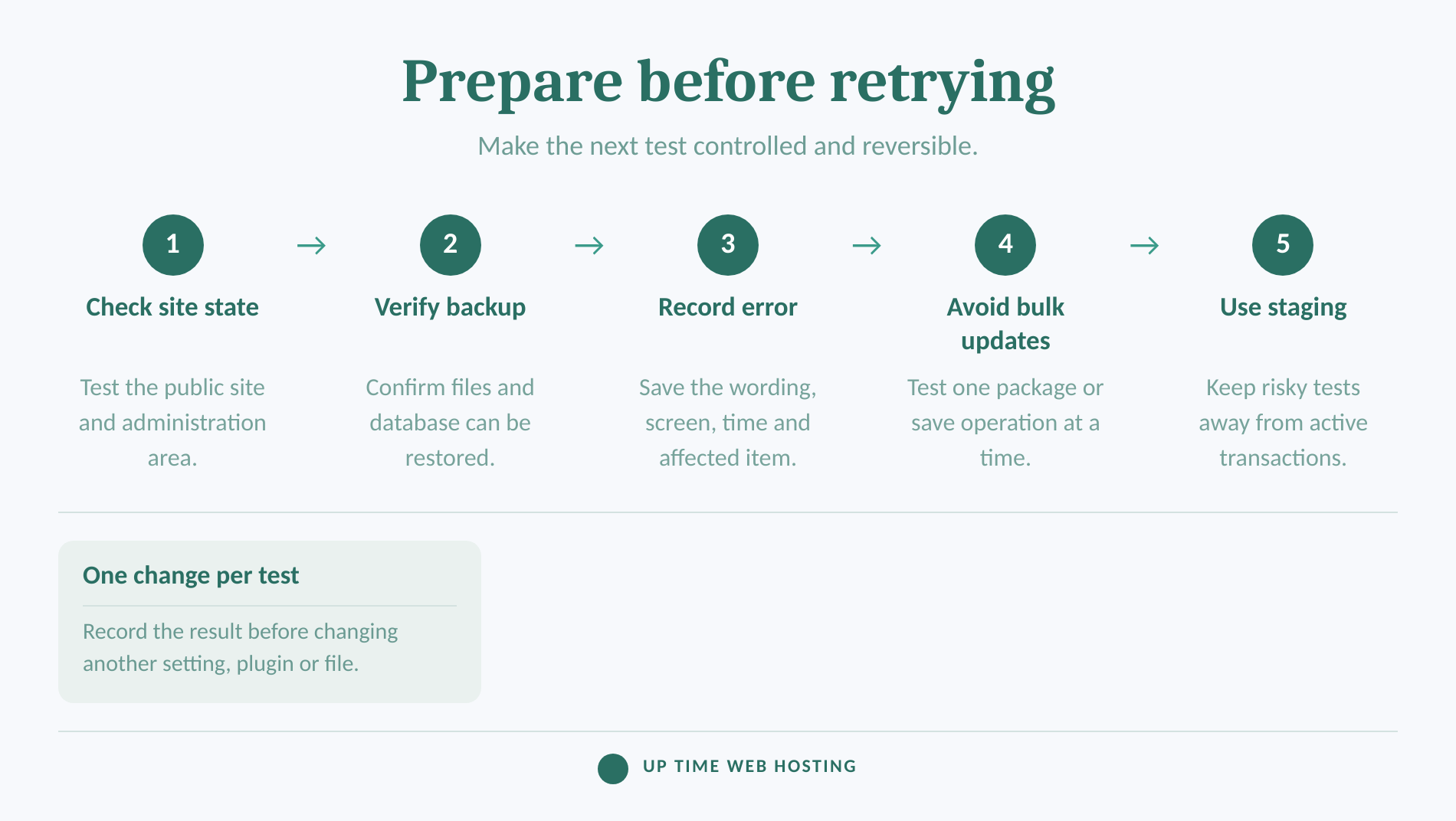
Pause repeated attempts until the current site state and exact error have been recorded. A backup and a one-change-at-a-time test make every later step safer and easier to reverse.
The official WordPress update documentation, last updated in 2024, recommends backing up before an update so the site can be restored if something goes wrong. That backup should include both the database and website files.
Use this preparation order:
- Check the public site and administration area. Note whether both work, only one works, or the site is displaying maintenance mode or a fatal error.
- Create or verify a restorable backup. Follow a documented process to back up a WordPress site rather than assuming that an old automated backup is complete.
- Copy the complete error. Record the wording, time, affected plugin or theme, attempted version and screen where it appeared. Take a screenshot before dismissing the message.
- Avoid bulk updates. Test one core, plugin or theme update at a time until the failing layer is known.
- Use staging when the site handles orders, bookings or customer data. A test copy lets permissions, PHP changes and plugin isolation be checked without experimenting on active transactions.
Confirm that the backup job completes. cPanel’s July 2026 documentation warns that backups can fail when an account is near or over its storage quota because the server cannot create the files it needs.
A backup and an exact error record turn troubleshooting from guesswork into a reversible test.
Which error message should you diagnose first?
The exact wording is a pointer to the stage that stopped, although it is not a complete diagnosis. Use the screen and message together to choose the first check instead of applying every common fix.
| Where the failure appears | Example wording | Likely area | First check |
|---|---|---|---|
| Post, page, widget or Site Editor | “The response is not a valid JSON response” | REST API response, URL, rewrite rule or security filter | Tools > Site Health and the failing /wp-json/ request |
| Dashboard > Updates | “Download failed” or “Could not get a valid response from the server” | Outbound connection, update source or TLS request | Site Health and hosting error logs |
| Plugin, theme or core installer | “Could not create directory” or files could not be copied | Storage, ownership or filesystem permissions | Disk usage and ownership of the destination path |
| Public website | “Briefly unavailable for scheduled maintenance” | Stale .maintenance file | Confirm the updater has stopped, then inspect the WordPress root |
| Website after an apparently completed update | Critical error, blank page or HTTP 500 response | PHP error or compatibility conflict | Recovery email and PHP or WordPress error log |
If a different message appears, preserve it exactly. Removing a status code, path or filename from a support request can remove the detail that identifies the responsible layer.
Treat the error text as a pointer to the failed stage, not as permission to repeat the same update.
Host your website with our 5-star rated, cPanel website hosting plans.
Super fast servers, with security included and hosted in your choice of Australian Data Center.
View cPanel Plans
How do you test a publishing or valid JSON failure?
A publishing failure usually means the editor expected a WordPress REST API response but received an error, redirect, login page, security block or other unexpected output. Test the REST API path before changing plugin files or reinstalling WordPress.
The WordPress REST API handbook explains that the block editor uses the REST API to send and receive JSON data. Work through these checks in order:
- Check the configured addresses. Open Settings > General and confirm that WordPress Address and Site Address use the intended domain and protocol. They are often identical, but some valid installations intentionally use different addresses, so do not change them without confirming the site design.
- Open the API index. Visit
https://example.com/wp-json/using the real domain. A standard site with pretty permalinks should return structured JSON. Save the response or status code if it returns a block page, redirect, login screen or server error instead. - Open Tools > Site Health. The WordPress Site Health documentation lists REST API, loopback, outbound request, background update and filesystem checks that can expose the failing subsystem.
- Resave the current permalink structure once. Settings > Permalinks > Save Changes can refresh rewrite rules when the server permits it. The WordPress permalink settings documentation notes that WordPress reports whether
.htaccesscould be updated, so read the resulting message. - Test security and caching layers one at a time. On staging or during a controlled maintenance window, temporarily deactivate the most likely security, firewall, caching or optimisation plugin, then repeat the same save. Ask the host to inspect server-side firewall rules instead of disabling protection across the account.
If Site Health does not reveal the cause, enable logging briefly on staging or with qualified support. The WordPress debugging guide, updated in 2025, recommends logging errors while preventing them from being printed into public page output:
“php define( 'WP_DEBUG', true ); define( 'WP_DEBUG_LOG', true ); define( 'WP_DEBUG_DISPLAY', false ); “
Review wp-content/debug.log immediately after reproducing the failure, then disable debugging when the test is complete. Do not publish or send the complete log without reviewing it because logs can contain server paths and other sensitive details.
A JSON or publishing failure is solved by finding what changed the REST API response.
How do you fix plugin, theme or core update failures?
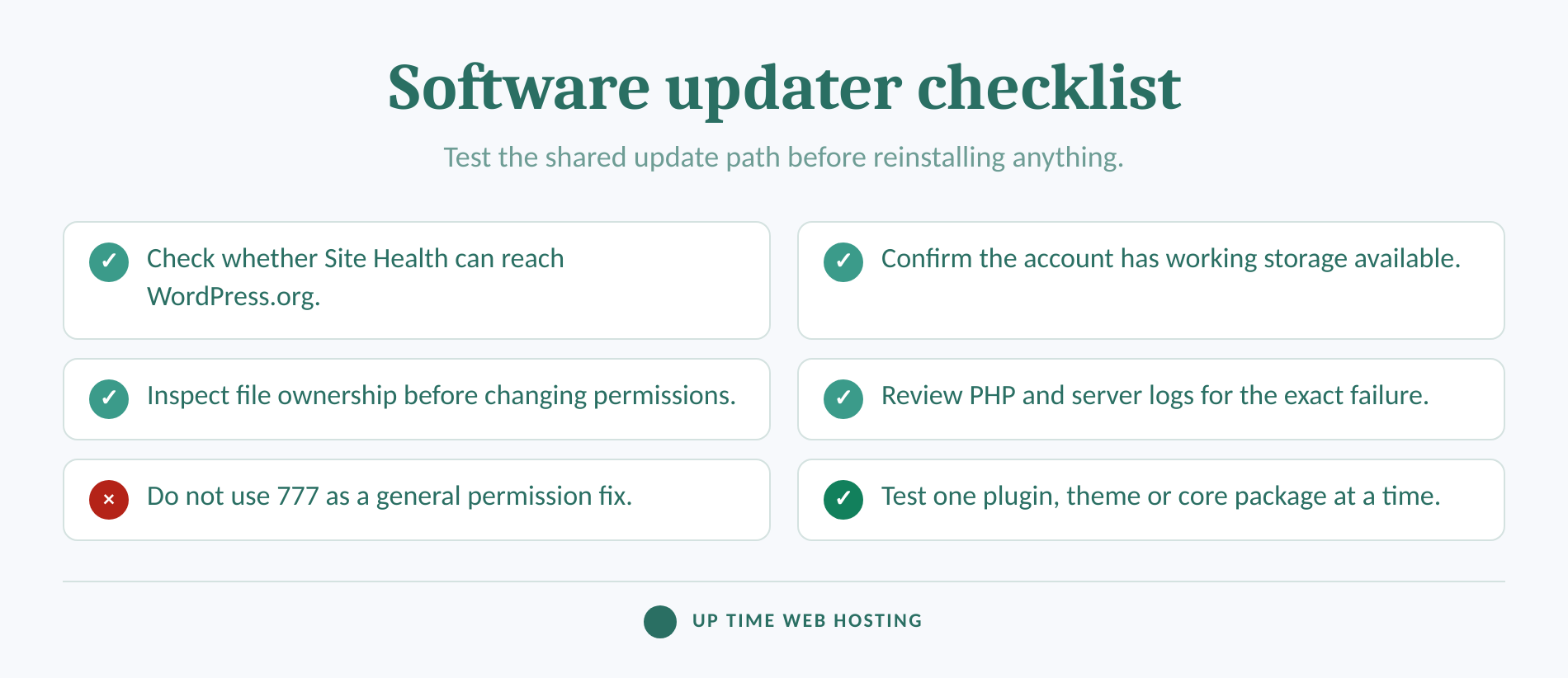
Software-package failures happen while WordPress downloads, unpacks, backs up or replaces files. Check outbound access, working storage and filesystem ownership before assuming the plugin or WordPress package itself is damaged.
The current WordPress updater code reference shows separate stages for downloading a ZIP package, unpacking it, connecting to the filesystem, installing files and maintaining a temporary backup. An error at one stage should not be treated as proof that every stage is broken.
Can the site reach WordPress.org?
Open Tools > Site Health > Status. A “Could not reach WordPress.org” warning means the site cannot contact the service required to check for and install WordPress.org updates. Site Health can also report blocked external HTTP requests or background update failures.
If the hosting provider has a network-status page, check it before changing WordPress. A server-wide DNS, outbound connection or certificate problem cannot be repaired by reinstalling a plugin.
Is there enough working space?
WordPress needs space for more than the final installed files. The updater downloads an archive, extracts it into a working directory and may temporarily move the existing plugin or theme while replacement files are installed.
Open cPanel > Files > Disk Usage where available. The cPanel Disk Usage documentation explains that an account at its quota cannot save new files. Delete only known disposable files, such as obsolete local backups or abandoned staging archives, and confirm what counts towards the plan by reviewing how hosting storage is measured.
Do not rely on one universal free-space number. The required working room changes with the size of the package, the existing installation, temporary backups and other files being written at the same time.
Can WordPress write the destination?
Messages such as “Could not create directory” or “some files could not be copied” point towards ownership or permissions. The WordPress file-permissions guide says permissions differ between hosting configurations and advises users not to change them unless a permission problem exists.
Check ownership before recursively changing numeric modes. Never use 777 as a general fix. Excessive write access creates a security problem and can hide the real issue, which may be that files were uploaded by a different account or restored with inconsistent ownership.
Does one item fail or do all updates fail?
If every plugin, theme and core update fails, investigate the shared server path first: outbound requests, storage, temporary directories, ownership and PHP errors. If only one item fails while others install normally, collect that item’s exact error and test its package or support path separately.
Disable plugins only as a controlled isolation test, not as the first response to every installer error. Restore each component after testing so the site is not left without security, caching, ecommerce or form functions.
Should you run a manual core update?
The official WordPress documentation provides a manual process when the one-click core update cannot complete. Manual replacement affects core files and must preserve wp-content and wp-config.php, so use it only with a current backup and sufficient file-management experience.
A software update failure usually comes down to download access, working storage, filesystem ownership or compatibility.
What if WordPress is stuck in maintenance mode?
WordPress enables maintenance mode by creating a .maintenance file in the installation root and normally deletes it when the updater finishes. Remove that file only after confirming that no update process is still active.
Use this recovery sequence:
- Confirm that Dashboard > Updates is no longer showing an active operation and that no administrator is running another update.
- Open the WordPress document root through SFTP or File Manager. The cPanel File Manager documentation explains how to enable “Show Hidden Files” so dotfiles are visible.
- Delete only the file named
.maintenance. Do not delete.htaccess,wp-config.phpor unfamiliar hidden files. - Reload both the public website and
/wp-admin/. Complete any database-update prompt that appears after a core update.
WordPress’s update documentation explicitly includes removing .maintenance after a failed automatic upgrade. If removing it exposes a fatal error, maintenance mode was hiding a separate PHP or compatibility problem. Restore the backup or inspect the error log rather than repeatedly recreating or deleting files.
Remove .maintenance only after confirming that no update process is still running.
Register your new domain name at competitive market prices including free domain add-ons like privacy, DNS Hosting, Custom Nameservers and Forwarding.
Always the best price and no nasty renewal price hikes.
Register A Domain Name
When should you stop troubleshooting and contact the host?
Stop when the next test requires server-level access, risky live-site changes or a backup that has not been verified. A hosting or WordPress specialist can inspect ownership, firewall events and server logs that are not visible from the dashboard.
Escalate the failure when:
- The site has no recent restorable backup.
- The update partially replaced WordPress core files.
- All updates fail even though the account has visible free storage.
- Permissions appear correct but WordPress still cannot copy or create files.
- Site Health reports blocked requests, loopback failures or an unreachable WordPress.org service.
- The public site returns repeated HTTP 500 errors or enters Recovery Mode.
- The site processes active orders, bookings, memberships or customer submissions that cannot be safely tested on production.
- Malware, unknown administrator accounts or unexpected file changes are also present.
A useful support request includes the full error, timestamp, attempted version, affected URL, recent changes, Site Health export and relevant log lines. Remove passwords, secret keys and customer data before sending it.
A scheduled approach to routine WordPress maintenance also makes future failures easier to isolate because backups, updates and health checks happen in a known order.
If recurring failures are consuming business time, review Managed WordPress Maintenance for ongoing managed updates, backups, monitoring and site-care support.
Stop when the next step needs server logs, ownership changes or live-site file replacement that cannot be tested safely.
What else do site owners ask about failed WordPress updates?
These questions use the wording people commonly see in search results and WordPress error screens. Each answer points back to the failed system rather than treating every update message as the same fault.
Why is my WordPress update not working?
A WordPress update may stop because the site cannot reach the update source, the server cannot create working files, ownership prevents replacement, the REST API returns the wrong response, or updated code conflicts with another component. The exact message and the screen where it appears identify which branch to test first.
Why does it keep saying update failed?
Repeated update failures usually mean each retry is hitting the same unresolved condition. Record whether the failure occurs while saving content or installing software, then check Site Health, storage, filesystem ownership and logs. Retrying without changing the cause can leave temporary files or maintenance mode behind.
Is WordPress outdated in 2026?
No. WordPress was actively maintained in 2026, and the WordPress 7.1 release announcement is dated August 19, 2026. An individual installation, plugin, theme or PHP environment can still be outdated, so support and compatibility must be checked for the specific site.
Why are people moving away from WordPress?
Some site owners leave WordPress because they do not want to manage updates, extensions, backups, security and hosting decisions. That is an operating-model choice, not proof that WordPress is obsolete. Managed maintenance can reduce that workload while preserving the flexibility of a self-hosted site.
WordPress update errors become manageable when the message is matched to the system that produced it.
Experience Microsoft 365 Business Standard for free for 30 days.
Up to 25 users with full access to email, OneDrive and Teams. Includes full versions of desktop apps of Outlook, Word, Excel, PowerPoint and more.
Try Microsoft 365
What is the safest next step?
Return to the screen that failed, copy the complete message and classify it as a content-save, software-package, maintenance-mode or post-update runtime problem. Perform only the first check for that branch and record the result before changing anything else.
Open Dashboard > Updates or reproduce the failed save once, then begin with the exact matching section above. If the cause is not visible from Site Health, available storage or the error log, preserve the evidence and hand the problem to someone with server access rather than forcing another live update.
The safest next step is one controlled test based on the exact failure, not another blind retry.