In short
WordPress plugin update failures usually come from one of four layers: the plugin’s licence or update server, the site’s ability to download the package, filesystem permissions or storage, and compatibility with the current WordPress or PHP version. Back up first, read the exact error, then fix only the layer it identifies.
Key takeaways
- A current files-and-database backup should exist before any plugin update is retried or replaced manually.
- If one plugin fails while others update, check that plugin’s licence, update source and requirements before changing server settings.
- “Update package not available” means the updater did not provide a usable package, so changing file permissions is unlikely to help.
- WordPress Site Health can expose blocked HTTP requests, unreachable update services and directories that are not writable.
- WordPress 6.3 added rollback for failed manual updates, while WordPress 6.6 added rollback for failed plugin auto-updates, but neither replaces a restorable site backup.
Table of contents
- What should you do before trying the update again?
- Which error message tells you what failed?
- Why does only one plugin refuse to update?
- How do you fix download and licence errors?
- How do you fix permissions, storage and temporary-folder errors?
- How do you update the plugin manually without losing your rollback path?
- What if the plugin updates but the site breaks?
- What else should you know about failed WordPress updates?
- When should you stop troubleshooting and get help?
A plugin failure can appear out of nowhere, but it is rarely random. The safest approach is to locate the failed stage before retrying, reinstalling or changing server permissions.
What should you do before trying the update again?
Do not keep pressing Update Now until there is a restorable backup and the full error message has been recorded. Repeated attempts can replace the useful first error with a less specific failure or leave more cleanup work.
Use this order:
- Check whether the public site and WordPress dashboard still load.
- Make a complete WordPress backup containing both the database and website files.
- Copy or capture the entire update message, including any HTTP status, directory path or compatibility requirement.
- Open Tools > Site Health > Info and note the WordPress version, PHP version and filesystem status.
- Retry only the affected plugin rather than running another bulk update.
The official WordPress plugin management guide recommends a current backup before plugin updates. If the dashboard workflow is unfamiliar, review the broader WordPress update process before changing files manually.
WordPress rollback features provide an extra safety layer, but their scope is limited. A failed installer can restore the previous plugin files, while an update that completes successfully and then causes a subtle form, checkout or layout problem may still require a site backup or separately retained plugin version.
A backup and the exact error message are the two things that keep a failed update recoverable and diagnosable.

Performance you can feel, backed by clients who depend on it. Read how our support and uptime create long‑term customer success.Power Your Business with Better Hosting
Which error message tells you what failed?
The wording normally identifies whether WordPress failed while finding, downloading, unpacking, writing or loading the plugin. Match the error to that stage before changing licences, permissions or PHP settings.
What does each error phrase point to?
| Error wording | Likely failure layer | First check |
|---|---|---|
Update package not available | Package or update source | Plugin licence, account connection and official update channel |
Download failed, cURL error or an HTTP error | Server-to-server download | Site Health communication tests and the update provider’s availability |
Could not get a valid response from the server | Remote updater or HTTP request | Full response code, firewall logs and the plugin’s update service |
Could not create directory, destination not writable or could not remove old plugin | Filesystem | Directory ownership, permissions and storage capacity |
| The plugin requires a newer PHP or WordPress version | Compatibility | Installed WordPress and PHP versions against the plugin requirements |
| A critical error appears after installation | Runtime code | Recovery Mode, PHP logs and the previous working version |
The WordPress Plugin_Upgrader class defines stages such as obtaining the package, unpacking it, removing the old version and installing the replacement. The core download_url() function shows that the website server, rather than the administrator’s browser, performs the remote package request.
A message such as “The response is not a valid JSON response” usually belongs to a post-saving, editor or REST request when it appears after clicking Save or Publish. It should not be treated as a plugin package failure unless it appears inside the plugin update process with additional updater details.
Treat the exact error as a map to the failed stage, not as a reason to change every setting at once.
Why does only one plugin refuse to update?
If other plugins update successfully, the site can probably reach at least some update services and write to the plugins directory. The failing plugin should therefore be checked first for a licence problem, missing package, external update source or incompatible requirement.
Is the failure plugin-specific or site-wide?
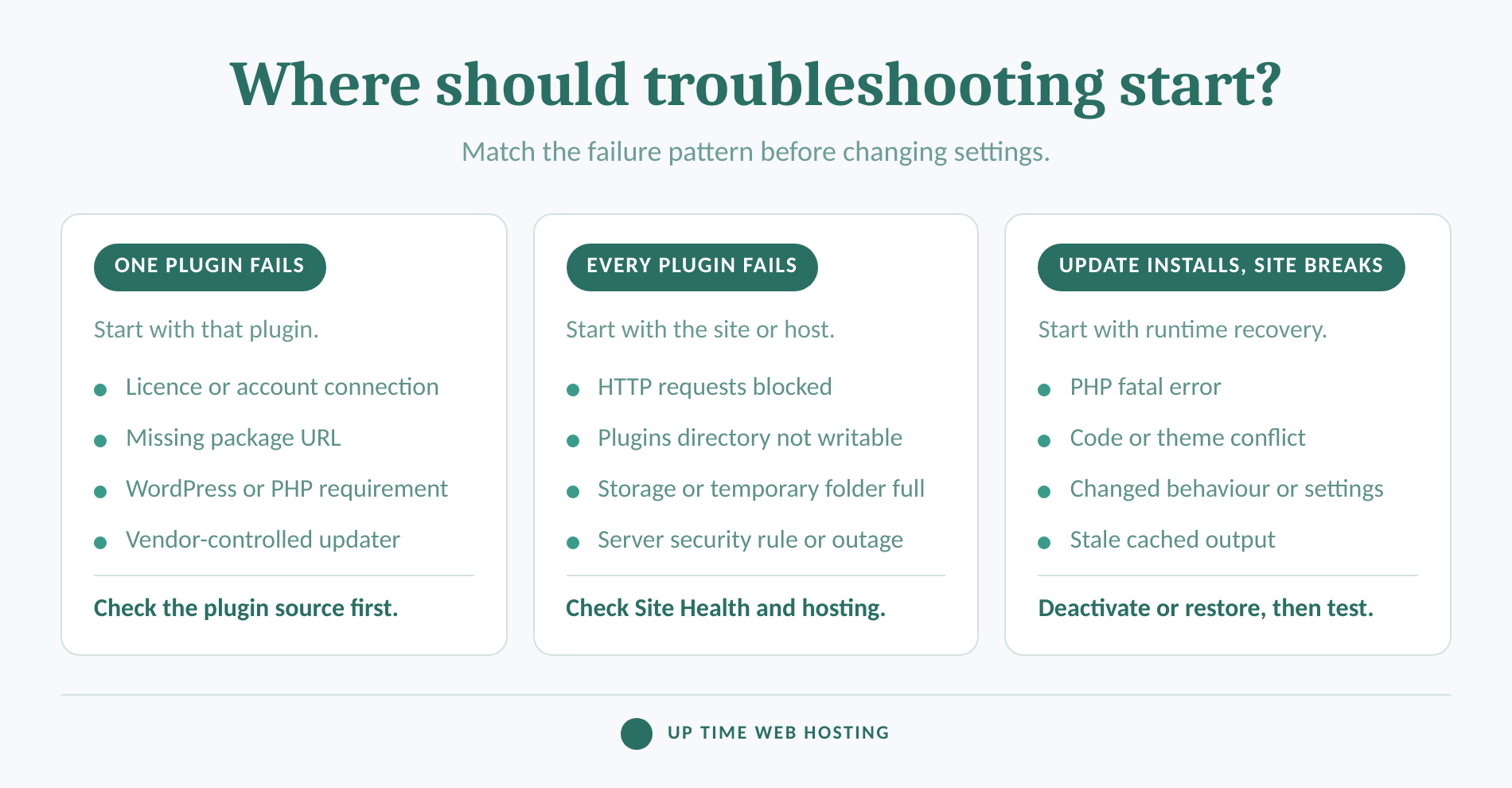
A one-plugin failure points towards that plugin’s own update route. A failure affecting every plugin points more strongly towards HTTP restrictions, filesystem ownership, temporary storage, server security rules or a wider outage.
The WordPress Plugins screen documentation explains that plugins installed from an external source only show updates when the author provides a built-in updater. Commercial plugins may therefore depend on an account connection, licence key, registered site address or vendor-controlled download service. The exact licence rule varies by plugin.
Check the plugin’s official account and documentation for:
- Whether the licence or subscription permits updates
- Whether the current domain is registered to the licence
- Whether a downloadable ZIP is available
- Whether the vendor reports an update-service problem
Compatibility is a separate check. WordPress recognises fields such as Requires at least, Requires PHP and Update URI in the plugin header requirements. Compare those requirements with the versions shown in Site Health instead of assuming that the newest package will run on an older server.
If a plugin no longer has a maintained update source, decide whether the site still needs it. Reviewing the site’s current WordPress plugins and their roles can reveal duplicated features before another plugin is added as a replacement.
One failing plugin points first to that plugin’s updater and requirements; many failing plugins point first to the server.
Host your website with our 5-star rated, cPanel website hosting plans.
Super fast servers, with security included and hosted in your choice of Australian Data Center.
View cPanel Plans
How do you fix download and licence errors?
Fix the update source or remote connection before touching plugin files. A server cannot install a package that its updater cannot authorise, locate or download.
Start with these checks:
- Reconnect the plugin’s licence only through its official settings or vendor account.
- Open Tools > Site Health > Status and look for blocked HTTP requests or an inability to reach WordPress.org. The WordPress Site Health documentation identifies both as update-related problems.
- Check whether the error includes an HTTP code. A 401 or 403 response may indicate authorisation or a security rule, while a 5xx response may indicate a temporary problem on the sending or receiving server.
- Review firewall or hosting security logs before disabling protection. Temporarily turning off every security control creates risk without proving which rule blocked the request.
- If the provider’s update service is unavailable, wait for confirmation that it has recovered rather than repeatedly running the same failed download.
A manually downloaded ZIP from the plugin’s official source can bypass a broken automatic update channel. It will not repair an expired licence, incompatible package or server that cannot replace files, so complete the relevant checks before uploading it.
Fix the update source or connection before touching files, because a missing package cannot be repaired with permissions.
How do you fix permissions, storage and temporary-folder errors?
Errors about creating, removing or writing directories belong to the filesystem layer. Check ownership, writable directories and available storage before changing permission numbers.
Open Tools > Site Health > Info > Filesystem Permissions. WordPress reports whether it can write to the main installation, wp-content, uploads, plugins and themes directories. WordPress 6.3 also added checks for the temporary update-backup directories and the disk space required for safer updates.
The WordPress file permissions guide uses 755 or 750 for directories and 644 or 640 for files in a common shared-hosting configuration. The correct values still depend on server ownership and configuration, so asking the host to correct ownership is safer than applying recursive changes without understanding them.
Do not set plugin or upgrade directories to 777 to force an update. That makes them writable by every user or process on the server and can turn an update problem into a security problem.
Also check the hosting account’s storage quota. An update needs working space to download and unpack the new package while retaining the current plugin temporarily. Remove only files known to be safe, such as obsolete local archives or disposable cache data, rather than deleting the current plugin or an active update-backup directory.
If the site remains stuck on a scheduled-maintenance message after the update has stopped, follow the Updating WordPress documentation and remove the .maintenance file from the WordPress root. Confirm first that no update process is still running.
Correct ownership and capacity at the server level; do not make the site world-writable to force an update.
How do you update the plugin manually without losing your rollback path?
Use manual replacement only after creating a backup and identifying why the automatic route failed. Obtain the ZIP from the official plugin directory or vendor account, and retain the previous files outside the live plugin directory until testing is complete.
What is the safest manual replacement order?
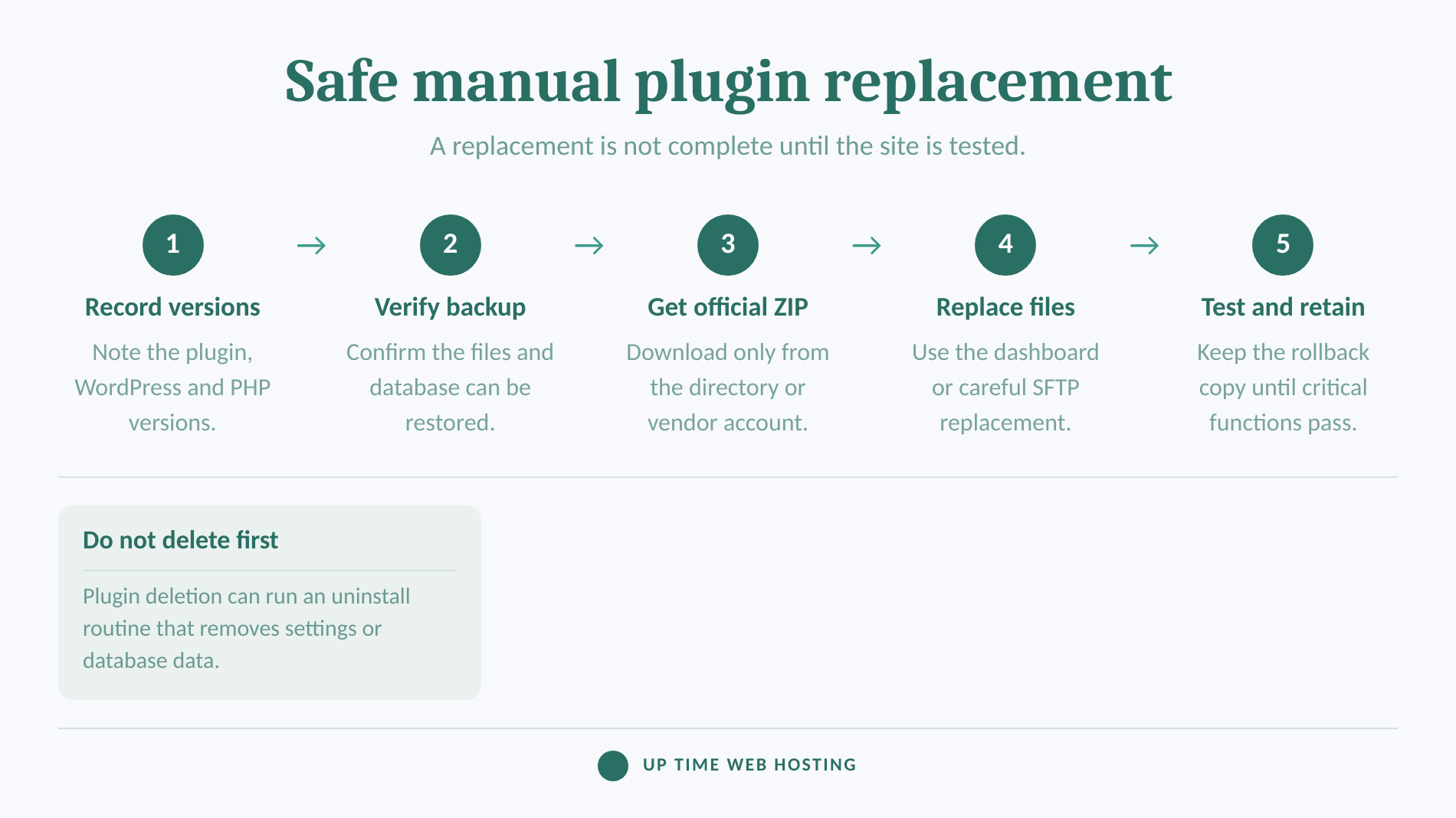
- Record the installed plugin version, WordPress version and PHP version.
- Create and verify a backup, then download the correct official plugin ZIP.
- Test the package on staging first if the plugin controls payments, forms, logins, memberships or other critical functions.
- Go to Plugins > Add New > Upload Plugin and upload the ZIP. If WordPress offers Replace current with uploaded, review the versions and use that option.
- Test the site before removing the retained backup or previous package.
WordPress documents dashboard and SFTP installation routes in its official plugin guide, while the current plugin upgrader supports replacing an installed package. SFTP replacement is better left to an administrator who understands file paths and can avoid leaving a half-copied active plugin.
Do not click Delete as the first repair step. WordPress uninstall methods allow a plugin to remove settings, options or database tables when deletion invokes its uninstall routine. A backup or file replacement is safer unless the plugin developer confirms what deletion removes.
The built-in rollback for a failed manual update does not provide a general downgrade button after a successful replacement. Keep the backup until the site’s important functions have been verified.
Manual replacement is safe only when the package is official, the old state is recoverable and the updated site is tested.
Register your new domain name at competitive market prices including free domain add-ons like privacy, DNS Hosting, Custom Nameservers and Forwarding.
Always the best price and no nasty renewal price hikes.
Register A Domain Name
What if the plugin updates but the site breaks?
A success message proves that WordPress replaced the plugin files, not that every site function still works. Test the functions that depend on the plugin before treating the update as complete.
What should you test after the update?
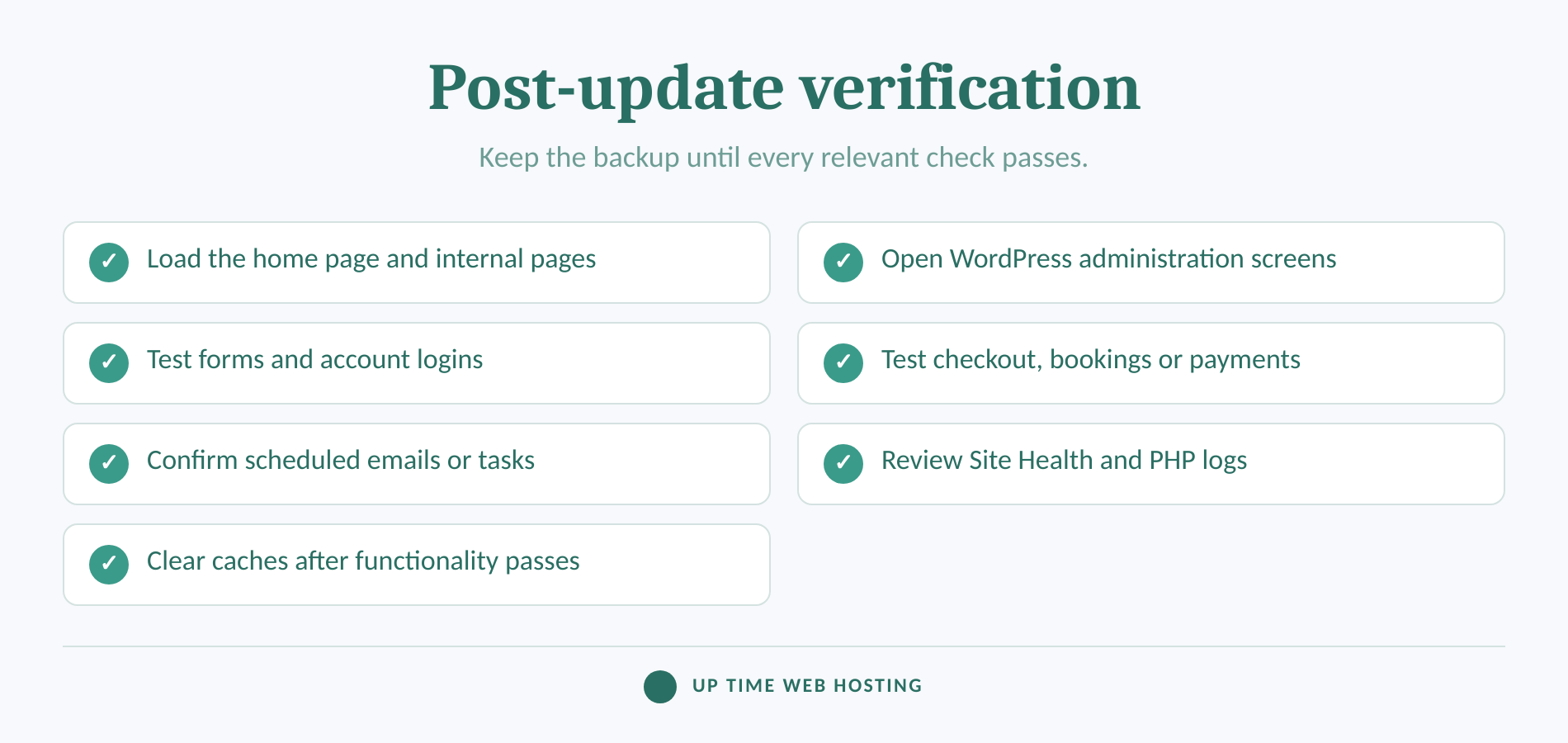
Check the following while the backup remains available:
- The public home page and several internal pages
- WordPress administration screens
- Forms, account logins and password resets
- Checkout, payment or booking flows where applicable
- Scheduled tasks or emails controlled by the plugin
- Site Health and relevant PHP error logs
If a fatal PHP error blocks normal access, use the link sent to the administrator email account. WordPress Recovery Mode documentation explains that the faulty plugin can be paused for the administrator’s session so it can be deactivated or repaired. If no recovery email arrives, an administrator can deactivate the plugin by renaming its folder through SFTP or the hosting file manager.
For deeper diagnosis, the WordPress debugging guide documents WP_DEBUG_LOG and WP_DEBUG_DISPLAY. Logging should be performed on staging where possible, with on-screen error display disabled and debugging switched off again when the evidence has been collected.
Clear page, object and browser caches only after confirming that the underlying site works. A documented WordPress maintenance routine makes backups, testing and update records easier to repeat when the next plugin release arrives.
A successful installer message proves files were replaced, not that every site function still works.
What else should you know about failed WordPress updates?
These short answers cover broad update messages and the status of WordPress in 2026. The first task is still to determine whether the error came from the plugin updater, the editor or a wider site process.
Why does it keep saying update failed?
“Update failed” keeps returning because the underlying cause has not changed. Copy the full message, then classify it as a package, download, filesystem, compatibility or runtime failure. If the message appears while saving a post rather than updating a plugin, it belongs to the editor or REST request path, not the plugin updater.
Why is my WordPress update not working?
A WordPress update may fail because the site cannot fetch the package, cannot write or replace files, lacks temporary storage, or does not meet the package’s WordPress or PHP requirements. Tools > Site Health helps separate connection and filesystem problems from a plugin-specific licence or update-server problem.
Is WordPress outdated in 2026?
WordPress is not outdated in 2026. As of 14 September 2026, WordPress 7.1 is the latest major release listed by the official project, and the supported versions policy says only the latest major release is actively maintained. Older branches may receive some security fixes, but they do not have guaranteed long-term support.
Should I try manually updating a plugin if the automatic update fails?
Yes, but only after creating a restorable backup and obtaining the correct ZIP from the plugin’s official source. Manual replacement can bypass a broken update channel, but it does not fix an expired licence, incompatible code or bad server ownership. Avoid deleting the plugin first unless its developer confirms data will remain.
A broad update message becomes useful only when it is matched to the specific WordPress task and failure stage.
Experience Microsoft 365 Business Standard for free for 30 days.
Up to 25 users with full access to email, OneDrive and Teams. Includes full versions of desktop apps of Outlook, Word, Excel, PowerPoint and more.
Try Microsoft 365
When should you stop troubleshooting and get help?
Stop making changes when the live site is unavailable, a revenue-critical function is broken, there is no verified backup or repeated filesystem errors remain unexplained. Escalating at that point protects the evidence and reduces the chance that a recoverable update failure becomes data loss.
Give the host, developer or support technician:
- The complete error wording and approximate time it occurred
- The plugin’s old and attempted versions
- The WordPress and PHP versions
- Relevant Site Health results
- Any recent hosting, security or domain changes
- The last known working backup or plugin version
If failed updates are becoming a recurring maintenance task, UpTime’s Managed WordPress Maintenance covers managed core, theme and plugin updates, backups, security monitoring, site checks, performance tracking and reporting. It is intended for businesses that want updates verified rather than merely installed.
Escalate early when the site is business-critical or the rollback path is uncertain.