In short
A WordPress plugin rollback should restore only the affected plugin files unless the update also changed the database. Take a fresh backup first, check that the older release is not known to be insecure, then use WP Rollback, an older ZIP, WP-CLI or a full backup. Test the result in staging before updating again.
Key takeaways
- Deactivate the faulty plugin first if doing so can restore access without immediately replacing files.
- WordPress built-in failed-update protection is not a general undo button for an update that installed successfully but later proved incompatible.
- The free WP Rollback plugin works only with plugins and themes hosted in the WordPress.org repository.
- Restoring an entire database can overwrite orders, accounts and form entries created after the backup timestamp.
- Treat an older plugin release as a temporary recovery measure until a secure corrected version passes staging tests.
Table of contents
- What should you do immediately after a plugin update breaks WordPress?
- Which rollback method should you use?
- How do you roll back a plugin with WP Rollback?
- How do you replace a plugin with an older ZIP?
- How do you roll back a plugin with WP-CLI?
- When should you restore the whole site from backup?
- What database problems can a plugin rollback leave behind?
- How do you test the corrected version in staging?
- How do you stop the same update breaking the site again?
- What else do site owners ask about WordPress rollbacks?
- What should you do next?
If the website is down, the first goal is not to find the perfect older version. The first goal is to stop the broken code loading, protect current data and choose the smallest reversal that can restore service.
What should you do immediately after a plugin update breaks WordPress?
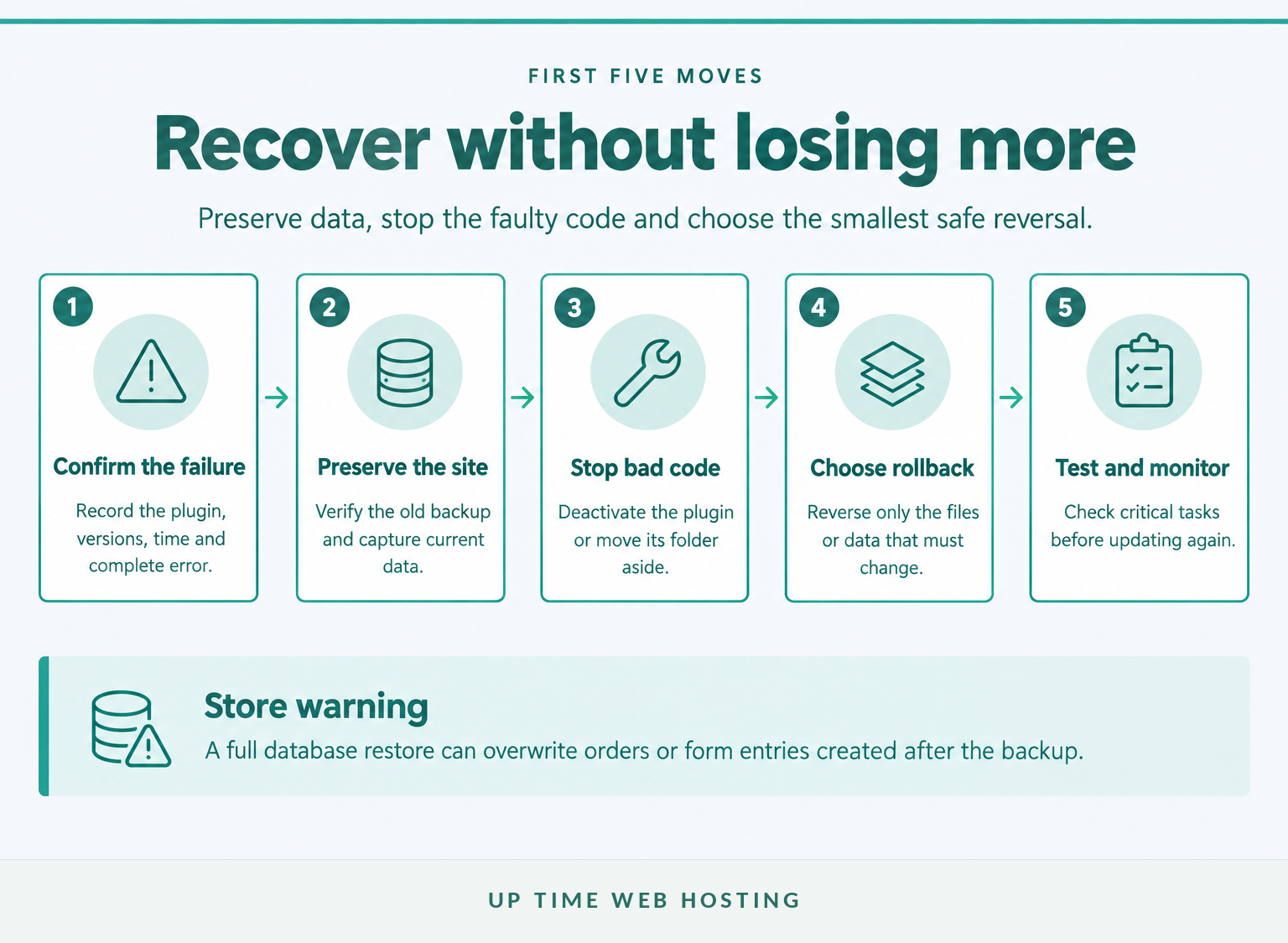
Confirm that the update caused the fault, verify the recovery backup and deactivate the affected plugin before replacing its files. If WordPress administration is unavailable, temporarily move or rename that plugin's folder under wp-content/plugins through SFTP or the hosting file manager rather than deleting it.
Use this order:
- Record the plugin name, old version, new version, update time and complete error message.
- Verify that a pre-update backup contains both website files and the database. The official WordPress plugin management guide recommends a current backup before plugin updates.
- Make a separate export or snapshot of the website's current state if new orders, registrations, form entries or content may have arrived since the older backup.
- Deactivate only the affected plugin where possible. If several items were updated together, isolate them one at a time rather than replacing everything at once.
- Check the public website, administration area and the feature controlled by the plugin before selecting a rollback method.
WordPress has its own protection for some failed installations. The WordPress 6.3 developer note from 2023 explains that WordPress can restore the previous files when a manual plugin or theme update process fails. The same note says this temporary backup cannot roll back an update that completed successfully and was only found to be incompatible afterwards.
If the installation did not complete cleanly, use the failed plugin update guide to identify whether the failure occurred while downloading, unpacking, writing or loading the package. If plugins, themes or WordPress core are all affected, follow the broader guide to diagnosing WordPress update failures before changing permissions or restoring files.
Do not choose an old version simply because it is available. Check the plugin developer's changelog, current release notes and security notices, then choose the nearest known working release that does not take the website behind a disclosed security fix.
The safest emergency response is to stop the faulty plugin, preserve current data and reverse the smallest possible part of the update.

Performance you can feel, backed by clients who depend on it. Read how our support and uptime create long‑term customer success.Power Your Business with Better Hosting
Which rollback method should you use?
Use a file-only rollback when the update changed plugin code but the current database must be preserved. Restore the whole site only when the update changed stored data or database structure in a way that the older plugin cannot use safely.
| Method | Best used when | What changes | Main caution |
|---|---|---|---|
| Deactivate the plugin | The website can operate temporarily without the feature | Stops the plugin code loading | Forms, payments, caching or other functions may remain unavailable |
| WP Rollback | The plugin is hosted on WordPress.org and the dashboard works | Replaces the plugin files with a selected repository version | The older release still needs compatibility and security checks |
| Older ZIP or SFTP | The plugin is commercial, custom or unavailable through WP Rollback | Replaces the plugin directory | Use an official package and avoid mixing files from two versions |
| WP-CLI | SSH access is available and the version is known | Installs a specified plugin release or local ZIP | Confirm the plugin slug and version before using --force |
| Full backup restore | Files and database must return to the same point | Replaces site files and database data | New orders, users and entries after the snapshot may be overwritten |
Start with deactivation if the website can function without the plugin. Move to a plugin-file rollback if the feature must be restored. A full-site restore is the last choice for a busy store, membership site or booking system because the database contains current business activity as well as plugin settings.
Use a file-only rollback when possible, and reserve full-site restores for changes that cannot be undone without the database.
How do you roll back a plugin with WP Rollback?
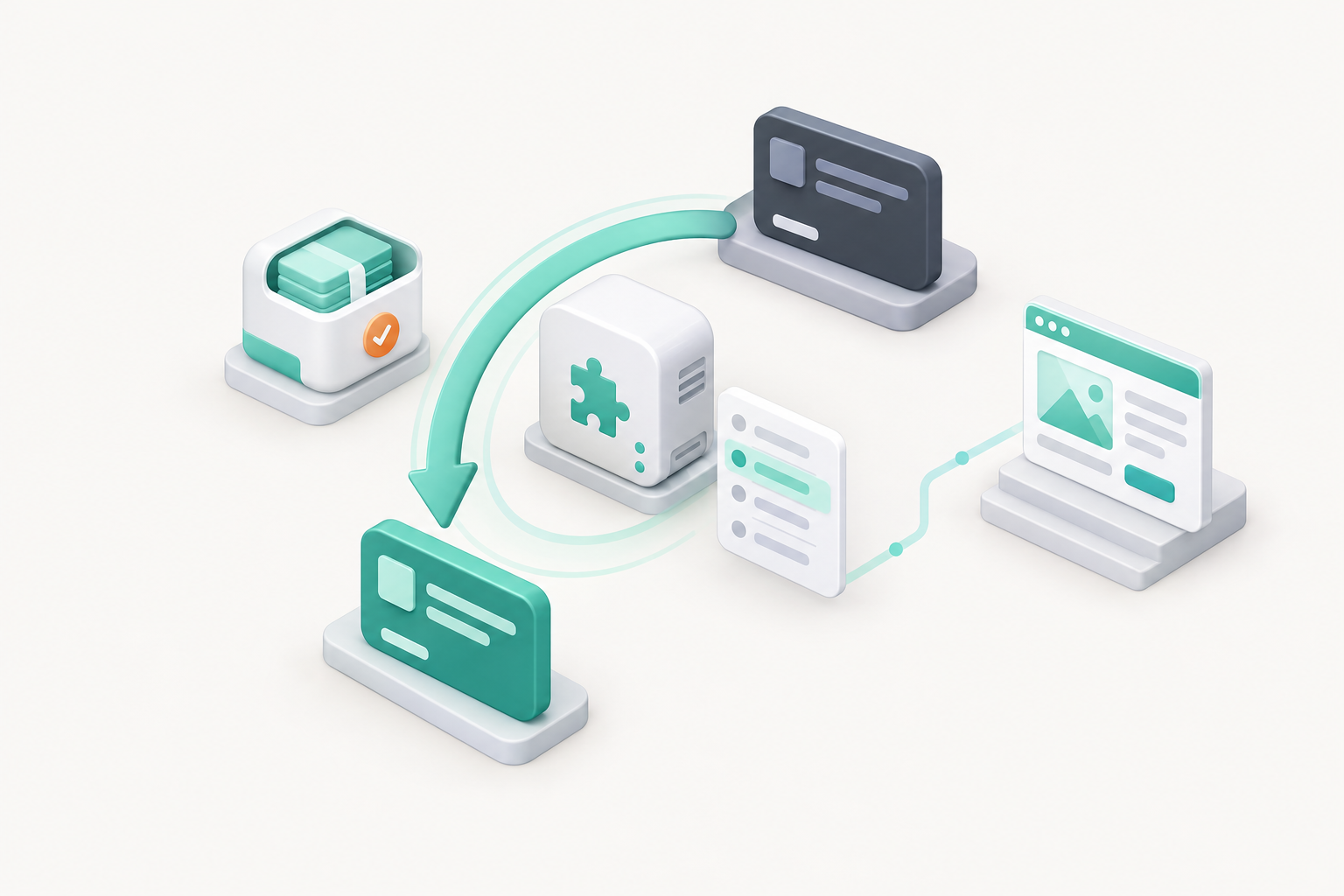
Install WP Rollback, open the Installed Plugins screen, select the Rollback link for the affected plugin and choose the required version. Back up and test first because the tool replaces plugin files but cannot guarantee that the older code remains compatible with the current database, WordPress version or PHP environment.
As of 23 October 2026, the official WP Rollback directory page says its free version works with plugins and themes hosted on WordPress.org. The developer also advises users to back up and test on staging rather than treating a live rollback as risk-free.
Follow these steps:
- Create or verify a restorable files-and-database backup.
- Open Plugins > Add New, search for WP Rollback, then install and activate it.
- Open Plugins > Installed Plugins.
- Find the affected plugin and select Rollback.
- Review the available versions and the plugin changelog. Select the nearest version known to work with the website.
- Confirm the rollback and wait for WordPress to finish replacing the files.
- Return to Installed Plugins and confirm the displayed version and activation status.
- Test the affected feature, administration screens and error logs.
The rollback link will not normally appear for a commercial or privately distributed plugin in the free version. Use the developer's official older package, a backup or WP-CLI instead.
WP Rollback is convenient for WordPress.org plugins, but staging, a backup and a security check still come first.
Host your website with our 5-star rated, cPanel website hosting plans.
Super fast servers, with security included and hosted in your choice of Australian Data Center.
View cPanel Plans
How do you replace a plugin with an older ZIP?
Download the required ZIP only from the plugin developer, licensed customer account or official WordPress.org listing, then upload it through Plugins > Add New > Upload Plugin. Confirm that WordPress is replacing the correct plugin and compare the installed and uploaded version numbers before proceeding.
WordPress has supported replacing an installed plugin through ZIP upload since version 5.5. The WordPress 5.5 developer note from 2020 explains that the installer displays a comparison and lets the administrator replace the installed package.
Use this dashboard procedure:
- Confirm the exact plugin slug and target version.
- Download the official older ZIP and retain a second copy outside the hosting account.
- Deactivate the affected plugin if doing so will not interrupt a required data migration or vendor-specific process.
- Open Plugins > Add New > Upload Plugin and select the ZIP.
- Choose Install Now, review the version comparison and select Replace current with uploaded.
- Activate the plugin if required, confirm its version and test the website.
If the dashboard is inaccessible, use SFTP or the hosting file manager:
- Open
wp-content/plugins. - Rename the current plugin directory so it remains available as an emergency copy.
- Extract the older official package locally.
- Upload the complete older plugin directory using the original folder name.
- Sign in to WordPress, activate the plugin if needed and check the version.
Do not merge the old package into the existing directory. Files removed in the older release can otherwise remain behind from the newer version. Do not select Delete merely to make room for the replacement because a plugin deletion may run its uninstall routine. The WordPress uninstall methods reference confirms that uninstall code can remove options and custom database tables.
An older ZIP should replace the whole plugin package from an official source without triggering an uninstall.
How do you roll back a plugin with WP-CLI?
WP-CLI can deactivate a plugin and install a specified WordPress.org release or local ZIP without using the dashboard. Use it only when SSH access, the plugin slug, the required version and a working backup have all been confirmed.
First inspect the installed version:
“bash wp plugin list --fields=name,status,version,update_version “
Then deactivate and replace the plugin. The version below is an example, not a recommended release:
“bash wp plugin deactivate plugin-slug wp plugin install plugin-slug --version=1.2.3 --force wp plugin activate plugin-slug “
For a commercial or custom plugin, use an official local package:
“bash wp plugin deactivate plugin-slug wp plugin install /secure/path/plugin-version.zip --force wp plugin activate plugin-slug “
If the faulty plugin prevents WordPress from loading during the command, skip that plugin while deactivating it:
“bash wp plugin deactivate plugin-slug --skip-plugins=plugin-slug “
The official wp plugin install command reference documents the --version option for WordPress.org releases and --force for overwriting an installed plugin. Check the command output and run wp plugin list again before testing the site.
WP-CLI makes the rollback repeatable, provided the slug, version and backup are confirmed first.
When should you restore the whole site from backup?
Restore both files and the database when the plugin update changed stored data or database structure and the older code cannot use the new state safely. Use a backup from immediately before the update, but first preserve any current transactions or content that arrived after that snapshot.
The official WordPress backup guidance treats website files and the database as separate parts of a complete recovery set. WordPress also explains that importing an older database replaces the current database state.
That means a database restore is a time-based reversal, not a plugin-only repair. On a WooCommerce store, booking site or membership system, restoring Tuesday's database on Wednesday can remove records created between those points.
Before restoring:
- Record the backup timestamp and the time of the failed update.
- Stop or carefully control new writes to checkout, booking, membership and form systems while the restore occurs.
- Export the current database so post-backup records remain available for reconciliation.
- Restore matching files and database content from the same backup set.
- Test the restored site before reopening affected customer paths.
- Reconcile newer orders, users or entries with help from the relevant plugin developer or an experienced WordPress technician.
Do not copy selected database tables between versions unless the plugin developer documents that recovery path. Related records may be distributed across WordPress tables, custom plugin tables and external services.
A full backup restore is appropriate only when the database must move back with the files.
Register your new domain name at competitive market prices including free domain add-ons like privacy, DNS Hosting, Custom Nameservers and Forwarding.
Always the best price and no nasty renewal price hikes.
Register A Domain Name
What database problems can a plugin rollback leave behind?
Replacing plugin files does not automatically reverse database changes made by the newer version. An older release may encounter added columns, changed option formats, upgraded indexes or data that was transformed for the newer code.
The WordPress Plugin Developer Handbook explains that plugins can detect their database version and run code that adds or modifies tables during an update. That upgrade code does not imply that the plugin includes a matching downgrade procedure.
Check the release notes and support documentation for these warning signs:
- A database migration, schema upgrade or data conversion was part of the update.
- The plugin manages orders, subscriptions, bookings, memberships or other records that changed after installation.
- The older release shows errors about missing columns, unknown fields, invalid data or unsupported database versions.
- The plugin developer states that downgrading across a particular release is unsupported.
- A companion add-on, theme or integration requires the newer plugin version.
Deactivation and deletion are also different. Deactivation normally stops the code while retaining data, but deletion can run an uninstall process that removes settings or tables. Keep the plugin folder available and use a verified backup until the rollback has passed its tests.
Changing plugin files does not guarantee that database changes have been reversed.
How do you test the corrected version in staging?
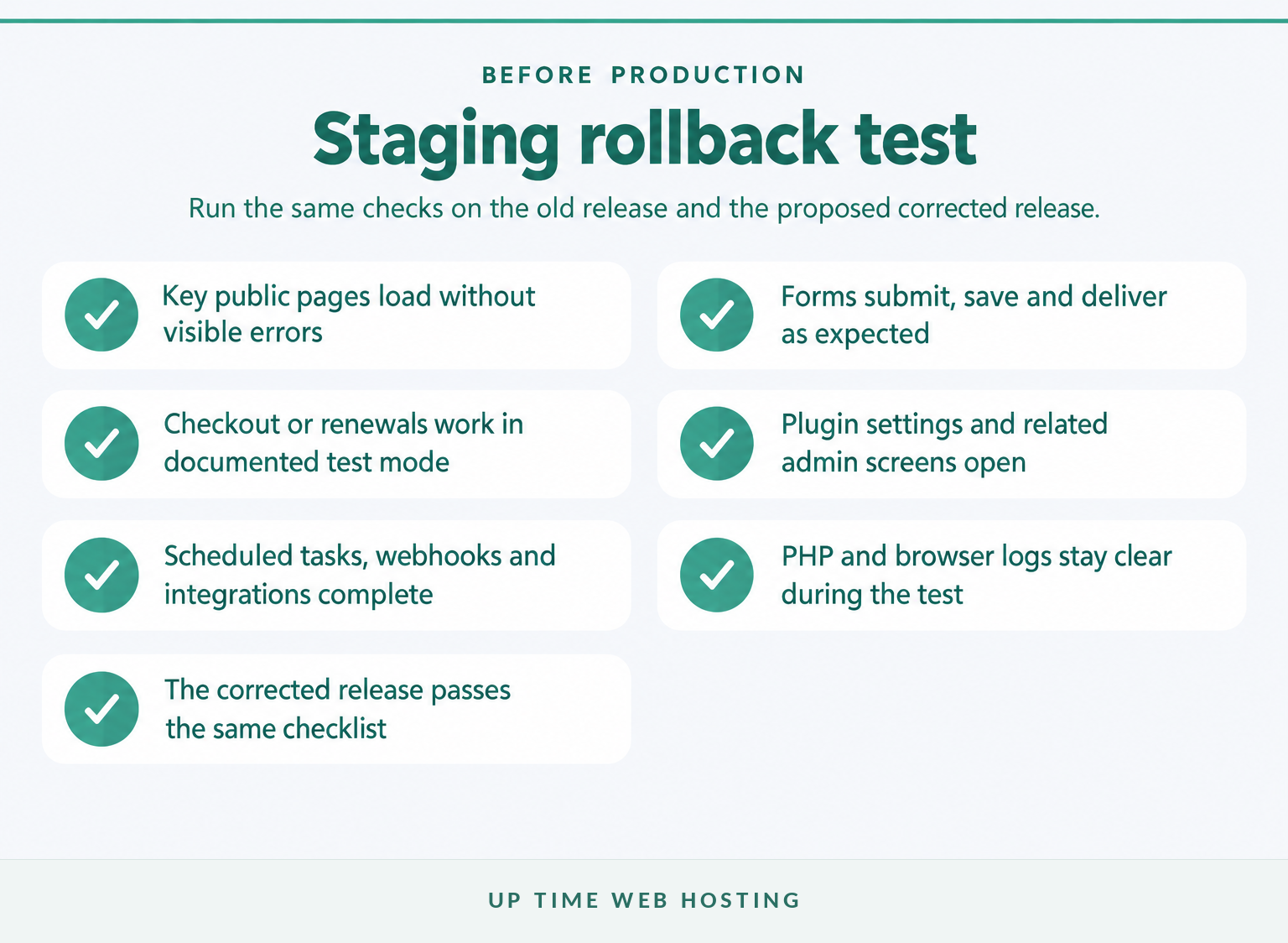
Clone the recovered production site into staging, reproduce the original problem and run the same critical tasks against both the rolled-back and corrected plugin versions. Do not push the entire staging database over a live store or membership site unless overwriting current production data is explicitly intended.
The guide to WordPress hosting with staging explains how a private copy lets updates and plugin changes be tested before customers see them.
Use this workflow:
- Create a fresh staging copy containing representative live files and data.
- Prevent search indexing and disable or redirect outbound customer emails.
- Put payment services into their documented test mode before checking a checkout or renewal process.
- Install the version that caused the failure and confirm that staging reproduces the fault.
- Apply the chosen rollback and run the complete test checklist.
- Install the corrected release when the developer provides one, then repeat the same tests.
- Record the versions, results, errors and deployment decision.
Test more than the homepage. Check the affected form, checkout, booking path, page builder, scheduled task or API integration. Open the relevant settings pages, review PHP and browser logs, test on mobile, clear application caches and confirm that monitoring remains normal.
A rollback is not complete until the site's critical customer and administration tasks pass on staging.
Experience Microsoft 365 Business Standard for free for 30 days.
Up to 25 users with full access to email, OneDrive and Teams. Includes full versions of desktop apps of Outlook, Word, Excel, PowerPoint and more.
Try Microsoft 365
How do you stop the same update breaking the site again?
Make updates one component at a time, with a verified restore point and a written test for the feature each component controls. Temporarily pause automatic updates for the affected plugin while waiting for a corrected release, but do not leave a vulnerable version unattended.
Use this operating routine:
- Review the changelog, WordPress requirement, PHP requirement and known support issues.
- Confirm the installed and offered versions using the guide to checking WordPress plugin updates.
- Create a backup and confirm that the restore process is available.
- Apply the update on a current staging copy.
- Test the specific customer and administration tasks affected by the plugin.
- Update production during a period when someone can monitor the result and reverse it if required.
- Record the version, time and outcome so the next incident does not begin with guesswork.
When the corrected release passes staging, replace the temporary rollback promptly. Remaining on an old version indefinitely can leave the site without later compatibility and security fixes.
The next update is safer when one version is changed at a time, on staging, with a tested restore ready.
What else do site owners ask about WordPress rollbacks?
Different WordPress changes need different reversal methods. Content revisions, plugin files, theme files and complete database restores should not be treated as interchangeable forms of the same undo button.
How do I rollback changes in WordPress?
WordPress changes are rolled back differently by type. Use post revisions for page or post content, replace a plugin or theme with a known working version for code, and restore a matching files-and-database backup when stored data changed. Avoid an old database restore on an active store because newer orders may be overwritten.
How do I reset a WordPress plugin?
Deactivating and reactivating a plugin restarts its code but normally does not erase its settings. Deleting a plugin is different because WordPress can run the plugin's uninstall routine, which may remove options or custom tables. Check the plugin documentation before deleting anything, and keep a complete backup if a true reset is required.
How can I revert a WordPress theme update?
To revert a WordPress theme update, restore the previous theme files from a backup, use a rollback tool for a theme hosted on WordPress.org, or upload an official older theme ZIP. Test the result on staging, keep a working fallback theme installed, and confirm that templates, menus and customised layouts still render correctly.
Is WordPress outdated in 2026?
No. WordPress is actively maintained. As of 23 October 2026, the official WordPress release archive lists WordPress 7.1.3, released on 6 October 2026, as the latest production version. A particular website can still be outdated if its WordPress core, plugins, themes or supported PHP environment have fallen behind.
A rollback must match the type of change: content, plugin files, theme files or the whole site.
What should you do next?
Recover the site with the smallest safe rollback, preserve current business data and schedule the corrected release for staging as soon as it becomes available. Do not let an emergency downgrade become the website's permanent update policy.
For businesses that want updates, backups, monitoring and recovery handled as an ongoing process, review the Managed WordPress Maintenance plan.
If the site handles business-critical work, make the rollback temporary and schedule the corrected update through a controlled maintenance process.