In short
To force WordPress to check for plugin updates, open Dashboard > Updates and select Check Again. Then confirm the installed version under Plugins > Installed Plugins or run WP-CLI’s wp plugin list. If the version remains stale, refresh the plugin update transient, check WordPress.org connectivity and verify any licence required by a commercial plugin.
Key takeaways
- Dashboard > Updates is the fastest place to request a fresh check and review all available plugin updates.
wp plugin listreports installed versions, available versions, activation status and automatic-update status from the command line.- The WordPress
wp_update_plugins()function checks for available releases but does not install them. - As of September 2026, the WordPress Plugins screen documentation says an externally sourced plugin needs its own updater before WordPress can display an update notice.
- WordPress.org states that enabled plugin auto-updates run twice per day by default, but administrators should still keep backups and check the result.
Table of contents
- How do you force WordPress to check for plugin updates?
- How do you check plugin updates with WP-CLI?
- How do you confirm a plugin update actually installed?
- Why is WordPress still showing an old plugin version?
- How can you keep a WordPress plugin update log?
- How can you automatically update WordPress plugins?
- Frequently asked questions about WordPress plugin updates
- What should you do next?
Plugin maintenance involves three separate questions: is a release available, did its files install, and does the affected part of the website still work? A green success message answers only part of that sequence.
Use a current backup before installing anything, especially on a business site with forms, customer accounts, bookings or online sales. Where possible, test high-impact releases on staging before applying them to the live site.
How do you force WordPress to check for plugin updates?
Open Dashboard > Updates and select Check Again. The official WordPress Updates screen documentation explains where available plugin releases and individual update results are displayed.
What should the dashboard result look like?
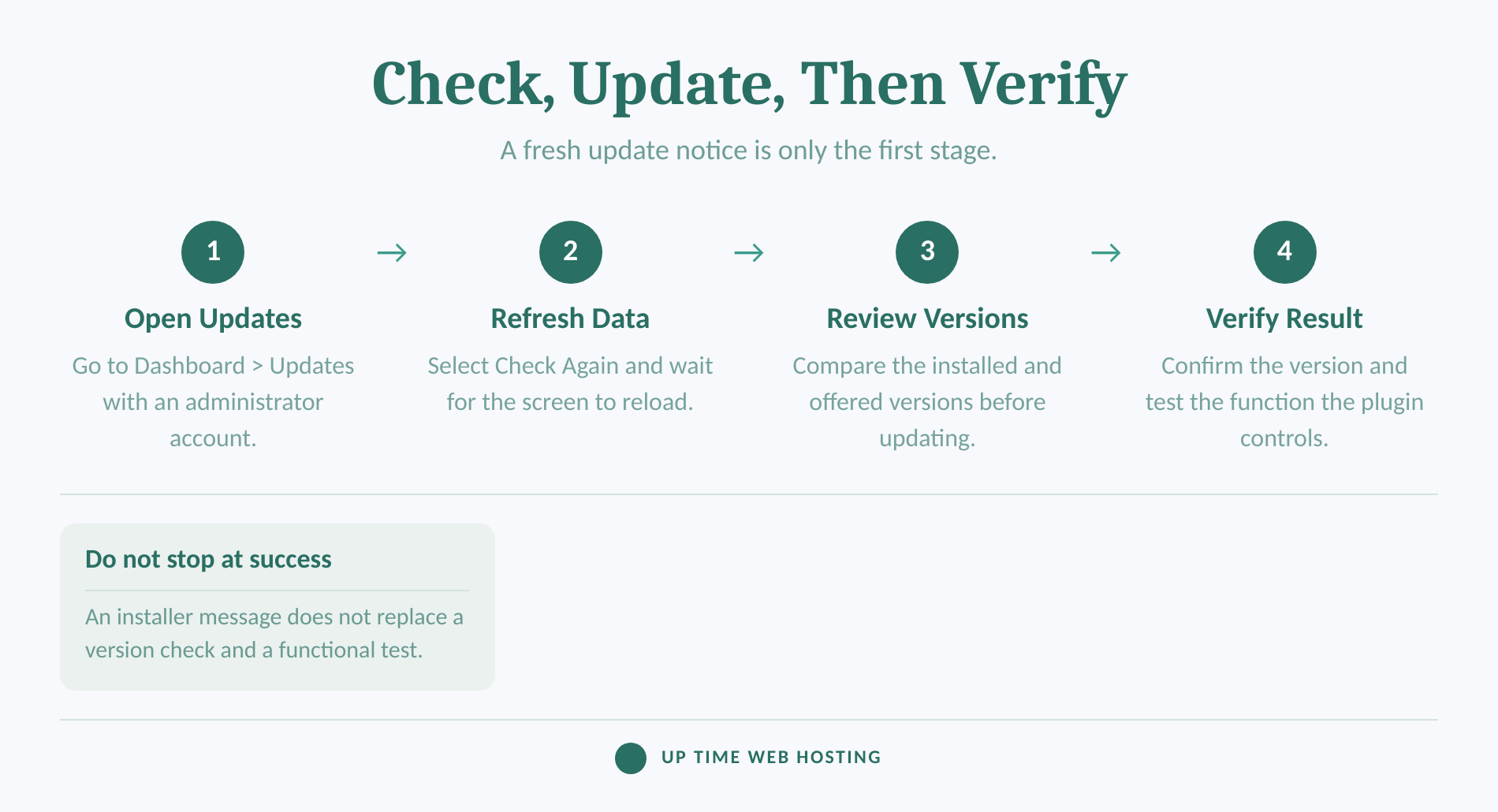
Use this sequence:
- Sign in with an administrator account and open Dashboard > Updates.
- Note the time of the last check and select Check Again.
- Wait for the page to reload, then review the Plugins section.
- Compare each installed version with the offered version before selecting plugins to update.
- Run the update and keep the result screen open until every selected plugin reports success or failure.
You can also open Plugins > Installed Plugins and select the Update Available filter. The WordPress Plugins screen displays update notices under eligible plugins, while the navigation bubble shows how many installed plugins have reported updates.
Do not confuse checking with installing. WordPress core stores update information in the update_plugins site transient, and wp_update_plugins() refreshes available-release data without installing plugin files.
An empty update list does not always prove that every plugin matches the latest vendor release. Plugins installed from ZIP files or external sources appear only when their developer has provided a working update mechanism. Check the plugin developer's release information when the dashboard version appears suspicious.
A forced check refreshes update information; it does not prove that a plugin installed or works.

Performance you can feel, backed by clients who depend on it. Read how our support and uptime create long‑term customer success.Power Your Business with Better Hosting
How do you check plugin updates with WP-CLI?
Run wp plugin list from the WordPress installation directory to inspect installed and available versions. WP-CLI is especially useful when the dashboard is inaccessible, several sites must be checked, or the result needs to be exported.
Start with:
“bash wp plugin list --fields=name,status,version,update,update_version,auto_update “
What does each WP-CLI field mean?
The version field is the version currently installed. The update field reports whether an update is available, update_version identifies the offered release, and auto_update shows whether automatic updates are enabled.
The official wp plugin list reference states that the command performs an update check unless --skip-update-check is supplied. Existing cached metadata can still matter, so delete only the plugin update transient when there is clear evidence that the result is stale:
“bash wp eval 'delete_site_transient("update_plugins"); wp_update_plugins();' wp plugin list --fields=name,status,version,update,update_version,auto_update “
The first command deletes the targeted site transient and asks WordPress to rebuild it. The official delete_site_transient() reference confirms that the function also targets the site-transient object-cache group when a persistent object cache is active.
Do not delete all transients simply to find one update. Other plugins use transients for unrelated cached data, scheduled work and rate controls.
Before installing, preview the available work:
“bash wp plugin update --all --dry-run “
Update one plugin by slug when a controlled rollout is preferable:
“bash wp plugin update plugin-slug “
The wp plugin update command supports individual plugins, all eligible plugins, exclusions, specific versions and dry runs. On multisite, use the appropriate network administration context and the --url parameter when a command needs to target a particular site.
WP-CLI is most useful when the check, installed version and resulting record can be repeated from the same command line.
How do you confirm a plugin update actually installed?
Confirm the installed version, refresh the update data and test the function controlled by the plugin. An update is not fully verified merely because the installer printed a success message.
What should you test after an update?
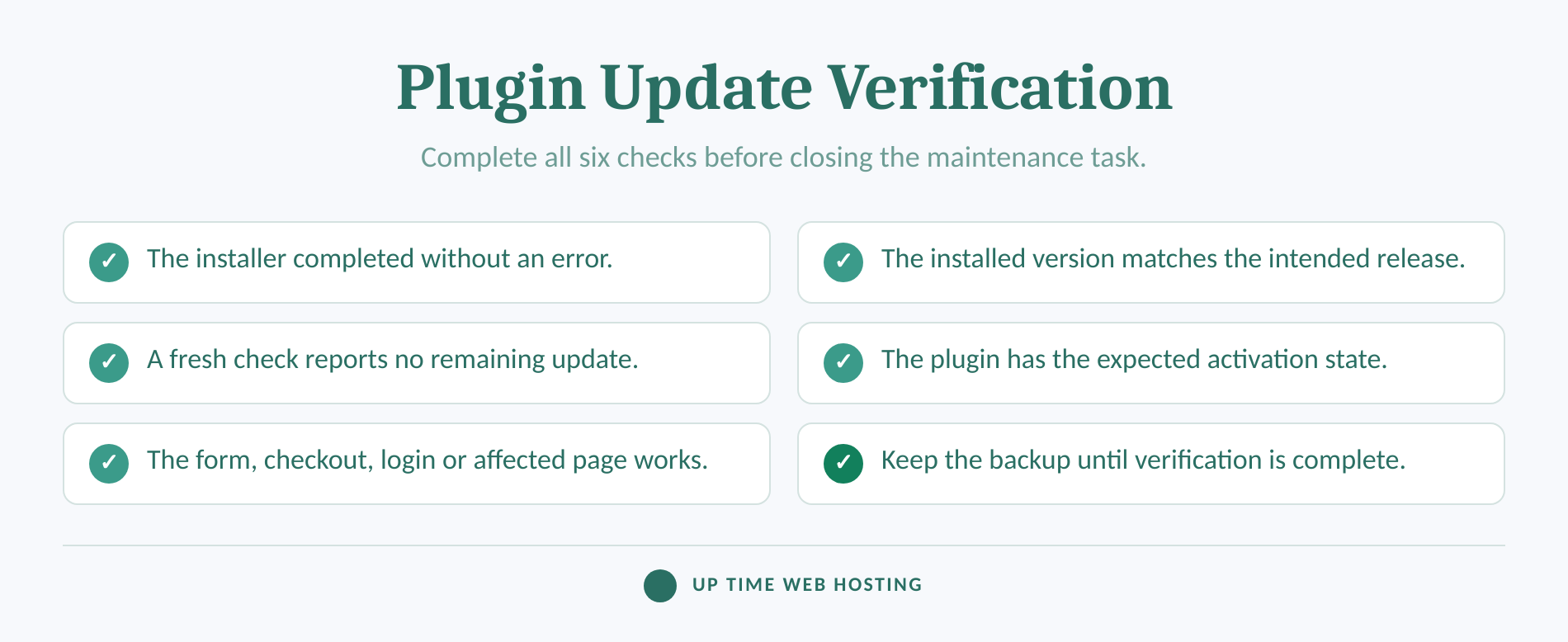
Work through these checks in order:
- Read the installer result. The dashboard should identify the plugin and report that it updated successfully. WP-CLI should finish without an error status.
- Confirm the installed version. Open Plugins > Installed Plugins or rerun
wp plugin listand compareversionwith the release you intended to install. - Check that no update remains pending. A fresh check should show
updateasnonefor that plugin unless another release has already become available. - Confirm the expected activation state. An active plugin should normally remain active after its update. Investigate any unexpected deactivation before continuing.
- Test the affected function. Submit the form, open the checkout, sign in, load the protected page or run the scheduled action associated with the plugin.
For a plugin distributed through WordPress.org, the following command can compare installed files with WordPress.org checksums:
“bash wp plugin verify-checksums plugin-slug “
The WP-CLI checksum documentation says the command checks plugin files against WordPress.org's published checksums. A successful result shows that the files match the distributed package. It does not prove that the plugin is compatible with the theme, other plugins, PHP configuration or live data.
Checksum verification may not be available for a private or externally distributed plugin. In that case, rely on the installed version, the provider's package information, update output and a focused function test.
If the plugin version changed but its visible output did not, caching may be hiding the result. Check the relevant browser, page, object and CDN caches in the order covered by the guide to WordPress site updates not showing.
Business-critical forms deserve a real submission test after form or spam-protection plugins change. Once maintenance is complete, recaptcha on wordpress, explained covers the related form-protection checks.
A plugin update is confirmed only when the installed version changes and the affected site function passes a test.
Host your website with our 5-star rated, cPanel website hosting plans.
Super fast servers, with security included and hosted in your choice of Australian Data Center.
View cPanel Plans
Why is WordPress still showing an old plugin version?
A stale version can come from cached update metadata, a failed connection, an external update channel or an installation failure. Identify which stage is stale before deleting caches, reinstalling files or changing security settings.
Is the plugin using WordPress.org or its own update service?
Search for the plugin in the WordPress.org directory or review the source from which it was purchased or downloaded. The WordPress Plugins screen documentation, updated in May 2026, says manually installed and external plugins need a built-in updater before WordPress can display their release notices.
For a commercial plugin, inspect its licence and update settings. Confirm that the site URL is authorised, the subscription or licence is current where required, and the plugin can contact its update service.
Do not upload a random ZIP over the installed plugin simply because its version looks old. Confirm the package source and keep a backup first.
Can the site reach the update services?
Open Tools > Site Health and review critical issues and recommended improvements. The WordPress Site Health documentation lists warnings for sites that cannot reach WordPress.org, block external HTTP requests or have background-update problems.
A failure to reach api.wordpress.org can prevent repository plugins from receiving update information. A firewall rule, DNS problem, proxy setting or WP_HTTP_BLOCK_EXTERNAL configuration may need investigation by the site administrator or host.
WP-Cron problems mainly affect scheduled and automatic updates. They do not stop an administrator from checking every other cause, but they explain why an enabled automatic update may never run.
Did the check fail, or did installation fail?
A missing update notice is a detection problem. A download, filesystem, maintenance-mode or permission error after selecting Update is an installation problem and should be diagnosed separately using the guide to wordpress updates failing.
If the version changed but the website now produces errors, restore service before repeatedly rerunning the installer. Review PHP logs, WordPress debug logs and the plugin's documented requirements, then roll back from a known-good backup if necessary.
Normal updating is also separate from security cleanup. Unexpected administrators, modified files, redirects or unfamiliar code require an incident response process rather than another update attempt; the guide to a wordpress malware removal plugin explains that boundary.
A stale plugin version usually becomes easier to diagnose once the update source, licence, connectivity and cached metadata are checked separately.
How can you keep a WordPress plugin update log?
Record the plugin name, before-and-after versions, timestamp, update result and function-test outcome. The dashboard provides immediate completion messages, but a maintenance record should be saved somewhere that can be reviewed later.
What belongs in the log?
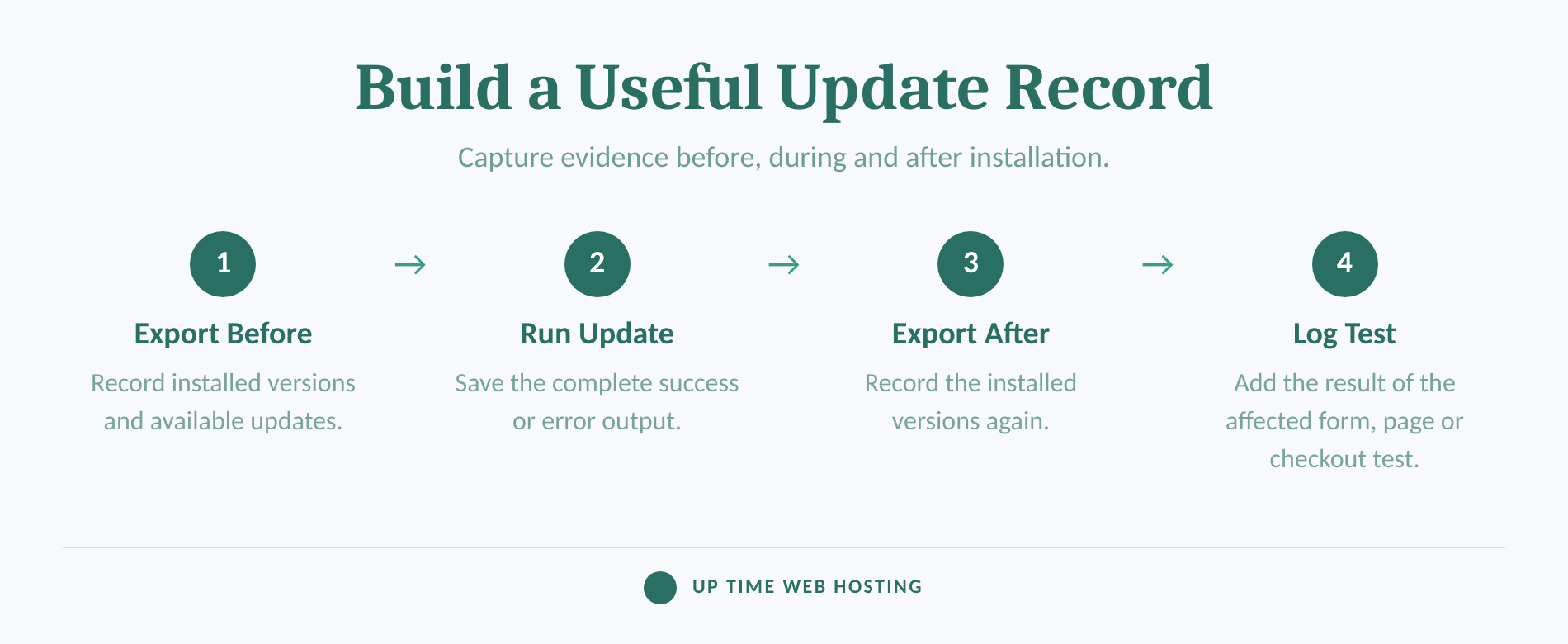
A useful record includes:
- Site name or URL.
- Administrator or automation process that initiated the work.
- Plugin name and slug.
- Version before the update.
- Version offered and version installed.
- Date, time and timezone.
- Success or error output.
- Backup or restore-point reference.
- Result of the form, checkout, login or page test.
WP-CLI can create a simple text record outside the public web directory:
“bash mkdir -p ~/maintenance-logs log=~/maintenance-logs/plugin-update-$(date -u +%Y%m%dT%H%M%SZ).txt wp plugin list --fields=name,status,version,update,update_version,auto_update --format=csv > $log wp plugin update plugin-slug >> $log 2>&1 wp plugin list --fields=name,status,version,update,update_version,auto_update --format=csv >> $log “
The file records the plugin list before the command, the update output and the plugin list afterwards. Add the functional test result to the maintenance ticket or log rather than assuming that command success proves the site works.
For automatic updates, WordPress sends result emails by default after successful, failed or mixed plugin and theme update attempts. These messages can support a maintenance record, but they should be retained and connected to the relevant site and follow-up test.
Developers building a central log can use the official upgrader_process_complete hook for completed upgrader processes and automatic_updates_complete for the results of automatic update attempts. Logging code must avoid exposing sensitive paths, credentials or debug data.
A useful update log records the plugin, before-and-after versions, timestamp, result and test outcome.
How can you automatically update WordPress plugins?
Open Plugins > Installed Plugins and select Enable auto-updates beside each suitable plugin, or use the bulk action. Automatic updates reduce repetitive work, but they do not remove the need for backups, monitoring and compatibility checks.
The WordPress auto-update documentation states that enabled plugin and theme auto-updates run twice per day by default. WordPress also displays the estimated time of the next run and sends result emails after update attempts.
Choose automatic updates according to the plugin's effect on the site. A small utility may be a lower-risk candidate than a plugin controlling checkout, memberships, bookings, authentication or page layouts.
Before enabling auto-updates:
- Confirm that scheduled backups run and can be restored.
- Check Tools > Site Health for WP-Cron or background-update errors.
- Make sure update-result emails reach a monitored address.
- Monitor uptime and important user journeys.
- Review the site periodically instead of assuming that silence means success.
Automatic updates reduce manual work, but backups, monitoring and post-update checks still decide whether the site is safe.
Register your new domain name at competitive market prices including free domain add-ons like privacy, DNS Hosting, Custom Nameservers and Forwarding.
Always the best price and no nasty renewal price hikes.
Register A Domain Name
Frequently asked questions about WordPress plugin updates
These answers cover the update questions administrators most often ask. Each answer applies to self-hosted WordPress sites where the administrator controls plugin maintenance.
How often do WordPress plugins need to be updated?
WordPress plugins should be reviewed whenever an update is offered, with security releases handled promptly after a current backup or staging check. There is no single interval that suits every site. If automatic updates are off, a weekly maintenance check is a practical routine for many business sites, followed by a short function test.
Why are my WordPress plugins not updating?
WordPress plugins may not update because the site cannot reach WordPress.org, the update cache is stale, file permissions block replacement, WP-Cron is failing, or a commercial plugin has an expired or missing licence. Check Tools > Site Health, refresh Dashboard > Updates, then inspect the plugin's own update settings and release source.
How to check plugins on WordPress?
To check plugins on WordPress, open Plugins > Installed Plugins and use the Update Available filter, or open Dashboard > Updates for a combined list. The plugin row shows the installed version and any available release. WP-CLI users can run wp plugin list to view status and update versions in a terminal.
How can I automatically update WordPress plugins?
To automatically update WordPress plugins, open Plugins > Installed Plugins and select Enable auto-updates for each plugin, or apply the bulk action. WordPress.org says enabled plugin auto-updates run twice per day by default and send result emails, but automatic updates still need current backups, monitoring and periodic checks.
The same rule applies to every update method: refresh the evidence, verify the version and test the function.
What should you do next?
Start with one fresh dashboard or WP-CLI check, record the current version, then update and run a short function test. If routine plugin checks are taking time away from the business, Managed WordPress Maintenance provides managed updates, backups, monitoring and update reporting.
A plugin update is finished only when the new version is recorded and the site function it controls still works.