You're running a small business in Australia, and your WordPress site is doing more than displaying a logo and phone number. It may collect enquiries, process bookings, take orders, or support your busiest sales period. Then WordPress shows an update notice, and you're left wondering whether clicking Update will improve the site or take it offline.
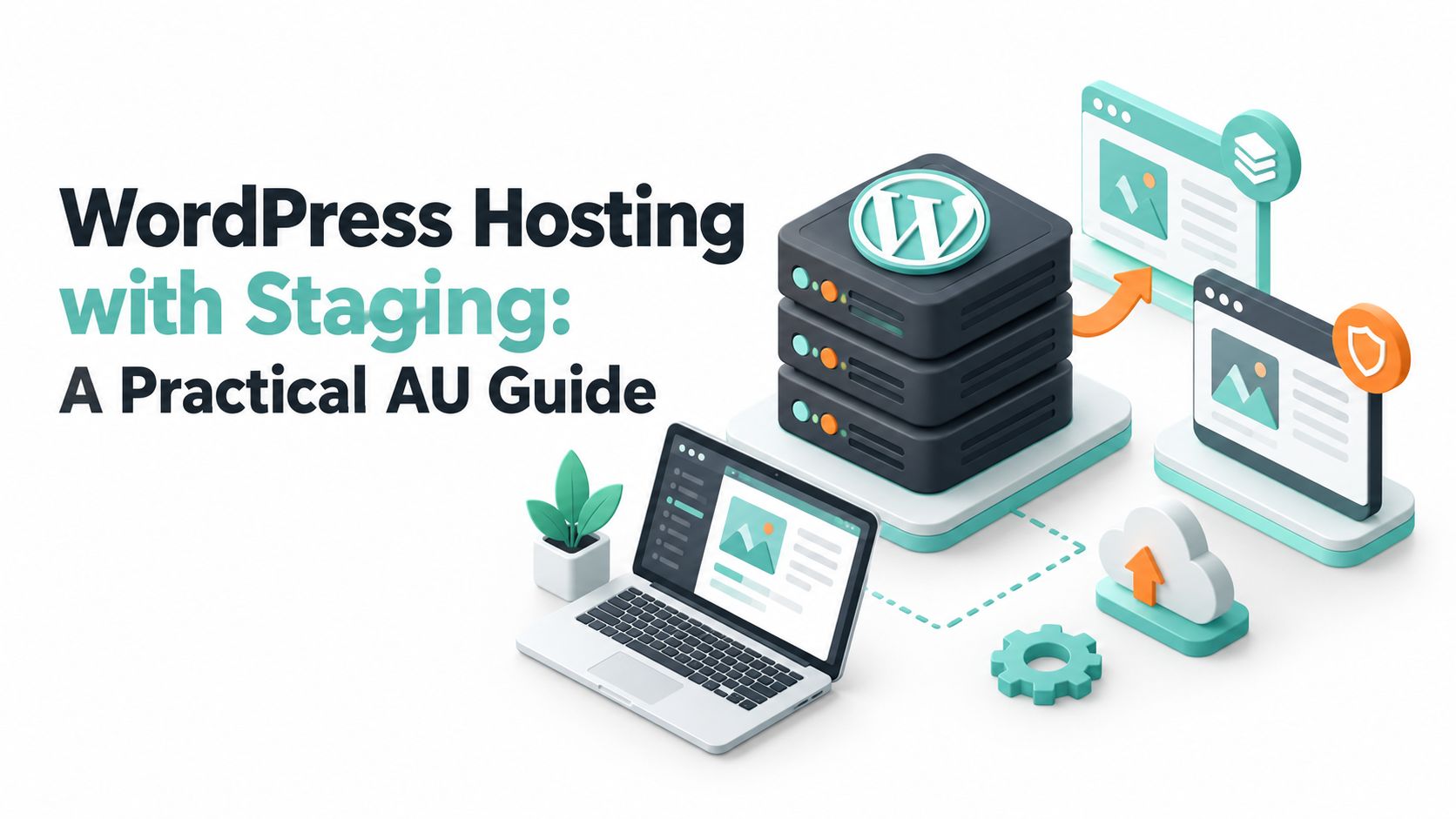
That uncertainty is exactly what staging is designed to remove. WordPress hosting with staging gives you a private copy of the live site where you can test updates, plugin changes, PHP changes, and design work before customers see them. The value, however, depends on more than creating a clone. Staging must stay current, match the live environment closely, and work alongside backups and tested restores.
Table of Contents
- When a WordPress Update Goes Wrong on a Live Site
- What a Staging Environment Actually Does
- One-Click Staging, Cloning and Manual Copies
- Pushing Changes From Staging to Production Safely
- Backups, Restore Drills and the Staging Workflow
- Why Local Australian Servers Matter for Honest Testing
- Habits That Keep Your Staging Site Useful
- Putting It All Together for a Safer WordPress Site

Performance you can feel, backed by clients who depend on it. Read how our support and uptime create long‑term customer success.Power Your Business with Better Hosting
When a WordPress Update Goes Wrong on a Live Site
A Melbourne café owner checks the WordPress dashboard between customers on a Saturday morning. WordPress core has an update waiting, along with a booking plugin. The owner clicks the update button, refreshes the order page, and sees a white screen instead of the online menu and checkout.
The café's counter is still busy, but online orders have stopped. Customers send refund emails. Staff answer confused phone calls. The developer needs access to a live, customer-facing website while real orders may still be arriving through other channels. Every repair now happens under pressure, and nobody can be certain whether another change will make the problem worse.
That situation is avoidable. A staging site gives the owner or developer a separate copy where the core update and plugin can be applied first. The team can open the order page, submit a test enquiry, check the mobile menu, and inspect the error logs without interrupting the café's live trade.
Practical rule: A live website is the shop floor. Staging is the rehearsal room.
Staging doesn't guarantee that every update will work. It changes where failure happens. A broken update appears on a protected copy, where it can be identified, reversed, or replaced before production is touched. That distinction matters for Australian businesses because WordPress is widely used across the local market. One Australian web-technology tracking summary reported about 213,776 Australian companies using WordPress in 2026, while an Australia-focused estimate placed WordPress at roughly 65% of Australian websites, or around 3.2 million sites. These figures are reported in Australian managed WordPress hosting guidance.
Before you update a live site, follow the practical process in this WordPress update knowledge base guide, then test the same change on staging. The aim isn't to eliminate maintenance. It's to make maintenance controlled, repeatable, and far less likely to turn a normal Saturday into an emergency.
What a Staging Environment Actually Does
Renovating a café counter while customers are ordering coffee is risky. Tradespeople need space, fittings may be disconnected, and the queue has to work around the construction. A safer approach is to reproduce the counter layout in a back room, test the equipment and menu flow, then make the final change during a quiet period.
A WordPress staging environment works in much the same way. It's a separate copy of your website containing the important working parts:
- Files: WordPress core, themes, plugins, uploads, and custom code.
- Database: Pages, posts, settings, users, form entries, and store information.
- Address: Often a protected subdomain such as
staging.yoursite.com.au.
You can then install a new plugin, update WooCommerce, change a theme, test a PHP version, or adjust a page builder without changing the production site. Visitors continue using the live website while you test the proposed changes elsewhere.

One-click staging
Many Australian WordPress hosts provide a one-click staging control in the hosting dashboard. You choose the live installation, select a staging location, and the platform creates a working copy. Australian providers describe this workflow as creating or cloning a staging website “in just a few moments”, while another describes building and testing on a staging copy before pushing it to production, as shown by Australian WordPress staging services.
The button saves time, but it doesn't replace judgement. You still need to restrict access, prevent search indexing, avoid sending real emails, and test the customer journeys that matter to the business.
Cloning for larger changes
Cloning creates an independent copy that can support a redesign, a client review, a migration, or work on another domain. It's useful when the staging site needs to remain available while the live site continues changing.
For a simple update, a temporary staging copy may be enough. For a major rebuild, an independent clone gives you more room to work. The key principle stays the same: the experiment must remain isolated until someone has verified the result. The guide to creating a WordPress staging site provides a practical starting point for that process.
Host your website with our 5-star rated, cPanel website hosting plans.
Super fast servers, with security included and hosted in your choice of Australian Data Center.
View cPanel Plans
One-Click Staging, Cloning and Manual Copies
Australian hosting plans don't all deliver staging in the same way. Some give you a button in the control panel. Others expect you to create a copy with a plugin or manage the files and database yourself. Choosing between them comes down to how often you make changes, how comfortable you are with hosting tools, and how much risk a failed deployment would create.
| Method | Setup Time | Skill Required | Typical AU Plan Tier | Best For |
|---|---|---|---|---|
| One-click staging | Short | Basic dashboard skills | Managed WordPress or higher hosting tiers | Regular updates and routine testing |
| Cloning | Moderate | Basic to advanced, depending on the tool | Higher tiers or selected managed plans | Redesigns, migrations, and independent project copies |
| Manual copy | Longer | Hosting, database, and WordPress knowledge | Entry-level plans with cPanel access | Developers and one-off technical work |
One-click staging
A host-managed workflow usually creates a subdomain, copies the site, and prepares the environment for testing. Some plans include a push-to-production control as well, while others only provide the manual staging copy. This distinction matters. Creating the copy is one task. Safely moving approved changes back to the live site is another.
A plan may also limit how many staging environments you can keep. One Australian hosting offer lists 1 staging site on its standard tier and 2 staging sites on higher tiers, with 2 to 4 databases depending on the plan. That example appears in the provider's WordPress hosting plan details.
Cloning
Cloning is more useful when the copy needs to become a separate working project. An agency might clone a site before a redesign, or a business might clone an existing installation while preparing a move between hosting accounts. The clone can be changed without disturbing the original, but it still needs protection from search engines and unauthorised visitors.
Manual copies
Manual staging uses tools such as cPanel, phpMyAdmin, SFTP, or a migration plugin. It can work on shared hosting, but each part of the process needs care. Files must be copied, the database must be exported and imported, and URLs must be rewritten safely. A mistake in one of those steps can produce broken logins, missing images, or links that still point to production.
For teams comparing control-panel tools, the WordPress Toolkit and Softaculous comparison explains how these approaches differ. A small business owner who rarely touches hosting will generally be better served by a managed workflow, while a developer may prefer manual control for a specialised deployment.
Pushing Changes From Staging to Production Safely
A staging site is valuable because it lets you test changes. The push back to production is where you need the clearest process.
Start by refreshing staging from the latest reliable copy of the live site. Production may have received new enquiries, pages, orders, or settings since staging was created. Test the update against current conditions, not an old version of the website.
A controlled deployment sequence
- Refresh staging. Sync the files and database from the latest live snapshot, then confirm that the staging address works.
- Apply the change. Update WordPress, a plugin, a theme, WooCommerce, or the PHP version on the staging URL.
- Test real customer paths. Open important pages on desktop and mobile. Submit contact forms, test booking flows, review product pages, and check the checkout process using the appropriate test settings.
- Record what passed. Note the versions changed, the pages tested, and any special settings that must be repeated on production.
- Take a fresh live backup. Create a rollback point immediately before deployment.
- Promote the approved change. Use the host's push control, a Git deployment for code, or a carefully managed manual process.
- Verify production. Clear caches, test forms and checkout, inspect the key pages, and check that production indexing and email settings remain correct.

What “promote” really means
A push-to-live operation may synchronise files, import database changes, and replace the staging URL with the production domain. That search-and-replace step prevents internal links, image paths, and forms from continuing to point at the staging address.
The database needs special caution. A full staging database can overwrite live content, submissions, users, or orders created after the staging copy was made. For a WooCommerce site, pushing files and applying the tested settings on live is often safer than replacing the active production database.
Before pressing push, know whether you're moving files, selected database changes, or the entire database.
Some developers use Git for version-controlled themes, plugins, and custom code. A business owner using managed hosting may instead use a one-click push button. Neither approach removes the need for verification. Common post-deployment problems include incomplete database synchronisation, missing uploads, stale cached assets, and staging-only settings carried into production.
Use the production readiness checklist before and after deployment. It helps turn a risky button press into a documented release.
Backups, Restore Drills and the Staging Workflow
A staging site can stop a faulty update before it reaches customers. It cannot rewind yesterday's orders, form submissions, or content. Backups provide that history, while staging provides a controlled place to test changes. A safe WordPress operation needs both.
For an Australian small business, plan daily automated backups of files and the database, store copies away from the hosting account, retain several restore points, and document how to recover a specific point in time. Australian managed WordPress guidance discusses daily or nightly backups with retention windows from 14 to 30 days, as outlined in Australian WordPress hosting backup guidance. See the step-by-step guide to how to backup your WordPress site for manual and automated approaches.
Turn a backup into a verified recovery path
A restore drill treats staging like a practice recovery room:
- Choose a recent backup.
- Restore it into a protected staging environment.
- Confirm that WordPress loads and administrators can sign in.
- Test key pages, forms, integrations, and the order or booking process.
- Check images, links, settings, and error logs.
- Remove the temporary restore or record the result for the next drill.
The result answers the question a backup dashboard cannot: Can the business recover from this restore point?
Refresh staging regularly enough to reflect the live site's plugins, theme, content structure, and server settings. A copy left untouched for months may test an environment that no longer exists. Restore drills should also follow that rhythm, because a successful backup message does not prove that an archive, uploads directory, or server configuration will work during an outage.

Keep recovery separate from the live account
Australian guidance connects staging with encrypted off-site copies and regular restore drills. Keep at least two backup locations, including one away from the hosting account, ideally in an Australian region when local data handling and recovery speed matter. The workflow is described in Australian WordPress backup and disaster recovery guidance.
The complete loop is straightforward:
Back up live, restore to staging, verify the site, then promote only approved changes.
That routine also prepares the business for plugin failures, compromised accounts, and accidental configuration changes. Staging without restore testing is only a test copy. Backups without a practiced restore path are only an assumption that recovery will work.
Register your new domain name at competitive market prices including free domain add-ons like privacy, DNS Hosting, Custom Nameservers and Forwarding.
Always the best price and no nasty renewal price hikes.
Register A Domain Name
Why Local Australian Servers Matter for Honest Testing
A staging site should resemble the production environment closely enough to produce useful results. That includes the hosting region. If your customers are mainly in Australia but your staging copy sits offshore, the test may tell you how the site behaves for the test server, not how it feels to local visitors.
Australian latency reviews have cited round-trip times of about 14 ms from Sydney to Melbourne, 29 ms to Auckland, 92 ms to Singapore, 148 ms to Los Angeles, and 292 ms to London. Those figures are presented in Australian WordPress hosting latency guidance.
| Visitor location | AU server, Sydney | US server, Dallas | EU server, Frankfurt | Asia server, Singapore |
|---|---|---|---|---|
| Sydney | Local Australian route | Longer international route | Longer international route | Regional international route |
| Melbourne | About 14 ms to Sydney | Not specified in verified data | Not specified in verified data | Not specified in verified data |
| Auckland | About 29 ms to Sydney | Not specified in verified data | Not specified in verified data | Not specified in verified data |
| Singapore | About 92 ms from Sydney | Not specified in verified data | Not specified in verified data | Not specified in verified data |
The table shows why you shouldn't fill unverified cells with confident-looking estimates. The important engineering point is qualitative: geography changes the network path, and the difference can affect time to first byte, PHP response timing, database requests, payment gateway behaviour, and cached asset delivery.
Test the paths customers actually use
A homepage can look fine while the booking form fails, the cart behaves slowly, or a payment gateway times out. Test the pages that generate business, including product pages, long service pages, forms, account areas, and checkout.
Local infrastructure also supports regional operational control. One Australian provider states that its WordPress hosting uses data centres in Sydney and Melbourne, while Australian hosting guidance defines local hosting as a server physically located in Australia. Those details are available in Australian hosting infrastructure information.
Your staging environment doesn't need to be identical in every technical detail, but it should match the live PHP and server versions, caching layer, relevant resource limits, and hosting region closely enough for the results to be meaningful.
Habits That Keep Your Staging Site Useful
A staging site becomes unreliable when it drifts away from production. The following habits keep the copy truthful without turning maintenance into a full-time job.
Keep the copy current
- Refresh staging weekly: Keep plugin and theme versions close to production when the site changes regularly.
- Sync after live changes: Refresh after a production plugin, theme, PHP, or configuration change.
- Start each project from live: Don't begin a major test with a staging copy that has been sitting untouched.
- Remove completed copies: Delete staging when the work is finished, then create a new clone for the next project.
Protect the test environment
- Block search engines: Disable indexing on the staging subdomain and confirm that the setting hasn't carried into production.
- Password-protect the URL: Keep draft content, customer information, and test pages away from casual visitors.
- Control outgoing email: Redirect or disable staging email so test forms don't contact real customers.
- Use safe payment settings: Keep payment gateways in test mode and never place real orders from staging.

Test the environment, not just the page
Run performance checks against the Australian staging server, including Lighthouse and the Core Web Vitals reports that matter to your site. Test a long content page as well as the homepage, because large images, page-builder sections, embedded forms, and related content can expose problems that a simple landing page hides.
Match the production PHP version, server resources, and caching behaviour as closely as the plan allows. Test PHP upgrades before applying them to live, check WooCommerce products and settings, and review page-builder layouts after updates.
Finally, write a short note describing the change under test and ask another person to review important customer paths. A second pair of eyes can catch a broken mobile menu or test email that the person who made the change no longer notices.
Experience Microsoft 365 Business Standard for free for 30 days.
Up to 25 users with full access to email, OneDrive and Teams. Includes full versions of desktop apps of Outlook, Word, Excel, PowerPoint and more.
Try Microsoft 365
Putting It All Together for a Safer WordPress Site
Staging, backups, and restore drills are not three unrelated hosting features. Together, they form a business-continuity loop.
You begin with a current production backup. You create or refresh a private staging copy. You test the update or design change against realistic content and Australian hosting conditions. You run a restore drill when you need to verify recovery. Then you promote only the approved change, take a fresh live backup, and check the production site from a customer's perspective.

The practical operating rhythm
For a small Australian business, a workable routine looks like this:
- Stage and test: Use one-click staging or a controlled clone for plugin, theme, core, WooCommerce, and PHP changes.
- Validate recovery: Restore a backup to staging and confirm that the site, forms, content, and key transactions behave correctly.
- Promote carefully: Push the tested files or selected changes, preserve live customer data, clear caches, and verify production.
- Record the result: Note what changed, what was tested, and how to roll back if the release causes trouble.
Some Australian hosting plans include staging, cloning, automated backups, and restore tools in the same operational workflow. One provider describes standard plans with manual staging and higher plans with one-click staging and push-to-production features, while local backup tools may offer hourly restore points and defined retention tiers, as detailed in Australian staging and backup hosting information.
The outcome is practical. You spend less time repairing avoidable update failures, you can test the pages that generate revenue, and you know whether your backup can restore the site. A hosting dashboard that combines these functions also reduces the need to stitch together unrelated plugins and scripts.
UpTime Web Hosting provides Australian WordPress hosting with one-click staging, allowing you to create a private copy for testing before changes reach your live site. Visit UpTime Web Hosting to review local hosting options and build a staging, backup, and restore routine for your business website.