Ever found yourself staring at that infuriating "attachment too large" error? It’s a common digital roadblock, but the email attachment size limit isn't just some arbitrary rule. It's a critical piece of the internet's plumbing, put there for very practical reasons that keep the entire email system stable and efficient for everyone.
Why Do Email Attachment Size Limits Even Exist?
Sending an email with a file attached is a lot more complicated than it seems. It’s less like handing a file directly to someone and more like shipping a fragile package through a series of postal sorting centres. Each centre has its own rules on package size and weight, and your item needs extra padding to survive the journey. Once you see what happens behind the scenes, you’ll understand why these limits are so important.
The Hidden Weight of Email Encoding
When you attach a file—be it an image, a PDF, or a document—it can’t actually travel in its original format. Email systems are built on a foundation that only understands plain text. So, to send your file, it first has to be translated into a text-based format. This process is called Base64 encoding.
Think of it like this: your file is an item you need to post. To protect it, you wrap it in bubble wrap and put it in a sturdy box, sealing it with packing tape. All that protective packaging—the encoding—makes the final parcel bigger and heavier than the item inside. Base64 encoding inflates a file's size by about 33%.
Here's a real-world example: A 10 MB PDF report doesn't travel as 10 MB. Once it's encoded in Base64, it swells to roughly 13.3 MB before it even leaves your outbox. This "encoding overhead" is the number one reason a file that seems small enough still gets blocked by a size limit.
The Journey Through Mail Servers
After you hit 'Send', your email doesn't fly straight to the recipient. Instead, it hops through a chain of servers called Simple Mail Transfer Protocol (SMTP) relays. Each server in this chain acts like a checkpoint, receiving the email and forwarding it along its path.
Every single one of these servers—from your provider's, through the internet, to your recipient's—has its own email attachment size limit. If your 13.3 MB encoded file hits a server with a 12 MB limit somewhere along the way, it gets rejected and bounces right back to you. An email is only as deliverable as the most restrictive server in the chain allows. If you want to dive deeper, you can learn more about how email protocols work in our detailed guide to setting up a business email.
The Provider's Perspective
Email providers like Gmail and Microsoft, and hosting companies like us here at UpTime Web Hosting, set these limits for a few key reasons:
- Server Performance: Huge attachments chew up a massive amount of bandwidth and processing power. Letting them run wild would slow down the email system for all users.
- Storage Costs: Imagine the cost of storing millions of massive attachments indefinitely. Limits help keep storage resources manageable and affordable.
- Security: Oversized files are a classic way to sneak malware and viruses past defences. By capping attachment sizes, providers add a simple but effective layer of security to protect their users from attack.

Performance you can feel, backed by clients who depend on it. Read how our support and uptime create long‑term customer success.Power Your Business with Better Hosting
What Are the Common Attachment Size Limits?
Ever tried to email a large file only to get that dreaded “message undeliverable” bounce-back a few minutes later? It’s a frustratingly common problem, and it usually comes down to one thing: email attachment size limits.
Think of it like trying to mail a package. Just because your local post office lets you send a big box doesn’t mean the recipient’s tiny letterbox can accept it. Email works the same way. Every email provider sets its own rules, creating a patchwork of different limits you need to navigate.
The real catch is that there are two limits to consider: your sending limit and your recipient’s receiving limit. You might have a generous 25 MB allowance, but if your client’s company has a strict 20 MB receiving policy, your email is going straight back to you. This happens all the time, especially with corporate email systems where IT departments lock things down to manage server space and security.
Email Provider Attachment Size Limit Comparison
While the rules can and do change, the major email services have pretty clear guidelines. To give you a better idea of what you’re working with, here’s a quick look at the attachment limits for the big players you’re likely to encounter.
| Email Provider | Sending Limit (per email) | Receiving Limit (per email) | Notes |
|---|---|---|---|
| Gmail | 25 MB | 50 MB | Automatically uploads larger files to Google Drive and sends a link instead. |
| Outlook.com / Microsoft 365 | 20 MB (web) / 34 MB (app) | 34 MB | Integrates with OneDrive for sharing larger files via links. |
| Yahoo Mail | 25 MB | 25 MB | A straightforward limit for both sending and receiving. |
| iCloud Mail | 20 MB | 20 MB | Uses Mail Drop to send attachments up to 5 GB via iCloud link. |
As you can see, there’s no single standard. A presentation that sails through from a Gmail account might get blocked by an iCloud or Outlook recipient. This table really drives home why knowing your own limit is only half the battle; you always have to consider the person on the other end.
The Australian Context for Email Limits
Here in Australia, many businesses tend to follow these international standards, often setting their internal limits somewhere between 10 MB and 25 MB. This isn't just about managing server costs; it's also driven by security and privacy obligations. Regulators and best practices encourage using secure file-sharing methods over email, especially for large documents containing sensitive personal data.
As a result, many Aussie IT teams will tell you to keep routine attachments under 10 MB just to be safe and ensure smooth delivery.
And don't forget about encoding! When you attach a file, it gets converted into a text-based format, which actually increases its size by about 33%.
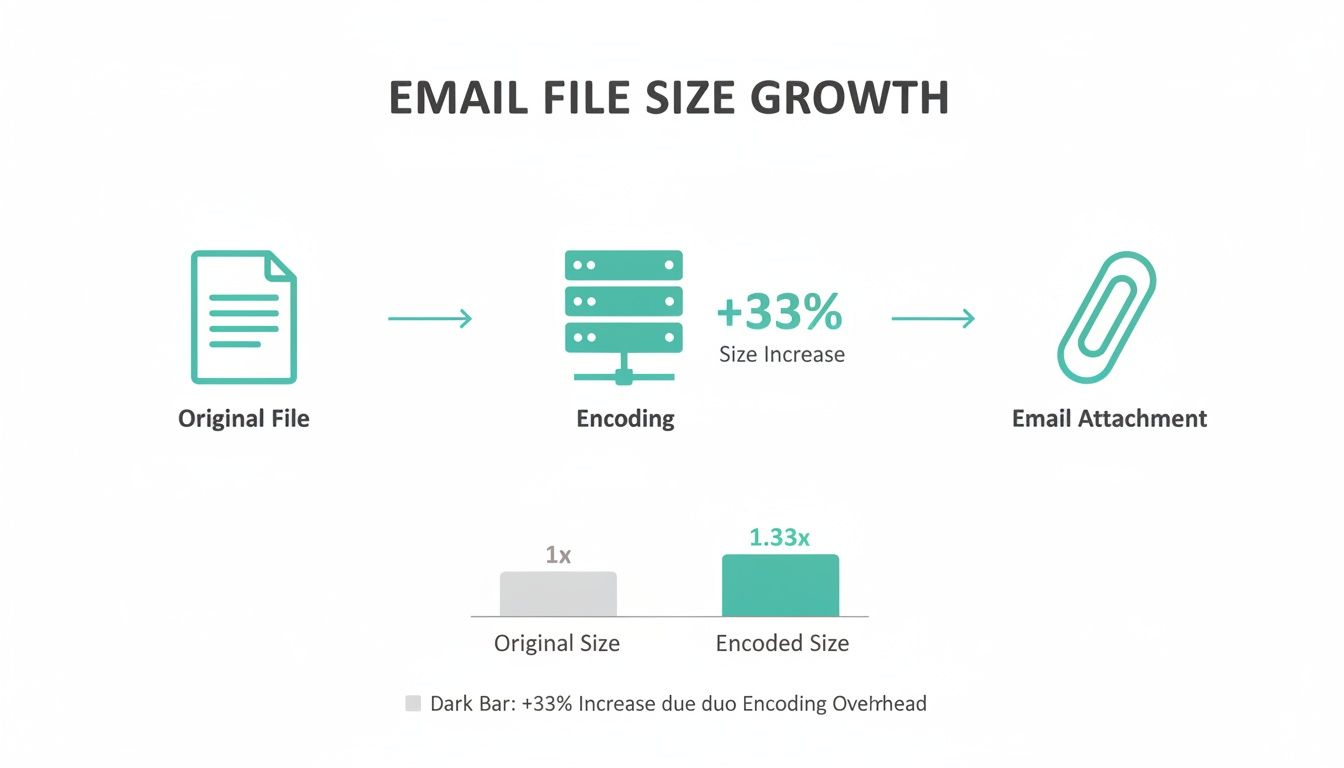
That infographic makes it clear: your 20 MB report is actually closer to 26.6 MB by the time it hits the server. For businesses, this is where integrated solutions really shine. Services like Office 365 for Business neatly bypass these headaches by using platforms like OneDrive to automatically share a secure link instead of the bulky file itself.
How To Send Large Files and Bypass Size Limits
So, you’ve just tried to send an important file and received that dreaded "message too large" bounce-back. Hitting the wall of an email attachment size limit isn’t the end of the road. It’s just a sign that you need a different vehicle for your data.
Fortunately, you have several excellent options, each suited to different scenarios.
This whole issue is a natural consequence of our shift to digital. In Australia, addressed letter volumes have plummeted by around 65% since 2006–07 as we've all moved online. This pivot put a massive reliance on email but also quickly showed its limits for big files, pushing Australian businesses to find smarter ways to share. If you're curious about this trend, you can discover insights into Australia's move toward digital exchange in the full government report.
Use Cloud Storage Links
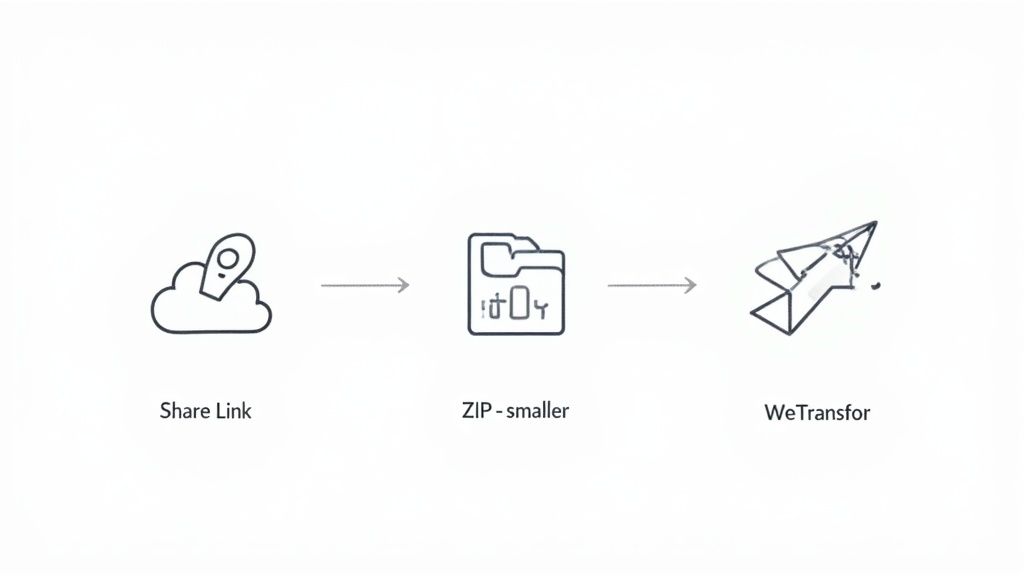
The most common and professional way around this problem is using a cloud storage service. Think Google Drive, Dropbox, or Microsoft OneDrive—they're all built for exactly this purpose. Instead of trying to cram a heavy file into an email, you simply upload it to the cloud and share a secure link.
Your recipient just clicks the link to view or download the file straight from their browser. This approach is brilliant for a few reasons:
- Bypasses All Limits: The email itself only contains a tiny text link, keeping it feather-light and ensuring it gets delivered.
- Enhanced Security: You’re in control. You can set permissions to decide who can view, edit, or download the file.
- Version Control: Need to update the file? Just replace the version in the cloud. There's no need to send another email with "FINAL_v2_final" in the filename.
Practical Example: A graphic designer needs to send a client a 500 MB folder of high-resolution brand assets. Attaching this to an email is a non-starter. Instead, she uploads the folder to Dropbox, generates a share link with "view-only" permissions, and pops that link into an email for the client to review. Simple.
Try File Compression (Zipping)
If your files are only just over the size limit, compression is a quick and effective first step. Compressing, or "zipping," a file or folder uses a clever algorithm to shrink its size, making it much more email-friendly.
Most operating systems have built-in tools to create a .zip archive. This works especially well for text-heavy documents like Word files or PDFs, and it’s great for bundling multiple files into one neat package. Keep in mind, though, it’s far less effective on files that are already compressed, like JPEGs or MP4 videos.
Use Dedicated File Transfer Services
What if you need to send a massive file quickly without the hassle of setting up a cloud storage account? This is where dedicated file transfer services are perfect. WeTransfer is a popular choice, letting you send files up to 2 GB for free.
You just upload your file to their website, type in your recipient’s email, and the service sends them a secure download link. These links usually expire after a while, which adds a nice layer of security. When email limits are just too tight, knowing how to use secure document sharing platforms is a game-changer for convenience and data protection.
Leverage File Transfer Protocol (FTP)
For more technical users or businesses that regularly shift seriously large files (we’re talking gigabytes), File Transfer Protocol (FTP) is a rock-solid solution. It's one of the original, standard ways to move files between computers over a network.
FTP does require setting up access to a server where files can be uploaded and downloaded. While it involves a bit more technical know-how than the other methods, it’s incredibly reliable and scales perfectly for heavy-duty file sharing. If you’re managing your own hosting, it’s definitely worth looking into. You can learn more about FTP in our detailed guide to see if it’s the right fit for your needs.
Host your website with our 5-star rated, cPanel website hosting plans.
Super fast servers, with security included and hosted in your choice of Australian Data Center.
View cPanel Plans
Taking Control of Attachment Limits with Your Own Email Hosting
When you use a free email service like Gmail or Outlook, you're playing by their rules. Their limits are your limits, end of story. But if your business runs its own email on a hosting plan, you get a whole lot more say in the matter. This is especially true if you manage your hosting through a control panel like cPanel. It puts you in the driver's seat, letting you adjust the email attachment size limit to fit how your business actually works—whether you're sending hefty design files or massive project reports.
Now, this doesn't mean it's a complete free-for-all. Your hosting provider still sets a hard, server-level cap that you can't go over.
Think of it this way: your hosting provider owns the entire apartment building (the server) and has a rule that no single item moved in can weigh more than 500 kg. Inside your own apartment (your hosting account), you can set a personal limit of, say, 250 kg for what you bring through the door. But you can never, ever bring in something that breaks the building's master 500 kg rule.
Finding and Tweaking the Settings
Before you start changing anything, the first step is to check with your hosting provider to find out what their server-level maximum is. Once you know your ceiling, you can usually jump into your hosting control panel to make adjustments. These settings are often found in the PHP configuration area, as PHP is what handles file uploads for most webmail clients.
In your control panel, you'll be looking for a tool with a name like:
- PHP INI Editor
- MultiPHP INI Editor
- Select PHP Version (then navigate to the 'Options' tab)
- Tweak Settings
Once you're in, you need to find two specific values. These settings work as a team to control your upload sizes.
A critical tip: the
post_max_sizevalue must always be the same size or larger thanupload_max_filesize. If it’s smaller, your uploads will fail, even if the file itself is under theupload_max_filesizelimit.
Key Settings to Adjust
After finding the right editor, you'll need to change the values for these two directives. Just remember to use "M" for megabytes (e.g., "64M").
upload_max_filesize: This is the big one. It directly sets the maximum size for a single file you can upload. If you want to allow attachments up to 50 MB, you'd set this to "50M".post_max_size: This setting controls the total size of all the data sent in one go, which includes your file plus some other technical info. As a rule of thumb, it should always be a little bit bigger thanupload_max_filesize. For a 50M upload limit, setting this to "55M" is a safe bet.
Making these small changes gives you a much more flexible and powerful email system that’s built for your business needs. For a full walkthrough of getting your email up and running, check out our guide on how to set up business email with your own domain.
Once you save your changes, your new attachment limit should kick in almost immediately. You'll be able to send those larger files without a hitch—just as long as the person on the other end has a server that can handle receiving them
Best Practices for Professional Email Attachments
Getting an email attachment to land successfully is about more than just dodging the email attachment size limit. Real professionalism is a mix of clarity, security, and just plain good manners. A few simple habits can make sure your files arrive smoothly and your communication stays polished and secure.
Security is a big one, especially when you're dealing with sensitive info. Firing off unencrypted personal or financial data as a standard email attachment is a massive risk. This is particularly true here in Australia, where privacy rules from bodies like the Office of the Australian Information Commissioner heavily shape how businesses operate.
These guidelines push organisations to avoid sending personal data through email whenever possible, pointing them towards secure, encrypted alternatives instead. Because of this, many Aussie businesses set smaller attachment limits to cut down on risk and make it easier to comply with privacy laws.
Use Clear and Descriptive Filenames
Before you even drag that file into your email, take a second to name it properly. A logical filename doesn't just tell your recipient what they're getting; it also saves both of you a headache when you're trying to find it weeks later.
- Bad Example:
document_final_v2.pdf - Good Example:
Q3-2024-Marketing-Performance-Report.pdf
It's a small change that instantly makes your communication feel more organised and professional.
Compress Files for Organisation and Size
Zipping files is a brilliant trick for shrinking them down, but it's also a fantastic way to bundle multiple documents into one neat package. If you need to send a project proposal, a spreadsheet, and a few images, popping them all into a single .zip file is much cleaner than cluttering up the email with five separate attachments.
Professional Tip: Always let your recipient know what’s inside the compressed folder. A quick line in the email like, "I've attached a zip file containing the project brief and our initial design mockups," is all it takes.
Always Provide Context and Courtesy
Finally, a bit of courtesy goes a long way, especially with big files. Never surprise someone with a massive attachment. A quick message first shows respect for their inbox and helps avoid any delivery fails.
Try something like, "I'm about to send over the high-resolution brand assets, which are around 80 MB. Is email the best way for you to receive this?"
This simple step gives them a heads-up and lets them tell you their preferred method, whether that's email, a cloud link, or another file transfer service. Making these habits part of your routine will make every attachment you send more effective and professional.
Frequently Asked Questions About Attachment Size Limits
Trying to figure out email attachment sizes can feel like a guessing game. There are a lot of "what ifs" and tricky scenarios that pop up. Let's clear the air with some straightforward answers to the questions we hear most often.
What's the Real Maximum File Size I Can Actually Email?
This is the million-dollar question, but there’s no single answer. The actual limit is always set by the smallest file size allowance in the chain—that is, between your email server and your recipient's. If your provider lets you send 25 MB, but your recipient’s server only accepts 20 MB, your email will bounce right back.
To play it safe and make sure your email lands, it's a good rule of thumb to keep attachments under 10 MB. For anything bigger, the most reliable approach is to use a cloud storage link. Services like Google Drive or Dropbox let you send a simple, lightweight link instead of a chunky file, completely sidestepping any size limits.
Does Zipping a File Guarantee It Will Be Small Enough?
Not always. While zipping a file can feel like a magic trick, its effectiveness really depends on what you're compressing. It works wonders on files that aren't already compressed, like text documents (.docx) or bitmap images (.bmp).
However, most of the files we share every day—like JPEGs, MP4 videos, and MP3 audio files—are already heavily compressed. Trying to zip them is like trying to vacuum-pack a rock; you might shave off a tiny bit, but it won't make a meaningful difference. Always check the final size of the zipped folder before you hit 'send'.
A Real-World Example: Imagine you have a folder with 20 high-resolution JPEG photos, totalling 40 MB. After zipping it, the folder might only shrink to 38 MB—still far too large for most email providers. In a situation like this, a cloud link is definitely the way to go.
Are Free File Transfer Websites Safe for Business Use?
For casual, non-sensitive files, reputable services like WeTransfer are generally secure and incredibly handy for a quick, one-off transfer. But when it comes to business, you need to be more careful.
These free platforms are not built for confidential or personal data. If you’re handling sensitive business documents, client information, or anything that falls under privacy laws, a professional cloud service is non-negotiable. Platforms like Dropbox Business or Microsoft OneDrive offer the kind of security, access controls, and audit trails that free services simply don't provide. For more on this, you can look into best practices for adding media to your content securely.
My Attachment Was Tiny, So Why Was It Blocked?
If you get a rejection notice for a small attachment, the culprit is almost certainly the file type, not its size. To protect users from viruses and malware, most email servers are set up to automatically block file types that are known security risks.
This is a pretty standard security measure. Common file types that get flagged include:
- Executables (
.exe,.msi) - Scripts (
.js,.bat,.vbs) - Certain archives that might contain scripts
The easiest workaround is to pop the file into a standard .zip folder. This usually masks the file type enough to get it past the security filters. A better, safer alternative is to upload it to your cloud storage and just share the link. This method is the most reliable way to share files that might otherwise set off alarm bells.
Ready to take full control of your business email and website? With UpTime Web Hosting, you get fast, secure, and 100% Australian hosting with local support you can count on. Experience the difference with transparent pricing and no hidden fees. Visit https://uptimewebhosting.com.au to get started today.