We’ve all been there. You hit ‘send’ on a critical email, only to find it sitting stubbornly in your outbox, going nowhere. It’s a special kind of digital frustration.
Before you start tearing your hair out and diving into complex server settings, take a breath. In my experience, the culprit is usually one of three simple things: a dodgy internet connection, an attachment that's way too big, or some incorrect outgoing mail server settings. Most of the time, just checking you’re actually online and that your files are under the usual 20-25 MB limit will solve the problem.
Understanding Why Emails Get Stuck in Your Outbox
That digital limbo of the outbox doesn't mean your email is lost forever. It just means your email client—whether that's Outlook, Gmail, or Apple Mail—hasn't been able to successfully hand the message over to the outgoing mail server to be sent on its way.
I like to think of the outbox as a departure lounge at an airport. When everything’s running smoothly, emails pass through in seconds. But if there’s a problem with the "flight," the message is held right there until the issue is fixed.
Common Causes for Sending Delays
This process can be interrupted by a few different roadblocks. The issue could be with your device, your network connection, or even something on the email server's end. Nailing down the source is the first step to getting that email moving again.
Here are a few of the usual suspects I see all the time:
- You're Accidentally Offline: It sounds obvious, but it happens! Your email client might be in "Work Offline" mode, or your device could be in Airplane Mode, which cuts off all connections.
- Massive Attachments: Most email providers cap attachment sizes. Trying to send a large video file or a gallery of high-resolution photos will almost always get your email bounced back by the server.
- Login & Authentication Errors: A mistyped password or outdated server settings (specifically SMTP settings) will prevent your email client from logging in to the mail server to send anything.
- Provider Outages: Sometimes, the problem isn't on your end at all. Your email provider’s servers might be down for a bit of maintenance or experiencing a temporary hiccup.
This flowchart gives you a great visual guide for the first few steps you should take when figuring out why your emails are grounded.
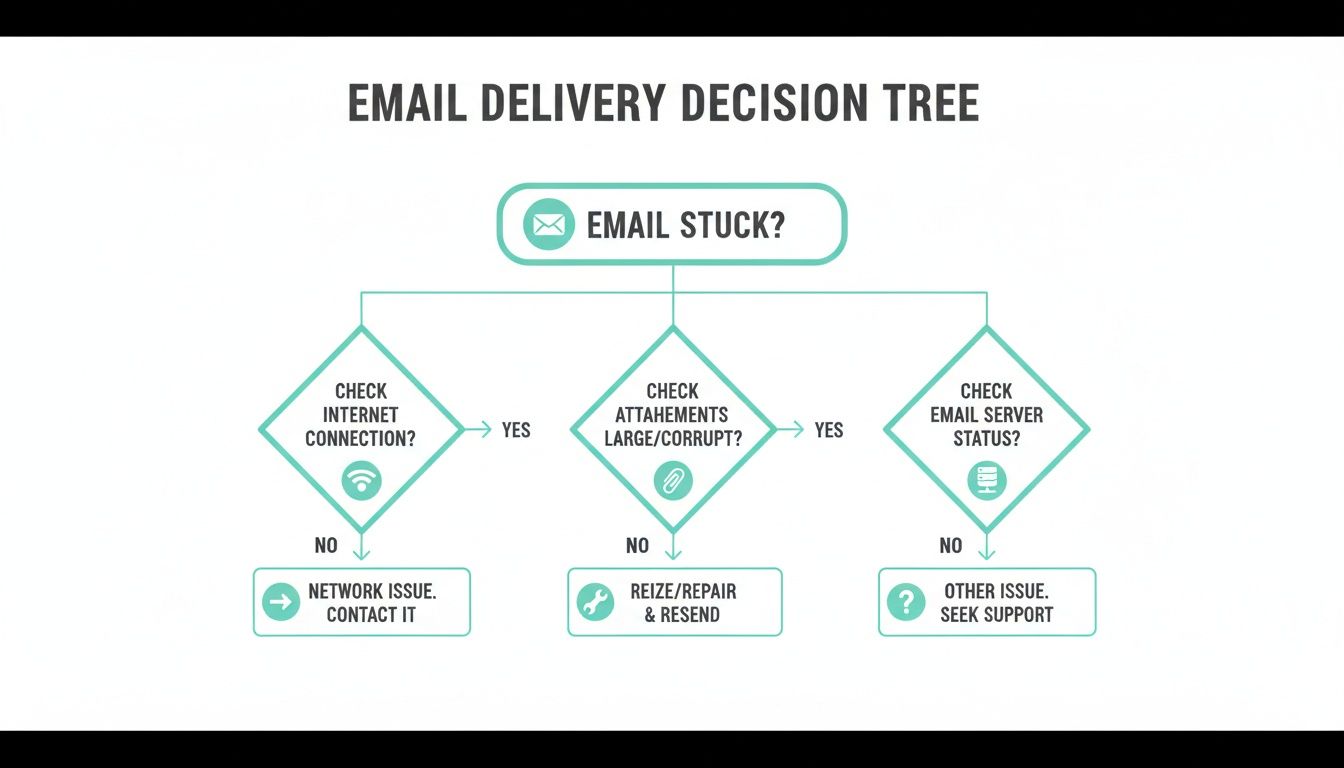
As you can see, it always pays to start with the simple stuff—like your connection and attachments—before you start worrying about more technical server-side problems.
Mobile Connectivity and User Behaviour
Here in Australia, our email habits also play a big part. With over 90% of us checking email daily across multiple devices and 64% favouring mobile, spotty connectivity is a major cause of stuck emails. Hopping between Wi-Fi and mobile data can easily interrupt an email while it's sending, creating a traffic jam in your outbox.
For a broader look at resolving email delivery failures, it's worth reading up on diagnosing the 'no emails coming through' problem, as many of the principles apply here too.
To help you quickly figure out what's going on, I've put together a simple diagnostic chart.
Quick Diagnostic Chart for Stuck Emails
Use this table to rapidly identify the most likely reason your email is stuck and determine the first action to take.
| Problem Area | Common Cause | First Thing to Check |
|---|---|---|
| Connectivity | No internet or "Work Offline" mode is on. | Can you browse a website like Google? |
| Attachments | A file is larger than the server's limit (usually 20-25 MB). | Open the stuck email and check the attachment size. |
| Authentication | Your saved password for the email account is wrong. | Go to account settings and re-enter your password. |
| Server Settings | Outgoing (SMTP) server details are incorrect. | Check your provider's recommended SMTP settings. |
This chart covers the most common scenarios and should point you in the right direction fast.
The core function of the outbox is to be a temporary holding area. If an email stays there for more than a minute, it’s a clear signal that something in the sending chain—from your device to the server—is broken.
Practical Fixes for Desktop Email Clients
It’s one of the most frustrating feelings in the digital world: you hit send, close your laptop, and assume your message is on its way, only to find it hours later, sitting stubbornly in your outbox. Unlike webmail, desktop clients like Microsoft Outlook and Apple Mail have their own unique quirks that can bring your workflow to a grinding halt.
For a lot of us, our email client is the command centre for our entire workday. It’s where we communicate, schedule meetings, and share critical documents. When it stops working, everything stops working.
The good news is that most of these outbox jams are caused by simple, easy-to-fix issues. Let's walk through how to clear the logjam in the two most popular desktop clients.
Unsticking Emails in Microsoft Outlook
Outlook is a true powerhouse, but its sheer number of features means there are a few more places things can go wrong. If your emails are piling up, there are a couple of usual suspects to check before you start thinking it’s a major server problem.
We've all been there – you've crafted the perfect email late at night, hit send, and shut down for the day. The next morning, you get a call asking where it is. Often, the culprit is an accidental offline toggle or a massive file clogging up the works.
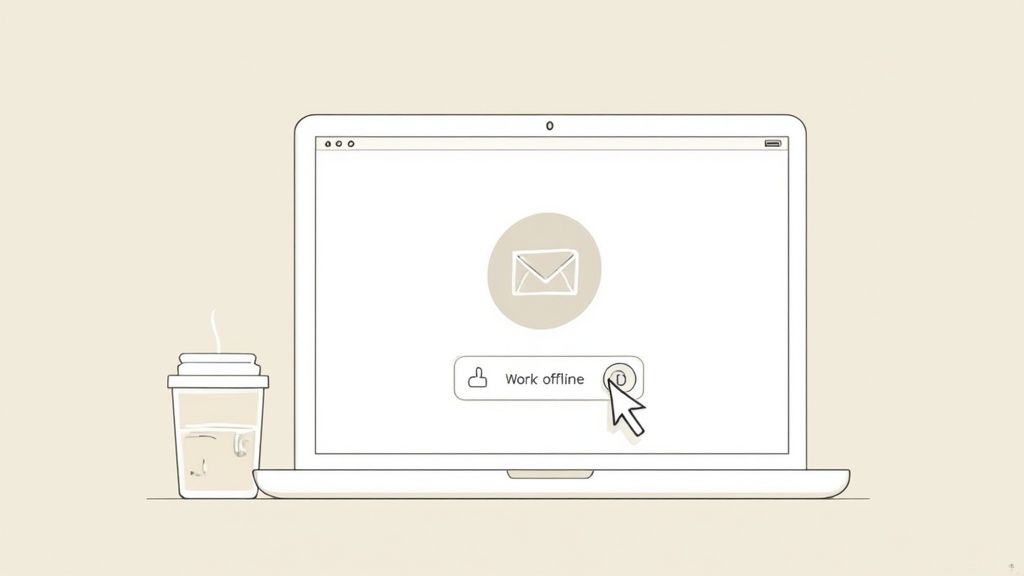
This simple button is designed for composing emails without an internet connection, but it's surprisingly easy to click by mistake.
Check the 'Work Offline' Toggle
First things first, glance at the bottom right corner of your Outlook window. If it says "Working Offline" or "Disconnected," you’ve likely found the problem.
To fix it, just head to the Send / Receive tab in the main ribbon at the top. You'll spot a button called Work Offline. If it’s highlighted, give it a click to reconnect. Outlook should immediately spring to life and start sending everything in your outbox.
Manually Force a Send/Receive
Sometimes, even when Outlook is online, it just needs a little nudge to get going. On that same Send / Receive tab, click the Send/Receive All Folders button on the far left. This forces Outlook to check for new mail and, more importantly, try sending all outgoing messages. It’s a simple trick that often clears up a temporary glitch.
Tackle Large Attachments
Picture this: you're trying to send a 50 MB project file. Most email servers, including many business-grade ones, cap attachments at around 20-25 MB. Your Outlook will try to send it, the server will keep rejecting it, and everything else in your outbox gets stuck behind it.
Here’s how to fix that bottleneck:
- Navigate to your Outbox folder.
- Find the email with the huge attachment, open it, and remove the file.
- Send a quick test email to yourself with no attachment to make sure things are flowing again.
- For that large file, a much better approach is to upload it to a cloud service like OneDrive or Google Drive and simply share the link in your email.
This not only solves the problem but is also considered better email etiquette since you aren't filling up your recipient's inbox. Many businesses find that integrating email with cloud storage is essential, and platforms like Microsoft 365 for business are built to make this seamless.
Resolving Stuck Emails in Apple Mail
Apple Mail users aren't off the hook when it comes to outbox issues, though the causes are often a bit different. Its sleek, minimalist design can sometimes hide the settings you need to troubleshoot.
A key takeaway for Apple Mail users is that problems often stem from incorrect outgoing server (SMTP) settings or a corrupted local mailbox cache, rather than an offline toggle.
Use the Connection Doctor
Apple has a brilliant built-in diagnostic tool called the Connection Doctor. It gives you a clear, simple report on whether your Mac can connect to your incoming and outgoing mail servers.
Here’s how to run it:
- With the Mail app open, click on Window in the top menu bar.
- Choose Connection Doctor from the dropdown menu.
A new window will pop up showing the connection status for each of your email accounts. If you see a red dot next to your SMTP (outgoing) server, you've found your problem. It's a clear sign of an issue with your password, server settings, or even a firewall getting in the way.
Verify Your Outgoing Mail Server Settings
Incorrect SMTP settings are the #1 reason for sending failures in Apple Mail, especially after you've recently changed your email password.
Here's the path to check them:
- Go to Mail > Settings (or Preferences on older macOS versions).
- Click the Accounts tab.
- Select the account that's giving you trouble.
- Click on the Server Settings tab.
- Find the Outgoing Mail Account section and use the dropdown to select Edit SMTP Server List.
In this window, double-check that the server name, port, and authentication method are exactly what your email provider specifies. A quick search on your provider’s support site will give you the correct details.
Rebuild Your Mailbox
Over time, the local data file for a mailbox can get a bit scrambled, leading to weird behaviour like stuck emails. Rebuilding a mailbox is a safe and effective way to fix this. It forces Apple Mail to delete its local cache and re-download a fresh copy of your messages from the server.
To do this, just select your Sent mailbox from the sidebar, click Mailbox in the top menu, and choose Rebuild. The process might take a few minutes, but it can often resolve those stubborn, unexplainable glitches.

Performance you can feel, backed by clients who depend on it. Read how our support and uptime create long‑term customer success.Power Your Business with Better Hosting
Solving Outbox Issues on Mobile and Webmail
Your phone is your office on the go, but when an email gets stuck in the outbox, it can feel like you've been cut off from the world. Unlike desktop clients with their detailed settings, mobile and webmail issues often stem from different, more subtle causes.
Mobile apps like iOS Mail and the Android Gmail app are at the mercy of your device's connection. A momentary drop in cellular signal as you walk into a lift can be enough to halt the sending process. On the other hand, webmail clients like Gmail or Outlook.com, which run in your browser, can be thrown off by browser glitches or conflicting extensions.
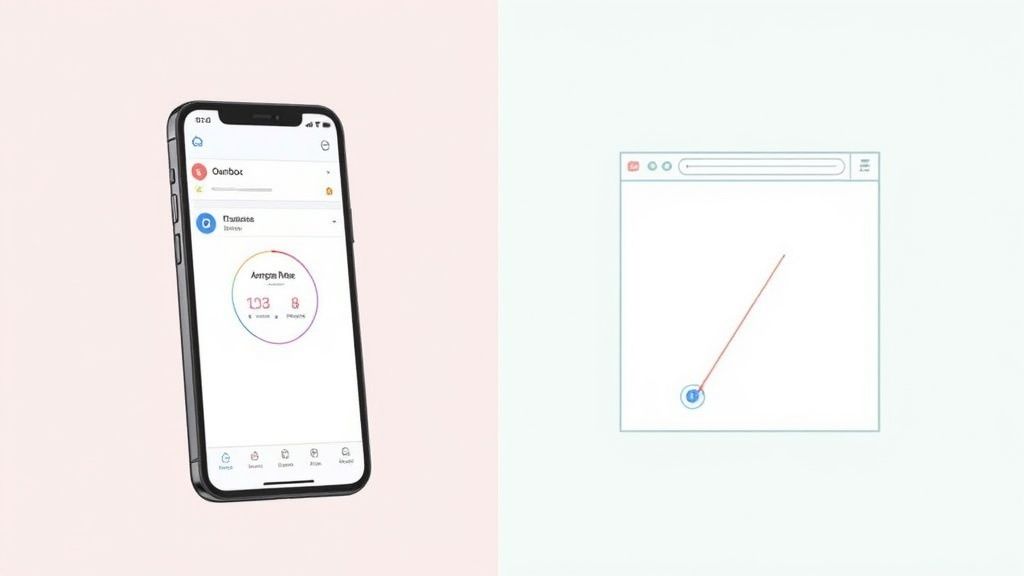
Let's look at how to tackle these unique challenges and get your messages moving again, whether you're on a phone, tablet, or using a web browser.
Troubleshooting Mobile Email Apps
When your phone's outbox gets jammed, the fix is usually quick and simple. The problem is rarely a deep settings issue; more often than not, it's just the app or the network connection needing a quick reset.
A classic scenario is sending an email with a few photo attachments while you’re out and about. Your phone might switch from a strong Wi-Fi signal to weaker cellular data, interrupting the upload and leaving the message in limbo. This is one of the most frequent causes of emails stuck in outbox on mobile devices.
Here are a few reliable tricks to try:
- Toggle Aeroplane Mode: This is the fastest way to reset all your device's network connections. Flick Aeroplane Mode on, wait about 15 seconds, and then switch it off. This forces your phone to re-establish its connection to both Wi-Fi and mobile networks, which can often be enough to push a stuck email through.
- Switch Your Connection: If you're on a patchy Wi-Fi network, turn it off and let your phone use mobile data instead (or vice versa). A more stable connection might be all your email app needs to finish the job.
- Clear the App's Cache: Over time, email apps accumulate temporary data that can become corrupted and cause weird behaviour. On Android, you can usually do this by going to Settings > Apps > [Your Mail App] > Storage > Clear Cache. On iOS, the simplest way to do this is often to delete and reinstall the app. It won't delete your emails, just the temporary files.
If you find that unreliable mobile data is a regular culprit for your outbox issues, it's worth exploring strategies to boost your mobile phone signal for a more stable connection.
Navigating Webmail Client Hiccups
Webmail is generally pretty solid, but because it runs inside your browser, it's open to a whole host of browser-related problems. If an email won't send from Gmail or another web-based client, the browser itself is the first place you should look.
One of the most common webmail sending issues I see is interference from a browser extension. An ad-blocker or a privacy-focused extension might mistakenly block the script that sends your email, causing it to hang indefinitely.
This can be frustrating because the email client itself gives no error message. The send button just doesn't seem to work, and your message goes nowhere.
Use Incognito Mode as a Diagnostic Tool
The quickest way to check if an extension is the culprit is to open your webmail in an incognito or private browsing window. These modes typically run without any extensions enabled by default.
If you can send the email from an incognito window without a hitch, you've confirmed an extension is the problem. Now you can go back to your normal browser window and disable your extensions one by one to pinpoint which one is causing the conflict.
Understanding Gmail's 'Undo Send' Feature
It’s also worth knowing about features that can create the illusion of a stuck email. Gmail's popular "Undo Send" feature is a perfect example.
When you click send, Gmail actually holds the message back for a set period (usually between 5 and 30 seconds) to give you a chance to recall it. During this window, the email hasn't actually been sent. While it isn't technically in an outbox, this intentional delay can sometimes be mistaken for a sending problem. You can check or adjust this setting in Gmail > Settings > General > Undo Send so you know exactly how long your messages are held before they're truly on their way.
Checking Your Server and Hosting Configurations
When you've exhausted all the options on your local device, network, and email client, it's time to look behind the curtain. If emails are still camping out in your outbox, the culprit is often hiding in your server or web hosting configurations. This is where your computer hands off the email to the internet, and any misstep here will stop a message dead in its tracks.
For anyone managing their own email hosting, getting these settings right is non-negotiable. It's like having the right key for a postbox; without it, you simply can't drop off your mail. Let’s walk through the essential server-side checks to make sure your messages are cleared for takeoff.
Verifying Your SMTP Details
The Simple Mail Transfer Protocol (SMTP) is the engine that actually sends your emails. If these settings are wrong in your email client, your messages are all dressed up with nowhere to go. This is an incredibly common snag, especially if you've recently changed your email password or moved to a new hosting provider.
You need to triple-check that three key details in your email client perfectly match what your hosting provider requires:
- SMTP Server Name: This is the address of the outgoing mail server, usually something like
smtp.yourprovider.comormail.yourdomain.com.au. - Port Number: Specific digital "doors" are used for sending email. While port 25 was the old standard, for security reasons, modern providers almost always use port 465 (with SSL/TLS encryption) or 587 (with STARTTLS encryption). Picking the wrong one is a guaranteed failure.
- Encryption Method: Your connection to the server must be secure. Always select SSL/TLS or STARTTLS to protect your login details and the content of your emails. Unencrypted connections are a relic of the past and rarely supported.
Think of it this way: you have the correct street address (server name), but you're trying to use the wrong letterbox (port number) with a key that doesn't fit (encryption). Everything has to line up perfectly.
A tiny typo in the server name or selecting the wrong port is one of the most frequent—and overlooked—reasons for emails getting stuck. Always copy and paste these details directly from your hosting provider’s documentation to sidestep any errors.
The Critical Role of Authentication
Proper authentication isn't just a suggestion; it's a hard requirement for sending emails. It's how your mail server confirms you are who you say you are, which stops spammers from hijacking your address to blast out junk mail. If your email client isn't sending the correct username and password, the server will flatly refuse to send a thing.
This often pops up right after you've updated your email password on the server but forgotten to update it in your email client (like Outlook or Apple Mail). Your client keeps trying to log in with the old password, and the server, quite rightly, keeps shutting the door.
A Real-World Example of Authentication Failure
Imagine you’ve just changed your business email password in your web hosting control panel. You can receive emails just fine, but nothing you try to send will leave. This is a classic sign of an authentication mismatch. Your incoming mail (IMAP/POP3) settings are probably still working, but the outgoing (SMTP) server now needs that new password to authorise sending.
The fix is to dive into your email account settings and specifically update the password for the outgoing (SMTP) server.
Checking Server-Level Limits and Policies
Beyond your own settings, your hosting provider has its own rulebook for the server. These rules are there to keep the server healthy and secure for everyone, but they can sometimes be the reason your emails are stuck in your outbox.
For instance, here at UpTime Web Hosting, you can find many of these settings right inside your control panel. Here’s what to look for:
- Attachment Size Limits: Your email client might happily let you attach a 50 MB file, but the server will almost certainly reject it. Most hosts cap attachments somewhere around 20-25 MB. Always check your hosting plan's limits.
- Hourly Sending Limits: To combat spam, hosting providers restrict how many emails can be sent per hour. If you've just fired off a large marketing email to your list, you might have hit that limit, causing any other emails to get queued up.
- Spam Filtering and Security Policies: Overly aggressive server-side spam filters can sometimes flag and block legitimate outgoing emails if they contain certain links or phrases that look suspicious.
These server-level policies are becoming more stringent across the board. In Australia, stricter authentication, anti-phishing measures, and automated throttling have successfully cut down spam but have also led to a statistical rise in temporary email deferrals.
Accessing Hosting Knowledge Base Articles
Navigating server settings can feel a bit technical, but you're not expected to do it alone. Any reputable hosting provider will have a library of support documentation to guide you. Our knowledge base, for example, has step-by-step instructions for setting up popular email clients to work perfectly with our servers, including the exact SMTP details you'll need.
Using these resources is the fastest and most reliable way to solve server-side sending problems. If you're setting up an email for the first time or just need a refresher, our guide on how to set up a business email covers all these fundamentals. A few minutes getting it right from the start can save you hours of headaches later on.
Host your website with our 5-star rated, cPanel website hosting plans.
Super fast servers, with security included and hosted in your choice of Australian Data Center.
View cPanel Plans
Proactive Habits to Prevent Stuck Emails
Dealing with a logjam of messages when you have emails stuck in outbox is a real headache. But what if you could stop the problem from happening in the first place? It's much easier than you think. A few simple habits can dramatically cut the chances of your important communications getting grounded.
This isn't about deep technical knowledge; it's just about being a bit smarter with how you send emails, especially when attachments are involved. Make these practices part of your daily workflow, and you'll keep your outbox clear and your messages flying out the door.
Master Your Attachment Management
Nine times out of ten, the culprit behind a sending bottleneck is a massive attachment. We've all been there—trying to email a batch of high-res photos or a chunky PDF report. The better way? Switch to using cloud storage links.
Services like Google Drive, Dropbox, or OneDrive are your best friend here. Just upload the file and pop a shareable link into your email. This solves a few problems at once:
- You completely sidestep those pesky server attachment limits, which usually hover around 20-25 MB.
- Your email zips off instantly instead of chugging along while the huge file uploads.
- It saves a ton of storage space in your sent items and, just as importantly, in your recipient's inbox.
Honestly, this one change—shifting from attaching files to linking them—is probably the single most effective thing you can do to avoid outbox jams. It’s just a more modern and efficient way to share big files.
Keep Your Software and Settings Updated
It sounds obvious, but you’d be surprised how often outdated software is the root cause of email trouble. Those regular updates for your email client (like Outlook or Apple Mail) and operating system aren't just for new features; they contain critical bug fixes. Many of these patches directly address the kind of connectivity and sync issues that leave emails stranded.
On a similar note, it’s a good idea to give your email account settings a quick check-up now and then. This is particularly important right after you've changed your email password. A mismatch between the password stored in your email client and the one on the server is a guaranteed way to get your emails stuck in outbox. Just take a minute to confirm your SMTP server details and credentials are all correct.
Maintain a Clean and Healthy Outbox
Sometimes, a cluttered outbox can cause problems all on its own, especially if old, unsent messages have been festering in there for ages. These can occasionally corrupt the folder and prevent new messages from leaving. Get into the habit of regularly peeking into your outbox and deleting any old, failed sends that are no longer needed.
Think of it as basic digital hygiene. In Australia, email delivery is a serious business. Recent studies show an average deliverability rate of 98.7% among major providers. That sounds great, but it still means about 1.3% of perfectly legitimate emails get delayed or lost—often leading to an outbox backup for the sender.
A well-maintained outbox, paired with robust tools like our Premium Email Filtering service, gives your messages the best possible chance of landing in that successful majority.
A Few Common Questions We Get About Stuck Emails
We've helped countless clients troubleshoot email problems, and a few questions pop up time and time again. To save you a bit of detective work, here are the quick answers to the most common queries we see.
Why Is My Email Stuck in My Outbox and Not Sending?
Nine times out of ten, it’s one of three culprits. The first thing to check is your internet connection. If you're offline or the signal is patchy, your email client simply can't pass the message to the mail server. It's a dead end.
Next, have a look at the attachment size. Many email servers have a strict limit, usually around 20-25 MB. If you try to send a file larger than that, the server will reject it, and that one oversized email can jam up everything behind it.
Finally, incorrect server settings are a classic reason. An old password that hasn't been updated in your email client, or the wrong outgoing mail (SMTP) server address, will stop your client from authenticating. No authentication, no sending.
Does the Outbox Mean My Email Has Been Sent?
No, quite the opposite. Think of the outbox as a departure lounge. Your email is packed and ready to go, but it hasn't boarded the plane yet.
An email only moves over to your 'Sent' folder after it has been successfully handed off to your outgoing mail server. If it's still sitting in the outbox, it hasn't gone anywhere, and your recipient definitely hasn't received it.
How Long Will an Email Stay in the Outbox?
It'll sit there pretty much forever, or at least until the problem is fixed or you manually delete it. The good news is that most email programs will automatically try again as soon as you reconnect to the internet or correct the settings.
If an email has been lingering for more than a few minutes, that’s your cue to start investigating. It's a clear sign that something needs your attention.
Your outbox is actually a useful fail-safe. It holds onto your message so it doesn’t get lost if your connection drops, and it will keep trying to send it until it succeeds.
Can I Edit or Delete an Email Stuck in the Outbox?
Yes, absolutely. As long as that email is in the outbox, you're still in full control. You can open it up to tweak the text, remove that massive attachment that's causing the blockage, or just delete it entirely if you've changed your mind. This is often the first step in fixing the problem.
Just remember, once it successfully leaves the outbox and lands in your 'Sent' folder, it's gone. At that point, you can't edit or stop it unless your email service has a specific "undo send" or recall feature.
Don't let email headaches slow your business down. UpTime Web Hosting offers reliable, Australian-based hosting with expert local support to keep your communications flowing smoothly.
Discover our secure and high-performance hosting solutions today.