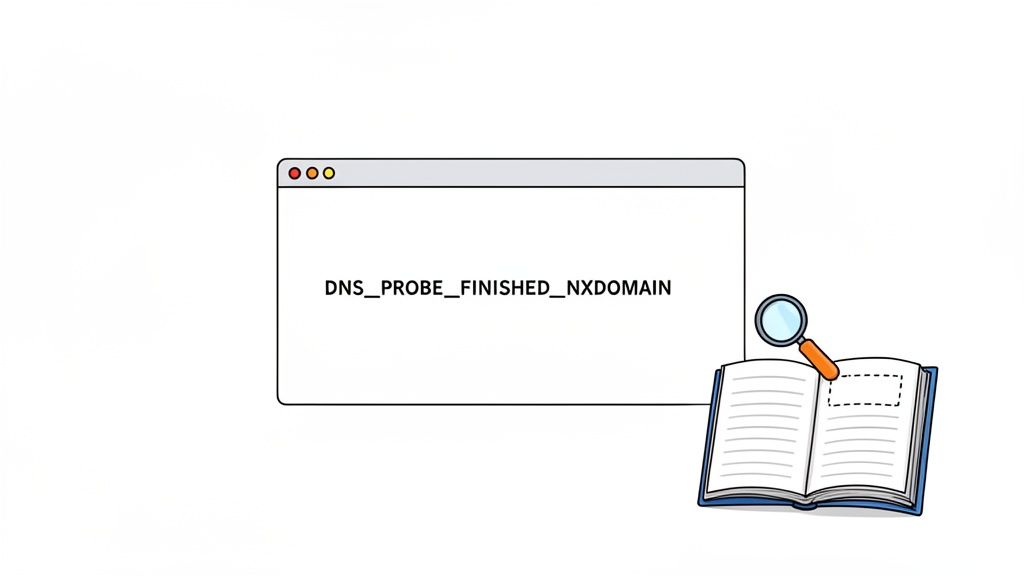
That sinking feeling when a website won't load and your browser throws up a DNS_PROBE_FINISHED_NXDOMAIN error is a common frustration for just about everyone online.
Think of it like this: you've tried to look up a website in the internet's giant address book (the DNS), but the entry simply isn't there. The 'NXDOMAIN' part literally means 'Non-Existent Domain'. Your browser sent out a search party, but it came back empty-handed.
The tricky part is that this problem can pop up for a few different reasons, and the cause isn't always obvious. It could be an issue on your end, a hiccup with your network, or a problem with the website itself.
Why You Are Seeing This DNS Error
Before diving into a dozen different fixes, it helps to know where the problem might be coming from. Generally, the root cause falls into one of three buckets:
- Client-Side Issues: This is anything to do with your own device. It could be a clogged-up DNS cache on your computer, a finicky browser setting, or even an overzealous firewall or antivirus program getting in the way.
- Network Problems: Sometimes the issue is bigger than just your computer. Your home or office router could be acting up, or your Internet Service Provider (ISP) might be having a bad day, especially on networks like the NBN where DNS server outages can occur.
- Server-Side Issues: The problem might have nothing to do with you at all. The website's domain name could have expired, or its DNS records might be misconfigured on the hosting server. This is surprisingly common.
To get a clearer picture of where to start your troubleshooting, this flowchart breaks down the process logically. You always want to check the easiest things first.
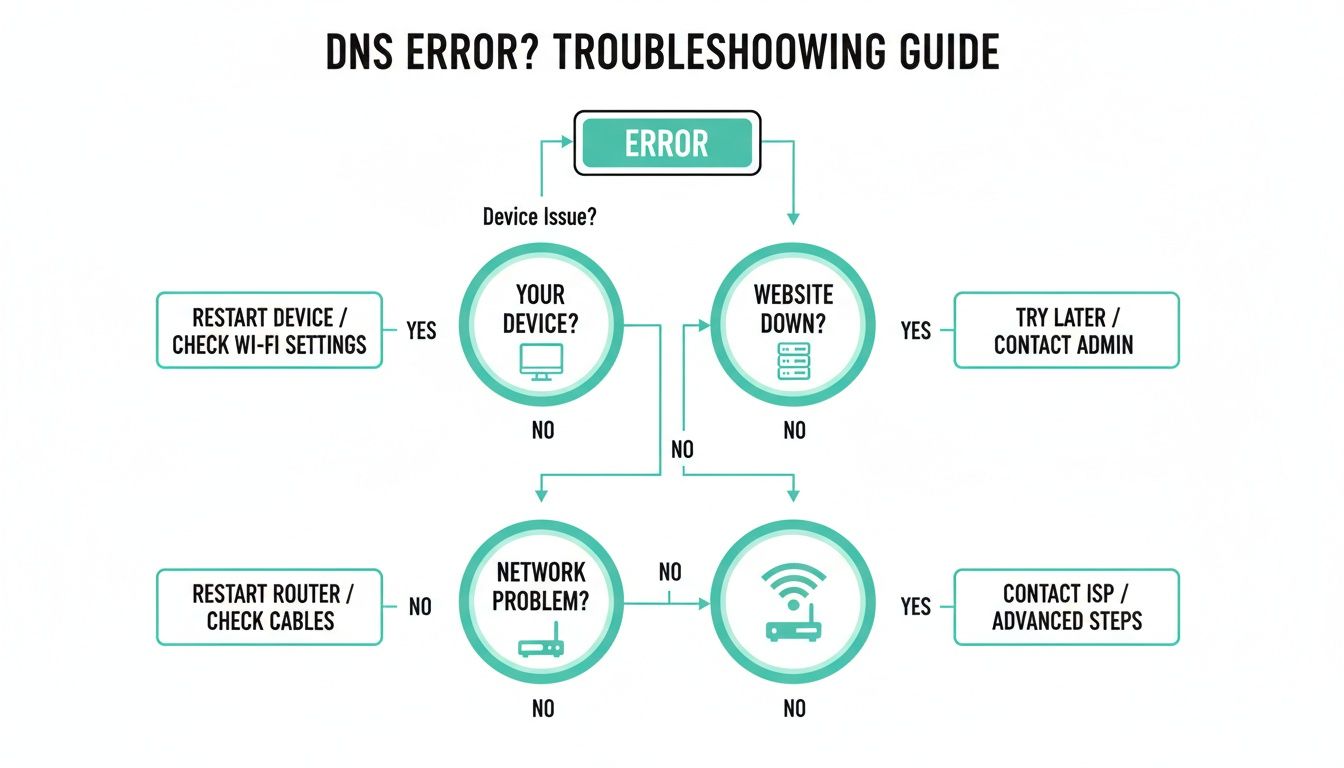
As you can see, the best approach is to start with your own computer, then check your local network, and only then start wondering if the website itself is offline. This systematic method will save you a ton of time and help you pinpoint the real issue much faster.
To help you quickly diagnose the issue, here’s a quick summary of the most frequent reasons you might be seeing this error.
Common Causes of the NXDOMAIN Error at a Glance
| Cause Category | Common Issue | Who It Affects Most |
|---|---|---|
| Client-Side | Outdated DNS cache or incorrect browser settings. | Individual users on a specific device. |
| Network | Router malfunction or ISP DNS server outage. | Everyone on the same Wi-Fi or local network. |
| Server-Side | Expired domain or incorrect DNS records. | All visitors trying to access that specific website. |
Looking at this table can often give you a good idea of where to focus your efforts. If your work colleagues can access the site but you can't, the problem is almost certainly on your end.
A Deeper Look at the Technicals
In recent years, Australian businesses have definitely seen their fair share of DNS-related outages, and the dns probe finished nxdomain error is a major culprit, often pointing to simple domain resolution failures.
At its heart, the DNS (Domain Name System) is the service that translates a human-friendly domain name (like uptimewebhosting.com.au) into a computer-friendly IP address. When that translation process fails because the name you typed in can't be found, you get the NXDOMAIN error.
This can also happen during what's known as DNS propagation—that awkward waiting period after you’ve updated your DNS records but before the changes have spread across the entire internet. If you want to learn more about that, our guide on what DNS propagation is is a great resource.
For those who really want to get into the nuts and bolts of how networks operate and what causes these resolution failures, the CompTIA Network+ Study Guide offers a fantastic deep dive into the underlying principles.

Performance you can feel, backed by clients who depend on it. Read how our support and uptime create long‑term customer success.Power Your Business with Better Hosting
Easy Fixes to Try on Your Own Computer
When you hit the dns probe finished nxdomain wall, it’s easy to assume the problem is some complex server-side issue. But more often than not, the solution is surprisingly simple and can be sorted out right from your own computer. Let's start with a few of the most common client-side fixes.
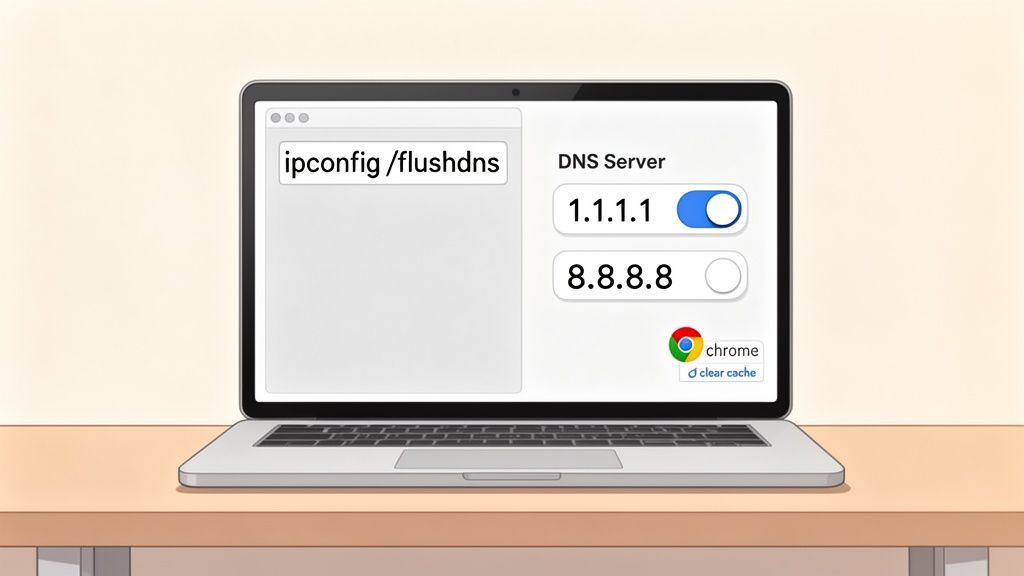
Before you dive into anything more technical, the first and most effective step is usually to clear your local DNS cache. Your computer keeps a temporary record of the IP addresses for websites you've visited. If a site's address changes, that old, cached record will point you to the wrong place, triggering an error.
Flushing this cache forces your computer to look up the fresh, correct address from scratch. We’ve put together a full walkthrough if you need it, and you can learn more about how to flush your DNS cache in our guide. This simple action fixes a huge number of connection problems.
Try Using a Public DNS Server
If clearing the cache didn't do the trick, the next thing to look at is your DNS servers. By default, you’re probably using the DNS servers provided by your Australian Internet Service Provider (ISP), like Telstra or Optus. While they’re usually reliable, they can sometimes be slow or have temporary outages.
You can easily switch to a free, public DNS service to see if that solves the problem. This is a fantastic troubleshooting step because it completely bypasses your ISP's DNS infrastructure.
Two of the most popular and reliable public DNS providers are:
- Cloudflare DNS: Primary
1.1.1.1and Secondary1.0.0.1 - Google Public DNS: Primary
8.8.8.8and Secondary8.8.4.4
Changing your DNS settings is a straightforward process in your computer's network preferences. For example, in Windows 11, you would go to Settings > Network & internet > Ethernet (or Wi-Fi), click Edit next to "DNS server assignment," choose Manual, and enter the new addresses. If the website loads correctly after you switch, you’ve confirmed the issue was with your ISP’s DNS.
Check Your Browser-Specific Settings
Sometimes the problem isn’t your operating system but your web browser itself, especially if you're a Google Chrome user. You might not realise it, but Chrome keeps its own internal DNS cache, completely separate from your computer's.
Think of it like this: even after you’ve cleaned out the main filing cabinet (your OS DNS), there might still be an old, incorrect sticky note left on your desk (Chrome's cache). You need to get rid of that too.
To clear it out in Chrome, just type chrome://net-internals/#dns into your address bar and hit Enter. You'll see a button that says "Clear host cache". Give that a click, and you'll wipe Chrome’s internal records, forcing it to fetch fresh data for every site.
It's also worth noting that Chrome has experimental features that can sometimes mess with network connections. You can find these by typing chrome://flags in the address bar. If you’ve been tinkering with any settings in there, try resetting them to their defaults to rule out any conflicts causing the dns probe finished nxdomain error.
Checking Your Router and Internet Connection
So, you’ve tried all the client-side fixes and you’re still staring at that frustrating DNS_PROBE_FINISHED_NXDOMAIN error. Don’t worry, this is a common point in the troubleshooting journey. It usually means the problem isn’t with your computer, but somewhere in your network—either your router or even your Internet Service Provider (ISP).
Let's start with the oldest trick in the IT book, because it genuinely works. Unplug your router, wait a good 30 seconds, and plug it back in. This simple power cycle clears out any temporary glitches or data clogs in the router's memory that could be causing DNS errors. You'd be surprised how often this is all it takes to get back online.
Test From a Different Network
One of the quickest ways to figure out where the fault lies is to isolate the network. Just grab your phone, switch off its Wi-Fi connection, and try to visit the website using your mobile data (4G or 5G).
Did the site load properly on mobile data? If so, you’ve just confirmed the problem is somewhere in your local internet setup. This neatly narrows the culprits down to your router or your ISP.
By testing on a separate network, you effectively rule out any issues with the website itself. This insight is crucial because it stops you from chasing server-side problems when the cause is much closer to home.
Widespread connection issues often trace back to ISP DNS server outages. In fact, major outages in Australia have previously affected millions of NBN-connected homes and businesses for hours at a time, all due to DNS problems.
Is Your ISP Having a Bad Day?
If a router restart didn't do the trick and the site works fine on your phone, the next likely suspect is a problem with your ISP. It happens. Major Australian providers occasionally experience service disruptions that mess with DNS resolution.
Before you spend an hour on hold, do a quick search for "[Your ISP Name] outage" or check their social media pages. For example, a search for "Telstra outage" on X (formerly Twitter) or checking a third-party service like Downdetector can reveal widespread issues.
This error is also a close cousin to another common issue where the DNS server fails to respond at all. You can read more in our guide on what to do when a DNS server is not responding.
If the outage search comes up empty, it's time to contact your ISP. Being prepared for the call will save you a lot of time. Have this info handy:
- The exact error message: Tell them you're seeing "DNS_PROBE_FINISHED_NXDOMAIN".
- Which websites are affected: Is it just one site or are multiple sites failing to load?
- The steps you’ve already taken: Let them know you've already restarted your router and tested on a different network.
Giving them this information upfront helps their support team skip the basic script and move straight to more advanced diagnostics, getting you a solution much faster.
Host your website with our 5-star rated, cPanel website hosting plans.
Super fast servers, with security included and hosted in your choice of Australian Data Center.
View cPanel Plans
Verifying Your Domain and DNS Records as a Website Owner
If you're the one running the website and you start getting reports of a dns probe finished nxdomain error from visitors, it's time to stop looking at user-side fixes and start investigating your own server and domain setup. The problem might actually be coming from your hosting configuration.
The first place to check is surprisingly simple, and it happens all too often: your domain name may have expired. It’s an easy thing to miss, but it has immediate and severe consequences for your website's availability.
Confirm Your Domain Is Active
An expired domain instantly becomes a non-existent domain to the rest of the internet. When someone tries to visit, the DNS lookup fails because the registration records have been scrubbed from the global system. This leads directly to that NXDOMAIN error.
This is a more widespread issue than you might think. The auDA Domain Health Index has reported that a significant percentage of new .au registrations run into DNS_PROBE_FINISHED_NXDOMAIN errors, with thousands of cases tied to unregistered or lapsed domains among small Aussie businesses.
To stop this from happening to you, log in to your domain registrar (the service where you bought your domain name, like GoDaddy, Namecheap, or VentraIP) and check two key things:
- Expiration Date: Make sure your domain is active and not about to expire.
- Auto-Renewal: Switch on the auto-renewal feature. This is the single best way to prevent your domain from expiring by accident and causing costly downtime.
A simple "set it and forget it" approach with auto-renew is one of the most effective preventative measures you can take. It eliminates the risk of human error and ensures your domain—the front door to your online business—remains open.
Check Your DNS Records in cPanel
If your domain is active and paid for, the next step is to dig into your DNS records. These records are the specific instructions that tell browsers where to find your website. Even a tiny mistake here can knock your entire site offline. At UpTime Web Hosting, you can get to these settings easily through your cPanel dashboard.
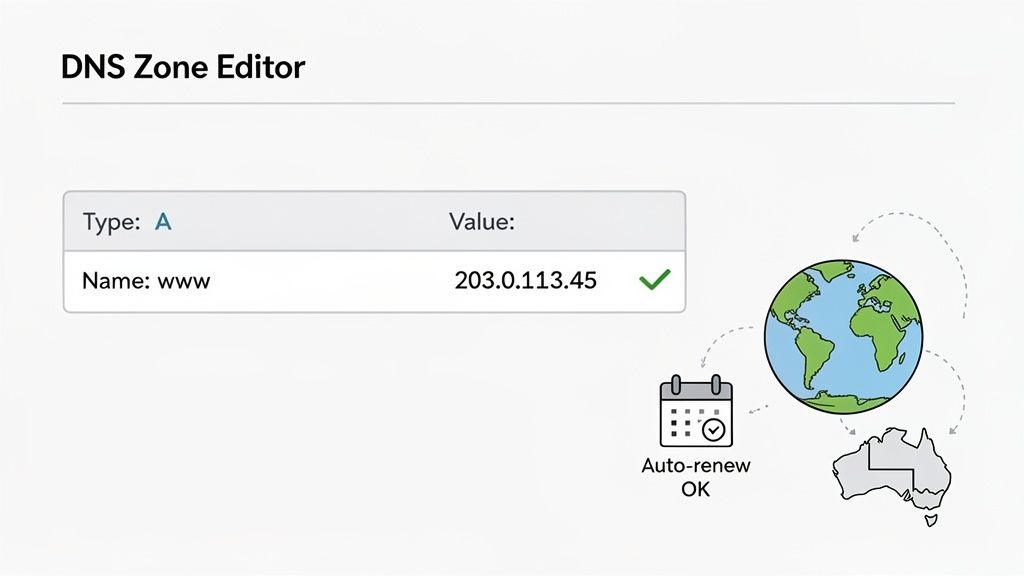
The most critical record you need to verify is the ‘A’ record. This points your domain name (like yourwebsite.com.au) to the unique IP address of your hosting server. Think of it as linking your business name to its physical street address.
For instance, your A record should look something like this inside your cPanel Zone Editor:
| Name | TTL | Type | Record |
|---|---|---|---|
| yourwebsite.com.au. | 14400 | A | 103.123.45.67 |
You must ensure the IP address in the 'Record' column is an exact match for the one we provided in your welcome email from UpTime Web Hosting. If even one number is off, browsers will be sent to the wrong server, and the lookup will fail. You can find more detail in our guide on how to find your nameserver information.
For website owners, if you're frequently hitting NXDOMAIN errors, it might be time to evaluate your hosting solution. Exploring different managed WordPress hosting providers can give you access to more robust support and better tools for managing your DNS.
Just remember, after you make any corrections to your DNS records, it can take a few hours for the changes to spread across the internet. This process is called DNS propagation, so a little patience is needed.
When to Contact UpTime Web Hosting Support
If you've systematically worked through all the troubleshooting fixes and are still staring at that frustrating dns probe finished nxdomain error, it’s probably time to stop searching and let our experts take a look. Knowing when to raise the white flag can save you hours of going around in circles.
Our guideline on this is pretty straightforward. You should get in touch with our support team if you've already:
- Confirmed Your Domain is Active: You’ve double-checked with your domain registrar and know for a fact your domain hasn't expired.
- Verified Your DNS Records: You've logged into cPanel, navigated to your DNS Zone Editor, and all the records look correct to you.
- Waited for Propagation: You’ve given any recent DNS changes at least a few hours to fully kick in across the internet.
If you can tick all three of those boxes and the error is still there, it's our turn to step in. There’s really no need to spend any more of your valuable time trying to diagnose what could be a more complex server-side or network issue.
How to Get the Fastest Help
When you’re ready to reach out, the most efficient way to get a resolution is by submitting a detailed support ticket through our client portal. This makes sure your request is properly logged, tracked, and sent directly to the right technical team.
This is what our support portal looks like, where you can submit a ticket or find our contact details.
To help us get to the bottom of the issue almost instantly, giving us the right information upfront makes all the difference.
Key Takeaway: The quality of the information you provide in your support ticket directly impacts how quickly we can solve your problem. A well-detailed ticket gives our technicians the clues they need to start working on a fix immediately.
When you submit your ticket, please try to include:
- The affected domain name.
- A screenshot of the exact error message you're seeing.
- A quick summary of the troubleshooting steps you’ve already tried.
This handful of details helps our 100% Australian support team pinpoint the problem fast. Our local experts are deeply familiar with the specific network conditions affecting users in Sydney, Melbourne, and right across the country.
For immediate assistance, you can also reach us on our 1300 number, which is listed in the support section. Our entire focus is on getting your Australian business back online with as little disruption as possible. And for detailed guides on common issues, our UpTime Web Hosting Knowledge Base is also available 24/7.
Your NXDOMAIN Questions, Answered
Getting rid of a dns probe finished nxdomain error is a great feeling, but you might still be left wondering why it happened in the first place. Understanding the finer details can help you prevent this issue from ever disrupting your workflow or taking your website offline again.
Let's dig into some of the most common questions we get from customers, so you can stop this error from coming back.
Could My Firewall or Antivirus Be the Culprit?
You bet. Overly protective firewall or antivirus programs can sometimes get a bit too enthusiastic, interfering with how your computer handles DNS lookups. They might mistakenly flag a perfectly safe website as a threat, blocking your browser from finding its IP address and triggering the NXDOMAIN error.
A quick way to check is to temporarily disable your security software and try visiting the website again. If the site loads perfectly, you’ve found your culprit. From there, you'll need to dive into your software's settings and add an exception for the domain you're trying to reach, a process often called "whitelisting."
Why Does the Error Only Happen on Chrome?
This is a classic sign that the problem is stuck inside Chrome itself, not with your broader network or internet connection. Chrome uses its own DNS cache, which can stubbornly hold onto old, incorrect information even after you’ve flushed your computer’s system-wide cache.
Your first move should be to clear Chrome’s internal host cache. Just type chrome://net-internals/#dns into your address bar and click the "Clear host cache" button. If that doesn't do the trick, an experimental feature could be to blame. You can find these at chrome://flags and click the button to reset them all to default. This is exactly why testing in a different browser like Firefox is such a valuable first step.
When an error is specific to one browser, it's a huge clue that the problem is local to that application. By isolating it to Chrome, you can skip checking your router or calling your ISP and focus right where the issue is.
How Can I Stop This Error from Happening to My Own Website?
As a website owner, a little prevention goes a long way, especially when downtime is on the line. Being proactive is the best way to save yourself from the headache of your own visitors seeing a dns probe finished nxdomain error.
Here are the most important preventative steps you can take:
- Set Your Domain to Auto-Renew: It sounds simple, but an expired domain is one of the most common reasons for this error. Log in to your domain registrar and make sure auto-renewal is switched on. This one small action can prevent a catastrophic—and totally avoidable—outage.
- Be Meticulous with DNS Changes: Anytime you're editing DNS records in your UpTime Web Hosting cPanel, double-check everything. The IP address in your 'A' record needs to be perfect. A single wrong number will point browsers to a non-existent server and immediately trigger the error.
- Test Before You Go Live: You can use advanced tools to see how your site will resolve from different parts of the world before you launch. In fact, you can learn more about using the hosts file to test websites right here in our knowledge base.
Making these actions a regular habit will dramatically lower the chances of your own website becoming a "non-existent domain."
At UpTime Web Hosting, we're committed to keeping your site fast, secure, and always online. Our 100% Australian support team is here to help with any DNS issues, from simple record checks to complex troubleshooting. Explore our reliable hosting plans and see how we can support your business at https://uptimewebhosting.com.au.