In short
A WordPress malware removal plugin can safely clean some infections when the site still runs, the scanner can reach the affected files or database records, and every change can be backed up or quarantined first. It cannot prove the hosting account is clean, recover unknown custom code, close stolen credentials, or remove persistence outside its permissions.
Key takeaways
- A clean plugin scan means no threats were detected within the scanned scope, not that the whole hosting account is clean.
- Quarantine and clean-file replacement are usually safer first actions than deleting every file marked as suspicious.
- Plugin-only cleanup should stop if WordPress administration is inaccessible, malware returns, or several sites in one account are affected.
- Complete recovery includes closing the original entry point, rotating credentials and checking external security warnings.
- Free malware scanners exist, but free access does not guarantee database scanning, automatic repair or human review.
Table of contents
- Can a WordPress plugin safely remove malware?
- What can a WordPress malware removal plugin actually clean?
- What can a plugin miss even after it reports a clean site?
- When should you stop using the plugin and call the host?
- What is the safest cleanup order?
- How do you choose a malware removal plugin without trusting marketing?
- What else do site owners ask about malware removal plugins?
- What should you do next?
Can a WordPress plugin safely remove malware?
Yes, a WordPress plugin can safely remove some malware when the site still runs, the scan can reach every affected location, and each change is reversible. A plugin is not enough when the compromise extends to the hosting account, server configuration, stolen credentials, other sites or code the scanner cannot verify.
Safety is not defined by the presence of a clean button. A safe cleanup preserves evidence, creates a labelled backup of the infected site, records what changed and provides a way to reverse a false positive.
The current WordPress.org hacked-site guidance recommends documenting the symptoms, reviewing every access point and changing credentials again after the site is clean. That wider response matters because deleting a malicious file does not remove a stolen password or fix the vulnerability that allowed the file to be written.
A plugin also runs inside the environment being investigated. If an attacker can modify WordPress files, administrator accounts or scheduled tasks, the scanner may be disabled, altered or repeatedly bypassed. The WordPress hardening handbook therefore treats application security, file permissions, server controls and external monitoring as separate layers.
Use the incident boundary, not the clean button
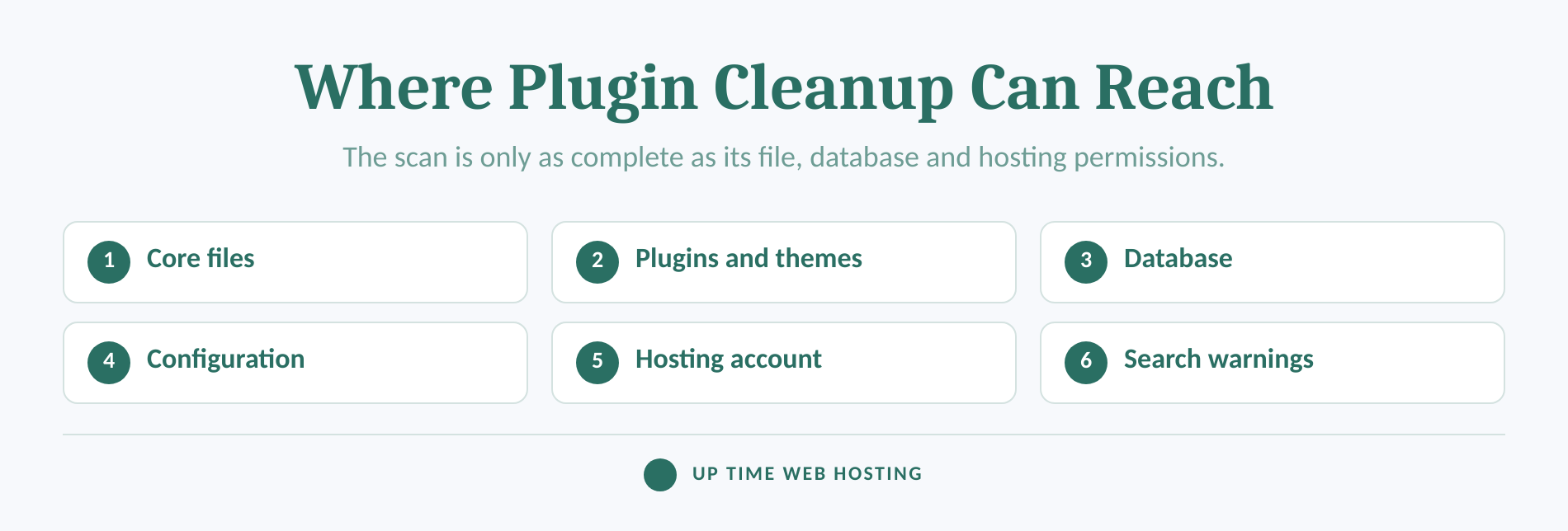
Plugin cleanup is a reasonable first response when WordPress administration works, the infection appears limited to one installation, the scanner covers both files and the database, and a current backup exists. The site should also remain stable enough to review the findings rather than accepting automatic deletion blindly.
If those conditions are missing, preserve the evidence and escalate before changing more files. A damaged site is often recoverable; a damaged site with its only useful evidence deleted is harder to diagnose.
A plugin is a safe cleanup tool only when its scan reaches the whole incident and every change can be reversed.

Performance you can feel, backed by clients who depend on it. Read how our support and uptime create long‑term customer success.Power Your Business with Better Hosting
What can a WordPress malware removal plugin actually clean?
Capabilities vary, but a capable plugin may identify known malware signatures, changed core files, suspicious code, injected database content and vulnerable software. It may then repair, replace, quarantine or delete an item, but each action has a different level of risk.
Official checksums are particularly useful for standard software. The wp core verify-checksums command compares WordPress core files with WordPress.org checksums, while wp plugin verify-checksums can check plugins distributed through WordPress.org.
Checksums can reveal that a known file changed or that an unexpected file appeared in a protected directory. They do not decide whether an intentional customisation is safe, and they cannot verify every commercial or custom plugin.
The 2024 WordPress Developer Blog guide to website security checks with WP-CLI explains that checksum data may be unavailable for custom software and plugins not hosted on WordPress.org. A missing checksum is therefore a reason for manual comparison, not proof of malware.
Database scanning is another feature that must be confirmed rather than assumed. An infection can place spam links, redirects, unfamiliar administrator accounts or malicious values in posts, options and user records. A file-only scan will not inspect those records.
What each cleanup action changes
| Action | What it does | Main risk | Best use |
|---|---|---|---|
| Repair | Removes or rewrites the suspicious part of a file or record | Legitimate code may be altered if the detection is wrong | The malicious change is precisely identified |
| Replace | Installs a known clean copy of a standard file or package | Unrecorded custom edits may be lost | Official core, plugin or theme files are available |
| Quarantine | Moves, renames or disables a suspicious file | A required feature may stop working | The finding needs review before permanent removal |
| Delete | Permanently removes the selected item | Recovery may be difficult without a backup | The item is confirmed as malicious and unnecessary |
Automatic replacement can be appropriate for a modified standard core file when an official clean copy is available. Automatic deletion is harder to justify for a custom theme, an unfamiliar integration or code that controls orders, bookings or payments.
A useful scan report should show the original path, why the item was flagged, the proposed action and a record of the change. A warning that only says suspicious file is not enough information for a business owner to approve permanent deletion.
A malware plugin is most dependable when it compares known software, scans the database and offers reversible actions with a clear log.
What can a plugin miss even after it reports a clean site?
A clean result means the scanner found nothing within the locations and rules it used. A clean result does not prove that the hosting account, credentials, scheduled tasks, backups, sibling websites or external reputation systems are clean.
Common blind spots include:
- Files outside the WordPress directory: A scanner may not have permission to inspect account-level temporary directories, backups or another site under the same hosting login.
- Hosting and server persistence: Malicious cron jobs, altered server rules, unfamiliar SSH keys or compromised control-panel users can recreate deleted files.
- Stolen credentials: Removing code does not invalidate a stolen WordPress, hosting, SFTP, database or email password.
- Custom software: A scanner cannot reliably restore unknown legitimate code when no trusted original or clean backup exists.
- Unscanned database records: File scanning will not find an injected option, user or post if database scanning is absent.
- The original vulnerability: Malware removal and vulnerability scanning answer different questions. One looks for malicious changes; the other looks for weaknesses that may permit another compromise.
- Cloaked behaviour: Some malicious pages or redirects appear only for search crawlers, particular referrers, devices or locations.
As of September 2026, Google's Security Issues report guidance states that its example URLs are samples rather than a complete list. Google also requires every listed issue to be fixed throughout the site before a review is requested.
Recurring malware is the clearest warning that the scan found an effect but not its source. Repeating the same cleanup without investigating access logs, credentials, vulnerable components and account-level persistence is unlikely to change the outcome.
A clean plugin report is useful evidence, but it is not proof that the incident has ended.
Host your website with our 5-star rated, cPanel website hosting plans.
Super fast servers, with security included and hosted in your choice of Australian Data Center.
View cPanel Plans
When should you stop using the plugin and call the host?
Stop relying on plugin-only cleanup when WordPress cannot run reliably, the infection crosses the application boundary or the findings cannot be changed safely. Host-level or professional investigation is also needed when the site holds business-critical custom code and no trusted clean copy exists.
Plugin, host or professional cleanup?
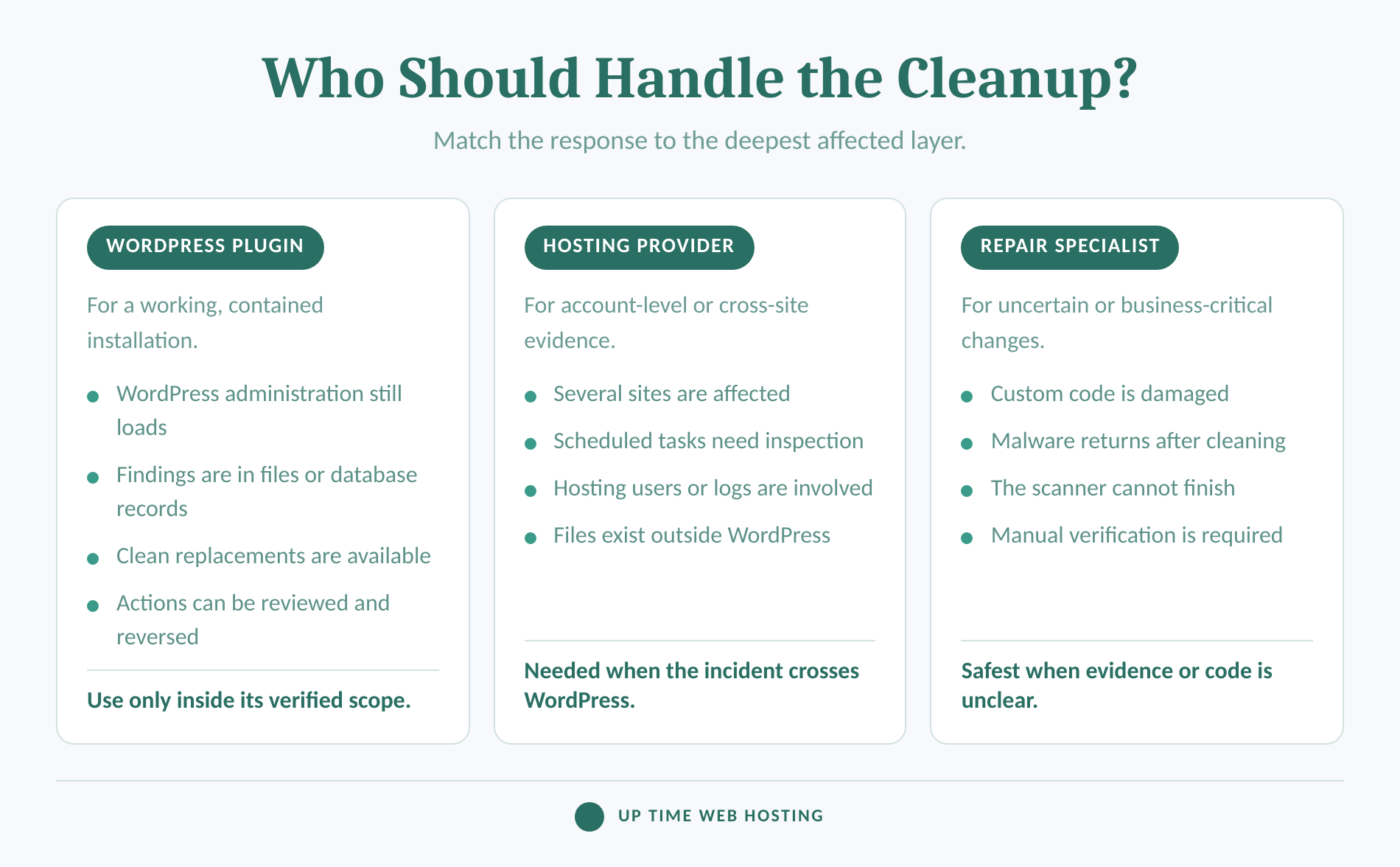
A plugin is suited to a working installation with reviewable file or database findings. The host is better placed to inspect hosting logs, account users, scheduled tasks, sibling sites and directories WordPress cannot reach.
Professional manual repair becomes the safer choice when:
- WordPress administration is unavailable or the scanner repeatedly stops.
- Malware returns after files have been cleaned.
- More than one site in the hosting account shows unfamiliar files or redirects.
- Hosting, SFTP, database or administrator access has changed without approval.
- The findings affect custom code that cannot be replaced from a trusted source.
- Search or browser warnings remain after the plugin reports a clean result.
Google's current guidance says malware repair may require an understanding of code and web server configuration. It also notes that a security review can take several days or weeks after every listed issue has been fixed, so an immediate clean scan does not remove an external warning instantly.
For a more detailed containment and manual repair workflow, use the WordPress malware removal guide before changing unfamiliar files.
Call the host when the incident extends beyond WordPress, and call a repair specialist when the correct change cannot be made confidently or reversed safely.
What is the safest cleanup order?
The safest order is to preserve evidence, contain access, scan from more than one layer, repair the infection and its entry point, then verify the result. Deleting files before creating a recovery path can turn a security incident into a data-loss incident.
The safe five-step cleanup sequence
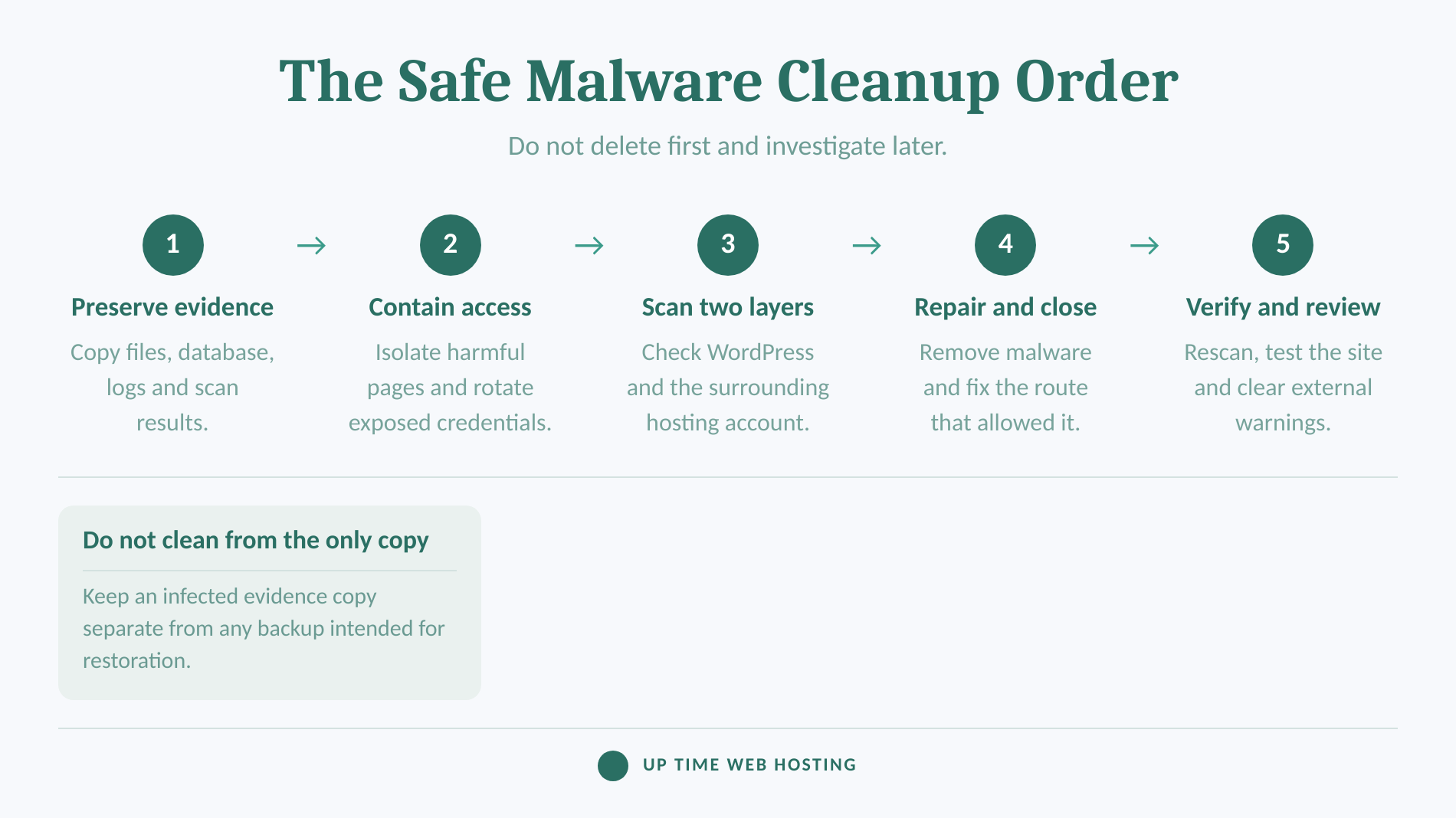
- Preserve the current state. Create a full file and database copy, record timestamps, save scanner results and collect relevant hosting logs. Label this copy as infected evidence so it is not mistaken for a clean restore point.
- Contain the incident. If the site is redirecting visitors, distributing harmful files or exposing private data, place it in maintenance mode or ask the host to isolate it. Revoke active sessions and rotate administrator, hosting, SFTP and database credentials that may be exposed. If secrets were visible to the attacker, rotate them again after cleanup.
- Scan from more than one angle. Run the WordPress scanner across files and the database, check Search Console, and ask the host what account-level or server-level scanning is available. Compare standard WordPress and plugin files with official checksums. Treat files without a trusted comparison source as manual-review items.
- Repair the infection and close the entry point. Replace verified standard files with clean copies, quarantine uncertain files and inspect
wp-config.php,.htaccess, must-use plugins, uploads, administrator users and scheduled tasks. Update WordPress, plugins and themes, then remove unused components. WordPress's official updating documentation, last updated in 2024, recommends backing up first and explains how clean core files can replace standard directories.
The broader guide to protecting a website from malware covers the controls that should remain after the incident, including updates, access management, monitoring and recovery planning.
- Verify before reopening. Rescan the site, check logs for new file changes, test important forms and transactions, inspect administrator accounts and confirm that unfamiliar redirects have stopped. If Google reported the incident, fix every issue before requesting a review through Search Console.
A known-good backup can shorten recovery, but only if it predates the compromise and the original entry point is closed. Restoring a vulnerable backup without changing credentials or patching the weakness can restore the same conditions that allowed the incident.
Complete cleanup removes the malicious change, closes the route back in and verifies the result from outside the plugin.
How do you choose a malware removal plugin without trusting marketing?
Choose a plugin by checking its scan scope, evidence and recovery controls rather than its list position or clean button. The best choice is the one that matches the affected part of the site and tells the operator exactly what will change.
Check these points before installing or purchasing anything:
- File scope: Does it scan core, themes, plugins, uploads, configuration files and the WordPress root?
- Database scope: Does it inspect posts, options, users and other tables for injected content?
- Detection method: Does it use official checksums, known signatures, behavioural rules or a documented combination?
- Remediation choices: Can findings be reviewed, quarantined or restored, or is deletion the only option?
- Resource use: Is the scan likely to time out or consume excessive resources on a large site?
- Logs and exports: Can the result be saved for the host, developer or security specialist?
- Definition updates: How are new detection rules delivered, and when were they last updated?
- Broken-site access: Is there a scan or repair path if WordPress administration no longer loads?
- Data handling: Are files or scan results sent to an external service, and is that acceptable for the site?
As of September 2026, free scanners are available through the WordPress.org plugin directory. Free means there is no charge for the listed version; it does not mean that database inspection, automatic repair, off-site scanning or human cleanup is included.
Do not install several security scanners on a compromised live site just to compare alerts. Multiple scanners can compete for server resources, create overlapping changes and make the incident log harder to interpret. Use one primary WordPress scan and an independent host-side or external check where possible.
Prevention tools also need the correct job. For example, reCAPTCHA on WordPress can reduce automated form abuse, but it does not remove malware, inspect hosting accounts or repair a vulnerable plugin.
Choose the scanner that documents its reach and actions, then escalate when the incident falls outside that documented reach.
Register your new domain name at competitive market prices including free domain add-ons like privacy, DNS Hosting, Custom Nameservers and Forwarding.
Always the best price and no nasty renewal price hikes.
Register A Domain Name
What else do site owners ask about malware removal plugins?
The most common questions concern free scanning, complete removal and which tool to trust. The answers depend more on scan scope and incident severity than on a single product name.
How can I remove malware from my WordPress site?
Remove malware by preserving a backup and logs, containing access, scanning files and the database, replacing known software with clean copies, removing malicious persistence, rotating credentials, updating vulnerable components and rescanning. If the infection returns or affects the hosting account, stop relying on WordPress alone and ask the host or a security professional.
Is there a free malware scanner for WordPress?
Yes. As of September 2026, the WordPress.org plugin directory includes free malware scanners. Free scanning may not include database inspection, automatic repair, off-site scanning or human cleanup, so compare the exact feature list. Back up first, and prefer quarantine or a review screen over automatic deletion when findings are uncertain.
Which software is best for malware removal?
The best malware removal software is the tool that can inspect the affected scope and produce reversible, reviewable changes. For a contained WordPress file infection, a plugin may be enough. For recurring malware, damaged custom code, inaccessible administration or account-level compromise, host-side scanning and manual repair are the safer choice.
The right malware tool is the one that reaches the incident, explains its evidence and leaves a safe path back if a finding is wrong.
What should you do next?
Start by preserving the current site and writing down the exact symptoms, affected URLs and first known time of compromise. Then decide whether the incident is contained within WordPress or crosses into the hosting account, credentials or custom code.
UpTime hosting clients whose sites meet the escalation conditions can request the fixed-price WordPress Repair and Secure service for diagnosis, malware and plugin repair, security improvements and a report of the work completed.
If the infection is outside the plugin's verified reach, stop deleting files and move the incident to host-level or professional repair.