In short
Traceroute on Windows uses the built-in tracert command. Open Windows Terminal, Command Prompt or PowerShell, enter tracert example.com, then read each numbered hop from your device towards the destination. Persistent delay or timeouts that continue through later hops matter more than one slow or blank intermediate hop. (learn.microsoft.com)
Key takeaways
tracertaccepts a hostname or an IP address, not a full web address containinghttps://or a page path.- The default trace searches up to 30 hops and waits up to 4,000 milliseconds for each reply;
/davoids intermediate name lookups. (learn.microsoft.com) - An asterisk means a probe received no reply before the timeout, not automatically that traffic stopped at that router. (learn.microsoft.com)
- A completed trace confirms an ICMP path to the resolved destination, but it does not test the website's HTTPS, application or database response. (learn.microsoft.com)
Contents
- How do you run traceroute on Windows?
- Which tracert commands are useful for website troubleshooting?
- What does each line in tracert output mean?
- What do asterisks and Request timed out mean?
- How can tracert show whether the problem is local, DNS-related or hosting-side?
- What should you send to your hosting provider?
- What are the common questions about tracert on Windows?
- What should you do after the trace?
Run tracert while the fault is happening, and keep the output. A route that looks normal after the problem has cleared cannot explain the earlier failure.
How do you run traceroute on Windows?
On Windows 10 or Windows 11, open Windows Terminal, Command Prompt or PowerShell and run tracert followed by the website hostname or destination IP address. Use the hostname when diagnosing a website because the trace header also shows which IP address DNS resolved at that moment.
What are the four steps?
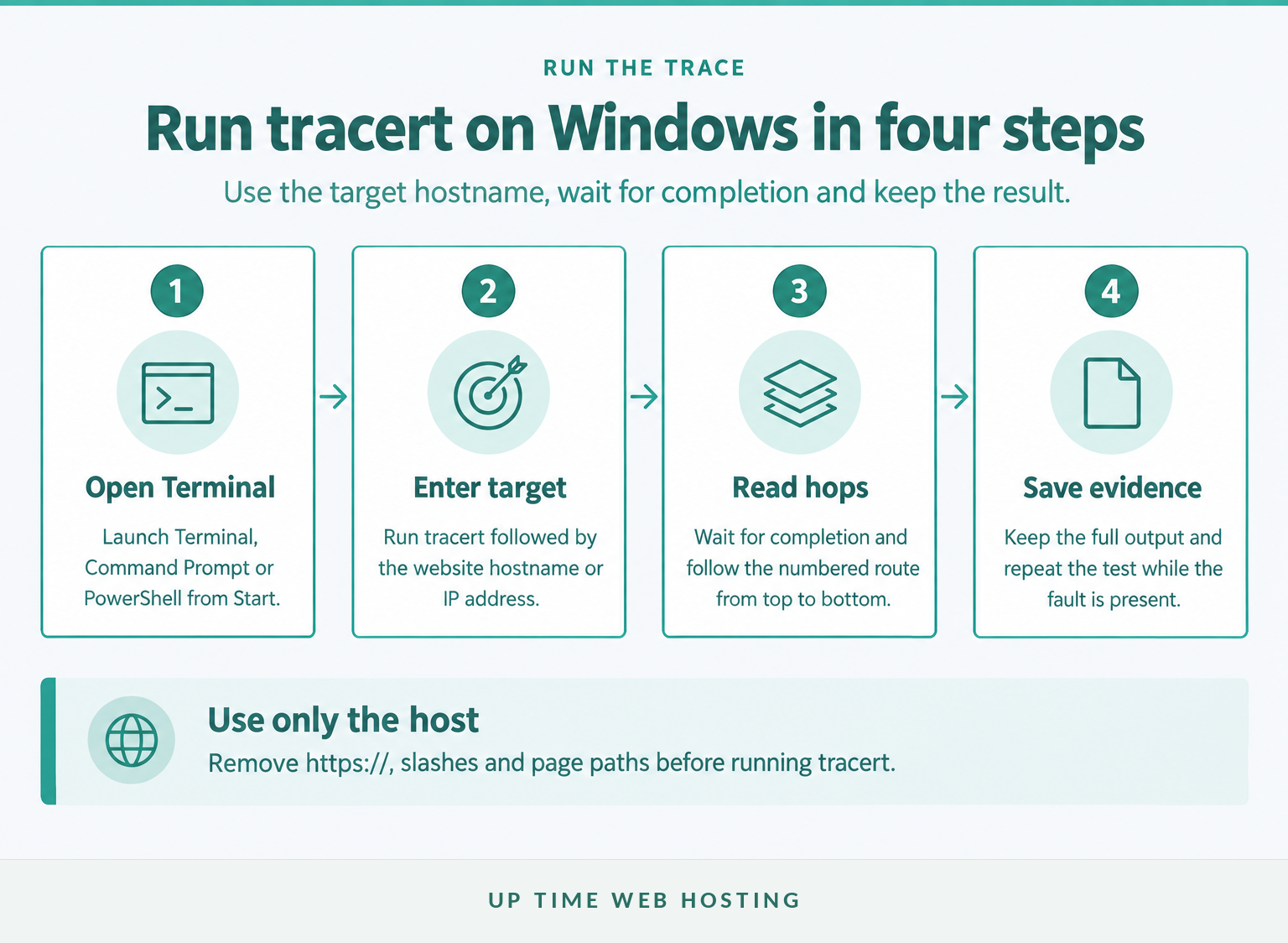
- Open Start and launch Terminal, Command Prompt or PowerShell.
- Enter
tracert example.com, replacingexample.comwith the website hostname. - Press Enter and wait until Windows displays
Trace completeor reaches its maximum hop count. - If the problem is intermittent, repeat the test while the fault is present and compare it with a result from another connection, such as a mobile hotspot.
Use only the hostname or IP address:
“text tracert example.com “
Do not enter a complete page address such as https://example.com/contact. The command expects a target name or IP address, so remove the scheme, slash and page path.
The Microsoft Learn tracert reference, updated in November 2024, applies to Windows 10 and Windows 11. It confirms that the target may be either a hostname or an IP address. (learn.microsoft.com)
Under the hood, Windows sends probes with gradually increasing Time to Live values. Each router that reduces the value to zero may return an ICMP Time Exceeded response, allowing Windows to build the route one hop at a time. The 2008 IETF RFC 5388 describes traceroute as a hop-by-hop path and round-trip-time measurement. (rfc-editor.org)
A useful Windows trace begins with the correct hostname and a clean, repeatable command.

Performance you can feel, backed by clients who depend on it. Read how our support and uptime create long‑term customer success.Power Your Business with Better Hosting
Which tracert commands are useful for website troubleshooting?
Start with the plain tracert command because the default output usually provides enough information for a first diagnosis. Add a switch only when it answers a specific question or makes the evidence easier to read.
- Skip intermediate hostname lookups:
tracert /d example.com
This often returns results faster and leaves the router IP addresses visible without waiting for reverse DNS lookups.
- Force IPv4:
tracert /4 example.com
Use this when the website has both IPv4 and IPv6 records and the fault may affect only the IPv4 route.
- Force IPv6:
tracert /6 example.com
Use this to test the IPv6 route separately. A successful IPv4 trace does not describe the IPv6 path.
- Change the maximum hop count:
tracert /h 20 example.com
A smaller limit can shorten a test, but it may stop before reaching a distant destination.
- Change the reply timeout:
tracert /w 1000 example.com
The value is in milliseconds. A shorter timeout finishes sooner but may show more asterisks on a slow route.
- Save the result to a text file:
tracert /d example.com > tracert-example.txt
The file can be attached to a support request without copying the terminal output by hand.
Microsoft's current syntax sets a default maximum of 30 hops and a default reply timeout of 4,000 milliseconds. It also states that /d stops name resolution for intermediate routers, not resolution of the target hostname itself. (learn.microsoft.com)
If Windows cannot resolve the destination name, adding /d will not repair the underlying DNS problem. Run the trace against a known correct IP address or test the hostname with nslookup instead.
Use the plain command first, then add options only to answer a specific question.
What does each line in tracert output mean?
Each output row identifies one hop and shows three round-trip measurements from the Windows device to that hop and back. The last column contains the responding router's hostname, IP address or both.
How is one tracert line structured?
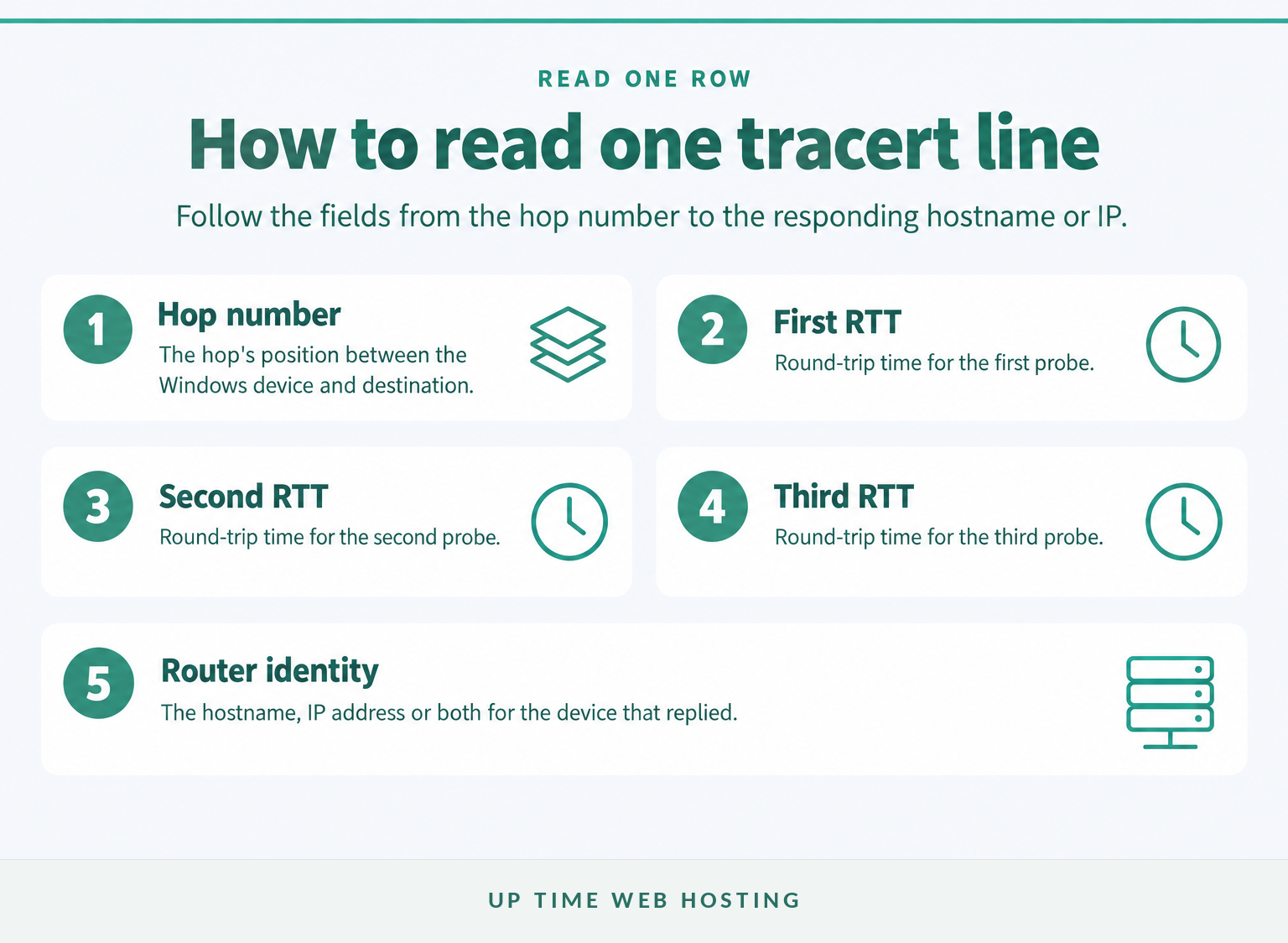
A generic line has this shape:
“text N <RTT 1> <RTT 2> <RTT 3> <hostname> [<IP address>] “
Nis the hop number. Hop 1 is normally the first responding network device between the computer and the destination.- The three RTT fields are separate probes. Windows displays each round-trip time in milliseconds or an asterisk when no reply arrives before the timeout.
- The final field identifies the responder. A hostname appears when reverse name resolution succeeds; the IP address identifies the interface that answered the probe.
Microsoft describes the three centre columns as round-trip measurements and the final column as the hostname or IP address of the responding device. The route is built from the ICMP replies returned by the intermediate routers and destination. (learn.microsoft.com)
Read down the complete route rather than judging one row in isolation:
- If response times rise at one hop and remain raised through every later responding hop, that point may mark where the path changed or delay began.
- If one intermediate hop reports a high time but later hops return lower times, the isolated value does not prove that the router delayed the website traffic. The router may simply have answered its own diagnostic probe slowly.
- If the destination responds and Windows prints
Trace complete, the ICMP probes reached the resolved destination address even if some intermediate hops stayed blank.
These patterns narrow the investigation, but they do not identify who owns the fault with certainty. Routes can also differ between runs or between the outgoing and return directions.
Read tracert as a pattern across later hops, not as a verdict on one row.
Host your website with our 5-star rated, cPanel website hosting plans.
Super fast servers, with security included and hosted in your choice of Australian Data Center.
View cPanel Plans
What do asterisks and Request timed out mean?
An asterisk means Windows did not receive the expected reply before the configured timeout. Request timed out can indicate filtering, rate-limiting, a slow reply, a routing fault or a device that simply does not answer traceroute probes.
Microsoft states that some routers do not return ICMP Time Exceeded messages and therefore appear as a row of asterisks even though they continue forwarding traffic. A blank intermediate hop is not enough to declare that router or network faulty. (learn.microsoft.com)
Use the rest of the route to interpret the pattern:
- Blank middle hop followed by responding later hops: Traffic moved beyond the blank hop. That device probably did not answer the diagnostic probe, or its reply was filtered or delayed.
- Several blank final hops with no destination response: The route may be filtered or broken, but the destination may also ignore ICMP. Compare repeated runs, another network and the actual website symptom.
- An explicit unreachable message: Record the full message and the hop that returned it. An unreachable response is stronger evidence than a silent timeout because a network device actively reported a routing or delivery problem.
Repeat the test rather than relying on one set of three probes. A pattern that appears at the same point in several runs is more useful than a single asterisk that disappears immediately.
A single asterisk is not a fault by itself; the stronger signal is a failure that continues and prevents the destination from answering.
How can tracert show whether the problem is local, DNS-related or hosting-side?
Tracert narrows the part of the path that deserves attention, but it cannot diagnose every website layer on its own. Combine the route with a DNS lookup, a second internet connection and the exact browser or application error before assigning responsibility.
Which pattern points where?
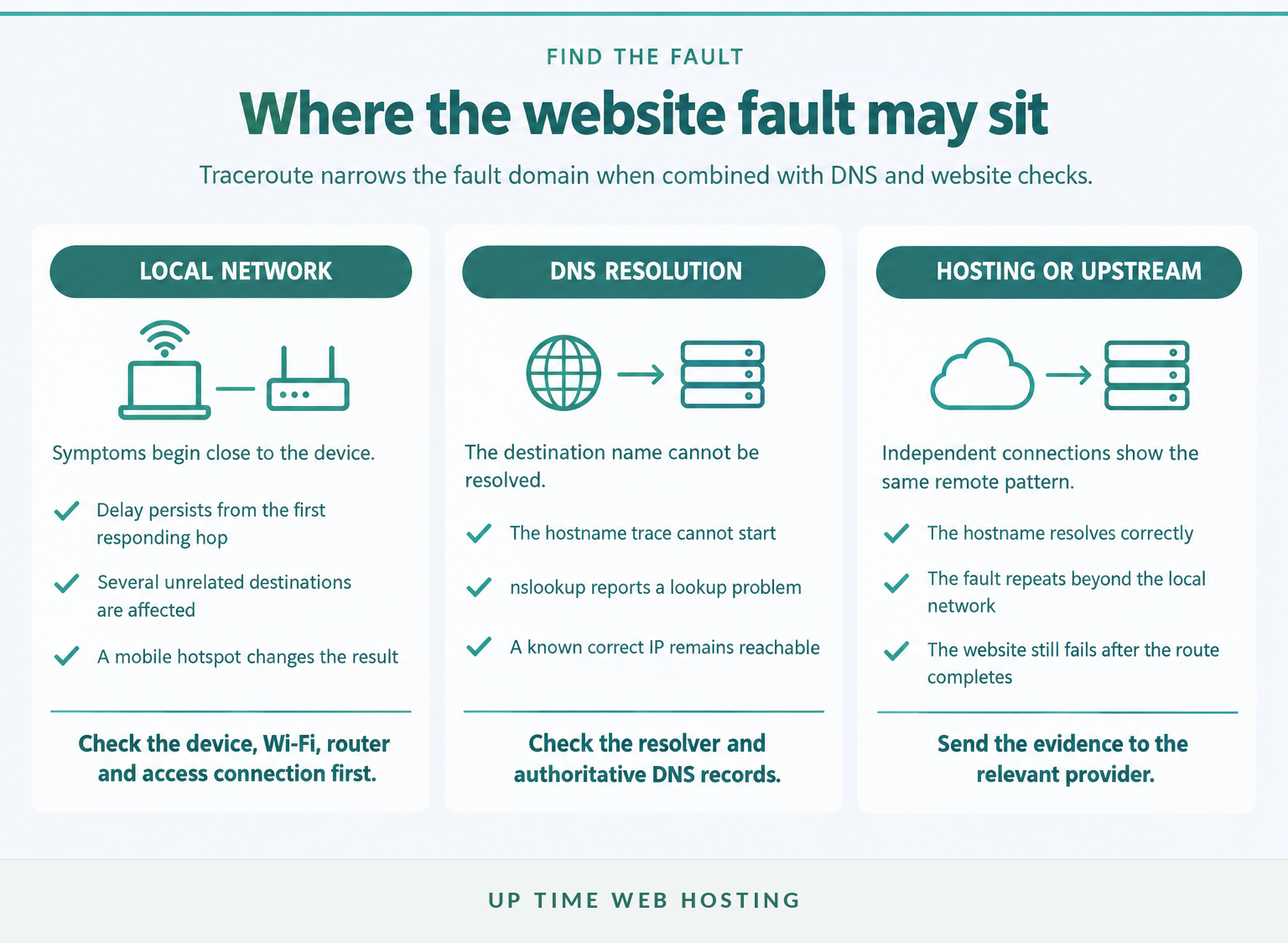
A local network or access problem
A local problem becomes more likely when repeated delay begins at the first responding hop, continues through later hops and affects several unrelated destinations. Test another device on the same connection, restart the local network equipment where appropriate, and compare the result with Windows network connection troubleshooting.
If the same website works normally through a mobile hotspot, the original device, Wi-Fi, router or internet connection deserves attention before the website host does. If every device on the original connection fails in the same way, the problem is less likely to be limited to one computer.
A DNS problem
If Windows cannot resolve the target hostname, run:
“text nslookup example.com “
The Microsoft Learn nslookup reference, updated in November 2024, describes the command as a tool for diagnosing DNS infrastructure. It can show whether the configured DNS service returned an address or reported a lookup error. (learn.microsoft.com)
If nslookup fails but tracert to a known correct destination IP works, name resolution is strongly implicated. Investigate the resolver, local DNS settings and authoritative records using the guide to DNS server failures.
An upstream or hosting-side problem
An upstream or hosting-side fault becomes more plausible when the hostname resolves correctly, the same failure appears from independent internet connections, and repeated traces stop or degrade beyond the local network. Send the results to the relevant provider rather than treating a router name as definitive proof of ownership.
A trace can also complete while the website remains unavailable. Tracert uses ICMP probes, so it does not confirm that HTTPS on port 443, the TLS certificate, the web server, the application or the database is working. A broader website health check can test the layers that a route trace cannot. (learn.microsoft.com)
Traceroute narrows the fault domain, but DNS and website checks are needed before blaming the host.
What should you send to your hosting provider?
Send enough evidence to reproduce the fault and place it in time. A complete route without the target, connection, timestamp or actual website error may be impossible for technical support to correlate with logs and monitoring data.
What should the evidence bundle contain?
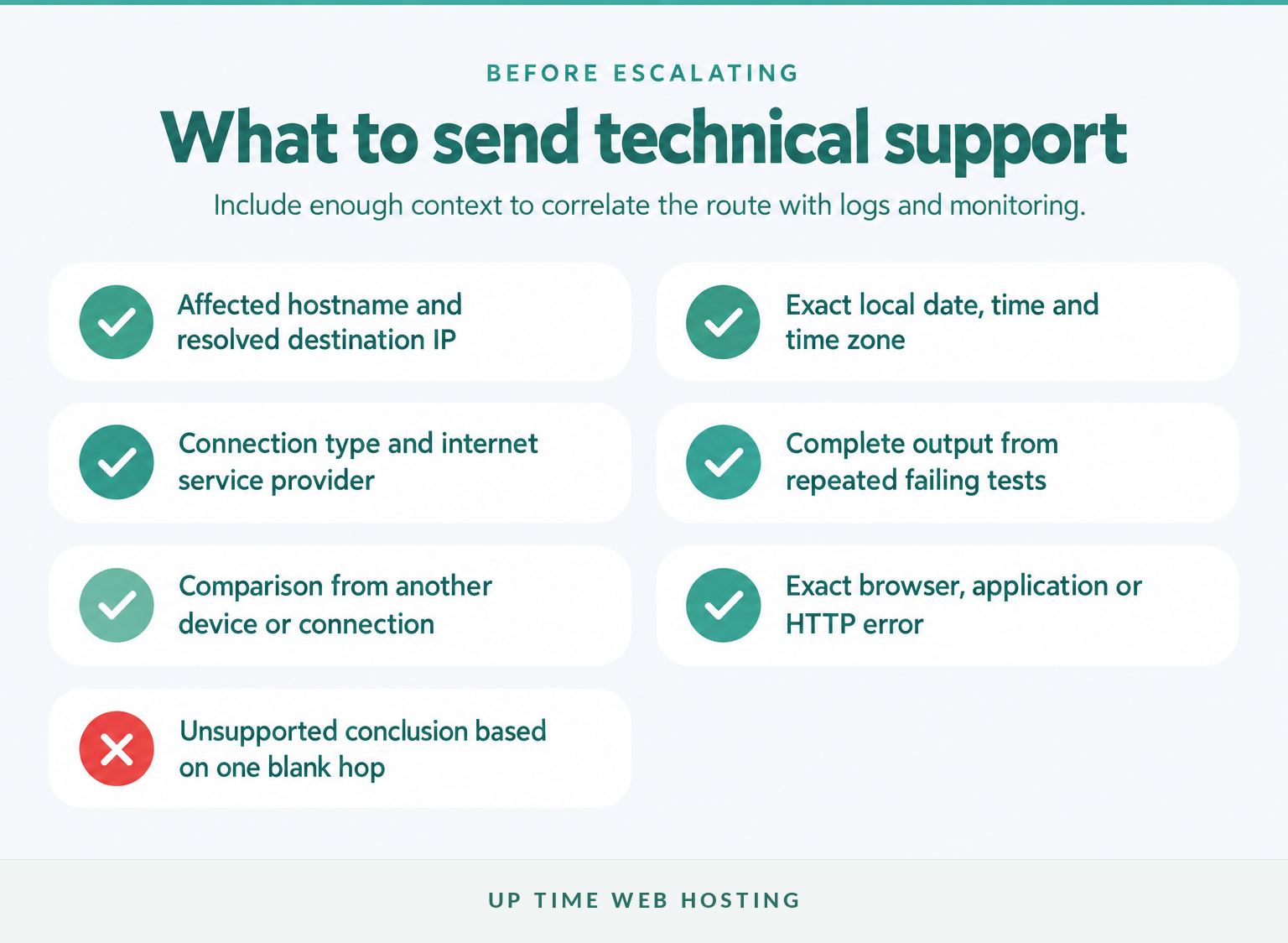
Include:
- the affected hostname and the destination IP shown in the trace header
- the exact local date, time and time zone of the test
- the connection used, such as office internet, home internet or mobile hotspot
- the internet service provider where known
- the complete output from several runs while the problem was happening
- the exact browser message, application error or HTTP status shown to the user
- whether other websites worked from the same device and connection
- whether the result changed on another device or internet connection
- any recent DNS, firewall, migration or hosting changes that may be relevant
Save a concise trace with:
“text tracert /d example.com > tracert-example.txt “
Manual traceroute captures only one moment. When a problem is intermittent, remote server monitoring can preserve availability and timing evidence even when nobody is actively running a command.
A hosting provider can act faster when the trace arrives with timing, source-network and symptom details.
Register your new domain name at competitive market prices including free domain add-ons like privacy, DNS Hosting, Custom Nameservers and Forwarding.
Always the best price and no nasty renewal price hikes.
Register A Domain Name
What are the common questions about tracert on Windows?
These answers cover the command names and syntax most often associated with Windows traceroute searches. Each command should contain only the target hostname or IP address unless an option is deliberately added.
How to use traceroute in Windows?
To use traceroute in Windows, open Windows Terminal, Command Prompt or PowerShell and enter tracert example.com, replacing the example with the target hostname. Press Enter and wait for Trace complete. Read the numbered hops from top to bottom, but judge timeouts by whether they continue into later hops. (learn.microsoft.com)
How do I run a traceroute on Windows 11?
Windows 11 includes tracert as a built-in Windows command. Open Terminal from Start, then run tracert example.com or tracert <IP-address>. The same command works from Command Prompt and PowerShell. Use /d when you want faster output without resolving every intermediate router name. (learn.microsoft.com)
What's the difference between tracert and traceroute?
tracert is the Windows command name, while traceroute is the common name on Unix-like systems. Both reveal a hop-by-hop route by changing the packet TTL, but their default probes and options can differ. Windows tracert uses ICMP echo requests, so results can differ from a UDP-based traceroute. (learn.microsoft.com)
How do I traceroute an IP address?
Enter tracert <IP-address> in Windows Terminal, Command Prompt or PowerShell, replacing the placeholder with the destination address. An IP target bypasses the need to resolve the destination hostname, although Windows may still try reverse lookups for intermediate hops unless /d is added. (learn.microsoft.com)
The Windows command is tracert, and the same basic syntax works with a domain name or an IP address.
What should you do after the trace?
Use the result to choose the next test, not to make a final accusation. Address a first-hop problem locally, investigate failed hostname resolution as DNS, and send persistent remote patterns to the provider with the complete evidence bundle.
If repeated tests point towards the hosting end and the site needs a supported platform, review Australian cPanel website hosting before moving or rebuilding anything. Keep a copy of the failing trace so the old and new environments can be compared.
The useful clue is the first change that persists through later hops and matches the website symptom.