You're probably here because one of two things is happening.
Your office computer crawls when you've got email open, a browser full of tabs, Xero, Teams, and a spreadsheet all fighting for attention. Or your website feels fine one day, then turns sluggish when a few more visitors arrive and checkout starts lagging.
Both problems often come back to the same thing. RAM.
A lot of Australian business owners know they need “more speed”, but they're not sure whether that means more RAM in the PC on the desk, more resources in their hosting plan, or both. That confusion is normal because the symptoms look similar. Freezing apps, spinning browsers, slow admin panels, delayed page loads, and weird performance dips can all point back to memory pressure.
This guide gives you a practical answer to the question How much RAM do I need? It looks at the computer you use every day and the hosting behind your website, because those two worlds are more connected than is commonly understood.
Table of Contents
- Introduction Why Is My Computer So Slow
- What Is RAM and Why Does It Matter
- RAM Recommendations for Your Personal Computer in 2026
- How Your PC RAM Affects Your Website Needs
- How Much RAM for Your Australian Web Hosting
- Estimating and Monitoring Your Server RAM
- When and How to Upgrade Your RAM

Performance you can feel, backed by clients who depend on it. Read how our support and uptime create long‑term customer success.Power Your Business with Better Hosting
Introduction Why Is My Computer So Slow
A common small business day looks like this. You open your laptop in the morning, jump into email, leave a few supplier tabs open, start editing a document, log into your website, and then everything starts dragging. The browser hesitates. The fan spins up. One extra tab feels like too much.
That same pattern shows up online. You load your WordPress dashboard and it's tolerable. A customer places an order, someone else visits at the same time, a backup starts in the background, and suddenly the site feels heavy. Pages don't fail completely, but they stop feeling smooth.
A common initial approach is to seek a general fix. That's why guides on how to speed up your laptop are useful when the machine itself is the bottleneck. But if your site is also slow, it's worth checking the hosting side too, especially if you're already working through website performance issues such as improving website speed.
Slow performance doesn't always mean a broken device or a bad website build. Often it means the system ran out of working room.
RAM is that working room. When you don't have enough, your computer or server keeps shuffling active tasks around instead of handling them directly. That's why things feel delayed rather than fully crashed.
For a small business owner, this matters because RAM affects daily productivity and customer experience at the same time. If your office machine is constantly under pressure, staff lose time. If your website server is short on memory, customers feel the lag first.
What Is RAM and Why Does It Matter
RAM stands for Random Access Memory, but the simple version is better. RAM is the short-term working space your computer or server uses right now. It holds the active stuff. Open apps, browser tabs, database queries, PHP workers, and temporary processing all sit there while the system is doing the job.
RAM is your digital workbench
The easiest way to think about RAM is as a carpenter's workbench.
If the bench is small, the carpenter can only keep a few tools and materials out at once. Every time they need something else, they stop, put things away, go back to storage, then return to the bench. The job still gets done, but it's slow and frustrating.
If the bench is large, they can keep everything needed for the current job within reach. Work flows better. Less stopping. Less reshuffling. Better pace.
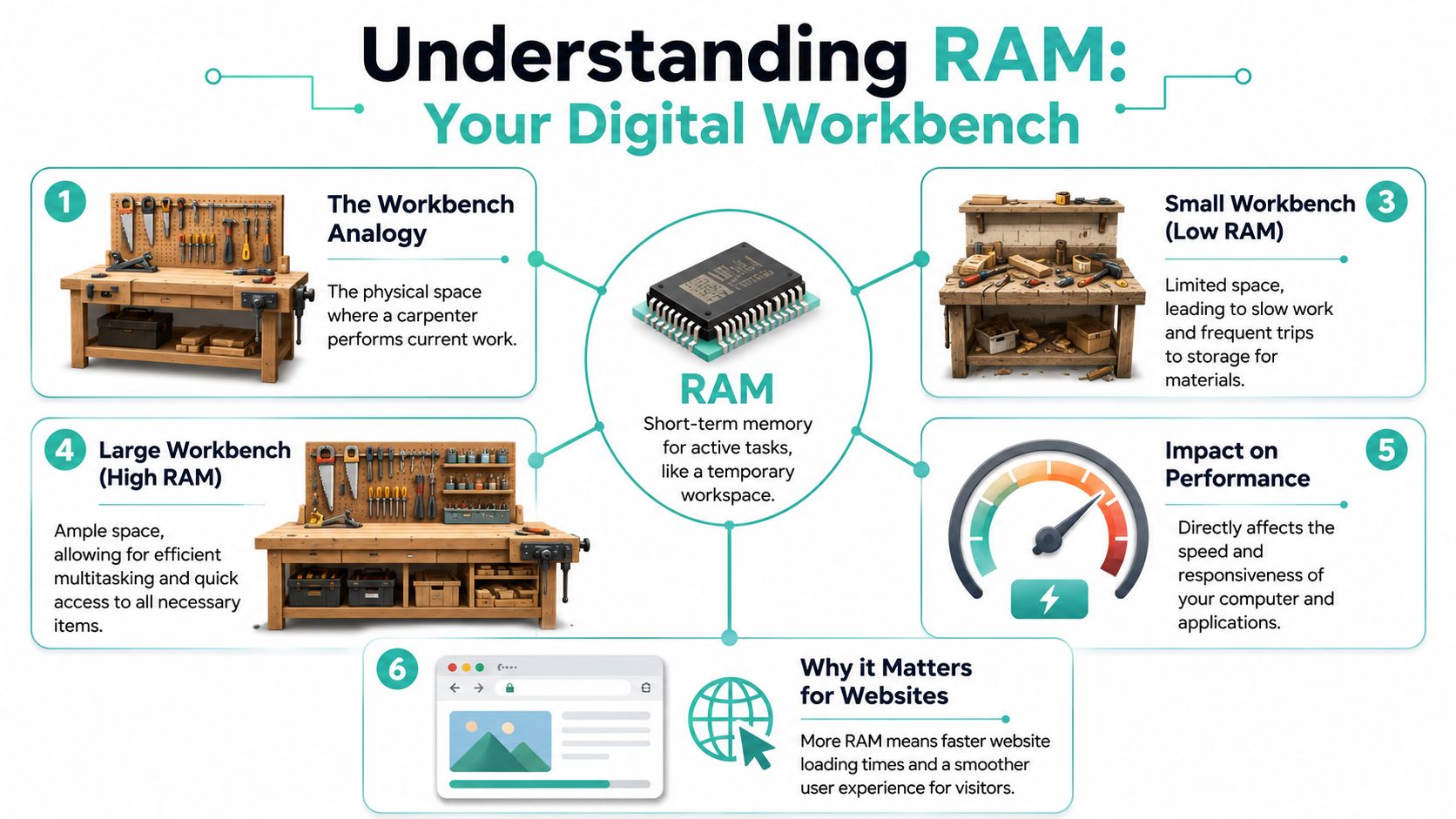
That's exactly how RAM works in real life. More RAM doesn't automatically make every task “faster” in the abstract. It gives the system enough room to keep active work moving without constant interruption. That's especially important for busy websites running PHP applications, databases, and caching layers. If you want to understand that side in more depth, this guide to PHP performance tuning is a useful next read.
RAM is not the same as storage
Many often find this confusing.
Your SSD or hard drive is long-term storage. That's where files, programs, images, and databases live when they're not actively being worked on. RAM is the temporary workspace. Storage is the warehouse.
When RAM fills up, the system starts leaning on storage to make up the difference. That process is much slower than working directly in memory. On a PC, that can mean sluggish app switching and browser pauses. On a website server, it can mean slower page generation, delayed admin actions, or more erratic performance under load.
A machine can have plenty of storage and still feel slow if it doesn't have enough RAM for the way you use it.
If you've ever asked, “How much RAM do I need if I already have lots of free disk space?”, that's the answer. Storage capacity and memory capacity solve different problems.
Host your website with our 5-star rated, cPanel website hosting plans.
Super fast servers, with security included and hosted in your choice of Australian Data Center.
View cPanel Plans
RAM Recommendations for Your Personal Computer in 2026
For office computers, the right amount of RAM depends less on job title and more on how many things stay open at once. A receptionist with dozens of browser tabs can need more memory than a manager who mostly lives in email.
One clear shift stands out. Data shows 16GB is now the “standard baseline” for personal PCs in 2026, meaning Australian users increasingly run heavy local browser processes such as AI tools and multi-tab browsing that consume 4–8GB per session according to PCMag Australia.
A quick guide by use case
The table below gives a practical starting point for Australian business users.
| Use Case | Minimum RAM | Recommended RAM |
|---|---|---|
| Light browsing, email, web admin | 8GB | 16GB |
| Standard office work with multitasking | 16GB | 16GB |
| Heavy browser use, AI tools, many tabs | 16GB | 32GB |
| Creative or workstation-style workloads | 32GB | More if your software genuinely needs it |
A few practical examples make this easier:
- Light use: If a staff member mainly checks email, updates a basic website, and uses cloud apps with limited multitasking, 8GB can still function. But it leaves less room once tabs pile up.
- General business use: If you use Word, Excel, accounting software, Teams or Zoom, plus a browser that never really closes, 16GB is the safer everyday choice.
- Browser-heavy work: If your day involves research tabs, web-based dashboards, AI assistants, design proofs, and website admin work all at once, 16GB is the floor and 32GB can make the machine feel calmer.
- Specialist work: For video editing, development environments, virtual machines, or large design files, start higher and match the machine to the software.
The practical takeaway for small business owners
A lot of buyers still think in old categories. They ask whether 8GB is “enough” because it used to be. For many modern office setups, it isn't the comfortable choice anymore.
That doesn't mean every small business needs to jump straight to 32GB. In fact, the practical sweet spot for many office and website admin users is still 16GB, especially if the work is mostly browser, productivity, and routine business software. The right question isn't “What's the biggest number I can buy?” It's “What keeps the machine responsive during a normal busy day?”
If your staff complain about slowness while juggling routine business apps, the upgrade from low memory to 16GB usually makes more sense than chasing a larger SSD.
There's another reason this matters. The more capable your customers' and staff members' computers become, the more demanding their web use tends to be. People don't browse lightly anymore. They open more tabs, use richer apps, and expect instant responses. That leads directly into hosting.
How Your PC RAM Affects Your Website Needs
Most articles treat desktop RAM and server RAM as separate topics. In practice, they're linked.
If your own office computer has become more memory-hungry, your customers' computers probably have too. That changes the way people browse, shop, compare products, and interact with websites.
The server-to-client RAM gap
This is the server-to-client RAM gap.
When people use more capable PCs, they can comfortably run bigger browsers, more tabs, richer shopping sessions, and more active web apps. They're less likely to close tabs. They're more likely to compare products across several pages, stay logged into accounts, and use browser-heavy tools at the same time.
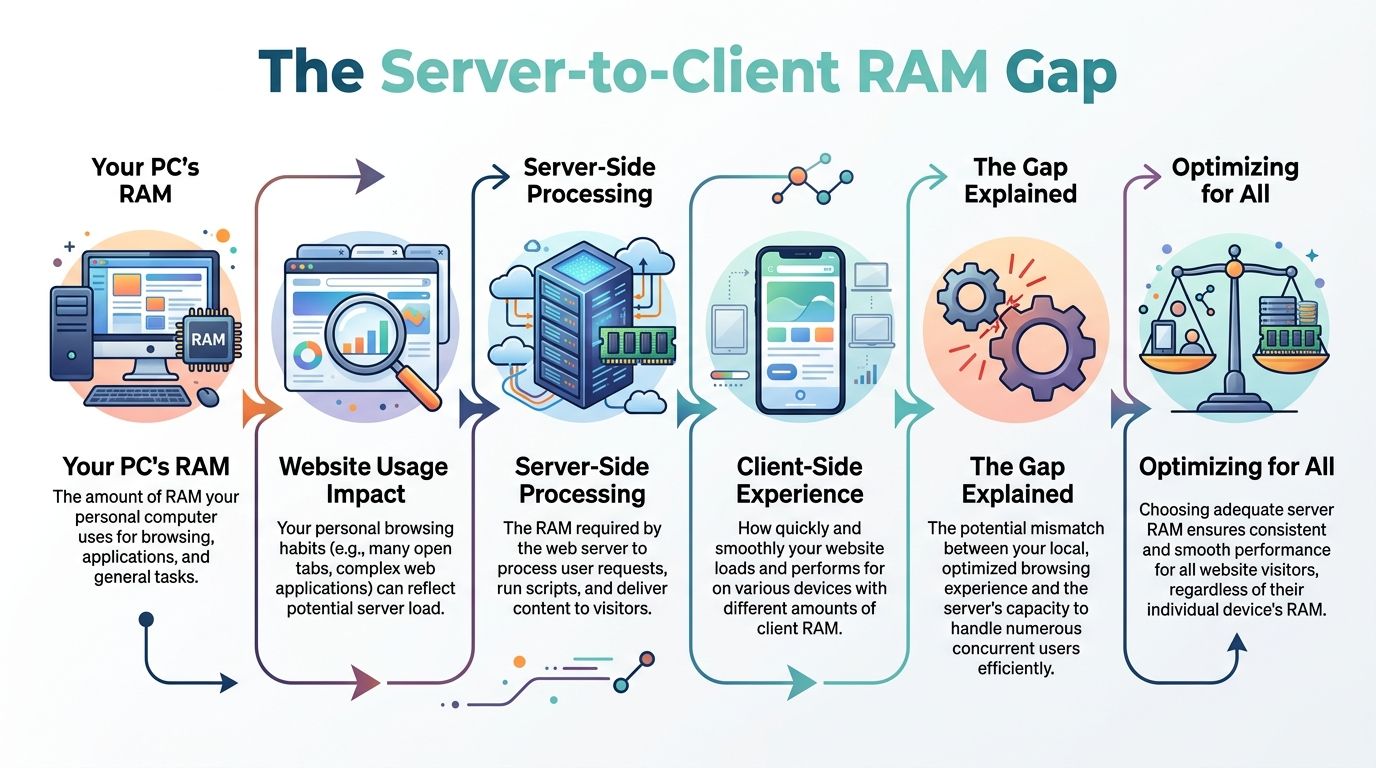
For the server, that means more simultaneous active requests, more PHP processes, more database work, and more pressure on caching layers. If your site is tuned for Australian traffic patterns, resources still matter. Technical improvements such as website speed optimisation for Australian users help, but they can't fully compensate for a memory-starved server.
Why this catches businesses off guard
A business owner often tests the site alone on a decent office machine and thinks it's fine.
That test misses what happens when real users arrive with their own browsing habits. A WooCommerce store doesn't just serve one neat request at a time. It handles product pages, carts, logins, searches, payment steps, admin tasks, and background jobs, often together. If the server doesn't have enough RAM, all those moving parts compete.
The key point is simple. Your customers' better computers don't reduce demand on your server. In many cases, they raise it.
That's why “How much RAM do I need?” isn't only a PC buying question anymore. It's also a hosting planning question.
How Much RAM for Your Australian Web Hosting
Your office PC gives you a useful clue here. If 8 GB feels tight once you open email, Xero, a few browser tabs, and a design file, the same idea applies to hosting. A website server also needs enough working space to handle several jobs at once, and Australian businesses often underestimate that because they test the site on one fast computer, not under real customer traffic.

Basic brochure sites and small WordPress installs
A small brochure site is usually the lightest case. If the site has a few pages, modest traffic, and good caching, RAM needs stay fairly low.
For a basic WordPress site with low traffic and caching enabled, the concrete minimum requirement is 1 to 2 GB of RAM, according to Domain Monitor's guide to web server memory sizing. That suits many local trades, consultants, and simple business sites.
Minimums are not the same as breathing room, though. A site can technically run on a small amount of memory and still feel strained during plugin updates, backups, malware scans, or a short traffic bump from a Facebook post. For many small businesses, 2 to 4 GB is a more comfortable starting point if the site matters to daily enquiries.
Growing WordPress and WooCommerce sites
Once your site starts doing real business work, RAM planning gets more practical and less theoretical.
For Australian WordPress sites with traffic between 20,000 and 50,000 monthly visitors, the industry-standard baseline is 4 GB of RAM based on guidance from Launch Codex. That level gives a growing business site more room for active plugins, admin sessions, and database queries.
The same source states that high-traffic WooCommerce stores or blogs exceeding 100,000 monthly visitors require a minimum of 8 GB of RAM to maintain performance, especially when using Redis for object caching.
That jump catches people off guard. A WooCommerce store is not just “a website with products”. It behaves more like a front counter, a storeroom, and an accounts desk all working at once. Product searches, carts, logins, checkout steps, stock checks, and admin tasks all consume memory while they are active.
The Server-to-Client RAM Gap matters here too. Australian customers often browse on capable laptops, newer phones, and office desktops with plenty of tabs open. Those devices can send requests quickly and in parallel, which means your server needs enough RAM to keep up without slowing down.
VPS and business-critical hosting
Shared hosting can suit a small, quiet site. A business site that brings in leads, sales, or client bookings usually needs more predictable memory.
If you host multiple websites, run a busy store, or need steadier performance during business hours, managed VPS hosting in Australia gives you dedicated RAM instead of sharing a crowded pool with other accounts. That makes planning simpler because the memory allocation is yours.
For heavier workloads, server sizing guidance from Liquid Web's dedicated server RAM overview supports a broader rule of thumb. Moderate-traffic sites or servers hosting several websites often move into the 16 GB range, while 32 GB or more is common for high-traffic stores, larger databases, or stacks with several services running together.
Windows hosting follows the same logic. The operating system, web services, database engine, and background tasks all need memory at the same time.
A simple way to choose is to match hosting RAM to business impact:
- 1 to 2 GB: very small, well-cached brochure sites
- 2 to 4 GB: small business WordPress sites that need more breathing room
- 4 to 8 GB: growing sites, membership sites, and many WooCommerce stores
- 16 GB and up: multiple sites, higher traffic, larger stores, or business-critical workloads
If that sounds a bit like planning office internet capacity, the principle is similar. You size for normal use, then leave room for busy periods so everything stays responsive. Even unrelated reading, like these network tips for RV travelers, points back to the same practical idea. Performance problems usually show up when several people or systems compete for limited resources at once.
Register your new domain name at competitive market prices including free domain add-ons like privacy, DNS Hosting, Custom Nameservers and Forwarding.
Always the best price and no nasty renewal price hikes.
Register A Domain Name
Estimating and Monitoring Your Server RAM
Buying hosting RAM is a bit like choosing the size of the storeroom behind your shop. If the room is too small, staff waste time shuffling boxes around just to keep the front counter clear. A server behaves the same way. If memory is tight, ordinary traffic, admin tasks, plugin updates, and checkout activity start competing for space.

Start with what uses memory
A website server rarely spends RAM on one thing only. The operating system needs its share all day. Your web server and PHP workers need memory to serve pages. The database needs memory to answer queries. Caching tools such as Redis need room too. Then there are background jobs like backups, security scans, email handling, and scheduled tasks.
That mix is why server RAM planning feels trickier than PC RAM planning.
On your office computer, you can often tell what is using memory because the apps are right in front of you. On a hosting server, several parts are active at once, even when no one is logged into WordPress. That is part of the Server-to-Client RAM Gap. A customer in Australia might browse your site from a fast computer with plenty of RAM, open many tabs, and expect pages to load instantly. Your server has to keep up for that visitor and everyone else at the same time.
A practical way to estimate usage is to work from real memory consumption, not the advertised limits in software settings. For PHP sites, that usually means checking how much memory each PHP-FPM worker uses under normal load, then adding the database, cache, and operating system on top. Webhosting.de's server sizing guide explains this approach well and recommends leaving a healthy buffer instead of allocating every last gigabyte.
If you travel or work remotely and want a simple, non-hosting example of watching network use over time, this guide on network tips for RV travelers is a good reminder that monitoring beats guessing.
Watch patterns, not just snapshots
One quick glance at memory use can be misleading. A server might look fine at 10:00 am, then struggle during lunchtime traffic, overnight backups, or a sale campaign.
Look for patterns such as:
- rising memory use during busy shopping or enquiry periods
- slow admin pages when staff are updating products or content
- database-heavy plugins causing spikes
- caching that helps speed, but still consumes memory itself
- swap activity showing the server has run out of comfortable working RAM
That last point trips people up. Swap is not extra RAM. It is temporary overflow space on disk, and disk is much slower. If a Linux server is already under pressure, swap can help prevent crashes for a while, but it will not make an under-specced server feel fast. If you need it, this guide on increasing swap space on Almalinux or CentOS shows the process.
Leave headroom for real life
A quiet server reading does not prove your memory plan is safe. What matters is how much room is left when normal business activity stacks up. A plugin update can run while staff are in the admin area. A backup can overlap with customer traffic. A malware scan can start just as a marketing email sends people to the site.
Leave enough spare RAM so those events can happen without the whole server feeling cramped.
As noted earlier, keeping a buffer is good practice. It gives your server space to absorb brief spikes and handle background jobs without slowing to a crawl. Unused RAM on a healthy server is not waste. It is margin for the moments that test performance.
Practical rule: Estimate memory from real usage, then leave breathing room for the jobs that do not show up in a simple page-load test.
When and How to Upgrade Your RAM
Upgrading RAM in a physical PC and upgrading RAM in hosting are very different jobs.
With a desktop or laptop, you need to check compatibility, confirm whether memory is upgradeable, match the right module type, and in some cases open the machine or book a technician. That's manageable, but it's still a hands-on hardware job.
With hosting, the trigger is usually easier to spot. Your site feels fine in quiet periods but slows during promotions, content pushes, busy admin sessions, or growing store activity. That's when a resource upgrade becomes less about “nice to have” and more about keeping the business experience consistent.
A sensible upgrade path looks like this:
- For office PCs: Upgrade when routine multitasking feels cramped, not only when the machine becomes unusable.
- For WordPress hosting: Upgrade when caching and normal optimisation no longer stop slowdowns during real traffic.
- For eCommerce: Upgrade before major campaigns or seasonal peaks if the site already runs close to the edge.
- For agencies and multi-site setups: Upgrade when one noisy site starts affecting the rest.
If you've been asking how much RAM do I need, the best answer is usually the amount that leaves headroom for the way you work. Not the amount that barely copes on a quiet Tuesday.
If you want help matching RAM to your website or business use, UpTime Web Hosting offers Australian-based hosting, managed VPS, WordPress, cPanel, and Windows hosting backed by local support. If you're unsure whether you need a PC upgrade, a hosting upgrade, or both, their team can help you choose a practical setup without overbuying.