Your inbox usually doesn't get messy all at once. It happens one newsletter at a time, one “special offer” you never asked for, one fake invoice, one scammy delivery update, and one sender who somehow keeps finding a new address to email from. After a while, real messages from clients, suppliers, family, or staff start getting buried under junk.
That's why learning how to stop unwanted emails isn't about one magic button. It's about making better decisions at the inbox level, setting up a few smart rules, protecting your address before it spreads too far, and, if you run a business domain, tightening the controls on the server side as well. In Australia, it also helps to know where the law sits. The Spam Act 2003 gives you an actual path to escalate persistent commercial spam when a sender ignores the rules.
Table of Contents
- The Frontline Defence Quick Inbox Actions
- Automating Your Defence with Filters and Rules
- Proactive Prevention Protecting Your Email Address
- Fortifying Your Business with Server-Side Protection
- When to Escalate Reporting Spam and Phishing in Australia
- Conclusion Take Back Control of Your Inbox

Performance you can feel, backed by clients who depend on it. Read how our support and uptime create long‑term customer success.Power Your Business with Better Hosting
The Frontline Defence Quick Inbox Actions
The first mistake often made is treating every unwanted message the same. They delete everything, or they click unsubscribe on everything, or they block one sender and assume the problem's solved. None of those approaches works on its own.
You need to sort unwanted mail into categories quickly. Some messages come from legitimate senders you once signed up to. Some are low-grade marketing spam. Some are phishing attempts pretending to be a bank, delivery company, or Microsoft login page. The action should match the risk.
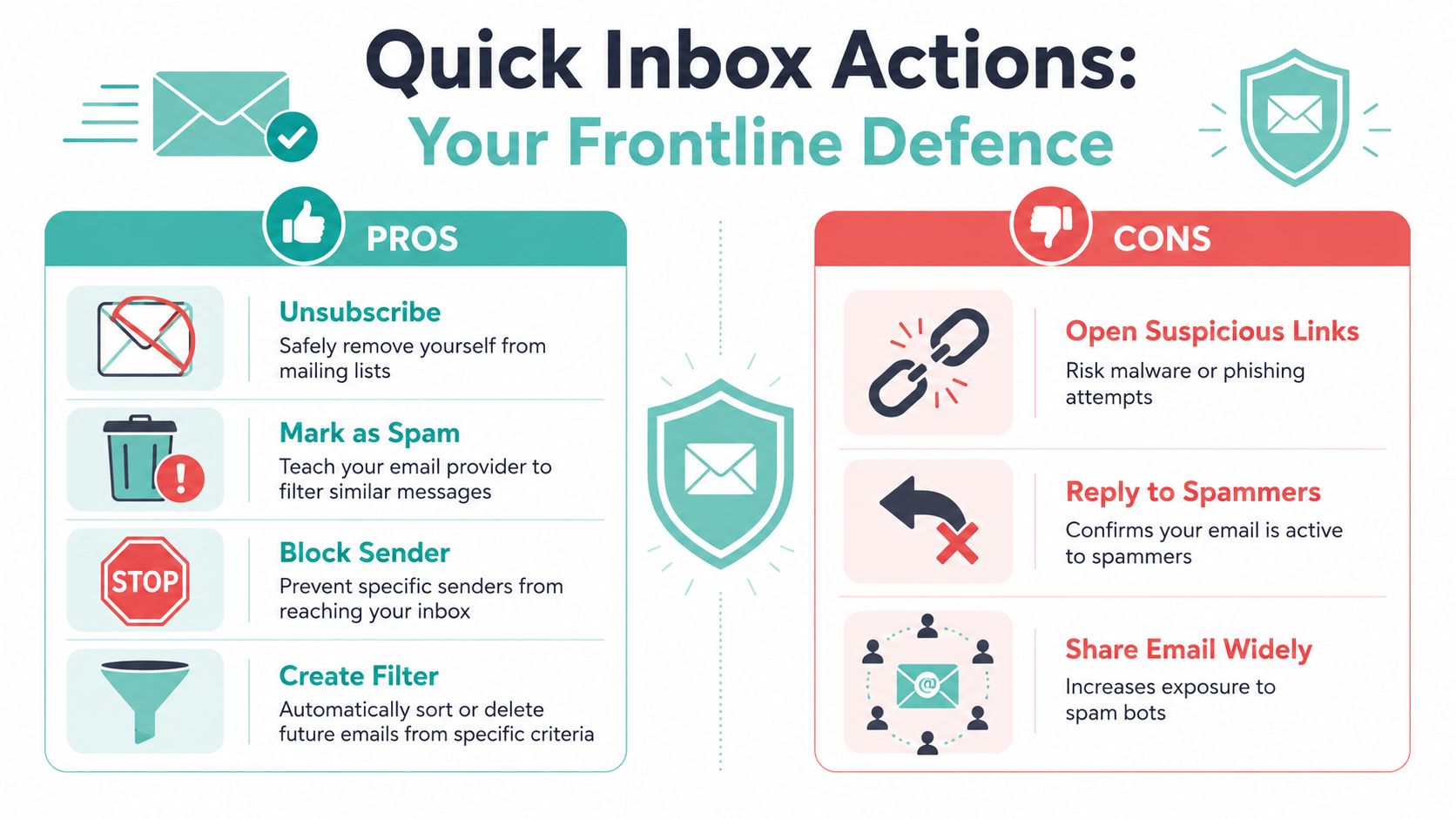
Know what action matches the email
Here's the practical difference between the main inbox actions:
- Unsubscribe only when the sender is clearly legitimate. Think retailers you recognise, software tools you've used, industry newsletters, or suppliers sending promos.
- Mark as spam or junk when the email is suspicious, irrelevant, misleading, or from a sender you don't trust. This helps train your provider's filters.
- Block sender or domain when the same sender keeps appearing and you don't need anything from them.
- Create a filter when the messages aren't dangerous but are repetitive enough to automate away.
Recent guidance warns that clicking unsubscribe on suspicious mail can confirm the address is active and may increase future spam, while reporting it as junk helps train filters instead. The best rule is to unsubscribe only for trusted marketing senders. For everything else, mark as spam or junk and don't interact, as explained in this guidance on reducing spam emails safely.
Practical rule: If you wouldn't trust the sender with a click, don't trust their unsubscribe link either.
If you use hosted email through cPanel, it's worth turning on built-in filtering rather than relying on inbox cleanup alone. UpTime customers can use this guide to control spam using the Spam Filter on cPanel.
A simple decision rule that works
When you're triaging the inbox, use this:
| Email type | Best action | Why |
|---|---|---|
| Known business newsletter | Unsubscribe | Legit sender, low risk |
| Retail promo from a store you used once | Unsubscribe, then delete | Removes future clutter |
| Weird invoice, password reset, or parcel alert you didn't expect | Mark as spam/junk | Could be phishing |
| Repeated junk from same domain | Block domain and mark as junk | Cuts recurring noise |
| Messages you may need later, but not in the inbox | Create a filter | Keeps inbox usable |
A clean inbox is achieved by reducing future volume, not by doing a bigger delete session once a month.
Quick examples from a normal week
A few common examples make the choices clearer:
- You bought office supplies once and now get daily promos. Unsubscribe.
- You receive a “failed payment” notice for software you don't use. Mark as junk. Don't open attachments.
- A sender keeps changing the display name but uses the same domain. Block the domain if your mail client allows it.
- A recruiter keeps emailing opportunities to a generic office address. Create a rule to move those into a folder for later review instead of clogging the main inbox.
Replying to spammers almost never helps. It tells the sender there's a real person reading the account. Opening suspicious links is worse.
Don't reward bad email with engagement. Train your filters, reduce exposure, and only interact with senders you recognise.
Automating Your Defence with Filters and Rules
Manual cleanup is fine for a day or two. After that, it becomes admin work. If the same kinds of emails keep landing in the same place, your inbox needs rules.
Filters are one of the most overlooked ways to stop unwanted emails because people assume they're complicated. In reality, most rules come down to simple conditions such as sender, subject line, keywords, or where the message was sent.
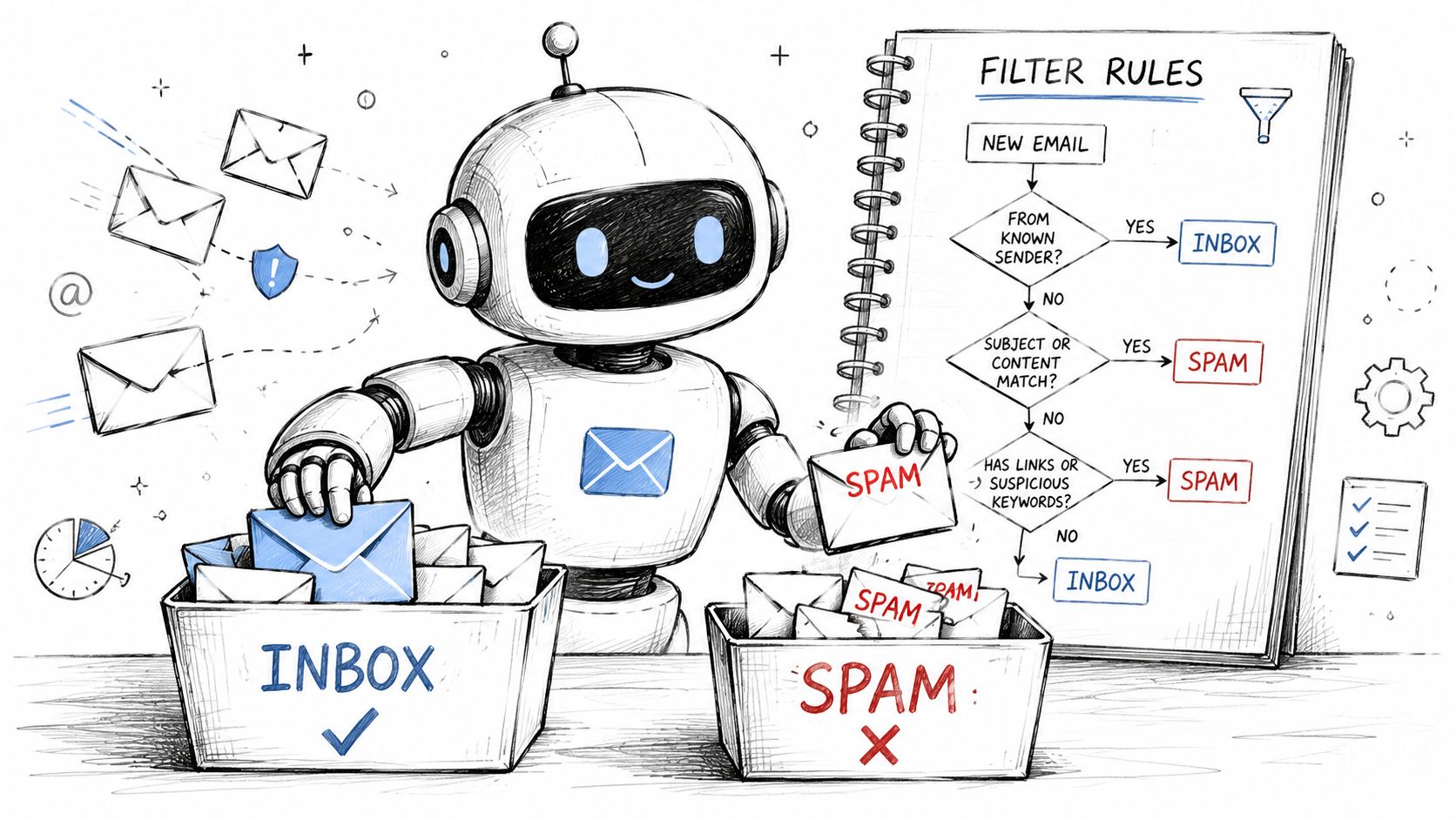
Build rules around patterns not single emails
The strongest filters target patterns, not one-off annoyances.
For recipient-side reduction, the most effective workflow combines blocking domains, using provider junk filters, and unsubscribing from recurring senders. Microsoft recommends adding senders to blocked or safe lists and using the built-in Junk Email Filter to move unwanted messages out of the inbox automatically, as outlined in this consumer guide on getting less spam in your email.
That means your filters should do jobs such as:
- Move newsletters out of the inbox if the sender contains a known publication name or the subject regularly includes “weekly update”.
- Protect important conversations by sending client or staff emails to a priority folder or marking them with a category.
- Catch recurring junk by moving messages with repeat spam phrases straight to junk or trash.
- Sort admin mail such as receipts, bookings, password resets, and invoicing notices into folders that don't interrupt your day.
If you manage email through hosting, cPanel rules are handy because they work before you even open Outlook or your phone. This guide shows how to set up and use Email Filters on cPanel.
Useful filter ideas for work and home
These are the rules I'd set first for a small business inbox:
Invoices and receipts
Send all messages containing “invoice”, “tax invoice”, “receipt”, or known supplier names to an Accounts folder.Newsletters
Move emails with “unsubscribe” in the footer from trusted senders into a Read Later folder. Don't do this broadly for unknown senders.Website form notifications
If your website sends enquiry alerts, star or label them so they don't get lost among low-priority mail.Recurring nuisance senders
If one sender isn't malicious but is wasting your time, send them straight to archive.Safe list for critical contacts
Add clients, your bank, major suppliers, and internal addresses to a safe-sender list so they're less likely to get trapped in junk.
A good filter should remove noise without hiding anything that would cost you time, money, or trust if missed.
Keep your filters tidy
Too many filters can make a mess just as quickly as too few. If something goes missing, the first place to check is your own rules.
A few habits help:
- Review monthly so old supplier rules and outdated projects don't keep sorting mail in strange ways.
- Name rules clearly with labels such as “Move newsletters”, “Priority clients”, or “Receipts”.
- Test before going aggressive. Start by moving messages to a folder, not deleting them.
- Use safe lists carefully. They're useful for trusted senders, but don't add broad domains unless you're sure.
The best inboxes aren't spotless. They're organised enough that the important mail is obvious.
Host your website with our 5-star rated, cPanel website hosting plans.
Super fast servers, with security included and hosted in your choice of Australian Data Center.
View cPanel Plans
Proactive Prevention Protecting Your Email Address
If your main address ends up on every checkout page, directory listing, contact form, giveaway, and social media profile, filtering becomes a cleanup exercise you'll never quite finish. A better approach is to stop handing out the same address everywhere.
The most effective fix is often not more blocking, but reducing exposure in the first place by using secondary addresses or aliases for sign-ups and public-facing contact points, as noted in this advice on stopping spam emails with better address hygiene.
Why your main address needs protection
Your primary address should be treated like a business mobile number you don't give to every random caller.
Use one address for core communication. That means clients, banks, accounting, hosting, and anything tied to identity or billing. Then use separate addresses or aliases for lower-trust activities such as online shopping, newsletters, free downloads, event registrations, and public contact points.
This gives you control. If one alias starts attracting junk, you can filter it hard, disable it, or replace it without disrupting the inbox you rely on.
Simple ways to use aliases without making life harder
A lot of people avoid aliases because they think it means checking multiple inboxes all day. It doesn't have to.
Try a structure like this:
- Primary mailbox for important person-to-person communication
- Shopping or sign-up alias for retail, downloads, and newsletters
- Public website alias for contact forms or directory listings
- Role-based address such as accounts@ or sales@ for team handling
If you're using Microsoft 365 or hosted Outlook-style email, an alias setup can be straightforward. This guide on creating an Outlook email alias is a useful starting point.
The cleaner strategy is often upstream. Protect the address first, then let filters handle what still gets through.
For small Australian businesses, this matters more than commonly understood. The law can help with non-compliant commercial email, but it won't stop every unwanted message from ever reaching you. Good address hygiene fills that gap.
Fortifying Your Business with Server-Side Protection
If you run a custom domain for your business, inbox rules only solve part of the problem. You also need protection before mail reaches Outlook, Apple Mail, webmail, or phones. That's where server-side controls earn their keep.
For a hosted business mailbox, there are two jobs here. First, filter incoming junk earlier. Second, make sure your own legitimate email doesn't look suspicious when it leaves your domain.
Stop junk before it reaches the inbox
Server-side filtering is useful because it acts before individual staff members have to make the same decisions over and over again.
In a cPanel environment, that usually means enabling spam filtering, adjusting how aggressive the filter should be, reviewing quarantined mail, and maintaining sensible allow and block lists. This is especially handy for generic mailboxes like info@, sales@, and accounts@, which attract more junk because they're easier to guess and often published on websites.
If your business uses hosted email, UpTime Web Hosting includes spam filtering with email accounts, which makes this kind of control available at the hosting level rather than leaving the whole job to desktop apps alone.
A practical approach looks like this:
- Turn on server-side spam filtering for all standard mailboxes.
- Be conservative at first so you don't trap real enquiries.
- Review false positives for a while before tightening rules.
- Block obvious repeat offenders at domain level where appropriate.
- Keep one monitored quarantine process so someone checks whether anything legitimate was caught.
Authentication records matter for outbound mail too
A lot of business owners only think about spam as incoming junk. The other side of the problem is deliverability. If your own domain isn't authenticated properly, your quotes, invoices, booking confirmations, and replies can land in someone else's junk folder.
For Australian senders, implementing SPF, DKIM, and DMARC together is the standard technical baseline for reducing the chance of legitimate mail being treated as spam, according to this explanation of why emails go to spam and how authentication helps.
That's why these records matter:
| Record | What it helps with | Why it matters |
|---|---|---|
| SPF | Validates authorised senders | Reduces sender mismatch issues |
| DKIM | Signs outgoing mail | Helps prove the message wasn't altered |
| DMARC | Applies policy and alignment | Tells receiving systems how to treat failures |
You don't need to become a mail engineer to take this seriously. You do need to know whether your website, CRM, invoicing platform, and mailbox provider are all sending as your domain, and whether the domain is configured to support that safely.
For cPanel users, this knowledge base article on implementing SPF, DKIM, and DMARC in cPanel is the right place to start.
A practical setup for hosted business email
For a small business, I'd treat mail protection as a routine maintenance task, not a rescue job after messages start vanishing.
Use this checklist:
- Check inbound filtering first if staff complain about too much junk.
- Check authentication next if clients say they never received your email.
- Audit all sending services such as website forms, booking tools, CRMs, and email marketing platforms.
- Keep public addresses separate from executive or finance mailboxes.
- Review unusual spikes in bounce-backs or spam complaints quickly.
If your outgoing mail keeps landing in junk despite authentication being in place, it can help to get a specialist to review mailbox placement, sender reputation, and platform alignment. This guide on how to fix your email deliverability is a sensible external resource for that deeper troubleshooting.
When to Escalate Reporting Spam and Phishing in Australia
Some unwanted emails are just noise. Others cross the line into repeated non-compliant marketing, impersonation, credential theft, fake invoices, and outright fraud. That's when deleting the message isn't enough.
Australia's anti-spam framework goes back to the Spam Act 2003 (Cth), which is the core law covering unwanted commercial email, SMS, and MMS. ACMA says commercial electronic messages must meet consent, identification, and unsubscribe rules, and enforcement is active. One example cited by ACMA was a $50,000 infringement notice against a business in 2024 for alleged spam breaches, as covered in this article about how to stop spam emails and the Australian legal path.
What belongs with ACMA and what does not
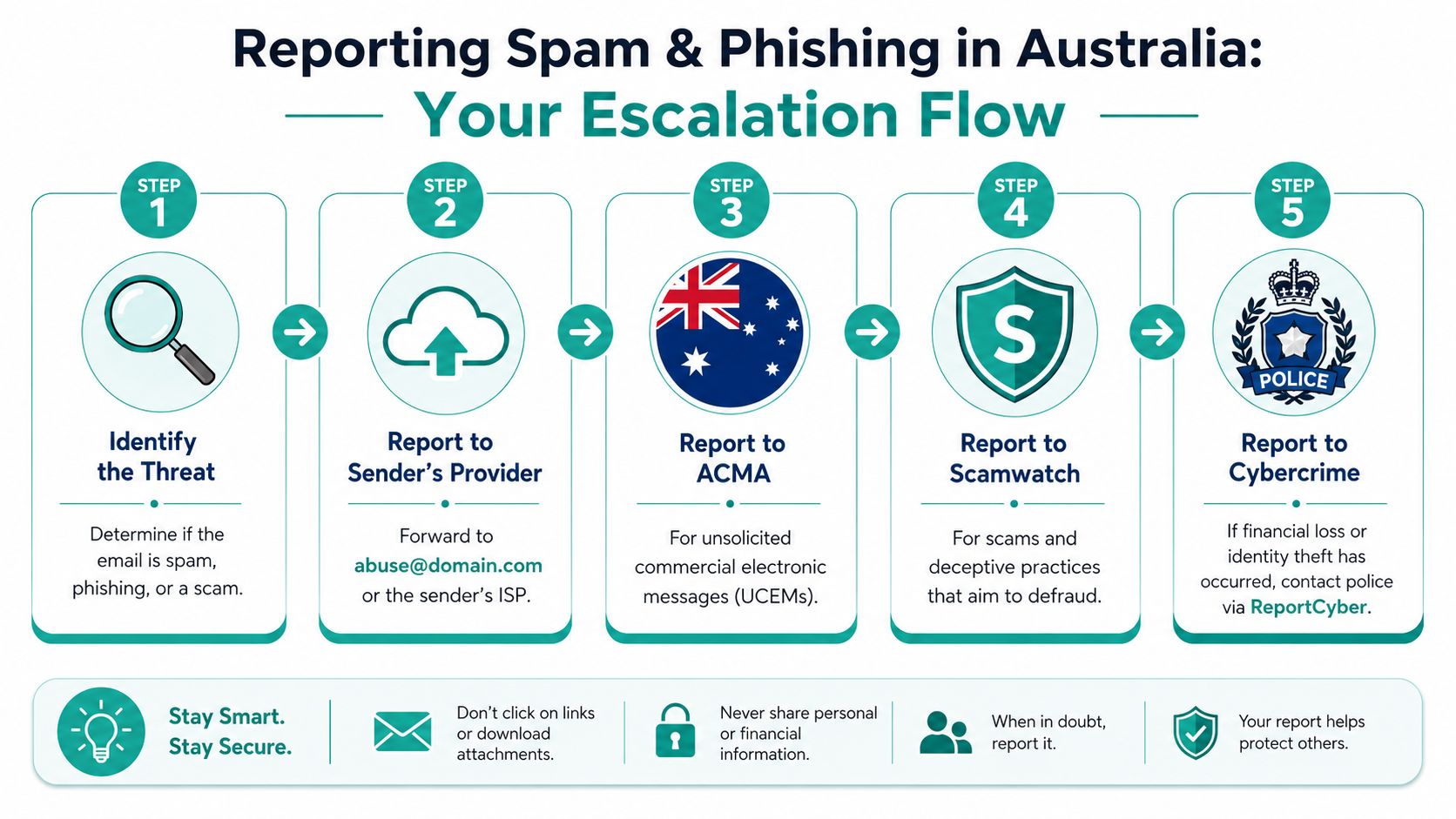
ACMA is the right escalation path for unsolicited commercial electronic messages. Think marketing email sent without consent, messages with no proper sender identification, or campaigns with unsubscribe links that don't work or aren't honoured.
Phishing and broader scams are different. If the email is pretending to be your bank, Microsoft, Australia Post, the ATO, or a supplier in order to trick you into paying, logging in, or opening an attachment, that sits closer to scam and cybercrime reporting pathways than ordinary spam compliance.
A simple split works well:
- Commercial spam issue. Report through ACMA channels.
- Scam or deceptive message. Report to Scamwatch.
- Financial loss, identity compromise, or system intrusion. Escalate through ReportCyber and, where needed, police.
A sensible reporting workflow
When a message needs more than a junk-click, keep the process tidy.
Save evidence
Keep the original email if possible. Don't just screenshot the pretty part. Headers and full sender details can matter.Report it to your provider
Many mailbox systems let you report phishing or junk directly. If you manage your own domain, your hosting provider or IT support may also want a copy.Identify the sender's real origin
If the message appears to come through a compromised service or fake domain, track that carefully before making assumptions. For hosted domains, this guide on tracking down a spammer on cPanel can help you investigate where mail activity is coming from.Send the report to the right Australian channel
ACMA for spam law issues. Scamwatch for scams. ReportCyber if there's actual cybercrime impact.
Reporting works best when you classify the email correctly. “Annoying marketing” and “credential theft attempt” are not the same problem.
One more point matters. Don't keep testing a suspicious email by clicking, replying, or trying the unsubscribe link “just to see”. If it looks dodgy, treat it as evidence, not correspondence.
Register your new domain name at competitive market prices including free domain add-ons like privacy, DNS Hosting, Custom Nameservers and Forwarding.
Always the best price and no nasty renewal price hikes.
Register A Domain Name
Conclusion Take Back Control of Your Inbox
Monday morning, you open your inbox to find customer emails buried under fake invoices, pushy sales blasts, and junk that should never have made it through. That problem usually comes back to process, setup, and exposure, not luck.
The fix is to work in layers. Clean up what is already there. Set rules so the same junk stops wasting your time next week. Protect your address before it gets harvested again. If you run a business on your own domain, tighten the server side as well, because mailbox rules alone will not catch everything.
That business angle matters. A personal Gmail account and a hosted business mailbox do not have the same risks or the same tools. For Australian businesses using cPanel hosting or local providers such as UpTime Web Hosting, the practical win is combining inbox-level controls with server-side filtering, authentication, and sensible mailbox structure. You cut down junk coming in, and you also reduce the chance of your own messages being treated as spam.
Independent research in 2026 estimates that about 45% of all email is spam, according to these email spam statistics and projections. That is why one unsubscribe click, one block list, or one filter rule never solves the whole problem.
Keep your expectations realistic. The goal is not a perfect inbox. The goal is an inbox where real work, customer enquiries, and legitimate receipts are easy to spot, and where obvious rubbish gets filtered, blocked, or reported under the right Australian channel when the Spam Act or phishing rules come into play.
If you want another practical walkthrough focused on everyday blocking tactics, this guide on how to block spam emails is a useful companion read.
If you need Australian-hosted email and website services with practical tools for spam filtering, domain email, and cPanel-based management, UpTime Web Hosting is one local option to consider.