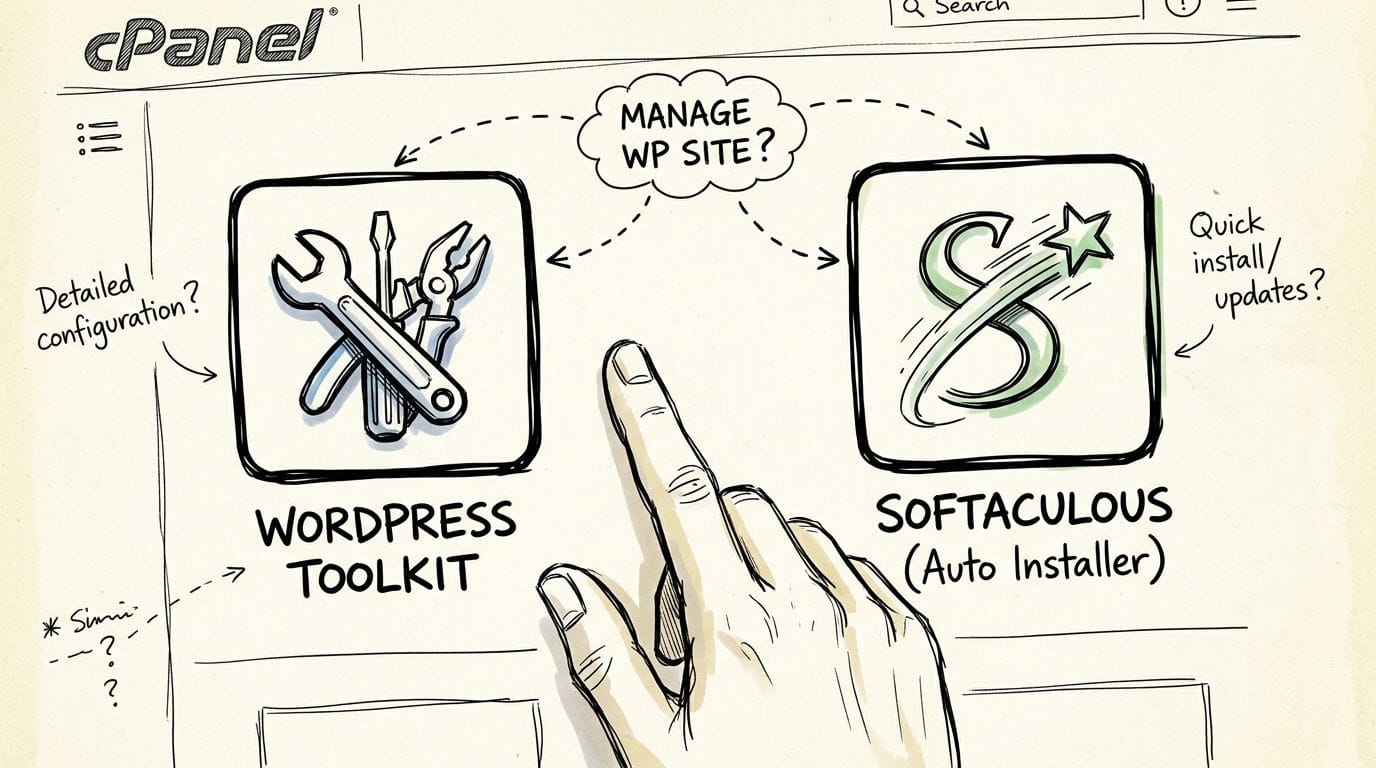
You log into cPanel to sort out a simple WordPress job, then you see two icons staring back at you: WordPress Toolkit and Softaculous. One sounds like a dedicated management console. The other looks like the fast way to install things and move on with your day.
For a lot of Australian business owners, that’s where the confusion starts. If you run a tradie site, an online shop, a local services business, or a small agency account with several client installs, you don’t want a theory lesson. You want to know which tool will help you launch faster, update safely, and avoid chewing through resources on a shared hosting stack built on LiteSpeed, AccelerateWP, and CloudLinux.
That’s the practical frame for WordPress toolkit vs Softaculous. They are not interchangeable, and they are not really trying to do the same job. One is much better once WordPress is already part of your daily operations. The other is still hard to beat when you want a quick install or you work across more than just WordPress.
Choosing Your WordPress Co-Pilot in cPanel
A common local scenario goes like this. A café owner in Brisbane wants a new WordPress site online quickly. A designer in Melbourne is maintaining several client sites. An ecommerce operator in Perth needs a safe way to test plugin changes before touching the live store. All three may log into the same cPanel environment and see the same two tools, but they shouldn’t necessarily use them in the same way.
If you’re already weighing whether WordPress is still the right platform for your business, this guide to WordPress CMS is a useful outside read before you lock in your workflow.
For day-to-day hosting, the more immediate question is simpler. Which tool should you click first inside a standard cPanel hosting environment?
Here’s the short answer.
| Situation | Better first choice |
|---|---|
| You want to install one WordPress site quickly | Softaculous |
| You manage several WordPress sites and want central control | WordPress Toolkit |
| You need staging, hardening, and bulk maintenance | WordPress Toolkit |
| You also deploy other apps beyond WordPress | Softaculous |
| You have both installed and want no update confusion | Pick one as the primary manager |
The mistake is treating this like a winner-takes-all decision. In practice, most confusion comes from using the wrong tool for the wrong stage of the job.
Practical rule: Use Softaculous when speed of installation matters most. Use WordPress Toolkit when ongoing WordPress management matters more than the initial setup.
That distinction matters even more on Australian shared hosting. Resource limits are real, plugin conflicts happen, and a clean workflow saves support time and downtime.

Performance you can feel, backed by clients who depend on it. Read how our support and uptime create long‑term customer success.Power Your Business with Better Hosting
A Quick Look at Each Tool
WordPress Toolkit in plain English
WordPress Toolkit is built for managing WordPress after it exists. It’s the better fit when your questions sound like this:
- How do I update several sites together
- Can I clone this site before making changes
- How do I harden security without adding more plugins
- Where do I manage WordPress from one dashboard
Its strength is depth, not breadth. It’s made for WordPress-specific tasks such as staging, cloning, security checks, backups, restores, and multi-site oversight from one place.
That’s also why agencies and businesses with several WordPress installs usually find it easier to live in Toolkit once sites are established. It feels more like a maintenance console than an installer.
Softaculous in plain English
Softaculous is the fast launcher. It’s known for one-click installs and broad app support, not just WordPress. It supports over 400 software packages according to this comparison.
That makes it handy when you’re not only working with WordPress. A developer might spin up WordPress for one project, then install Joomla or Magento for another. Softaculous handles that variety neatly.
For a small business owner launching a new .au site, it’s often the path of least resistance. You click, install, set the basics, and get moving.
Why the gap narrowed
A lot of older advice about WordPress toolkit vs Softaculous is out of date because it comes from the period when Toolkit’s advanced features were gated behind extra licensing.
Since cPanel version 100, released in late 2021, WordPress Toolkit has offered its full feature set free of charge, which removed the old paid limitation that often pushed Australian users toward Softaculous by default, as noted by Catalyst2’s explanation of managing WordPress via Softaculous.
That change matters. Before it, many small and medium businesses couldn’t justify paying for features like cloning and stronger WordPress management. After it, Toolkit became a real option for everyday cPanel users.
The clean distinction
If you want the shortest possible way to explain the difference, use this:
- Softaculous installs websites fast
- WordPress Toolkit manages WordPress properly at scale
That doesn’t mean Softaculous is basic, or that Toolkit can’t install a site. It means their centre of gravity is different. Once you understand that, most of the decision becomes easier.
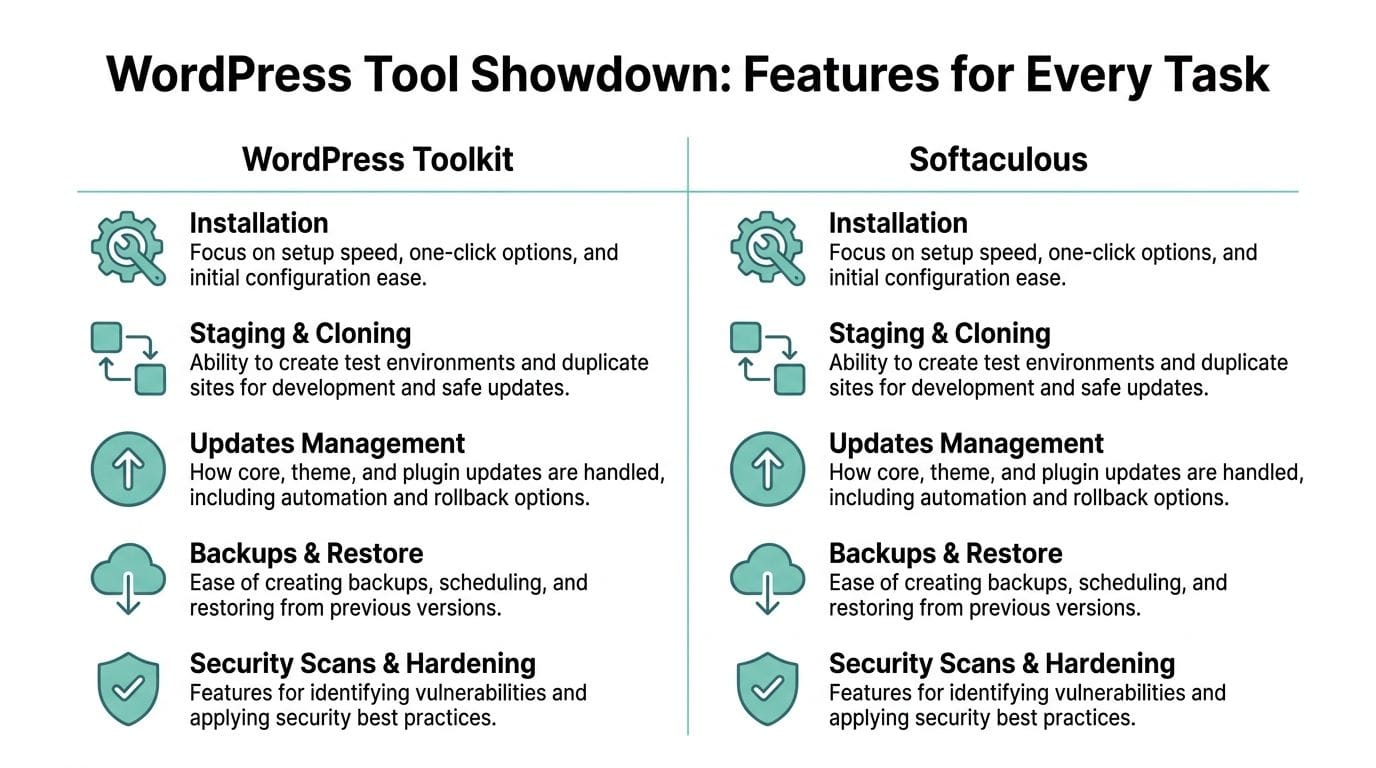
Core Feature Showdown Installation to Security
Here’s the quick visual before the deeper breakdown.
| Feature | WordPress Toolkit | Softaculous | Best For |
|---|---|---|---|
| Installation | Easy WordPress setup with more management options | Very fast one-click setup | Single-site launches |
| Multi-site management | Strong central dashboard across WordPress installs | More limited as a WordPress manager | Agencies and maintainers |
| Cloning and staging | Strong WordPress-focused workflow | Cloning is available but less management-centric | Safe testing before changes |
| Updates | Bulk WordPress, plugin, and theme management | Update support exists but isn’t the same central control experience | Ongoing maintenance |
| Backups and restore | WordPress-specific backup approach | Server-level efficiency across many apps | Shared hosting efficiency |
| Security hardening | Strong WordPress-specific hardening and scans | Less specialised for WordPress hardening | Businesses wanting tighter WordPress controls |
| App library | Focused on WordPress | Supports 400+ apps | Mixed-stack developers |
Installation and onboarding
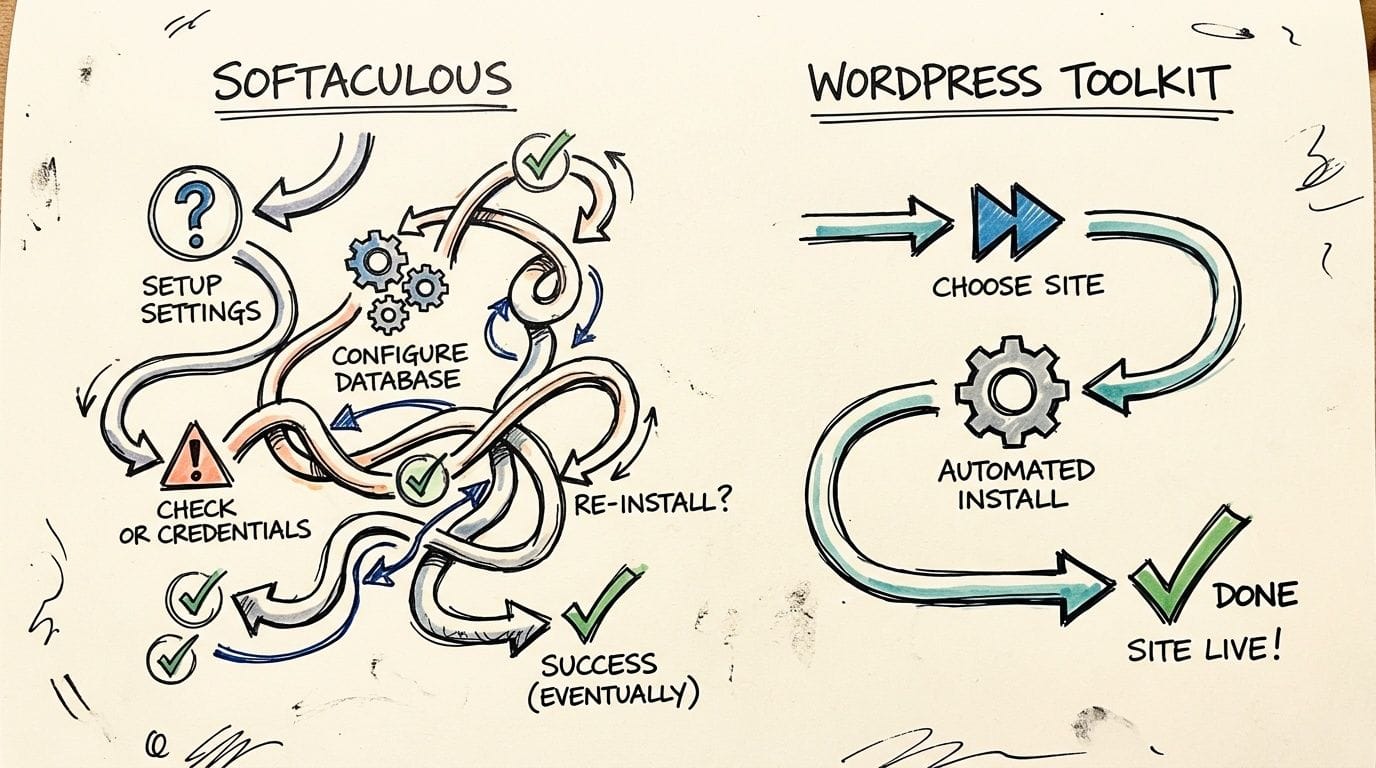
Softaculous wins the first-install race for most users.
If an Australian startup has just registered a domain and wants WordPress online today, Softaculous is usually the smoother path. The interface is geared around getting an application installed with minimal friction.
WordPress Toolkit can also install WordPress, but it feels more like the start of a management workflow. That’s useful if you already know you’ll want staging, security work, and structured upkeep from day one.
Here is a practical way to consider the difference:
- Softaculous is the faster front door
- Toolkit is the stronger control room once you’re inside
For solo site owners, speed often wins. For agencies, the control room matters more.
Updates and automation
Updates are where Toolkit starts to pull ahead for serious WordPress work.
It’s built around seeing multiple WordPress installs together and acting across them. If you manage several client sites, that view matters. You can spot outdated plugins, themes, and core installs without clicking through each site one by one.
Softaculous still supports update tasks, but its workflow is less centred on WordPress fleet management. It’s stronger as a broad installer than as a dedicated WordPress operations dashboard.
If your weekly routine includes checking plugin status across multiple client sites, Toolkit usually feels more organised and less repetitive.
That’s especially useful on a stack using LiteSpeed and AccelerateWP, where site owners often run caching, optimisation, and security layers that shouldn’t be changed blindly. A more deliberate update workflow reduces surprises.
Cloning and staging
This is one of the most practical dividing lines.
WordPress Toolkit is the better tool when you need to clone a live site, test changes safely, or build a staging copy before updating plugins on a production business site. For Australian ecommerce and lead-gen sites, that matters because downtime isn’t just annoying. It costs enquiries and sales.
Softaculous has cloning capabilities, but staging isn’t where it feels most at home. It gets the job done for straightforward tasks, yet it doesn’t feel as purpose-built for structured WordPress change management.
If you regularly do any of these, Toolkit is the better fit:
- Testing plugin updates before going live
- Trialling a new theme on a copy
- Handing a safe duplicate to a developer
- Rolling through maintenance on multiple WordPress sites
For practical backup steps before you do any of that, this guide on how to backup a WordPress site is worth keeping handy.
Backups and recovery
Softaculous deserves more credit here than many WordPress-only guides give it.
In a shared Australian hosting environment, Softaculous is demonstrably more efficient for backups. Server-level backups through Softaculous use fewer resources than WordPress Toolkit’s methods or standard backup plugins. Benchmarks cited by Maxer Hosting’s backup comparison show 2-3x faster restore times for a typical 1GB site and 40-60% less backup overhead during peak hours.
That matters on CloudLinux-based shared hosting because CPU and memory ceilings are real. A heavy plugin backup can put unnecessary strain on the account. Softaculous avoids much of that plugin overhead through operation at server level.
Toolkit still has value here. Its backup and restore tools are WordPress-focused and easier to pair with WordPress management tasks. If your priority is working inside one WordPress dashboard, that convenience is real.
But if the question is strictly resource efficiency on shared hosting, Softaculous has the stronger case.
What works well: Use Softaculous when backup efficiency and restore speed matter most on shared hosting. Use Toolkit when the backup action is part of a broader WordPress maintenance workflow.
Security hardening
WordPress Toolkit is better at WordPress-specific security management.
That includes hardening steps, malware scanning integration, and maintenance controls that make more sense for WordPress than for a generic app installer. If you’re running a business site that needs a tighter maintenance routine, Toolkit is usually the cleaner place to handle that work.
Softaculous isn’t poor on security. It’s just not specialised in the same way. Its design goal is broad software deployment, not WordPress-specific hardening.
On DDoS-protected, LiteSpeed-based hosting, that distinction matters because security isn’t only about the server edge. It’s also about whether the application itself is configured sensibly and updated cleanly.
What works in practice
For most site owners, the sharpest split looks like this:
Use WordPress Toolkit when
- You manage several WordPress sites
- You need staging or cloning regularly
- You want bulk plugin and theme maintenance
- You want WordPress-specific hardening in one place
Use Softaculous when
- You want a site online fast
- You also install apps beyond WordPress
- You care about backup efficiency on shared hosting
- You prefer a simpler launch workflow for one site
Neither tool fixes a sloppy process. The best results come from choosing one primary workflow and sticking to it.
Host your website with our 5-star rated, cPanel website hosting plans.
Super fast servers, with security included and hosted in your choice of Australian Data Center.
View cPanel Plans
Workflow and User Experience Compared
The feature list tells only half the story. The daily experience is different.
What Toolkit feels like
WordPress Toolkit feels like a dashboard for people who maintain WordPress sites as part of their job. You open it and think about status, updates, security posture, staging, and cloning.
That makes it a better match for:
- Agencies managing client portfolios
- Freelancers maintaining several retainers
- Businesses with multiple brands or microsites
- Anyone who wants one WordPress control surface
The cleaner workflow is one reason staging tasks are less intimidating there. If you’re doing that for the first time, this knowledge base article on how to create a staging site for your WordPress website gives a practical reference point.
What Softaculous feels like
Softaculous feels more like an app catalogue with installer shortcuts built in. That’s not a criticism. It’s why many users like it.
You go there when the goal is direct and specific. Install WordPress. Launch another app. Get the site online without a long decision tree.
For one-site owners, that’s often less mentally taxing. You don’t need a management console if all you need today is a working website.
Which workflow fits which person
A small business owner usually prefers the shortest route to a functioning site. A web developer often wants the broader app library. An agency owner usually values central oversight over installation speed.
The right interface is the one that matches your recurring job, not the one with the longest feature list.
That’s why WordPress toolkit vs Softaculous isn’t really about which screen looks nicer. It’s about whether your main task is launching or managing.
If your week is mostly installs, Softaculous feels efficient.
If your week is mostly maintenance, Toolkit feels calmer.
Running Both Tools What You Must Know
A lot of cPanel accounts have both tools available. That’s normal. You don’t need to uninstall one just because the other exists.
The main issue is automation overlap.
Where the conflict happens
When both tools are active, their automatic update systems can collide. Official cPanel community documentation states that “whichever service happens to perform the update first” will succeed, and there is no built-in deconfliction, as outlined in this cPanel support community discussion.
That can create duplicate update notices. In rarer cases, it can create race-condition behaviour that makes maintenance harder to interpret.
Many business owners get tripped up by this. They think both tools are helping. Sometimes they are. Sometimes they’re both trying to do the same maintenance task.
The practical fix
Pick one tool as the authority for updates.
That’s the cleanest and safest setup. Use the other tool for what it does best, but don’t let both run automatic WordPress maintenance at the same time.
A practical setup might look like this:
- Use Softaculous for installs if you like its one-click setup.
- Adopt the site into WordPress Toolkit for staging, hardening, and ongoing multi-site management.
- Disable auto-updates in one tool so only one system owns WordPress maintenance.
That keeps your workflow predictable. It also makes troubleshooting much easier if a plugin update breaks something.
One manager is better than two
This matters even more on business sites with local traffic and active lead generation. When a site owner receives conflicting alerts from two control layers, they often delay action. Delayed action is how small plugin issues become larger support issues.
If you’re already troubleshooting Toolkit-related oddities in cPanel, the article on WP Toolkit showing a Let’s Encrypt error is a useful reference for one common support case.
Don’t run two automatic maintenance systems unless you enjoy guessing which one touched the site first.
The best mixed setup is not “use both equally”. It’s “use both deliberately”.
Recommendations for Your Australian Business
The right choice usually shows up on a normal workday.
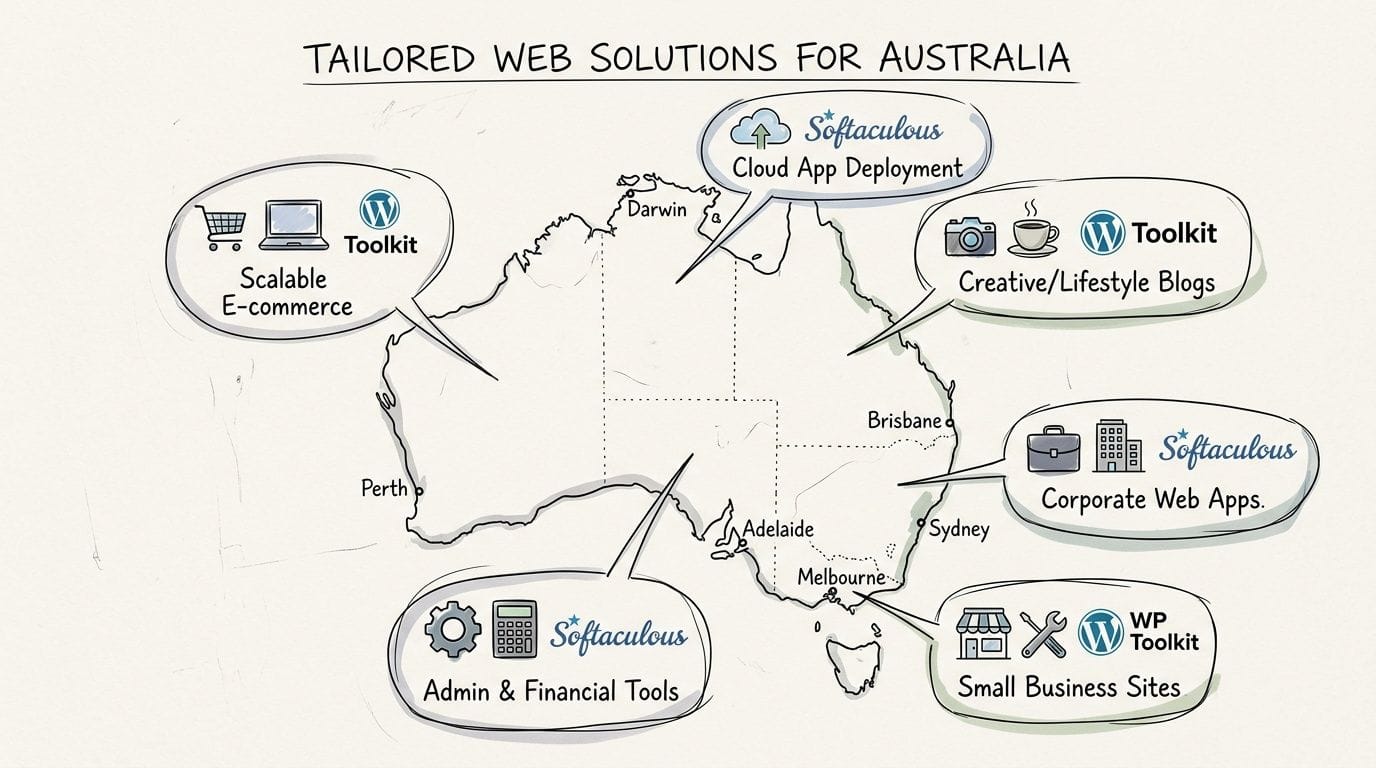
A Brisbane plumber with one brochure site has different needs from a Gold Coast agency managing 20 client installs in cPanel. On UpTime’s stack, that difference matters. LiteSpeed helps with front-end speed, CloudLinux keeps shared resources fair between accounts, and AccelerateWP adds another performance layer you may want to tune carefully. The tool you pick should match the way you maintain the site, not just the install screen that looks easier on day one.
If you run one small business site
Start with Softaculous if your goal is simple setup, low friction, and getting a site live without extra decisions.
That usually fits:
- local trades
- medical and allied health clinics
- cafés and restaurants
- sole traders launching a service site
- new businesses registering a .au domain and building their first WordPress site
For a single brochure site, Softaculous does the job cleanly. You install WordPress, log in, and start building. If updates are occasional and you are not testing changes on staging before going live, WordPress Toolkit can feel like more control than you need.
Choose WordPress Toolkit first if the site brings in bookings, quote requests, or online sales. In that case, staging and tighter WordPress management are often worth having from the start, especially if plugin conflicts would cost you leads during business hours in Australia.
If you manage several WordPress sites
Choose WordPress Toolkit as your main control point.
This is the clearest split between the two tools. Toolkit is stronger for ongoing WordPress administration across multiple installs. Softaculous is still handy for fast deployments and for non-WordPress apps, but it is not the better day-to-day console for a busy WordPress fleet.
That matters on UpTime hosting because agencies and IT support teams are usually working inside the limits of real shared hosting behaviour, not a lab setup. Bulk plugin updates, staging copies, hardening checks, and a single WordPress-focused dashboard save time. They also reduce support mistakes when several staff members touch the same client accounts.
Toolkit is usually the better fit if your team needs:
- bulk plugin and theme maintenance
- staging before client-approved changes
- WordPress security controls in one place
- a clearer support workflow across multiple sites
If you are also reviewing where those sites should live, our guide to the best Australian WordPress hosting for local businesses and agencies gives the hosting side of that decision.
If you run mixed web projects
Use both tools, but with a defined split.
This suits developers, technical freelancers, and agencies that do not only touch WordPress. Softaculous stays useful when you are spinning up other PHP apps or testing different CMS options. WordPress Toolkit becomes the better choice once a project settles into long-term WordPress maintenance.
A sensible working setup is simple:
- use Softaculous for quick app installs
- use WordPress Toolkit for active WordPress management
- set one tool as the update owner
That approach works well on cPanel because each tool keeps doing the job it handles best, without creating confusion for the person supporting the site later.
If hosting efficiency matters more than extra controls
Lean towards Softaculous for straightforward installs and lighter-touch backup workflows.
That is often the better call for small business owners on shared hosting who want to keep things predictable. On CloudLinux-based accounts, heavy backup plugins and repeated maintenance jobs can put more pressure on account resources than expected. Softaculous is often the simpler fit if your site is stable and you are not running a more advanced WordPress workflow.
A practical final call
For most UpTime customers, the recommendation is straightforward.
- One small business site: start with Softaculous, unless you already know you need staging and tighter WordPress controls.
- Several WordPress sites: use WordPress Toolkit as the main manager.
- Mixed projects: keep both available, but give each a separate job.
- Business-critical WordPress site: favour Toolkit if safer update handling matters more than a faster first install.
Australian small business owners also tend to care about clean monthly costs, clear GST-inclusive billing, and spending less time in cPanel. That is another reason to keep the setup practical. Pick the tool that matches your support workload, your risk level, and how often the site changes.
Register your new domain name at competitive market prices including free domain add-ons like privacy, DNS Hosting, Custom Nameservers and Forwarding.
Always the best price and no nasty renewal price hikes.
Register A Domain Name
Frequently Asked Questions
Can I install WordPress with Softaculous and manage it later in WordPress Toolkit
Yes. That’s a common workflow. Install with Softaculous if you want the quick setup, then use Toolkit for WordPress-specific maintenance such as staging, cloning, and security work.
Which one is easier for a beginner
For most beginners, Softaculous is easier for the initial install because the path is more direct. If you only have one site and want the fewest decisions upfront, it’s usually the easier starting point.
Which tool is better for multiple WordPress sites
WordPress Toolkit is better if you manage several WordPress installs and want one dashboard for maintenance. That’s where its bulk actions and WordPress-specific controls make more sense.
Which one is lighter on shared hosting resources
For backup operations, Softaculous is the more resource-friendly option based on the benchmarked backup and restore behaviour covered earlier. For general WordPress maintenance, the lighter option depends on what you’re doing and how many plugins your site already relies on.
Should I keep auto-updates enabled in both tools
No. Pick one tool to handle automatic updates. If both are enabled, the workflow becomes harder to predict and duplicate notifications can follow.
Is Softaculous only for WordPress
No. It supports over 400 software packages, which is one reason developers and mixed-stack users still rely on it heavily.
Is WordPress Toolkit only useful for advanced users
No. It’s more powerful, but not only for advanced users. Business owners who want safer updates, cleaner staging, and better visibility across more than one site often benefit from it even if they aren’t technical.
If you want local help choosing the right workflow, migrating an existing site, or setting up WordPress properly on Australian servers, UpTime Web Hosting offers cPanel hosting with LiteSpeed, CloudLinux, AccelerateWP, local support, and practical guidance for businesses that want fast, stable WordPress without the usual confusion.