You’re usually duplicating a page because time is tight. A campaign needs a fresh landing page, a service area page has to be spun up for another suburb, or a client wants the same layout reused with new copy before close of business. In WordPress, that sounds easy. Click duplicate, tweak the text, publish.
That part is easy. The messy part starts after the copy exists.
A wordpress duplicate page can preserve a lot of useful work, including layout, custom fields, images, and plugin settings. It can also preserve the exact things you didn’t want copied, such as SEO metadata, canonicals, noindex settings, featured images, old internal links, and analytics-related custom fields. That’s where rushed duplication turns into ranking problems, broken funnels, and cluttered admin areas.
For Australian businesses, the consequences are more pronounced when local intent is involved. Existing tutorials often miss region-specific SEO risks. With 85% of queries being location-based in the Australian context cited by this local-search discussion, unadjusted duplicates can create canonicalisation issues and lead to 25-40% ranking drops for local SMBs. That’s exactly why a duplicate page should be treated as the start of a workflow, not the finish.
Why Simply Copying a Page Is Not Enough
A common example is a Brisbane tradie site with one strong service page that now needs suburb variants. The owner duplicates the original page, swaps the suburb name in the headline, and pushes it live. On the surface, the job’s done. In practice, the duplicated page may still carry the original SEO title, image alt text, internal links, and a canonical pointing to the source page.
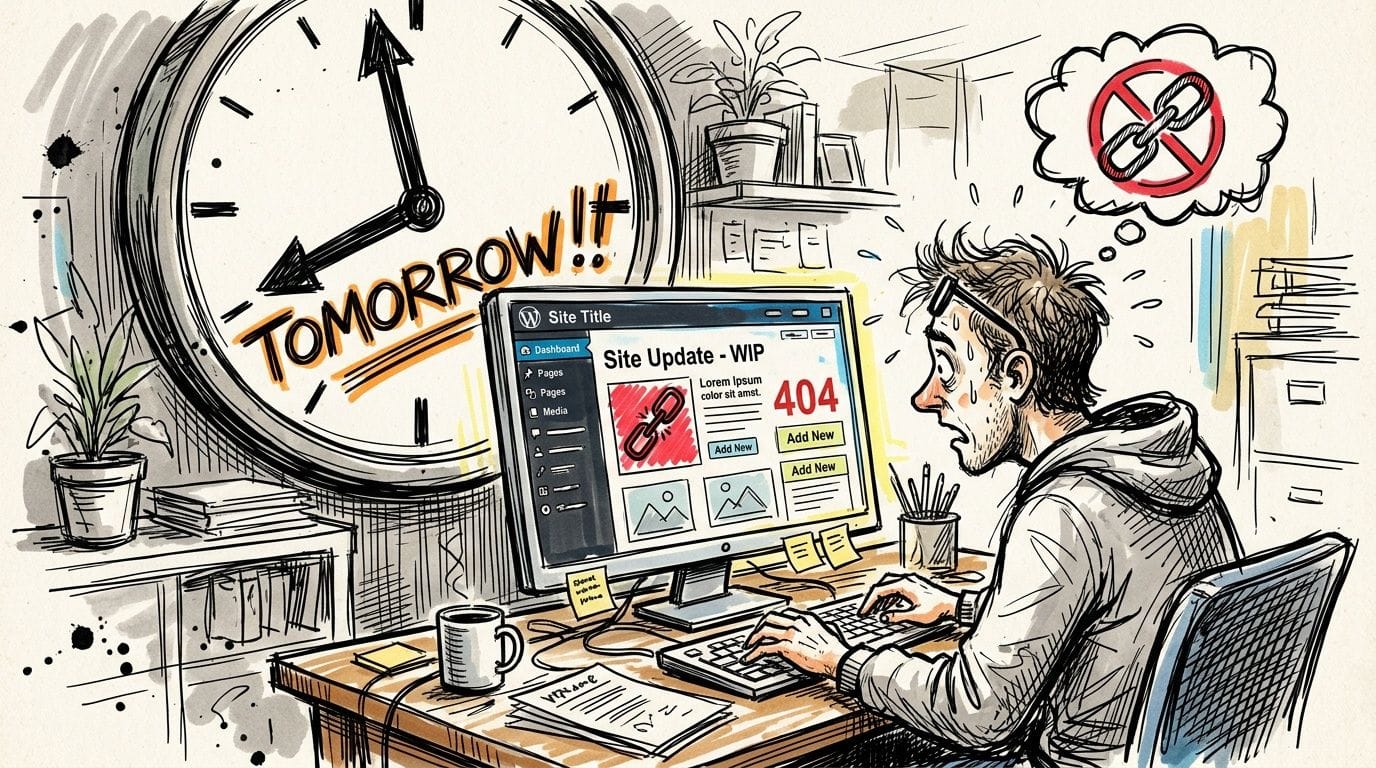
That’s the trap. Most guides stop at “how to make the copy” and ignore “how to make the copy safe”.
If you’re running seasonal pages for EOFY offers, school holiday promos, event pages, or multi-location service pages, duplication is a sensible workflow. Rebuilding layouts from scratch wastes time and increases inconsistency. But publishing near-identical pages without a cleanup pass can leave Google choosing one version and filtering the other out.
Practical rule: Duplicate for speed. Edit for uniqueness. Audit before publish.
The same problem shows up on WooCommerce stores. Product layouts get cloned correctly, but old SKU references, linked products, or promotional banners remain in place. On brochure sites, copied contact forms still email the wrong department. On agency builds, duplicated template pages often inherit placeholder metadata that nobody notices until rankings slide or leads go to the wrong inbox.
A good duplication workflow does three things well:
- Preserves structure: The new page keeps the layout, blocks, styling, and page builder setup you already know works.
- Prevents accidental publishing: New copies stay in draft until someone checks content, metadata, and links.
- Forces cleanup: Titles, URLs, images, CTAs, and search settings are reviewed before the page goes live.
That’s the difference between using a wordpress duplicate page process as a production shortcut and using it as a content management habit that slowly creates SEO debt.

Performance you can feel, backed by clients who depend on it. Read how our support and uptime create long‑term customer success.Power Your Business with Better Hosting
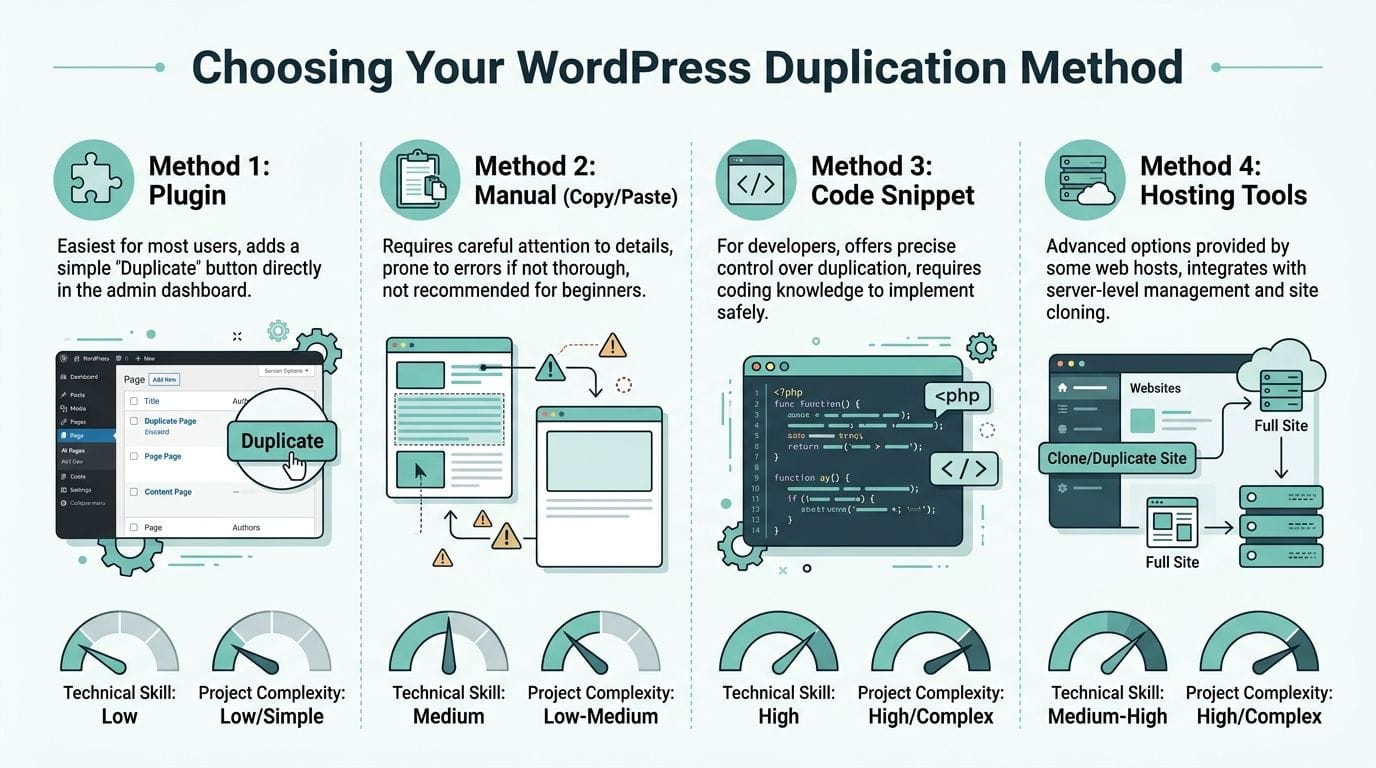
Choosing Your WordPress Duplication Method
The right method depends on what you’re copying. A simple text page doesn’t need the same approach as a complex Elementor landing page with custom fields and dynamic content.
Four workable options
Some site owners only need a quick duplicate button. Others want tighter control and fewer plugins. Developers often need something scriptable.
| Method | Best For | Ease of Use | Potential SEO Risk (If Handled Poorly) |
|---|---|---|---|
| Plugin | Most site owners, agencies, marketers | Easy | Medium |
| Manual copy and paste | Simple pages with basic content | Moderate | High |
| Code snippet | Developers managing custom workflows | Advanced | Medium |
| Hosting tools | Staging, larger changes, safe testing | Advanced | Low to Medium |
Plugin method
This is the default choice for most WordPress sites. It adds a duplicate or clone action directly in the admin list for pages, posts, and sometimes custom post types. It’s fast, familiar, and usually preserves more than manual copying.
It’s also the least error-prone for non-developers. If you’re already reviewing your stack, this guide to top plugins for every WordPress website is a useful place to keep your setup lean.
Manual copy and paste
This works when the page is mostly text and basic blocks. It’s fine for a plain content page, a simple announcement, or a draft article outline. It’s a poor fit for anything relying on custom fields, page templates, SEO plugin metadata, or reusable design systems.
The more design logic a page has, the less suitable manual duplication becomes.
Code snippet
A code-based duplicate function suits developers who want admin-level control without another plugin. You can add a custom action in the dashboard and define exactly what gets copied.
This approach is tidy when you manage multiple sites with a repeatable stack. It’s not a good first move on a live site if you’re not comfortable editing PHP safely.
Hosting and staging tools
This option isn’t really about single-page cloning. It’s about safer workflow. If you’re redesigning key landing pages, duplicating content during a staging pass is often cleaner than making repeated live edits.
Use this path when the duplication job is tied to bigger layout changes, plugin tests, or template rollouts.
How I’d choose in practice
- Use a plugin if you want speed and consistency.
- Use manual copy if the page is simple and disposable.
- Use a code snippet if you’re a developer and want no plugin overhead.
- Use hosting tools or staging if the duplicate is part of a broader site change.
The best method isn’t the one with the most features. It’s the one that preserves what matters, introduces the fewest mistakes, and fits your team’s actual skill level.
How to Duplicate a Page with a WordPress Plugin
For most Australian businesses, a plugin is the fastest and safest way to create a wordpress duplicate page. It gives editors a visible action in the dashboard and reduces the temptation to rebuild pages manually.
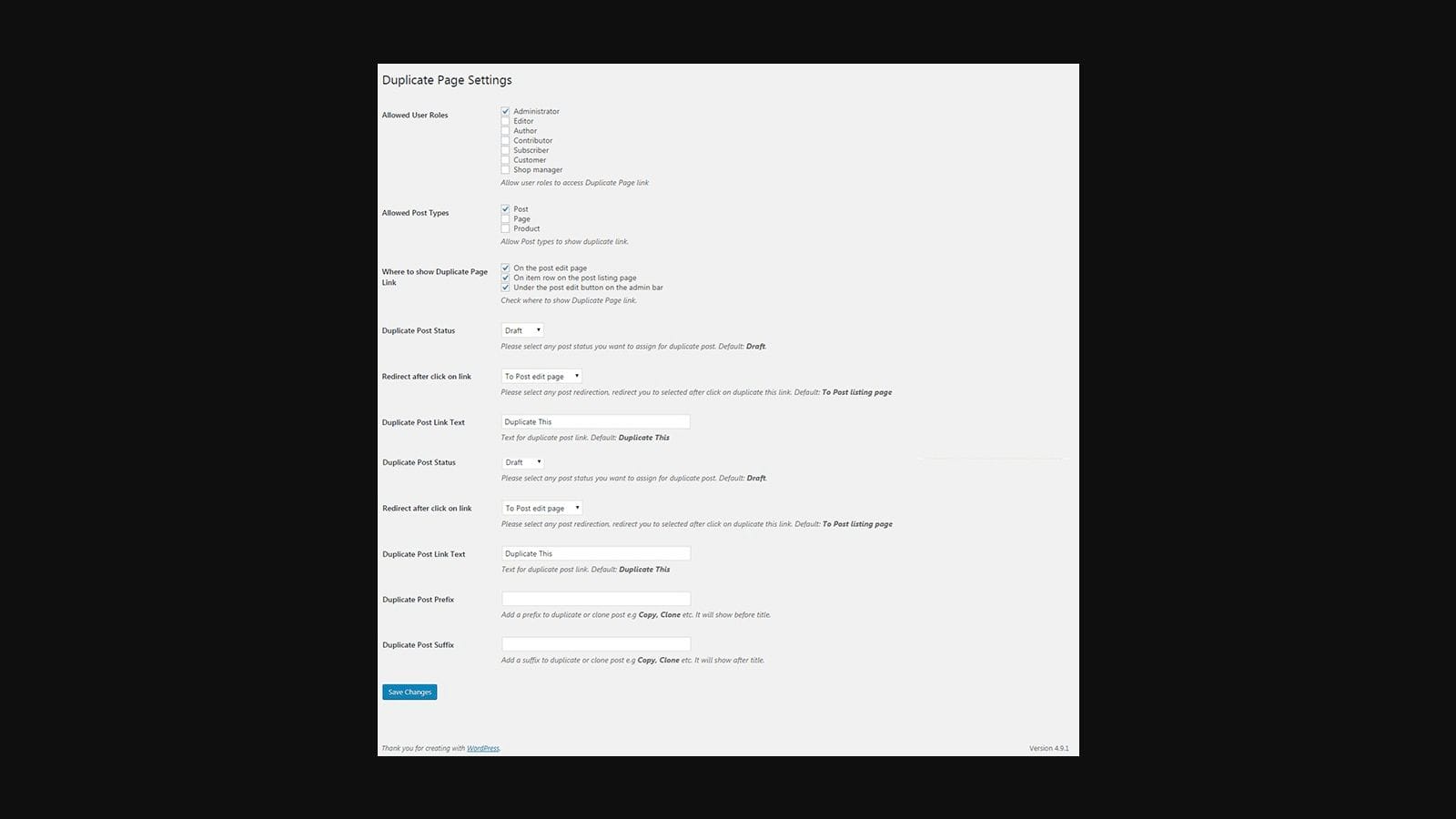
The WP Duplicate Page plugin is a practical example because it has 60,000 active installations and an 80% support resolution rate, according to Automagic WP’s plugin reference. The same source notes that developers can save up to 70% on page creation time when duplication is part of a templated workflow.
What a plugin gets right
A proper duplication plugin usually copies more than visible page content. That’s the main benefit.
It can preserve:
- Layout settings: Useful for Gutenberg layouts and page builder pages.
- Custom fields: Important on sites using ACF or plugin-driven meta boxes.
- Featured image associations: Handy when the image is still relevant as a placeholder.
- Draft workflow: Critical if you don’t want an identical page accidentally published.
If you’re comparing plugin-led management inside hosting panels, this breakdown of WordPress Toolkit vs Softaculous helps clarify how different admin tools affect WordPress workflows.
Basic setup
The process is usually straightforward:
- Install and activate your duplication plugin.
- Open the plugin settings before using it.
- Set duplicated content to save as draft, not published.
- Add a default suffix like Copy or Draft.
- Restrict access so only editors or admins can duplicate content.
Those settings matter more than people think. A suffix keeps your admin list organised. Draft status prevents accidental duplication going live. Role restrictions stop junior users from cloning pages they shouldn’t touch.
Where to duplicate pages
Once the plugin is active, go to Pages or Posts in the WordPress dashboard. Hover over the item you want to copy. You’ll usually see an action such as Duplicate This, Clone, or Rewrite & Republish depending on the plugin.
For a standard service page workflow, I’d do this:
- Duplicate the original page.
- Open the copied draft immediately.
- Change the page title before editing anything else.
- Confirm the slug hasn’t inherited something awkward.
- Review the template and parent page settings.
That small sequence prevents half the admin confusion I see on client sites.
Plugin settings worth checking
Many users install a duplicate plugin and never look at its settings. That’s where problems start.
Check these options carefully:
| Setting | Why it matters |
|---|---|
| Post status | Draft is safer than published |
| Copy date | Usually unnecessary for pages |
| Copy featured image | Useful, but review alt text later |
| Copy custom fields | Helpful on structured pages, risky if metadata is stale |
| User role access | Prevents misuse in teams |
One custom-field issue is easy to miss. Some copied pages inherit plugin-created values such as view counters. Automagic WP specifically notes checking duplicated meta fields like *_custom_view_count so reports aren’t skewed after cloning.
Don’t assume “copied successfully” means “ready to publish”. It only means WordPress created a second version.
Good use cases for plugin duplication
Plugins are strongest when the original page contains structure you want to keep.
Examples include:
- Location landing pages: Same layout, different local content.
- Campaign pages: Reuse a proven lead-gen structure for a new offer.
- Client template pages: Agencies often maintain repeatable service or contact page frameworks.
- Custom post types: Staff bios, case study templates, FAQs, or event pages.
What plugins don’t solve
A plugin won’t make duplicate content unique. It also won’t know whether the canonical tag should change, whether old CTA links are still valid, or whether the copied image now conflicts with the page intent.
That’s why plugin duplication should be treated as a production shortcut, not an SEO shortcut.
Host your website with our 5-star rated, cPanel website hosting plans.
Super fast servers, with security included and hosted in your choice of Australian Data Center.
View cPanel Plans
Manual and Advanced Duplication Techniques
Not every site needs a plugin for this. Sometimes the cleanest choice is manual duplication, especially when the page is simple and the copy is short-lived. Other times, a developer needs more control than a plugin can offer.
Manual duplication in Gutenberg
For a basic page in the block editor, open the source page and use the editor menu to copy all blocks. Create a new page, paste the content, then rebuild the small details that WordPress doesn’t carry over in a useful way.
This works well for:
- Simple text-heavy pages
- Basic announcement posts
- Drafting from a previous article structure
It works badly for pages with custom templates, advanced page-builder settings, SEO fields, conditional blocks, or plugin-driven metadata.
A practical workflow is:
- Open the original page in Gutenberg.
- Use Copy all blocks.
- Create a new draft page.
- Paste the content.
- Reassign featured image, template, slug, and page attributes manually.
That’s fine for a plain content page. It’s not fine for a conversion landing page with form integrations and tracked CTAs.
Manual duplication in Classic Editor
Classic Editor users can still duplicate by copying the content from the visual or text tab into a new draft. It’s less elegant, but workable.
The problem is that this method only copies what you can see in the editor. It won’t reliably transfer the surrounding page logic. If the page relies on custom fields, page-level scripts, sidebars, or SEO metadata, you’re rebuilding more than you think.
A manual copy duplicates content. It doesn’t duplicate context.
Page builder templates
If you’re using Elementor, Beaver Builder, or another page builder, the best duplication method is often the builder’s own template system. Save the existing page or section as a template, then insert it into a new page.
This gives you a cleaner design workflow than generic copy and paste because the builder understands its own structure. It’s also easier to reuse approved layouts across multiple location pages or campaign pages without introducing random styling drift.
Use builder templates when you need to preserve:
- Section spacing and global styling
- Responsive design settings
- Form layouts and widget placements
- Reusable landing page patterns
Still, don’t confuse template reuse with content completion. The content review has to happen after insertion.
WP-CLI for developers
On managed environments or agency stacks, WP-CLI is useful when duplication is part of a bigger process. You can script content creation, export and import structures, or build repeatable workflows around custom post types.
I’d only recommend this if you already work comfortably in the command line and understand how your content model stores metadata. WP-CLI is efficient, but it won’t protect you from duplicating the wrong fields or carrying stale SEO settings into bulk-created pages.
If you’re testing developer workflows, it’s smarter to do it on a staging environment first. UpTime’s guide to creating a staging site for your WordPress website is the right safety net before you trial command-line or code-based duplication.
A custom PHP snippet
Some developers prefer adding a duplication action via functions.php or a small utility plugin. That can work well on controlled builds where you want one lightweight feature and don’t want another admin plugin active across many client sites.
The catch is maintainability. Theme-level code has a habit of being forgotten, especially when a new developer inherits the site. If you go this route:
- Use a child theme: Don’t put custom duplication logic into a theme that will be overwritten.
- Limit access: Keep duplicate actions restricted to the right roles.
- Document the behaviour: Other developers need to know what the snippet copies.
- Test on staging first: Admin actions that create posts should never be trialled blindly on production.
What works and what doesn’t
Here’s the plain version.
Works well: plugin duplication for most editors, builder templates for designed pages, staging for major revision cycles, and code-based tools for experienced developers.
Doesn’t work well: copying a complex page manually and assuming everything important came across, bulk-duplicating location pages without content changes, or adding ad hoc PHP snippets without documenting them.
The method matters less than the discipline after duplication. The clean-up pass is where the actual quality control happens.
Your Post-Duplication SEO and Cleanup Checklist
A duplicated page isn’t finished when the copy appears in the dashboard. It’s finished when the new page is clearly different, technically sound, and safe to index.
That matters because up to 29% of web pages exhibit duplicate content issues, according to the Raven study reference discussed by Neil Patel. For Australian sites competing in the .au space, that can mean Google filters one version from results.
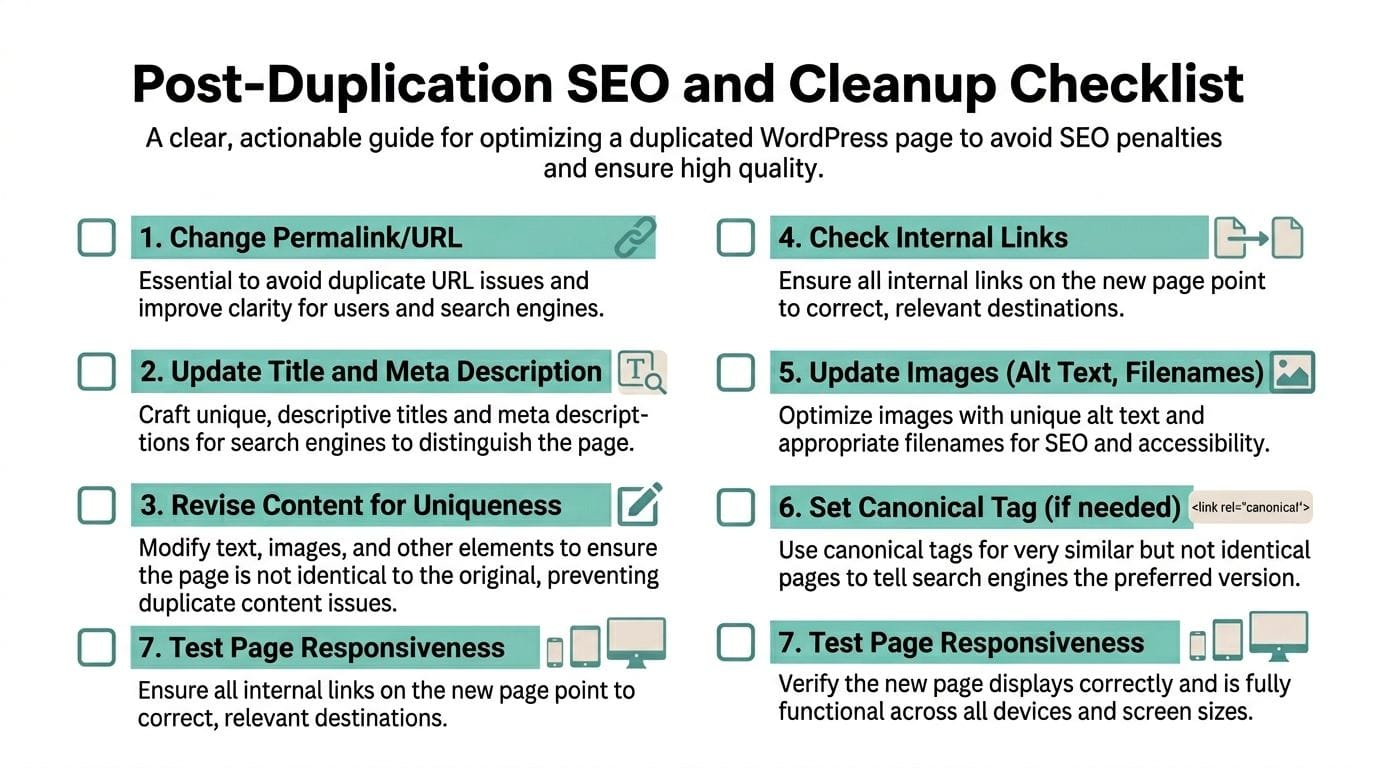
The first five checks
Run these before you even think about publishing.
Change the permalink
Don’t leave the slug as a near-copy of the source unless that’s intentional and clean. If the page targets a new service, suburb, campaign, or offer, the URL should reflect that.
Update the page title and SEO title
These are often not the same. The visible page heading may change while the SEO plugin field still carries the old target phrase.
Rewrite the body content
Swapping a few place names isn’t enough. Rewrite headings, intro copy, CTA text, and supporting sections so the page serves a distinct user intent.
Review internal links
Duplicated pages regularly point back to the original page by mistake. Check buttons, text links, related services, and breadcrumb logic.
Change images and alt text
If the page serves a different location, offer, or audience, the image set should support that. At minimum, review filenames, alt text, and any captions.
The technical checks people skip
These are less visible, but they often decide whether the duplicate behaves properly in search.
| Check | What to look for |
|---|---|
| Canonical tag | Make sure it doesn’t still point to the original page unless that’s intentional |
| Noindex setting | Confirm the new page isn’t hidden from search by mistake |
| Open Graph data | Update social title, description, and preview image if your SEO plugin manages them |
| Schema or structured content | Check if copied fields still describe the original page |
| Custom fields | Review location data, contact details, tracking labels, and form selections |
If your site is heavily customised, this is also a good moment to make a backup before major edits. UpTime’s walkthrough on how to back up a WordPress site is worth keeping handy before larger duplication batches.
If a duplicate page keeps the original canonical, you may have created a page that can rank poorly even when the content looks unique enough to a human reader.
A quick publish checklist for local business pages
For Australian small business sites, these are the trouble spots I see most often:
- Service area pages: Old suburb names remain in image alt text and form labels.
- Seasonal landing pages: Expired offer copy remains in schema or button text.
- Franchise or multi-location pages: Contact details and map embeds don’t match the page topic.
- WooCommerce duplicates: Product identifiers and related-product links aren’t reviewed.
What “enough change” looks like
There isn’t a safe universal formula. The better question is whether the new page deserves to exist on its own.
A strong duplicate becomes a new asset when it has:
- a distinct keyword target
- a different commercial or informational intent
- revised headings and copy
- updated visuals
- corrected metadata
- a valid internal linking role on the site
If it doesn’t have those things, keep it in draft. A thin duplicate does more harm than good.
Final check before publish
Open the original page and the duplicate side by side. Compare them like an editor, not like a developer.
Look for what hasn’t changed. That’s usually where the risk is hiding.
Optimising Duplication on UpTime Web Hosting
The duplication method matters, but the environment matters too. If you’re editing directly on a live site with no fallback, even a simple duplicate-page job becomes riskier than it should be.
Why the hosting setup changes the workflow
When a business is duplicating pages regularly, three things usually matter most:
- Safety while editing
- Recovery if something breaks
- Stable performance while plugins and builders are doing extra work
That’s where a local hosting setup with staging, backups, and a solid WordPress stack makes a visible difference in day-to-day administration.
A staging workflow is especially useful when duplication is tied to design updates, major content refreshes, or new plugin testing. Instead of cloning pages on the live site and hoping nothing leaks through, you can trial the workflow privately, check metadata and links, then push only the approved changes.
Better habits on a managed local stack
For regular page duplication, the most efficient pattern is usually:
- Create or test the duplicate on staging if the change is substantial.
- Confirm the copied page keeps the intended layout.
- Run the SEO and content cleanup pass.
- Publish only after QA on desktop and mobile.
- Keep backups available in case a plugin or code change behaves unexpectedly.
That approach is especially practical on infrastructure built for WordPress rather than generic hosting. Performance tools such as LiteSpeed and AccelerateWP help keep the admin responsive when you’re handling page builders, media-heavy layouts, and repeated edits. If you’re tuning front-end performance after adding new landing pages, this guide to improving WordPress speed with a cache plugin is a useful companion.
Good duplication workflow isn’t just about creating copies quickly. It’s about making changes in an environment where mistakes are recoverable.
Where this helps most
This matters most for:
- Agencies duplicating client templates across multiple sites
- eCommerce teams cloning promotional pages during busy sale periods
- Service businesses creating multiple local landing pages
- Developers trialling custom duplication logic or builder templates
The more often you duplicate, the more valuable a stable local hosting environment becomes. Fast admin performance, backup protection, malware scanning, and staging support don’t sound directly related to page duplication until the day a rushed change breaks a live page or publishes the wrong content.
Register your new domain name at competitive market prices including free domain add-ons like privacy, DNS Hosting, Custom Nameservers and Forwarding.
Always the best price and no nasty renewal price hikes.
Register A Domain Name
Frequently Asked Questions About Duplicating Pages
Does WordPress have built-in page duplication
Not as a default one-click feature in core. You can manually copy content in the editor, but WordPress doesn’t natively provide the same kind of admin-level duplicate action that dedicated plugins do.
Is it better to duplicate a page or build a new one from scratch
Duplicate when the layout, structure, or page components are worth reusing. Build from scratch when the new page has a different purpose, different design, or would need so many edits that the copy becomes more confusing than helpful.
Can I duplicate posts as well as pages
Yes. Most duplication plugins support posts, pages, and often custom post types. The main caution is that posts may carry categories, tags, featured images, and metadata that need stronger review than a static page.
Will duplicating a page hurt SEO
The duplicate action itself doesn’t hurt SEO. Publishing an unedited duplicate can. Problems usually come from unchanged copy, reused metadata, incorrect canonical tags, and weak internal linking.
Should duplicated pages stay in draft first
Yes. That should be your default. Draft status gives you time to change the slug, title, SEO fields, images, links, and any copied custom fields before search engines or users can access the page.
What’s the safest option for beginners
A well-supported duplication plugin is usually the safest option because it’s visible, repeatable, and easy to reverse if your process is disciplined. Manual copy and paste is simple in theory, but it’s easier to miss hidden settings.
Can I duplicate Elementor or other page builder pages
Yes, and the best method is often the builder’s own template or duplicate feature. That usually preserves the design system more reliably than a raw content copy.
What should I always check after duplicating a WooCommerce page or product-like layout
Review product-specific fields, linked items, promotional banners, image alt text, internal links, and any identifiers that must be unique. If the duplicate is part of a sales campaign, double-check expiry messaging and CTA destinations as well.
Is a custom code snippet better than a plugin
Only if you’re comfortable maintaining it. A snippet can be cleaner on tightly managed builds, but it shifts responsibility onto your team. For most business sites, a plugin is easier to understand and safer to hand over.
If you want a safer place to handle page duplication, staging, backups, and WordPress performance, UpTime Web Hosting gives Australian businesses and developers a fast local platform with the tooling that makes these jobs easier to manage properly.