A lot of Australian small business owners find out their hosting matters only after something breaks.
A Melbourne retailer updates a plugin on a quiet Tuesday afternoon. The site starts throwing errors. Checkout stops working. A spam redirect appears on a product page. Then comes the harder question. If customer information was exposed, what now? You’re not only dealing with lost sales and a damaged brand. You may also need to think about your obligations under the Privacy Act 1988 and the Notifiable Data Breaches scheme.
That’s why secure WordPress hosting for small business isn’t just a technical preference. It’s part of business risk management. Hosting affects how your site is protected, how quickly it can be restored, where your data sits, and who helps when things go sideways.
For many owners, the confusion starts with the basics. What does “secure hosting” include? Is free SSL enough? Do backups matter if you never test a restore? Does local Australian hosting change anything for compliance? Those questions matter whether you run an online shop, a tradie site with quote forms, a membership site, or a local blog tied to your lead generation.
If your website runs on WordPress, it helps to start with hosting built for that environment rather than treating WordPress like any other generic website stack. A practical place to compare setup options is this guide to WordPress website blog hosting, especially if you're deciding between a basic plan and a more managed setup.
Introduction to Secure WordPress Hosting for Small Business
Security at the hosting level works a bit like the building your shop sits in.
You might lock your office door every night, but if the building has no alarm, no sprinkler system, no fire doors, and no after-hours monitoring, you’re still exposed. WordPress security works the same way. Good passwords and careful plugin choices help, but they don’t replace server-side protection.
Australian small businesses often get caught by guides written for US audiences. Those guides talk about speed and general “managed hosting” benefits, but skip over local data location, privacy obligations, and support that understands the Australian business day. If your website stores enquiry forms, account details, booking requests, or order history, local hosting decisions can affect more than page speed.
Secure hosting also needs to be practical. Most small businesses don’t have an in-house sysadmin. They need a setup providing the basics without requiring constant monitoring, patching, or late-night troubleshooting. That usually means choosing a host that handles the underlying layers well, then hardening the WordPress side so one missed update doesn’t turn into a long recovery job.
Practical rule: If restoring your site would depend on luck, memory, or a developer finding an old copy on a laptop, your hosting isn’t secure enough yet.
Understanding the Key Concepts of Hosting Security
A secure hosting environment uses layers. No single feature does the whole job.
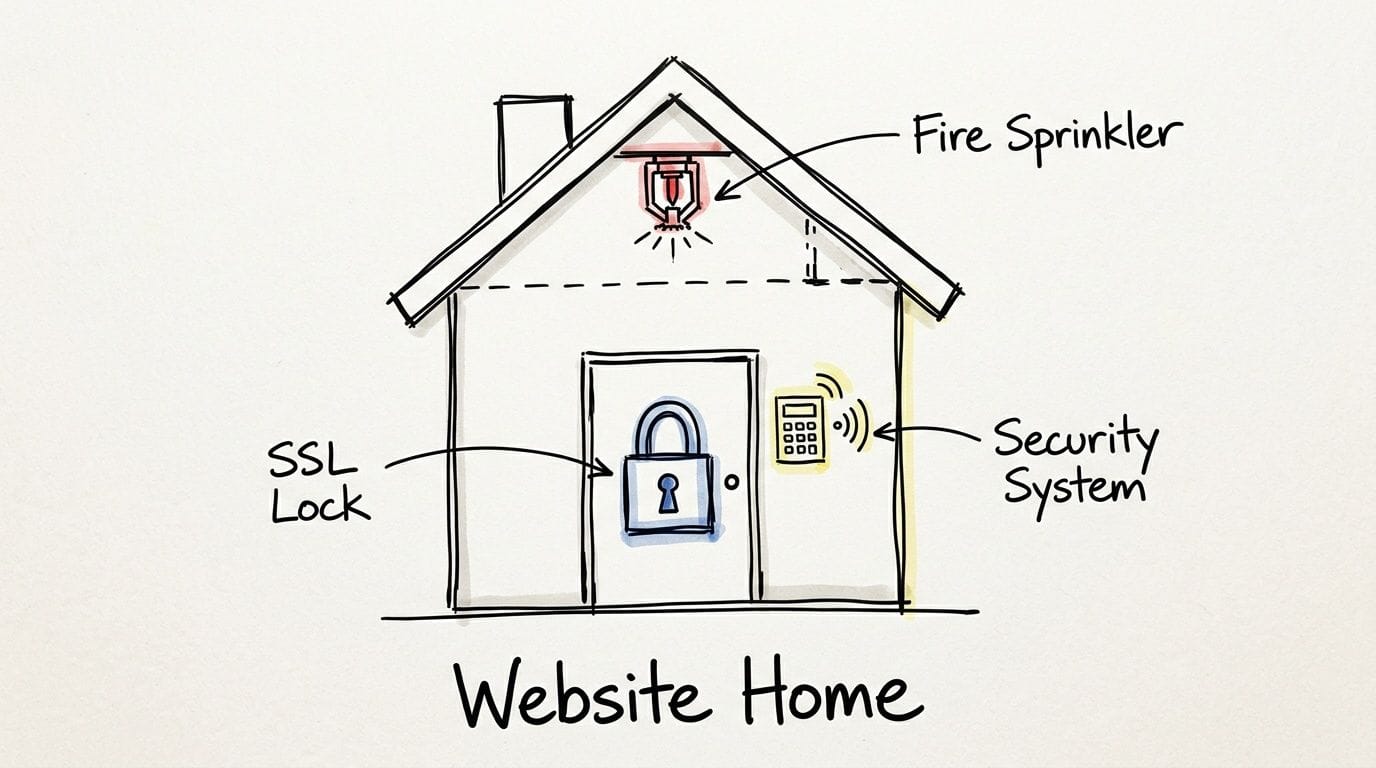
Think of your site as a premises, not a file folder
Your website is more like a shopfront than a document. People enter it, submit forms, log in, make payments, and trigger automated actions. That means the hosting around it needs controls at the front door, inside the building, and behind the scenes.
SSL certificates are the padlock on the front door. They encrypt the data moving between a visitor’s browser and your website. If you’ve ever seen a browser warning that a site is “not secure”, that’s the problem SSL solves. If you need a simple explanation of the difference, this article on HTTP vs HTTPS is a useful refresher.
A Web Application Firewall, or WAF, sits at the gate. It filters suspicious traffic before it reaches WordPress. That matters because many attacks don’t look like someone manually poking around your site. They’re automated requests trying known login paths, plugin weaknesses, or exploit patterns.
Malware scanning is your after-hours patrol. It checks files and behaviour for signs that something malicious has been uploaded or altered.
Why isolation matters on shared infrastructure
A lot of small business sites live on shared hosting. Shared doesn’t automatically mean unsafe, but the quality of isolation matters.
If one account on a server is compromised, poor isolation can let that problem spread. Better setups use account-level containment so each site stays in its own box. In plain language, that means your neighbour’s issue is less likely to become your issue.
This is one reason managed WordPress hosting has grown in importance. According to Hostinger’s WordPress statistics, WordPress powers over 43% of the global web, and WordPress sites experience attacks every 32 minutes as of 2025. The same source notes that managed WordPress hosts commonly include isolated containers, real-time malware scanning, automated patching, WAF protection, SSL management, daily off-site backups, and incident response.
Where owners often get confused
People often assume these features overlap so much that one can replace another. They can’t.
A quick comparison helps:
| Security layer | Plain-English role | What it doesn’t replace |
|---|---|---|
| SSL | Encrypts browser-to-site traffic | Backups, malware cleanup, firewalling |
| WAF | Blocks bad traffic patterns | File scanning, restore capability |
| Malware scanning | Detects suspicious code and behaviour | Login protection, patching |
| Isolation | Contains damage between accounts | Updates, SSL, DDoS defence |
| Backups | Gives you a clean recovery point | Prevention tools |
Strong hosting security isn't one lock. It’s a front gate, separate rooms, smoke alarms, and a recovery plan when something still gets through.
Evaluation Checklist of Hosting Security Features
When you compare providers, don’t start with storage or marketing slogans. Start with the controls that reduce risk and make recovery realistic.
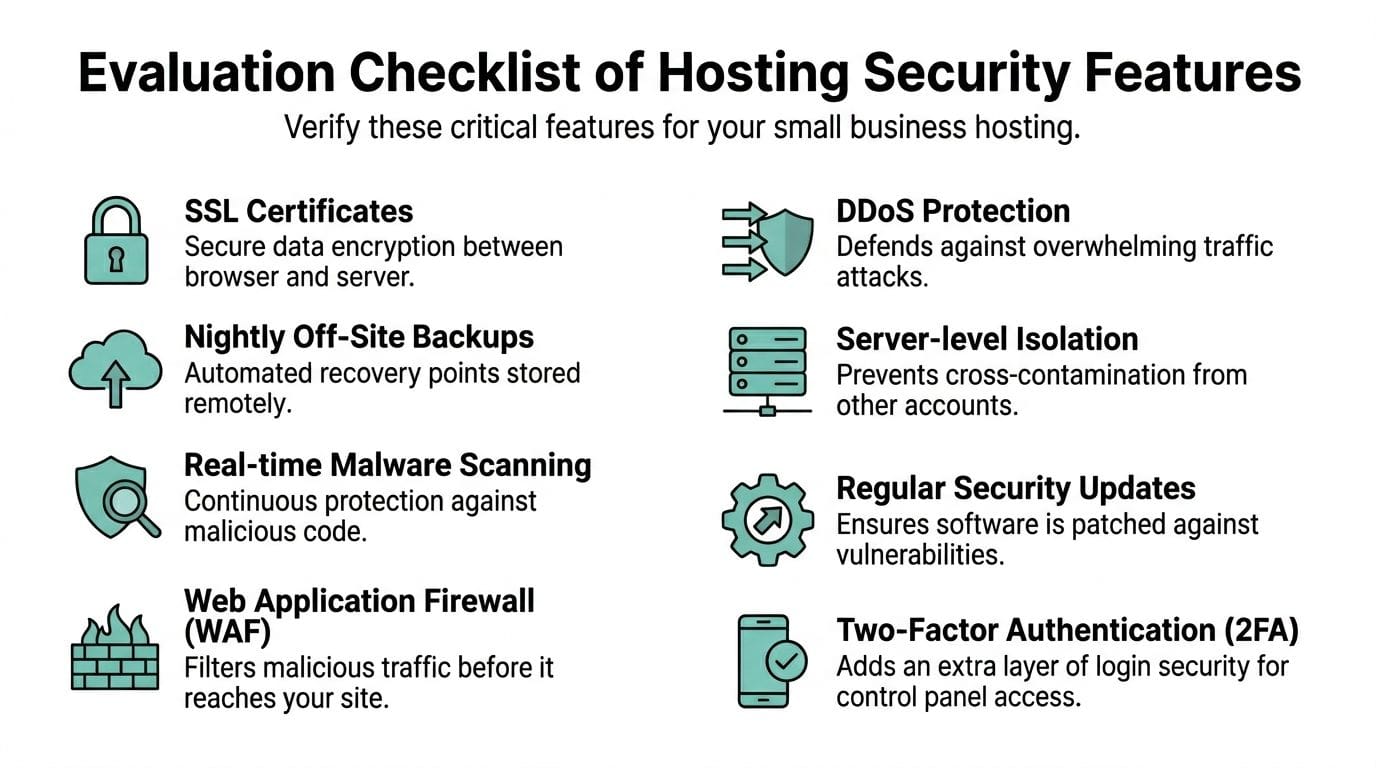
The eight checks worth doing before you buy
According to HostPapa’s hosting statistics roundup, the financial impact of cybercrime is projected to reach $10.5 trillion annually by 2025, and the same source notes that secure hosting now commonly includes SSL, automated backups stored in multiple locations, and DDoS mitigation. It also points out that entry pricing can still be accessible, with plans starting at $2.95/month and daily backups available at $5.45/month.
That doesn’t mean the cheapest plan is best. It means security basics shouldn’t be treated as luxury extras.
Use this checklist when auditing any host.
- SSL included by default
Look for free SSL that’s easy to enable and renew. If a host makes SSL feel optional or manual, that’s friction you don’t need. For a practical setup sequence in cPanel, keep this SSL set-up checklist for cPanel handy. - Backups stored away from the live server
Ask where backups are kept and how they’re restored. “We do backups” isn’t enough. You want off-site copies and a restore process that support can perform quickly. - Real-time malware scanning
This should run continuously or on a frequent schedule, not only after you open a ticket. Tools such as Imunify360 are useful here because they look for known malicious behaviour as well as bad files. - WAF protection at the server or network edge
Ask whether malicious traffic is filtered before it reaches WordPress. A WAF is especially useful against login attacks, exploit attempts, and bot traffic. - DDoS mitigation
If your site suddenly receives abusive traffic, the goal is to keep it reachable for real customers while the junk traffic is absorbed or filtered. Hosts may combine this with a CDN or firewall layer. - Server-level isolation
On shared hosting, account separation matters. If the host uses isolation technology, ask how it contains processes and files between accounts. - Automatic updates or update support
That includes WordPress core and, where appropriate, plugin and theme management. Even if you prefer manual approval, the host should support a safe update workflow. - 2FA for hosting access
cPanel, billing portals, and admin tools need extra login protection. Your website can be hardened perfectly and still be exposed if the control panel account is easy to compromise.
How to test what a provider really offers
Marketing pages often bundle features together in a way that hides the details. Ask direct questions.
| What to ask | Why it matters |
|---|---|
| Can I restore a backup without rebuilding the whole site? | A backup is only useful if recovery is straightforward |
| Is malware scanning included or sold as an add-on? | Add-ons often get skipped until after an incident |
| What isolates my account from others on shared hosting? | This reveals how seriously the host treats cross-account risk |
| Do you include DDoS filtering? | It separates basic uptime from resilience under attack |
| Can I secure panel access with 2FA? | Hosting account compromise can bypass WordPress-level security |
Practical examples for small business owners
A local accountant’s site may not have online payments, but it still collects contact forms and document uploads. That means SSL, backups, and malware scanning aren’t optional.
A regional retailer may care even more about recovery. If stock pages, enquiries, and email forms disappear after a bad plugin update, the issue isn’t only technical. It affects revenue and customer trust. In more severe situations, especially where files are damaged or inaccessible outside normal hosting restores, specialist professional data recovery services can be a useful fallback.
Small business filter: If a feature only appears in a host’s sales copy and not in its control panel, knowledge base, or support answers, treat it as unproven until verified.
Recommended Configurations and Hardening Steps
Features from your host are the foundation. Hardening is how you stop WordPress from undoing that good work.
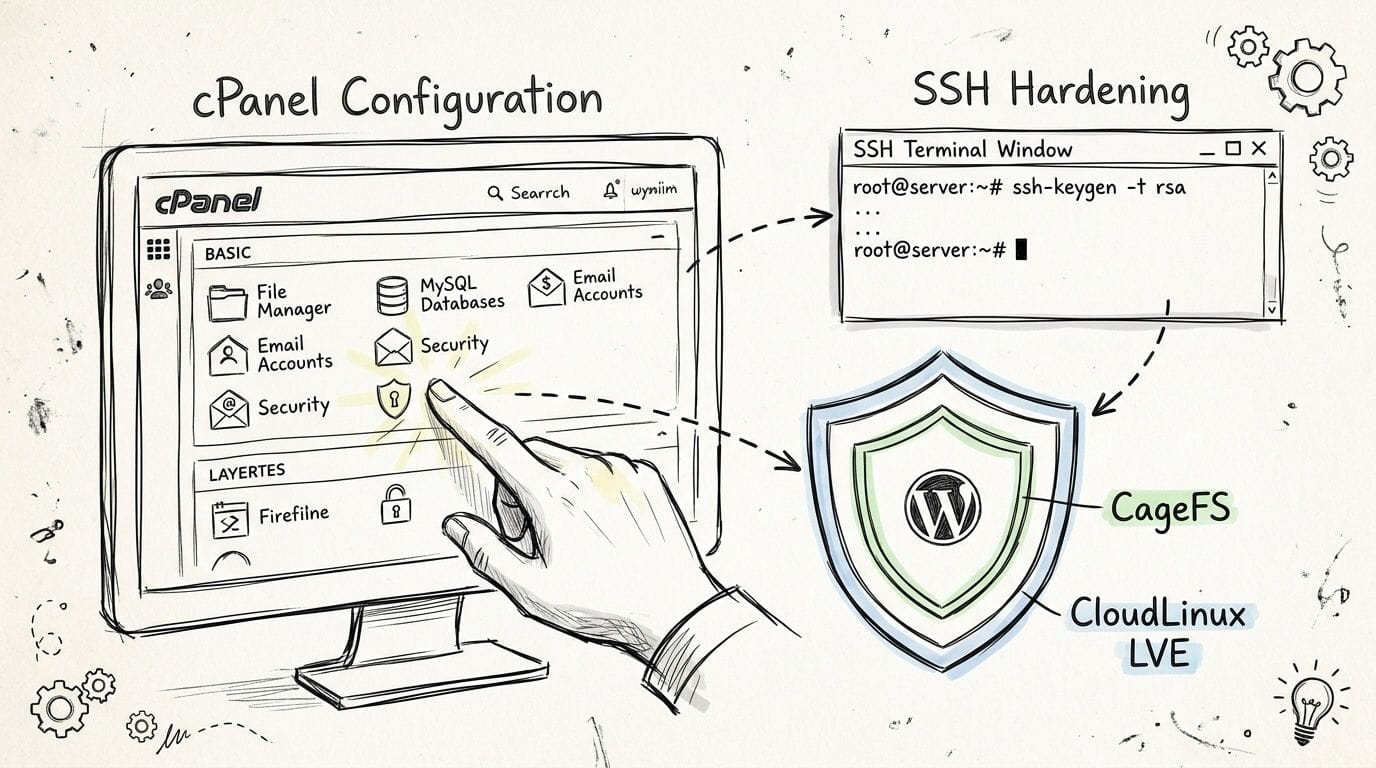
Start with the hosting account itself
In the Australian context, isolation deserves special attention. The WordPress security guidance cited at TDWDS states that CloudLinux OS with CageFS isolation is a key control for small business hosting because it sandboxes each account’s processes, files, and memory. The same source says this setup has been implemented alongside LiteSpeed servers in Sydney, Melbourne, Brisbane and Perth and reports a 92% reduction in breach propagation compared with standard shared PHP-FPM setups. It also states that Imunify360 detects 99.7% of known exploits pre-execution, recommends capping inodes at 250,000 per account, and notes 28% of AU WordPress incidents involved a common vector tied to uncapped PHP workers. It lists pricing context of AU$50+/mo for VPS versus shared AU$10/mo, and references backup targets of RPO <1 hour and RTO <15 minutes.
For a small business owner, the practical takeaway is simple. Good shared hosting can be made much safer when the host enforces boundaries between accounts.
A sensible hardening routine in cPanel and WordPress
Follow these in order.
- Enable SSL first
Make sure the certificate is active before doing anything else. Then force HTTPS so all logins, forms, and customer sessions use the encrypted version of the site. - Turn on two-factor authentication for account access
Your hosting portal and cPanel matter as much as WordPress admin. If someone gets in there, they can change files, email settings, and databases. This guide on setting up two-factor authentication gives the general process. - Check your resource and isolation settings
If your host offers CloudLinux tools, confirm your account is isolated and that resource limits are applied. This reduces the blast radius if another tenant has a problem and helps stop your own account from spiralling during a bad process spike. - Review backup status before making changes
Don’t install security plugins, update PHP, or change file rules without knowing a recent restore point exists.
Lock down WordPress itself
These are the high-value adjustments many owners skip.
- Disable built-in file editing
WordPress lets admins edit theme and plugin files from the dashboard. That’s convenient, but if an admin account is compromised, it gives an attacker a fast way to inject code. Add the standard constant inwp-config.phpto disable in-dashboard file editing. - Use sensible file permissions
Files and folders shouldn’t be left broadly writable. If you’re unsure, ask support to verify common WordPress permission settings after migration or plugin work. - Trim plugins aggressively
Every inactive, outdated, or unnecessary plugin is another moving part. Keep only what the business uses. - Enable automatic core updates
For plugins, choose either automatic updates on low-risk items or a monthly managed review. The unsafe option is forgetting. - Limit admin accounts
Give staff the lowest role they need. Don’t share logins. A marketing contractor rarely needs full administrator rights.
A secure site usually isn’t the one with the most plugins or the fanciest dashboard. It’s the one with fewer openings and a cleaner recovery path.
Add one habit that prevents most pain
Keep a staging copy for risky changes.
If you’re updating WooCommerce, swapping themes, or adding booking software, test first. Most serious WordPress problems don’t begin with a dramatic attack. They begin with a normal change made on the live site without a fallback.
Migration and Onboarding Checklist
Moving to a more secure host doesn’t need to be chaotic. The biggest problems come from rushing, not from the move itself.
Before the move
Start by making a plain list of what the site does today.
That means themes, plugins, forms, payment tools, booking systems, SMTP settings, cron-dependent features, redirects, and any custom code snippets. You’re not doing this for documentation theatre. You’re creating a checklist so nothing important gets forgotten.
A good companion resource is this website migration checklist, especially if multiple people touch the site.
Use this pre-migration audit:
- List every active plugin and theme
Remove anything outdated, unused, or duplicated before migration. There’s no point moving clutter to a cleaner environment. - Create a full files and database backup
Keep a separate copy outside the hosting account. - Record current SSL and email-related behaviour
Note whether forms, receipts, and contact notifications are arriving properly before the move. - Prepare a staging or temporary test copy
This lets you check layout, checkout, forms, and logins before public traffic hits the new server.
During the move
Treat migration like relocating a shop overnight. You don’t just carry furniture across. You check the locks, power, signage, and opening hours before customers arrive.
A clean migration sequence usually looks like this:
- Copy site files and database
- Confirm WordPress loads correctly on the new environment
- Install or reissue SSL
- Check file permissions
- Test admin login and key user journeys
- Review plugin behaviour
- Update the site to the live destination
- Monitor closely after cutover
What to test before you call it done
Use real tasks, not just visual checks.
| Test area | What to verify |
|---|---|
| Homepage and navigation | Menus, internal links, images, mobile layout |
| Forms | Enquiry forms send and arrive correctly |
| eCommerce | Cart, checkout, confirmation emails, payment flow |
| User accounts | Login, password reset, member-only pages |
| Admin functions | Plugin updates, media uploads, page editing |
| Security basics | HTTPS active, backups available, scanning enabled |
Rollback planning matters more than bravado
Every migration should have a “go back” option.
If checkout fails, forms break, or a critical integration misbehaves, you need a clear decision point for rolling back to the previous environment while you fix the issue. That usually means keeping the old account intact until the new one has passed all tests.
Move the site only after you’ve tested what earns money, captures leads, or serves existing customers. Pretty pages can wait. Critical functions can’t.
Onboarding your team after launch
Most post-migration issues aren’t server failures. They’re access and process issues.
Give staff a short internal handover that covers:
- Where to log in
Separate WordPress admin from hosting account access. - Who has which role
Avoid shared admin accounts. - How backups are requested or restored
Staff don’t need to perform restores themselves, but they should know the process. - How to report suspicious behaviour
Redirects, fake pop-ups, strange users, missing pages, and failed logins should be escalated quickly.
Cost and Support Considerations for Australian SMBs
Cheap hosting can be expensive in all the ways that matter.
Australian businesses usually compare plans by monthly price, storage, and maybe whether email is included. That’s understandable, but it misses the bigger question. What happens when you need a restore, a malware cleanup, or someone to confirm where your data is stored?
Why local hosting changes the decision
A strongly overlooked factor is Australian data sovereignty.
According to Thamara Cloud’s analysis of Australian WordPress hosting for small business, local hosting is tied to privacy, breach response, and compliance in ways many generic guides ignore. That source states that Australian businesses face obligations under the Privacy Act 1988 and the Notifiable Data Breaches scheme, cites 1.8 million data breaches reported in 2024-25, says 47% involved cyber incidents affecting SMEs, and notes 78% of breaches could be mitigated by local hosting to reduce offshore data transfer risks. It also reports latency of under 50ms for AU-based servers versus 200+ms for international options, references 99.99% uptime from local providers, and says local providers can cut breach response costs by 35% through 24/7 AU support.
Those numbers matter, but the business meaning is even clearer. If support operates locally, understands local compliance concerns, and keeps your data in Australian centres, your response path is simpler when something goes wrong.
What to weigh beyond sticker price
Use a broader lens when comparing providers.
- Transparent billing
GST-inclusive pricing is easier to budget than low introductory figures followed by confusing renewals and add-ons. - Security features included
If SSL, backups, scanning, and firewalling are sold separately, the “cheap” plan can stop being cheap quickly. - Local support quality
Fast support isn’t only about response time. It’s about whether the person replying understands WordPress and Australian business expectations. - Data location
For finance, retail, health-adjacent services, and any business handling personal information, server location can be part of your risk assessment.
A simple buying filter
| If you prioritise | Focus on |
|---|---|
| Lowest upfront cost | Check what security is missing or sold separately |
| Compliance confidence | Confirm Australian data location and support coverage |
| Operational resilience | Look at backup handling, monitoring, and incident response |
| Less admin burden | Choose a host that manages more of the security stack |
For many SMBs, the best value isn’t the lowest monthly fee. It’s the plan that reduces manual work, lowers compliance friction, and gives you a realistic recovery path.
Mapping UpTime Web Hosting to Your Security Requirements
When you compare the checklist above against an Australian provider, the useful question is whether each requirement maps cleanly to a real feature rather than a vague promise.
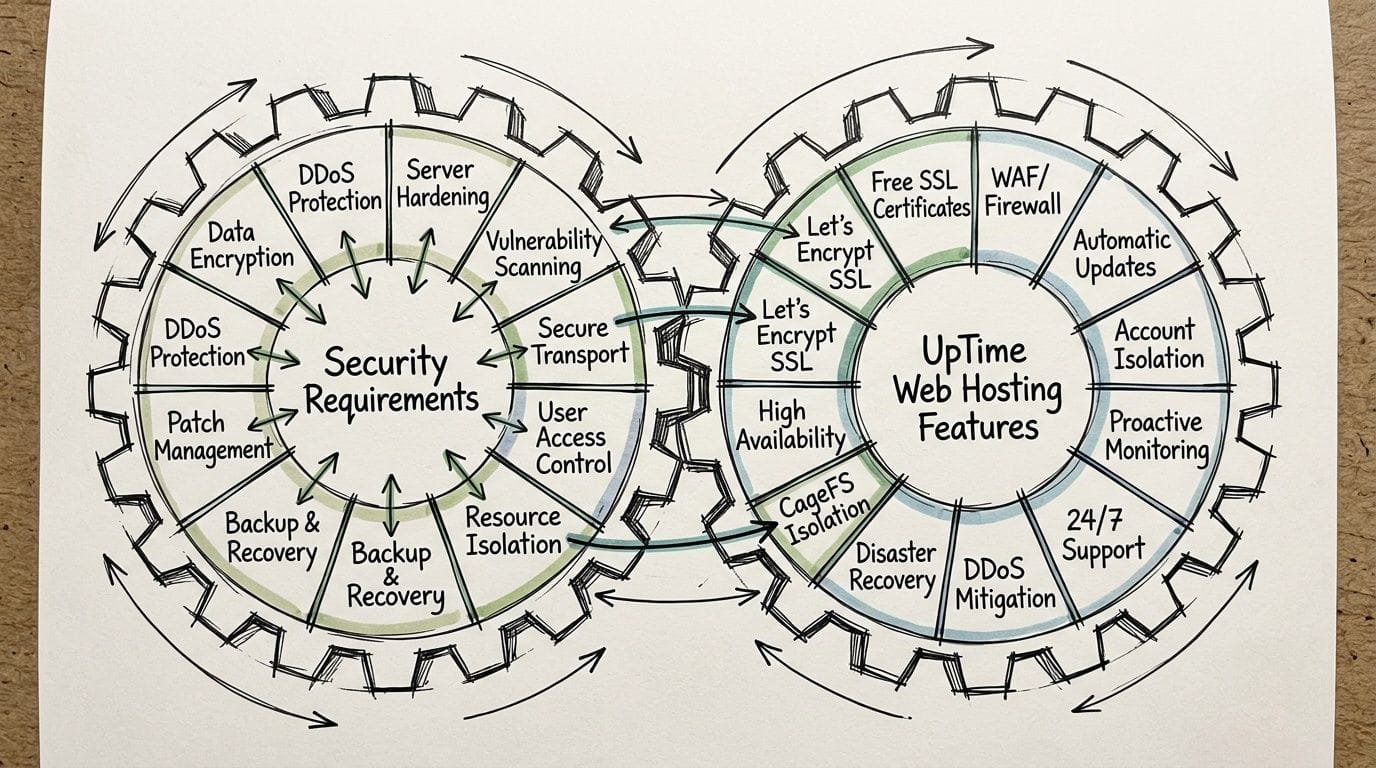
A one-to-one match matters
For small business owners, a hosting decision gets much easier when each security need has a visible counterpart.
Here’s how that mapping looks in practice with a local Australian hosting model:
| Security requirement | Feature to look for in the host |
|---|---|
| Encrypted traffic | Free SSL included with plans |
| Account containment | CloudLinux with CageFS isolation |
| Malware defence | Server-side scanning such as Imunify360 |
| Traffic filtering | DDoS-protected firewall layers |
| Recovery after mistakes or compromise | Encrypted off-site nightly backups |
| Performance under WordPress load | LiteSpeed and WordPress-specific optimisation tools |
| Local compliance posture | Australian-based data centres |
| Human help during incidents | Local support by phone, tickets, and call-backs |
Secure WordPress hosting for small business should remove complexity, not add to it. If a provider says it’s secure, you should be able to identify where SSL is managed, how backups are handled, what scans run, and how support helps during a live issue.
What stands out for Australian businesses
The strongest fit for local SMBs usually comes from three things working together.
First, Australian data centres support data sovereignty and lower-latency service for local visitors.
Second, CloudLinux and CageFS-style isolation reduce the risk that one shared account problem spills into another.
Third, nightly off-site backups and malware scanning give you both prevention and recovery, which is the combination many owners need.
There’s also a practical business benefit in having 24×7 local support and straightforward billing with GST included. That won’t stop an attack by itself, but it can make the difference between a short incident and a long, frustrating clean-up.
The best hosting fit is usually the one where your security checklist matches visible features, local support, and a recovery process you can understand before you need it.
The real test
If you’re assessing whether a host meets your needs, ask these four questions:
- Can I see how SSL, backups, and scans are managed?
- Is my account isolated from others on shared infrastructure?
- Are servers located in Australia if that matters for my business?
- Will support help with security incidents, not just billing questions?
If the answers are clear and documented, you’re looking at a provider that understands the practicalities of small business hosting.
Conclusion and Next Steps
WordPress is flexible, affordable, and widely used. That’s also why it needs a stronger hosting foundation than many small businesses realise.
A secure setup isn’t one plugin or one checkbox. It’s the combination of SSL, backups, malware scanning, firewalling, account isolation, careful hardening, and a migration process that doesn’t leave gaps behind. For Australian businesses, there’s another layer on top of that. Data sovereignty, privacy obligations, and local support can shape whether your hosting choice is merely convenient or fit for purpose.
If you’re reviewing your current setup, start with three actions:
- Audit your host against the checklist and look for missing controls
- Harden the account and WordPress install so your day-to-day setup is less exposed
- Review whether your data location and support model suit your compliance and recovery needs
If your current provider can’t clearly answer basic questions about isolation, backups, scans, and local hosting, that’s a warning sign. Secure WordPress hosting for small business should make life calmer, not more uncertain.
If you want local hosting that aligns with the security requirements covered here, take a look at UpTime Web Hosting. It offers Australian-based infrastructure, WordPress-friendly features, strong security layers, and local support that suits small businesses which need reliability without the usual hosting run-around.