You open your site to check a product page, a booking form, or the homepage, and instead of your content you get a blunt message: 403 Forbidden. No design. No menu. Just a server telling you “access denied”.
That’s a rough moment for any business owner, especially if the site was working yesterday.
In support, this is one of those errors that looks dramatic but is often very fixable. The key is knowing whether the server is blocking a file, a folder, a rule, a plugin, or a request that looks suspicious. On Australian hosting, that matters even more because local privacy settings, firewall rules, and access controls can make http error 403 show up in ways generic overseas guides don’t always cover.
What Is an HTTP 403 Forbidden Error
A 403 Forbidden error means the server received the request and understood it, but it won’t allow access to the page or resource.
Imagine arriving at an office building where reception can see your name, knows which floor you want, but still won’t let you through the door. The page may exist. The server may be healthy. Access is the problem.

How 403 differs from 401 and 404
These three get mixed up all the time:
- 401 Unauthorized means the server wants valid authentication first. You need to log in, supply credentials, or complete access checks.
- 403 Forbidden means the server has already decided you’re not allowed in, even though it understood the request.
- 404 Not Found means the page or file isn’t there at all.
A quick way to remember it:
- 401 = “Prove who you are”
- 403 = “I know what you want, but no”
- 404 = “That thing isn’t here”
If you need a refresher on secure requests while testing page access, this plain-English guide on HTTP vs HTTPS is worth a look, because protocol mismatches can sometimes muddy what you’re seeing in the browser.
Why this matters in Australia
For Australian web admins, this isn’t some niche server code. A key local marker was the 2022 Government .au Security Standards update, which was partly triggered by a 41% rise in 403 Forbidden errors logged on public sector websites. Cloudflare’s 2024 data also shows 403s make up 19% of blocked requests in Australia, compared with 12% globally, reflecting stricter access controls and privacy settings in the local environment, as noted in MDN’s reference on 403 Forbidden.
Practical rule: If you see a 403, don’t assume the site is broken. Assume the server is protecting something, correctly or incorrectly.

Performance you can feel, backed by clients who depend on it. Read how our support and uptime create long‑term customer success.Power Your Business with Better Hosting
Why Your Website Shows a 403 Forbidden Message
A common UpTime support scenario goes like this. Your site loaded fine yesterday, someone updated a plugin, changed a folder, or tightened a security rule, and this morning a key page throws a 403. The site is still there, but the server is refusing that request.
For Australian business sites on UpTime, that usually points to an access rule, a permission setting, or a security filter that has become too aggressive. On cPanel and WordPress hosting, the usual trouble spots are file permissions, .htaccess, ModSecurity, and plugin rules. On Windows hosting, IIS request filtering, authentication settings, or folder access rules are more likely.

The most common culprits
A web server works like a front desk with several approval checks. If one check fails, access stops.
- File permissions are wrong. The server can see the file or folder, but it does not have the right level of access to serve it.
- The
.htaccessfile is blocking access. A single bad rule can deny a folder, admin area, media path, or the whole site. - There’s no valid index file. If someone browses directly to a folder and no default file exists, the server may deny the request.
- An IP rule has blocked a real visitor. This happens after failed logins, firewall triggers, geoblocking, or rate limiting. We see this from time to time with office networks, VPNs, and mobile carriers in Australia because one shared public IP can affect multiple users.
- A WordPress plugin is overblocking. Security, membership, redirect, hotlink, and maintenance plugins are common causes.
- Server security rules intercepted the request. Uploads, unusual query strings, XML-RPC traffic, and some admin actions can trigger protection systems.
Common 403 causes and quick checks
| Potential Cause | Quick Check in cPanel | Typical Fix |
|---|---|---|
| File or folder permissions | Open File Manager and inspect the affected file or folder | Reset folders and files to sensible defaults |
Broken .htaccess rule | Rename .htaccess temporarily and retest | Rebuild the file and re-add rules carefully |
| Missing index file | Check public_html for index.php or index.html | Upload or rename the correct homepage file |
| IP block or hotlink rule | Review security tools and blocked visitors | Remove the accidental block or adjust the rule |
| Faulty plugin | Disable plugins from File Manager if WP Admin is unavailable | Reactivate one by one to find the trigger |
| Directory access denied | Review browsing restrictions and folder setup | Add an index file or configure directory behaviour correctly |
A pattern we see often on UpTime cPanel hosting
The 403 does not always hit the whole site.
You might find the homepage works, but /wp-admin/ fails. Or the admin area loads, while /wp-content/uploads/ returns 403 on images and PDFs. That split tells you where to look. It usually means one rule is blocking one path, rather than a full server outage.
After migrations, restores, or plugin changes, folder permissions and directory rules are high on the list. If the error appears when someone opens a folder directly, this guide to disabling directory browsing on a cPanel hosting account explains what the server expects and why access may be denied.
What usually wastes time
These are the fixes that create more mess than progress:
- Refreshing the page over and over when the same URL keeps failing consistently
- Setting permissions to 777 just to test access
- Deleting random WordPress plugins before checking whether the problem is limited to one path or one feature
- Editing
.htaccesswithout keeping a backup copy - Ignoring whether the block affects one visitor or everyone. That detail matters, especially if an Australian office IP or VPN endpoint has been flagged
The fastest approach is controlled testing. Check what changed, note the exact URL returning 403, and confirm whether the issue affects one file, one folder, one login area, or one IP range. That gives you a clean starting point for the platform-specific fixes that follow.
How to Fix 403 Errors on cPanel and WordPress Sites
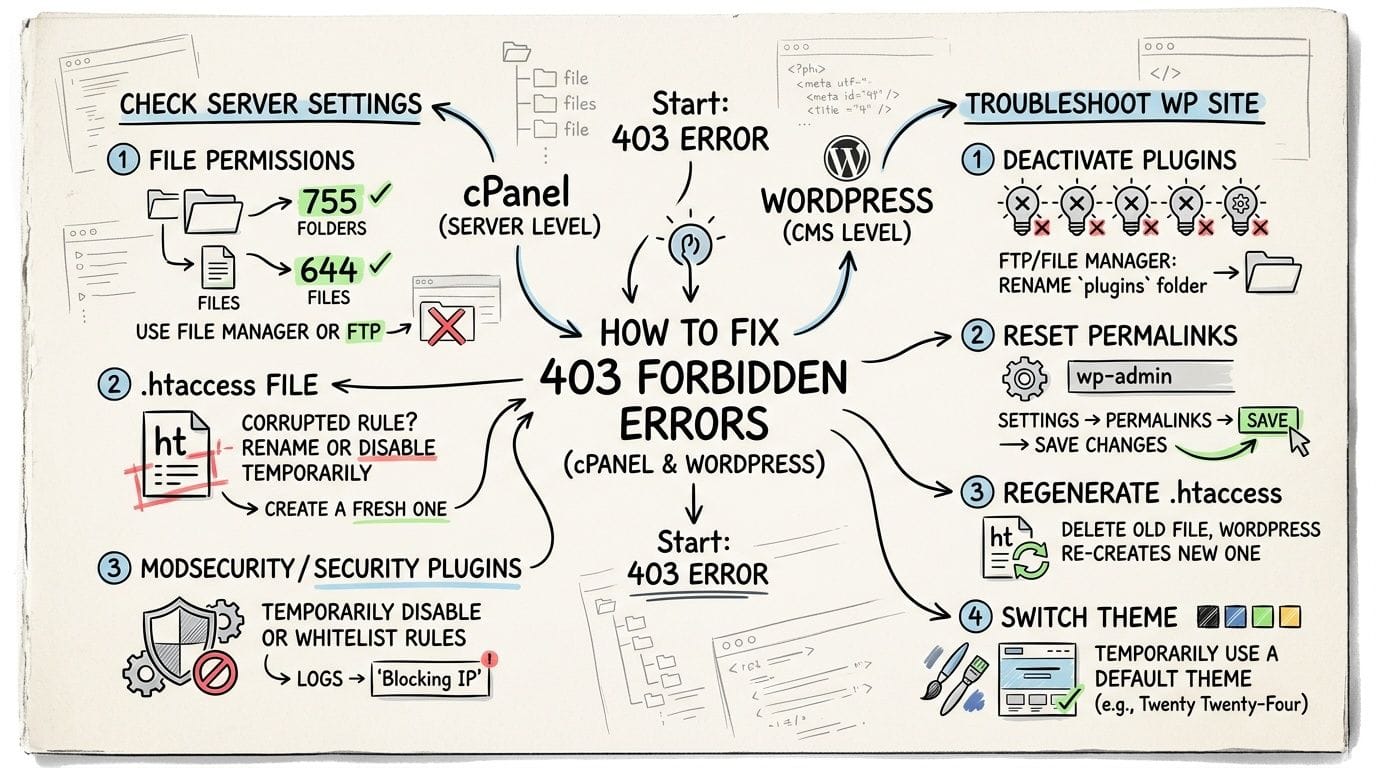
A 403 on a cPanel or WordPress site usually comes from one of a few places: permissions, .htaccess, a blocked admin path, or a plugin that has become too aggressive. The safest approach is to test one layer at a time and keep each change reversible.
Check file and folder permissions first
On cPanel hosting, this is usually the quickest win.
Open cPanel > File Manager and browse to the affected location, often public_html, wp-admin, wp-content, or the specific folder returning the 403. Right-click the file or folder and check the permissions.
For a standard PHP or WordPress site, the usual starting point is:
- Folders:
755 - Files:
644
If a folder is too locked down, Apache or LiteSpeed can refuse access even though the file is there. That often happens after a migration, a manual restore, or a ZIP extract done under the wrong account context.
Check in this order:
- The exact file returning the error
- Its parent folder
- The folder above that
- Core WordPress folders such as
wp-admin,wp-content, andwp-includes
Avoid 777. It rarely fixes the underlying issue, and on shared hosting it can create a bigger security problem than the original error.
Test the .htaccess file without breaking the site
On Apache-based cPanel hosting, .htaccess acts like the traffic controller for that directory. One bad rule can block logins, uploads, category pages, or the whole site.
In File Manager, enable hidden files if needed. Go to public_html, download a copy of .htaccess, then rename the live file to something like .htaccess-disabled.
Retest the affected URL.
- If the 403 clears, the rule set in
.htaccesscaused the block - If nothing changes, rename it back and move on
This test is clean because it checks several common causes at once. Rewrite rules, deny rules, IP restrictions, hotlink settings, and some plugin-added security directives all sit in the same file.
If WordPress starts working again after the rename, log in and go to Settings > Permalinks, then click Save Changes. That rebuilds the default WordPress rewrite rules.
Confirm the site has a valid index file
A server still needs a front door. If someone requests a folder and the server cannot find the default page, it may return 403 instead of showing a directory listing.
In the site root, check for:
index.phpindex.html
This matters on brochure sites and small business sites that were uploaded manually. I often see home.html, default.htm, or a builder export sitting in public_html with no matching index file. The content exists, but the server does not know which file to serve first.
Rename the correct file to an index filename or adjust the site routing so the root path resolves properly.
Disable WordPress plugins without WP Admin
Plugins are a frequent cause, especially security, redirection, membership, firewall, and media protection plugins. The tricky part is that the same plugin may block /wp-admin/, so the normal dashboard method is off the table.
Use cPanel File Manager or FTP instead. This guide on disabling a plugin without access to WordPress admin covers the exact steps.
The quick test is simple:
- Open
wp-content - Rename the
pluginsfolder temporarily - Test the blocked URL again
If the 403 disappears, a plugin caused it. Rename the folder back, then disable plugins one at a time until you find the one creating the block.
For Australian business sites, this often shows up after a security plugin flags repeated office logins, a VPN exit IP, or a staff member working remotely through a filtered corporate connection.
Check whether the theme is restricting access
Themes can trigger 403s too, though less often than plugins. This is more likely if the site uses a custom theme, bundled security options, member-only templates, or a builder that controls routing.
Check the theme if the error started straight after:
- a theme update
- a builder update
- a staging-to-live push
- adding private content or custom login rules
If the timing lines up, switch to a default WordPress theme as a test. Do it only after checking permissions and .htaccess, because those two are more common and faster to verify.
Review IP blocks, hotlink rules, and security filters
Sometimes the site is up for everyone except one person or one office. That points to a rule-based block rather than a broken file.
Check:
- IP Blocker in cPanel
- Hotlink Protection
- security plugin logs inside WordPress
- recent server-side security notices in your hosting tools
This is particularly relevant if the site loads on mobile data but fails on office NBN, or if one Australian branch can access the site while another gets 403. In that case, the blocked item may be an IP range, login pattern, or request type rather than the page itself.
If uploads trigger the 403
A different pattern appears when the front end works but uploading a plugin, theme, PDF, or image returns 403.
That usually points to:
- a security rule blocking the upload request
- incorrect permissions in
wp-contentoruploads - file types or package contents that trip a filter
- a conflict between WordPress and a server security layer
Test with a small, known-safe upload. If one specific ZIP fails and other uploads succeed, the package is the clue. If every upload fails, check folder permissions and server filtering first.
A practical fix order for cPanel and WordPress
For a cPanel or WordPress site, this order saves the most time:
- Test the exact URL on another device or connection
- Confirm
index.phporindex.htmlexists where needed - Check file and folder permissions in File Manager
- Rename
.htaccessand retest - Disable plugins from
wp-content - Review IP blocks, hotlink settings, and security logs
- Check what changed recently, such as restores, migrations, or updates
That sequence keeps the risk low and helps you isolate the actual cause instead of guessing. On UpTime environments, that matters because a 403 may come from WordPress itself, cPanel account settings, or a protective rule higher up the stack.
Host your website with our 5-star rated, cPanel website hosting plans.
Super fast servers, with security included and hosted in your choice of Australian Data Center.
View cPanel Plans
Troubleshooting 403 Errors on Windows and ASP.NET
Windows hosting needs its own playbook. A lot of 403 guides stop at .htaccess, which isn’t much use if your site runs on IIS with ASP.NET and MSSQL.
On Australian Windows hosting, unresolved 403s often come from Microsoft-stack specifics rather than WordPress-style causes. Verified guidance for this article notes that aggressive IIS rewrite defaults can trigger 403.14 directory browsing issues, Sitejet integrations can clash with those rules, NBN variability can sometimes lead to IP-based blocks, and MSSQL authentication mismatches are a regular cause that local support teams see in practice, referenced through this Windows-related 403 troubleshooting background.
Read the IIS sub-status if you can
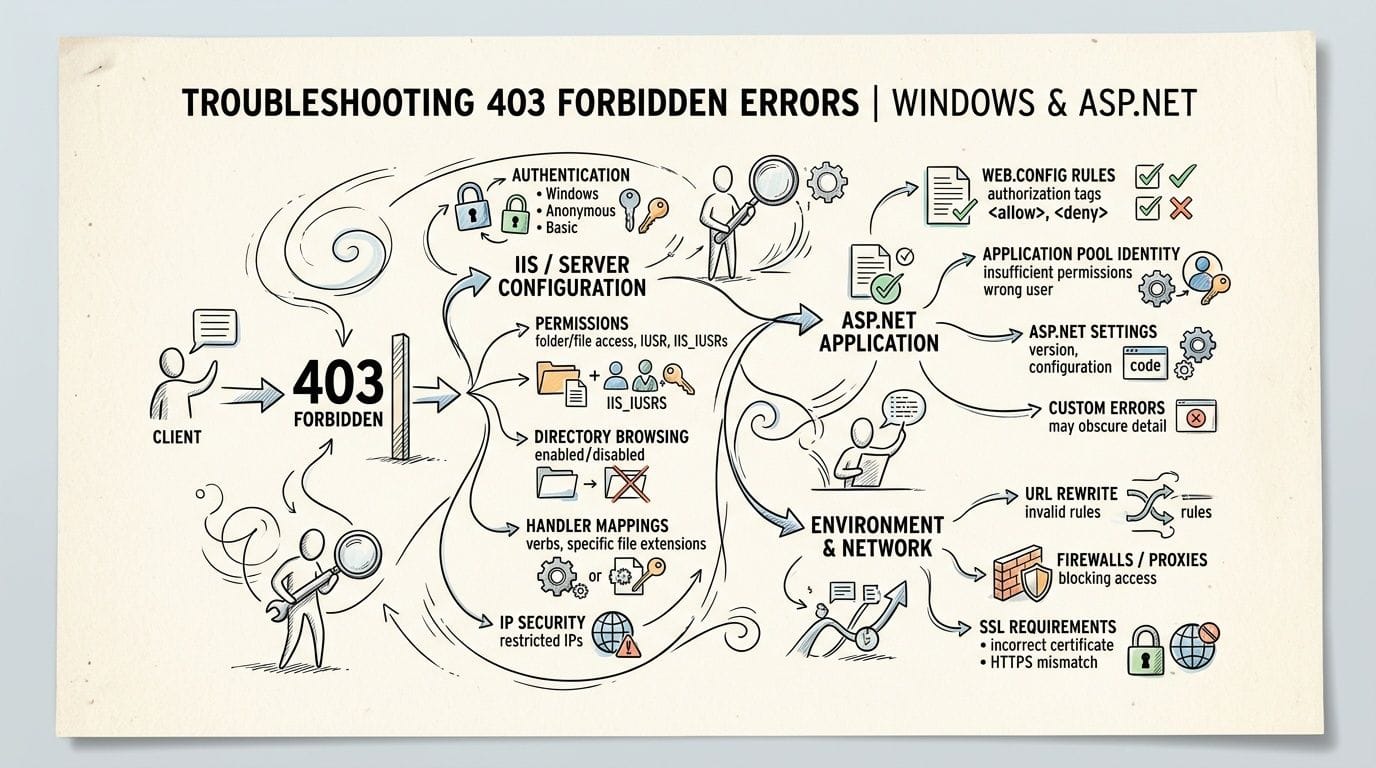
A plain “403 Forbidden” on IIS often hides a more useful sub-status.
One of the most common is 403.14, which usually means directory listing denied. In plain terms, IIS looked in a folder, didn’t find the default document it expected, and refused to show a file listing.
That points you toward:
- a missing default document
- a folder URL being opened directly
- a rewrite rule sending traffic to the wrong place
Check web.config instead of .htaccess
On ASP.NET hosting, web.config is often where the issue lies.
Look for sections related to:
authorizationrewrite- default documents
- request filtering
- access restrictions on admin folders
If a 403 starts right after a deployment, compare the current web.config with the previous working version. One deny rule in the wrong location can block the whole app or only one path such as /admin, /api, or /assets.
On IIS, the sub-status matters. “403” is the headline. The line underneath usually tells you where to look.
Review file access and app paths
Windows permissions don’t behave like Linux 755 and 644, so don’t apply cPanel advice blindly.
Instead, check whether:
- the app’s files were published to the expected folder
- the application is pointing to the right default document
- the blocked directory contains the needed file
- a backup or deployment process changed access on a folder the app depends on
This comes up regularly when a site works on the root URL but fails on a sub-application or admin area.
Watch for MSSQL and authentication mismatches
This is a less obvious one, but it matters.
Some 403s on Windows hosting appear during actions that rely on database-backed authorisation. The page loads, but a protected section fails because the application’s access checks and database authentication settings don’t agree.
You might notice it when:
- the public site opens but admin paths don’t
- a login works but a dashboard page returns 403
- scheduled tasks or nightly processes alter app state and the next request is denied
If the timing points to application logic rather than raw file access, include that in the support ticket. It saves a lot of back-and-forth.
For ASP.NET-specific checks, this knowledge base article on ASP.NET websites showing 403 or 500.30 errors is the right place to start.
How to Prevent 403 Forbidden Errors on Your Site
Fixing a 403 once is fine. Fixing the same 403 every few weeks is expensive, distracting, and avoidable.
The best prevention is boring on purpose. Controlled changes, backups before edits, and regular checks stop most surprise lockouts before they go live.
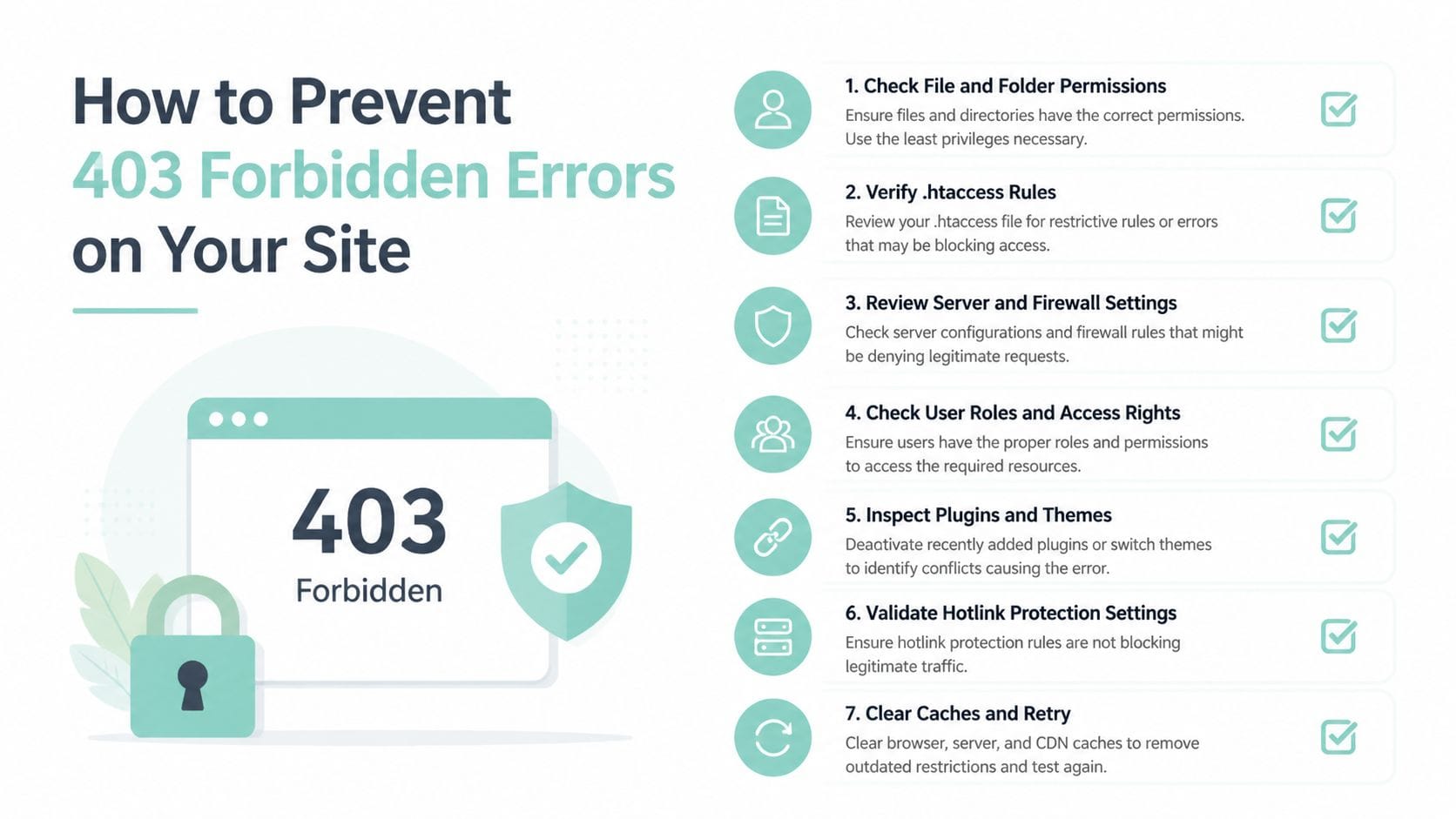
A practical prevention checklist
- Audit permissions after migrations: A site moved from another host, restored from backup, or copied from staging can inherit messy permissions.
- Back up config files before editing: Keep a clean copy of
.htaccessorweb.configbefore every change. - Test changes in staging first: Security plugins, redirects, membership rules, and builder updates should be trialled before they hit the live site.
- Keep plugins and themes lean: The more tools touching access control, the more chances they’ll collide.
- Review blocked visitor tools carefully: IP blocks and hotlink settings should be checked after setup, not forgotten.
- Watch admin-only paths:
/wp-admin/,/admin/, upload folders, and protected media paths are common trouble spots.
What good prevention looks like in day-to-day work
The safest routine is simple:
- Make one change.
- Test the front end.
- Test the admin area.
- Test on another connection if the change involves security or geoblocking.
- Keep notes on what changed and when.
That last point matters more than people think. When support asks what changed before the error started, “we updated a plugin and edited redirects yesterday afternoon” is far more useful than “nothing, as far as I know”.
A small discipline beats a big recovery. Most recurring 403 issues come from changes that were never tested outside one browser on one connection.
If you want help handling those routine checks, web maintenance and support services can take care of updates, monitoring, and the kind of access reviews that prevent these errors from appearing at the worst possible time.
Still Seeing a 403 Error Here Is When to Contact Support
Sometimes you do everything right and the 403 still won’t move. That’s usually the point where server logs, firewall events, or application-specific checks need a human review.
Before you contact support, gather a few details first. It speeds things up a lot.
What to have ready
- The exact URL showing the error, not just the domain
- When it started, even if the timing is approximate
- Whether it affects everyone or only you
- Any recent changes, such as plugin updates, migrations, permission edits, builder changes, or restores
- What you’ve already tried, such as renaming
.htaccess, checking permissions, or disabling plugins
Good clues that support should take over
Contact support if any of these apply:
- The 403 only appears during uploads or admin actions
- The site works on one connection but not another
- You’re on Windows hosting and the app returns IIS-specific errors
- You’ve isolated the problem to a server security rule
- You don’t want to risk editing config files further
A concise ticket is much better than a vague one. “403 on /wp-admin/admin-ajax.php after plugin update, tested in another browser, renamed .htaccess, issue remains” gives support a strong starting point.
If you’re stuck, use the Australian support channels through the client area or request a call-back. Include screenshots if the browser shows a full error page, especially on Windows hosting where sub-status details can help narrow it down quickly.
You don’t need to solve every 403 alone. Some are site-level fixes. Some need someone to check the server side.
Register your new domain name at competitive market prices including free domain add-ons like privacy, DNS Hosting, Custom Nameservers and Forwarding.
Always the best price and no nasty renewal price hikes.
Register A Domain Name
Frequently Asked Questions About 403 Errors
What’s the difference between 403, 401, and 404
Use the door analogy:
- 401 means the door is shut and the guard says, “Show your pass.”
- 403 means the guard already sees you and says, “You’re not allowed in.”
- 404 means there isn’t a door there anymore.
That’s why http error 403 is usually about access rules, permissions, or security controls rather than a missing page.
Can a 403 error affect SEO
Yes.
If search engines repeatedly hit a 403 on pages that should be public, they may stop accessing that content properly. Product pages, service pages, blog articles, category pages, and image files can all be affected if they’re blocked by permissions or server rules.
A short-lived 403 on a private admin path usually isn’t the issue. A persistent 403 on public content is.
Why do I get a 403 when I haven’t changed anything
Often, something did change in the background.
Common examples include:
- plugin auto-updates
- theme updates
- security rule updates
- restored backups
- firewall triggers after repeated login attempts
- cached security responses
- temporary blocks tied to your current connection
That’s why a site can look “unchanged” from your point of view while the server is reacting to a background event.
Is a 403 always my fault as the site owner
No.
A 403 can come from a site setting you changed, but it can also be triggered by a protective rule, an application conflict, a builder integration issue, or an access policy doing exactly what it was told to do. The job is to identify which layer denied the request.
Should I just change permissions until it works
No. That usually creates a second problem.
If you open permissions too far, you may expose files that shouldn’t be exposed. Start with sensible defaults, test carefully, and change one thing at a time.
If your site is showing a stubborn 403 and you want local help with cPanel, WordPress, or Windows hosting, UpTime Web Hosting offers Australian-based hosting, security tooling, and support channels that can help you pinpoint whether the block is coming from your site, your app, or the server layer.