You've probably done the hard part already. You've registered the business, sorted the branding in your head, and decided it's time to get a proper website live. Then you log into hosting for the first time, see cPanel, and it suddenly feels like you've walked into the control room of a jet.
The good news is that creating a business website today is much simpler than most first-time site owners expect. If you're learning how to create a website using cpanel and wordpress, you don't need to touch code, create databases manually, or guess your way through server settings. With the right setup, you can go from empty hosting account to live WordPress site in one sitting.
For Australian businesses, there's one detail that generic overseas guides usually skip. Where your site is hosted matters. Local hosting affects how quickly your pages load for Australian visitors, and it also matters if you're thinking about customer data, business records, and compliance obligations.
Table of Contents
- Why cPanel and WordPress Are Your Business's Perfect Match
- Choosing Your Plan and Australian Domain Name
- A Guided Tour of Your UpTime cPanel Dashboard
- Installing WordPress with the Softaculous One-Click Installer
- Essential First Steps After Installing WordPress
- Boosting Performance and Automating Maintenance
- Troubleshooting and Frequently Asked Questions

Performance you can feel, backed by clients who depend on it. Read how our support and uptime create long‑term customer success.Power Your Business with Better Hosting
Why cPanel and WordPress Are Your Business's Perfect Match
You've finally set aside a quiet hour to get your business website started. You want something you can update yourself, something that handles enquiries properly, and something that does not turn every small change into a support ticket. For most Australian small businesses, cPanel and WordPress are the setup that keeps that process practical.
WordPress runs about 43% of all websites, according to W3Techs' WordPress usage report. cPanel also has wide adoption across the hosting industry, with market share estimates covered by Datanyze's cPanel market data. That matters for a first website because both platforms are familiar, well supported, and easy to find help for when you need it.
WordPress handles the website itself. You add pages, edit text, upload images, publish articles, and install features such as contact forms or booking tools.
cPanel handles the hosting side. You manage email accounts, SSL, files, databases, domains, backups, and installer tools from one browser-based dashboard.
Used together, they give small business owners a sensible split of responsibilities. WordPress is where you work on the site your customers see. cPanel is where you manage the parts that keep the site running behind the scenes. That division saves time and cuts down on avoidable mistakes.
For example, if a Melbourne accountant wants to update service pages and post tax-time articles, WordPress makes that straightforward. If the same business needs to create a new staff email address, check storage, or turn on SSL, cPanel is the right place to do it. You do not need to touch server commands or hire a developer for every routine job.
That's a big reason this pairing lasts. It suits real businesses, not just web professionals.
If you want a clearer sense of the hosting side before you start, this guide to using cPanel for website hosting is a useful reference.
Why this setup suits Australian businesses especially well
Generic overseas tutorials usually stop at installation. They rarely explain why hosting location, local support hours, and .au domain requirements affect the day-to-day experience of running a business site in Australia.
With UpTime Web Hosting, the local angle is practical, not marketing fluff. Hosting on servers in Sydney, Melbourne, Brisbane, or Perth can help Australian visitors reach your site faster than they would from a server on the other side of the world. If your customers are local, that shorter distance often means quicker page loads and a better first impression.
There is also the support factor. When something goes wrong at 7 am before the workday starts, or late at night after you've finally had time to check the site, access to 24/7 Australian support is far more useful than waiting on an overseas queue in another time zone. Included GST pricing helps with budgeting too, because the monthly cost is clearer from the start.
The same local logic applies to your domain. Many Australian businesses are better served by a .com.au or .au address because it signals local presence straight away. That trust factor is small, but real, especially for trades, professional services, medical clinics, and hospitality businesses that depend on nearby customers.
For a first business website, that is the value of cPanel and WordPress. You get a site you can manage yourself, hosting tools that are proven and familiar, and an Australian setup that matches how your customers find and use your business online.
Choosing Your Plan and Australian Domain Name
Before you install anything, choose two things properly. Your hosting plan and your domain name. Get these right early and the rest of the setup feels smooth. Get them wrong and you'll spend time untangling avoidable admin.
A lot of new business owners overthink hosting plans and underthink domain names. In practice, the domain is what customers remember, while the hosting plan determines how comfortably your site can grow.
Pick a plan based on the site you're actually building
The easiest way to choose is to match the plan to the type of business website you need.
| Business type | What the site usually needs | What to look for in hosting |
|---|---|---|
| Local service business | Home, about, services, contact, enquiry form | cPanel, email accounts, SSL, simple WordPress setup |
| Café, salon, clinic | Menus or services, bookings, gallery, map | Good storage for images, email, easy updates |
| Online store | Product images, checkout, plugins, customer emails | More room for media, reliable performance, backup tools |
| Agency or multi-site setup | More than one site, staging, client management | Add-on domains, cloning tools, stronger management features |
A tradesperson's website is usually light. A few pages, a quote form, and an image gallery. An online store is different. Product photos, plugin-heavy pages, and more frequent updates mean storage and performance matter earlier.
Look carefully at practical features, not just plan names.
- Uncapped bandwidth helps when your traffic grows or you start adding more images and downloads.
- Generous storage matters if you run an online catalogue, upload case studies, or keep lots of media on-site.
- Included SSL saves a setup step and helps you launch securely from day one.
- GST-inclusive pricing makes budgeting easier for Australian businesses because the number you see is closer to the number you account for.
Choosing a .au or .com.au name
For Australian businesses, a local domain often makes the most sense. It signals that you operate here, it looks familiar to local customers, and it matches how people search for local services.
A few practical naming rules help:
- Keep it short. If someone hears it on the phone, they should be able to spell it.
- Use your real business name where possible. That reduces confusion with invoices, emails, and social profiles.
- Avoid hyphens unless you absolutely need one. They're easy to forget.
- Think about email.
info@yourdomain.com.aushould look clean and credible.
If you haven't locked in a domain yet, use this guide to registering an Australian domain name to check your options.
Bundle domain and hosting if you want less admin
Some business owners like separating providers. That can work. But for a first website, having your domain and hosting managed in one place is usually simpler. Billing is easier to track, support has a clearer view of your setup, and you won't be jumping between accounts when you need to renew or troubleshoot.
A local plumber doesn't need a complicated infrastructure plan. They need a domain customers can remember and a hosting account they can actually use.
If you're planning to build now and refine later, choose the plan that gives you enough room for growth without paying for a stack of features you won't touch in the first month. The goal is a site that launches cleanly, not a giant tech stack on day one.
Host your website with our 5-star rated, cPanel website hosting plans.
Super fast servers, with security included and hosted in your choice of Australian Data Center.
View cPanel Plans
A Guided Tour of Your UpTime cPanel Dashboard
You log in for the first time, see a screen full of icons, and wonder which bits matter for getting a business website live. That reaction is normal. The useful part of cPanel is not learning every tool on day one. It is knowing where to go when you need to set up email, check files, or confirm your account is running comfortably on your UpTime hosting plan.
For Australian businesses, that matters more than it sounds. If your site is hosted on local infrastructure in Sydney, Melbourne, Brisbane, or Perth, and support is based here too, cPanel becomes a practical control panel instead of another mystery login. You can sort out the basics yourself, then get help from an Australian support team that understands your domain, hosting plan, and local setup.
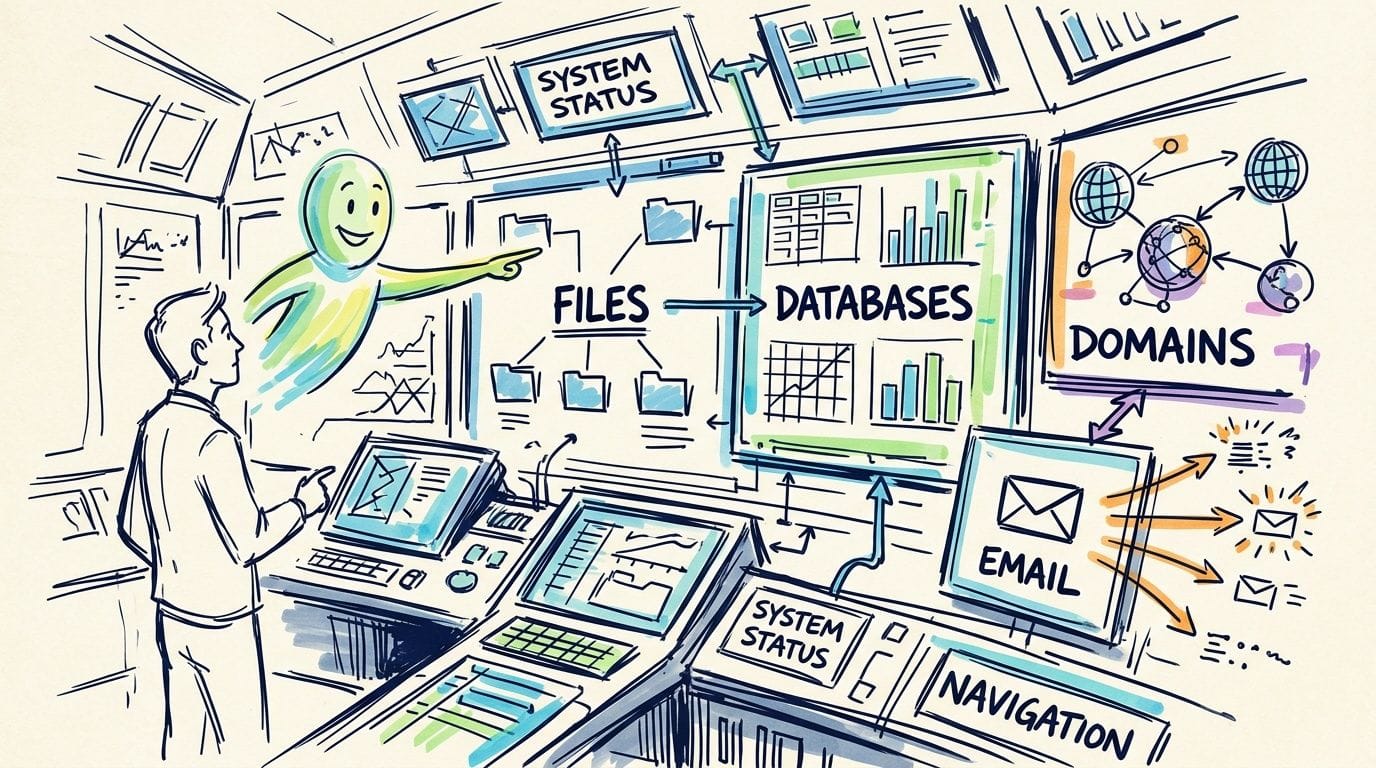
If you want a second screen reference while you click around, keep this UpTime guide to using cPanel open in another tab.
The three areas worth learning first
Start with the tools that affect the first week of running your site.
File Manager
The File Manager houses your website files. If WordPress is installed on your main domain, it will usually be inpublic_html. You will not spend much time here once the site is running well, but it is handy for checking whether files are in the right place or confirming that an install has landed where you expected.Email Accounts
This section lets you create addresses such asinfo@yourdomain.com.auoraccounts@yourdomain.com.au. For a new business website, a domain-based email address often gets used before the site is even finished. It looks more credible on quotes, contact forms, and invoices.Metrics or resource usage tools
These show how your hosting account is behaving. If a plugin slows the site down, a gallery upload fills your storage, or email boxes start chewing through space, you will usually notice it first through these tools.
A simple way to separate the jobs is this. WordPress controls the pages, posts, and design your customers see. cPanel controls the hosting account underneath, including files, email, domains, and usage.
How to create your first business email address
For many small business owners, this is the first task worth doing inside cPanel because it gives the website a proper contact point straight away.
The setup is usually quick:
- Open Email Accounts in cPanel.
- Select the right domain if your account has more than one.
- Enter the mailbox name, such as
info,hello,sales, orsupport. - Set a strong password.
- Save the mailbox, then access it through webmail or connect it to your phone and computer.
These common mailbox names work well for small Australian businesses:
| Email address | Best use |
|---|---|
info@ | General enquiries |
sales@ | Quotes and new leads |
support@ | Customer help |
accounts@ | Billing and invoices |
One practical tip. Set up role-based addresses even if they all forward to you for now. It keeps the business looking organised, and it makes life easier later if a staff member or VA takes over enquiries.
Where to check the health of your hosting account
You do not need server admin skills to keep an eye on the basics. A quick look at your usage after installing WordPress, changing themes, or adding plugins can save a lot of guesswork later.
Check these areas first:
- CPU and memory usage if the site suddenly feels slow
- Disk usage if you upload lots of photos, menus, brochures, or PDFs
- Email storage if several staff use webmail
- Domain and SSL settings if the site is not loading securely or a domain is not resolving as expected
I also recommend finding the SSL and domain sections before anything goes wrong. You may never need to change those settings yourself, but knowing where they are makes support much faster, especially if you are working with a .com.au or other Australian domain and need help from UpTime's 24/7 local team.
Once you have opened File Manager, created an email address, and checked your resource area, cPanel starts to feel a lot more manageable. You do not need every icon. You only need the handful that help you run the site with confidence.
Installing WordPress with the Softaculous One-Click Installer
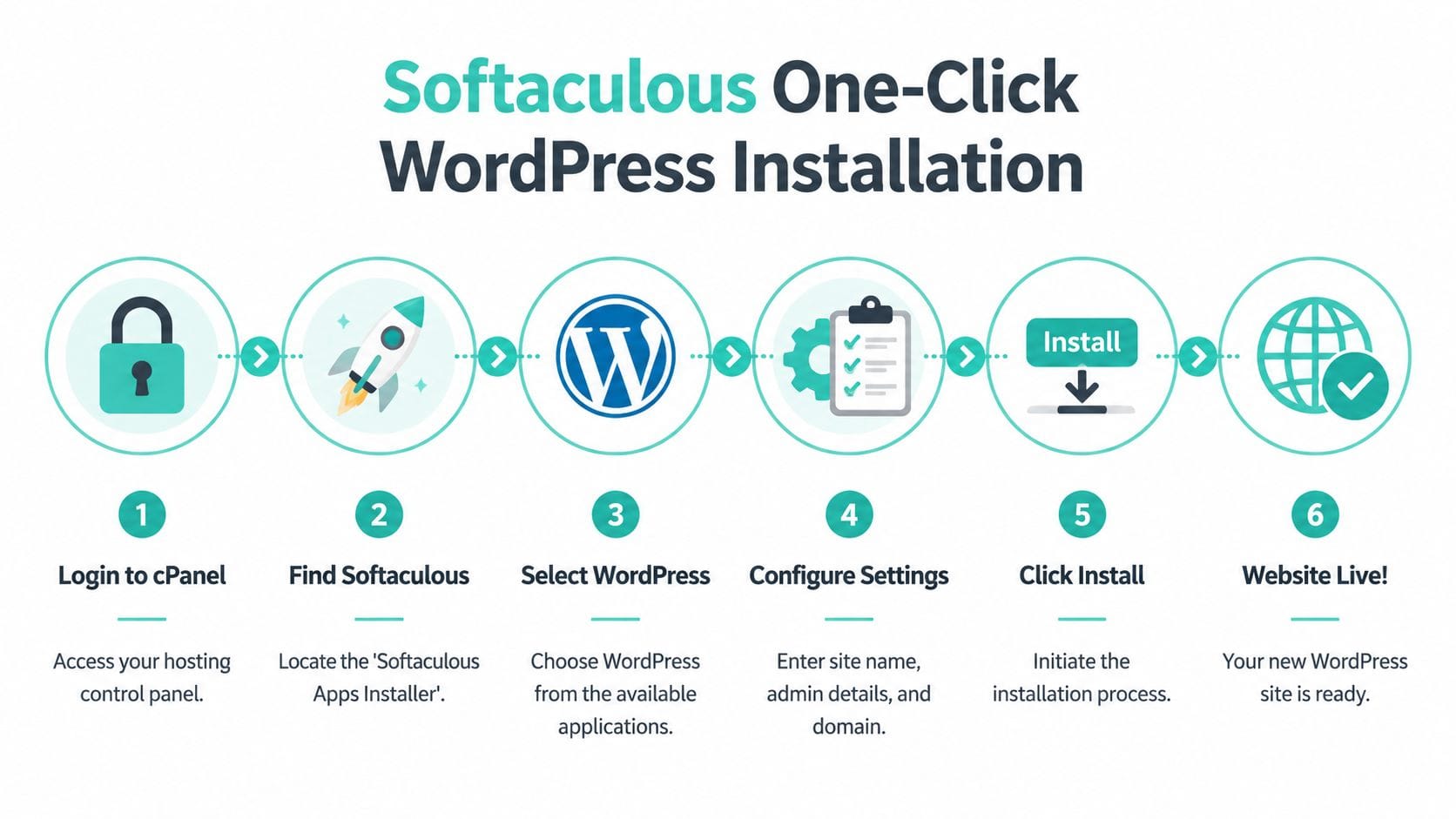
You log into cPanel, click a few buttons, and within minutes your business has a live WordPress site on its own domain. That is the appeal of Softaculous. It skips the old manual setup of uploading files, building a database by hand, and editing config files before you even see a homepage.
For a host-specific walkthrough, keep UpTime's step-by-step guide to installing WordPress in cPanel open in another tab if you want to compare screens as you go.
Before you click install
The install itself is quick. The choices you make on that form matter more than the clicking.
If your account includes SSL, use https:// from the start. If you have more than one domain in cPanel, double-check you are installing on the right one. This is especially important if you registered a .com.au or .au domain for the business and parked a second domain for later.
A common mistake is the directory field. If you want the website to load at the main address, leave it blank.
For example, if your domain is greenleafplumbing.com.au, installing into /wordpress or /site means the website may end up at greenleafplumbing.com.au/wordpress instead of the homepage you intended. I see this often with first builds, and it is annoying to tidy up later.
Also set a proper admin username, skip admin, and use an email address you can access straight away. Password resets, update notices, and security alerts will go there.
The full Softaculous setup process
Here is the usual process inside cPanel:
Log in to cPanel
Use the username and password from your hosting welcome email.Open Softaculous Apps Installer
It is usually under the Software section. You can also use the search bar in cPanel and type “WordPress”.Choose WordPress
Click the WordPress icon, then select the install option.Set the install location
Choose the correct domain, confirmhttps://if SSL is active, and leave the directory field empty if this is your main site.Add your site and admin details
Enter a temporary site name if needed, then create your admin username, strong password, and admin email.Review the settings and click install
Softaculous will create the database, connect WordPress, and finish the basic setup for you.
That background work is the time-saver. For a small Australian business owner using UpTime, it means you can get a site live on local hosting in Sydney, Melbourne, Brisbane, or Perth without touching the technical parts that usually slow beginners down.
Settings that save headaches later
Here, a clean install pays off.
| Setting | Better choice | Why it matters |
|---|---|---|
| Protocol | https:// | Loads the site securely from day one |
| In Directory | Blank for main site | Avoids installing into the wrong folder |
| Admin username | Unique username | Makes logins harder to guess |
| Admin password | Strong password | Reduces early security risk |
| Admin email | Real monitored email | Needed for resets, alerts, and updates |
A few other setup choices are worth a quick decision.
- Auto updates are useful if you want less routine maintenance, but some business owners prefer to update manually after checking plugin compatibility.
- Site name and description can be changed later, so do not get stuck trying to perfect them now.
- Extra themes or plugins are best kept to a minimum during installation. A clean starting point is easier to manage.
Install WordPress first. Build the business site after that.
If the install finishes and you see the default WordPress page, that usually means the system side is working properly. You can then log in at /wp-admin and start the job of shaping the site.
One final check. If the site opens on an odd URL or shows the wrong homepage, look at the install directory first. That single field causes more confusion than almost anything else in Softaculous.
Essential First Steps After Installing WordPress
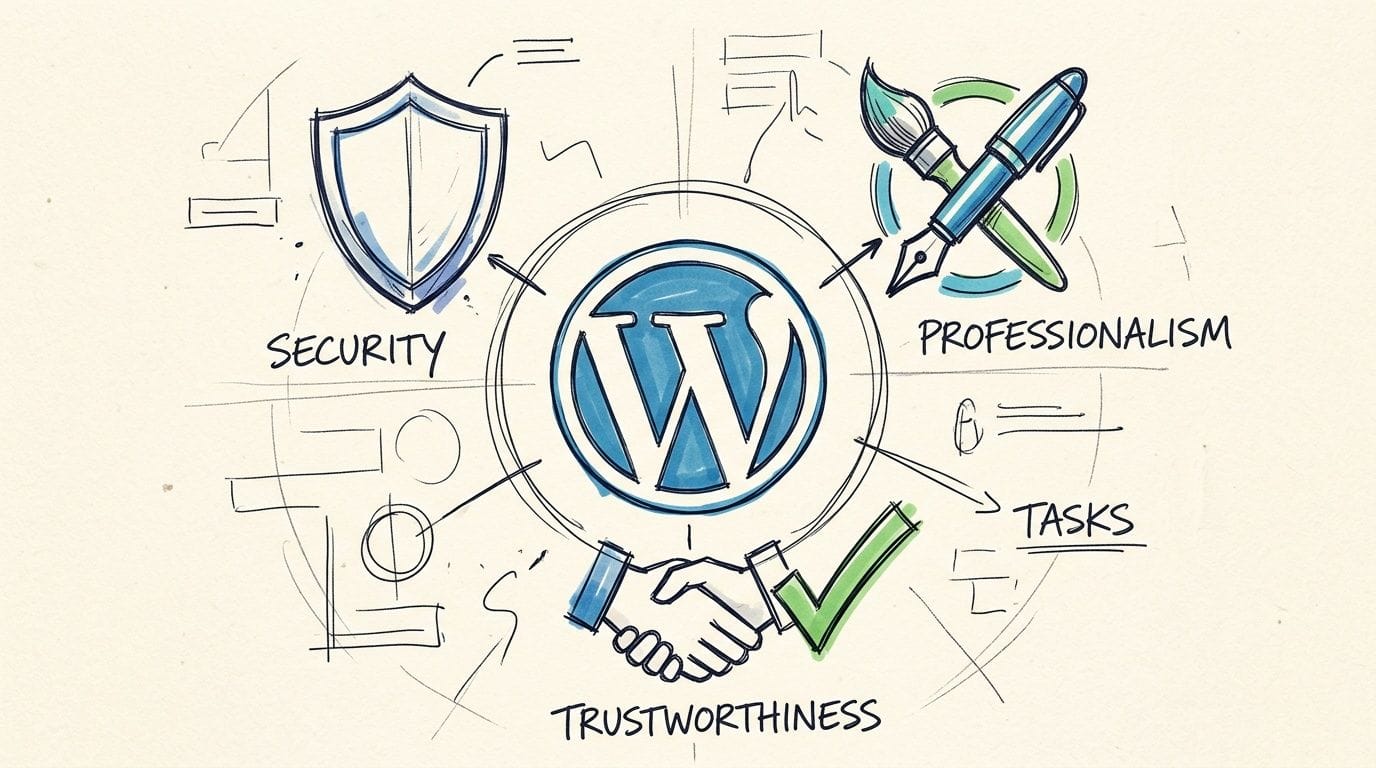
A fresh WordPress install is not the finished product. It's the starting point. Before you upload your logo or write your homepage, tighten a few essentials so the site is secure, professional, and ready for real visitors.
If you're deciding what to add first, this roundup of top plugins for every WordPress website gives you a sensible shortlist.
Security tasks to do before adding content
Start with SSL. If your hosting includes a free certificate, make sure the website is loading over HTTPS and showing the padlock in the browser. Customers notice when a business site throws security warnings, and browsers don't exactly present that gently.
Then work through these basics:
- Change the default admin habits. Use a strong password and remove any login details you created only for testing.
- Limit who gets admin access. If someone only writes content, give them an editor-style role instead of full control.
- Install one security plugin. One is enough for most small sites. Stacking several usually creates overlap and noise.
- Delete what you won't use. Remove unused themes and plugins rather than leaving them parked.
A common beginner move is installing ten plugins in the first hour because each one sounds useful. That usually slows the dashboard down and increases the chance of conflicts. Keep the first setup lean.
The safest WordPress site isn't the one with the most plugins. It's the one with the fewest unnecessary moving parts.
Basic WordPress setup for Australian businesses
After security, handle the settings that affect day-to-day use.
Go to the general settings area in WordPress and check:
- Site title and tagline
- Administrator email
- Timezone
- Date format
- Permalink structure
For Australian businesses, timezone matters more than people think. If you schedule posts, receive form notifications, or rely on time-based plugins, set the site to your local city so the timestamps make sense.
A practical checklist for the first login looks like this:
- Confirm the site opens on HTTPS.
- Update the site title and tagline.
- Set the timezone to the relevant Australian city.
- Check permalinks and use a clean structure.
- Remove default sample content.
- Install only the plugins you need.
You should also look at your theme before adding pages. Some themes look polished in demos but become awkward the moment you try to build a simple services site. If your business site needs clear pages, mobile-friendly layouts, and an easy homepage, choose a theme that keeps the editing experience straightforward.
At this stage, you're not trying to make the site perfect. You're trying to make it stable, secure, and easy to manage. That's the foundation that keeps launch week calm instead of chaotic.
Register your new domain name at competitive market prices including free domain add-ons like privacy, DNS Hosting, Custom Nameservers and Forwarding.
Always the best price and no nasty renewal price hikes.
Register A Domain Name
Boosting Performance and Automating Maintenance
A new website often feels finished once the homepage is live. Then a customer in Melbourne opens it on mobile, waits a few seconds, and leaves before the page settles. That's the critical test. For Australian businesses, performance is not just a technical extra. It affects enquiries, bookings, and how trustworthy the business feels.
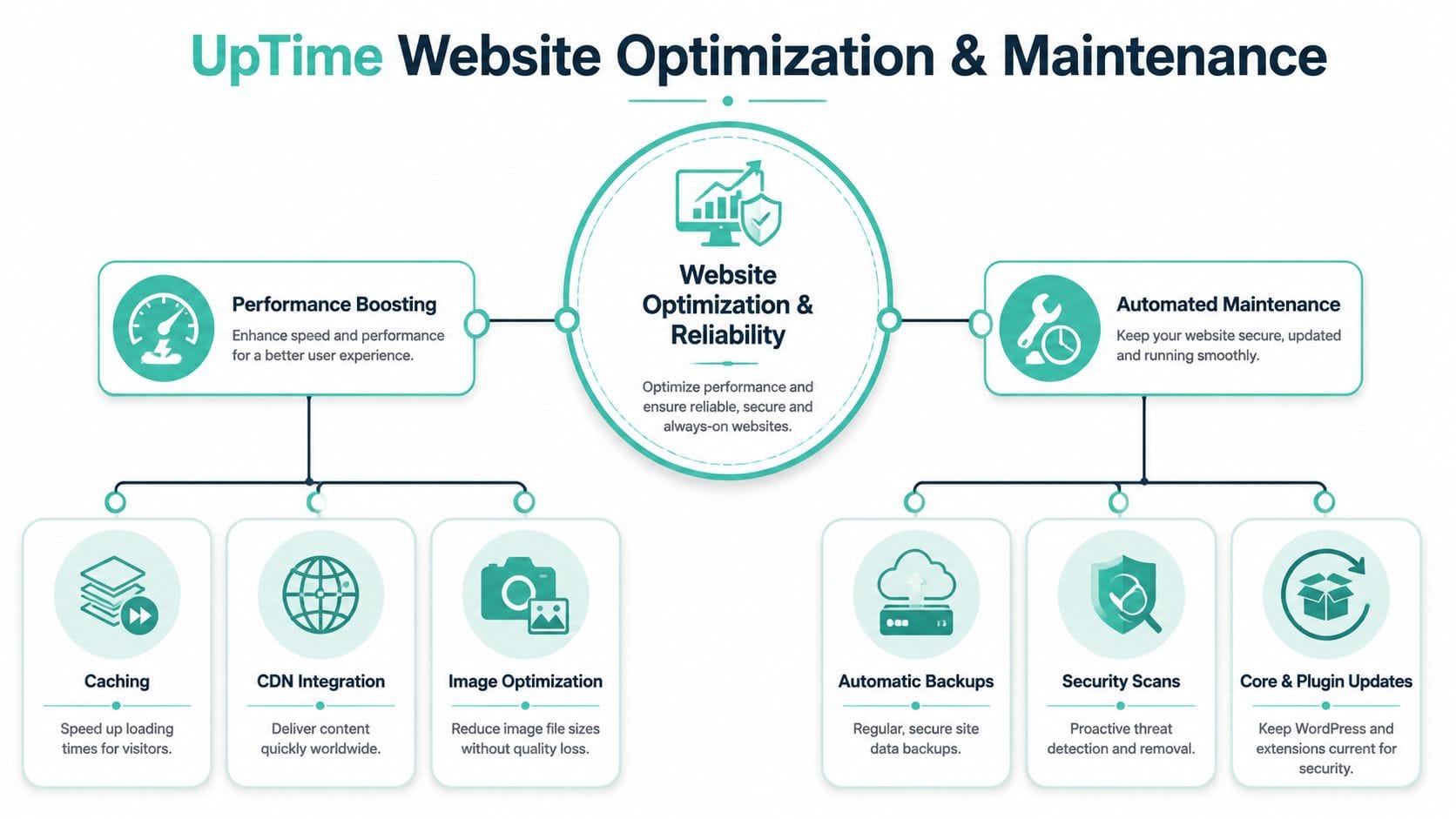
Fast loading starts with the hosting environment, then improves through a few sensible choices. UpTime Web Hosting gives Australian businesses a practical advantage here because traffic can be served locally from Sydney, Melbourne, Brisbane, or Perth, which helps reduce delay for visitors across the country. Pair that with WordPress tools built into cPanel and routine maintenance, and the site stays easier to run long after launch.
For day-to-day management, cPanel's WP Toolkit overview shows the features available for handling updates, staging, and security checks from one place. Performance gains from tools such as LiteSpeed Cache, Redis object caching, and image optimisation depend on the hosting stack, theme, plugin load, and how the site is configured, so it is better to treat them as tested improvements rather than fixed percentage promises.
What makes a WordPress site feel fast
For most small business websites, speed comes from a handful of basics done properly.
- Caching serves saved versions of pages so the server does less repeat work.
- Image optimisation shrinks file sizes so pages load faster on mobile data.
- Careful plugin selection keeps unnecessary scripts and database load under control.
- Local server locations help Australian visitors reach the site with lower latency.
If your plan runs on LiteSpeed, the LiteSpeed Cache plugin is usually the first performance plugin worth setting up. It covers page caching and several front-end improvements in one place, which is often a better option than stacking three or four separate optimisation plugins that overlap and conflict.
If you want extra reading from outside the usual hosting docs, these practical wordpress speed tweaks for hosts are useful because they focus on real tuning steps rather than fluff.
Why maintenance matters more than owners expect
WordPress sites rarely fail all at once. More often, a plugin update is ignored, a form stops sending, backups have not been checked in weeks, or a theme change creates a layout issue nobody notices until a customer mentions it.
A simple routine keeps those problems small.
| Task | Why it matters | How often to check |
|---|---|---|
| Plugin updates | Security patches and compatibility fixes | Weekly |
| Theme updates | Stability and bug fixes | Weekly |
| Backups | Recovery if an update or error breaks the site | Confirm weekly |
| Security scans | Early warning of malware or file changes | Weekly |
| Forms and checkout tests | Makes sure leads and sales still come through | After major changes |
Some hosting plans reduce the manual workload by including malware scanning, nightly off-site backups, and built-in optimisation tools such as AccelerateWP. UpTime Web Hosting includes cPanel access, LiteSpeed support, backups, AccelerateWP, and 24/7 Australian support, which is useful when you want help in your own time zone instead of waiting on an overseas queue.
Fast sites come from the combination of solid hosting, smart caching, compressed images, and regular updates.
When WP Toolkit is the better option
Softaculous is ideal for getting WordPress installed quickly. WP Toolkit becomes more useful once the site is live and you want tighter control over maintenance.
It is a good fit if you:
- Run more than one WordPress site
- Want a staging copy before changing the live site
- Need cloning tools for a redesign or campaign microsite
- Prefer one dashboard for updates, plugin checks, and security settings
That matters more as the website starts doing real work. A single brochure site can be managed easily at first. A business site with landing pages, seasonal promotions, or multiple staff touching content benefits from staging and central update controls because mistakes are easier to catch before customers see them.
Performance and maintenance work together. A quick website with no backup plan is risky. A backed-up website with oversized images, too many plugins, and poor caching still feels slow. The goal is a site that loads quickly, stays current, and is easy to recover if something goes wrong.
Troubleshooting and Frequently Asked Questions
Even a smooth WordPress setup can throw the occasional wobble. Most issues are fixable without rebuilding the site from scratch. The trick is not to panic and start changing ten things at once.
Common setup issues and quick fixes
Here are the problems new site owners hit most often.
The website shows a 404 or the wrong page after installation
This is often tied to the install directory. If WordPress was installed into a folder instead of the domain root, the homepage won't appear where you expect it. Check where WordPress was installed before changing anything else.
You can't log into /wp-admin
First, make sure you're using the exact admin username and password created during installation. If that fails, use the password reset link with the correct administrator email address.
The site looks broken after installing a theme or plugin
Disable the last thing you added. If you can't reach the dashboard, use File Manager in cPanel to temporarily rename the plugin folder so WordPress stops loading it.
HTTPS isn't loading properly
Check that the SSL certificate is active and that WordPress is using the secure site address. Mixed content warnings often come from image or script links still pointing to the old non-secure version.
A practical order for troubleshooting is:
- Check the most recent change.
- Confirm the domain and install location.
- Test login access.
- Disable the plugin or theme most likely to be causing the issue.
- Restore from backup if needed.
That order works because most problems are caused by one recent action, not by the whole site suddenly collapsing on its own.
Questions new site owners ask all the time
What's the difference between a theme and a plugin?
A theme controls how the site looks and how pages are laid out. A plugin adds features, such as forms, SEO tools, security, or backups.
Can I migrate an existing WordPress site later?
Yes. Many site owners start fresh, then move an older site across later. The cleanest approach is usually to migrate the files and database with support guidance or a migration tool, then test the site properly before changing the live domain settings.
Should I build the whole site before making it public?
Usually, yes. Keep the structure simple at first. Build the main pages, check your forms, confirm mobile layout, and then launch when the essentials are ready.
How many plugins should I install?
As few as you can get away with. There isn't a magic number that suits every site, but unnecessary plugins create more maintenance and more opportunity for conflicts.
When should I ask support for help?
Ask early if the problem involves SSL, hosting access, email delivery, login failures you can't resolve, or anything that feels like it may affect customer enquiries. Waiting too long often turns a small fix into a longer interruption.
If you're new to this, remember that building a website isn't a test of technical toughness. It's a business task. The goal is a working, trustworthy site that your customers can use and your team can manage without drama.
If you want a simpler path to getting online with local infrastructure, cPanel access, WordPress-ready hosting, and Australian-based help when you need it, take a look at UpTime Web Hosting. It's a practical option for businesses that want local hosting, straightforward setup, and support that understands the Australian market.