If you're reading this, there's a fair chance your current hosting setup is annoying you. The site feels sluggish, support is hard to reach, the redesign is ready, or you're moving providers and suddenly realise a WordPress migration isn't just “copy the files and hope for the best”.
That's where most first migrations go sideways. The homepage loads, so everyone relaxes, then a customer enquiry form stops sending, image links break, or the old server gets cancelled before DNS has fully caught up. For Australian businesses, that can mean missed leads, missed orders, and an uncomfortable few days of chasing problems that were avoidable.
WordPress is still the centre of gravity for a lot of websites. It powers 43.5% of all websites and 62.8% of the CMS market, and it turned 23 years old in 2026, according to WordPress market share data for 2026. That scale is why migration knowledge matters. It's not niche admin work. It's a practical skill that site owners, agencies, and support teams keep coming back to.
Table of Contents
- Planning Your WordPress Migration for Zero Surprises
- Creating a Bulletproof Backup Before You Begin
- Choosing the Right WordPress Migration Method
- A Manual Migration Walkthrough with cPanel
- Finalising the Move and Going Live with Minimal Downtime
- Post-Migration Health Checks and Troubleshooting

Performance you can feel, backed by clients who depend on it. Read how our support and uptime create long‑term customer success.Power Your Business with Better Hosting
Planning Your WordPress Migration for Zero Surprises
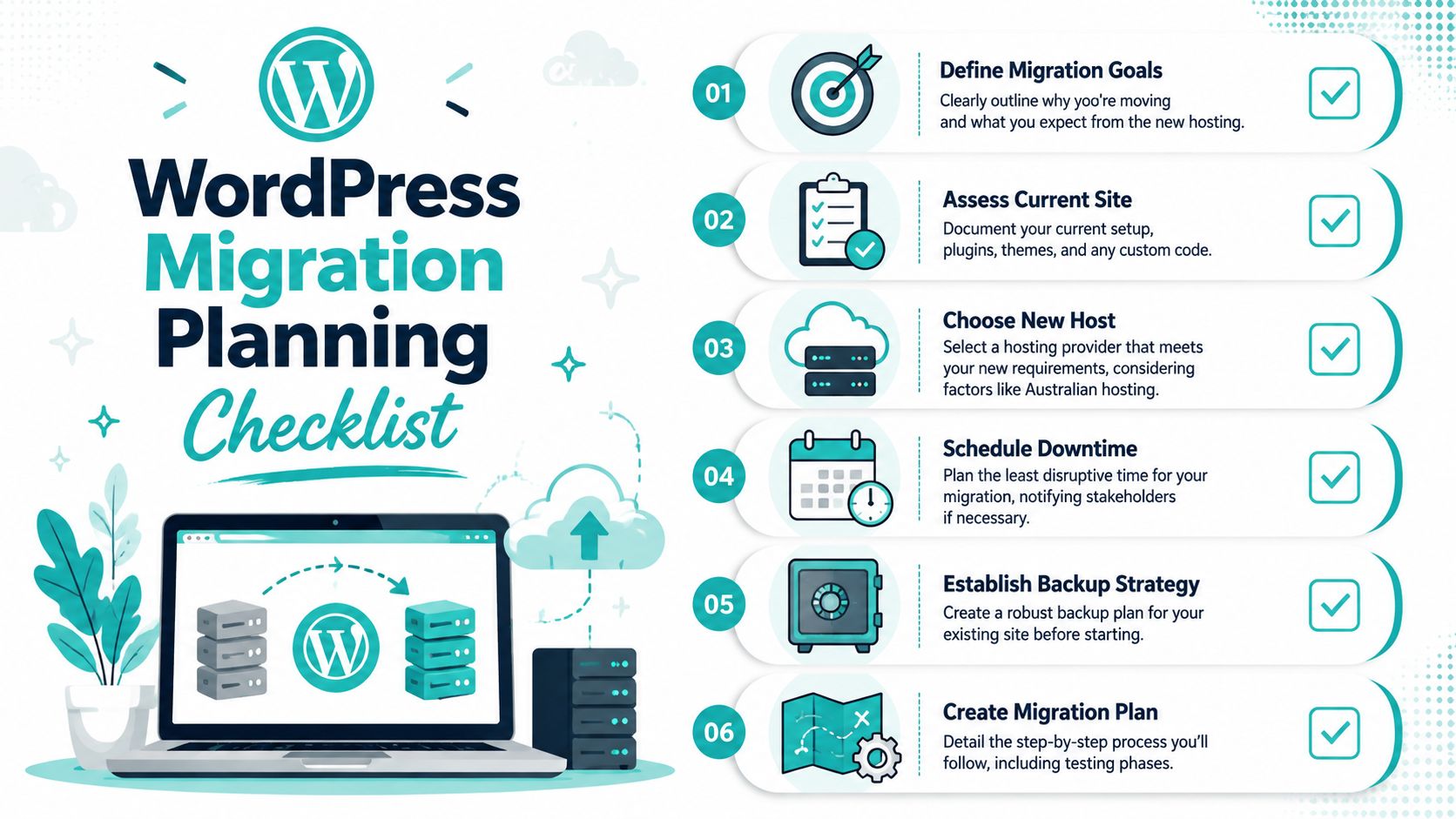
A rough migration usually starts with a rushed decision. Someone signs up for new hosting, points the domain, then discovers the live site depended on a forgotten plugin, a custom child theme tweak, or an email setting no one documented. The move itself wasn't the actual problem. The lack of planning was.
For most Australian businesses, a good migration plan is about reducing business risk, not just technical risk. You want the new setup to improve something meaningful. Better speed, local support, simpler management, cleaner security settings, or room for growth.
Know what you're moving
Before touching cPanel, FTP, or a plugin, make a simple inventory.
- Theme setup: Note the active theme, child theme, and any manual edits.
- Plugin stack: List active plugins, especially caching, security, forms, SEO, redirects, SMTP, and backups.
- Custom code: Check
functions.php, custom snippets, tracking scripts, and anything added in headers or footers. - Special content: Identify memberships, WooCommerce data, booking tools, or custom post types.
- External dependencies: Confirm what relies on third-party services, such as payment gateways, form delivery, or CDN settings.
This is also the point where a checklist helps. If you want a practical reference, keep a copy of this website migration checklist nearby while you plan.
Practical rule: If you haven't written down how the current site works, you're not ready to migrate it.
Set the rules before you touch anything
Choose a low-traffic window. For many small business sites in Australia, that might be after hours or on a quieter weekday period, but the right time depends on when your enquiries, bookings, or orders usually come in.
Then define success in plain language:
- The site must load correctly on the new server.
- Forms must send properly to the right inbox.
- Logins must work for staff and administrators.
- Existing URLs must stay intact unless redirects are planned.
- The old hosting must remain available until the new site is confirmed stable.
If you're managing a stakeholder-heavy site, send a quick notice to anyone affected. Marketing, admin staff, or the person who receives website enquiries should know when the move is happening and what to test afterwards.
A calm migration starts before any file moves. That part is boring. It's also the part that saves the most trouble.
Creating a Bulletproof Backup Before You Begin
The safest WordPress migration starts with a backup you can restore. Not a vague assumption that “the host does backups somewhere”, and not a half-downloaded zip sitting in Downloads with no database export next to it.
That backup is your rollback plan. If the import fails, a plugin conflicts, or the cutover exposes something broken, you need a known-good copy of the site outside the hosting account you're leaving.

Why a hosting backup isn't enough
Nightly hosting backups are useful for disasters, but a migration needs its own portable snapshot. You want something you can verify, download, store off-site, and restore without depending on the old account still being active.
A proper migration backup should include:
- Database content: Posts, pages, settings, users, plugin configuration, and WooCommerce data.
- Site files: Core WordPress files, themes, plugins, uploads, and custom assets.
- Configuration files: Especially
wp-config.php, plus any.htaccessrules worth preserving. - Safe storage: Keep copies in at least two separate places you control.
If you need a hands-on guide before you start, this WordPress backup walkthrough is a useful reference.
Don't start a migration until you can answer one simple question. “If this breaks, exactly where is my restore copy?”
Two backup methods that work
One approach is plugin-based. A tool such as UpdraftPlus can package your database and files into downloadable archives. For many small sites, that's the easiest option because it's clear, repeatable, and less error-prone for first-timers.
The other approach is manual. Use cPanel File Manager to archive the site files, then export the database in phpMyAdmin. That takes more attention, but it gives you direct control over what you're collecting.
A sensible backup routine looks like this:
- Create the backup immediately before migration: That avoids restoring an outdated copy if the site has changed recently.
- Download it locally: Don't leave the only copy on the old server.
- Store another copy off-site: Cloud storage is fine if access is secure.
- Open the archive and check it: Make sure it isn't empty or obviously incomplete.
- Confirm the SQL export exists: A file-only backup is not a full WordPress backup.
Manual or plugin-based can both work. The important part is that the backup is complete, recent, and retrievable without relying on luck.
Host your website with our 5-star rated, cPanel website hosting plans.
Super fast servers, with security included and hosted in your choice of Australian Data Center.
View cPanel Plans
Choosing the Right WordPress Migration Method
Not every WordPress migration needs the same toolset. The right method depends on how comfortable you are with technical work, how customised the site is, and how much time you have to spend checking the result.
One mistake I see often is choosing the easiest-looking option without thinking about the site itself. A basic brochure site can usually move with far less fuss than a store, a membership site, or a build with lots of custom logic.
Three common ways to migrate
Migration plugins are the fastest starting point for many small websites. They package up the site and help restore it on the new host with fewer manual steps. For context, Brillmark's migration guide notes that a migration plugin can reduce a roughly four-hour manual migration to about 45 minutes for many small sites, although file upload time alone is often 15 to 60 minutes depending on site size.
That speed is real, but plugins aren't magic. Large media libraries, server upload limits, and unusual configurations can still get in the way.
Manual migration gives you the most control. You export the database, move the files, create the new database, connect everything properly, and test each part. It's slower, but it's also the clearest method when you want to know exactly what changed.
WP-CLI suits developers and agencies comfortable working in the command line. It can be tidy and efficient in the right hands, but it's not the place to learn your first migration under pressure.
There's also the hands-off option. Some hosts handle migrations as part of onboarding. For example, UpTime Web Hosting provides a secure migration form that collects the details needed to move a site into the new hosting environment. That's useful when you'd rather have the transfer handled as an operational task instead of doing it manually.
WordPress Migration Method Comparison
| Method | Best For | Ease of Use | Potential Cost |
|---|---|---|---|
| Plugin migration | Small to medium sites, first-time migrations, standard WordPress installs | High | Free or paid plugin features |
| Manual cPanel or FTP migration | Custom sites, larger sites, owners who want full control | Medium to low | Usually staff time or developer time |
| WP-CLI migration | Developers, agencies, scripted workflows | Low for beginners, high for experienced users | Usually internal technical time |
A simple way to choose:
- Pick a plugin if the site is straightforward and you want speed.
- Pick manual migration if you need visibility and tighter control.
- Pick WP-CLI if your team already works that way.
- Ask for managed help if business continuity matters more than doing it yourself.
What doesn't work well is mixing methods halfway through without a plan. If you start with a plugin and it fails, pause and reset. Don't stack random fixes on top of a broken attempt.
A Manual Migration Walkthrough with cPanel
Manual migration is still the baseline process for host-to-host moves. The core flow is well established. Export the database, move the files, create a new database, update wp-config.php, and import the data. That structure is outlined in this manual migration guide, and it's the reason a proper WordPress move is more than a file copy.
If you want the most transparent path, this is the one.
Export the database and copy the files
Start on the old hosting account.
- Open phpMyAdmin and select the WordPress database.
- Export the database as an SQL file.
- Open File Manager in cPanel.
- Compress the website files so they're easier to download.
- Download the archive to your local machine.
The focus is often on wp-content, and that folder is essential because it holds uploads, themes, and plugins. But don't forget the rest of the WordPress install if you're doing a full manual copy. Configuration files and rewrite rules matter too.
If you need a refresher on moving files through cPanel, this guide on uploading your website into cPanel using File Manager covers the mechanics clearly.
If the database export is missing, the migration is incomplete. If the uploads folder is missing, the site may load without its real content.
Build the new environment properly
Now switch to the new cPanel account and prepare the destination before uploading anything.
Create a new MySQL database, then create a database user and assign that user to the database with the required privileges. Keep the database name, username, and password recorded carefully. Most failed manual migrations come down to one typo in these details.
After that:
- Upload the site archive into the correct web root on the new hosting account.
- Extract the files so WordPress is in the expected location.
- Open phpMyAdmin on the new server.
- Import the SQL file into the blank database you just created.
At this point, the files and data exist on the new server, but WordPress still won't connect until the configuration file is updated.
Update configuration and fix URLs
Open wp-config.php and change the database values to match the new hosting account.
define( 'DB_NAME', 'new_database_name' );
define( 'DB_USER', 'new_database_user' );
define( 'DB_PASSWORD', 'new_database_password' );
define( 'DB_HOST', 'localhost' );
The exact values will be different for your account. What matters is consistency. If the file says one thing and cPanel says another, WordPress won't connect.
Once the site loads on the destination environment, inspect the URLs. If the domain or path changed, run a search-and-replace so internal links, media references, and serialized options point to the correct location. This is also a good time to re-save permalinks later in the WordPress dashboard if you hit odd 404s.
A careful manual process usually follows this order:
- Database first
- Files second
- New database setup
- Configuration update
- Import validation
- URL correction
- Login and front-end testing
The strength of manual migration is that each step is visible. If something breaks, you usually know where to look.
Finalising the Move and Going Live with Minimal Downtime
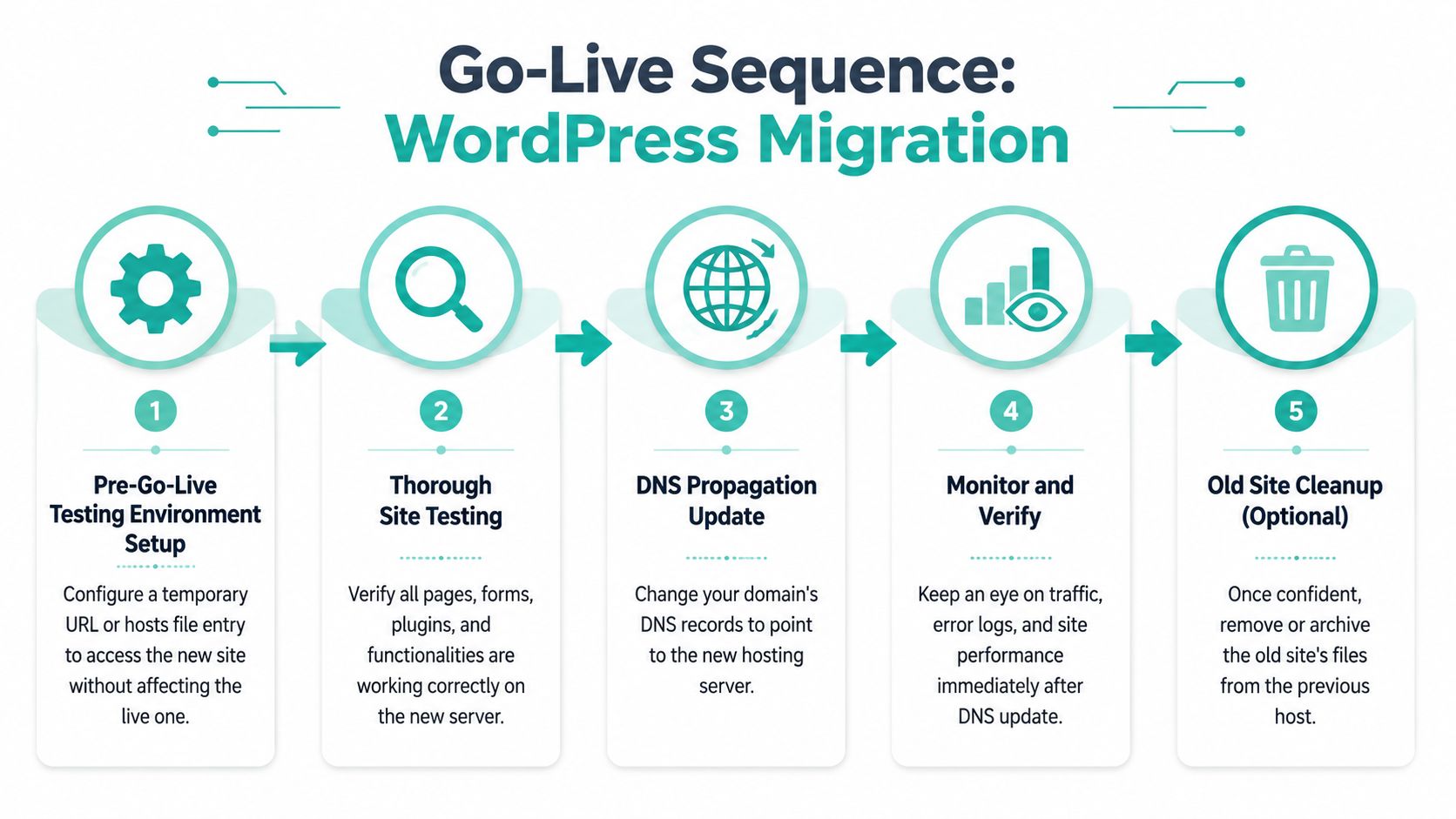
The technical copy is only half the job. The cutover is where many migrations get messy because the site owner changes DNS too early, forgets to test the new environment, or shuts down the old service before traffic has fully shifted across.
The safer approach is simple. Test first. Change DNS second. Keep the old service available while the internet catches up.
Test before the DNS change
Access the migrated site on the new server without sending public traffic there yet. A temporary URL or a hosts file method can do the job. The point is to inspect the destination privately before the live domain starts resolving to it.
Check the parts that matter to the business:
- Core pages: Home, about, services, contact, and landing pages.
- Forms: Contact forms, quote requests, bookings, checkout steps.
- Media: Images, PDFs, downloadable files.
- Admin area: Logins, updates, plugin settings.
- Tracking and SEO basics: Titles, metadata, analytics tags, redirects if used.
A site that “looks fine” on the homepage can still be broken in the parts customers use most.
Handle DNS and email carefully
DNS timing is one of the most overlooked parts of WordPress migration. ServMask's troubleshooting guidance recommends lowering DNS TTL to 300 seconds at least 48 hours before migration and keeping the old server live for at least a week, as explained in their WordPress migration troubleshooting guide. That advice reflects a real-world truth. The transfer itself is often easier than the cutover period.
If you want to confirm what your device is resolving during that window, this guide on how to flush DNS is handy.
The other detail many checklists barely mention is email continuity. If your site sends contact form notifications, password resets, order updates, or booking confirmations, treat mail delivery as part of the migration, not an afterthought.
A practical go-live checklist for email looks like this:
- Install and configure SMTP if the site relies on form or transactional email.
- Send test messages before and after DNS changes.
- Review SPF and related DNS mail settings if they need updating with the new arrangement.
- Check hosting mail behaviour if your environment restricts default mail sending methods.
- Keep the old environment available briefly so messages don't vanish during the handover.
Australian small businesses often feel the initial pain of a migration. The website opens, but the enquiries stop because nobody tested mail delivery after the move.
Register your new domain name at competitive market prices including free domain add-ons like privacy, DNS Hosting, Custom Nameservers and Forwarding.
Always the best price and no nasty renewal price hikes.
Register A Domain Name
Post-Migration Health Checks and Troubleshooting
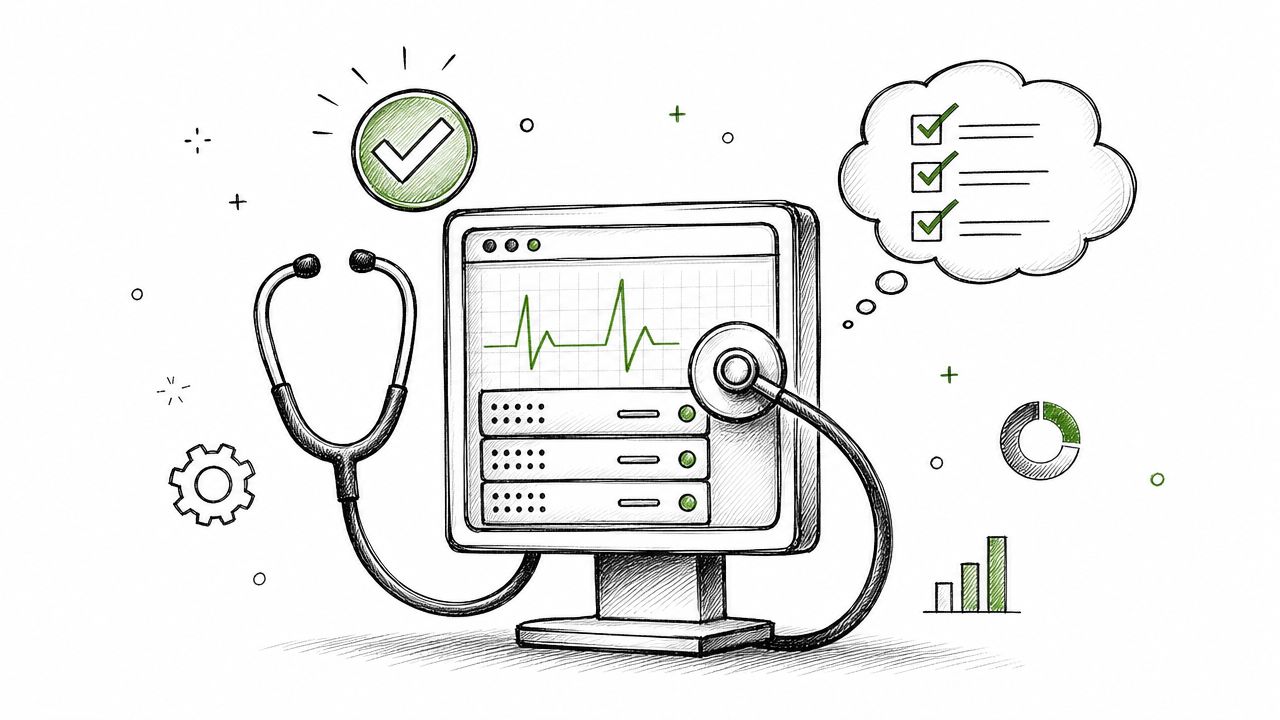
A migration isn't finished when the site appears online. It's finished when the site works cleanly, sends mail, loads the right assets, and stays stable under normal use.
The first day after go-live is where you catch the issues that aren't obvious at a glance. Broken links, mixed content warnings, stale cache, missing redirects, and database connection problems tend to show up here.
Run the first checks straight away
Work through a short health check once DNS has settled enough for you to test reliably.
- Clear all caches: WordPress cache, server cache, browser cache, and any CDN cache in front.
- Re-save permalinks: This often fixes strange 404 behaviour after a move.
- Crawl the site manually: Visit key pages, forms, category pages, and major user paths.
- Check security tools: Confirm malware scanning, firewall rules, and SSL status are all behaving normally.
- Review SEO basics: Make sure the site isn't accidentally set to noindex, and confirm canonical and redirect behaviour.
If you're tightening things up after the move, a broader resource such as this UK SEO playbook for growth is useful for checking the on-page and technical items that often get missed during redesigns and migrations.
Fix the common issues fast
Two common post-migration problems are easy to recognise.
The first is the white screen or a fatal error after a plugin or theme conflict. Disable recently changed plugins, switch temporarily to a default theme if needed, and check error logs if you have access.
The second is the classic database problem. If WordPress reports a connection issue, inspect the credentials in wp-config.php and compare them to the actual database details in cPanel. This guide to fixing the error establishing a database connection covers the usual checks.
Keep the old hosting active until you're satisfied the new site is stable. A rushed cancellation removes your safety net.
For the next couple of days, monitor the site the same way a customer would use it. Submit a form. Open the mobile version. Log in. Check order or enquiry notifications. If something is off, roll back calmly using the backup you prepared earlier, fix the issue, and try again.
If you'd rather avoid the manual work, UpTime Web Hosting offers Australian-based hosting with cPanel, WordPress-friendly features, off-site backups, and migration support options that can make a first move far less stressful.