You've probably got a setup like this right now. Enquiries go to info@yourbusiness.com.au, quote requests land in sales@, invoices hit another address, and you still want everything visible in the Gmail or Outlook inbox you already check all day. That's where email forwarding helps. It lets you keep a professional business address without forcing you to log in to three different inboxes just to stay on top of customer messages.
For most Australian small businesses, forwarding is one of the quickest email admin jobs to sort out. On most providers, the process follows the same five broad steps: open account settings, find the forwarding or mail routing area, enter the destination address, verify ownership through a confirmation link, and choose whether to keep a copy in the original inbox, as outlined in this email forwarding overview. The steps are simple. The part that matters is choosing the right kind of forwarding so it helps your workflow instead of creating a mess.
Table of Contents
- Why Use Email Forwarding in Your Business?
- Your Step-by-Step Guide to Forwarding Emails in cPanel
- Managing Forwarding Directly from Webmail
- Beyond the Basics Alias and Conditional Forwarding
- Avoiding the Spam Folder DNS SPF and DKIM Explained
- Troubleshooting Common Email Forwarding Issues

Performance you can feel, backed by clients who depend on it. Read how our support and uptime create long‑term customer success.Power Your Business with Better Hosting
Why Use Email Forwarding in Your Business?
If you run a small business in Australia, the usual mess looks familiar. Enquiries from your website go to one address, supplier receipts hit another, and someone set up sales@ years ago but nobody checks it properly anymore. Mail forwarding fixes that without forcing you to overhaul everything at once.
The practical benefit is simple. Customers still see proper business addresses on your domain, but your team can read and respond from the inbox they already watch every day, often Gmail or Outlook. That usually means faster replies, fewer missed quote requests, and less time spent logging in to old mailboxes just in case something important is sitting there.
A setup that works well often includes:
- Customer enquiries:
info@yourbusiness.com.auforwards to the owner, office manager, or shared admin inbox. - Sales leads:
sales@yourbusiness.com.auforwards to the person who handles quotes. - Team aliases: addresses like
accounts@orsupport@forward to one person now, then later to a full mailbox or multiple staff as the business grows. - Receipts and admin mail: platform notices, invoices, and retailer emails go to an admin address, or into a workflow built to automate receipt forwarding if bookkeeping is becoming a chore.
Forwarding is also a sensible way to grow into proper business email. Many operators start by sending info@yourbusiness.com.au to a Gmail account they already use, then add separate mailboxes for staff once the volume justifies it. That approach keeps costs under control, but there is a trade-off. If everything forwards into one personal inbox for too long, handover gets messy and internal visibility suffers.
One point gets overlooked all the time. Forwarding delivery is no longer just about creating a rule and forgetting it. Gmail and Outlook are stricter than they used to be, and forwarded messages can end up in spam if your domain records are not set up properly. Good forwarding depends on the underlying mail service being configured cleanly from the start. If you need background on that side, this overview of setting up professional email for your business is a useful reference.
The best result is not more forwarding rules. It is a clear system your business can rely on. Public-facing addresses stay professional, the right person gets the message quickly, and you still have room to add proper team mailboxes later without rebuilding everything.
Your Step-by-Step Guide to Forwarding Emails in cPanel
For many Australian hosting accounts, cPanel is the cleanest place to manage forwarders because it controls the mailbox at the server level. That means the rule still runs even if you never log in to webmail.
The basic path is straightforward. To set up email forwarding in cPanel on an Australian hosting account, users log in to cPanel, go to the Email section, click Forwarders, choose Add Forwarder, enter the source address, then enter the destination address, as described in this cPanel forwarding guide.
If you haven't used cPanel much before, this walkthrough on using cPanel helps you find the right area first.
Forward one business address to one inbox
This is the setup most businesses need.
- Log in to your hosting account and open cPanel.
- Find the Email section.
- Click Forwarders.
- Select Add Forwarder.
- Choose the domain if you have more than one.
- Enter the address you want to forward from, such as
info. - Enter the destination email address, such as your Gmail or Outlook address.
- Save the rule.
A practical example: if contact@yourbusiness.com.au is published on your website, you can forward it to the inbox you already monitor on your phone. Customers still see a business address. You still reply from a professional identity if your mail client is configured properly.
Use this option when:
- One person owns the mailbox: ideal for owner-operated businesses.
- You're transitioning providers: forwarding buys time while you move staff gradually.
- You need continuity: an old published address can stay active without maintaining a full separate inbox.
Forwarding is reliable for collection. It's not always ideal for sending replies unless your outgoing mail identity is set up properly too.
Use a catch-all carefully
cPanel also lets you create domain-level forwarding rules, often called a catch-all or default address. This catches mail sent to addresses that don't exist on your domain.
That sounds handy, and sometimes it is. If someone emails jon@ instead of john@, a catch-all may stop the message from being lost. But there's a trade-off. Catch-all addresses also attract junk, dictionary attacks, and random mail sent to guessed addresses.
A quick comparison helps:
| Option | Works well for | Main downside |
|---|---|---|
| Individual forwarder | Known addresses like info@ or sales@ | You must create each rule manually |
| Catch-all forwarder | Recovering mistyped addresses | Can bring in a lot of unwanted mail |
Use a catch-all only if you've got a real reason for it. A small consultancy with a few published addresses might benefit. A busy retail or trade business usually ends up with more noise than value.
If you're asking how to set up email forwarding for day-to-day business use, start with named addresses first. Add a catch-all only after you're confident you need it.
Host your website with our 5-star rated, cPanel website hosting plans.
Super fast servers, with security included and hosted in your choice of Australian Data Center.
View cPanel Plans
Managing Forwarding Directly from Webmail
Some people would rather handle email settings from inside the inbox instead of logging into cPanel. That's fair. If you're already working in webmail during the day, changing a rule there can feel more natural.
A quick refresher helps if you need it. This guide on how to open webmail shows the usual access methods before you start adjusting filters or forwarding rules.
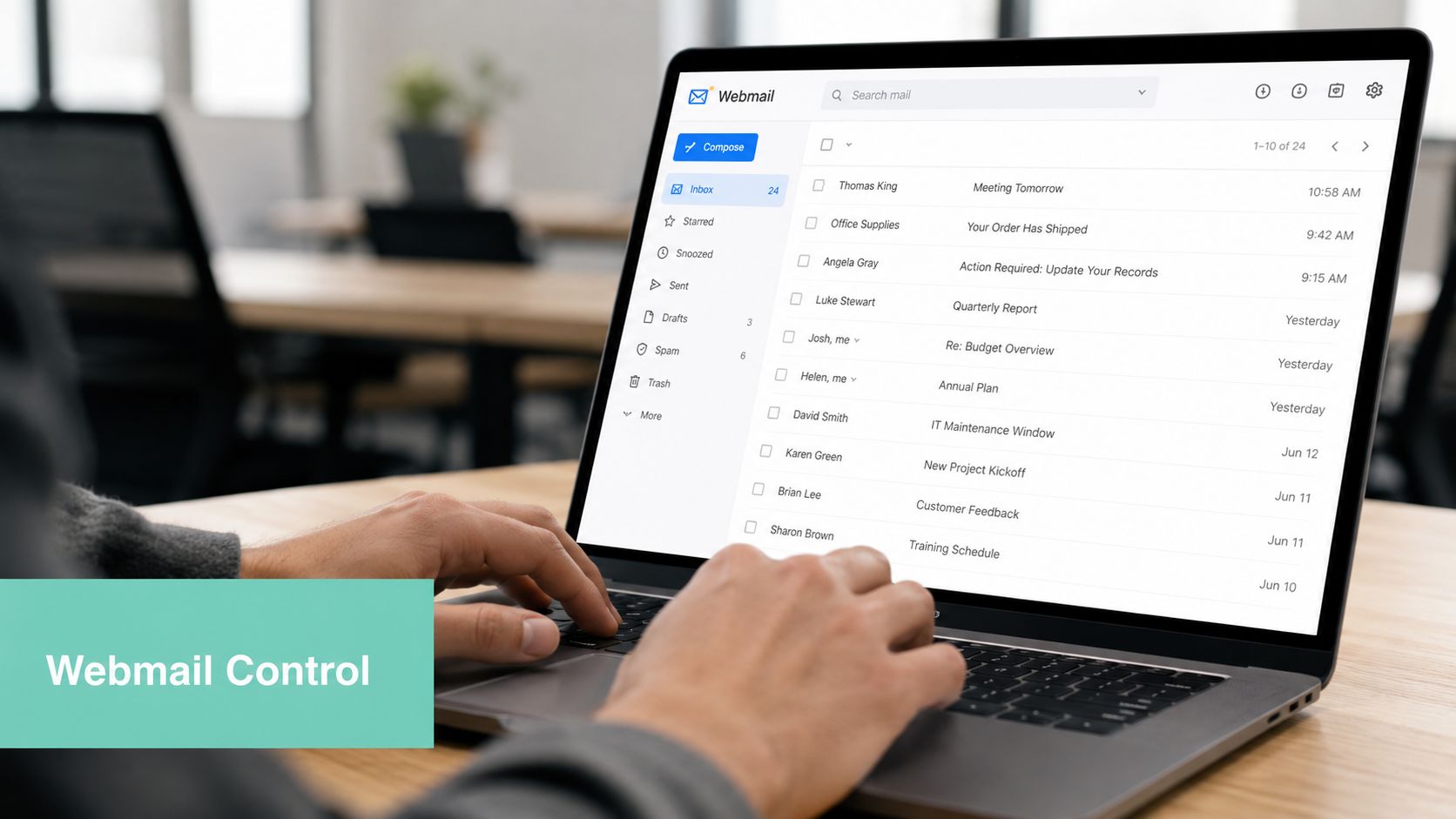
Roundcube for quick mailbox rules
Roundcube is usually the easier option for most users. The layout is simpler, and mailbox rules are easier to spot once you're signed in.
In practice, you'll look for settings related to Filters, Rules, or Identities, depending on how your hosting account presents them. From there, you can create a rule that says a message matching certain conditions should be redirected or handled in a specific way. This is useful when you don't want blanket forwarding for every message.
A common business example is forwarding only messages sent to a visible public address while leaving internal notifications in the mailbox itself. That way, you still have a server copy for reference, but your main work inbox gets the messages you need to respond to fast.
Horde for users who prefer server-side filters
Horde users tend to like it because it exposes more mail tools in one place. If your account still offers Horde, the forwarding controls are often tied into filtering options rather than a single obvious “forward” button.
Look for menus related to:
- Mail filters: where you create rules based on sender, subject, or mailbox
- Forwarding actions: where matching messages are redirected
- Keep copy options: where you decide whether the original mailbox still stores the message
This approach suits businesses that want slightly more control without diving into hosting settings. For example, a director might keep director@yourbusiness.com.au in webmail, but forward only messages from key clients into Outlook.
Webmail-based forwarding is usually better for mailbox-level rules. cPanel is better for domain-level control.
That distinction matters. If staff need simple day-to-day filter changes, webmail is often easier. If the business needs a rule tied to the domain itself, cPanel is the safer place to manage it.
Beyond the Basics Alias and Conditional Forwarding
A small business usually feels the limit of basic forwarding once more than one person touches the inbox. The common pattern is familiar. One public address gets everything, one staff member becomes the sorter, and client replies slow down because the wrong message sat in the wrong inbox for half a day.
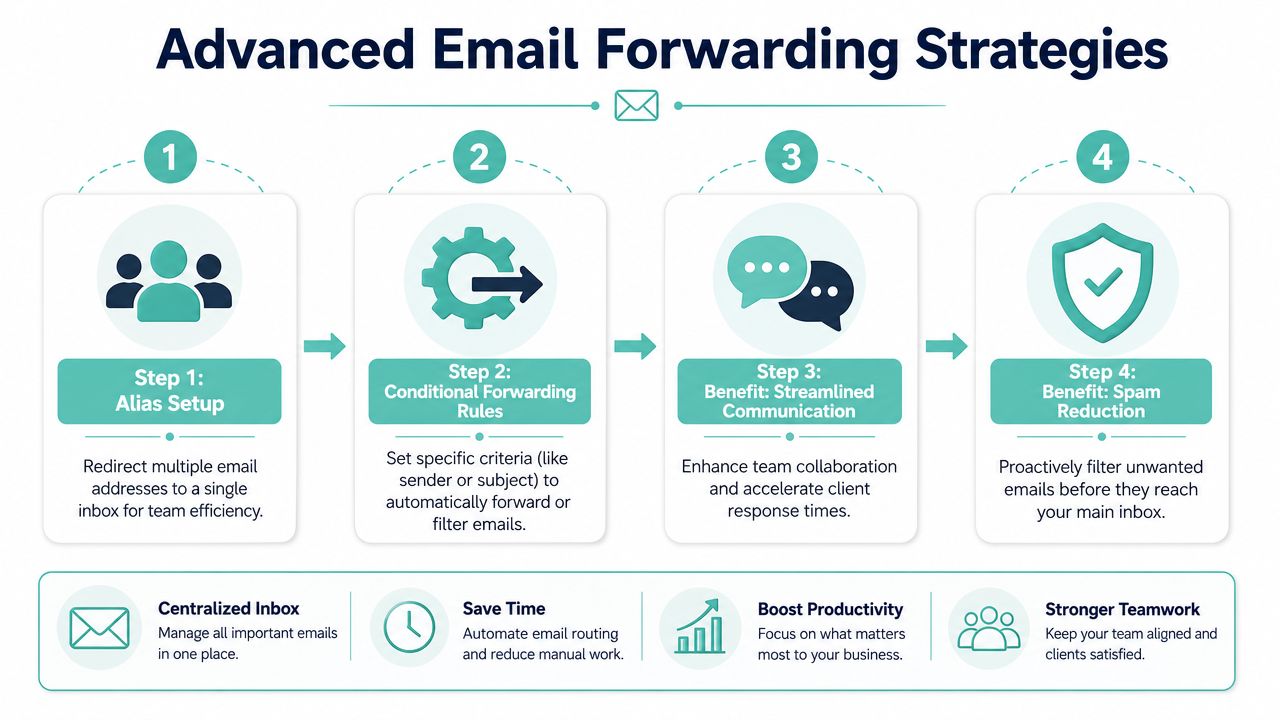
Aliases and conditional rules fix that operational mess without forcing you into a full help desk platform. Used properly, they let you keep a clean public email setup while routing messages to the right person, or the right system, on arrival.
Aliases for shared team addresses
An alias gives you a stable address such as sales@, accounts@, bookings@, or support@ without tying that address to one staff member forever.
That matters in small Australian businesses because roles change often. A receptionist goes part-time. A bookkeeper changes. A director wants emails visible in Gmail, while admin still needs a copy in Outlook. If the business uses role-based addresses instead of personal ones, those changes are easier to manage and customers never see the reshuffle.
Aliases are useful for:
- Shared coverage:
quotes@yourbusiness.com.aucan reach the owner and office admin at the same time - Staff changes: the public address stays the same even if the person behind it changes
- Clearer communication: customers email a function of the business, not an individual who might be on leave
- Better handover: new staff can step into an existing address without rebuilding your contact points
If you need the setup steps, this knowledge base article on adding an email alias covers the mechanics.
A trade business is a good example. bookings@ can go to the office manager for scheduling, while quotes@ reaches both the estimator and the owner. That split keeps urgent work moving and cuts down the usual “can you forward this to me?” back-and-forth.
Conditional forwarding for mail that needs rules
Conditional forwarding adds another layer of control. Instead of passing every message from one address to one destination, you create rules based on the sender, subject, recipient address, or keywords in the message.
That suits businesses where one inbox serves several functions.
| Trigger | Example | Result |
|---|---|---|
| Sender | Messages from a known supplier | Forward to purchasing or admin |
| Subject line | Emails containing “invoice” | Send to accounts |
| Address used | Mail sent to sales@ | Forward only to sales staff |
| Keyword | Messages mentioning bookings | Route to the scheduling inbox |
I usually recommend building these rules around business functions, not personalities. Staff come and go. The work categories stay the same.
There is a trade-off, though. More rules can mean more maintenance. If a rule is too broad, valid mail gets pushed to the wrong person. If it is too narrow, the message stays put and nobody notices. For a small team, a short set of high-value rules usually works better than trying to automate every edge case.
A practical setup might look like this:
accounts@forwards invoice emails to the bookkeepersales@forwards new quote requests to two staff memberssupport@keeps a local copy in the mailbox but forwards urgent messages from key clients to a mobile-friendly inboxdirector@only forwards messages from selected clients or domains
This approach works well for businesses forwarding to Gmail or Outlook, because those platforms are often where staff work day to day. It also reduces the risk of one shared mailbox becoming the dumping ground for everything.
If your team uses Microsoft 365, it is worth understanding how forwarding and authentication interact before you rely on aliases heavily. This guide to Microsoft 365 email security configuration is a useful reference for that side of the setup.
UpTime Web Hosting offers email forwarding options on supported services, but the practical check is whether your plan supports simple forwarders only, aliases as well, or filter-based routing. That difference matters once multiple staff need the same public address, or when Gmail and Outlook are part of the workflow.
Avoiding the Spam Folder DNS SPF and DKIM Explained
A forwarder can be configured perfectly and still fail where it counts. The email leaves one place, reaches another server, then ends up in junk or gets rejected. When that happens, the forwarding rule isn't always broken. The authentication is.
What SPF and DKIM actually do
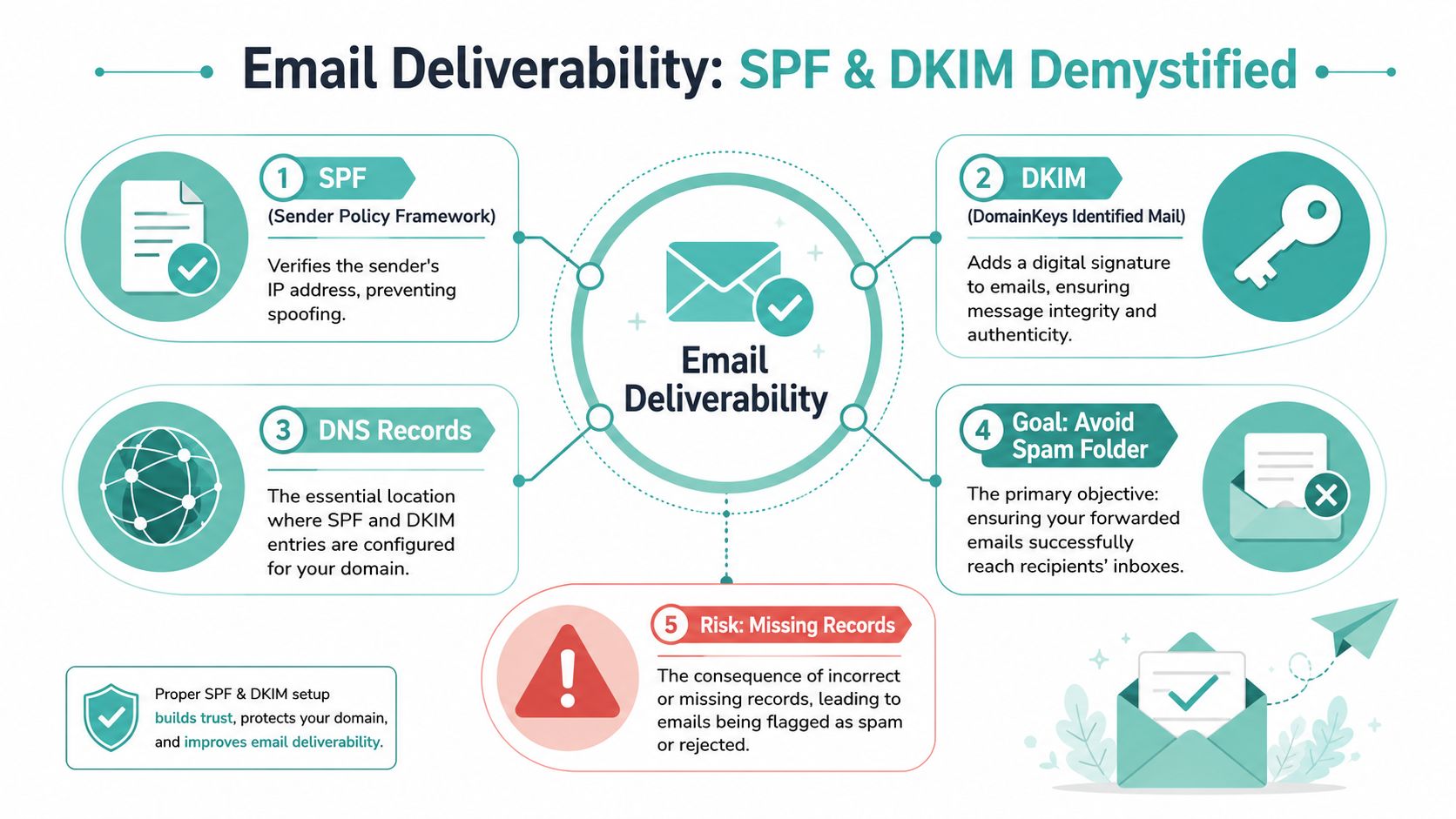
Think of SPF and DKIM as trust signals tied to your domain.
- SPF tells receiving mail servers which systems are allowed to send mail for your domain.
- DKIM adds a signature that helps prove the message hasn't been altered and really belongs with that domain.
- DMARC sits above them and tells receivers how strictly to handle failures.
You don't need to memorise the acronyms. You need to know the consequence. If those records aren't aligned properly, forwarded messages are much more likely to look suspicious to Gmail, Outlook, and other major providers.
For cPanel users, this guide to implementing SPF, DKIM and DMARC in cPanel is the practical reference worth checking before you blame the mailbox.
Why forwarding breaks more often now
Legacy forwarding used to be much more forgiving. It isn't anymore. Email forwarding is becoming unreliable as major providers like Google enforce strict SPF, DKIM, and DMARC protocols, and this trend threatens most legacy forwarding setups within 1 to 2 years, according to this discussion of the decline of email forwarding.
That's the part many small businesses miss. They assume forwarding is permanent infrastructure. In reality, unauthenticated or poorly authenticated forwarding is getting squeezed by modern spam controls.
Here's what tends to work versus what doesn't:
- Works better: forwarding within a properly managed domain environment where authentication records are in place
- Often fails: old alumni-style forwarding, chains of multiple forwards, or domains nobody actively maintains
- Works best for important mail: using real mailboxes where possible, then adding targeted forwarding rules rather than forwarding everything everywhere
If a client says, “I never got your email,” and the message was forwarded more than once, check authentication before anything else.
If your destination inbox lives inside Microsoft 365, this write-up on Microsoft 365 email security configuration is a useful companion because forwarding problems often surface at the destination as much as the source.
Register your new domain name at competitive market prices including free domain add-ons like privacy, DNS Hosting, Custom Nameservers and Forwarding.
Always the best price and no nasty renewal price hikes.
Register A Domain Name
Troubleshooting Common Email Forwarding Issues
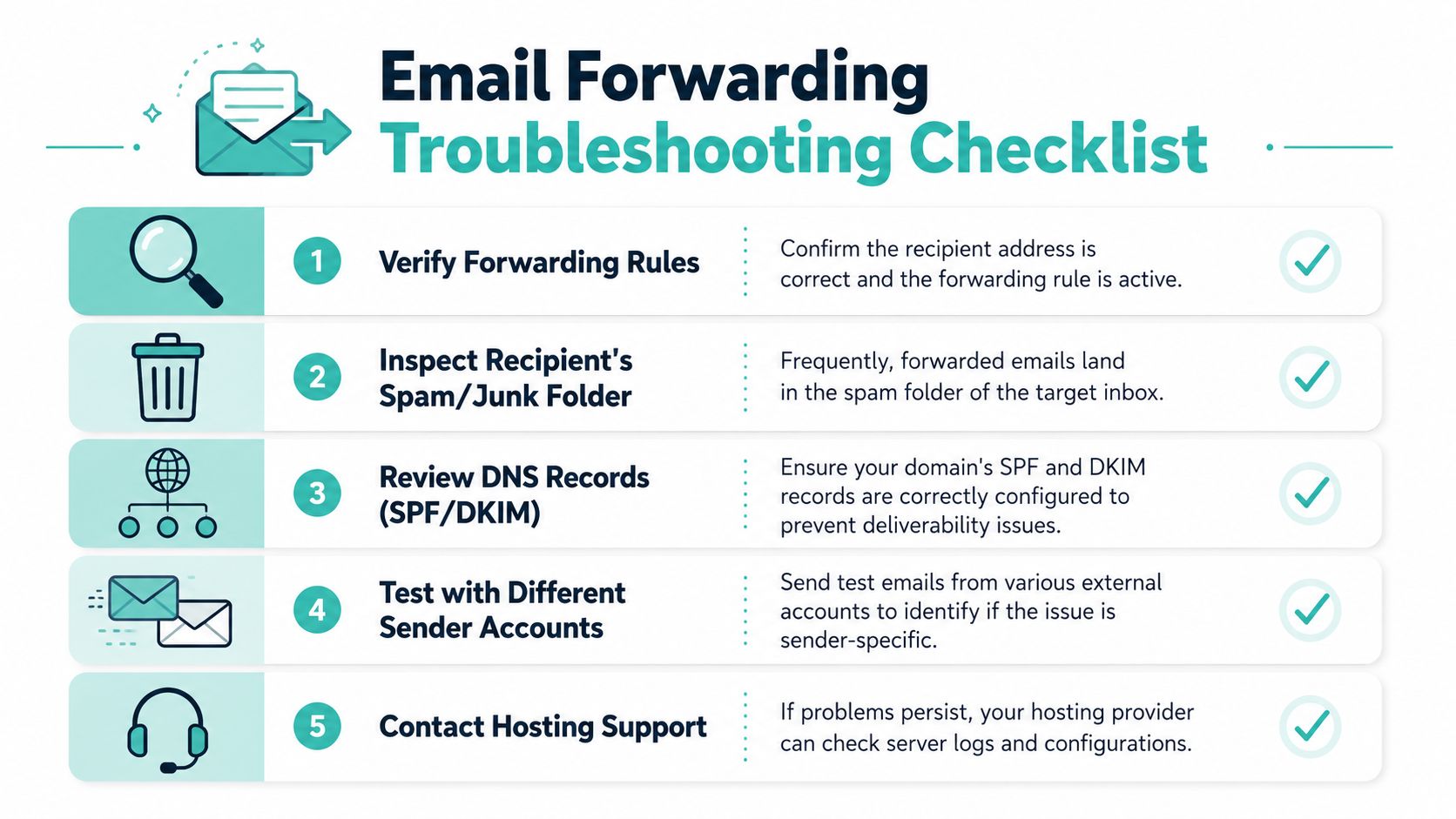
Most forwarding problems fall into a small number of patterns. You don't need to guess. Start with the symptom, work backwards to the likely cause, then make one change at a time.
Emails aren't arriving
| Symptom | Likely cause | Solution |
|---|---|---|
| Nothing arrives in the destination inbox | Typo in the destination address | Open the forwarder and recheck every character |
| Forwarder was just created | Mail changes may take time to apply | Wait, then test again from an external account |
| Some senders work, others don't | Sender-specific filtering or policy issue | Test from a different external address to compare |
A lot of “it's not working” tickets come down to a mistyped destination address or testing too soon after setup. If you need a structured checklist, this troubleshooting not receiving emails article is the right place to start.
Forwarded mail goes to spam
This usually points to trust and filtering rather than the forwarder itself. Check the destination inbox's junk folder first. Then look at the authentication side covered earlier.
Use this order:
- Check junk mail first: forwarded messages often arrive there before they disappear completely.
- Review the sending path: if mail is forwarded multiple times, filtering gets harsher.
- Confirm domain authentication: SPF and DKIM problems are a common cause.
- Test with a plain message: remove attachments and links to see if content is making things worse.
You get bounce-backs or loops
A forwarding loop happens when one rule feeds another and the message circles back. For example, info@ forwards to a Gmail address, but Gmail is configured to forward a copy back to info@. Mail systems usually detect that and stop it, often with a bounce notice.
Another common bounce issue is forwarding to an address that no longer exists or has strict external forwarding restrictions.
A quick field guide:
- Loop detected: check whether both ends are forwarding the same message back and forth.
- Mailbox unavailable: confirm the destination inbox still exists and can receive mail normally.
- Only one address fails: the destination provider may be rejecting that specific traffic pattern.
When you're learning how to set up email forwarding, remember that a successful save in cPanel or webmail isn't the finish line. The true test is whether a normal customer email arrives in the right inbox, at the right time, without disappearing into spam or bouncing.
If you want a local team to help you set up business email, aliases, forwarding rules, or cPanel-based authentication checks, UpTime Web Hosting handles Australian hosting and email services with local support. It's a practical option when you'd rather have someone verify the setup than chase mail-flow issues yourself.