In short
DNS propagation is usually a cache-expiry problem, not a single global update. Check the authoritative nameservers first, then compare public resolvers, confirm the exact record type and TTL, and clear local caches. If authoritative servers disagree or the old answer remains beyond the TTL, contact the DNS host rather than waiting longer.
Key takeaways
- A DNS change can be active on the authoritative nameserver while recursive resolvers still return an older cached answer.
- A TTL of 300 seconds represents five minutes, while a TTL of 3,600 seconds represents one hour.
- If authoritative nameservers return different values, the problem is configuration or zone synchronisation rather than normal propagation.
- A DNS propagation checker samples selected resolvers and cannot prove that every user receives the same answer.
- Clearing a device cache does not clear the caches held by an internet provider or public DNS resolver.
Contents
- What is DNS propagation?
- How long does DNS propagation really take?
- How do I know if my DNS has propagated?
- Why can one person see the new site while another sees the old one?
- What should I check when DNS still shows the old value?
- How can I make DNS propagation faster?
- When should I contact the host or DNS provider?
- What else do website owners ask about DNS propagation?
- What should I do next?
What is DNS propagation?
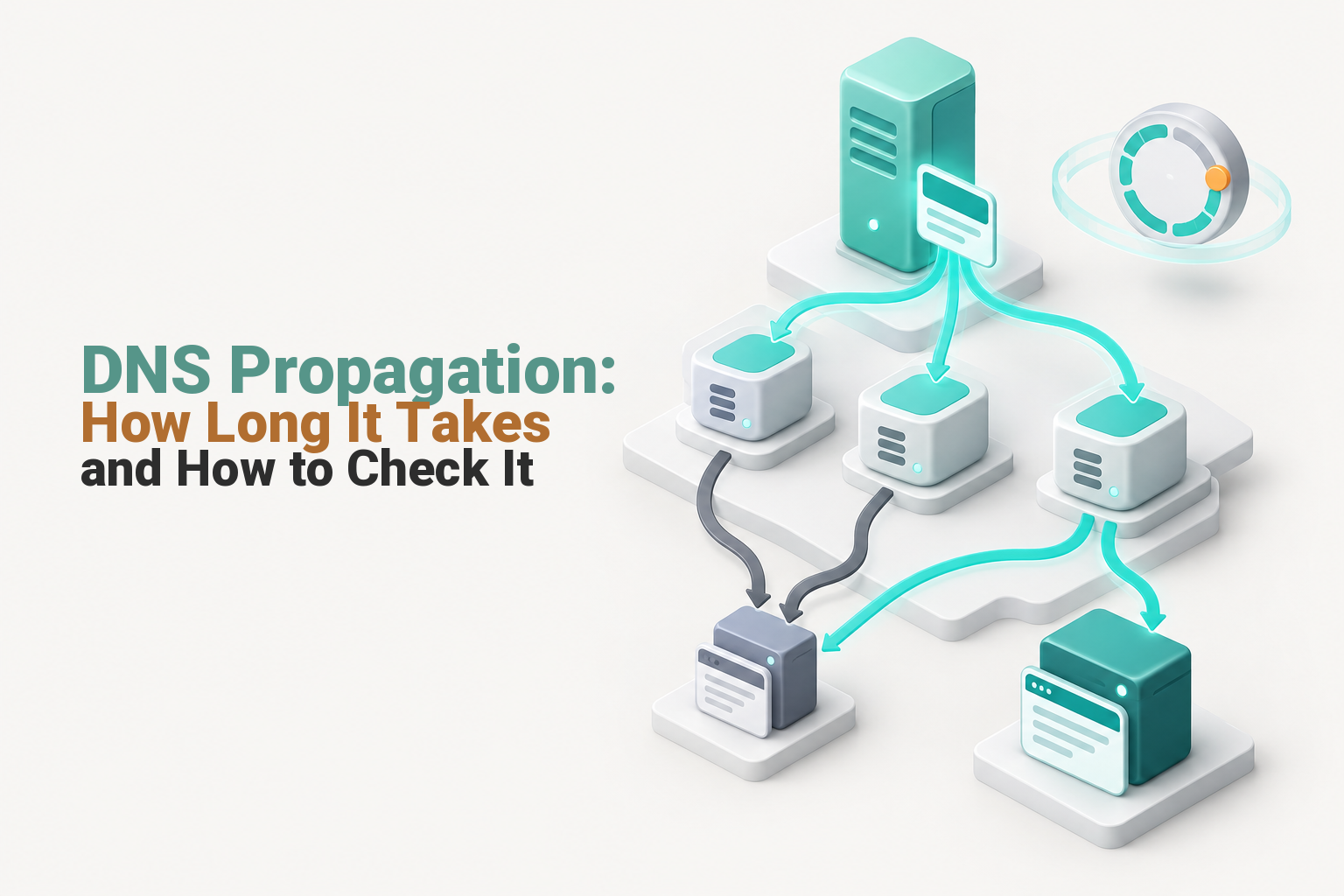
DNS propagation is the informal name for the period when different recursive resolvers may hold different answers after a DNS record changes. The authoritative nameserver may already have the new value while a cached resolver continues returning the previous one.
The IETF's RFC 1035, published in 1987, defines TTL as the number of seconds a resource record may be cached before the source must be consulted again. DNS is therefore not normally pushing one update to every server worldwide at once. Each resolver refreshes an answer when its own cached copy expires. (rfc-editor.org)
An authoritative nameserver holds the official zone data for the domain. A recursive resolver, such as one used by a device, workplace or internet provider, looks up that data and temporarily caches the answer to make later requests faster.
DNS propagation is the time cached answers take to expire after authoritative DNS data has changed.

Performance you can feel, backed by clients who depend on it. Read how our support and uptime create long‑term customer success.Power Your Business with Better Hosting
How long does DNS propagation really take?
DNS propagation usually lasts until old cached answers expire. The useful estimate is the remaining TTL on the old answer, not a universal global waiting period.
TTL examples at a glance
| TTL in seconds | Practical cache time |
|---|---|
| 300 | 5 minutes |
| 1,800 | 30 minutes |
| 3,600 | 1 hour |
| 14,400 | 4 hours |
| 86,400 | 24 hours |
A resolver that cached a record with a 3,600-second TTL may retain the old value for up to one hour from the time it stored that answer. Another resolver that cached it 50 minutes earlier may refresh in about 10 minutes.
Lowering the TTL at the same time as the main DNS change does not shorten copies that were already cached under the old TTL. RFC 1034 advises reducing TTL before an anticipated change, then raising it again afterwards. (rfc-editor.org)
Missing records can also be cached. RFC 2308, published in 1998, explains how NXDOMAIN and no-data answers use a negative-cache TTL, which is why a newly created record may remain unavailable to a resolver that recently looked it up and received an error. (rfc-editor.org)
Nameserver changes can involve cached parent-zone delegation and DNSSEC data as well as ordinary records. Some resolvers can also serve stale DNS data during an upstream failure, so TTL is the normal cache lifetime rather than an absolute guarantee in every failure condition. (rfc-editor.org)
DNS propagation time should be estimated from the previous TTL and the part of the DNS chain that changed.
How do I know if my DNS has propagated?
Start by checking the authoritative nameservers, because they show whether the change was published at its source. Only compare public resolvers and local devices after every authoritative server returns the expected answer.
Run these five checks in order
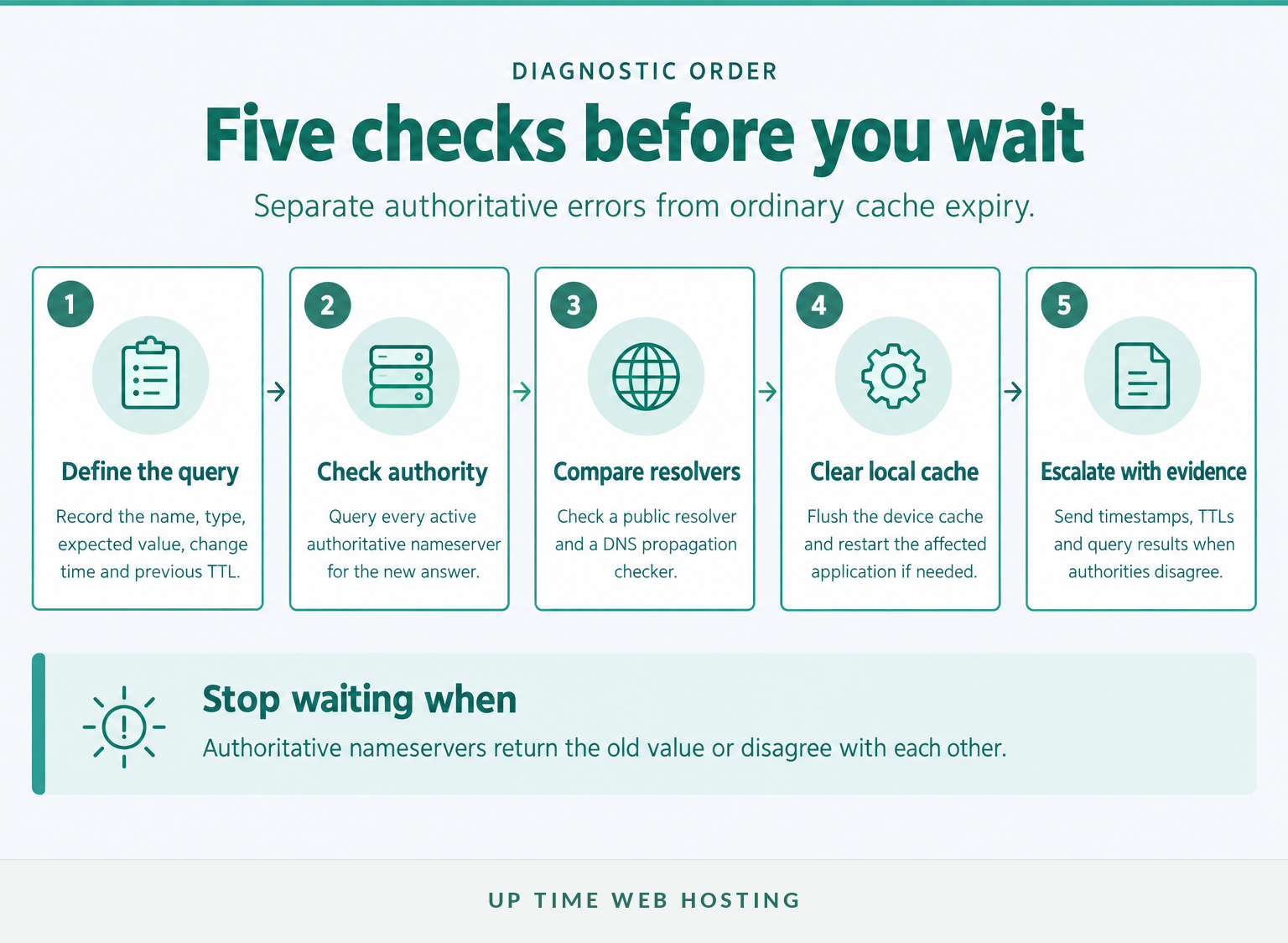
- Write down the exact query. Record the domain or subdomain, record type, expected value, change time and previous TTL. For an email change, confirm what an MX record does before testing unrelated A or CNAME records.
- Find and query every authoritative nameserver. On macOS or Linux, use
dig; on Windows, usenslookup.
“text dig NS example.com +short nslookup -type=NS example.com “
Then ask each listed server for the changed record:
“text dig @ns1.provider.example www.example.com A +noall +answer nslookup www.example.com ns1.provider.example “
The BIND 9 manual documents the dig @server name type form used to direct a query to a chosen DNS server. (bind9.readthedocs.io)
- Compare a recursive resolver. A browser-based public resolver lookup or the following commands can show whether a widely used recursive resolver still has an old answer:
“text dig @8.8.8.8 www.example.com A +noall +answer nslookup www.example.com 8.8.8.8 “
The public resolver's troubleshooting documentation recommends checking the exact record type and inspecting detailed results rather than relying only on whether a website opens. (developers.google.com)
- Clear the local cache. Follow the relevant steps to flush the DNS cache on the affected device. Microsoft's Windows command documentation confirms that
ipconfig /flushdnsresets the local DNS client resolver cache, including negative entries. (learn.microsoft.com)
- Try another network. Compare office Wi-Fi with mobile data or another connection. If the authoritative servers and one network show the new result while another network remains old, the delayed answer is probably within that network's resolver path.
A DNS propagation checker is a sample of resolver results, not a vote that decides which record is correct.
Authoritative answers decide whether the correct next action is to wait for caches or repair the DNS source.
Host your website with our 5-star rated, cPanel website hosting plans.
Super fast servers, with security included and hosted in your choice of Australian Data Center.
View cPanel Plans
Why can one person see the new site while another sees the old one?
Different users can reach different recursive resolvers, and each resolver may have cached the record at a different time. Devices, routers, workplace networks and internet providers can therefore refresh the same domain at different moments.
A hard refresh asks the browser to request web content again, but it does not force an upstream DNS resolver to discard a valid cached record. Private browsing can also use the same device and network resolver, so it is not a reliable propagation test by itself.
Check the resolved IP address as well as the page content. If the IP address is already correct but the old page still appears, investigate browser caching, a content delivery network, the web server or the application cache rather than continuing to edit DNS.
If the browser reports that the domain does not exist, use the separate guide to a DNS probe error and NXDOMAIN before assuming that the website itself is offline.
Different users usually see different results because their resolver caches expire at different times.
What should I check when DNS still shows the old value?
First determine whether every authoritative nameserver contains the new record. If the authoritative answers are wrong or inconsistent, extra waiting will not repair the zone.
Where stale DNS can be hiding
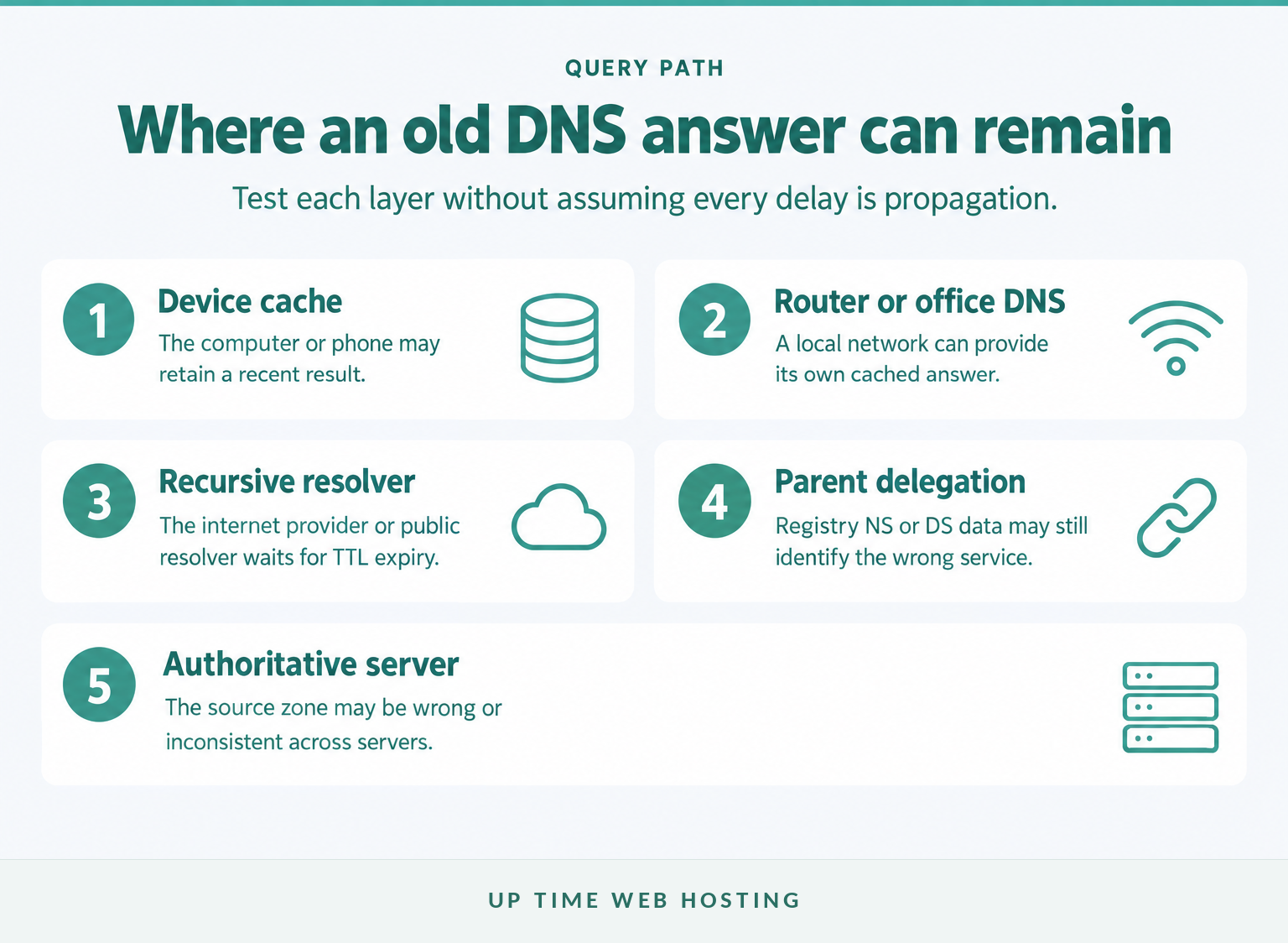
- The wrong DNS zone was edited. Check the nameservers currently delegated at the registrar. A control panel can accept a change even when the domain uses DNS hosted somewhere else.
- Authoritative nameservers disagree. Compare the answer and SOA serial returned by each server. Google Public DNS troubleshooting guidance says differing SOA serials can indicate that some authoritative servers are serving stale zone data. (developers.google.com)
- The wrong name or record type was changed. The zone apex,
wwwand another subdomain are separate names. A browser may also prefer an AAAA record even when only the A record was updated. - A missing answer was cached. If the record was absent before it was created, review the causes of DNS records not found and allow for the negative-cache TTL.
- A CNAME chain contains an old target. Check every name in the chain rather than only the address typed into the browser.
- The delegation or DNSSEC data is broken. After changing DNS providers, an old DS record or a mismatched DNSKEY can produce SERVFAIL. The public resolver domain-troubleshooting guide documents this failure after registrar or DNS-service changes. (developers.google.com)
Persistent stale DNS usually comes from the wrong zone, inconsistent authorities, negative caching or a broken delegation.
How can I make DNS propagation faster?
No domain owner can force every recursive resolver to refresh immediately. The reliable approach is to plan the change so old caches expire sooner and the new destination is ready before traffic moves.
What to do before and after the change
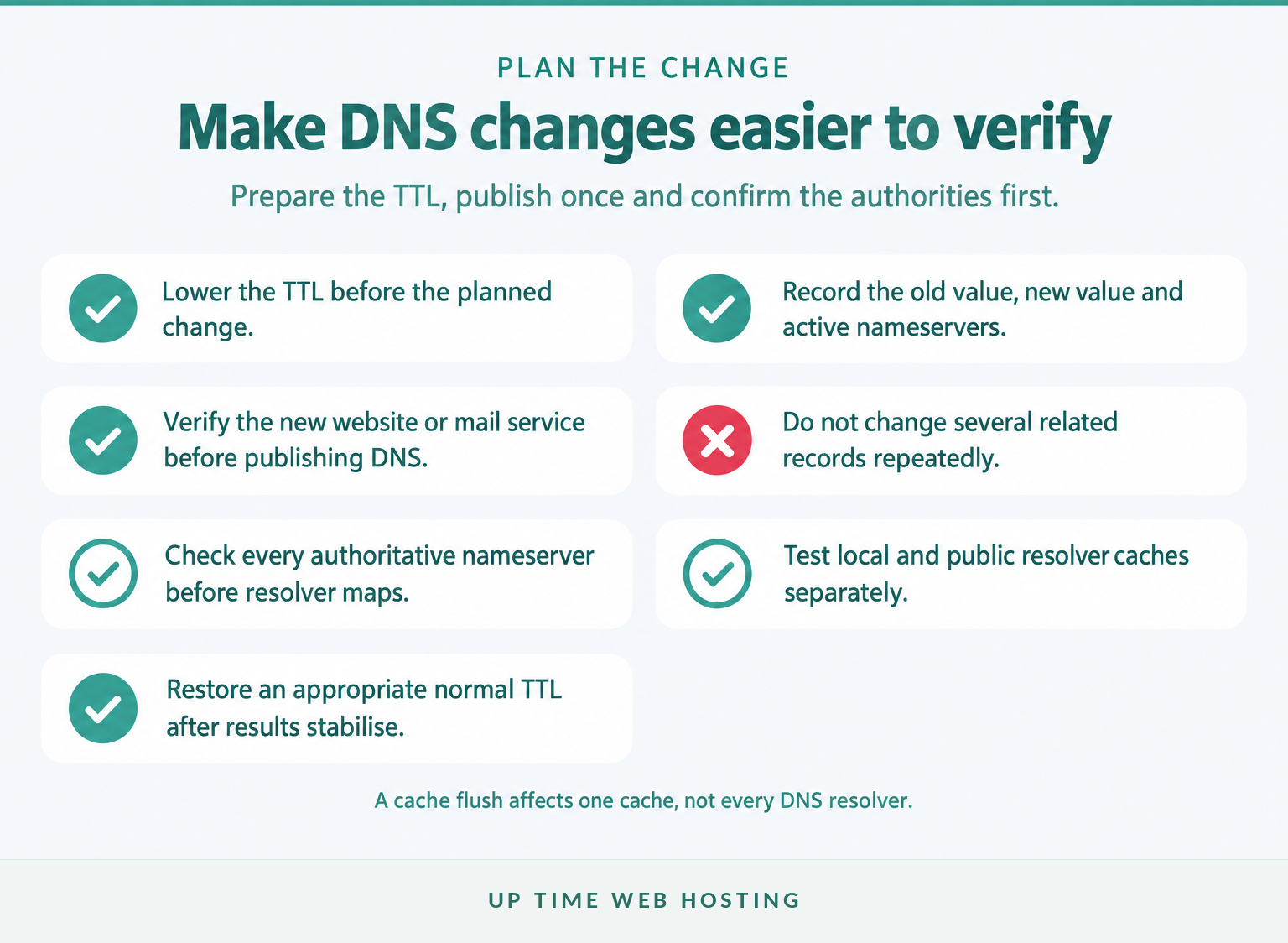
Before the change:
- Lower the relevant TTL early enough for records cached under the previous TTL to expire.
- Record the old value, new value, active nameservers and change time.
- Confirm the new website, server or mail service works before publishing the DNS update.
- Keep the old service available during the transition where practical.
During and after the change:
- Make one controlled change at a time.
- Confirm every authoritative server first, then test recursive resolvers.
- Clear local caches only when the problem is limited to a device or network.
- Restore an appropriate normal TTL after results are stable.
- Avoid repeated edits, which create several old answers and make timestamps harder to interpret.
As of October 2026, Google Public DNS provides an official cache-flush tool. That action refreshes the selected public resolver's cache, not every resolver on the internet. (developers.google.com)
The only reliable way to reduce DNS propagation delay is to prepare the TTL before the change.
Register your new domain name at competitive market prices including free domain add-ons like privacy, DNS Hosting, Custom Nameservers and Forwarding.
Always the best price and no nasty renewal price hikes.
Register A Domain Name
When should I contact the host or DNS provider?
Contact the provider when the evidence points to the authoritative DNS source, delegation or DNSSEC rather than a single cached resolver. Include query results so support can investigate the fault instead of asking you to wait without a clear reason.
Escalate the issue when:
- the control panel shows the change, but authoritative nameservers do not;
- authoritative nameservers return different values or SOA serials;
- several resolvers remain wrong after the relevant TTL has normally expired;
- queries return SERVFAIL after a nameserver or DNSSEC change;
- the registrar lists nameservers or DS records that do not match the intended provider; or
- website and email records changed together and now point to inconsistent services.
Send the domain, full record name, record type, expected value, old value, TTL, change timestamp and outputs from the authoritative and recursive queries. Screenshots of a checker map are useful supporting evidence, but the text results are easier to compare precisely.
If the current hosting setup makes domain changes difficult to verify, review Up Time Web Hosting's web hosting solutions for Australian cPanel hosting and local support options. (uptimewebhosting.com.au)
Contact support when the authorities disagree, the delegation is wrong or several independent resolvers remain incorrect after the expected cache period.
What else do website owners ask about DNS propagation?
These four questions cover what propagation means, how long to wait, how to verify a change and what can be accelerated. Each answer stands alone for quick checking during a domain or hosting change.
What is DNS propagation?
DNS propagation is the period in which recursive DNS resolvers may return different answers after an authoritative DNS record changes. The authoritative nameserver can hold the new value immediately, while cached resolvers continue serving the previous value until its TTL or a negative-cache timer expires.
How long does DNS propagation really take?
DNS propagation takes as long as relevant caches are allowed to retain the old answer. With a 3,600-second TTL, a resolver may keep the previous record for up to one hour from when it cached it. Nameserver delegation, DNSSEC errors or inconsistent authoritative servers can make the problem last longer.
How do I know if my DNS has propagated?
DNS has propagated for a particular resolver when that resolver returns the expected record. Check the authoritative nameservers first, then compare several public resolvers and another network. If all authoritative servers show the new value but one resolver does not, that resolver is probably waiting for its cached answer to expire.
How can I make DNS propagation faster?
You cannot force every DNS resolver to refresh. Before a planned change, lower the TTL early enough for the old TTL to expire, confirm the destination is ready and make one controlled update. Afterwards, clear local caches if needed, but avoid repeated record edits because each change complicates diagnosis.
A DNS propagation answer is useful only when it identifies which cache or DNS authority is returning the unexpected result.
Experience Microsoft 365 Business Standard for free for 30 days.
Up to 25 users with full access to email, OneDrive and Teams. Includes full versions of desktop apps of Outlook, Word, Excel, PowerPoint and more.
Try Microsoft 365
What should I do next?
Record the exact name, record type and expected value, then query every authoritative nameserver before changing anything else. Do not make another edit until those answers agree, because that check reveals whether to wait for caches or fix the DNS source.
The fastest DNS diagnosis begins by separating an authoritative configuration problem from an expiring cache.