A padlock isn't proof that a website is secure, and an expiry date alone can't tell you whether its certificate is valid. The browser may trust the certificate while the site still accepts outdated TLS settings, serves a different certificate on another hostname, or points visitors to an unexpected server.
For Australian businesses, the useful question isn't just whether a certificate file looks current. It's whether the live website or API presents the right certificate, builds a trusted chain, and uses a sound HTTPS configuration. Here's how to check that in a browser, at the terminal and in your hosting panel.
Table of Contents
- What a Valid SSL Certificate Actually Means
- Checking the Certificate in Your Browser and Operating System
- Running OpenSSL and curl Commands from the Terminal
- Using cPanel and Hosting Panels to Inspect the Installed Certificate
- Online SSL Testers and Revocation Checks (OCSP and CRL)
- Troubleshooting Common SSL Errors on Australian Sites
- Automating SSL Checks and Keeping Certificates Healthy

Performance you can feel, backed by clients who depend on it. Read how our support and uptime create long‑term customer success.Power Your Business with Better Hosting
What a Valid SSL Certificate Actually Means
A padlock is a starting signal, not a verdict. To understand how to check if an SSL certificate is valid, check the certificate presented by the live service against the hostname a visitor uses, then assess the TLS configuration around it. The Australian Cyber Security Centre (ACSC) says public-facing websites and HTTP-enabled APIs should use HTTPS, which relies on TLS certificates to protect confidentiality and integrity. Its TLS and HTTPS implementation guidance makes clear that trust depends on more than the certificate's presence.
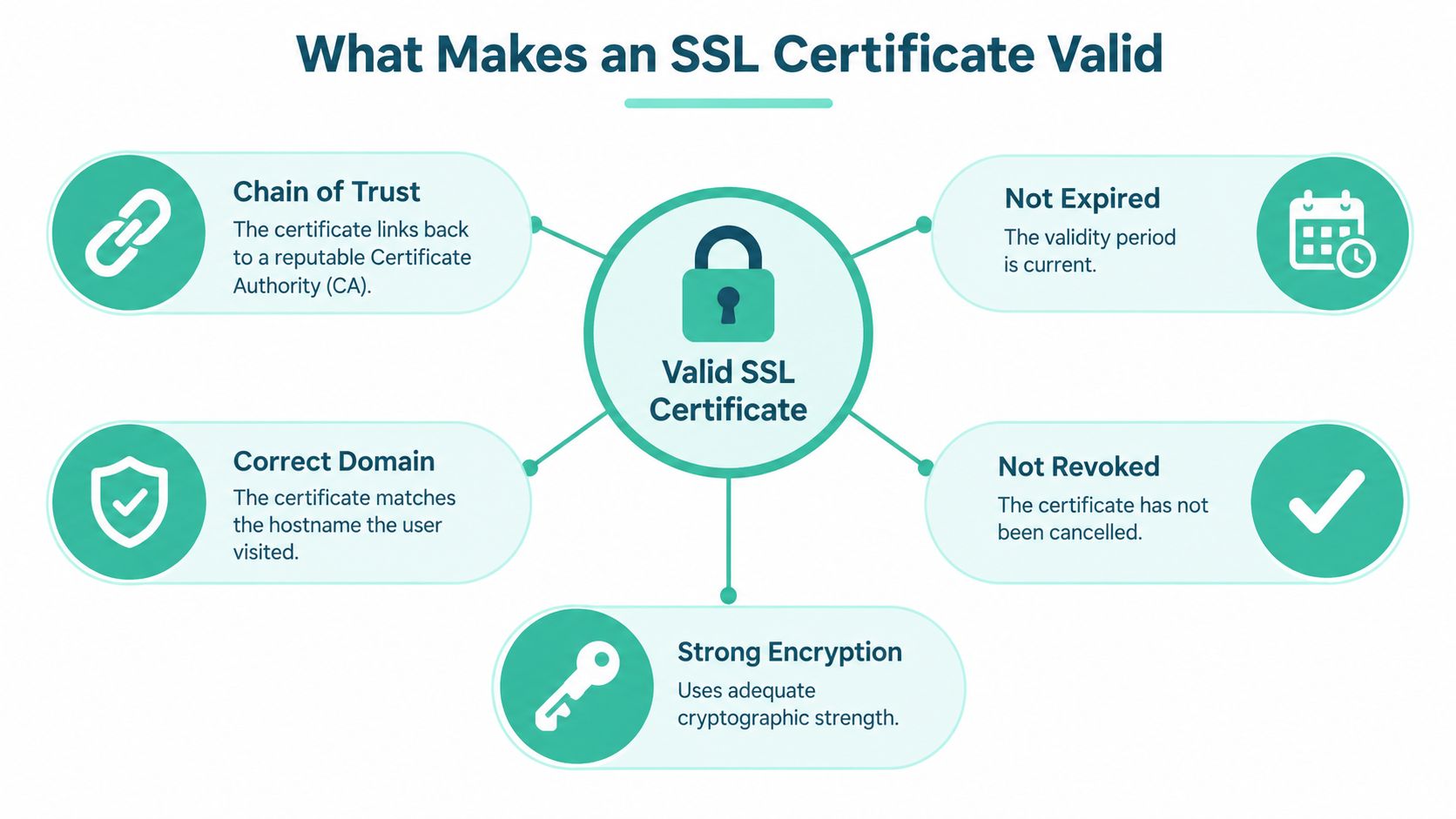
A practical validity check has five parts:
- Chain of trust: The website certificate must link through any intermediate certificates to a trusted root from a reputable Certificate Authority (CA). A missing or untrusted link can break validation.
- Correct hostname: The name visitors use must appear in the certificate's Subject Alternative Name (SAN) field. A certificate for
www.example.comdoesn't automatically coverexample.com. - Current validity period: The current date must fall between the certificate's start and expiry dates. Also check that the start date hasn't been set in the future.
- Not revoked: The issuing CA must not have cancelled the certificate. Revocation is separate from expiry, and should be checked through the CA's OCSP or CRL service.
- Secure TLS configuration: The server must negotiate a suitably secure connection. Australian government guidance calls for TLS 1.2 or TLS 1.3, with older TLS versions disabled.
Practical rule: Inspect what the server presents to visitors, not just the certificate stored in a file or hosting account.
This distinction matters if your business uses a CDN, reverse proxy, API hostname or separate mail service. Each endpoint can present a different certificate. A SAN SSL certificate can cover several specified hostnames, but each name still needs to be included and tested.
Checking the Certificate in Your Browser and Operating System
A browser check is the quickest way to inspect a certificate without installing anything. Open the exact address customers use, including whether it has www, then select the site information icon beside the address bar. Browser menus change over time, but Chrome, Edge, Firefox and Safari provide a route to connection or certificate details. On mobile, open the site information controls near the address bar; the available certificate detail may be more limited than on desktop.
Find the certificate viewer and check these fields:
- Subject and SAN: Confirm the SAN list includes the exact hostname in the address bar.
- Issuer: Check which CA issued it and whether the issuing chain looks expected.
- Validity dates: Confirm the current date falls within the certificate's start and expiry dates.
- Certificate path: Look for a complete path to a trusted root. A trust warning can indicate a missing intermediate or an untrusted issuer.
Your operating system maintains trusted root certificates that browsers and other applications can rely on. If the chain ends at a root your device doesn't trust, you may see a warning even if the leaf certificate hasn't expired. That can point to a server configuration problem, but it can also be a local trust-store or device issue.
Try the same URL in a private window and, if possible, another browser or device. This helps distinguish a live endpoint problem from cached site data or a local browser configuration. It doesn't prove the certificate is safe, and clicking through a warning doesn't repair the connection. For background on what certificates do, see this guide to SSL and why websites need it.
Host your website with our 5-star rated, cPanel website hosting plans.
Super fast servers, with security included and hosted in your choice of Australian Data Center.
View cPanel Plans
Running OpenSSL and curl Commands from the Terminal
A browser is convenient, but terminal tools show what a server presents during a connection. For an Australian small business or its developer, the useful distinction is between inspecting an offline certificate file and testing the live endpoint. Start with the live connection:
openssl s_client -connect example.com:443 -servername example.com -showcerts
Replace example.com with the exact hostname you want to test. The -servername option sends the Server Name Indication (SNI), telling a shared server which hostname's certificate to return. Without the intended SNI name, you may inspect a default certificate rather than the one visitors receive.
Read the output for the presented certificate chain and verification result. The subject identifies the certificate owner or hostname details; the issuer identifies the CA that signed it. Check the dates, SAN entries and negotiated protocol, then look for a successful verification result. A chain error or hostname mismatch means the connection can't be trusted, even if the leaf certificate's dates look current.
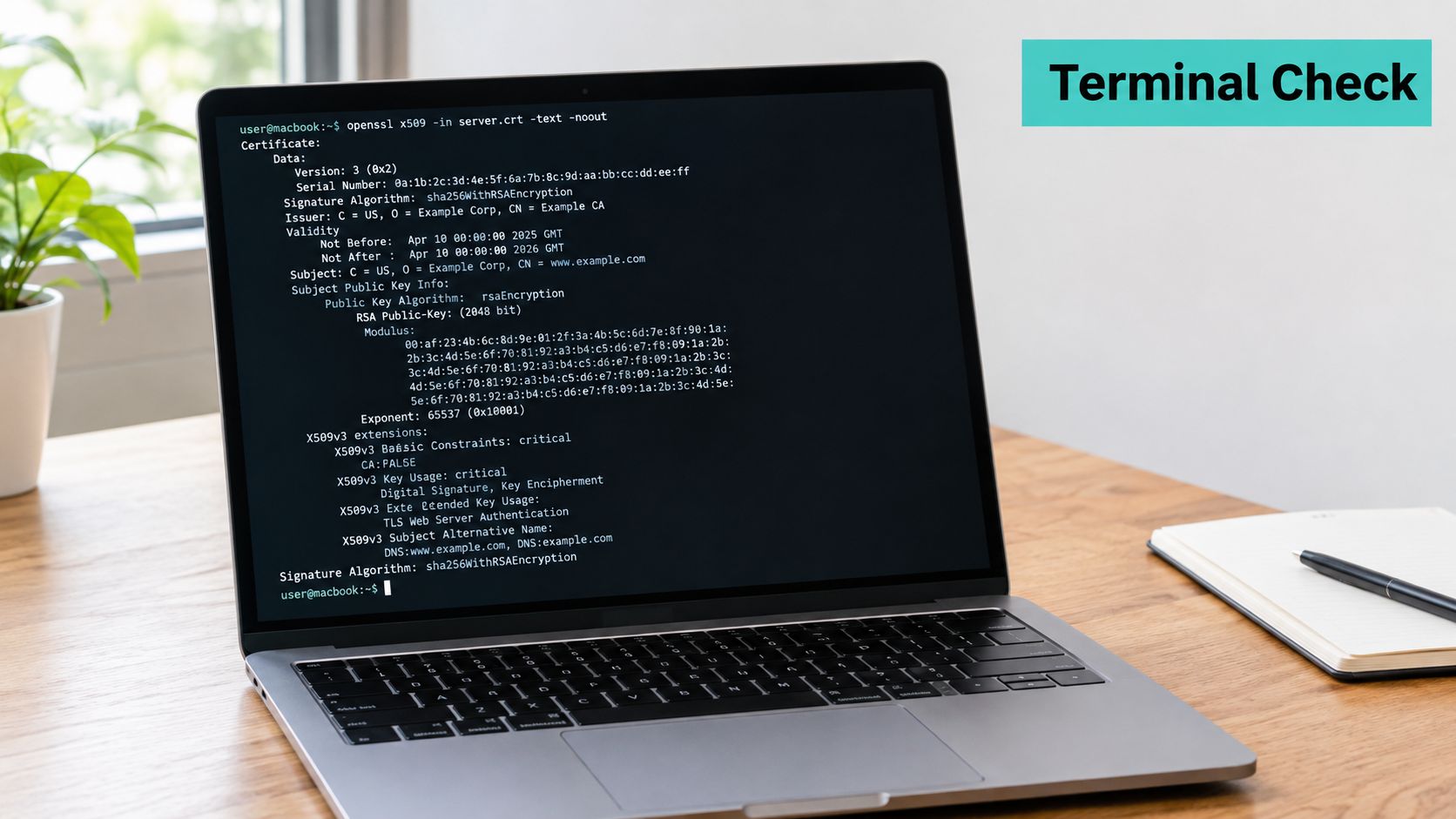
For a local PEM certificate file, inspect its details with:
openssl x509 -in certificate.pem -noout -text
That reports the certificate fields, but it does not prove the live server is using that file. Use the endpoint test for deployment verification. To check whether an HTTPS request succeeds without ignoring certificate errors, run:
curl --fail --show-error --silent -o /dev/null
A certificate or connection error causes curl to return a non-zero status, which makes the command useful in a monitoring script. Don't add options that skip certificate verification when you're trying to validate trust.
Test from outside your hosting network as well as from an Australian monitoring location. A CDN edge, reverse proxy, or differences between IPv4 and IPv6 can mean that two visitors don't receive the same certificate. The ACSC guidance on managing cryptographic keys and secrets recommends checking the deployed endpoint, including its chain, rather than relying on a certificate file alone.
Using cPanel and Hosting Panels to Inspect the Installed Certificate
cPanel helps you see what your hosting account has installed, but it doesn't replace a live test. Sign in to the account and open SSL/TLS Status to review the domains associated with the hosting service. If a domain shows a warning, check whether it is covered by a certificate and whether AutoSSL reports an issuance or renewal problem.
For more detail, open Manage Installed SSL Certificates under the SSL/TLS tools. Review the certificate assigned to the domain, its issuer and dates, and confirm that the hostname you expect is included. AutoSSL-issued certificates are handled through the hosting panel's renewal workflow; a manually uploaded certificate depends on the certificate files and installation being maintained by whoever manages it.
A green panel status is useful, but it isn't proof that every visitor sees that certificate. If a CDN or reverse proxy sits in front of cPanel, that service may present its own certificate. Mail servers and other hostnames can also use separate certificates. Compare the panel's details with a browser inspection or an OpenSSL check against the public hostname.
If renewal appears to have failed, check the panel's AutoSSL messages and error log, then rerun AutoSSL if the domain is eligible. Don't assume the retry fixed the issue until you test the live endpoint. cPanel's SSL certificate installation guide can help you review the installation path and certificate assignment.
Online SSL Testers and Revocation Checks (OCSP and CRL)
An external TLS tester can catch configuration problems that a browser's basic certificate view won't surface. Enter the public hostname into a reputable SSL testing service such as Qualys SSL Labs' SSL Test, then review the chain, hostname coverage, certificate dates, protocol support and any revocation details it reports. A letter grade summarises aspects of the TLS configuration and trust checks. Don't treat the grade as a substitute for investigating the findings: the report explains what passed and what needs attention.
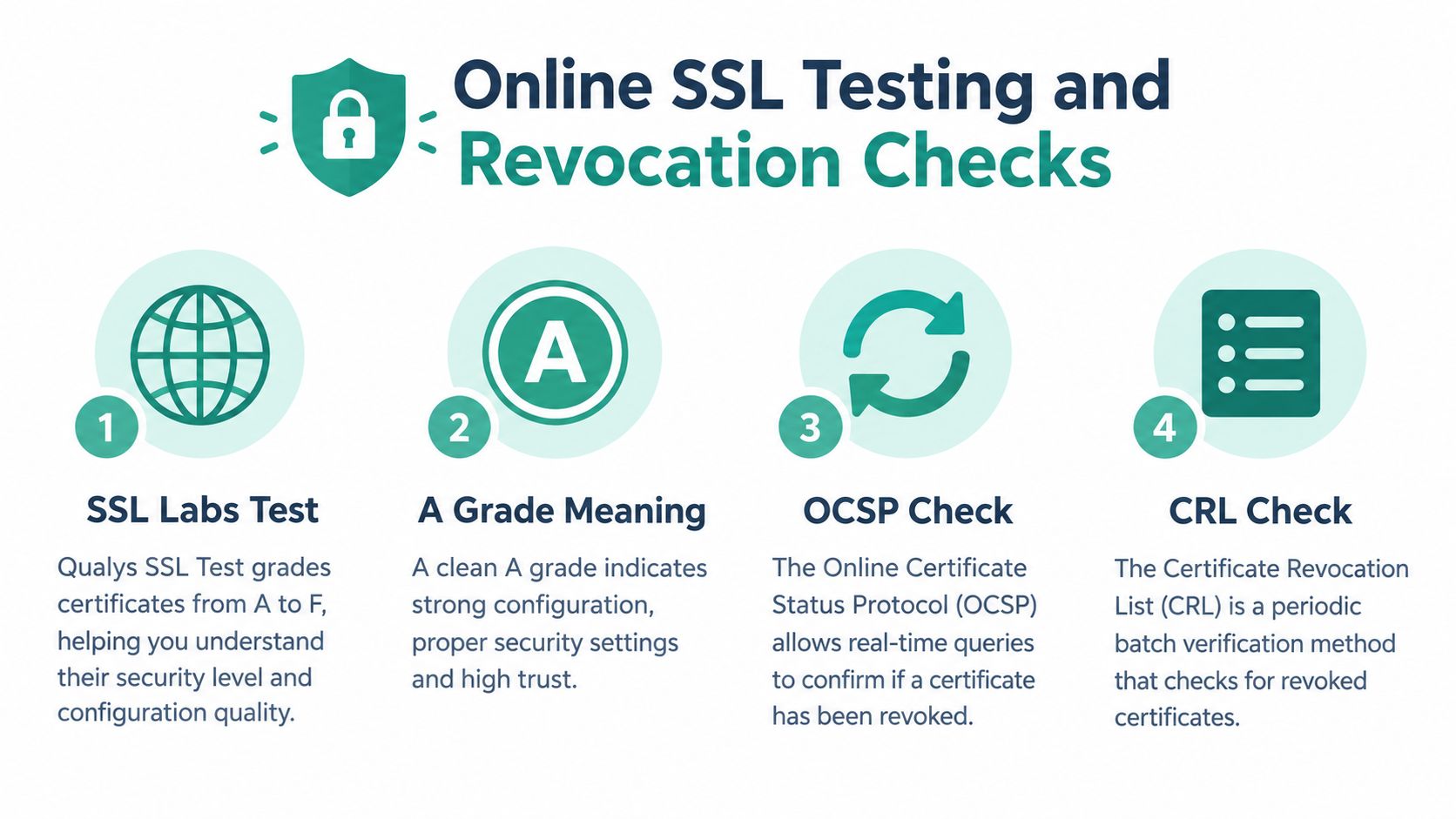
Revocation checks answer a different question from expiry checks. A CA can cancel a certificate before its expiry, for example when it should no longer be trusted. OCSP, the Online Certificate Status Protocol, lets a client ask the CA about a certificate's status. A CRL, or Certificate Revocation List, is a published list that clients can consult. Some servers also provide OCSP stapling, where the server supplies a recent signed status response during the TLS connection.
In a tester's report, find the revocation or OCSP result and confirm it doesn't indicate that the certificate has been revoked or that the status check failed. A failed status query isn't the same as confirmation of revocation, so interpret the result alongside the chain and the service's own behaviour. If the report shows an incomplete chain, fix the intermediate bundle; if it identifies weak protocol settings, update the server configuration.
Run the test from a location relevant to your Australian customers when possible. A global service may reach a different CDN edge from local visitors, so compare its findings with a separate local check. Use the ACSC's certificate and TLS guidance as a benchmark for certificate trust, hostname matching and CAA controls.
Register your new domain name at competitive market prices including free domain add-ons like privacy, DNS Hosting, Custom Nameservers and Forwarding.
Always the best price and no nasty renewal price hikes.
Register A Domain Name
Troubleshooting Common SSL Errors on Australian Sites
A customer reports a warning, but the certificate looks fine in the hosting panel. Start with the exact hostname and public endpoint, then work through the likely cause rather than repeatedly reinstalling the same certificate.
wwwworks, the bare domain fails: The certificate may cover one hostname but not the other, or the two names may reach different services. Inspect the SAN field for both names and test each live endpoint.- The certificate is current, but the browser reports a trust error: The server may be missing an intermediate certificate. Inspect the presented chain with OpenSSL or a TLS tester, then install the complete chain supplied by the CA.
- The padlock appears, but some page content is flagged: A theme, plugin or embedded resource may still load over HTTP. Use the browser's developer tools to identify mixed content and update the affected resource URLs.
- The website works, but email or an API fails: That service may use its own hostname and certificate. Check the exact mail or API endpoint rather than assuming the website certificate covers it.
- A new certificate won't issue: A CAA DNS record may not authorise the CA you're using. Review which CAs the domain permits and correct the record if it conflicts with the intended issuer. The Queensland Government data encryption standard also sets expectations for certificate strength and trusted issuers.
There's another path that's easy to miss: DNS. A correctly issued certificate doesn't prove DNS is directing visitors to the legitimate business endpoint. If the certificate differs between networks, check DNS resolution, nameservers, CAA, IPv4 and IPv6 destinations, and whether DNSSEC is correctly signed and validating. DNSSEC helps protect the authenticity and integrity of .au DNS information, but it doesn't replace HTTPS or certificate checks. The auDA report on a secure .au discusses DNSSEC's role in the domain space.
For a browser warning, compare the hostname and chain first, then investigate DNS if the result changes across networks. This guide to fixing “Your connection is not private” errors can help with the browser-side symptoms.
Automating SSL Checks and Keeping Certificates Healthy
A one-off check confirms what a server presents now. A repeatable monitoring routine helps an Australian business catch changes to certificates, DNS and hosting before customers report a warning.
Set up an external check at least daily and alert the person responsible for renewals before expiry. The ACSC recommends automating renewal and active expiry monitoring because certificate failures can disrupt secure web access and mail delivery. Also review TLS versions and cipher suites annually, and whenever a major vulnerability makes a configuration review necessary.
Keep a certificate inventory for every public hostname and endpoint. Record the hostname, SANs, issuer, serial number, algorithms, key strength, expiry, chain, revocation result and tested protocol versions. Include website, API and mail endpoints, and assign a renewal owner so an alert reaches someone who can act.
For cPanel users, AutoSSL can handle eligible issuance and renewal, but monitoring should still verify the live service after renewal. UpTime Web Hosting offers cPanel hosting with AutoSSL workflows and local Australian support; its SSL certificate renewal guidance is a useful reference when a certificate needs attention.
UpTime Web Hosting provides Australian cPanel, WordPress and Windows hosting with SSL certificate support and local assistance for hosting issues. If you need help checking a certificate against the live endpoint or resolving a renewal problem, visit UpTime Web Hosting to explore its hosting services and support options.