In short
An addon domain name lets one cPanel account host another registered domain as a separate website. Keep Share document root turned off, use the folder cPanel creates, point the domain’s DNS to the hosting account, then confirm SSL, email and resource limits before launching the second site.
Key takeaways
- An addon domain serves a separate registered domain from the same cPanel account as the main domain.
- A separate website needs its own document root, so
Share document rootshould remain turned off. - The new domain must be registered and its DNS must direct website traffic to the hosting server.
- Adding a domain does not automatically move external email or guarantee that SSL is ready.
- Every addon domain contributes to the same account-level storage, file and hosting resource use.
Table of contents
- What is an addon domain?
- What should you check before adding another domain?
- How do you add an addon domain in cPanel?
- What should you check after cPanel creates the domain?
- When is an addon domain the wrong choice?
- What else do people ask about addon domains?
- What should you do next?
As of September 2026, cPanel version 138 uses the unified Domains screen rather than relying on a separate Addon Domains screen. The cPanel Domains documentation, last modified July 22, 2026, lists all domains, their document roots, redirects, HTTPS status and management options in one place.
What is an addon domain?
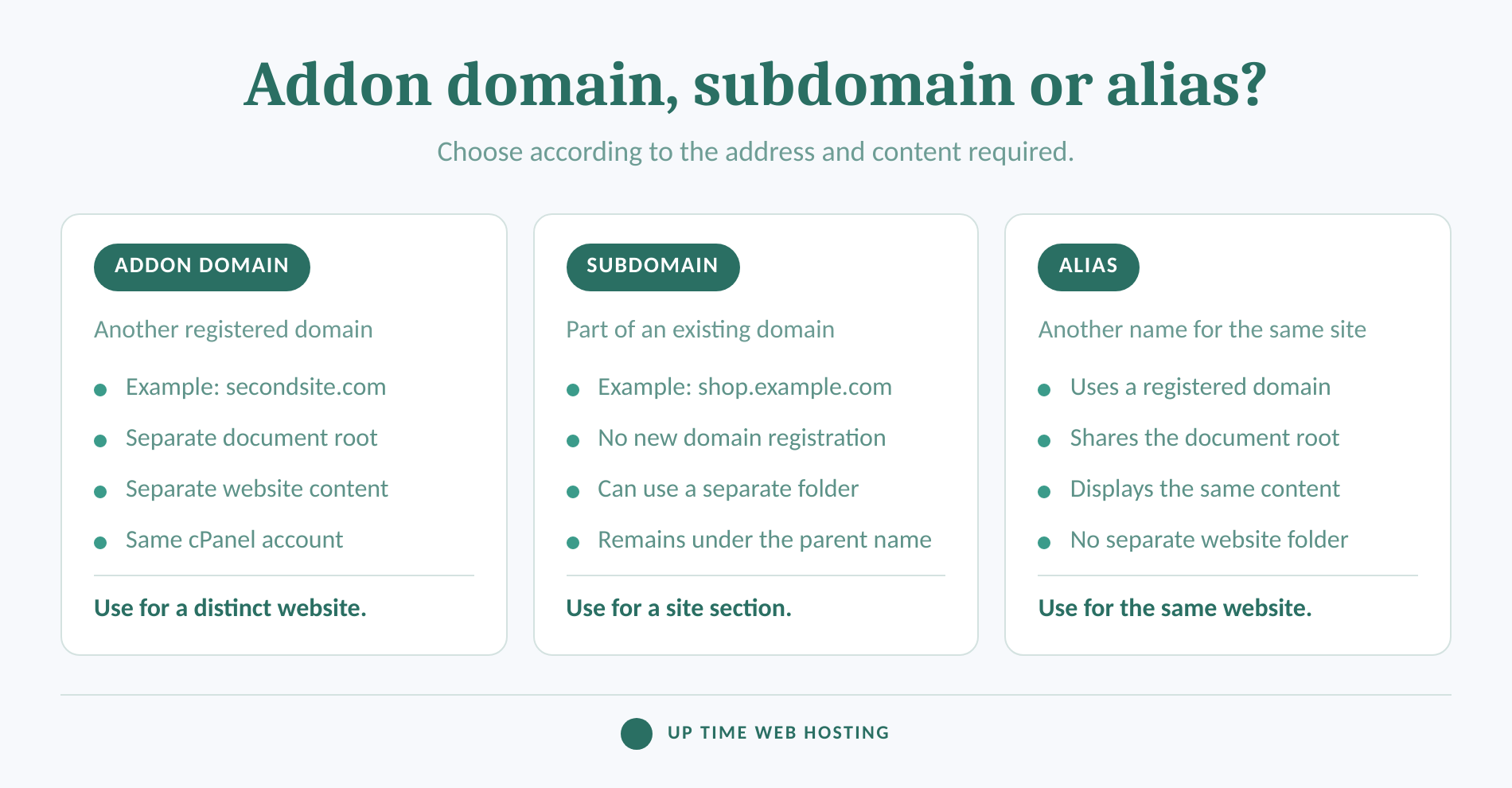
An addon domain is an additional registered domain hosted inside an existing cPanel account, normally with its own configurable document root. The domain can serve a separate website, but it remains under the same cPanel login and hosting plan as the main domain.
Some hosts and searchers reverse the words and call this a domain addon. cPanel’s term is addon domain. Its Create a New Domain documentation defines an addon domain as an additional domain owned by the account and stored in its own configurable directory.
For example, a cPanel account might use primarysite.com as its main domain and secondsite.com as an addon domain. The second website could be stored in public_html/secondsite.com, separate from the files that serve the main website.
cPanel also creates an associated subdomain when it creates an addon domain. The company’s January 2026 explanation of associated subdomains says this entry is expected and required for addon-domain functionality. Do not delete it simply because it looks unfamiliar.
Adding a domain is not the same as replacing the account’s main domain. If the goal is to rename the account or move the existing website to a new main address, follow the separate process to change primary domain on cPanel instead.
An addon domain is the right tool for a separate website under the same cPanel account.

Performance you can feel, backed by clients who depend on it. Read how our support and uptime create long‑term customer success.Power Your Business with Better Hosting
What should you check before adding another domain?
Check that the hosting plan accepts another domain, decide where the site files will live and confirm how DNS and email should work. These choices prevent the new domain from showing the wrong website or interrupting an existing mail service.
| Check | Safe choice for a separate website | Why it matters |
|---|---|---|
| Hosting plan | Confirm that another domain is allowed | Providers can disable the domain feature or limit the number of domains |
| Registration | Register the domain before adding it | cPanel hosts domains but does not register or renew them |
| DNS | Point web traffic to the hosting server | Visitors cannot reach the new site until DNS resolves correctly |
| Document root | Use a new folder | Sharing the root displays the main website’s content |
| Decide whether mail stays external or moves to cPanel | Changing authoritative DNS can affect MX and authentication records | |
| Capacity | Review account storage and resource use | Every site contributes to the same hosting account totals |
Does the hosting plan allow another domain?
The Create a New Domain button can be hidden when the hosting provider disables the feature or the plan does not allow additional domains. UpTime’s current cPanel range separates single-domain and multiple-domain configurations, so a plan intended for only one domain must be upgraded before a second independent website can be added.
Is the domain registered and pointed to the right server?
cPanel cannot register, renew or transfer a domain. If the name has not been registered, review the available domain names before continuing.
UpTime’s current cPanel knowledgebase lists ns1.uptimewebhosting.com.au and ns2.uptimewebhosting.com.au for domains using its nameservers. A domain that keeps third-party DNS can instead direct the required web records to the hosting IP address.
Do not change nameservers without checking email. If the domain already uses external mail, make a record of its MX, SPF, DKIM, DMARC and verification records before changing authoritative DNS. Recreate the required records at the new DNS provider so website changes do not disrupt mail delivery.
Which document root should the new domain use?
The document root is the folder from which the server publishes a domain’s files. For a separate website, turn off Share document root and accept a dedicated folder such as public_html/secondsite.com.
cPanel’s July 2026 documentation warns that selecting Share document root makes the new domain serve the same content as the existing domain and that the choice is permanent. A shared root is suitable for an alias, not an independent website.
A document root can be changed later for a normal addon domain through the Manage the Domain documentation workflow. Changing the path does not move any files, so the website files must also be moved to the new folder.
What resources will the new website share?
An addon domain does not receive its own hosting allocation. cPanel’s account interface statistics report disk use, file use, database storage, bandwidth and addon-domain counts at account level.
On an UpTime cPanel plan, website files, databases, email, logs and local backups contribute to the plan’s storage use. CPU and RAM are also plan resources. A busy second site can therefore affect the capacity available to the first, even though the two domains have separate public folders.
One cPanel login also controls every domain in the account. Unrelated clients, owners or administrators should not share an addon-domain account if they need independent access and management. For a larger collection of sites, use a consistent process to manage multiple websites and monitor account usage regularly.
Decide DNS, email, document root and capacity before adding the domain.
How do you add an addon domain in cPanel?
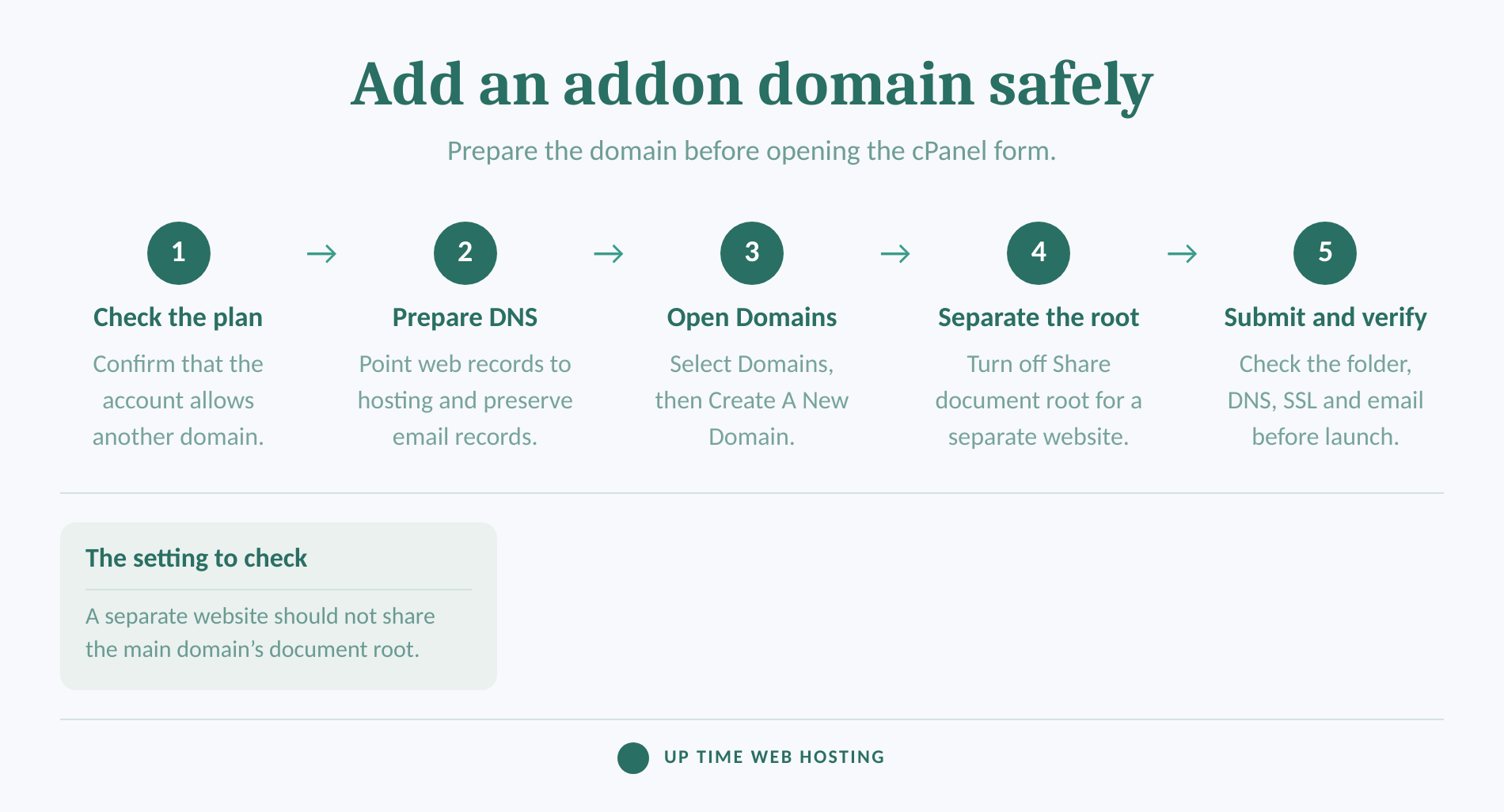
Open cPanel, go to Domains and select Create A New Domain. Enter the registered domain and leave Share document root turned off when the domain should display a separate website.
The following steps match cPanel version 138 documentation and UpTime’s current cPanel knowledgebase:
- Prepare the domain. Register the domain and point its nameservers or website records to the hosting service. Preserve any external email records that the domain still needs.
- Log in to cPanel. Open the Domains section and select Domains. The page lists the main domain, addon domains, aliases and associated subdomains.
- Select Create A New Domain. If the interface asks for a domain type, select Registered Domain. The temporary-domain option is for building a site before a registered name is ready.
- Enter the domain name. Type the fully qualified domain name, such as
secondsite.com. Do not includehttps://, a page path or a trailing slash.
- Create a separate document root. Turn off
Share document root with primarysite.com. Leave the automatically generated document root and subdomain values in place unless there is a specific reason to change them.
- Select Submit. cPanel creates the domain configuration, document-root folder, DNS entries available to the account and the associated internal subdomain.
After cPanel confirms the domain was created, note the document-root path. That path is where the new website must be installed or uploaded. Files placed in the main domain’s folder will not automatically appear on the addon domain.
For a separate site, enter the registered domain and keep Share document root turned off.
Host your website with our 5-star rated, cPanel website hosting plans.
Super fast servers, with security included and hosted in your choice of Australian Data Center.
View cPanel Plans
What should you check after cPanel creates the domain?
Domain creation is only the server configuration step. The website is ready to launch after its document root, DNS, SSL, files and email routing have been checked independently.
- Check the domain row. Return to Domains and find the new domain. Confirm that its document root is the dedicated folder expected for the second website.
- Add the website files. Upload the site through File Manager or FTP, or install the required content management system in the new document root. Do not install it in the main domain’s folder.
- Test DNS for both hostnames. Check the bare domain and its
wwwversion. DNS updates may not appear everywhere at the same time because recursive resolvers can retain previously cached records.
- Check the certificate. Open cPanel’s SSL/TLS Status documentation workflow and look for an active certificate. UpTime’s knowledgebase says a new certificate is installed during the next AutoSSL run, or the run can be requested from SSL/TLS Status.
- Enable HTTPS redirection after SSL works. The Domains screen includes a Force HTTPS Redirect control. cPanel advises that this control requires a valid certificate, so test the HTTPS address before switching the redirect on.
- Confirm email routing. If cPanel will host the domain’s email, use the Email Accounts documentation workflow to create the required mailboxes. If mail stays with another service, confirm that the existing MX and authentication records are still active.
- Review account usage and security. Check storage, file count and resource warnings after installing the site. If access logs identify repeat abusive traffic against either website, follow the process to block an IP address in cPanel without blocking trusted administrators or services.
A new domain is not ready until DNS, SSL, files and email have all been tested.
When is an addon domain the wrong choice?
An addon domain works well when one owner wants to run several modest websites through one cPanel account. Use another structure when the websites need shared content, independent access, stronger separation or substantially different resource allocations.
- Use an alias for the same website under another name. An alias shares the main document root and is intended to display the same content from a second registered domain.
- Use a subdomain for a section of an existing domain. Addresses such as
shop.example.comorsupport.example.comremain part of the existing registered domain.
- Change the main domain when the existing site is being renamed. Adding the new name as an addon does not replace the cPanel account’s main domain.
- Use separate cPanel accounts for unrelated owners or clients. Separate accounts provide individual logins, clearer ownership and independent account-level limits.
- Use more capacity when both sites are resource intensive. An addon domain does not reserve CPU, RAM or storage for itself, so the hosting plan must be large enough for the combined workload.
Addon domains reduce the number of control panels to manage, but they also group administration and capacity together. The practical choice depends on whether convenience or separation matters more for these particular websites.
Use a separate account when ownership, security or resource separation matters.
What else do people ask about addon domains?
These short answers cover the terms most often confused with addon domains. Each answer describes the current cPanel model rather than relying on the layout of older control-panel tutorials.
What is an addon domain?
An addon domain is a registered domain hosted as a separate website inside an existing cPanel account. It normally uses its own document root, but it shares the account login and hosting resources. In current cPanel versions, addon domains are created from Domains, followed by Create A New Domain.
What is the difference between a subdomain and an addon domain?
A subdomain extends an existing domain, such as shop.example.com, and does not require another domain registration. An addon domain is another registered name, such as secondsite.com, hosted in the same cPanel account. Both can use separate document roots, but only the addon domain is an independent registered domain.
What is an extension domain name?
Extension domain name is not a standard cPanel term. It usually refers to a domain extension or top-level domain, such as .com, .org or .au. ICANN’s definition of a top-level domain identifies it as the part after the final dot, not a type of addon domain.
How do I fix “No configuration options currently exist for the domain”?
First confirm that the domain is listed and check whether it shares the main document root or is configured as an alias. cPanel does not allow the main domain’s root, or a shared root, to be changed. Contact the hosting provider if the Domains feature or its management options are restricted.
The term describes hosting structure, not a domain extension or a replacement for the main domain.
Register your new domain name at competitive market prices including free domain add-ons like privacy, DNS Hosting, Custom Nameservers and Forwarding.
Always the best price and no nasty renewal price hikes.
Register A Domain Name
What should you do next?
Start by checking the hosting plan, recording the domain’s existing DNS and email settings, and choosing a dedicated document root. Once those decisions are clear, the cPanel form takes only a few fields to complete.
Ready to host another website? Compare hosting plans and choose a multiple-domain configuration with enough storage, CPU and RAM for the combined sites.
Choose the folder and DNS plan before clicking Submit.