A Brisbane builder wants a staging site to test a redesign before customers see it. There's no need to buy another domain: a subdomain uses the business's existing registered domain, with its own hosting setup for the new site.
Table of Contents
- Check the Parent Domain Before You Create a Subdomain
- How to Create a Subdomain in cPanel Step by Step
- Choose the Right Document Root and Sharing Options
- How to Verify the Subdomain and Check DNS Propagation
- Fix Common Subdomain Problems Before Visitors Notice
- Edit, Redirect or Remove a Subdomain After Launch
- Launch Your Subdomain and Get Help if Needed

Performance you can feel, backed by clients who depend on it. Read how our support and uptime create long‑term customer success.Power Your Business with Better Hosting
Check the Parent Domain Before You Create a Subdomain
With example.com.au, a business can use separate hostnames for a shop, support centre or Perth landing page without registering another domain. The parent domain remains the registered name; each subdomain needs its own hosting setup.
Keep domain registration separate from hosting and DNS configuration. cPanel can create a hosting entry and may add a DNS record if it manages the authoritative DNS zone. If DNS is hosted elsewhere, the record must be added with that provider. Buying another domain will not fix a missing hosting entry or a record in the wrong DNS zone.
DNS determines where visitors' requests for a website, and email services, are directed. Before opening cPanel, find out which provider manages the domain's authoritative DNS. That tells you where to make changes and helps prevent a subdomain from pointing nowhere.

Prerequisites and where to check them
Check the parent domain, hosting plan and DNS arrangement first. These are separate requirements, and a problem with any one can stop the subdomain from working.
| Requirement | Where to check | What breaks if missing |
|---|---|---|
| Parent domain added to the account | Domains or Addon Domains list in cPanel | There is no parent domain to attach the subdomain to |
| Parent nameservers point to this host | Registrar nameserver settings or a nameserver lookup tool | A record added only at this host is outside the authoritative zone, so visitors cannot resolve it |
| Subdomain allowance on your plan | Plan details in your hosting account | cPanel may reject creation with a limit error |
| DNS hosted at the registrar | Registrar DNS panel | The hostname will not resolve until its record is added there |
| Licensing eligibility for the subdomain | Who will use the subdomain | Renting it to an unrelated business may breach .au licensing rules |
External DNS can still serve a subdomain. You do not need to move nameservers just to create one. If you change nameservers without copying existing records, email and other services may stop working. Keep DNS where it is and add the required record with the authoritative provider.
Check the purpose and eligibility
For a .au domain, check auDA's Australian licensing rules before deciding who will use the subdomain. The rules cover Australian presence and eligibility requirements, and do not allow subdomains to be sold or leased to another person. A cafe using a subdomain for its own ordering system is different from a designer selling one to an unrelated client.
Choose a hostname that suits the site's purpose. A subdomain gives a separate hostname, while a folder keeps content under the main website. Use this subdomain and SEO guide to weigh that choice before setting up the site.
If the subdomain will host a WordPress blog, more from Read More Info covers the publishing setup. With the parent domain, plan, DNS provider and intended user checked, you can move on to creating the hosting entry.
How to Create a Subdomain in cPanel Step by Step
Once the prerequisites are ready, creating the hosting entry is a short task. Uploading an application, checking DNS and securing the site can take longer, so don't treat the confirmation message as a finished launch.
Menu names change between cPanel interfaces. The cPanel domain-management documentation describes the Websites → Add Website → Create a subdomain route; other accounts expose Domains → Create a New Domain.
Create the hosting entry
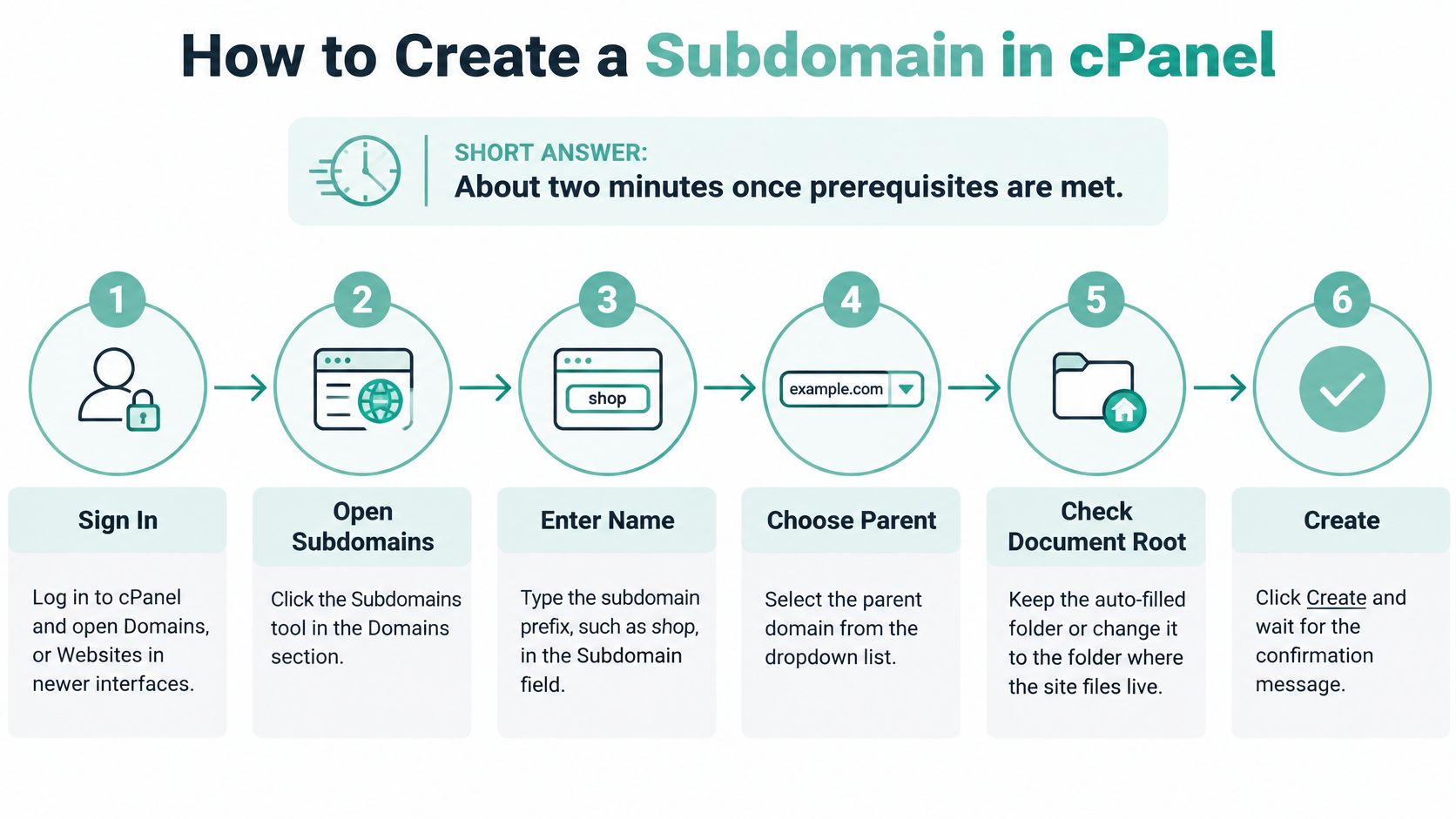
Sign in to the correct cPanel account. Open Domains, or Websites in newer interfaces. If you manage several Australian client sites, confirm the account name before making changes.
Open the creation tool. Choose Add Website, then Create a subdomain, where available. Otherwise, select Create a New Domain or the dedicated Subdomains tool.
Enter the name in the format the form expects. A field labelled Subdomain generally wants just the prefix, such as
shop. A field labelled Domain may require the complete hostname. Use lowercase letters and avoid spaces; a hyphen is suitable for a website label, but an underscore isn't.Choose the parent domain. Where there's a dropdown, select the existing business domain. Check it carefully if the account contains similarly named domains.
Review the document root. For an independent website, deselect Share document root and retain a separate folder. The generated path can differ between hosts, so record the actual value rather than assuming it matches an example.
Submit the form. Click Create or Submit, then wait for confirmation. If cPanel returns an error, resolve that error before trying to install WordPress or uploading files.
Put content in the right place
Upload the website into its assigned folder. Use File Manager, SFTP or your deployment tool. Don't place the new application in the parent website's folder just because that directory is familiar.
Open the new address and check the expected page. Start by confirming that the intended index page appears. A generic holding page means the hostname reaches a server, not necessarily that your application is installed correctly.
If the parent uses external nameservers, arrange the matching DNS entry with that provider.
For unfamiliar menu labels, the explanation of what cPanel does helps distinguish account administration from domain registration and application management.
Practical rule: Creating a DNS label alone doesn't create a working website. The server also needs a hosting entry and content to serve.
Host your website with our 5-star rated, cPanel website hosting plans.
Super fast servers, with security included and hosted in your choice of Australian Data Center.
View cPanel Plans
Choose the Right Document Root and Sharing Options
For almost every independent subdomain, keep a separate document root. This is the directory the web server uses when someone visits that hostname.
Sharing a root is appropriate only when you deliberately want the same application to answer on both names. It's not a shortcut for installing a separate shop or staging site.
Document root and sharing options compared
| Option | What it does | Example path | Best for |
|---|---|---|---|
| Own document root (default) | Keeps the subdomain's files separate | /public_html/shop.example.com.au | Shops, blogs, client portals |
| Share document root | Serves the parent site's files | Parent folder /public_html | Rarely needed; mirrors the main site |
| Custom folder inside public_html | Places files at a chosen path | /public_html/knowledgebase | Documentation or a sub-project in the same account |
| Folder outside public_html | Keeps drafts outside the main site's directory | ~/staging-files | Private builds, provided the folder isn't assigned as a public document root |
| Redirect (set after creation) | Sends visitors to another URL | Replacement destination | Retired or renamed hostnames |
An Australian hosting knowledge-base walkthrough illustrates selecting a prefix, parent domain and separate document root. The principle is straightforward: the folder should match the purpose of the site.
Separate files aren't the same as private files
A folder outside public_html isn't automatically private if you assign it as a website's document root. The server can still publish its contents through that hostname. Use authentication or another access restriction for staging sites containing customer information or unfinished work.
Say a plumbing firm adds an online booking application. Keeping its booking files in a dedicated directory avoids mixing application updates with the brochure website's theme files, although both still share the hosting account's resources.
Use cPanel File Manager to inspect the directory before installing anything. Look for existing files and check whether a deployment process already uses that location.
Keep development files separate from production files, but don't mistake directory separation for a security boundary.
How to Verify the Subdomain and Check DNS Propagation
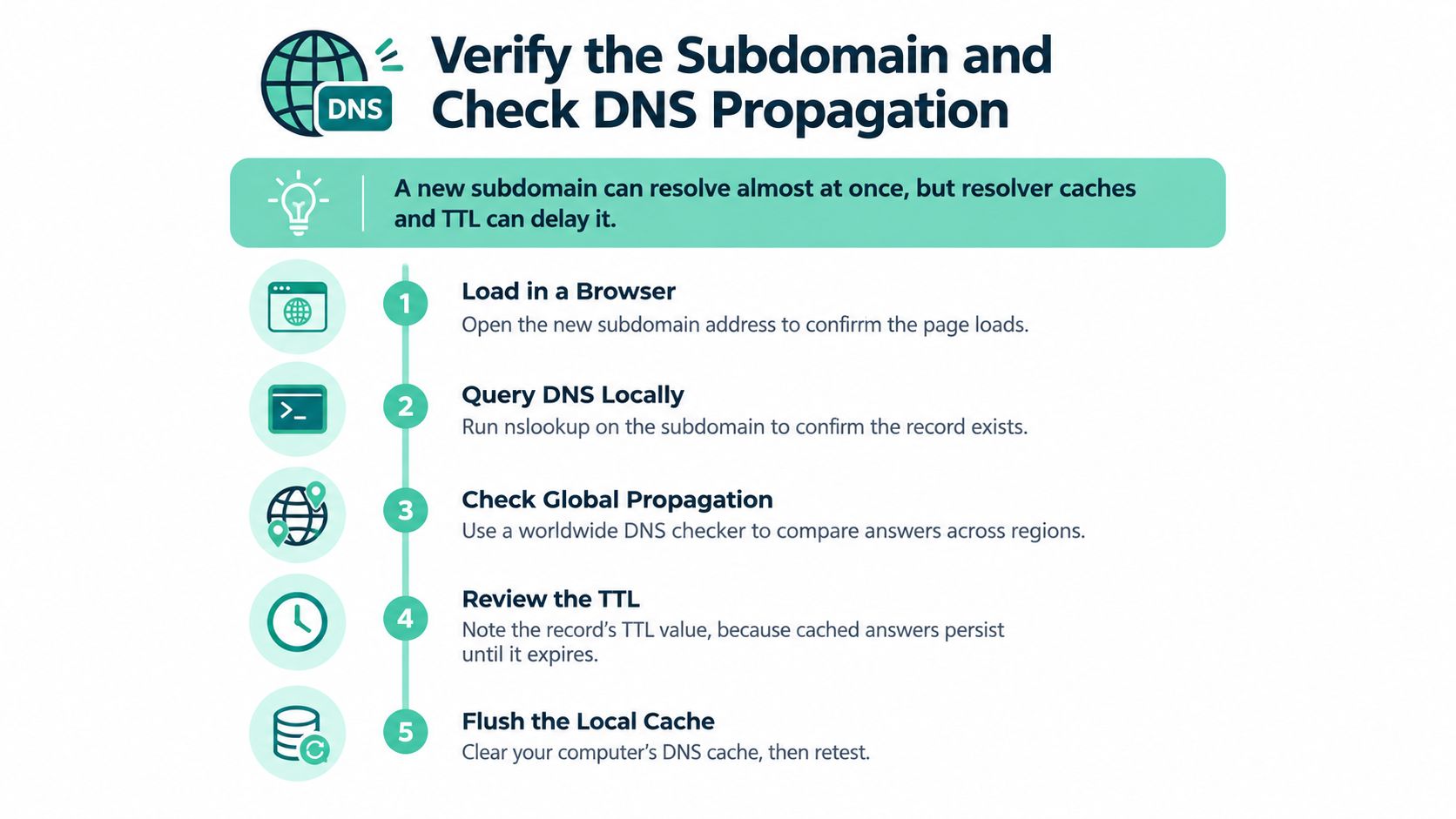
A new subdomain in a cPanel-managed zone can resolve almost immediately. Resolver caches, including cached “name not found” answers, can delay what you see elsewhere.
The Australian Cyber Security Centre's DNS guidance.pdf) identifies the authoritative nameserver as the source of truth for a DNS zone. Check that source before assuming the record just needs more time.
Run the checks in a fixed order
Begin with a local DNS lookup using nslookup or a graphical lookup tool. Confirm that the returned destination matches the server assigned to your hosting account, rather than merely checking that some answer exists.
Next, query the authoritative nameserver directly with dig or your DNS provider's diagnostic interface. A correct authoritative answer alongside an incorrect local answer points towards caching. An incorrect authoritative answer needs correction at the DNS provider.
Then open the site in a private browser window. Repeat the test over mobile data to sample another network, and check the HTTPS response before reviewing certificate coverage in cPanel.
Verification checks and what a good result looks like
| Check | Command or tool | Good result |
|---|---|---|
| Record exists | nslookup or a DNS lookup interface | Returns the intended hosting server destination |
| Authoritative answer | dig with the authoritative server selected | Matches the record stored in the authoritative zone |
| Browser load | Private window on mobile data | Expected index page appears |
| HTTP status | curl response-header inspection over HTTPS | Successful response from the expected page, commonly HTTP 200 |
| Certificate coverage | cPanel SSL/TLS Status | Hostname listed with a valid certificate |
A redirect can be intentional, so inspect its destination rather than treating every non-success response as a fault. For example, a booking application may redirect its homepage to a login screen.
Let the TTL guide your next action
Time to live, or TTL, controls how long resolvers can retain a DNS answer. If the authoritative record is correct but a resolver still returns an old answer, allow the remaining cache lifetime to expire before making another change.
Lowering a TTL after a resolver has cached the old record doesn't shorten that existing cache entry. Clearing your computer's cache also won't clear your internet provider's resolver.
The DNS propagation guide explains these differences. A successful test from your office is useful, but it doesn't prove every network has refreshed its answer.
If the authoritative zone has no record, waiting won't create one. Add the appropriate record at the provider that hosts DNS.
Fix Common Subdomain Problems Before Visitors Notice
If the subdomain displays the main homepage, start with the document root, not DNS propagation. A shared root or an incorrect directory assignment can send a perfectly resolved hostname to the wrong files.
Check the folder listed beside the subdomain in Domains. If the site should be independent, assign its own root and put the intended application there without overwriting the parent website.
Symptoms, likely causes and fixes
| Symptom | Likely cause | Fix |
|---|---|---|
| Subdomain shows the main homepage | Shared or wrong document root | Set an own document root and re-upload files |
| Name does not resolve | DNS not updated or still at the registrar | Add an A record pointing to the hosting server and wait out the TTL |
| Certificate warning on HTTPS | AutoSSL not yet issued | Check SSL/TLS Status, allow issuance, then rerun AutoSSL |
| Redirect loop | Parent force-HTTPS rule clashes with a subdomain redirect | Remove the conflicting rule from .htaccess |
| Cannot use webmail or mail prefixes | System-generated service subdomains | Leave them alone and choose another prefix |
A 403 Forbidden response can indicate a missing index file, access restrictions or unsuitable permissions. Check for index.php or index.html, and use the host's recommended baseline of 755 for directories and 644 for ordinary files unless the application requires otherwise. Don't make everything writable to bypass an error.
A blank PHP page needs a different check: open the application or PHP error log. A missing dependency or incompatible PHP version won't be fixed by changing DNS.
Separate certificate faults from application faults
The cPanel domain documentation explains certificate management for subdomains and automatically generated service names. Don't delete webmail, mail or cpanel to make room for a website.
For an HTTPS warning, confirm the certificate covers the exact hostname. A certificate for the parent doesn't automatically cover every subdomain. The cPanel SSL installation guide helps you inspect coverage and certificate status.
If HTTPS works but WordPress reports mixed content, update insecure asset references rather than replacing a valid certificate.
Trace redirects before editing rules
Say a booking site's WordPress address uses HTTPS, while a force-HTTPS plugin and a server rule also redirect requests. Those mechanisms can loop when they disagree about the hostname or how a proxy reports the connection.
Inspect the redirect destinations, back up .htaccess, and remove the conflicting rule rather than disabling security everywhere.
Change the component responsible for the symptom. Recreating a subdomain won't repair an application redirect loop.
Register your new domain name at competitive market prices including free domain add-ons like privacy, DNS Hosting, Custom Nameservers and Forwarding.
Always the best price and no nasty renewal price hikes.
Register A Domain Name
Edit, Redirect or Remove a Subdomain After Launch
A subdomain often outlives its original purpose. Keep its files, certificate and replacement destination in mind before changing the hosting entry.
Edit the root and review SSL
Open Domains or Subdomains, find the hostname and choose Manage or the available document-root control. Some account types restrict root changes, so contact hosting support if the field isn't editable.
Changing the path doesn't move the website. Copy the files into the new location, check application paths and permissions, and retest uploads as well as the homepage.
After a DNS or root change, review SSL/TLS Status. Rerun AutoSSL where available if coverage needs updating, and inspect any validation error rather than repeatedly submitting the same request.
Redirect before retiring
If visitors still use the old address, create a redirect to the replacement while the old hostname remains operational. Keep its certificate valid so HTTPS visitors can reach the redirect without a warning.
Don't delete the hosting entry immediately after configuring a redirect that relies on it. Test the old address, including important bookmarked paths, before deciding what can be removed.
Remove deliberately
- Back up first. Export the website files and any associated database.
- Store the archive privately. For a completed promotion, keep the ZIP outside publicly served folders.
- Delete the hosting entry. Check whether cPanel leaves the document-root directory behind.
- Review remaining services. Remove obsolete external DNS entries only after confirming that no redirect, email service or integration still needs them.
For a finished campaign, this leaves you with a recoverable archive rather than an abandoned application. System-generated service names aren't ordinary campaign sites, and removing them doesn't reliably free their prefixes for reuse.
Launch Your Subdomain and Get Help if Needed
Launch when the parent's eligibility and DNS arrangements are confirmed, the intended page loads, and HTTPS works without warnings. Don't announce a client portal while its certificate is still pending.
Record the hostname, document root, DNS provider and parent renewal date in your domain notes. Keep account access with the parent holder, including recovery details, so a contractor's departure doesn't leave the business locked out.
Choose support that can inspect the right layer
Keeping registration and hosting together can simplify administration, but it doesn't replace renewal reminders or accurate contact details. An expired parent can interrupt the services beneath it regardless of where you host them.
UpTime Web Hosting is an Australian option offering cPanel hosting and domain services for businesses that want those tasks managed together. Review its service options through the publisher's website, and use the linked SSL and DNS knowledge-base guides when checking an existing account.
If DNS or AutoSSL still fails, raise a support ticket or request a call-back through your hosting account. Phone support is another route where available; use the number displayed in the provider's current contact details.
Give support useful evidence
Include the affected hostname, document root, exact error message and whether the fault occurs on mobile data as well as your usual connection. For certificate problems, attach the AutoSSL validation message, but never include passwords or private keys.
That information lets an engineer investigate the correct layer instead of repeating the setup from scratch.
A subdomain is a DNS and document-root task. Check both, then verify the certificate before blaming the cPanel form.
Keep your shop, staging site or customer portal within a cPanel account that supports the way you manage your business website. Visit UpTime Web Hosting to explore Australian cPanel hosting and domain services, or ask for help matching your subdomain's DNS, document root and SSL setup.