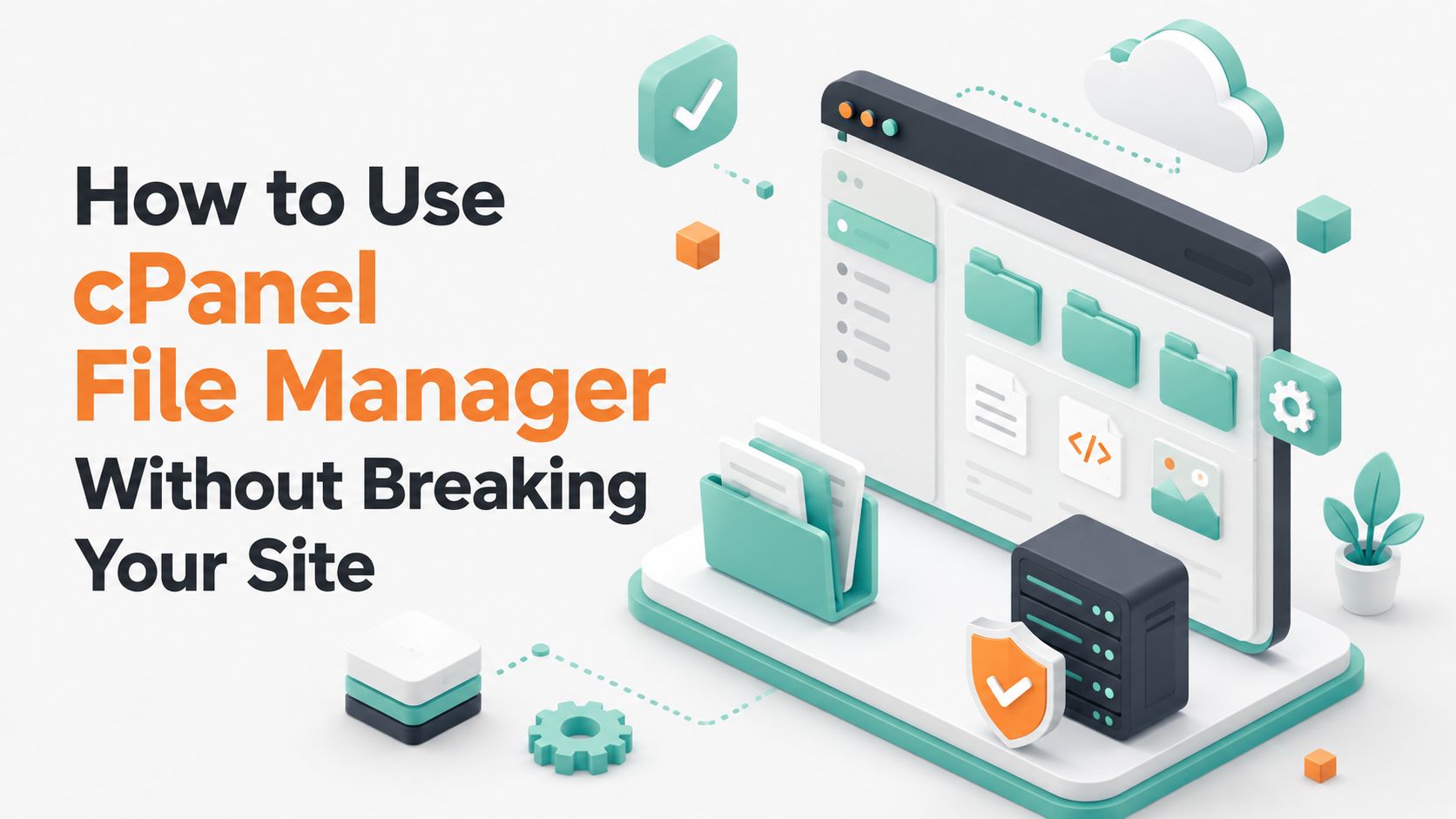
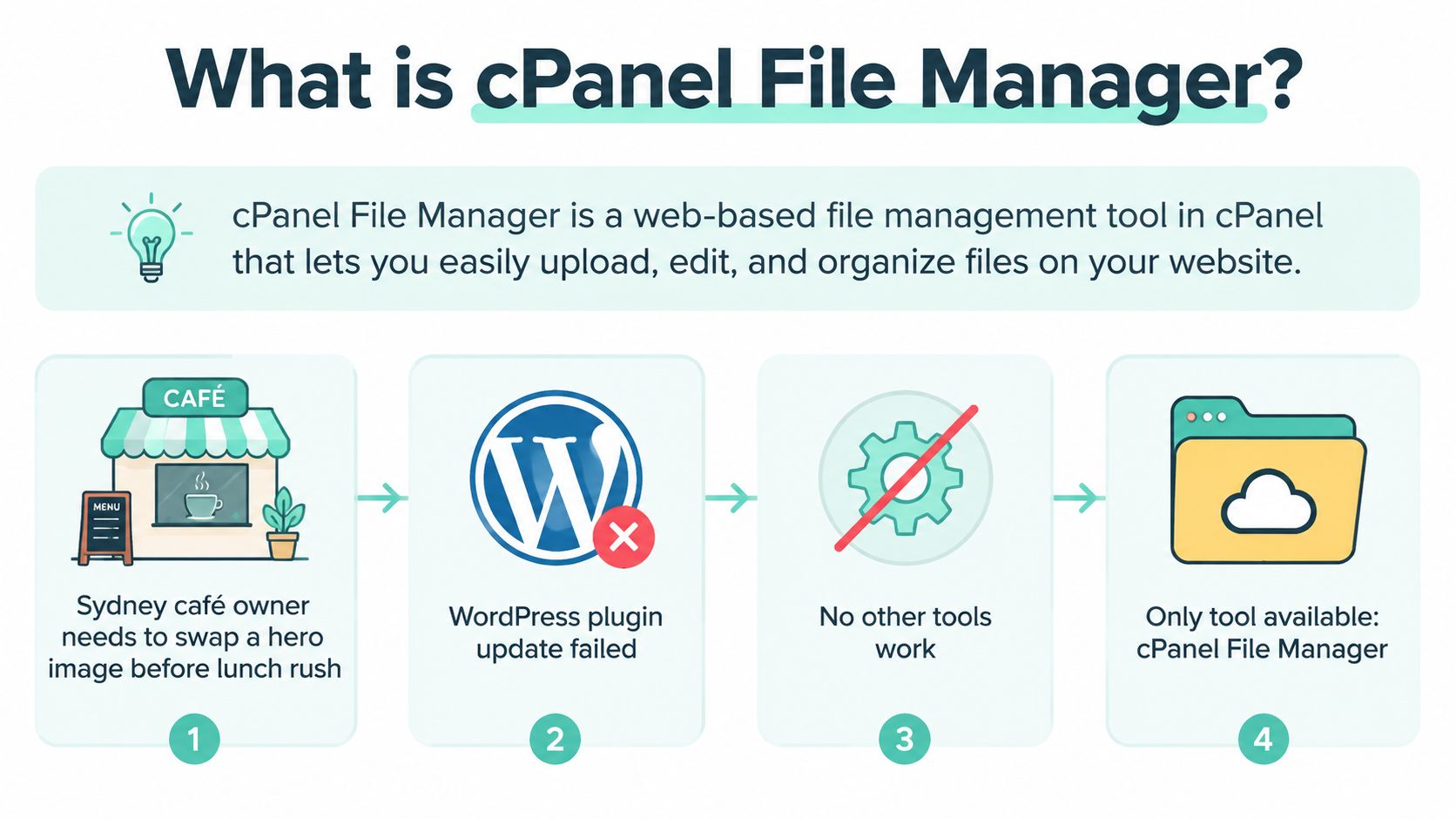
A Sydney café owner needs to replace a hero image before the lunch rush. A WordPress plugin update has failed, the site still loads, and the only available access is cPanel. In that situation, cPanel File Manager can turn a stressful support request into a controlled file change, provided you know which folder to open, what to back up and when to stop using the browser.
The tool is convenient, but it isn't a complete development environment. It works well for targeted repairs and routine hosting administration, while bulk transfers, staging and repeatable deployments belong with FTP, SFTP or SSH. The safest approach is to use File Manager deliberately, verify each change and avoid treating it as the right tool for every job.
Table of Contents
- What cPanel File Manager Is and When to Use It
- Navigating publichtml and Managing Files in the Browser
- Editing Files With the Built-In Code Editor
- Compressing, Extracting and Setting File Permissions Safely
- Restoring Files From Backups Through File Manager
- When to Switch From File Manager to FTP, SFTP or SSH
- Security Best Practices and Common File Manager Questions

Performance you can feel, backed by clients who depend on it. Read how our support and uptime create long‑term customer success.Power Your Business with Better Hosting
What cPanel File Manager Is and When to Use It
cPanel File Manager is a browser-based interface for managing website files inside cPanel. You open it from the hosting control panel rather than installing a desktop client or configuring a terminal connection. cPanel's official documentation describes file searching, editing, uploading and directory navigation from a single web interface in its File Manager documentation.
For an Australian small business, that makes it the practical first response to a narrow problem. A café can replace an image, a trades business can upload a revised PDF, and a developer can correct a redirect rule without waiting for a separate FTP login. It's also useful for quick permission changes, checking logs and editing files such as wp-config.php or .htaccess, provided you create a recovery copy before saving.
The practical sweet spot
File Manager suits small to medium website edits, one-off uploads and focused maintenance on hosted sites. Australian hosting guides commonly direct customers to the website root, upload files through the browser and use the file tree to reach live content, which shows how standard this workflow has become for local SMB hosting support. The Australian cPanel File Manager guide provides a useful example of that operational path.
The browser interface becomes a poor fit when a job involves a large collection of files, repeated deployments or recovery under time pressure. Large transfers can fail when the session expires or the browser tab closes, and a loose upload of many assets is harder to verify than one archive. cPanel itself says File Manager doesn't impose a separate upload-size limit beyond account quotas, but your host's PHP, web server and browser settings can still affect the practical result. That distinction is documented in the cPanel File Manager power-user guidance.
Practical rule: Use File Manager for a precise change you can explain in one sentence. Choose another transfer method when the job becomes a project.
Navigating public_html and Managing Files in the Browser
Start with the correct directory. Log in to cPanel, open the Files section, select File Manager and choose public_html from the left-hand directory tree or the directory picker. On many Australian shared hosting accounts, public_html is the document root for the primary website, so files placed there can be served by the domain. Local provider instructions, including this Australian upload walkthrough, use the same route.
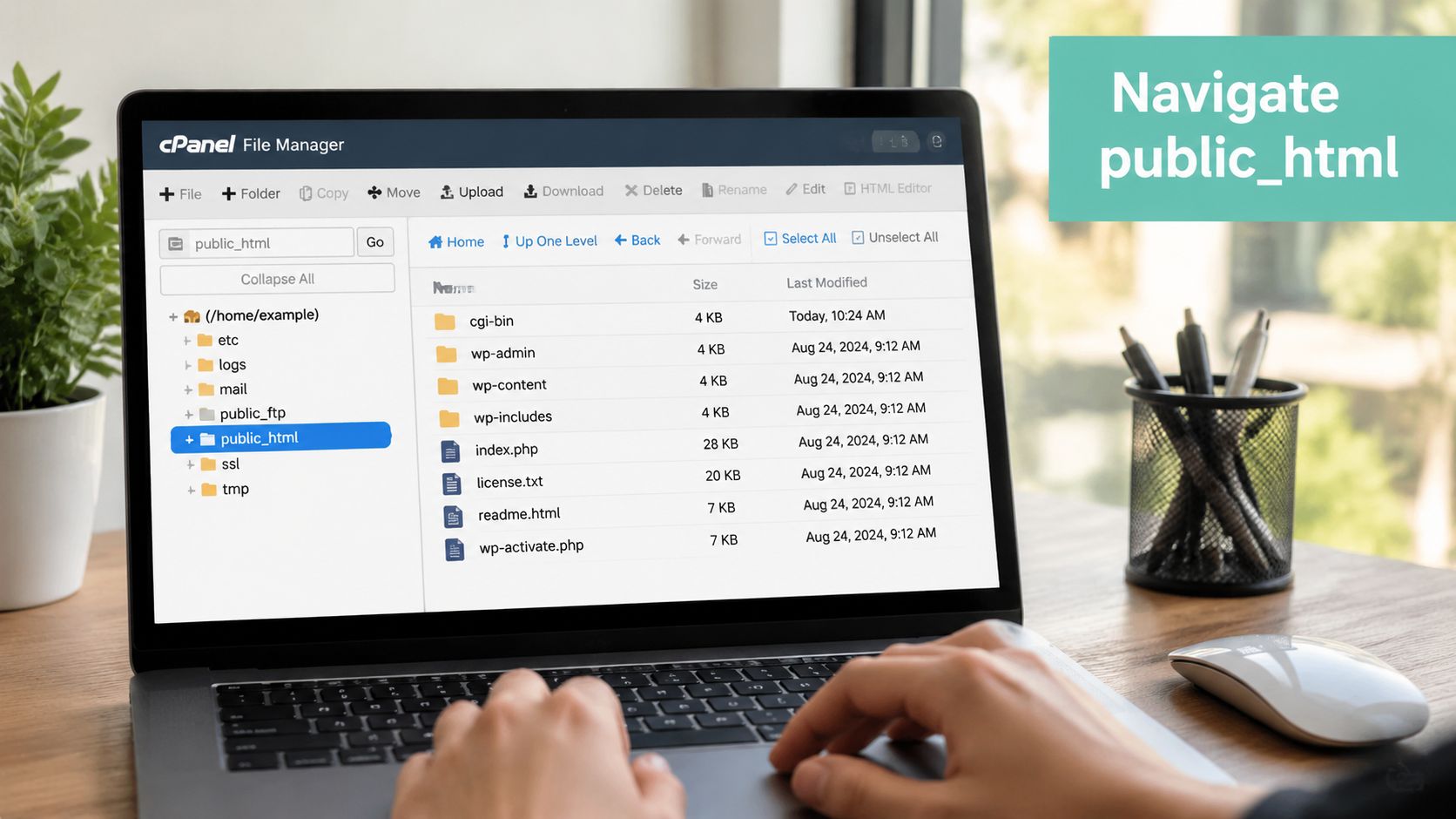
Choose the destination before uploading
A 404 often starts with a directory mistake, not a broken application. If you upload logo.png into public_html/new-site/ while the page expects /logo.png in the root, the browser won't find it. Subdomains and addon domains can use different document roots, so check the domain's configured path before moving production files.
The top toolbar normally provides the main actions:
- Upload opens the browser transfer screen. Select a file, wait for the progress indicator to finish and return to File Manager.
- Download saves a selected file locally. Use it before editing a configuration file.
- Copy creates a duplicate while keeping the original in place. This is useful for a temporary backup.
- Move relocates the selected item to another directory. Check the destination carefully before confirming.
- Rename changes the filename without changing its contents. A small spelling difference can still break a theme or script reference.
- Delete sends items to the account's trash behaviour where supported. Emptying the trash removes the recovery option.
You can also right-click a file for the context menu, select several items with standard keyboard controls and use the path bar to jump directly to a location such as public_html/wp-content/uploads. After enabling the File Manager setting for Show Hidden Files, dotfiles such as .htaccess become visible. Without that setting, a customer can search for rewrite rules repeatedly and still see nothing.
Keep the browser task narrow
Upload one file when one file is needed. For a website package, use a ZIP archive and extract it on the server instead of pushing hundreds of loose files through the browser. Refresh the directory after an upload, confirm the filename and open the live page before deleting the old version.
Host your website with our 5-star rated, cPanel website hosting plans.
Super fast servers, with security included and hosted in your choice of Australian Data Center.
View cPanel Plans
Editing Files With the Built-In Code Editor
A quick code correction is one of File Manager's strongest features, but editing production PHP still deserves the same care as editing a database record. Right-click the file, choose Edit or Code Edit, then inspect the contents before changing anything. For PHP, HTML and .htaccess, Code Editor is generally the safer choice because syntax highlighting makes structures easier to read and reduces the chance of introducing an unnoticed formatting error.
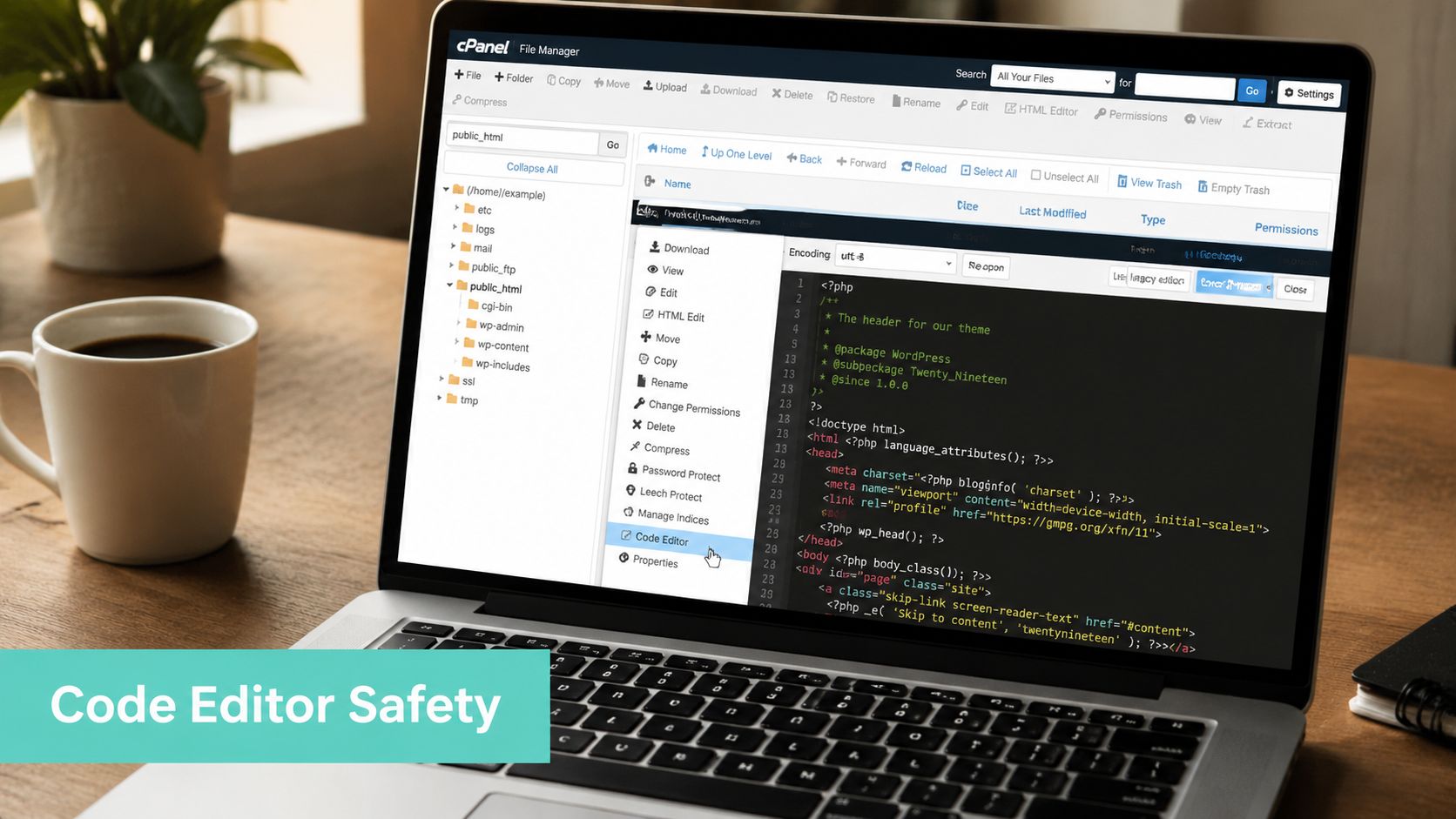
A controlled edit cycle
Download the original first, especially for wp-config.php, functions.php and .htaccess. You can also copy the file in File Manager and give the duplicate a temporary name, but don't leave backup copies inside the public web root. Before saving, confirm that you're editing the intended domain and not a staging or addon-domain directory.
Make the smallest possible change, select Save Changes, then load the site and the affected page. Closing the browser tab without saving discards unsaved changes, so don't assume the editor has written anything automatically. cPanel can create a backup copy in the /.cpanel_backups location before saving, but that isn't a substitute for a local copy you can identify and restore quickly.
Before changing PHP: Keep the original file open locally, make one change at a time and test immediately. A syntax error can take the site offline even when the edit looks minor.
Watch encoding and line endings
Plain Edit mode can create trouble with files containing a UTF-8 byte-order mark or unusual line endings. Accented characters in Australian business names, suburb names or product descriptions may become corrupted if the editor interprets the file incorrectly. Use Code Editor, check the encoding where the interface provides that choice and review the saved output on the site.
If WordPress admin access has failed, a targeted plugin rename can restore access. The knowledge base guide for disabling a plugin without WordPress admin access demonstrates the type of narrow File Manager intervention that's safer than changing several files at once.
Compressing, Extracting and Setting File Permissions Safely
For a site package or theme release, use a ZIP workflow. Compress the folder on your computer, upload the archive into the intended directory, right-click it and choose Extract. Server-side extraction avoids transferring every loose asset through the browser and makes the upload easier to verify.
The most common extraction error is an extra directory level. A package may extract as public_html/site-files/index.php when the live site expects public_html/index.php. Open the extracted folder, select its contents, use Move, enter the correct document-root path and then remove the empty wrapper folder. Delete the ZIP and any old archive once you've confirmed the site works. Archives left in the web root can expose source material or confuse a later rollback.
Apply permissions with intent
File Manager uses the standard Unix read, write and execute model. cPanel shows the numerical permission value in the permissions dialog, where you can select the user, group and world access levels before confirming the change. The cPanel permission procedure documents that workflow.
| Path | Recommended | Risk if Wrong |
|---|---|---|
| Regular website files | 644 | Excessive write or execute access can expose or alter files |
| Website directories | 755 | Restrictive settings can prevent the application from reading or entering folders |
wp-config.php and similar configuration files | 600, or 640 where the hosting setup requires group read access | Credentials and application settings may become readable |
Stable .htaccess | 444 where the site and host permit it | Unnecessary write access can allow rewrite or security rules to be changed |
A commonly documented safe default for ordinary files is 0644, where the owner can read and write while group and world can read, as explained in this Australian cPanel permissions article. One Australian guide also recommends 755 for directories, 600 for configuration files and 444 for .htaccess after it is stable, with the local permission guidance setting out that sequence.
Avoid recursive mistakes
Select the recursive option only when every item below the chosen directory should receive the same setting. It can be useful for a directory tree, but it can also flatten the distinction between files and folders. Don't apply a blanket setting to a WordPress installation without checking the result.
Never use 777 as a general fix. It gives broad read, write and execute access and turns a permissions problem into a security exposure. After each major upload, check a representative file, a directory, wp-config.php and .htaccess, then remove archives and temporary copies.
Restoring Files From Backups Through File Manager
Recovery should be selective. If a new .htaccess edit causes a server error, restore that file rather than replacing the entire website. If wp-config.php was overwritten, retrieve the earlier copy, upload it to a temporary location if needed, compare it with the damaged version and then move the verified file into place.
Begin with the Backup icon under cPanel's Files section. Depending on the Australian hosting account, you may also see JetBackup or Backup Wizard with restore points. A full account backup can be downloaded and extracted locally, but restoring only the broken files usually reduces the chance of overwriting newer uploads, database-related changes or unrelated domain content.
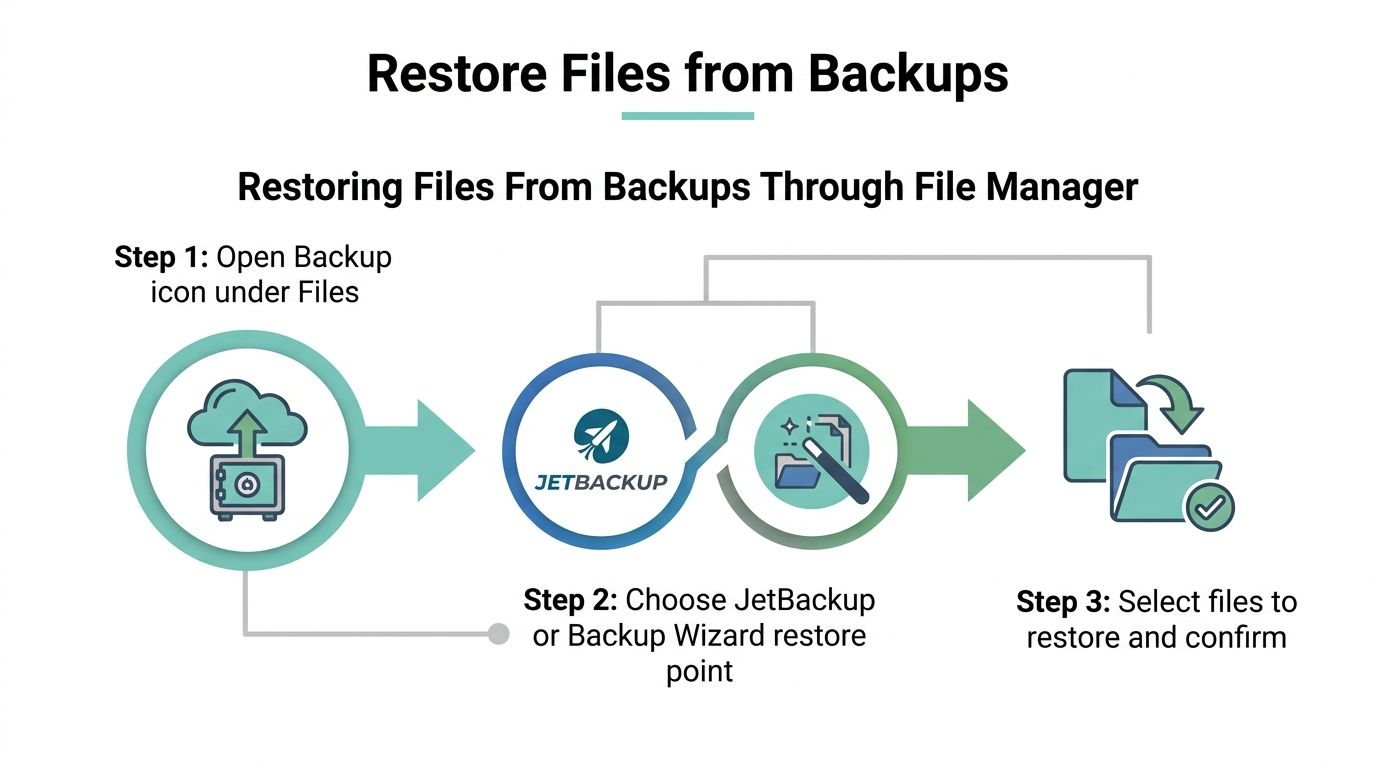
A practical recovery sequence
Open the backup browser, select the restore point before the mistake and go to the affected domain's file path. Download the previous file when you need to compare contents, or restore it directly when the change is clearly the cause. Once the file is back, verify permissions, clear any relevant application cache and test both the homepage and the affected function.
Australian providers may offer encrypted off-site nightly backups, but retention and restoration controls depend on the hosting plan. UpTime Web Hosting describes its backup restoration process in this account restore knowledge base article. Check the available restore point before making further edits, and contact support if the required snapshot isn't visible.
Use this checklist:
- Identify: Record what changed and when the fault began.
- Locate: Find the correct account, domain and file path.
- Download: Save the current file before replacing it.
- Upload: Restore only the verified file or folder.
- Verify: Test the site, permissions and affected workflow.
Backups don't remove the need for care. A restore can return a file to working condition while leaving a new database change, plugin state or uploaded media untouched, so confirm what the repair covers.
Register your new domain name at competitive market prices including free domain add-ons like privacy, DNS Hosting, Custom Nameservers and Forwarding.
Always the best price and no nasty renewal price hikes.
Register A Domain Name
When to Switch From File Manager to FTP, SFTP or SSH
The right tool depends on the shape of the job, not on habit. File Manager is efficient for a one-off upload, a quick edit or viewing a log on shared hosting. It becomes inefficient when you need repeatability, local version control or reliable transfer recovery.
Use this decision guide
| Situation | Better choice | Reason |
|---|---|---|
| One image, document or configuration correction | cPanel File Manager | No separate software or credentials are needed |
| More than 20 files or a transfer that must resume | FTP client | Desktop clients handle queues and interrupted transfers more comfortably |
| Local editing in VS Code | FTP or SFTP | Work locally, review changes and transfer deliberately |
| Sensitive file movement | SFTP | Encrypted transport is preferable to ordinary FTP |
| Git deployment, WP-CLI or bulk find-and-replace | SSH | Commands and scripts are faster and repeatable |
| Staging work on a managed VPS or dedicated server | SSH with tar or rsync | Server-side packaging and synchronisation aren't available through File Manager |
The threshold for moving more than 20 files is a practical workflow signal, not a server rule. If you're repeatedly selecting folders in a browser, waiting for a progress bar or worrying that a closed tab will restart the job, switch tools. An FTP client such as FileZilla or Cyberduck gives you a local working view and a transfer queue, while SFTP adds encrypted file transfer.
For developers: If the deployment needs a script, a commit history or a rollback command, File Manager is the wrong control surface.
SSH makes the larger jump. With suitable access on a managed VPS or dedicated plan, a developer can use Git, WP-CLI, tar and rsync for repeatable work. Those tools require server permissions and technical confidence, so they aren't appropriate for every shared hosting account. For a plain-language introduction to the transfer choice, see this Australian guide to FTP.
Australian agencies should make the switch early on client projects. A browser timeout can consume billable time and leave you checking which files arrived, while a local client or server-side command gives you a clearer transfer record and a more dependable recovery path.
Security Best Practices and Common File Manager Questions
File Manager puts powerful access behind a familiar browser, which is useful and dangerous in equal measure. A five-minute review after a contractor change or major upload can prevent a forgotten archive, exposed configuration file or overly permissive directory from becoming the next support incident.
Run this short security check
- Show only what belongs online: Remove backup archives, old site copies, installers and temporary exports from
public_html. - Protect configuration files: Keep
wp-config.phpbackups outside the web root and use a restrictive permission such as 600 where the hosting environment supports it. - Review
.htaccess: Keep it at 0644 during normal operation, or use the stricter setting recommended by your host after the rules are stable. The File Manager permissions process is described in this Australian cPanel support article. - Limit directory exposure: Disable directory browsing through the host's supported configuration rather than allowing visitors to list folders.
- Remove defaults: Delete default admin email files and other unused setup material.
- Rotate access: Change the cPanel password after contractor work and sign out when the task is complete.
Questions Australian site owners ask
Why isn't File Manager showing hidden files?
Open Settings in File Manager, enable Show Hidden Files, save the preference and reload the directory. Dotfiles such as .htaccess won't appear until that option is active.
Why does my upload fail at 100 percent?
The browser may have completed the transfer while File Manager is still processing the request, or the session may have timed out during finalisation. Reload the destination, confirm whether the file exists and avoid submitting the same upload repeatedly. If it isn't present, upload a ZIP or ask the host to check account quotas and server-side limits.
Can I edit files larger than 50 MB in the browser?
Don't assume the browser editor is suitable for a large file. Download it, edit locally and transfer it with FTP or SFTP, or ask support whether the account's limits allow the operation.
Why did permissions reset after extraction?
Archive extraction can apply the permissions stored in the package or the host's extraction defaults. Audit the files and folders after extraction, then set the required values individually rather than trusting the archive.
Is File Manager safe to leave logged in?
No. Sign out, close the cPanel session and don't use a shared computer for administrative work. If a session was left open or a contractor no longer needs access, rotate the cPanel password and review the account's access settings.
UpTime Web Hosting provides Australian cPanel hosting with File Manager access, encrypted off-site nightly backups and local support for website repairs, uploads and recovery workflows. Visit UpTime Web Hosting to review hosting options and choose a setup that matches your site's day-to-day maintenance needs.