In short
The “This site can’t be reached” error means Chrome could not complete the connection to the website. First test another site, another browser and another network, then read the smaller error code. That sequence separates a device or Wi-Fi fault from DNS, security software, hosting, SSL or server trouble. (support.google.com)
Key takeaways
- If several unrelated websites also fail, start with the device, Wi-Fi connection, modem-router or internet service rather than the website.
- If one website fails across different devices and networks, its domain, DNS, filtering, hosting or server needs investigation.
- Chrome’s smaller code, such as
ERR_NAME_NOT_RESOLVED,ERR_CONNECTION_TIMED_OUTorERR_CONNECTION_REFUSED, is more useful than the generic main heading. (support.google.com) - On Windows,
ipconfig /flushdnsclears the local DNS resolver cache, but it cannot repair missing or incorrect public DNS records. (learn.microsoft.com) - Change one variable at a time so the first test that makes the website load points towards the failing layer.
Contents
- What does “This site can’t be reached” actually mean?
- Which error code is Chrome showing?
- What should you check first?
- How do you locate the fault?
- How do you fix a connection or browser problem?
- How do you fix a DNS problem?
- What should website owners check?
- Why does mobile data work when Wi-Fi does not?
- How do you fix the error on Android?
- Frequently asked questions
Do not begin by deleting all browser data, disabling security software or repeatedly changing DNS records. First determine whether the fault follows one browser, one device, one network or the website itself.
What does “This site can’t be reached” actually mean?
The message means Chrome could not complete the steps needed to load the address. The failure can occur before DNS returns an IP address, while the network connects to that address, during the secure connection or because the destination refuses, resets or fails to answer the request.
Google’s Chrome Help connection guide lists device settings, firewall or antivirus software, modem-router faults, cookies, extensions and website downtime among the possible causes. The same heading can therefore describe several unrelated problems. (support.google.com)
A normal visit involves several layers:
- Chrome reads the URL.
- DNS translates the domain into an IP address.
- The device finds a network route to that address.
- The browser and server establish a connection.
- HTTPS sites complete a TLS handshake.
- The web server returns the page.
A failure at any early layer can prevent Chrome from receiving a normal web page. That is why refreshing repeatedly rarely helps until the failed layer has been identified.
The main heading is generic; the smaller error code and the scope of the failure identify the useful next check.

Performance you can feel, backed by clients who depend on it. Read how our support and uptime create long‑term customer success.Power Your Business with Better Hosting
Which error code is Chrome showing?
The smaller code beneath Chrome’s main message identifies the stage at which the connection failed. Copy that code before restarting equipment, clearing data or changing settings because the wording may change after each test.
| Chrome code or message | What it usually points to | Best first check |
|---|---|---|
DNS_PROBE_FINISHED_NXDOMAIN | DNS cannot find a usable result for the domain | Check spelling, nameservers and public DNS records |
ERR_NAME_NOT_RESOLVED | The hostname did not resolve to a usable address | Run a DNS lookup and compare resolvers |
ERR_INTERNET_DISCONNECTED | The device has no working internet connection | Test Wi-Fi, Ethernet or mobile data |
ERR_CONNECTION_TIMED_OUT | The connection did not complete in time | Try another network and check server availability |
ERR_CONNECTION_REFUSED | The destination refused or blocked the connection | Check the server service, firewall and listening ports |
ERR_CONNECTION_RESET | Something interrupted an established connection | Test without a VPN or proxy and inspect security filtering |
| A secure-connection or SSL code | The HTTPS negotiation or certificate configuration failed | Check certificate validity, TLS settings and the server clock |
Google’s Chrome error reference defines ERR_NAME_NOT_RESOLVED, time-outs, refused connections, reset connections and internet disconnections separately. An SSL fault may display a secure-connection heading instead of the exact “This site can’t be reached” wording. (support.google.com)
The code still identifies a symptom, not a guaranteed root cause. For example, a time-out may come from a failed server, a routing fault, a firewall rule or a network that silently drops traffic.
Treat the error code as a pointer to the failed layer, not as proof of one exact cause.
What should you check first?
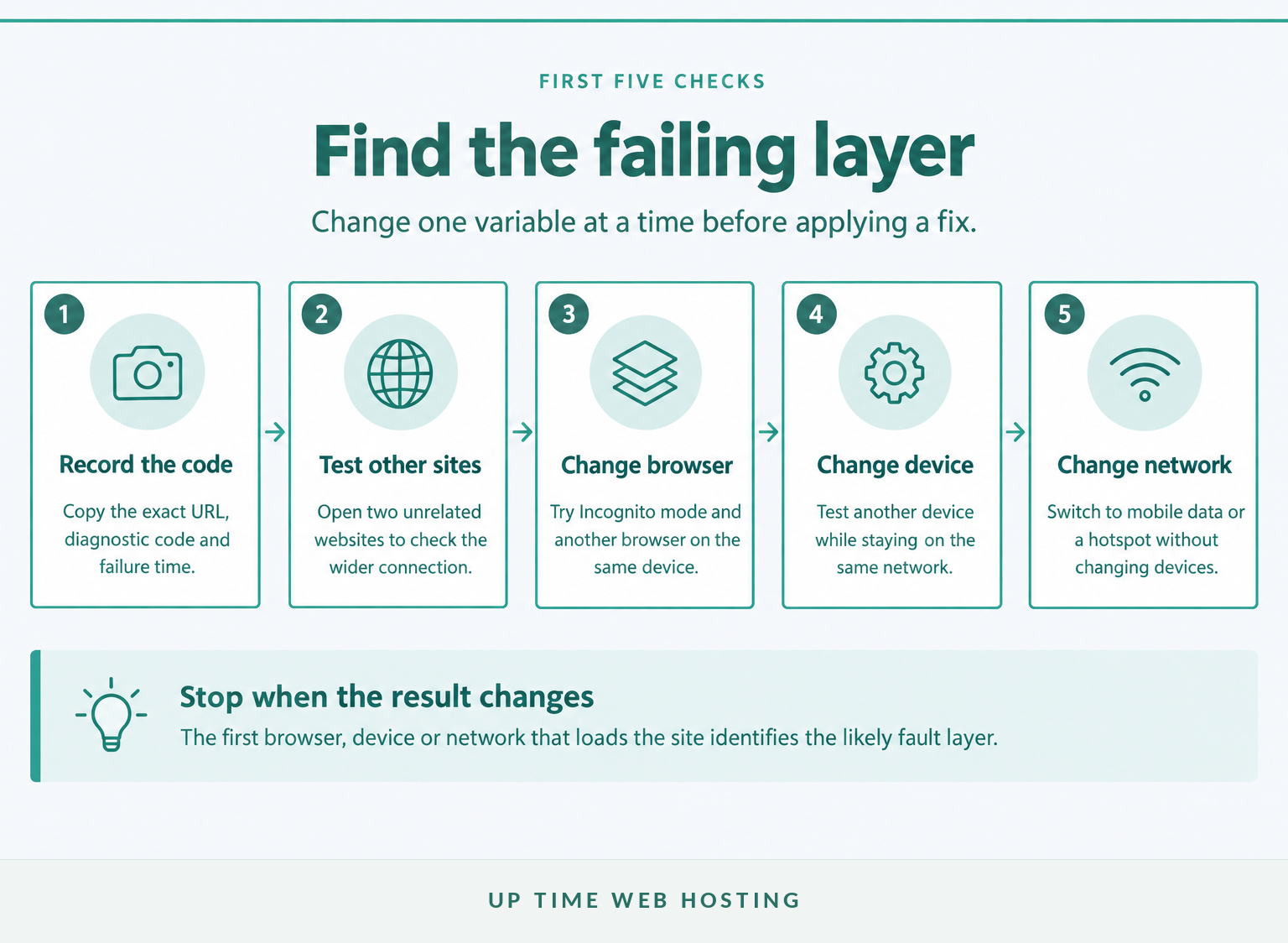
Start with tests that change only one part of the connection at a time. The aim is to find the first browser, device or network on which the result changes, rather than trying every possible fix at once.
- Record the evidence. Copy the full URL, smaller error code and time of the failure. Take a screenshot if the website belongs to the business.
- Open two unrelated websites. If both fail, the problem is probably broader than the original site.
- Try an Incognito window and another browser. A site that works in Incognito may be affected by an extension, stored site data or a Chrome profile setting.
- Try another device on the same Wi-Fi. This separates a device fault from a network-wide problem.
- Try the original device on mobile data or a hotspot. This changes the network while keeping the device and browser largely unchanged.
- Check recent website changes. Site owners should note DNS edits, migrations, firewall changes, certificate renewals and hosting work.
- Restart only after collecting the evidence. Restart Chrome and the device first. Restart the modem-router if several devices on the same connection are affected.
Google’s official troubleshooting order begins with the URL and internet connection, then covers restarting Chrome, Incognito mode, extensions, browsing data and security software. The sequence above adds cross-device and cross-network tests so the fault can be located sooner. (support.google.com)
Change one variable at a time, because the first test that changes the result usually identifies the fault layer.
Host your website with our 5-star rated, cPanel website hosting plans.
Super fast servers, with security included and hosted in your choice of Australian Data Center.
View cPanel Plans
How do you tell whether the problem is your device, your network or the website?
Compare where the site works and where it fails. The pattern will not prove the cause by itself, but it will tell you which layer deserves attention and which fixes can be skipped.
| Test result | Likely fault location | Next useful check |
|---|---|---|
| All websites fail on one device but work on other devices | Device, browser, VPN, proxy or local security software | Restart the device, test another browser and review network settings |
| All websites fail on every device connected to one Wi-Fi network | Modem-router, ISP, resolver or captive portal | Reconnect, complete any sign-in page, restart the router and contact the ISP if needed |
| One site fails in Chrome but works in another browser | Chrome profile, extension, cache or site data | Test Incognito mode and disable extensions one at a time |
| One site fails on Wi-Fi but works on mobile data | Wi-Fi DNS, router filtering, VPN, routing or the network’s public IP | Compare DNS results and ask the site owner to check blocked-IP logs |
| One site fails across different devices and networks | Domain, public DNS, hosting, firewall or server | Begin website-owner checks |
| A site fails only after many rapid requests | Rate limiting or a temporary IP restriction may be involved | Stop repeated retries, wait and have the owner inspect access and firewall logs |
Avoid treating “works for somebody else” as proof that the website is healthy. A DNS or network fault can affect one resolver, internet provider, region or address family while other visitors continue to connect.
The pattern across browsers, devices and networks is more useful than repeating the same reload.
How do you fix a connection or browser problem?
If several websites fail, repair the device or internet connection before changing anything related to the original domain. If only Chrome fails, focus on Chrome’s profile, extensions, stored data and network-related settings.
If several websites fail
- Confirm that Wi-Fi or Ethernet shows a connection and that flight mode is off.
- Reconnect to Wi-Fi and complete any public-network sign-in page.
- Restart the device, then allow the modem-router to reconnect fully if every device is affected.
- Temporarily disconnect a VPN or manually configured proxy and re-test.
- Check whether a security product recently changed its web-filtering or HTTPS-inspection settings.
- Contact the internet provider if multiple devices still cannot reach unrelated websites.
Do not leave firewall or security protection disabled. A short, controlled test can identify interference, but the protection should be restored immediately and its rule corrected rather than bypassed permanently.
If only Chrome fails
Start by fully closing and reopening Chrome. As of October 2026, Google’s Chrome update instructions direct desktop users to More > Help > About Google Chrome, where Chrome checks for an update and offers a relaunch when required. (support.google.com)
Next, try Incognito mode. If the website works there, disable extensions one at a time and re-test after each change. Clear the affected site’s stored data before deleting all browsing data, particularly if retaining active sessions matters.
Resetting Chrome should be a late step. Google’s Chrome reset guidance says a reset restores several settings and affects extensions, cookies and site data, although saved bookmarks and passwords are not deleted. (support.google.com)
Use browser clean-up only when the fault follows Chrome, and restore every security control after testing.
How do you fix a DNS problem?
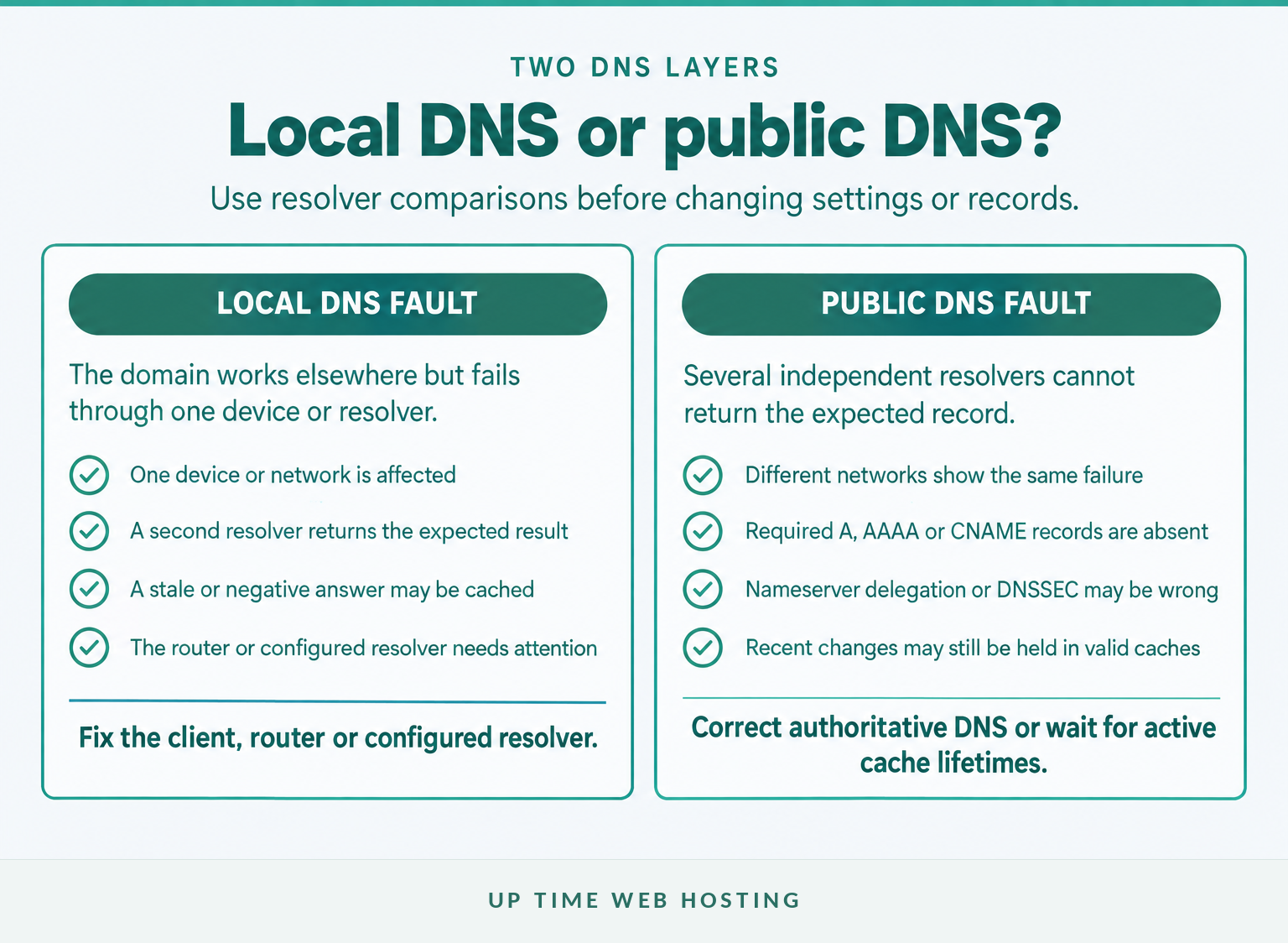
A DNS problem exists when the domain cannot be translated into a usable address or different resolvers return inconsistent answers. Test DNS before flushing caches or changing records so the original failure remains visible.
On Windows, open Command Prompt and replace example.com with the affected domain:
“text nslookup example.com nslookup example.com 8.8.8.8 ipconfig /flushdns “
Microsoft Learn describes nslookup as a tool for diagnosing DNS infrastructure. If the first lookup fails but the second returns the expected record, the configured resolver, router or internet provider’s DNS service is a likely area to investigate. (learn.microsoft.com)
Microsoft’s ipconfig reference says /flushdns resets the Windows DNS client resolver cache, including dynamically added and negative cached entries. It does not alter the domain’s public records. (learn.microsoft.com)
A successful ping to an IP address does not prove that web browsing or DNS works. Google’s Public DNS troubleshooting guide explains that ping and traceroute test network reachability rather than DNS resolution, and web access can still fail because name lookups, HTTPS or filtering use different traffic. (developers.google.com)
If DNS records recently changed, review what DNS propagation means before editing the zone again. Use a repeatable method to check DNS propagation from more than one resolver.
Website owners should also check for missing DNS records, incorrect nameservers, stale records and an accidental AAAA record pointing IPv6 visitors to the wrong server. Repeatedly changing correct records can extend confusion because different cached answers may remain active until their time to live expires.
A local cache flush can remove stale answers, but only the DNS owner can repair missing or incorrect public records.
Register your new domain name at competitive market prices including free domain add-ons like privacy, DNS Hosting, Custom Nameservers and Forwarding.
Always the best price and no nasty renewal price hikes.
Register A Domain Name
What should website owners check on DNS and hosting?
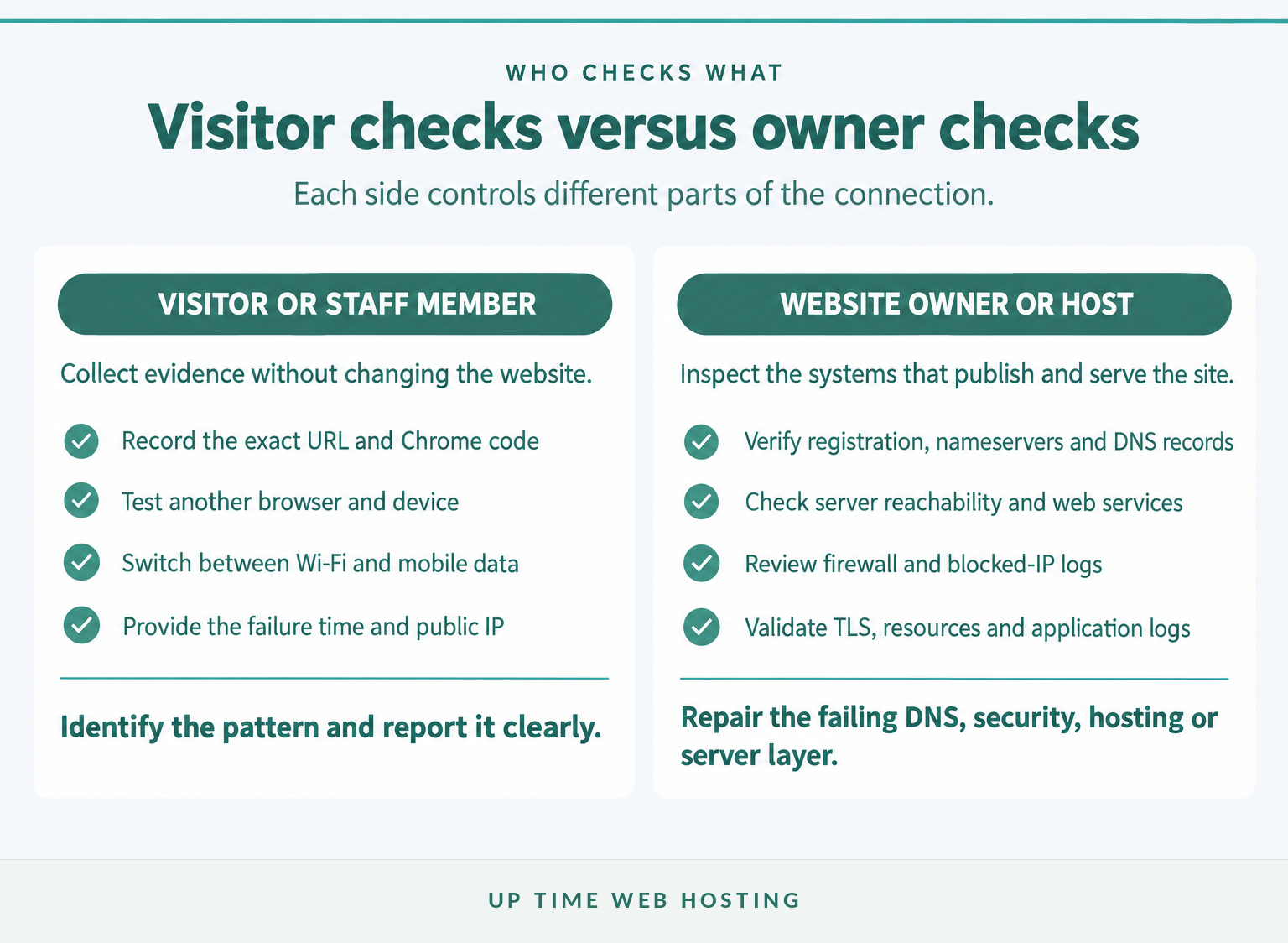
Website owners should move from public DNS towards the server, checking one layer at a time. A browser-only fix is unlikely to help when the domain fails across several devices, browsers and networks.
- Confirm domain and nameserver status. Check that the registration remains active and the domain delegates to the intended authoritative nameservers.
- Query the authoritative DNS records. Verify the required
A,AAAAorCNAMEresults and remove obsolete records that send visitors to an old address. - Review recent DNS and migration work. Confirm that both the old and new environments match the planned transition while cached records remain active.
- Validate DNSSEC if enabled. A stale delegation signer record or mismatched DNS key can make validating resolvers reject an otherwise visible zone.
- Check the hosting service and web server. Confirm that the hosting account is active, the server is reachable and the web service is listening for HTTP and HTTPS traffic.
- Inspect filtering and blocked-IP logs. A firewall, web application firewall, reverse proxy or automated abuse rule may block one public IP while allowing other visitors.
- Check TLS and certificates. If Chrome displays a secure-connection code, inspect certificate validity, the certificate chain, supported TLS settings and the server’s clock.
- Review application and resource logs. Disk exhaustion, memory limits, a failed application process or a database fault may prevent the server from returning a useful response.
Google’s Public DNS domain troubleshooting guide recommends comparing several resolvers and then examining authoritative nameservers when failures are widespread. It also identifies DNSSEC, delegation and unreachable authoritative servers as owner-side causes. (developers.google.com)
Document the time, source public IP, Chrome code, DNS results and affected networks before escalating the incident. Ongoing website health checks can also expose certificate, availability, DNS and server problems before a customer reports them.
Website owners should verify DNS, server reachability, filtering and TLS as separate layers, in that order.
Why does the site work on mobile data but not Wi-Fi?
A site that works on mobile data but not Wi-Fi is usually reachable, but something differs along the Wi-Fi connection path. The likely areas are the router or configured resolver, a VPN or proxy, network filtering, routing, or a restriction against the Wi-Fi network’s public IP.
Run these comparisons:
- Test a second device on the same Wi-Fi.
- Test two unrelated websites on the affected device.
- Compare the domain’s DNS result on Wi-Fi and mobile data.
- Disconnect any VPN or manually configured proxy for a controlled test.
- Reconnect the router only after recording the original DNS result and error code.
- If the website belongs to the business, search firewall and access logs for the Wi-Fi network’s public IP.
If every device on the Wi-Fi connection fails, focus on the router, resolver or internet provider. If only one device fails on both Wi-Fi and mobile data, return to its browser, operating-system and security settings.
If mobile data works and Wi-Fi does not, focus on the Wi-Fi path, its resolver and the network’s public IP.
Experience Microsoft 365 Business Standard for free for 30 days.
Up to 25 users with full access to email, OneDrive and Teams. Includes full versions of desktop apps of Outlook, Word, Excel, PowerPoint and more.
Try Microsoft 365
How do you fix “This site can’t be reached” on Android?
Android troubleshooting follows the same isolation process as desktop troubleshooting. Switch between Wi-Fi and mobile data first because that single test quickly separates a phone or browser problem from a Wi-Fi network problem.
- Check the URL and open two unrelated sites.
- Switch from Wi-Fi to mobile data, or from mobile data to a trusted Wi-Fi connection.
- Close Chrome fully and restart the phone.
- Update Chrome through the device’s app store.
- Test the page in an Incognito tab.
- Clear the affected site’s data or Chrome’s cached browsing data.
- Temporarily test without a VPN, Private DNS override or security app that filters web traffic.
Google’s Chrome Android browsing-data guidance places the controls under More > Delete browsing data, with additional choices available through the detailed options. Deleting cookies or site data can remove saved sessions and preferences, so clear only what the test requires. (support.google.com)
On Android, switching networks is the fastest way to separate a phone problem from a Wi-Fi or website problem.
What else do people ask about this error?
These short answers cover common questions that remain after the first diagnostic checks. Each answer assumes the exact URL and smaller Chrome error code have already been recorded.
Is Google Chrome currently down?
A single “This site can’t be reached” page does not show that Chrome is down. Chrome runs on the device, so test several unrelated websites and another browser. If only Chrome fails, restart and update it. If one website fails everywhere, investigate that website’s DNS or server instead. (support.google.com)
Why is Chrome suddenly blocking websites?
Chrome may appear to block websites after an extension, VPN, proxy, security product, DNS setting or network changes. Test the page in Incognito mode and another browser. If Incognito works, disable extensions one at a time. If every browser fails, focus on the network, DNS or the website itself. (support.google.com)
How do you fix “This site can’t be reached” on Android?
On Android, test the site on both Wi-Fi and mobile data, restart Chrome, update the app and try an Incognito tab. If the error remains, clear the affected site’s data or Chrome browsing data, then re-test without any VPN, Private DNS override or security app filtering the connection. (support.google.com)
What does DNS_PROBE_FINISHED_NXDOMAIN mean?
DNS_PROBE_FINISHED_NXDOMAIN means the DNS lookup did not return a usable domain result. Check the spelling, then query the domain through the current resolver and a second resolver. Visitors can flush a stale local cache, but the site owner must fix missing records, nameserver delegation or DNSSEC faults. (developers.google.com)
A short answer becomes useful only after the exact error code and failure pattern are known.
What should you do if the site still will not load?
Visitors should send the website owner the exact URL, Chrome code, time, device, network and the result of the mobile-data test. Website owners should add DNS output, recent change details and relevant hosting, firewall or server logs.
If the evidence points to DNS or hosting and the website is business-critical, use DNS server troubleshooting and support to prepare the fault details for Up Time Web Hosting.
The useful next step is not another random setting change; it is handing the right evidence to the person who controls the failing layer.