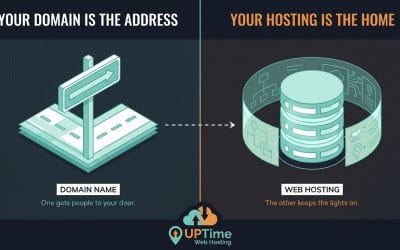
Thinking about transferring your domain name? It’s a pretty common move for businesses looking to get a better handle on things, maybe find better support, or snag some extra features.
The whole process is just about moving your domain from your current registrar over to a new one, like us here at UpTime Web Hosting. When you do, it also includes a one-year extension on your registration. It's all designed to be a safe, smooth, and seamless procedure.
Why and When to Transfer Domain Names

A lot of website owners mistakenly believe their domain name and web hosting have to be with the same company. The truth is, they're completely separate services. You can absolutely host your website with one provider and keep your domain registered with another.
This separation is exactly what makes it possible to transfer your domain without your live website or email services skipping a beat.
While saving a few dollars is nice, the decision to move a domain usually goes deeper than just chasing a lower price. For most businesses, the strategic reasons are what really matter for long-term success.
The Real Reasons for a Domain Transfer
One of the biggest drivers we see is consolidation. Let's say you've collected a few domains over the years for different projects, brands, or marketing campaigns. For example, a marketing agency in Sydney might have registered clientprojectA.com.au with one registrar and clientprojectB.com with another. Managing them across several registrars can quickly turn into a chaotic mess of different logins, renewal dates, and confusing interfaces.
Bringing all your domains under one roof at a single provider simplifies everything. You get one dashboard, one set of billing reminders, and one place to manage all your digital assets. This is a massive time-saver and seriously cuts down the risk of accidentally letting a crucial domain expire.
Another huge factor is the quality of support and performance. Ever been stuck in the middle of a technical issue, getting bounced between your hosting and domain support teams? When your domain and hosting are with the same provider, you have a single point of contact. If you move to a local Aussie provider like us, you also get the bonus of support that's actually in your time zone.
A seamless domain transfer is often the first step toward taking back full control of your online presence. It aligns your most important digital assets under a single, reliable roof, simplifying management and strengthening security.
Strategic Timing for Your Transfer
When you do decide to move, timing is everything for a smooth transition.
The sweet spot for starting the process is anywhere between 30 to 90 days before your domain's renewal date. This buffer gives you plenty of time to sort out any unexpected hiccups without the stress of a looming deadline and potential service interruption.
It's also crucial to know that ICANN (the organisation that governs generic domains like .com) has a strict rule: you can't transfer domains that are newly registered or were last transferred within the past 60 days. If you try to move a domain inside this window, the transfer will just be rejected automatically.
Kicking off the transfer well before the expiry date also makes good financial sense. Most transfers, including those to UpTime Web Hosting, come with a compulsory one-year registration extension. By transferring before your renewal is due, you're essentially rolling that upcoming fee into the transfer cost. This neatly avoids paying twice in a short period.
If you're curious about what makes a great provider stand out, you can learn more in our guide on the best domain name registrar in Australia. Planning your move strategically ensures your domain stays active and secure under its new provider, without any gaps.

Performance you can feel, backed by clients who depend on it. Read how our support and uptime create long‑term customer success.Power Your Business with Better Hosting
Your Pre-Transfer Checklist for a Smooth Move
Before you even think about starting a domain transfer, a little prep work can save you a world of headaches. Think of it like packing before a big move—getting organised first prevents a whole lot of chaos later. Running through this checklist ensures the entire process goes off without a hitch.
A successful transfer all comes down to verification and access. Your new registrar needs to confirm you're the legitimate owner, and your current one needs your permission to let it go. Let's walk through the essentials you need to tick off before you kick things off.
Confirm Access to Your Administrative Email
This is, without a doubt, the most critical step. During the transfer, a confirmation email gets sent to the administrative contact listed in your domain's public WHOIS record. If you can't get into that inbox, you can't approve the transfer. Simple as that. It's a non-negotiable security measure.
Imagine your domain was registered years ago with an old staff member's email or an account you no longer use. The transfer request goes out, but the approval email just sits in an inbox you can't access. The whole process grinds to a halt right there.
So, before you start, log in to your current registrar and check that the administrative email is one you actively control. If it’s not, update it immediately.
Ensure Your WHOIS Information is Accurate
While you’re in there checking the admin email, take a quick look at all your public WHOIS contact information. This means your name (or business name), address, and phone number. This data is the official record of who owns the domain.
Outdated info can sometimes trigger a rejection or force extra verification steps, especially if the new registrar's system spots a mismatch. Keeping your details current isn't just good practice for transfers; it's a fundamental part of domain ownership. To get a better handle on this, check out our guide on what it truly means to own your domain name.
Pro Tip: If you have domain privacy enabled (sometimes called WHOIS privacy or ID protection), you might need to turn it off temporarily. Some registrars insist that the public WHOIS data matches the details on your account before they'll release the domain. You can usually switch it back on once the transfer is complete.
Check Your Domain's Age and Status
There are a couple of hard-and-fast rules, set by the global domain authority ICANN, that can stop a transfer in its tracks. It's vital you check these two things:
- Is your domain older than 60 days? You cannot transfer a brand-new domain registration until it has been active for at least 60 days. The same rule applies if you've already transferred the domain within the last 60 days. Any attempt to move it inside this window will be automatically denied.
- Is your domain active? You can’t transfer an expired domain or one that's stuck in a "redemption" period. If your domain's renewal date is just around the corner, it’s often much safer to renew it with your current registrar first and then start the transfer. This avoids any risk of your website or emails going down.
Unlock Your Domain for Transfer
By default, most registrars put a "registrar lock" or "transfer lock" on your domain. This is a security feature designed to stop unauthorised or fraudulent transfers—think of it as a deadbolt on your digital front door.
Before you can move the domain, you have to remove this lock. This is usually as simple as flicking a toggle switch or unchecking a box in your domain management panel.
- At GoDaddy, for example: You'd navigate to your 'My Products' page, select your domain, and find the 'Domain Settings' section. The lock is usually under 'Additional Settings' where you can toggle it from 'On' to 'Off'.
- At Crazy Domains: In your account manager, head to the 'Domains' tab. After clicking on the domain, you'll find the 'Domain Lock' option where you can disable it.
Unlocking the domain signals to the wider registry that you've authorised it to be moved. You won't be able to get your EPP code (which we’ll cover next) or even start the transfer until this is done.
How to Unlock Your Domain and Get the EPP Code
With the groundwork laid, it's time to get into the two most important steps for any domain transfer: unlocking your domain and grabbing your authorisation code. These are non-negotiable and act as the core security handshake between your old and new registrars.
Think of the "registrar lock" as a digital deadbolt on your domain name. It’s switched on by default to prevent shady or fraudulent transfers. Before you can move your domain anywhere, you have to slide that bolt open.
Paired with this is the EPP code, which you might also see called an authorisation code or transfer key. It's a unique, system-generated password just for your domain. Handing this code over to your new registrar is how you prove you have the authority to approve the move.
Finding the Domain Unlock Setting
Every registrar's dashboard is a little different, which can be a source of frustration. But the 'unlock' function is almost always tucked away in the domain management or settings area for the specific domain you want to move.
You're usually looking for a toggle switch or a button labelled "Domain Lock," "Transfer Lock," or "Registrar Lock."
- On a platform like GoDaddy: You'd typically go to your domain list, click on the one you're transferring, and scroll down to 'Additional Settings'. The option to turn the lock off is usually right there.
- With a provider like Crazy Domains: The process is quite similar. Find your domain in your account manager, select it, and look for a "Domain Lock" option that you can switch to 'off' or 'disabled'.
Once you flip this switch, you’ve officially given the green light for another provider to initiate the transfer.
This visual shows the simple but crucial prep steps, from checking your email access to unlocking the domain, all designed to make the transfer go off without a hitch.
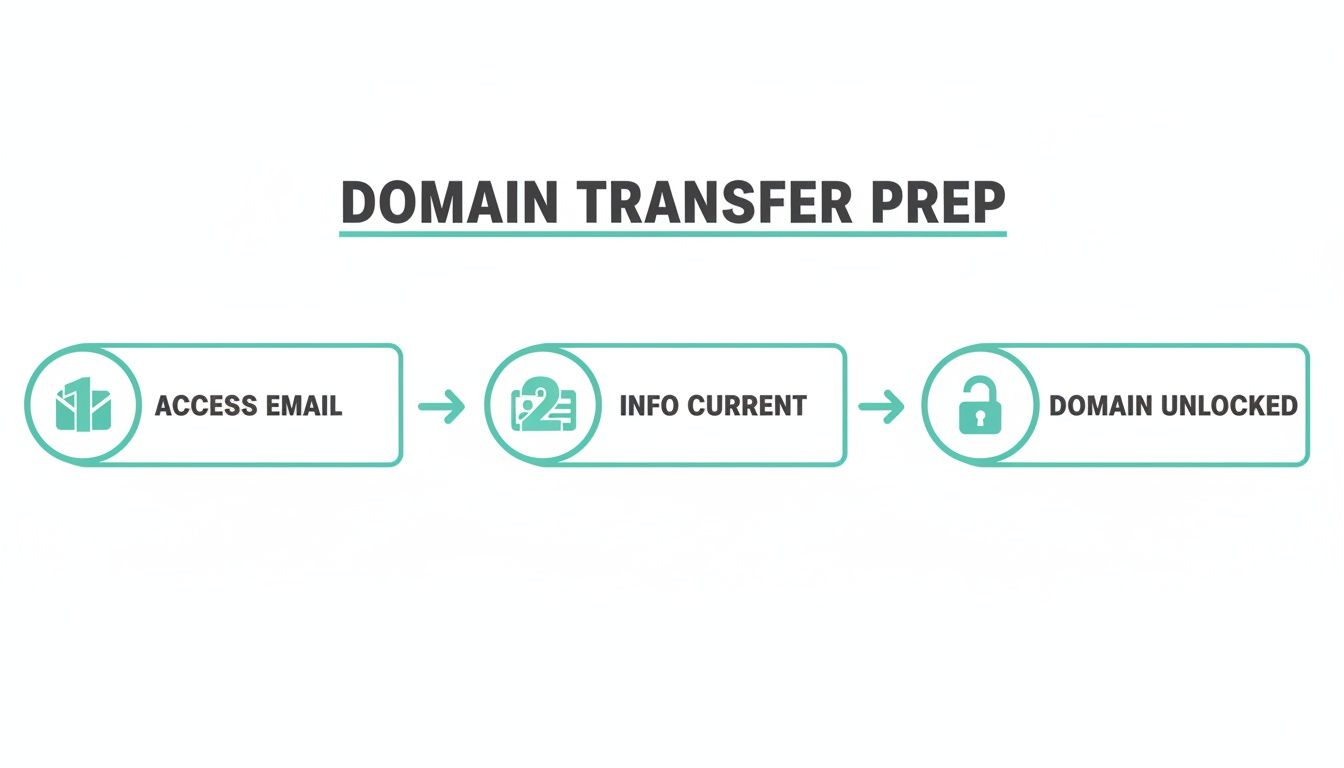
As the flowchart shows, unlocking your domain is the final prep work you need to do before you can get that EPP code and kick off the transfer itself.
How to Request Your EPP Code
Right after you've unlocked your domain, the next task is to get the EPP code. In most modern registrar panels, the button or link to request the code appears as soon as you unlock the domain, or it's located nearby in the same settings area.
When you request it, the registrar will automatically send the code to the administrative email address listed on the domain's record. This is exactly why we made such a big deal about checking that inbox in the previous section—if you can't get into that email, you can't get the code. Simple as that.
A Real-World Example
A small business owner in Melbourne was trying to transfer their.com.audomain but couldn't find the EPP code request button anywhere. After some digging, they realised their registrar required them to contact support directly to get the code. This is an older, less common practice now, but it shows that if you can't find the option, a quick look at your provider's help guides or a support ticket is the way to go.
Remember, the code is often time-sensitive. It's best to use it within a few days of receiving it to make sure it doesn't expire. For help with common issues, you can often refer to a registrar's support documents, like this helpful knowledge base article on domain transfers.
Understanding Common Domain Statuses
While you're in your registrar's dashboard, you might see various status labels on your domain. This table breaks down what the most common ones mean for your transfer.
| Domain Status | What It Means | Your Next Step |
|---|---|---|
| OK or Active | The domain is unlocked and ready for transfer. | You're good to go! Proceed with requesting the EPP code. |
| clientTransferProhibited | This is the standard registrar lock. The domain is protected from unauthorised transfers. | Find the "Domain Lock" or "Transfer Lock" setting and disable it. |
| redemptionPeriod | The domain has expired and is in a grace period where the original owner can still renew it (often at a high fee). | You cannot transfer a domain in this state. You must renew it with your current registrar first. |
| pendingDelete | The domain has passed the redemption period and is about to be deleted and released to the public. | It's too late to renew or transfer. Your only option is to try to register it again once it's released. |
Knowing these statuses can save you a lot of confusion and help you figure out what you need to do next to get your domain moving.
What to Do If the Code Doesn't Arrive
So, you've unlocked the domain and hit the 'send code' button, but your inbox is a ghost town. Don't panic; this is a common hiccup.
- Check Your Spam Folder: The most obvious but often overlooked fix. Emails with authorisation codes can sometimes get flagged as junk.
- Confirm the Admin Email Address Again: Log back in and double-check the administrative contact email in your WHOIS record. A simple typo can send the code into the digital void.
- Wait a Few Minutes: Sometimes there's a slight delay in the system. Give it 15-30 minutes before hitting the button again.
- Regenerate the Code: If it still hasn’t turned up, go back to your registrar’s dashboard and try requesting it one more time.
Once that EPP code is safely in your hands, you have everything you need to start moving your domain to its new home. Treat this code carefully—it's the key that authorises the entire transfer of your valuable digital asset.
Host your website with our 5-star rated, cPanel website hosting plans.
Super fast servers, with security included and hosted in your choice of Australian Data Center.
View cPanel Plans
Getting Your Domain Transferred Over to UpTime Web Hosting
Alright, you’ve got your domain unlocked and the EPP code ready to go. You're now just a few steps away from bringing your domain home to a 100% Australian provider. We've made moving your domain to UpTime Web Hosting as straightforward as possible, so you can easily align your online assets with top-notch local support and performance.
The first step is simple. Just head over to our dedicated Domain Transfer page. This is where the whole process kicks off.
You'll see a clean and simple entry field. Go ahead and type or paste in the domain name you want to move. This initial check allows our system to confirm the domain’s status and make sure it’s ready for the journey.
Using the UpTime Transfer Portal
After entering your domain, the next screen will ask for your EPP code. This is where you'll need that authorisation code you snagged from your current registrar.
This is a crucial security measure. Make sure you copy and paste the code exactly as it was given to you, watching out for any tricky characters or punctuation. A surprisingly common slip-up is accidentally including an extra space before or after the code, which will cause the verification to fail.
Once you’ve popped in the code, our system validates it with the central domain registry. This digital handshake confirms you have the authority to move the domain and keeps the whole process secure.
Understanding the Costs and Benefits
We’re all about upfront, clear pricing with no nasty surprises. When you transfer a domain to us, the price you see is the price you pay, GST included. No hidden fees, no unexpected charges later on.
A fantastic benefit of transferring is that your fee includes a full one-year extension of your domain registration. So, if your domain is due to expire in three months, completing the transfer will automatically push its new expiry date out to one year and three months. You're not just paying a transfer fee; you're sorting out next year's renewal at the same time.
The cost of transferring a domain in Australia is influenced by auDA rules for .au domains and a pretty competitive local market. A 2025 comparison shows that transfers to major Aussie registrars usually cost between AUD $0 and $30, often bundling in that extra year of registration. While some providers might advertise free transfers for certain .au domains, the cost is often just rolled into a compulsory renewal. This is why many local businesses smartly time their transfer to coincide with their renewal, picking a local host that offers great pricing and superior local support. You can read more about how Australian domain registrars compare to get a feel for the market.
Practical Steps and Our Support
To make things as smooth as possible, we’ve built out a comprehensive knowledge base full of helpful guides. These articles give you detailed instructions for just about any scenario you might run into.
Here’s a quick look at what to expect:
- Enter Your Domain & EPP Code: The first few steps on our transfer page are quick and intuitive.
- Provide Contact Details: You'll be asked to confirm your registrant information is correct and up-to-date.
- Complete Checkout: Finalise the transfer order, which covers both the transfer itself and the one-year registration extension.
If you hit any snags, our local support team is here to help. Whether you're stuck on an EPP code or have questions about how the transfer might affect your email, our experts are just a phone call or support ticket away. We know the process inside and out and can guide you through it.
It’s also important to remember that your domain name and web hosting are two separate services. Moving your domain doesn't bring your website files or emails along with it. To get a better handle on this, check out our guide on the difference between domain names and web hosting. Understanding this distinction is key to managing your online presence effectively after the transfer.
Alright, you've kicked things off, entered your EPP code, and submitted the transfer request. So, what happens now? It might feel like a waiting game, but there are a few important things happening behind the scenes. Knowing the timeline will help you wrap up the final steps without any nasty surprises like website or email downtime.
First things first, domain transfers aren't instant. While some can zip through in just a few hours, the standard timeframe set by ICANN for generic domains like .com is typically five to seven days. This window gives your old registrar enough time to process the release and for all the internet's systems to get the memo.
Keep an Eye Out for the Confirmation Email
Almost immediately after you start the transfer with us, an automated email will be sent out. This isn't just any email—it goes directly to the administrative contact email address listed in your domain's public WHOIS record. Think of it as a final security check to confirm the real owner is authorising the move.
It is absolutely crucial that you act on this email. Inside, you'll find a link to approve the transfer. Clicking it gives the green light to both your old and new registrars. If this email gets ignored, the transfer will eventually time out and be cancelled, and you'll have to start the whole process from scratch.
Pro Tip: Haven't seen the confirmation email within an hour? Check your spam or junk folder first. If it's still MIA, log back into your current registrar's portal and double-check that the administrative email is correct. A simple typo can bring the entire process to a screeching halt.
How to Monitor the Transfer
During that five-to-seven-day period, everything keeps running as normal. Your website will stay online and your emails will continue to land in your inbox, all managed by your old provider. For the most part, you just need to sit tight and wait for the "transfer complete" notification.
Once your old registrar officially releases the domain and we've accepted it on our end, you'll get a final confirmation from us. This email welcomes you to UpTime Web Hosting and confirms the domain is now yours to manage here. You'll be able to log into your client area and see it listed right away.
Your Post-Transfer Checklist
Your domain is now officially with us, but there’s one last, critical step to get your website and emails talking to our hosting services: updating your nameservers. Nameservers are basically the internet's address book; they tell everyone's browser where to find your website.
By default, a transferred domain keeps its old nameservers. You'll need to switch these over to point to UpTime Web Hosting.
Here’s a quick checklist to make sure everything is squared away:
- Update Your Nameservers: Log into your UpTime client area, find your domain, and change the nameservers to ours. This change usually takes a few hours to propagate across the internet.
- Check Your DNS Records: Once the nameservers are updated, it's a good idea to confirm all your DNS records (like A, CNAME, and MX records) are correctly set up in our DNS manager. This prevents any hiccups with your services. If you hit a snag, check out our guide on what to do when DNS servers are not responding.
- Confirm Your Contact Details: Give your registrant information a quick once-over in our system to ensure it all carried over correctly and is up-to-date.
- Check the New Expiry Date: You should see that your domain's registration has been extended by a full year—that's the extra time included in your transfer fee.
Ticking off these final items ensures a smooth transition, avoids any potential downtime, and officially gets your domain settled in with your new Aussie hosting provider.
Dealing With Common Domain Transfer Problems
Even when you’ve ticked all the boxes, a domain transfer can occasionally hit a bump in the road. The good news? Most of these issues are common, completely fixable, and usually just a simple oversight. Think of this as your field guide to figuring out what’s gone wrong and getting your transfer back on track.
More often than not, a transfer failure comes down to something small that was missed during the prep phase. Forgetting to unlock the domain or having an old email address listed as the admin contact are classic examples that can stop a transfer in its tracks.
Let’s break down the most common rejection messages and what they actually mean.
What Those Transfer Rejection Errors Really Mean
When a transfer fails, you’ll typically get an email with a short, sometimes confusing, reason. Getting a handle on these messages is the first step to sorting things out. Here are the errors we see pop up most often and the simple fix for each one.
Error: "Domain is locked" or "clientTransferProhibited"
This is hands-down the most frequent culprit. It just means the security lock at your current registrar is still on.
The Fix: Jump back into your old provider's dashboard, find the domain settings, and switch the "Registrar Lock" or "Transfer Lock" to the 'Off' position. Easy.Error: "Invalid authorisation code" or "Incorrect EPP code"
This one's straightforward: the EPP code you’ve entered doesn’t match what the registry has on file.
The Fix: Head back to your old registrar and ask for a new EPP code. A pro tip: when you copy and paste it, be incredibly careful not to grab any extra spaces at the beginning or end. It's a tiny mistake that trips up a lot of people.Error: "Transfer rejected by registrant"
This usually means the transfer approval email, which gets sent to the official administrative contact, was either accidentally denied or just plain missed.
The Fix: First, check the spam or junk folder of the admin email account. If you find the email, just click the approval link. If it’s nowhere to be found, you might need to restart the transfer with us, which will send out a fresh confirmation email.
Tackling Specific .au Domain Hurdles
Transferring Australian domains like .com.au or .net.au comes with its own set of rules, and problems here are almost always tied to your business registration details.
The most common issue by a country mile is an ABN/ACN mismatch. The business details linked to your domain (the registrant) have to perfectly match the official records on the Australian Business Register. If your business has recently updated its ABN, or switched from a sole trader to a company (or the other way around), the transfer will likely get flagged.
Here’s a real-world example:
Say you registered yourbusiness.com.au as a sole trader using your ABN. A year on, you’ve incorporated the business and now operate with an ACN. If you try to transfer the domain without first updating the registrant info, the transfer will almost certainly fail. Why? Because the original ABN is no longer the correct legal identifier for the entity that owns the domain.
To sort this out, you’ll need to contact your current registrar and request a "Change of Registrant" before you start the transfer with us. This process officially updates the legal ownership details, paving the way for a smooth transfer. You can find more info in our knowledge base guide to .au domain transfers.
The Aussie domain space is booming. Between late 2023 and late 2024, Australia saw a massive 27.4% year-on-year increase in domain registrations, adding over 363,000 new domains. With .com.au and .net.au making up over 70% of all Australian registrations, transfers are happening all the time as businesses look for better local service. This really shows why getting the .au-specific rules right is so important. You can dig deeper into Australia's domain registration trends here.
While this guide should help you fix most issues yourself, please remember you’re not on your own. Our local support team has seen it all before and is always here to help figure out any problem and get your transfer over the line.
Ready for a smooth transfer experience with real Aussie support? Move your domain to UpTime Web Hosting today and bring all your digital assets under one roof with a provider you can trust. Start your domain transfer now!