That gut-wrenching moment you realise you’ve forgotten a mailbox password? We've all been there, especially when you’re a busy small business owner. It’s more than just a minor hiccup; it can bring client communication to a screeching halt and completely derail your productivity.
If you've forgotten your password, the quickest way back in is almost always by logging into your hosting control panel (like cPanel) to reset it yourself. This whole process is secure, only takes a couple of minutes, and gets you back into your emails straight away.
Why Forgetting Your Mailbox Password Is So Common
Let's be honest, juggling dozens of passwords for all the different services we use is a nightmare. This "password fatigue" is a real thing, and it often pushes us to reuse weak passwords or create slight variations that are just as easy to forget. The pressure is on to create unique, complex passwords for everything, but without a system to manage them, it's an impossible task.
The Real-World Impact on Australian Businesses
A simple password mistake can have massive consequences. In Australia, human error is a huge factor in security incidents. For example, a marketing agency might forget the password to a shared projects@ mailbox, delaying client updates. If they then reset it to something weak like Project123!, they expose sensitive campaign data to risk. According to the Office of the Australian Information Commissioner (OAIC), simple human error was behind 37% of all notifiable data breaches. A lot of these incidents started with weak password habits or forgotten credentials, which left sensitive business emails exposed and vulnerable.
The Australian Cyber Security Centre (ACSC) logged over 84,700 cybercrime reports in a single year—that's a new report landing every six minutes. Email compromise was one of the biggest threats, making up 19% of all cybercrimes hitting businesses.
Turning a Common Problem into a Security Win
Forgetting a password doesn't have to be a crisis. Think of it as a timely reminder to beef up your security. This is the perfect opportunity to stop relying on memory and start using a dedicated tool to manage all your important logins. A password manager is a great first step. Services like 1Password or Bitwarden not only store your credentials but also generate strong, unique passwords for every account.
You can learn more here about how to set up a secure password repository to keep all of your business credentials safe, secure, and easy to access when you need them.
At UpTime Web Hosting, we provide reliable, secure email with real, local Australian support to turn a potential business meltdown into a simple fix. Understanding why we forget passwords helps put into perspective just how critical the next recovery and security steps are for protecting your business communications.

Performance you can feel, backed by clients who depend on it. Read how our support and uptime create long‑term customer success.Power Your Business with Better Hosting
How to Reset Your Mailbox Password in cPanel
Locked out of your email? It happens to the best of us. When you've forgotten your mailbox password, the quickest fix is usually to reset it yourself directly through your UpTime Web Hosting cPanel. Your cPanel is the main dashboard for your entire hosting service, giving you full control over your email accounts. With just a few clicks, you can generate a new, secure password and get back to business.
First things first, you'll need to log in to your cPanel account. Remember, this is separate from your webmail login. Once you're in, find the "Email" section and click on the Email Accounts icon to get started.
Locating Your Email Account
This next screen will show you a complete list of every email address you've created under your domain. If you're running a business with a few staff members, this list can get pretty long. You can either scroll through or just use the search bar at the top to quickly find the email address that needs a new password. For example, if you need to reset the password for sales@yourcompany.com.au, simply type "sales" into the search bar.
When you've found the right one, look for a "Manage" button next to it. Clicking this will take you into the specific settings for that individual mailbox.
This simple act of resetting a password might seem minor, but it's a critical security step. As the flowchart below shows, a simple human error like forgetting a password can, if not handled properly, become a serious security risk.
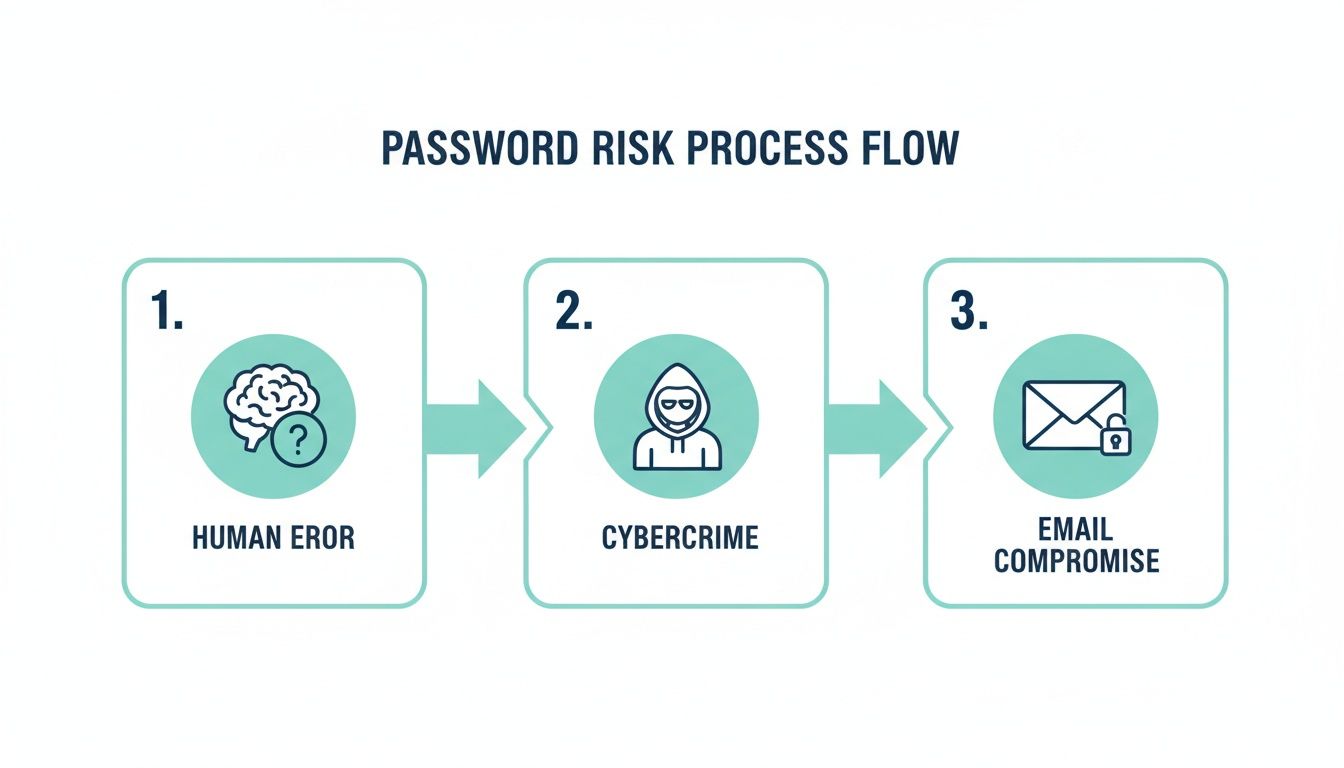
This is why promptly using a secure channel like cPanel to reset a forgotten password is so important. It helps keep your business communications safe from compromise.
Generating a New Secure Password
On the account management page, you'll see a "Security" section with a field to enter a new password. You have two options here: you can either type in a new one you've thought up, or you can use the built-in password generator.
We strongly recommend using the Password Generator. It instantly creates a strong, randomised password like k$t^n8!z@PqR2#v that is incredibly difficult for anyone to guess or crack. To put this in perspective, a 2023 report found that nearly 70% of common, human-made passwords could be cracked in less than a second. Auto-generated passwords are simply a much safer bet.
Pro Tip: When you use the generator, make sure you copy the new password immediately and save it somewhere safe, like in a password manager. Once you navigate away from this page, you won't be able to see it again.
After you've generated and copied your new password, just scroll to the bottom of the page and click the "Update Email Settings" button to save it. And that's it—your mailbox password is now reset.
For a more detailed walkthrough, feel free to check out our guide on how to reset your cPanel email password in our knowledge base. It has extra screenshots and step-by-step instructions to guide you through the process.
Now that you have your new password, the next crucial step is updating it on all your devices.
Updating Your New Password Across All Devices
Okay, so you’ve reset your password in cPanel. That’s the first big step, but the job isn’t quite finished. Now comes the crucial part: updating that new password everywhere you check your email. If you skip this, you’re in for a world of pain—annoying password errors, constant pop-ups, and even getting your IP address temporarily blocked by the server as every device fruitlessly tries to log in with the old, wrong details.
Imagine this practical example: you reset your password on your office computer, but forget your phone. You head into a client meeting, and your phone keeps trying to sync your inbox with the outdated password. Before you know it, the server's security software (like cPHulk) flags these failed attempts and temporarily locks your account, right when you need to pull up an important email. To sidestep that headache, it's best to be methodical and update everything at once.
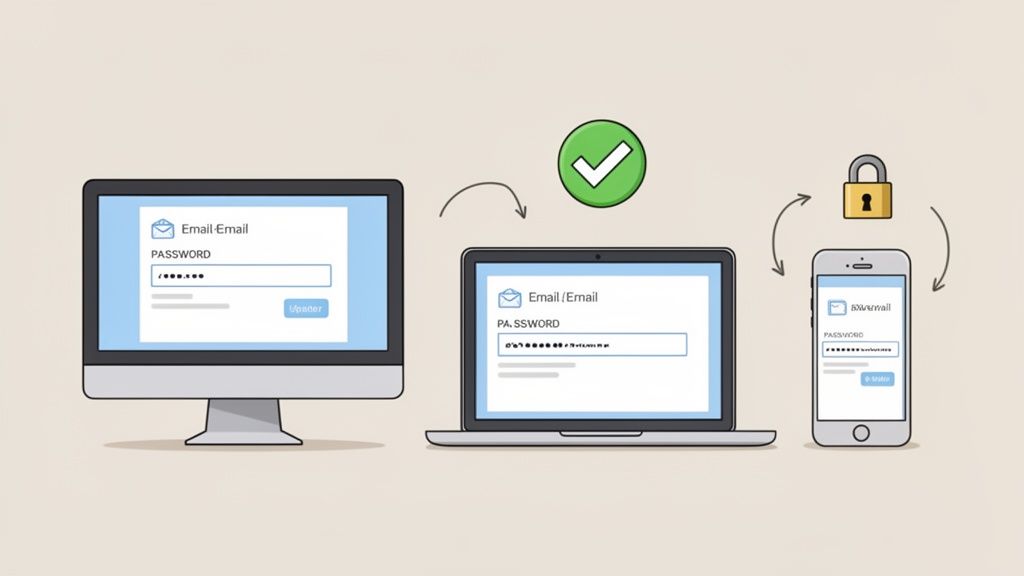
This just means diving into the account settings on each of your mail clients—your desktop, laptop, tablet, and smartphone—and swapping out the old password for the new one. Let's walk through how to do this on the most common apps we see Australian businesses using.
Updating Microsoft Outlook on Windows
Microsoft Outlook is a staple in many offices, but finding where to update your password can feel like a bit of a maze. The setting is buried a few layers deep.
First, open up Outlook and head to the top-left corner.
- Click on File, then choose Account Settings.
- From that little dropdown menu, select Account Settings again.
- A new window will pop up. Find the email account you need to update, select it, and click the Repair button.
- In the next window, click on Advanced options, and then make sure to tick the box that says "Let me repair my account manually."
- Finally, click Repair. You’ll then see the screen you've been looking for—a prompt to enter your new password.
Once you’ve typed in the new password and hit Repair one more time, Outlook will check the details with the server and get things connected again. You should see your emails start to synchronise pretty quickly after that.
Updating Apple Mail on Mac and iOS
For anyone on Apple gear, the process is a little different depending on whether you're on a Mac (macOS) or an iPhone/iPad (iOS). The trick is knowing that everything is managed through the central "Internet Accounts" settings.
On a Mac (macOS):
- Open up System Settings (or System Preferences if you're on an older version).
- Look for and click on Internet Accounts.
- Just select your email account from the list on the left.
- You’ll see the password field right there. Simply delete the old one and type in your new password.
On an iPhone or iPad (iOS):
- Go to the Settings app.
- Scroll down and tap on Mail, then Accounts.
- Choose the email account you're updating.
- You'll need to tap on your account again (e.g.,
info@yourbusiness.com.au), which takes you into the deeper server settings. - Here’s the important bit: update the password fields for both the Incoming Mail Server and the Outgoing Mail Server.
It’s such a common mistake to only update the incoming password. If you forget the outgoing (SMTP) server password, you’ll be able to receive emails just fine but won't be able to send anything. It's a really frustrating problem to diagnose later on.
Updating the Gmail App on Android
A lot of us use the Gmail app on our Android phones to manage both our personal Gmail and our professional, cPanel-hosted email. The process here is thankfully pretty straightforward.
Usually, when the app fails to connect with the old password, it will pop up a notification asking you to sign in again. Tapping that notification is the absolute quickest way to get your credentials updated.
If you miss the notification, you can still update it manually:
- Open the Gmail app and tap your profile picture in the top-right.
- Choose Manage accounts on this device.
- Select the email account you need to fix.
- Tap on Account settings and then navigate into the server settings, where you'll find the password field waiting for you.
To help you find these settings quickly, here's a handy table for some of the most popular email clients.
Quick Guide to Updating Your Password in Popular Mail Clients
Use this table to quickly find the password update location for your specific email application.
| Email Client | Where to Find Password Settings | Key Steps |
|---|---|---|
| Microsoft Outlook | File > Account Settings > Account Settings > Repair > Advanced | Select the account, click Repair, choose manual repair, and enter the new password when prompted. |
| Apple Mail (macOS) | System Settings > Internet Accounts | Select the email account from the list and update the password field directly. |
| Apple Mail (iOS/iPadOS) | Settings > Mail > Accounts > [Your Account] | Update the password for both the Incoming and Outgoing Mail Servers. |
| Gmail App (Android) | App Settings > Manage accounts on this device | Select the account, go into server settings, and update the password. |
| Thunderbird | Tools > Account Settings > [Your Account] > Server Settings | Update incoming password, then go to Outgoing Server (SMTP) to update the outgoing password. |
This should cover the main players, but remember every app is slightly different. Taking a few moments to get every device updated ensures you have smooth, uninterrupted access to your business communications.
For more in-depth walkthroughs for different devices, feel free to check out our knowledge base article on how to configure and set up cPanel email on your device.
Host your website with our 5-star rated, cPanel website hosting plans.
Super fast servers, with security included and hosted in your choice of Australian Data Center.
View cPanel Plans
Securing Your Email Account for the Future
Forgetting a mailbox password can be frustrating, but it's also the perfect opportunity to shift your thinking from reactive recovery to proactive protection. Think of it as a wake-up call to seriously beef up your account's security, turning a minor headache into a long-term win for your business. The goal here is simple: make sure this doesn't happen again, and more importantly, keep your valuable email data locked down tight.
This means moving beyond a one-off password reset and adopting better security as an ongoing habit. Imagine a local eCommerce store owner in Melbourne who, after a quick reset, takes the next step to properly safeguard their customer order confirmations and supplier invoices. They realise the real danger isn't just being locked out; it's the risk of someone else getting in.
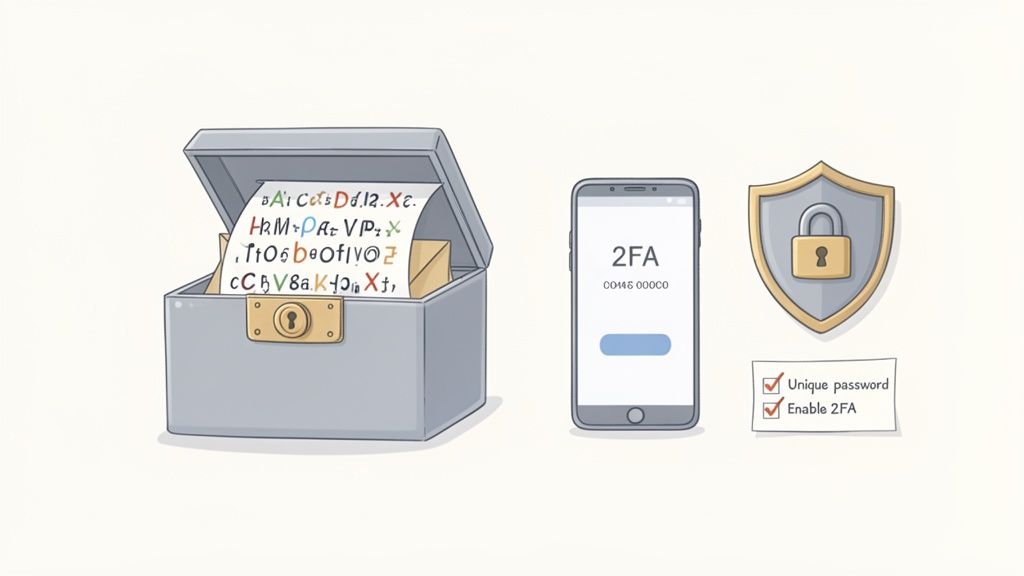
Beyond The Reset: Adopting Stronger Habits
First things first: using a unique, strong password for your email is completely non-negotiable. It's shocking how many people fall into the trap of using something easily guessable. For instance, a small business owner might forget their login details, only to realise it was one of the top 20 weakest passwords Aussies still use, like 'qwerty123'.
This is playing with fire. The Australian Cyber Security Centre (ACSC) reports one cyber breach notification every 10 minutes, and these lazy passwords can be cracked in seconds, exposing everything from sensitive client data to banking information.
The best way forward is to stop relying on your memory. To truly secure your email, implementing robust password management best practices is essential. A password manager acts like a secure digital vault that stores and encrypts all your passwords.
A password manager not only stores your credentials but can also generate incredibly strong, unique passwords for every site you use. This single tool eliminates both password fatigue and the dangerous habit of reusing passwords.
Adding an Extra Layer of Security with 2FA
Another powerful tool in your security arsenal is Two-Factor Authentication (2FA). It’s a simple concept with a huge impact. Even if a hacker somehow steals your password, 2FA stops them in their tracks because they won't have the second piece of the puzzle—usually a code generated on your smartphone.
Many hosting control panels, including UpTime Web Hosting's cPanel, support 2FA. Enabling it adds a formidable barrier against anyone trying to get into your account without permission. It works by requiring two forms of identification before granting access:
- Something you know: Your new, super-strong password.
- Something you have: A temporary, six-digit code from an authenticator app on your phone (like Google Authenticator or Authy).
This combination makes your account exponentially more secure. We have a straightforward guide you can follow to get this set up. Check out our knowledge base to learn more about setting up Two-Factor Authentication (2FA) in your cPanel account.
By adopting a password manager and enabling 2FA, you completely reframe your security posture. You're no longer just dealing with a forgotten password; you're building a resilient defence for your business's most critical communications.
When You Need Expert Australian Support
While self-service tools like cPanel are fantastic for quickly handling a forgotten mailbox password, there are times when you just need a helping hand. Knowing when to stop troubleshooting and call in an expert can save you a whole lot of time and frustration. If you find yourself in a bind, our friendly, 100% Australian support team is here to help.
Sometimes, the problem isn't the mailbox password itself, but actually getting into cPanel in the first place. If you can't access your main hosting control panel, you're not going to be able to reset any email passwords. That's the perfect time to reach out to us.
When to Contact Our Support Team
Similarly, you might follow all the reset steps correctly, but your email client on your computer or phone still stubbornly refuses to connect. This often points to a more complex issue, like a server-side setting or maybe even a firewall block somewhere along the line. For example, your home NBN provider might be blocking a specific port, preventing Outlook from sending emails. Instead of pulling your hair out, let our team investigate.
The most critical scenario, though, is when you suspect your account has been compromised. If you notice strange activity, receive password reset emails you didn't request, or find that your password has been changed without your knowledge, contact us immediately. In these cases, a swift response is essential to secure your account and business communications.
Don't hesitate to reach out if you feel something isn't right. Our team can quickly check server logs for suspicious activity and help you take immediate steps to protect your business. Security is a partnership, and we're here to back you up.
How to Get Help From UpTime Web Hosting
We make it easy to get in touch with a real person who understands the local landscape. You won't be routed to an overseas call centre; you'll be speaking with our team right here in Australia.
- Dedicated Support Tickets: Log a ticket through your client area for a detailed and tracked response. This is great for non-urgent issues where you can provide screenshots and details.
- 1300 Phone Support: For those urgent, "I need help now!" moments, you can call our local 1300 number and speak directly with a support technician.
When you need assistance, all our contact options are on one simple page. You can easily get in touch with our Australian support team through our official UpTime Web Hosting contact page.
Mailbox Password FAQs
Even after you've reset a password and updated your devices, a few questions might pop up. It happens to everyone. Here are some quick answers to the common queries we get about managing email passwords, designed to keep you in the know and your account safe.
How Often Should I Really Change My Email Password?
You might have heard the old advice about changing your password every 90 days. That thinking has actually changed quite a bit. Security experts, including the Australian Cyber Security Centre (ACSC), now push for strength and uniqueness over frequent, forced changes.
Why the shift? Because people tend to make tiny, predictable updates (think changing Password123! to Password124!), which are a piece of cake for attackers to figure out.
A much better approach is to create one incredibly long, unique passphrase that you use for that account and that account alone. You should only really feel the need to change your password in a few specific situations:
- You have a gut feeling your account has been compromised.
- A service you use announces they've had a data breach.
- You realise you've accidentally shared your password somewhere you shouldn't have.
What Actually Makes a Password Strong?
A strong password comes down to two things: length and complexity, but the real hero here is length. Forget about trying to remember complicated messes like "P@55w0rd!". There's a much better way: the passphrase.
A passphrase is just a string of random, unrelated words. For instance: SunnyRiverLaptopTruck.
This simple method creates a password that is far superior because it's:
- Long: It easily sails past the recommended minimum of 12-16 characters.
- Memorable: It's infinitely easier for a human brain to recall than a random jumble of symbols.
- Secure: For a computer trying to guess it, a passphrase like this is incredibly difficult to crack through brute-force attacks.
You can always toss in a number or symbol for good measure, but length is what truly matters most. Of course, using a trusted password manager to generate and store everything is still the gold standard.
Just so you know, your mailbox password is never stored in a readable format for security reasons. It's encrypted (or 'hashed') using a one-way process. This means nobody—not even our support team—can see your current password. Resetting it is the only way forward.
What if I Get a Password Reset Email I Didn't Request?
If an email lands in your inbox about a password reset you never asked for, treat it with suspicion. Do not click any links in that email. This is a classic phishing scam where attackers try to spook you into clicking a link that leads to a fake login page. They're hoping you'll try to "cancel" the request by giving them your username and password.
The safest thing to do is to open a new browser window, manually type in your cPanel login address, and access your account directly. If you can log in just fine, it's still a smart move to change your password as a precaution.
If you're ever in doubt, just get in touch with our support team straight away. We can help you figure out what's going on and make sure your account is secure.
For fast, secure, and reliable Australian web and email hosting, trust UpTime Web Hosting. Our local support team is always here to help you keep your business communications online and protected. Explore our hosting plans at https://uptimewebhosting.com.au.