

Adding an image to your webpage is one of those first "aha!" moments when you're learning HTML. It’s incredibly satisfying. And the best part? You can do it in seconds with a single line of code: <img src="your-image-url.jpg" alt="description of image">. That's all it takes to start embedding visuals directly into your site, making it instantly more engaging for your visitors.
Your Quick Guide to Embedding Images in HTML
Learning how to pop an image into your HTML is a foundational skill for anyone building for the web. Visually appealing websites grab attention far more effectively than a wall of text, and the <img> tag is your key to making that happen.
Unlike most HTML tags, it's a self-closing or "empty" tag, which is just a fancy way of saying it doesn't need a partner </img> tag to work.
At its core, the <img> tag needs two essential pieces of information to do its job. These are called attributes, and they live inside the tag itself to tell the browser what image to show and how to describe it.
The Two Most Important Attributes: src and alt
You can’t have an image tag without the src and alt attributes. Think of them as non-negotiable. Without src, the browser has no image to display. And without alt, your image is invisible to screen readers and search engines, which is a huge miss for both accessibility and SEO.
src(Source): This tells the browser where to find the image. The path can be a full URL to an image hosted somewhere online, or it can be a local path to an image file stored right there in your website's folders.alt(Alternative Text): This provides a text description of the image. It's absolutely vital for accessibility, as screen readers announce this text to visually impaired users. It’s also what search engines read to understand the image's content, and it's what shows up if the image ever fails to load.
Let’s say you have an image named koala.jpg sitting in the same folder as your HTML file. The code would look like this:
Practical Example:
<img src="koala.jpg" alt="A fluffy koala sitting in a eucalyptus tree">
Simple as that.
To give you a quick reference, here's a rundown of the most common attributes you'll use with the <img> tag.
Essential ![]() Tag Attributes at a Glance
Tag Attributes at a Glance
| Attribute | Purpose | Example |
|---|---|---|
src | (Required) Specifies the path or URL to the image file. | <img src="/images/logo.png"> |
alt | (Required) Provides alternative text for screen readers and search engines. Displays if the image fails to load. | <img src="dog.jpg" alt="A golden retriever playing fetch in a park"> |
width | Sets the display width of the image in pixels. | <img src="banner.jpg" alt="Welcome banner" width="800"> |
height | Sets the display height of the image in pixels. | <img src="profile.jpg" alt="User profile picture" height="150"> |
loading | Tells the browser how to load the image. Using lazy improves performance by deferring the loading of off-screen images. | <img src="photo.jpg" alt="A scenic mountain view" loading="lazy"> |
srcset | Provides a list of different image sources for the browser to choose from, based on screen density or width. Essential for responsive design. | <img src="small.jpg" srcset="medium.jpg 1000w, large.jpg 2000w" alt="…"> |
sizes | Defines the size of the image across different viewport widths, helping the browser select the most appropriate source from the srcset. | <img ... sizes="(max-width: 600px) 100vw, 50vw"> |
While src and alt are the bare minimum, getting familiar with width, height, loading, and especially srcset and sizes will take your web development skills to the next level.
Key Takeaway: Always, always include descriptive
alttext. It’s not just an optional extra—it's a requirement for building accessible and SEO-friendly websites. It ensures everyone can understand your content, even if they can't see the image.
Of course, before you can display an image, you need to get it onto your web server. This usually involves uploading files via your hosting control panel or using an FTP client. If you're new to that, check out our guide explaining what FTP is and how it works. It's a fundamental skill for managing your website's files.
Right, so you've got the basics of the HTML <img> tag down. But if you really want to build websites that are fast, professional, and rank well on Google, you need to look beyond just src and alt.
The real magic happens with attributes like width, height, and loading. Think of these as your secret weapons for squeezing every last drop of performance out of your site, especially when you're on a high-performance platform like our LiteSpeed servers. This isn't just a "nice-to-have" – it's a critical part of modern web development.
Stop Content From Jumping Around with Width and Height
Ever been on a website where the text and buttons suddenly shift as the images pop in? It's a jarring experience, and it has a name: Cumulative Layout Shift (CLS). This is a massive pain for users and a red flag for Google's Core Web Vitals.
Luckily, the fix is incredibly simple: just tell the browser the image's dimensions right in the HTML.
When you add width and height attributes, the browser carves out the exact space needed for that image before it even starts to download. No more layout shifts, no more frustrated visitors. Just a smooth, stable loading experience.
For an e-commerce store, your code would look something like this:
Practical Example:
<img src="red-shoes.jpg" alt="A pair of red running shoes" width="600" height="400">
Even if the image takes a moment to load, the browser has already reserved a 600×400 pixel box for it. This tiny addition is a huge win for both user experience and your SEO.
Pro Tip: Always use the actual dimensions of your image file for the
widthandheightattributes. You can (and should) still use CSS to make the image responsive, but setting these HTML attributes ensures the browser knows the correct aspect ratio from the get-go, completely killing any layout shift.
The performance boost from these simple optimisations is no joke. In 2024, Australian small businesses reported page load speed improvements of up to 35% just by properly using <img> tag attributes. We've seen that using <img src="image.jpg" alt="description" width="300" height="200"> has slashed CLS errors by 28% on Australian WordPress sites. If you want to dive deeper into local trends, the IAB Australia report on how Australian businesses use data is a fascinating read.
Turbo-Charge Your Page Speed with Lazy Loading
Got a page with a lot of images, like a gallery or a long blog post? Loading every single one right away can kill your initial page speed. That’s where the loading attribute comes in.
By adding loading="lazy", you're telling the browser, "Don't bother downloading this image until it's about to scroll into view." The images will only load as the user gets close to them. It’s brilliant.
Here's how you'd put it into practice:
Practical Example:
<img src="mountain-landscape.jpg" alt="A beautiful mountain landscape at sunrise" width="1200" height="800" loading="lazy">
This single attribute can dramatically cut down your initial load time and save your visitors' data, which is especially important on mobile. For any image that appears "below the fold," there’s really no downside to using it.

Building Responsive Images for All Devices
Your website isn't just going to be seen on one type of screen. People will be visiting from tiny smartphones, tablets, laptops, and massive desktop monitors. A one-size-fits-all image just won’t cut it anymore.
To make sure everyone gets a crisp, fast-loading experience, you need to serve up images that are fully responsive. This is where a couple of clever HTML attributes, srcset and sizes, come into play. Instead of forcing a massive image onto a small phone—which absolutely kills load times and wastes data—you can give the browser a menu of options. The browser then smartly picks the best-fit image for that user's specific screen. It’s a non-negotiable part of modern web performance.
Using srcset for Resolution Switching
The srcset attribute is your first port of call. It lets you create a list of different-sized versions of the same image, telling the browser the width of each one. This is perfect for serving up high-resolution images to devices with "Retina" or high-DPI screens, without penalising users on standard displays.
Let's look at a real-world example for a hero image:
Practical Example:
<img src="hero-image-800.jpg"
     srcset="hero-image-800.jpg 800w,
             hero-image-1200.jpg 1200w,
             hero-image-1600.jpg 1600w"
     alt="A scenic view of the Australian coastline at sunrise">
In this snippet, we're offering three versions of our hero image. The w descriptor tells the browser the actual width of each image file in pixels. The browser now has the info it needs to make an educated guess.
But here's the catch:
srcseton its own isn't enough. The browser knows the image options and the screen size, but it has no idea how much space the image will actually take up on the page. For that, you need thesizesattribute.
Telling the Browser How to Behave with sizes
The sizes attribute is the other half of the puzzle; it works hand-in-hand with srcset. It’s essentially a set of instructions you give the browser, explaining how wide the image will be at different screen sizes (or "viewport widths"). This gives the browser all the context it needs to calculate which image from the srcset is the most efficient one to download.
Let's add it to our previous example:
Practical Example:
<img src="hero-image-800.jpg"
     srcset="hero-image-800.jpg 800w,
             hero-image-1200.jpg 1200w,
             hero-image-1600.jpg 1600w"
     sizes="(max-width: 600px) 100vw, 50vw"
     alt="A scenic view of the Australian coastline at sunrise">
So, what does that sizes attribute actually say?
- If the screen width is 600px or less, the image will stretch to fill 100% of the viewport width (
100vw). - For any screen wider than 600px, the image will only take up 50% of the viewport width (
50vw).
Now the browser has everything it needs to download the perfect image, saving data and speeding up the page load. It's a powerful combo. These principles are a core part of learning how to make your website mobile friendly.
The <picture> Element for Art Direction
Sometimes, you need more than just different sizes of the same image. You might want to show a completely different version of the image on mobile versus desktop. This technique is known as art direction, and the <picture> element gives you this exact control.
Imagine a wide, panoramic banner image. It looks fantastic on a desktop monitor. But on a tall, narrow phone screen, it shrinks into a tiny, unreadable sliver. With <picture>, you can tell the browser to serve a totally different, cropped, portrait-oriented version for mobile users.
Check out this example:
Practical Example:
<picture>
  <source media="(max-width: 799px)" srcset="product-portrait.jpg">
  <source media="(min-width: 800px)" srcset="product-landscape.jpg">
  <img src="product-landscape.jpg" alt="A versatile tech gadget on a desk">
</picture>
Here's what's happening: the browser will display product-portrait.jpg on screens narrower than 800px. On any screen 800px or wider, it'll show product-landscape.jpg. The standard <img> tag at the end is a critical fallback for older browsers that don't understand the <picture> element.
If you're starting a new project, picking the best website builder for small business in Australia can save you a lot of hassle, as many modern builders handle responsive images automatically.
Optimising Images for Peak Web Performance
Knowing how to pop an image into your HTML is one thing, but the real skill is making sure it loads in the blink of an eye without looking like a pixelated mess. A slow, chunky image is a sure-fire way to send visitors packing and can even hurt your search engine rankings. For any professional website, top-notch performance is simply non-negotiable.
The game is all about striking that perfect balance between file size and visual quality. Smaller files mean faster load times, and faster load times lead directly to a better user experience and a nice little boost in your SEO. This all comes down to choosing the right format, compressing the file smartly, and getting it onto your server without any fuss.
Choosing Modern Image Formats
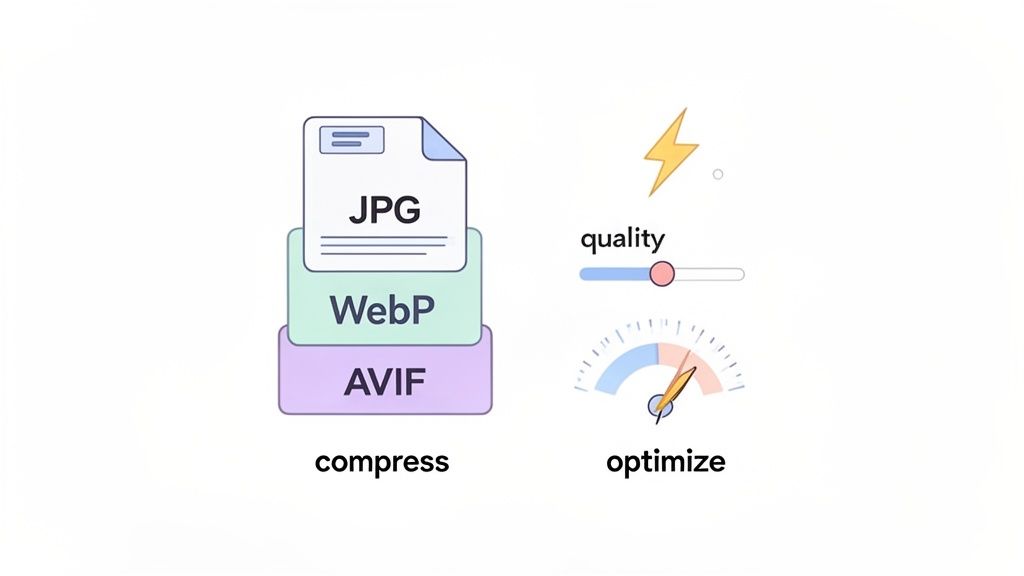
For a long time, JPEG and PNG were the undisputed kings of web images. They still have their place, but these days, modern formats like WebP and AVIF are the way to go. They offer far better compression, resulting in much smaller file sizes for the same, if not better, quality.
- WebP: This one comes from Google and typically shrinks file sizes by 25-34% compared to a similar JPEG. It’s incredibly versatile, supporting both lossy and lossless compression, transparency (like a PNG), and even animation.
- AVIF: The new kid on the block, AVIF often achieves even more impressive file size reductions than WebP. While it's still being adopted across the board, it’s a clear glimpse into the future of high-performance images.
The good news? Many modern content management systems and plugins can handle this for you. Services like Cloudinary or plugins for WordPress can automatically convert your JPEGs and PNGs to WebP for browsers that support it, giving you a performance win with zero extra effort.
Compressing Images Without Losing Quality
Once you've settled on a format, it’s time for compression. This is where you cleverly strip out unnecessary data to shrink the file size. There are heaps of online tools like TinyPNG and desktop software like ImageOptim that can do this for you.
Of course, before you even think about formats, you need to start with a decent-quality image. If your source image is blurry or pixelated, no amount of optimisation will save it. There are even tools out there that can help you fix low-quality photos, ensuring your visuals start off on the right foot.
This obsession with page speed is a huge trend among Australian marketers. A 2024 IAB Australia survey found that 62% prioritise page speed over many other metrics. It's a big deal. Simple tricks like using modern HTML tags and lazy loading can improve Core Web Vitals scores by as much as 32%, which is massive for staying on Google's good side.
Uploading Your Images to Your Hosting
With your images looking sharp and loading fast, the final piece of the puzzle is getting them onto your web server. How you do this really depends on your hosting setup and what you're comfortable with.
If you like to manage your files directly, the cPanel File Manager is your best friend. It gives you a straightforward, web-based interface to navigate your site’s folders and upload files right from your computer. You’d typically drop your images into a folder like /public_html/images/ to keep everything neat and tidy. For a step-by-step walkthrough, check our knowledge base article on using the cPanel File Manager.
On the other hand, if you're using a CMS like WordPress, it's even easier. The built-in Media Library lets you drag and drop images directly into your dashboard. WordPress handles all the backend stuff, putting the files exactly where they need to go. Plus, many optimisation plugins will compress and convert your images to WebP automatically as you upload them.
Key Takeaway: Image optimisation is where your HTML code meets real-world performance. By choosing modern formats, compressing intelligently, and using the right tools, you can make sure your site is blazing fast for every single visitor.
At the end of the day, a fast website is the result of clean code working hand-in-hand with great hosting. To get a better handle on this relationship, check out our article on how your hosting service affects website speed.

Performance you can feel, backed by clients who depend on it. Read how our support and uptime create long‑term customer success.Power Your Business with Better Hosting
Troubleshooting Common Image Problems
Even when you’ve done everything right, you’ll sometimes be greeted by that dreaded broken image icon instead of your carefully chosen picture. When you’re just learning how to add an image in HTML, running into these hiccups is a normal part of the process.
Thankfully, the fixes are usually pretty straightforward once you know where to look.
More often than not, the culprit is a simple typo in the file path inside your src attribute. It’s incredibly easy to misspell a folder or file name, especially when you have a few nested directories. Always double-check your paths for accuracy.
It's also worth remembering that most web servers are case-sensitive. That means Images/my-photo.jpg is a completely different file from images/my-photo.jpg. A single misplaced capital letter can break everything.
Another classic issue is incorrect file permissions on your server. If an image file isn’t set to be publicly readable, the server will block browsers from accessing it, even if the path is perfect. In your cPanel File Manager, you should make sure your image files are set to 644 and folders are set to 755. This standard setup allows everyone to view them but restricts who can edit them. Our guide on understanding file permissions explains this in more detail.
Diagnosing Deeper Problems
Sometimes the problem is a bit more complex, particularly when you’re trying to display images hosted on a different website. These issues usually stem from security policies designed to protect content and bandwidth.
- Hotlinking Protection: Some web hosts disable "hotlinking," which is a fancy term for when another website displays your images directly from your server, using up your bandwidth. If you're trying to display an image from another site, their server might be actively blocking your request to prevent this.
- CORS Policies: Cross-Origin Resource Sharing (CORS) is a security feature that controls how resources (like images) can be requested from another domain. If the server hosting the image doesn’t have a permissive CORS policy, your browser simply won't be allowed to display it.
Key Insight: The easiest way to sidestep these cross-domain headaches is to always upload images to your own hosting account. This gives you complete control over file paths, permissions, and server configurations, ensuring your images always load exactly as you expect.
If you’re still stuck, your browser's developer tools are your best friend. Open them up (usually by pressing F12), click on the "Network" tab, and refresh the page. This will show you exactly why an image request failed, often with a clear error message.
Similarly, making sure your entire site runs over a secure connection can prevent "mixed content" errors, where an insecure image tries to load on a secure page. You can learn more about why this matters in our guide on HTTP vs HTTPS security.
Frequently Asked Questions About HTML Images
We get a lot of questions from customers just getting their heads around adding images in HTML. This section is designed to give you quick, straightforward answers to the queries that pop up most often, especially for topics we haven't already covered in detail.
What Is the Best Image Format for the Web?
For almost everything you'll do online, WebP is the clear winner for the best all-around image format today. It’s a format developed by Google that nails the balance between high-quality compression and impressively small file sizes, and it’s supported by every modern browser you can think of.
Time and time again, WebP delivers massive file size reductions compared to older formats like JPEG and PNG. That's a huge win for speeding up your page load times. Even when you need a transparent background, WebP is often a much better option than a bulky PNG.
A neat trick with modern hosting is that some environments can handle this for you. Our LiteSpeed servers here at UpTime, for example, can automatically convert your images and serve the WebP version to browsers that support it, giving you a performance bump without you having to lift a finger.
How Do I Make an Image a Clickable Link?
Making an image work like a link is something you'll do all the time, and thankfully, it's dead simple. All you need to do is wrap your <img> tag inside a standard anchor <a> tag. The link's destination is set by the anchor tag's href attribute.
Here’s what that looks like in practice:
Practical Example:
<a href="https://yourwebsite.com.au/products">
  <img src="images/product-promo.jpg" alt="A special offer on our new products">
</a>
Now, when someone clicks that image, their browser will take them straight to the URL you've popped into the href attribute. Simple as that.
Can I Use CSS to Style My HTML Images?
Absolutely! In fact, you should be using Cascading Style Sheets (CSS) for all your visual styling. Think of it this way: HTML puts the image on the page and gives it meaning, while CSS makes it look good. Keeping these two jobs separate—structure (HTML) and presentation (CSS)—is a core principle of good web development.
With CSS, you can control everything from an image’s dimensions to adding borders, shadows, and rounded corners. You can even apply cool visual filters. Most importantly, CSS is how we make images responsive. A classic technique is to apply these two rules:
max-width: 100%;height: auto;
This little snippet of code is a lifesaver. It ensures an image never breaks out of its container and scales down perfectly on smaller screens. Using CSS for styling just leads to cleaner, more flexible, and far easier-to-maintain code. Speaking of maintenance, keeping your media files safe is crucial, which is why you might find our guide on how to back up a WordPress site useful.
Ready to build a website with blazing-fast image delivery and reliable Australian support? At UpTime Web Hosting, we provide high-performance, secure hosting solutions perfect for businesses of all sizes. Explore our hosting plans today!


