

Ever tried to send a massive file over email, only to be told it’s too big? We’ve all been there. That’s where FTP comes in, and it’s one of the internet’s oldest and most reliable workhorses.
So, what exactly is FTP? It stands for File Transfer Protocol, and it's the standard language computers use to shuttle files back and forth across a network, like the internet.
An Essential Introduction to FTP
Think of it like this: you've just designed a beautiful new website on your computer, but for anyone else to see it, its files need to live on a web server. FTP is the digital courier service that picks up those files—your images, code, and content—and delivers them safely to their new home on the server.
This isn't some new-fangled technology. FTP has been a cornerstone of the internet for decades. In fact, right from Australia's internet beginnings in 1989, when the University of Melbourne fired up the country's first international link, academics were using FTP to swap research files. This was happening long before most of us even knew what the internet was!
The Key Players in an FTP Transfer
At its heart, an FTP transfer is a conversation between two parties: a client (your computer) and a server (where the files are going). This client-server model is the foundation of almost everything you do online, from browsing your favourite sites to managing your own hosting. If you're new to this, our beginner's guide to web hosting is a great place to get up to speed on these core concepts.
Every FTP transaction has a few key components working in harmony to get your files from A to B.
FTP isn't just for web developers. It's a fundamental tool that helps businesses manage huge files, back up critical data, and keep their online presence running smoothly. Getting your head around it is a massive step toward taking full control of your digital assets.
To help you visualise this, let's break down the essential elements you'll be working with.
Key Components of FTP at a Glance
This table breaks down the essential elements involved in any FTP file transfer, explaining the role of each component in simple terms.
| Component | Role in the Transfer Process |
|---|---|
| FTP Client | This is the software on your computer, like FileZilla or Cyberduck, that you use to start the connection and manage your files. Think of it as your control panel for uploading and downloading. |
| FTP Server | This is the remote computer—usually your web hosting server—where your website's files are stored. It listens for instructions from your FTP client. |
| User Credentials | Your username and password are the keys to the kingdom. They grant you access to the FTP server and ensure only authorised people can add, change, or delete files. |
Understanding these three parts is the first step to mastering file transfers and managing your website like a pro.

Performance you can feel, backed by clients who depend on it. Read how our support and uptime create long‑term customer success.Power Your Business with Better Hosting
How FTP Connections Actually Work
To really get what FTP is, you need a peek behind the curtain at how it operates. It’s less of a single pipe and more like a coordinated effort between a manager and a delivery crew. This whole process runs on a classic client-server relationship, where your computer (the client) asks for things and the remote server responds.
This entire operation hinges on two separate communication channels working in tandem:
- The Command Channel: This is your manager. It's in charge of all the instructions and replies. Think of it as the conversation where you log in (
USERandPASS), ask to see what files are in a folder (LIST), or tell the server you’re about to send something up (STOR). This channel, which usually operates on port 21, is just for talking—no files actually move through here. - The Data Channel: This is your delivery crew. Once the manager on the command channel agrees on what needs to be done, this second channel opens up to do all the heavy lifting of actually transferring the files.
This two-channel system is the heart of FTP. But the real trick—and the part that often trips people up—is how that data channel gets opened.
This diagram shows the basic flow of an FTP transfer, illustrating how files get from your local computer over to a remote web server.
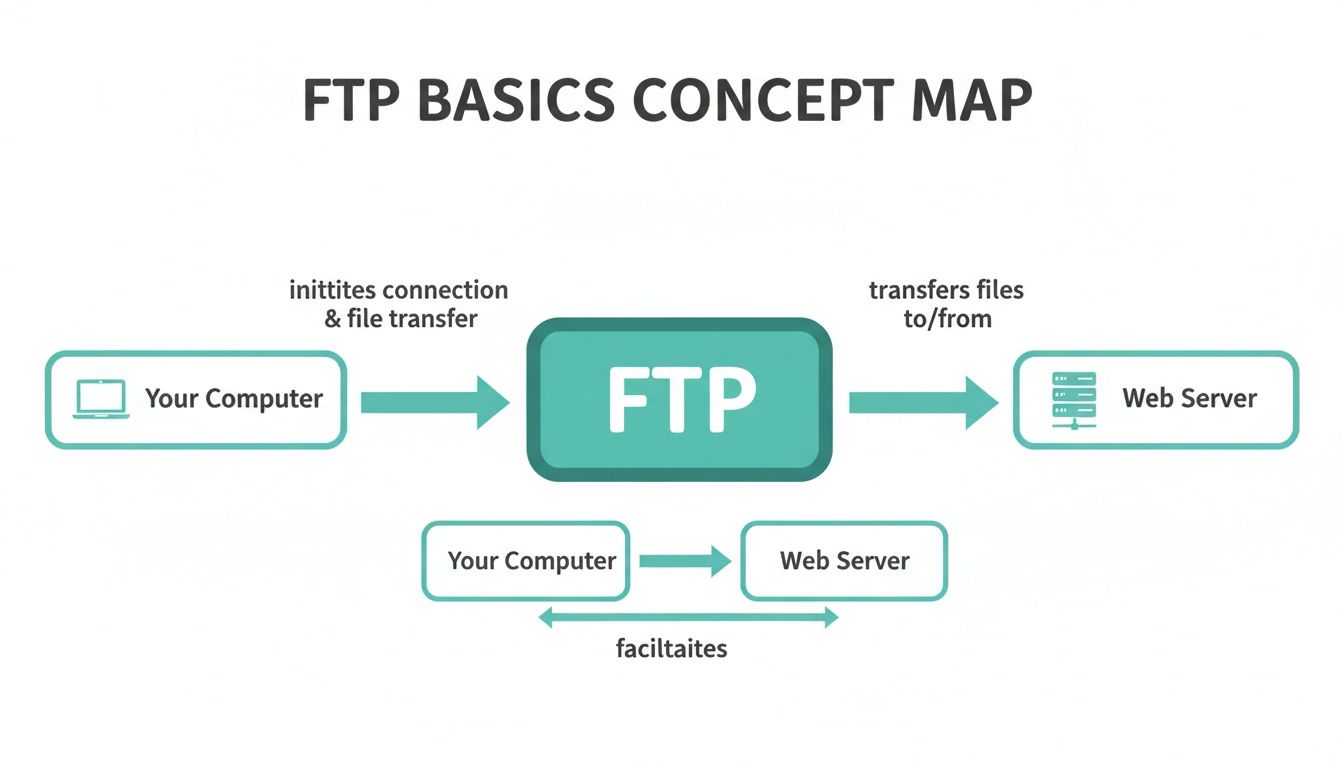
It simplifies the idea, showing FTP as the bridge that connects your local files to their new home on a hosting server.
Active vs Passive FTP Modes
The way that data channel gets connected is determined by one of two modes: Active or Passive. Understanding this is often the key to fixing connection problems, especially if there's a firewall in the picture.
In Active Mode, your client effectively tells the server, "Right, I'm ready for the file. Can you connect back to me on this specific port?" The server then has to initiate the data connection back to your machine. The problem? This often fails because modern firewalls and routers on your end see this unexpected incoming connection as a potential threat and promptly block it.
This is where Passive Mode saves the day.
In Passive Mode, your client takes a different approach. It says, "I'm ready for the file. Tell me which port you're listening on, and I'll connect to you." The server then opens a port and just waits for your client to establish the connection. This is far more friendly to firewalls because the connection is initiated from your side of the network.
Why Passive Mode is Almost Always Better
For the vast majority of users today, particularly those on home or office networks, Passive Mode is the go-to choice. It neatly sidesteps all the firewall headaches that plague Active Mode. If you're ever struggling to connect to your web hosting, one of the very first troubleshooting steps in our knowledge base is to check that your FTP client is set to Passive Mode.
Knowing this difference isn't just geeky trivia; it’s practical knowledge for figuring out why a connection might be timing out or failing. When you're setting up your FTP client to connect to your UpTime Web Hosting account, just selecting Passive Mode ensures a much smoother and more reliable transfer. It’s a simple setting that prevents a lot of frustration and lets you get on with managing your website files.
Why FTP Still Matters for Your Business
You might hear that FTP is one of the internet's older technologies and assume it's been left behind. But the reality is, it remains a surprisingly vital tool for modern businesses, web developers, and designers across Australia. Far from being a technical relic, FTP provides practical solutions for the everyday jobs that keep a business running online. Its core function—moving files efficiently—is something just about everyone relies on.
The most common reason you'll encounter FTP is for managing your website. When your web developer needs to upload a new feature, fix a pesky bug, or push updates live, they'll almost certainly use a protocol like FTP to get the files from their computer onto your web hosting server. It's the digital equivalent of a courier service for your website's code.
Real-World Business Applications
Beyond just website updates, FTP solves some significant headaches for businesses, especially when you're dealing with files that are just too big or sensitive for a standard email.
- Sharing Large Files: Imagine a graphic designer in Sydney trying to send a 2GB branding package to a client in Perth. Email won't work. Instead, they can upload the file via FTP to a secure folder on their web server and simply send the client a link. Popular services like Dropbox and WeTransfer use similar principles to make large file sharing easy.
- Off-site Data Backups: Every smart business owner knows how crucial backups are. You can use FTP to automate sending copies of your critical data—like your accounting files or customer databases—to a secure, off-site location. This could be one of our UpTime Web Hosting secure hosting plans, giving you peace of mind that your data is safe if something goes wrong.
- Managing Content in Bulk: A Melbourne-based online store needs to add 100 new product photos for a seasonal sale. Uploading them one by one through a web admin panel would take hours. Using FTP, they can drag and drop the entire folder of 100 images, and the transfer completes in minutes.
Think of FTP as the behind-the-scenes logistics network for your digital world. It’s the reliable, heavy-lifting service that makes sure your website files, backups, and large assets get exactly where they need to go, efficiently and on schedule.
This long-standing reliability is why FTP has been a workhorse for so long. Its historical footprint is significant, even here in Australia. Between 2005 and 2014, national FTP sites recorded a massive 4,691,808 file modifications, showing just how deeply rooted it is in data distribution and archiving, long before cloud storage became a household name. You can learn more about the evolution of file sharing and FTP's foundational role.
Getting your head around what FTP is and how it works gives you direct control over your digital assets. It turns a technical concept into a powerful business tool, giving you the keys to manage your website's foundation and ensure your data is both accessible and secure.
Host your website with our 5-star rated, cPanel website hosting plans.
Super fast servers, with security included and hosted in your choice of Australian Data Center.
View cPanel Plans
The Uncomfortable Truth About FTP Security
Alright, we've covered what FTP is and why it's been a go-to tool for managing website files. Now, we need to have a serious chat about its biggest flaw: security. In its original form, standard FTP is fundamentally insecure. It’s a relic from an older, more trusting era of the internet.
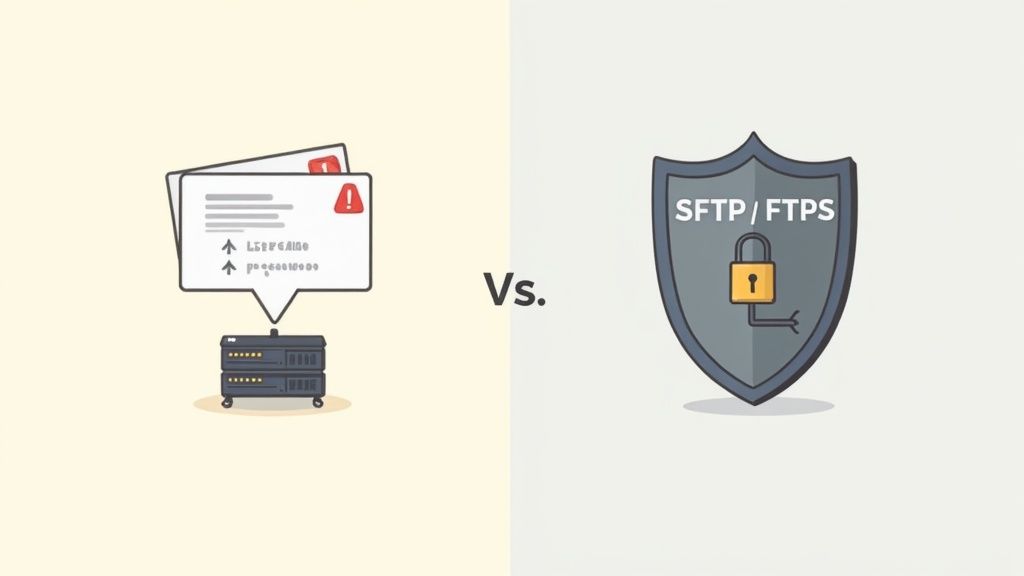
Think of it like this: using standard FTP is like writing your bank card number and PIN on a postcard and dropping it in the mail. Anyone who gets their hands on that postcard along the way can read your details. That's exactly how standard FTP handles your login details. It sends your username and password across the internet in plain text, which is dangerously easy for hackers to intercept and steal.
The Modern, Secure Alternatives
Thankfully, this glaring security hole was patched up long ago. You should never, ever use standard FTP for your file transfers today. Instead, you'll use one of its secure successors, which are the only protocols we recommend (and often, the only ones we allow) here at UpTime Web Hosting.
These modern heroes are:
- SFTP (SSH File Transfer Protocol): This isn't just a secure version of FTP; it's a completely different protocol that runs over a secure system called Secure Shell (SSH). It encrypts your entire session from start to finish—your login details, the commands you send, and the files you're transferring are all scrambled and unreadable to prying eyes.
- FTPS (FTP over SSL/TLS): This protocol takes the original FTP and wraps it in a layer of strong encryption using the same technology that secures your online banking and shopping—SSL/TLS. Just like a padlock appears in your browser on a secure website, an SSL certificate encrypts the connection, keeping your data safe. You can learn more in our guide on what SSL is and why you need it.
Both SFTP and FTPS get you to the same destination—a secure file transfer—but they take different roads to get there. Knowing the difference helps you pick the right settings for your hosting setup.
A Security Comparison FTP vs SFTP vs FTPS
To make it crystal clear, let's break down the key differences between standard FTP and its much safer relatives. This table shows you exactly what's going on under the hood with each protocol.
| Feature | Standard FTP | SFTP (SSH File Transfer Protocol) | FTPS (FTP over SSL/TLS) |
|---|---|---|---|
| Security | None. Credentials and data are sent in plain text. | High. Encrypts all data, including credentials, over a secure SSH connection. | High. Encrypts the data and command channels using SSL/TLS certificates. |
| Underlying Protocol | FTP | SSH (Secure Shell) | FTP with SSL/TLS |
| Port Usage | Port 21 (for commands) | Port 22 (for all communication on a single channel) | Port 21 (for commands) and a range of high ports (for data) |
The key takeaway is simple: always use a secure protocol. It doesn’t matter if you choose SFTP or FTPS; either one is a massive leap forward in protecting your website files and login credentials from being compromised. Any decent hosting provider will not only support but actively encourage you to use these secure methods.
Remember, a secure connection is just one part of the puzzle. It's crucial to also implement broader website security measures to keep your entire online operation safe. Think of SFTP/FTPS as locking the door, but you still need strong walls and an alarm system.
Connecting to Your Server: A Step-by-Step Guide
Theory is great, but now it’s time to get your hands dirty. Let's walk through the practical steps of connecting to your web server using FileZilla, one of the most popular and reliable free FTP clients out there. We'll cover where to find your login details, how to set up the connection, and what to do once you’re in.
First things first, you need to gather your connection details. Think of these as the keys to your server's front door. For most Australian businesses using our services, you’ll find these inside your web hosting control panel, cPanel.
Finding Your FTP Credentials in cPanel
Once you've logged into cPanel, find the section labelled "Files" and click on the "FTP Accounts" icon. This is where you can create new FTP accounts or see the details for ones you already have. For your main account, the username and server address (also called the hostname) are usually listed under a section called "Special FTP Accounts."
Here are the essential details you'll need:
- Host: This is your server's address, often something like
ftp.yourdomain.com.auor the server’s specific name. - Username: The username you set up for FTP access.
- Password: The password that goes with that username.
- Port: To connect securely, you need the right port. For SFTP, use port 22. For FTPS, it’s port 21. We always strongly recommend using SFTP whenever you can.
With these details in hand, you’re ready to fire up your FTP client. Getting a sense of different hosting environments can also be helpful; for instance, comparing UK web hosting services can offer some perspective on various setups.
Configuring FileZilla for a Secure Connection
Now, open up FileZilla. You’ll see a "Quickconnect" bar at the top, which is tempting, but for a more permanent and secure setup, it's much better to use the Site Manager.
- Go to File > Site Manager.
- Click New Site and give your connection a name you'll remember, like "My Business Website."
- On the right-hand side, fill in your details:
- Protocol: From the dropdown menu, select SFTP – SSH File Transfer Protocol. This is the most secure way to connect.
- Host: Type in your server address here.
- Port: Enter 22.
- Logon Type: Choose Normal.
- User: Enter your FTP username.
- Password: And finally, your password.
- Click Connect.
If all the details are correct, FileZilla will securely link up with your server.
You'll then see the classic FileZilla interface, with your local computer files on the left and your remote server files on the right.
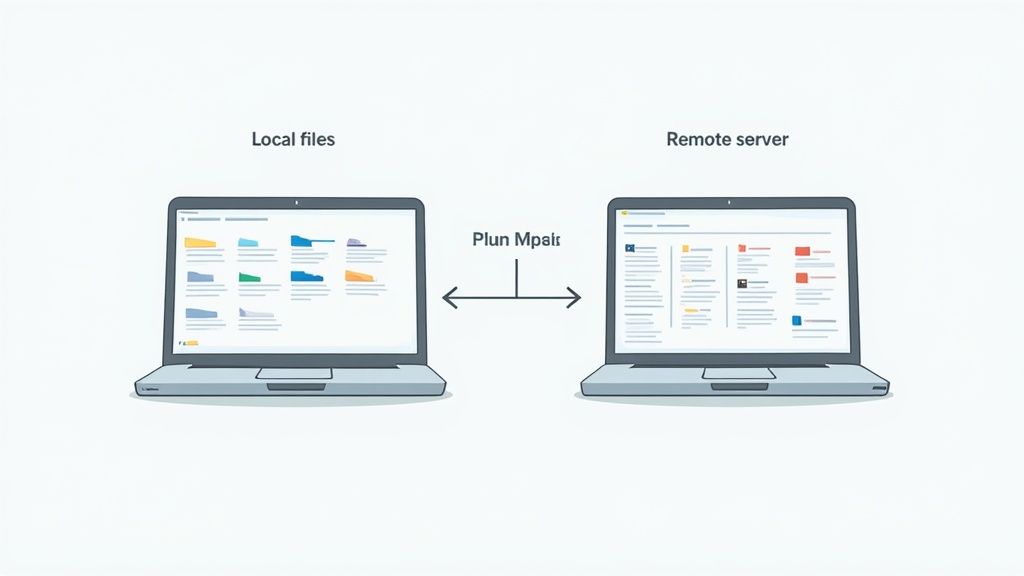
This split-screen view is the heart of managing your site via FTP. It lets you simply drag and drop files from your computer straight onto your web server.
Pro Tip: Always use the Site Manager to save your connection details. It not only saves you time but also makes sure you’re consistently using the correct secure protocol (SFTP) every single time, keeping your login details safe.
Once you’re connected, you can browse your website’s file structure in the right-hand panel, which usually opens up to your home directory. Most website files live inside a folder named public_html. Double-clicking this folder takes you to the root of your website, where you can upload, download, and manage all your files.
If you need more help getting your hosting set up, take a look at our range of cPanel website hosting plans which come with all these tools ready to go.
FTP Best Practices and Common Fixes
Using FTP safely and effectively really just comes down to good habits and knowing how to handle the common hiccups. If you adopt a few key practices, you won't just be protecting your website; you'll be saving yourself from future headaches, turning potential dramas into quick, five-minute fixes.
First and foremost, you have to prioritise security. This all starts with your login details. Always use a strong, unique password for your FTP account—a good mix of upper and lower-case letters, numbers, and symbols is non-negotiable. More importantly, always default to a secure connection like SFTP or FTPS. Using standard, unencrypted FTP is a security risk you just shouldn't take these days.
The history of FTP itself really highlights this shift. The protocol was first standardised way back in 1985, long before online security was something anyone really thought about. As Australia's internet adoption exploded—from its first 56kbps international link in 1989 to 50% of the population being online by 2000—the need for secure file transfers became glaringly obvious, leading to critical security updates. If you're curious about the protocol's journey, you can learn more about the history of FTP and its security enhancements.
Essential Security and File Management Tips
To keep your files organised and secure, just follow these simple guidelines. They'll help prevent common errors and protect your site’s integrity.
- Always Use SFTP or FTPS: We really can't stress this enough. In your FTP client, select SFTP on port 22. It’s the most secure and reliable way to connect. For detailed instructions, see our knowledge base article on how to configure FileZilla for SFTP.
- Understand File Permissions: On your server, every file and folder has permissions, which you'll often see as a number like
755or644. These numbers control who can read, write, or execute them. Getting these wrong can break parts of your website or, worse, open up security holes. Our knowledge base articles have detailed guides to get these set up correctly. - Keep Your FTP Client Updated: Just like any other software, updates often contain crucial security patches. Running an outdated version of FileZilla or another client can leave you wide open to vulnerabilities.
Troubleshooting Common FTP Errors
Even if you do everything right, you might still run into an occasional error. Don't panic. Here are the fixes for the most common issues you're likely to encounter.
Most FTP "errors" aren't a sign that something is seriously broken. They're usually just a simple misconfiguration—a typo in a password or a firewall getting in the way. A methodical check often solves the issue in minutes.
Connection Timed Out:
This is probably the most frequent problem people run into. It's usually caused by a firewall on your computer or network blocking the connection. The fix is simple: make sure your FTP client is set to Passive mode, which is much more firewall-friendly. Our guide on troubleshooting FTP connection issues walks you through this step-by-step.
Authentication Failed / 530 Login Incorrect:
This one is almost always exactly what it sounds like: incorrect login details. Carefully double-check your hostname, username, and password for any typos. And remember, passwords are case-sensitive, so MyPa55word! is different from mypa55word!.
Directory Listing Failed:
So you've connected successfully but can't see any of your files? This is often a permission issue or a problem with the server path. Check that you're in the correct directory for your website's main files, which is almost always public_html. If you're still stuck, our local support team is always ready to give you a hand.
Register your new domain name at competitive market prices including free domain add-ons like privacy, DNS Hosting, Custom Nameservers and Forwarding.
Always the best price and no nasty renewal price hikes.
Register A Domain Name
Common FTP Questions Answered
Even after getting the hang of FTP, a few practical questions always seem to surface. Here are some quick, straightforward answers to the queries we hear most often from Aussie business owners and developers.
Can I Just Use My Web Browser for FTP?
In the past, you could. Browsers like Chrome and Firefox used to have basic FTP functions built-in, but those days are long gone. This feature has been almost completely removed because it's just not secure.
For safe, reliable file transfers, you really need to use a proper FTP client like FileZilla or Cyberduck. These programs are designed for the job and, most importantly, they support modern, secure protocols like SFTP.
What's the Difference Between a Port and a Protocol?
This is a great question. The easiest way to think about it is that a protocol is the language being spoken, while a port is the specific doorway used for that conversation.
- A protocol (like FTP or SFTP) defines the rules for how data gets exchanged between two computers.
- A port (like port 21 for FTP or port 22 for SFTP) is simply a numbered channel on the server that makes sure the traffic goes to the right service.
For a connection to succeed, you need to be speaking the right language and knocking on the right door. If you're ever unsure about the correct settings for your hosting account, our knowledge base articles have all the details you need.
Why Do I Keep Getting a "Connection Timed Out" Error?
Ah, the classic "connection timed out" error. It’s one of the most common FTP problems, and it’s usually caused by a firewall on your computer or local network blocking the connection.
The simplest fix is to switch your FTP client's connection mode to Passive Mode.
In Passive mode, your computer tells the server where to connect, which is much more friendly to firewalls. Active mode, on the other hand, requires the server to connect back to your computer, which firewalls often block by default. You can usually change this setting in your FTP client's connection or site manager options.
Ready to manage your website files with a reliable, secure, and locally supported hosting provider? At UpTime Web Hosting, we offer fast cPanel hosting with SFTP access as standard, backed by our expert Australian team. Explore our hosting plans and get started today at https://uptimewebhosting.com.au.