When you see the message "DNS server is not responding," it's the internet's equivalent of a lost-in-translation moment. Your computer basically asked for directions to a website, but the service that provides those directions—the Domain Name System (DNS)—didn't answer. You're left at a digital dead end, unable to connect.
What a DNS Error Means for Your Business
That error message is more than just a tech headache; it’s a roadblock that can bring your business to a grinding halt. Think of DNS as the internet's phone book. When you type a friendly website address like uptimewebhosting.com.au into your browser, DNS is the system that looks it up and translates it into the numerical IP address computers need to find each other.
If that translation fails, your connection goes nowhere. This isn't just an issue for one person's computer. A widespread DNS failure can stop online sales in their tracks, cut off client communication, and freeze team productivity. For example, if your sales team relies on a cloud-based CRM like Salesforce, a DNS error means they can't access customer data, update leads, or track sales—effectively halting their entire workflow. If your staff can't get to cloud-based tools like your CRM or project management software, the workday is effectively over.
Pinpointing the Problem Source
The first, most critical step is figuring out where the problem is coming from. Is it just one person's laptop, the entire office, or something bigger?
An issue on a single machine often points to a simple software glitch or a misconfiguration on that device. But if everyone in the office is offline, your focus should immediately shift to the router or even your internet service provider (ISP). For instance, if only the accountant's computer can't connect to your online bookkeeping software but everyone else can browse freely, the problem is localized to that machine.
This simple decision tree is the first diagnostic step I always take to narrow down the cause.
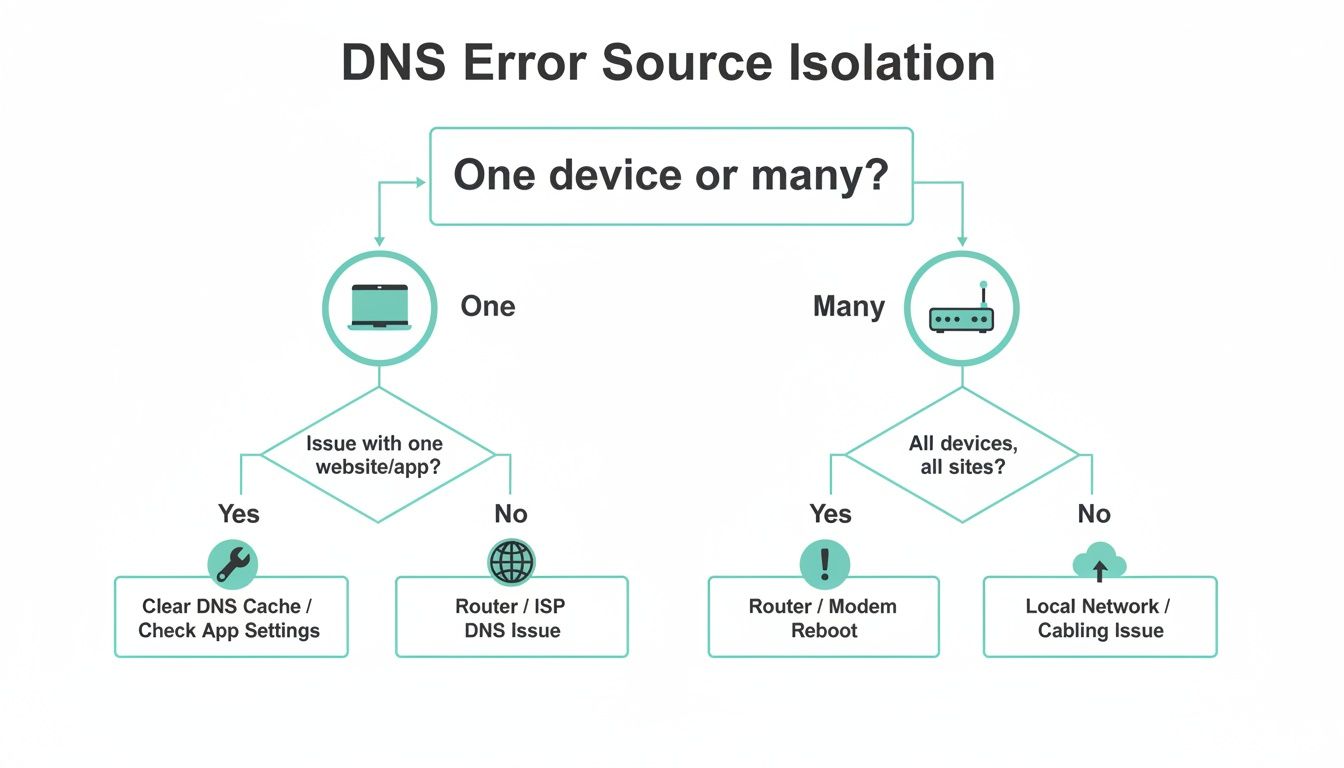
As the flowchart shows, if it's just one device, you'll want to start troubleshooting that machine's settings. If it's multiple devices, the router and the broader network are the prime suspects.
Key Takeaway: A DNS error is really just a communication breakdown. Your device sent out a request, but the DNS server it was trying to reach didn't reply. The fallout can be anything from a minor inconvenience for one staff member to a complete operational shutdown for the whole business.
To get you started, here's a quick checklist I use to figure out what's going on. It helps you move from symptom to solution fast, saving you valuable time when every minute counts.
Quick Diagnostic Checklist Is the Problem Local or External
Use this table to quickly determine the likely source of the DNS error based on simple checks you can perform in under a minute.
| Symptom | Potential Cause | Where to Start Fixing |
|---|---|---|
| Only one computer has the error. | Incorrect device settings, firewall block, or outdated software on that specific machine. | Check the device's network settings and security software first. |
| All devices in the office are affected. | Router issue, a problem with your Internet Service Provider (ISP), or a local network misconfiguration. | Restart the office router and check your ISP's service status page. |
| The website is accessible on mobile data but not on Wi-Fi. | The issue is with your local network or router's DNS settings, not the website itself. | Focus on router settings or try changing the DNS servers on your device. |
| The error occurs only for a specific website. | The problem likely lies with that website's domain configuration or hosting server. | Check the website's status using a third-party tool or contact the site owner. |
This quick triage should give you a solid idea of whether you're dealing with a local hiccup or a more widespread problem, pointing you in the right direction for the next steps.

Performance you can feel, backed by clients who depend on it. Read how our support and uptime create long‑term customer success.Power Your Business with Better Hosting
Resolving DNS Issues on Your Devices
When the "DNS server is not responding" error strikes a single person in the office while everyone else is working fine, it’s a classic sign of a device-specific problem. Before you start unplugging routers or calling your internet provider, the fix is often something simple you can do right on the affected computer or smartphone.
Think of it this way: your graphic designer can't access your cloud-based design software, but the rest of the team can. This isn't a network-wide outage; it's an isolated hiccup. This is exactly where we'll start our troubleshooting—with the device itself.
A Proper Reboot Can Work Wonders
The age-old advice to "turn it off and on again" is a cliché for a reason: it often works. A simple restart can clear out temporary software conflicts, memory glitches, and corrupted files that might be messing with your network connection. But there’s a right way to do it for this kind of issue.
Instead of just clicking the restart button, perform a full shutdown.
- Shut Down Completely: Go to the Power menu and select Shut Down. This makes sure all active processes are properly terminated, rather than just put to sleep.
- Wait a Moment: Leave the device powered off for at least 30 seconds. This is the important part, as it allows all the electrical components to fully reset.
- Power It Back On: Turn the device on and let it fully load before you try to access the internet again.
This simple power cycle is surprisingly effective and often clears the exact issue causing the DNS error, getting you back online without any complex fixes.
Clear Your Browser's DNS Cache
Web browsers like Chrome, Firefox, and Safari keep their own DNS cache to speed up loading times for websites you visit a lot. The problem is, this cache can become outdated or corrupted, pointing your browser to an old, incorrect address. Clearing it forces the browser to fetch fresh information.
- For Google Chrome: Type
chrome://net-internals/#dnsinto the address bar and press Enter. Click the Clear host cache button. - For Mozilla Firefox: This browser’s cache is tied to your operating system's, so flushing your device's DNS cache (which we'll cover later) will take care of it.
- For Safari on macOS: You'll need to go to the Develop menu and select Empty Caches. If you don't see the Develop menu, you can switch it on in Safari's Preferences under the Advanced tab.
A stale browser cache is a common culprit for isolated DNS problems. If one person can't reach a specific website but others can, clearing the browser cache is one of the quickest and most effective first steps.
Temporarily Disable Your Firewall and Antivirus
Your security software is meant to be a vigilant gatekeeper, but sometimes it gets a bit overzealous. A firewall or antivirus program might mistakenly flag legitimate DNS traffic as a potential threat, blocking your connection and triggering the "DNS server is not responding" message.
To check if this is the cause, you can temporarily disable your security software.
- On Windows: Go to Windows Security > Virus & threat protection > Manage settings and toggle off Real-time protection. Then head to Firewall & network protection and temporarily turn off the firewall for your active network.
- On macOS: Go to System Settings > Network > Firewall and toggle it off.
After disabling them, immediately try to access the website again. If it loads, you've found the source of the problem. You don't want to leave your security switched off, of course. The next step is to go into your security software’s settings and add an exception or "allow" rule for your web browser or the specific application being blocked.
It’s crucial to remember to re-enable your firewall and antivirus software as soon as you've finished testing. Leaving them off exposes your device to some serious security risks. It's also worth noting that network connectivity issues can sometimes be mistaken for other problems. For instance, if you're struggling to send emails, it might not be a DNS issue at all. You can learn more about how to resolve issues with emails stuck in outbox if you suspect a different cause.
Troubleshooting Your Office Network and Router
When the "DNS server is not responding" error hits every single device in your office at the same time, you can stop messing around with individual computers. This isn't a problem with one person's laptop; it’s a clear sign that the issue lies with the central hub of your network—your router and modem. These devices are your gateway to the internet, and when they stumble, everyone gets cut off.
The good news is that fixing network hardware is often much more straightforward than digging through confusing software settings. We'll start with the oldest and most reliable trick in the IT playbook before moving on to a powerful tweak that can permanently boost your internet reliability.
The Art of the Power Cycle
Rebooting your router is more than just flicking a switch off and on again. A proper "power cycle" gives the hardware a chance to clear its internal memory (RAM), kill any processes that have stalled out, and forge a fresh, clean connection with your Internet Service Provider (ISP).
Doing this the right way is what makes it effective.
- Unplug Both Devices: First things first, physically unplug the power cords from both your modem and your router. Don't just press the power button; pull the plug.
- Wait Patiently: Leave both devices completely powerless for at least 60 seconds. This pause is non-negotiable. It ensures all the leftover power drains from the internal components, forcing a complete memory reset.
- Modem First, Then Router: Plug the modem back in first and give it a few minutes. Wait until its lights turn solid and stable (you’re usually looking for solid Power, Receive, Send, and Online lights).
- Connect the Router: Once the modem is fully back online, you can plug the router back in. Give it another couple of minutes to boot up and get its bearings.
Following this exact sequence helps each device establish a clean connection before the next one comes online, which sidesteps a lot of common network conflicts.
Switching to a Public DNS Resolver
If a full reboot didn't do the trick, the problem often points to the default DNS servers your ISP provides. These can be slow, unreliable, or just temporarily offline. The best move is to bypass them entirely by manually setting your router to use a public DNS service instead.
Two of the most trusted and reliable options are:
- Google Public DNS: Primary:
8.8.8.8, Secondary:8.8.4.4 - Cloudflare DNS: Primary:
1.1.1.1, Secondary:1.0.0.1
By changing this one setting on your router, every single device connected to your office network will automatically start using these faster, more dependable servers. It’s a simple change that can permanently stop recurring "DNS server is not responding" errors.
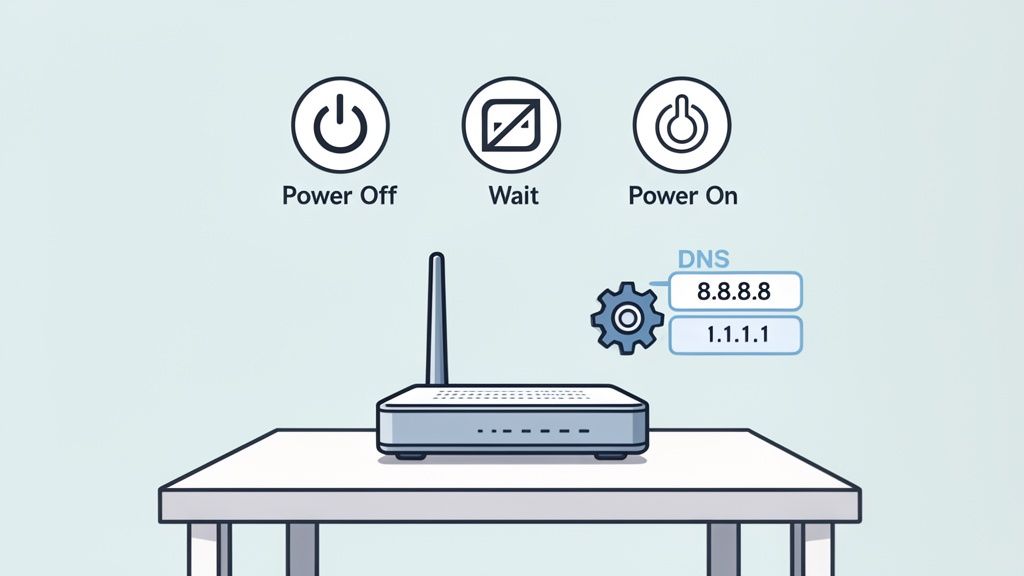
Services like Cloudflare and Google DNS are built for high performance and uptime, often leaving the default ISP options in the dust.
Relying on a single public resolver can be a double-edged sword. While often more reliable, major outages can have a widespread impact. For example, a significant Cloudflare disruption demonstrated how networks pointing to a single external resolver could face widespread outages. For Australian businesses, this underscores the importance of having a fallback or secondary DNS configured to maintain connectivity.
Keeping Your Router's Firmware Updated
Think of your router's firmware as its internal operating system. Manufacturers regularly push out updates to patch security holes, fix annoying bugs, and improve overall performance. Outdated firmware can absolutely be the root cause of persistent DNS headaches.
Most modern routers let you check for updates right from the admin login page. Just log in to your router’s settings, find a section called "Firmware Update" or "Administration," and hit the button to check for new versions. Enabling automatic updates is an even better idea—it keeps your network's brain healthy and secure without you having to think about it.
If you’ve tried all these steps and are still stuck, it might be time for a deeper look. When network problems get tricky, you may need to bring in some heavier tools. These 12 essential network diagnostic utilities can help you pinpoint the exact cause of the DNS problem.
Host your website with our 5-star rated, cPanel website hosting plans.
Super fast servers, with security included and hosted in your choice of Australian Data Center.
View cPanel Plans
Digging Deeper: Advanced Fixes for Stubborn DNS Errors
So, you've tried all the usual suspects—restarting your computer, rebooting the router, even switching to Google's public DNS—but that infuriating "DNS server is not responding" error just won't budge. When the simple fixes don't work, it's usually a sign that the problem is hiding a little deeper in your system's configuration.
These persistent errors often come down to outdated software, a misconfigured system file, or even just the natural delay of the internet catching up with itself. It's time to move beyond the quick fixes and investigate the more complex causes that can throw a spanner in the works. Don't worry, these steps are more about being methodical than being difficult, and they're often the key to cracking the toughest DNS nuts.
Update Your Network Adapter Drivers
The network adapter is the physical hardware in your computer that gets you online, and the software that controls it is called a driver. An outdated or corrupted driver is a classic culprit for all sorts of weird, intermittent connection problems, including DNS errors.
Think of the driver as a translator between your operating system and your network hardware. If that translator is working from an old, out-of-date dictionary, it’s going to misinterpret or drop communications, leading to a complete breakdown.
- For Windows users: The easiest way to sort this is through the Device Manager. Just search for "Device Manager" in the Start Menu, find and expand the "Network adapters" section, then right-click your adapter (it'll likely be a Wi-Fi or Ethernet device) and choose "Update driver."
- For macOS users: Apple bundles driver updates with its main operating system updates. To make sure you're current, head to System Settings > General > Software Update.
Keeping these drivers fresh ensures your hardware is speaking the same language as the rest of your network, loud and clear.
Take a Look at Your System's Hosts File
There's a small but surprisingly powerful text file on every computer called the 'hosts' file. This file can manually map a domain name to a specific IP address, completely bypassing the public DNS system. While it's a handy tool for web developers, it can also be a hidden source of trouble.
Malware can hijack this file to redirect you to dodgy websites, or an old entry you forgot about from a previous project could be blocking access to a site you now need. It's always a good idea to check this file for any suspicious or outdated entries that might be causing the "DNS server is not responding" error for specific websites.
Pro Tip: Be extremely careful when editing the hosts file. Always, always make a backup copy before you touch anything. One wrong move can cut off your internet access entirely. If you're not 100% confident, it's best to leave this one to an IT professional.
Check Your Firewall and Security Software Again
We've already touched on temporarily disabling your firewall, but sometimes the issue is a bit more nuanced. Firewalls manage traffic through different "ports," and standard DNS traffic uses port 53. It's entirely possible for a firewall to be configured so strictly that it blocks traffic on this specific port, even while the rest of the firewall appears to be working fine.
Dive into your firewall's advanced settings and look for rules related to port blocking. You'll want to make sure that both TCP and UDP traffic on port 53 are explicitly allowed. This is particularly common if you're using a business-grade firewall or have customised your security software. For anyone still hitting a wall, digging into resources on in-depth DNS resolution troubleshooting can offer more specialised guidance.
The Waiting Game: Understanding DNS Propagation
Have you recently moved your website to a new host or changed your domain's DNS records? If so, you might be caught in a temporary limbo called DNS propagation. This isn't really an "error" in the traditional sense, but more of a waiting period.
When you update DNS records, it can take anywhere from a few minutes up to 48 hours for that change to spread across every single server on the internet. During this time, some people trying to visit your site might be sent to the old server while others see the new one. This can absolutely trigger a "DNS server is not responding" message for anyone whose local DNS cache hasn't caught up yet. You can use an online service like dnschecker.org to see how your DNS records are propagating across the globe in real-time.
For business owners, especially those using our Australian cPanel Hosting, this is a very common thing to see after a site migration. It’s a normal part of how the internet works, but it can be frustrating if you aren't expecting it. In this case, the best fix is simply patience. The issue will resolve itself once propagation is complete.
Checking Server-Side DNS for Your Business Website
When the "DNS server is not responding" error pops up, it’s natural to think the problem is on your end—with your computer or network. But what happens when the issue isn't affecting you, but your customers?
If potential clients can't reach your website, the error points to a completely different source: your domain's own configuration.
This flips the script, moving the focus from your local devices to the server-side settings that tell the internet where your website actually lives. For any business owner, getting these settings right is absolutely critical. A misconfigured domain is like having a disconnected phone line for your business—people are trying to reach you, but the connection is completely broken.
This is especially true for our UpTime Web Hosting clients, so let's walk through how to check that your domain is correctly pointing to our secure Australian servers.
Checking Your Nameserver Settings
The most important setting connecting your domain name to your hosting account is the nameservers. Think of them as the primary signposts that direct all global internet traffic to the right server where your website files are stored. If these are wrong, nothing else matters.
Simple mistakes here are more common than you'd think, especially during a website migration. It's easy to forget to update the nameservers from your old provider, leaving your domain pointing to a server that no longer hosts your site. A simple typo can also be the culprit.
For UpTime Web Hosting customers, you can verify these settings directly within your client portal:
- Log in to your account: Head over to the 'Domains' section.
- Select your domain: Find the domain you need to check and go into its management settings.
- Check the nameservers: Make sure they are pointing to the UpTime Web Hosting nameservers we sent you in your welcome email.
If you spot old records or incorrect entries, updating them to the correct UpTime nameservers will kick off the process of fixing the connection for your visitors. Verifying these details is also a key part of confirming you have full control, which is essential for every business. If you're unsure about this, our guide on why you must truly own your domain name provides some crucial insights.
DNS failures aren't just a theoretical headache; they happen at a significant scale. Recent measurements from APNIC Labs in Australia recorded tens of thousands of DNS failures daily, with counts sometimes exceeding 138,000. These aren't minor glitches but substantial transport-layer issues. For Australian businesses relying on local hosting, these stats highlight the need for a resilient DNS setup, so transient network problems don't become visible downtime for your customers.
When You Need Local Expert Help
Trying to diagnose server-side DNS issues can feel pretty daunting. If you've checked your nameservers and they seem correct, but customers are still reporting problems, there might be a more complex issue at play. This is where our local support team comes in.
Our Australian-based team is here 24/7 to help diagnose and sort out these kinds of server-side DNS problems. We can jump in and confirm your domain's DNS records are perfectly configured on our high-performance network. Proactively managing these settings is the key to ensuring your customers always have a reliable, uninterrupted path to your business.
When It’s Time to Call for Help and How to Prevent Future Outages
So, you’ve worked through every fix on the list. You’ve checked your computer, rebooted the router, and even dabbled in public DNS servers, but that stubborn error just won’t budge. What now?
When you've exhausted every option on your end, it’s usually a sign that the problem is bigger than your home or office network. This is the point where you need to escalate. Often, these persistent DNS issues point to a widespread outage with your Internet Service Provider (ISP) or a more complex network problem that requires an expert.
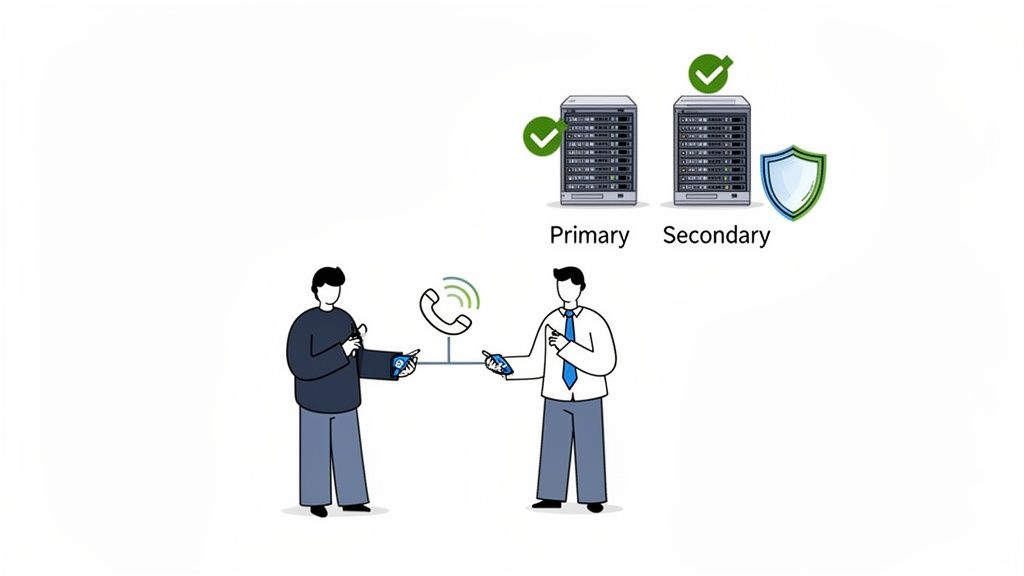
Communicating Effectively with Support
Calling your ISP or IT support can sometimes feel like you’re starting from square one. To get to the root of the problem faster, you need to bypass the standard troubleshooting script they’ll inevitably want you to follow.
The trick is to be direct and show them you’ve already done the groundwork. When you get a support agent on the line, lead the conversation with a quick summary of your efforts.
Here’s what you can say: "Hi, I'm getting a 'DNS server is not responding' error across all my devices. I've already power-cycled my modem and router, flushed the DNS cache, and even tried switching my DNS settings to Google's and Cloudflare's servers, but nothing has worked. Can you check for any known service outages in my area or issues on your end?"
This approach immediately signals that you're not a typical caller. It shows you've done your due diligence and helps elevate your issue beyond the basic script, saving everyone valuable time.
Building a More Resilient Network for the Future
Fixing the problem today is great, but preventing it from happening again is even better. The real goal is to build a more resilient network that isn’t so easily disrupted. A bit of proactive prevention is far less stressful than reactive troubleshooting when you’re trying to get work done.
Here are a few practical strategies to minimise future DNS headaches:
- Set Up a Secondary DNS Server: Don’t put all your eggs in one basket. Configure your router with both a primary (like Cloudflare's 1.1.1.1) and a secondary DNS server (like Google's 8.8.8.8). If one service has an outage, your network can automatically switch to the other, often so seamlessly you won’t even notice.
- Keep Your Firmware Updated: This is an easy one to forget. Make sure automatic updates are enabled on your router and other network gear. Firmware updates often contain crucial security patches and bug fixes that can prevent the kind of glitches that lead to DNS errors.
- Partner with a Proactive Host: When it comes to your website's availability, your hosting provider’s network is everything. A good managed provider actively monitors its network for potential problems, meaning they can often prevent DNS issues before they ever impact your customers.
For Australian businesses, the threat of DNS-related disruptions is very real. Regional analyses from the Australian Cyber Security Centre's annual report often highlight infrastructure attacks and simple misconfigurations as recurring causes of downtime, reinforcing just how important robust DNS management is.
Ultimately, a reliable network is built on a foundation of redundancy and proactive care. By taking these steps, you not only solve the "DNS server is not responding" error but also create a much more stable digital environment for your business. For those who’d rather leave it to the experts, professional web maintenance and support services can offer complete peace of mind, ensuring your online presence is always in safe hands.
At UpTime Web Hosting, we deliver fast, secure, and reliable Australian hosting designed to keep your business online. Our network is built for performance and monitored 24/7 by a local support team, ensuring DNS issues are handled proactively. Make downtime a thing of the past and experience the difference of true Australian hosting at https://uptimewebhosting.com.au.