Setting up an automatic reply in Outlook is straightforward—it’s usually found under File > Automatic Replies on the desktop app or Settings > Mail > Automatic replies on the web. Once you’ve written your message and switched it on, you’re good to go. It’s a simple action that goes a long way in managing client expectations and keeping your communication professional, even when you can’t be there to reply yourself.
Why Automatic Replies Are Crucial for Australian Businesses
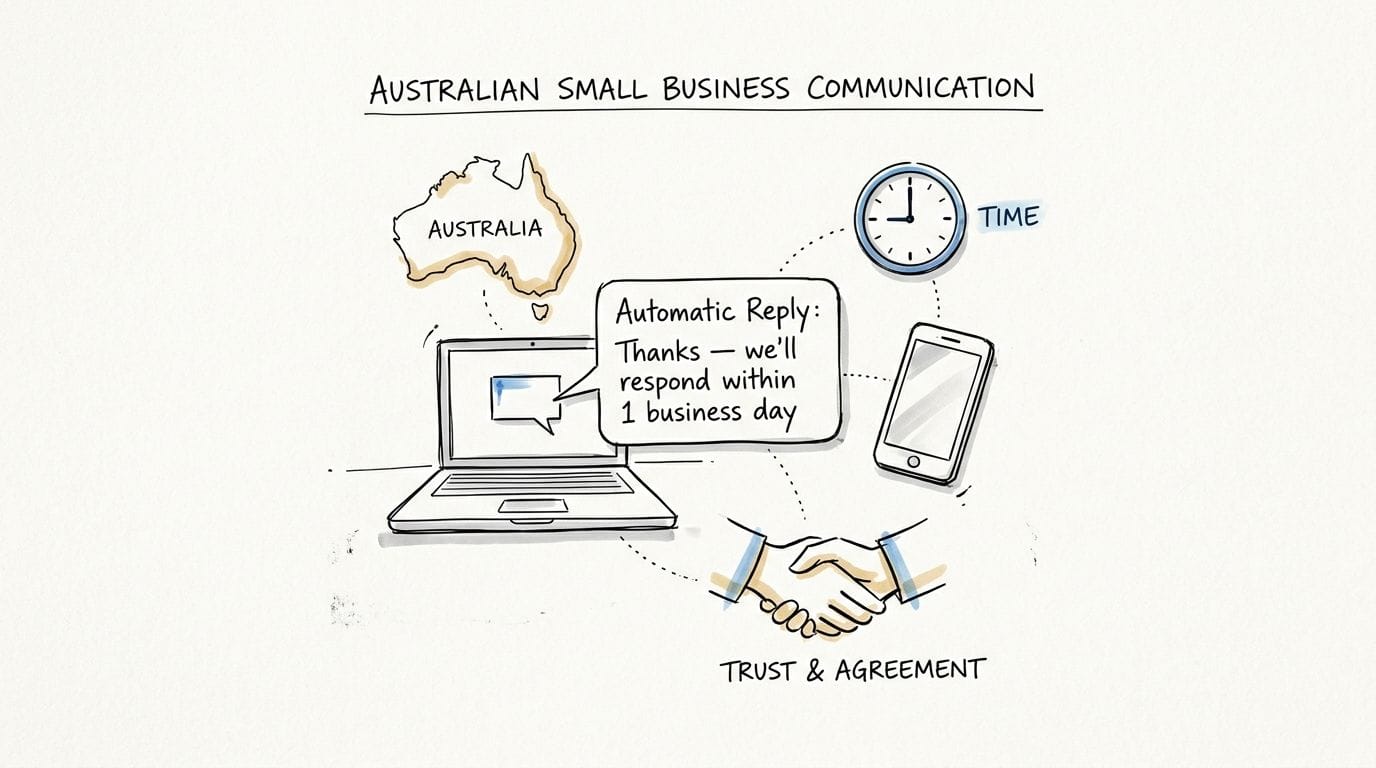
An automatic reply is so much more than a simple 'out of office' message. For Aussie small businesses, it’s a vital tool for managing what your clients expect from you and proving that you’re a reliable brand. With so many of us working remotely or in hybrid teams, keeping communication consistent is everything.
A thoughtfully written auto-reply makes sure no customer email goes unanswered, building trust right from that first point of contact. Whether you're a sole trader finally taking a well-earned holiday or a growing team juggling public holidays, these automated messages help you maintain a professional front.
Managing Expectations Proactively
Let’s look at a real-world scenario. Imagine a local Perth-based accounting firm using UpTime Web Hosting sets up an auto-reply for their accounts@yourfirm.com.au email. That message can instantly confirm that an invoice query has been received and give a clear timeframe for a personal response during tax season.
This tiny step can prevent a customer from feeling ignored and shows you’re committed to great service, even outside of business hours. It's just as useful during:
- Public Holidays: Letting senders know you're closed for an Australian public holiday like ANZAC Day or Australia Day.
- Unexpected Downtime: Notifying clients that you’re temporarily unavailable due to a local power outage or an unforeseen issue.
- Scheduled Maintenance: Giving users a heads-up about planned work that keeps your website and email running smoothly.
Of course, professional communication starts before you even set up your first auto-reply. It begins with having a credible email address in the first place, which is why understanding how a domain name with email hosting works is such a key first step for any business.
A Tool for Security and Reliability
Believe it or not, automatic replies also have a part to play in your business's security. When you're performing critical system updates, you need to minimise distractions. Setting an automated 'do not disturb' message keeps everyone in the loop while your team can focus on the technical work at hand.
This approach lines up with broader industry advice. ASIC’s Key Issues Outlook 2026 highlights a rise in cyber threats, urging Australian small businesses to put simple but effective measures like this in place. You can find more on these cybersecurity trends and ASIC's recommendations for businesses on their site.
For businesses using a professional service, this is where your hosting provider adds another layer of defence. UpTime's included features like free SSL, malware scanning, and DDoS-protected firewalls work behind the scenes to keep your email secure while your auto-replies manage communication.
Ultimately, knowing how to set up an automatic reply in Outlook is a skill that pays off through happier customers and smoother operations. It shows everyone that your business is organised, professional, and trustworthy. For anyone looking to get their communication fundamentals right, exploring a dedicated email hosting for small business solution is a great next move.

Performance you can feel, backed by clients who depend on it. Read how our support and uptime create long‑term customer success.Power Your Business with Better Hosting
Setting Up Automatic Replies on Outlook Desktop and Web
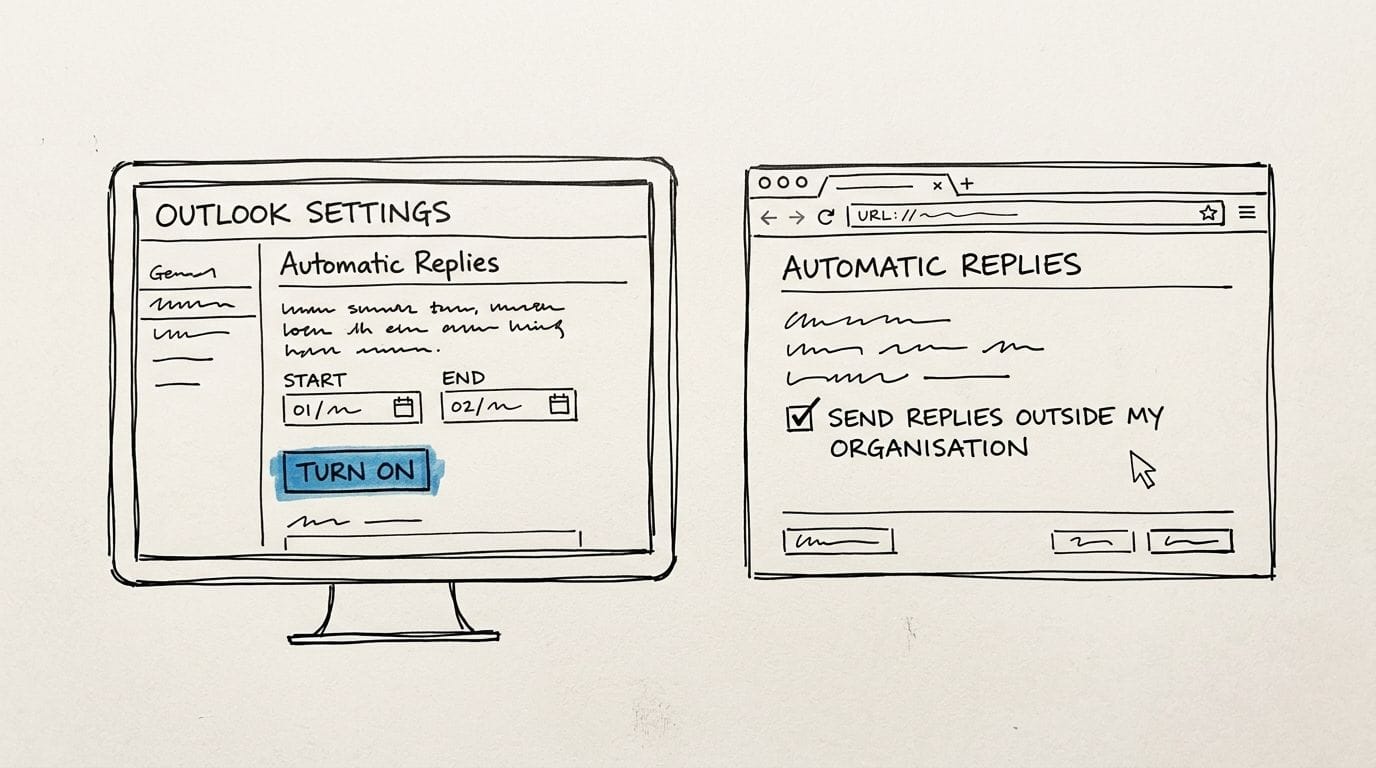
Alright, let's get that "Out of Office" message sorted. Setting up an automatic reply is a simple job, whether you live in the Outlook desktop app or prefer using it through your web browser. We'll walk through the process for each platform, zeroing in on Microsoft 365 or Exchange accounts, which are the standard for most businesses.
The best part about this feature is that it works directly from the server. This means your auto-reply will be sent 24/7, even if your computer is shut down. For anyone using other account types like POP or IMAP, the setup is a bit different and relies on creating 'rules', which we’ll tackle in a later section.
For now, we'll stick to the most common methods for Australian businesses, including those using UpTime Web Hosting for their professional email.
Activating Auto-Replies in the Outlook Desktop App (Windows)
For many of us, the classic Outlook desktop program is where the work gets done. Finding the automatic reply setting is easy once you know where to look. It’s not buried deep in some obscure menu—it's right on the main account screen.
Here’s the path to get it done:
- Fire up your Outlook application and click on File in the top-left corner.
- On the Account Information screen that appears, you’ll see a big button for Automatic Replies (Out of Office). Give that a click.
- A new window will pop up. From here, just select Send automatic replies.
You've now arrived at the control centre for your out-of-office message. This is where you can schedule everything and write separate messages for colleagues and external contacts.
Scheduling and Customising Your Message
The 'set and forget' scheduling feature is a lifesaver. By ticking the box for Only send during this time range, you can lock in the exact dates and times for your reply to start and stop. It’s perfect for planned holidays, so you don’t have to worry about manually switching it off when you get back.
Pro Tip: I always recommend setting your auto-reply to turn off at the end of your first day back, not the morning of. It gives you a much-needed buffer to wade through your inbox before everyone expects an immediate response.
You'll notice two tabs: Inside My Organisation and Outside My Organisation. This is where a little bit of strategy comes in. The message for your team can be a bit more informal, but the one for clients needs to be polished and professional. It's crucial to tick the box for Auto-reply to people outside my organisation; otherwise, your clients and suppliers won't get a response.
Configuring Replies in Outlook on the Web
If you’re more of a browser-based worker or need to quickly set a reply when you’re away from your desk, Outlook on the web is the way to go. The settings are just as comprehensive and will sync across all your devices instantly.
To get started, just log into your account through the Microsoft 365 portal or Outlook.com.
- Click the gear icon (Settings) you see in the top-right of the page.
- In the settings panel that opens, head to Mail, then choose Automatic replies.
- Simply flick the switch to turn automatic replies on.
Just like the desktop app, you'll find all the options to set a specific time frame and craft different messages for those inside and outside your organisation. When you're happy with it, click Save, and you're good to go. This is also where you'll come back to turn it off if you haven't set a schedule.
Of course, none of this works without a properly set up mailbox. If you're one of our UpTime Web Hosting customers and need a quick refresher, our guide on how to add a mailbox in Outlook will make sure everything is configured correctly from the start.
Internal vs External Auto-Reply Message Examples
So why bother with two separate messages? Simple: your colleagues need different information than your clients. A teammate might need to know who is covering your urgent tasks, while a customer just needs to know when you'll be back and who to call in an emergency.
Here's how to craft the right message for the right audience, ensuring you sound professional and helpful whether you're talking to a teammate or a customer.
| Scenario | Internal Message for Colleagues | External Message for Clients |
|---|---|---|
| Plumber on Annual Leave | "G'day team, I'm off chasing the sun until the 25th. All current job notes are updated in the shared drive. For any urgent callouts, please divert them to Dave. Cheers!" | "Thank you for your message. I am currently out of the office on annual leave until Monday, 25th July. For any urgent plumbing emergencies, please contact our office on 03 XXXX XXXX. Otherwise, I will respond upon my return." |
| Web Designer in a Conference | "Hey everyone, I'm at the Web Directions Summit today and tomorrow. I'll have limited access to email but will check in during breaks. Project updates are on our Trello board." | "Thank you for getting in touch. I am currently attending a conference on the 15th and 16th of August with limited email access. I will review your message and respond as soon as possible on the 17th. Thank you for your patience." |
| Online Store Closed for Public Holiday | "Just a heads-up, the office is closed for the King's Birthday public holiday. Enjoy the long weekend! All orders from Friday will be dispatched on Tuesday." | "Thank you for your email. Our office and warehouse are currently closed for the public holiday and will reopen on Tuesday. All enquiries and orders will be processed promptly upon our return. We appreciate your understanding." |
As you can see, knowing how to set up an automatic reply in Outlook is less about the clicks and more about the strategy behind the message. Taking that extra moment to tailor your replies ensures everyone gets the right information, reinforcing your professionalism even when you're not there.
While the standard automatic reply is perfect for a simple out-of-office message, sometimes you need to be a bit smarter with your responses. What if you only want to send a specific reply to a high-value client, or to an email that contains an urgent keyword? This is where Outlook's Rules feature shines, letting you build targeted responses that go well beyond the basic tool.
The standard "Out of Office" is designed to send just one reply per sender to avoid spamming their inbox. A custom rule, on the other hand, can be set to reply to every single email that meets your criteria. This is fantastic for things like acknowledging every submission to an application form or confirming you’ve received a support ticket in your personal inbox while the main system is being updated.
There’s a catch, though. These advanced rules are often "client-side," which is a fancy way of saying they only work when your Outlook desktop app is open and running on your computer. This makes them less than ideal for your two-week holiday, but perfect for managing your workflow during a busy day in the office.
Creating Smarter Replies with Outlook Rules
Let’s say you’re a consultant in Melbourne waiting on a critical proposal document from a specific client. You can create a rule that automatically replies only to emails coming from their domain, letting them know you’ll review it as a priority.
Here’s how you could set up a rule like that:
- From your Outlook desktop app, head to File > Manage Rules & Alerts.
- Click New Rule and then choose Apply rule on messages I receive.
- Now, set your conditions. You could filter by "from people or public group" and select your client's contact, or even use "with specific words in the subject" and type in "Urgent Proposal."
- For the action, you’ll want to select have server reply using a specific message. This pops up a new email window where you can type out your custom response. For more detailed instructions on this advanced method, you can refer to Microsoft's own guide on using rules to create an out of office message.
This opens up a lot of possibilities. You could create different automated replies for different project codes, keywords, or sender groups, effectively building a simple but powerful system for managing your inbox.
Remember, the key difference is server-side vs. client-side. The built-in "Automatic Replies" are server-side, so they work even when your computer is off. Most custom rules are client-side and need Outlook to be running. It’s always a good idea to test your rule to make sure it’s doing what you expect.
A Look at the New Outlook and What It Means for Rules
Microsoft is in the process of moving everyone to the "New Outlook" for Windows, and it's worth understanding what this means for Australian businesses trying to manage their workflows and expenses. Budgeting has become more important than ever, and recent data shows a clear trend.
YouGov's 2026 outlook revealed that 63% of Australians now have budgets, up from 59% the previous year. On top of that, 64% are focusing on essential spending, which absolutely includes making business tools like email as efficient as possible to prevent lost time and opportunities. The shift to the New Outlook, which becomes the default from January 2025, changes how some of these advanced rules work. The new version removes access to the local file system and some of the classic rule conditions, like 'name in CC box'. You can explore more about these Australian financial trends on YouGov.
This change means many of us will need to rely more on the standard Automatic Replies feature, especially those using services like UpTime's spam-filtered email where complex client-side rules are less common. This makes mastering the standard and mobile features more important than ever for keeping your business running smoothly.
Setting Up Automatic Replies on Your Mobile
For any business owner or team member who is constantly on the go, being able to manage communications from your phone is a must. Thankfully, the Outlook mobile app for both iOS and Android makes setting an out-of-office reply incredibly straightforward.
The process is almost identical, whether you're on an iPhone or an Android device:
- Open up the Outlook app on your phone.
- Tap on your profile picture or icon in the top-left corner.
- Select the little gear icon to open your Settings.
- Choose the email account you want to set the reply for.
- Tap on Automatic Replies and just flick the switch to turn them on.
From there, you’ll see the same core options as the desktop version. You can set a specific time period and write separate messages for people inside and outside your organisation. When you're done, tap the checkmark to save, and your auto-reply is live.
Because this feature syncs at the server level, any change you make on your phone is reflected everywhere else instantly. It’s the perfect way to turn on an auto-reply when you’re unexpectedly pulled away from your desk. For those of you connecting a cPanel email to your phone, our guide on how to connect Outlook Mobile to your cPanel email account has all the step-by-step instructions you’ll need.
Crafting the Perfect Automatic Reply Message
An automatic reply is so much more than a simple "I'm out of the office" notification. It's a direct reflection of your business's professionalism and customer care. When done right, a great auto-reply can manage a client's expectations and build trust, turning a moment of your unavailability into a genuinely positive brand interaction.
Thinking about how and when to set your reply is the first real step. This flowchart can help you visualise the best way to tackle it, depending on your situation.
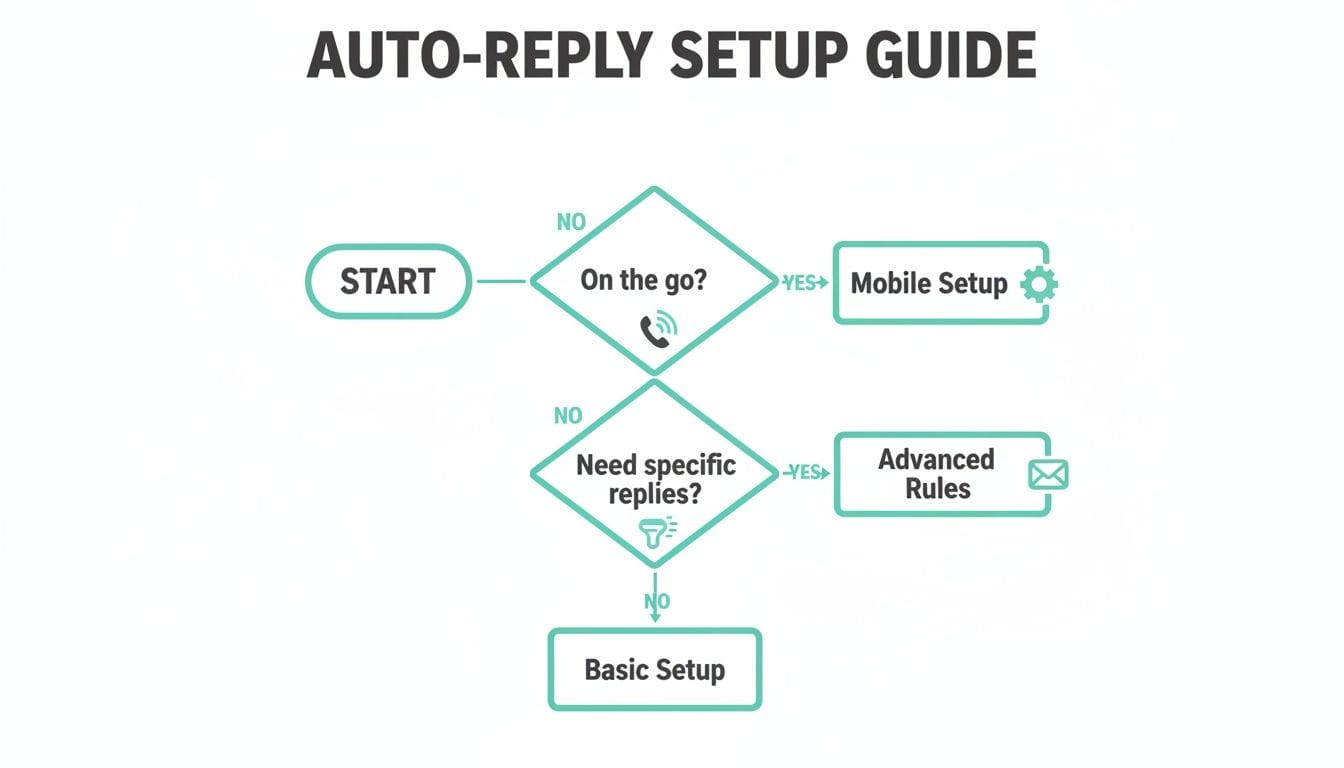
The main takeaway here is that your specific needs dictate the best approach. Sometimes a quick mobile setup for unexpected leave is all you need, while other times you'll want advanced rules for more targeted responses.
The Essential Components of a Great Auto-Reply
Every effective automatic reply needs a few core ingredients to be clear and helpful. The trick is striking that perfect balance between being informative without overwhelming the person on the other end.
Your message should always cover these points:
- A clear acknowledgement: A simple "Thank you for your email" is a great start.
- The dates of your absence: Be specific. State exactly when you’ll be back.
- An alternative contact for urgent matters: This is crucial. Provide a name, email, or phone number for anything that can't wait.
- What to expect next: Let them know if you'll reply when you return or if their email won't be forwarded.
Leaving these details out can make clients feel ignored or uncertain. A simple, well-structured message prevents that frustration and shows you value their time.
Good vs. Bad Examples in an Australian Context
The tone and clarity of your message can make a massive difference. Let’s look at a couple of real-world scenarios for Australian small businesses to see how small tweaks can dramatically improve your out-of-office reply.
Scenario One: Freelance Web Developer on Holiday
- Bad Example: "I'm on leave, back later. I'll get back to you then."
- Good Example: "Thank you for your email. I am currently out of the office on annual leave until Monday, 2nd September. For any urgent website issues, please contact my colleague Jane at jane@yourbusiness.com.au. I will respond to all other enquiries upon my return."
See the difference? The second example is far more professional. It gives a specific return date and a clear point of contact for emergencies, which is vital for client confidence.
Scenario Two: E-commerce Store Owner During a Peak Sales Period
- Bad Example: "We're busy. Your email is in a queue."
- Good Example: "Thanks for reaching out during our massive end-of-financial-year sale! Due to high volumes, our response times are a bit slower than usual. We aim to reply within 48 hours. For order tracking, please visit our website's tracking portal. Cheers!"
This message is brilliant because it manages expectations perfectly. It acknowledges the situation, gives a realistic timeframe, and even directs customers to a self-service option, which helps lighten the support load.
The goal is always to be helpful. Even when you can't provide an immediate personal response, you can still offer a solution or a clear next step. This small effort reinforces your brand’s commitment to service.
Maintaining Trust with Every Message
In a world where customers are constantly bombarded with brand communications, every single interaction counts. Your automatic reply is a touchpoint that can either strengthen brand loyalty or weaken it.
Recent market data shows that Australians subscribe to 6–10 brands by email on average, and 87% of SMS subscribers also get emails from the same brand. This really highlights how vital consistent, trustworthy communication is across every channel—even the automated ones. You can discover more insights from this report on Australian marketing trends.
A polished automatic reply contributes to this trust, just as a professional email signature does. Consistency is key. If you need a hand with that, check out our guide on how to set a signature in Outlook. By taking a moment to craft a perfect automatic reply, you show that your business is organised and customer-focused, turning a simple notification into a valuable part of your communication strategy.
Host your website with our 5-star rated, cPanel website hosting plans.
Super fast servers, with security included and hosted in your choice of Australian Data Center.
View cPanel Plans
Managing Auto-Replies for Shared Mailboxes
Handling emails for shared accounts like info@yourbusiness.com.au or support@yourbusiness.com.au needs a slightly different game plan than managing your personal inbox.
These mailboxes are often the first point of contact for new customers, so a professional and timely automatic reply is absolutely essential. It’s your first chance to make a great impression.
But setting this up isn’t as straightforward as it is for your own account. It involves specific permissions and often a different method to ensure the reply works reliably for everyone—not just when one person has their Outlook open. This is a common hurdle for growing Australian businesses as they scale up their support or sales teams.
The most reliable way to set up an automatic reply in Outlook for a shared mailbox is through the Outlook on the web interface. This makes sure the reply is "server-side," which means it will send responses even if no one is logged into the account or has their computer on. It's the set-and-forget solution every busy team needs.
Accessing and Configuring a Shared Mailbox
Before you can get started, you’ll need the right permissions to access the shared mailbox. Your IT administrator or hosting provider will usually grant you "Full Access" and "Send As" permissions. Once you have these, you can open the shared mailbox just like it was your own.
Here’s the best way to get in and set the auto-reply:
- Log in to your own Outlook account via the web (at Outlook.com or your Microsoft 365 portal).
- Click on your profile picture or initials in the top-right corner.
- Select Open another mailbox.
- Type in the email address of the shared mailbox (e.g.,
support@yourcompany.com.au) and click Open.
A new browser tab will pop open, showing you the shared mailbox's inbox. You are now effectively "in" that account and can manage its settings directly.
Setting the Auto-Reply in the Web App
From this new tab, the process is almost identical to setting up a reply for your personal account.
Just click the gear icon for Settings in the top right, then head over to Mail > Automatic replies. This is where you’ll activate the feature and write your message.
This screenshot shows the main Automatic Replies window, where you'll enable the feature and compose your message.
Here, you can turn on replies, set a specific schedule, and write the text that will be sent to anyone who emails the shared address.
It's critical to write a reply that works for every situation. Since a shared mailbox doesn't take personal holidays, the message should be more general, confirming receipt and setting a clear expectation for a response from the team.
Here’s a practical example for a sales@ mailbox during a busy public holiday period like the lead-up to Christmas:
"Thank you for your interest in our services. Our office is currently operating with a reduced team for the Christmas and New Year holiday period. We have received your enquiry and a member of our sales team will respond within one business day. We appreciate your patience!"
This message is polite, informative, and manages expectations perfectly. Once you’ve written your message, just click Save, and the auto-reply will be active for the shared account.
For UpTime Web Hosting customers, our secure email hosting with robust spam filtering provides the reliable foundation for this kind of team communication. If you need help with the initial configuration, our guide on Setting up mailboxes is a great resource. And if you ever get stuck, our local 24/7 Australian support team is always here to help.
Common Questions About Outlook Automatic Replies
Even with the best instructions, you sometimes just need a quick answer for a specific problem. Setting up an automatic reply in Outlook is usually a breeze, but a few common scenarios can leave you scratching your head.
This is your go-to troubleshooting guide for those little quirks. Whether you're back in the office early or wondering why a client didn't get your message, we’ve got the answers right here.
How Do I Turn Off My Automatic Reply Early?
Plans change. It happens. You thought you'd be out all week, but you're back at your desk sooner than expected. If you need to switch off your out-of-office message before its scheduled end time, the fix is quick and immediate.
Simply head back to the Automatic Replies settings where you first set it up. In the Outlook desktop app, you’ll find this under File > Automatic Replies. If you're using the web or mobile app, it's in Settings > Mail > Automatic replies.
From there, just choose the option for ‘Do not send automatic replies’. This instantly turns the feature off, and Outlook will stop sending your away message, no matter what end date you originally set.
Why Didn't My Auto-Reply Send to Someone?
This is a question we get all the time, and the answer is almost always hiding in your settings for external replies. If a client tells you they never received your out-of-office, it usually comes down to one of two things.
- Your reply settings were too restrictive. When you set the message for people Outside My Organisation, you get two choices: ‘My Contacts only’ or ‘Anyone outside my organisation’. If the sender isn't saved as a contact in your Outlook address book, that first option will stop them from ever seeing your reply.
- The recipient's email server blocked it. This is less common, but sometimes the receiving email server can mistake your automated message for spam and filter it out before it lands in the recipient's inbox.
To make sure everyone gets the message, it’s almost always best practice to select the ‘Anyone outside my organisation’ setting. This guarantees every external sender gets your reply, so no one is left wondering if you’ve received their email. It's a simple step that provides clarity and looks much more professional.
Can I Set Different Replies for Different People?
Outlook’s built-in Automatic Replies feature is powerful, but it does have its limits. It really only gives you two versions of your message: one for internal colleagues (Inside My Organisation) and one for absolutely everyone else (Outside My Organisation).
If you need more fine-tuned control—like sending a unique reply to a specific VIP client, or an automated response triggered by a keyword like "Urgent" in the subject line—you'll need to use Outlook Rules. By creating rules, you can build conditional responses based on templates. For a more detailed walkthrough, Microsoft has an official support article on using rules to create an out of office message.
At UpTime Web Hosting, we believe in providing not just powerful tools but also the support to use them effectively. From secure email hosting to 24/7 local support, we’re here to ensure your business communication is always professional and reliable. Explore our hosting solutions at https://uptimewebhosting.com.au.