
You've sent an invoice from MYOB, launched a campaign through Mailchimp, and your staff are replying from Microsoft 365, all using the same business domain. Then a customer says the invoice went to junk, or a reply never arrived. Before blaming the recipient's mailbox, run an SPF record check. The result can show whether your DNS record authorises the services sending mail for you.
SPF is straightforward in principle, but third-party platforms, subdomains and nested DNS lookups make it easy to misconfigure. This guide takes an Australian small-business approach, starting with a basic DNS check and moving through cPanel, online validators, error fixing and ongoing maintenance.
Table of Contents
- Why an SPF Record Check Matters for Your Domain
- Checking Your SPF Record from the Command Line
- Running an SPF Record Check in cPanel and Online Tools
- Reading and Interpreting the SPF Output
- Fixing Common SPF Record Errors
- SPF Best Practices for Australian Setups
- Quick SPF Checklist and Next Steps

Performance you can feel, backed by clients who depend on it. Read how our support and uptime create long‑term customer success.Power Your Business with Better Hosting
Why an SPF Record Check Matters for Your Domain
An SPF record is a DNS TXT record that lists the mail servers authorised to send email for your domain. When a receiving mail server checks an SPF-enabled message, it compares the sending server with that published list. If the sender isn't authorised, SPF fails verification, as explained in the Australian Cyber Security Centre email hardening guidance.
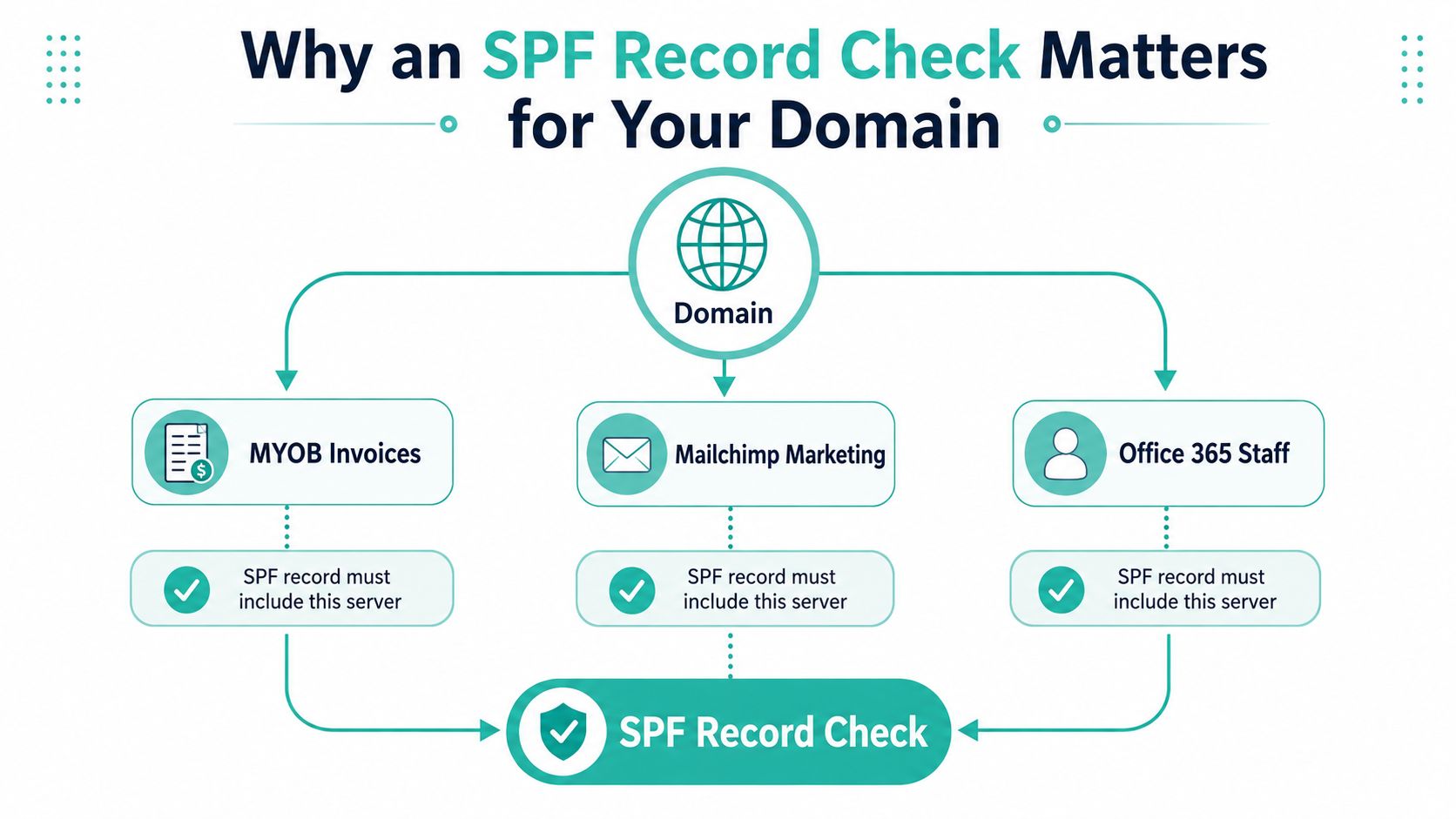
That matters when several services send mail on your behalf. MYOB might send invoices, Mailchimp might send newsletters, and Office 365 might handle everyday staff messages. If your SPF line includes only one of those services, the others can fail authentication. The practical result may be legitimate mail being filtered, rejected or treated with less trust by receiving systems, including large consumer services such as BigPond, Gmail and Outlook.
Treat SPF as a record of your current senders
SPF isn't a set-and-forget setting. A Microsoft 365 migration, a new helpdesk, a marketing platform or a change in web hosting can add another outbound sender. Each change should trigger a fresh check and a review of whether the record still contains the minimum necessary hosts and IP addresses, rather than every service a business has ever tried.
Australian guidance recommends publishing the record, testing it before deployment, using a low DNS TTL during rollout, such as 5 minutes, and working towards a hard-fail policy of -all once the sender list is confirmed. You can also review related DNS concepts in this guide to what an MX record is, but remember that MX records and SPF records serve different purposes.
Practical rule: Run an SPF check whenever you connect a new sending service, and add a recurring review to your business operations rather than waiting for a delivery complaint.
Checking Your SPF Record from the Command Line
The command line gives you the clearest view of what public DNS is returning. On macOS and Linux, open Terminal and run:
dig TXT yourdomain.com +short
Replace yourdomain.com with your actual domain before pressing Enter. The TXT part asks DNS for text records, where SPF is published. The +short option removes extra diagnostic detail so you can focus on the returned values.
dig is normally available on macOS and Linux. On Windows, you can use PowerShell if the utility is available in your environment, or run it through Windows Subsystem for Linux. A standard Windows installation usually includes nslookup, so this is a useful fallback:
nslookup -type=txt yourdomain.com
You can specify a public resolver when you suspect a local or ISP resolver is returning an older cached answer:
nslookup -type=txt yourdomain.com 8.8.8.8
You can also query 1.1.1.1. These resolver choices help you compare results, but they don't replace checking the authoritative DNS configuration held by your registrar or DNS provider.
Read the returned text carefully
Look for a quoted TXT value beginning with v=spf1. Other TXT records may appear as well, so don't assume the first result is SPF. An SPF value can contain mechanisms such as include, ip4 or mx, followed by a policy qualifier such as ~all or -all.
If the result is missing, check that you're querying the correct domain and that the DNS change has had time to propagate. During testing, the ACSC recommends a low TTL, for example 5 minutes, which makes changes easier to verify and roll back. For a deeper DNS troubleshooting workflow, use the DNS flushing guide when a device appears to be holding an old answer.

For a more detailed response, run:
dig TXT yourdomain.com +trace
This follows the DNS path and can help confirm whether the authoritative nameserver is responding with the record you expect. Keep a copy of the output before editing DNS, especially if another person manages your domain.
Host your website with our 5-star rated, cPanel website hosting plans.
Super fast servers, with security included and hosted in your choice of Australian Data Center.
View cPanel Plans
Running an SPF Record Check in cPanel and Online Tools
If Terminal or PowerShell feels uncomfortable, cPanel provides a visual route. Sign in, open Zone Editor or Advanced DNS Zone Editor, choose the relevant domain, and filter the records for TXT entries. Find the value beginning with v=spf1, then inspect it rather than creating another record beside it.
A domain should have one SPF record, not several separate TXT entries beginning with v=spf1. If two teams add separate records, receiving systems may treat the configuration as invalid. Merge the authorised mechanisms into one carefully tested line instead of pasting a second record.
For reseller or server administrators, WHM also provides an Email Authentication route for reviewing and managing SPF and related settings across hosting accounts. cPanel's DNS editor is useful for seeing the stored value, while an external validator can expand includes, identify syntax problems and report lookup usage.
Choose the checking method that suits your access
Useful options include MXToolbox SPF Record Check, Google's Dig tool, Kitterman, dmarcly and the Australian-facing au.spf-record.com service. Australian tools such as HostBible's SPF checker describe checks for the TXT record, policy qualifier and lookup count, while also validating against the SPF rules defined by RFC 7208.
Paste your domain into the validator, not the complete TXT value. Review whether the record exists, whether the syntax parses, which sending services are authorised and whether the lookup count creates an operational problem. Testing with two validators can expose caching or interpretation differences. Save the result with the date and the DNS change that prompted it.
| Method | Best For | Skill Level | AU Notes |
|---|---|---|---|
dig | Direct DNS inspection | Intermediate | Available on macOS and Linux |
nslookup | Windows troubleshooting | Beginner | Can query a public resolver |
| cPanel Zone Editor | Hosting customers | Beginner | Shows the live DNS zone managed in cPanel |
| Online validator | Diagnostics and lookup analysis | Beginner | HostBible's Australian checker reports operational details |
| WHM Email Authentication | Resellers and administrators | Intermediate | Useful when managing multiple hosting accounts |
If you manage email alongside cPanel, use this knowledge-base guide to SPF, DKIM and DMARC implementation before making changes.
Reading and Interpreting the SPF Output
A record can look like a string of technical fragments, but each fragment has a job. Consider this example for an Australian business:
v=spf1 include:spf.protection.outlook.com include:servers.mcsv.net ip4:203.0.113.20 ~all
The opening v=spf1 identifies the record as SPF. The include mechanisms authorise approved third-party sending infrastructure, while ip4 authorises a specific IPv4 address or range. The final ~all applies a soft fail to senders that don't match the earlier mechanisms. An Australian knowledge-base example uses the same general pattern with Google and an Australian mail gateway, ending in ~all, as shown in this SPF authentication introduction.
How receiving servers evaluate the line
A receiving server evaluates mechanisms from left to right. It compares the sender against the listed authorisations, and the first matching mechanism determines the SPF result. If no earlier mechanism matches, the final qualifier tells the server how to classify the message.
| Token | Type | Meaning | Example |
|---|---|---|---|
v=spf1 | Version | Identifies an SPF record | v=spf1 |
ip4 | Mechanism | Authorises an IPv4 address or range | ip4:203.0.113.20 |
ip6 | Mechanism | Authorises an IPv6 address or range | ip6:2001:db8::/32 |
include | Mechanism | Checks another domain's SPF authorisation | include:spf.protection.outlook.com |
a | Mechanism | Matches an address record for a domain | a |
mx | Mechanism | Matches addresses listed by MX records | mx |
ptr | Mechanism | Uses reverse-DNS host matching | ptr:example.com |
exists | Mechanism | Tests whether a DNS name exists | exists:example.com |
redirect | Modifier | Uses another domain's SPF policy | redirect=example.com |
-all | Qualifier | Hard fail for non-matching senders | -all |
~all | Qualifier | Soft fail for non-matching senders | ~all |
+all | Qualifier | Passes all senders | +all |
?all | Qualifier | Returns a neutral result | ?all |
A validator may label results pass, softfail, hardfail or neutral. Those labels describe SPF's decision for the sending server, not a complete verdict on whether the message is safe. DMARC adds alignment and policy considerations, so a valid SPF record doesn't automatically mean every message will pass DMARC.
Fixing Common SPF Record Errors
Most SPF failures come from a small set of configuration mistakes. Start by copying the current TXT value into a safe note, then compare every authorised sender with the services your business uses. The right fix depends on the symptom, not on whichever warning looks most alarming in a validator.
| Symptom | Cause | Fix |
|---|---|---|
| Multiple SPF records reported | More than one TXT value begins with v=spf1 | Combine the required mechanisms into one record and remove the duplicate |
| Lookup-limit error | Nested include, a, mx, exists or redirect checks consume too many DNS lookups | Remove unused senders, simplify the chain and review the provider documentation |
| Syntax error | Missing spaces, incorrect punctuation, stray quotation marks or a misspelt mechanism | Rebuild the value carefully, then validate it before publishing |
| Legitimate service fails SPF | The service's approved include or sending address is missing | Confirm the provider's current authorisation value and add it to the single record |
| Unauthorised mail receives a pass | The record ends with +all | Replace the permissive policy after confirming legitimate senders |
| Results appear neutral | The record ends with ?all or doesn't express an enforcement choice | Use a deliberate policy, beginning cautiously during testing and moving to -all when ready |
| A subdomain has no SPF result | Subdomains don't inherit the parent record | Publish a separate record for each sending subdomain, or v=spf1 -all where it never sends mail |
Merge records instead of stacking them
This is invalid as a final arrangement:
v=spf1 include:provider-a.example ~all
v=spf1 include:provider-b.example ~all
The practical correction is one combined value:
v=spf1 include:provider-a.example include:provider-b.example ~all
Use the providers' real published domains in your own record. Don't copy the illustrative names above into production. Check the result after saving it, because a merge can introduce a lookup-limit problem even when both original lines looked valid.
The ptr mechanism is another poor choice for modern records because it relies on reverse-DNS behaviour and can be difficult to maintain. Prefer a provider's documented include, or an explicitly managed ip4 or ip6 mechanism.
For cPanel-specific changes, follow this guide to editing DNS for third-party email services. SPF flatteners can reduce live DNS queries by replacing includes with addresses, but they create maintenance work when providers change infrastructure. Remove obsolete senders first, and treat flattening as a controlled operational choice rather than a quick patch.
Register your new domain name at competitive market prices including free domain add-ons like privacy, DNS Hosting, Custom Nameservers and Forwarding.
Always the best price and no nasty renewal price hikes.
Register A Domain Name
SPF Best Practices for Australian Setups
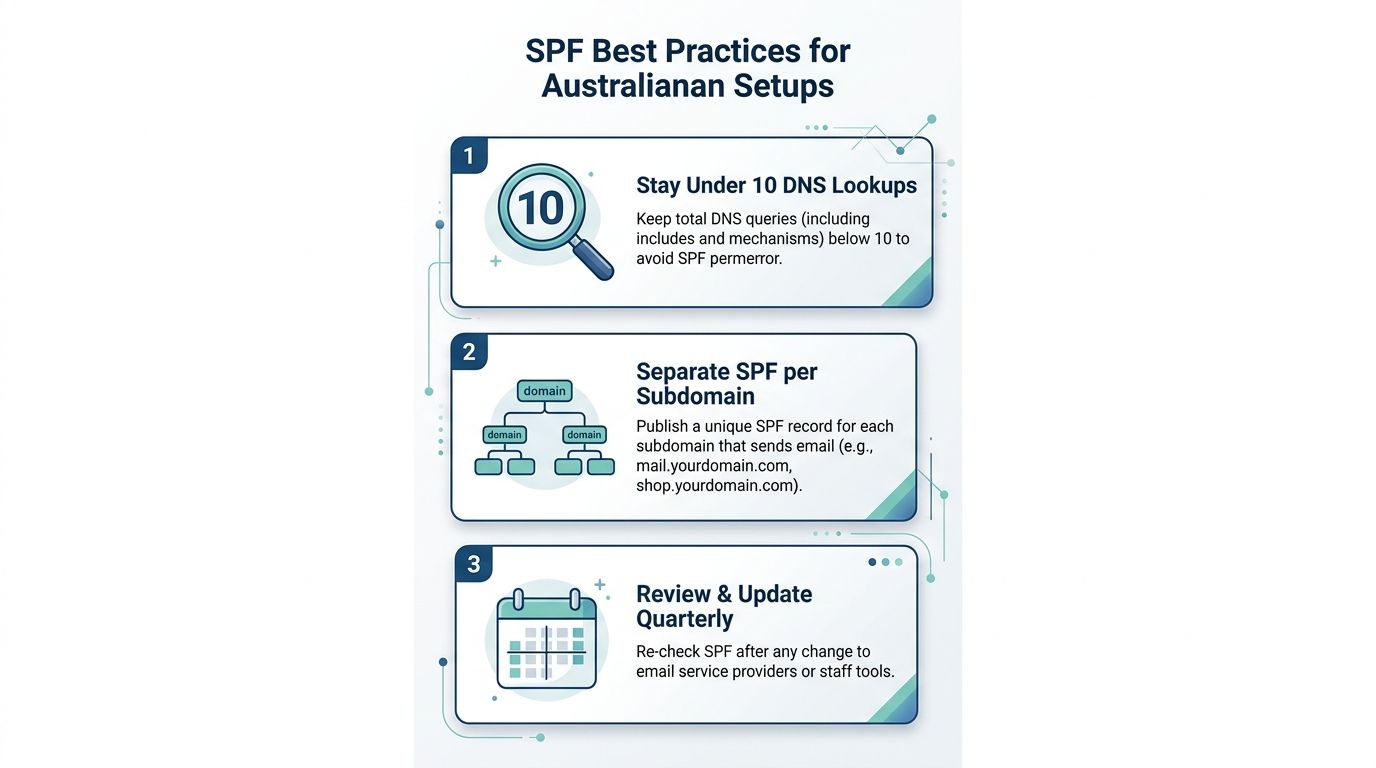
An Australian business may send mail through Microsoft 365, Mailchimp, MYOB, a website host and a customer platform. SPF should therefore be treated as an operating habit, not a DNS task completed once. Review it whenever a provider is added, removed or migrated. The ACSC recommends identifying authorised mail servers, testing before rollout, using a low TTL during changes and adopting -all once the sender list is reliable. Remember that subdomains don't inherit the parent domain's SPF record.
Keep the sender list narrow
Include only services that send mail using your domain. After moving away from an old provider, remove its mechanism rather than leaving it active indefinitely. Every additional include can trigger more DNS queries, so lookup count belongs in the routine review alongside syntax and sender coverage.
A practical example is a business using yourbusiness.com.au for staff mail and marketing.yourbusiness.com.au for campaigns. The marketing subdomain needs its own SPF record. A subdomain that never sends mail can instead publish v=spf1 -all, which makes the intended behaviour clear. Avoid ptr when a provider documents an include, ip4 or ip6 option. Keep a shared note explaining why each mechanism exists, then update it when the business changes platforms. See these email deliverability practices for Australian hosting for related configuration considerations.
Pair SPF with DKIM and DMARC
SPF verifies the sending infrastructure. DKIM adds a cryptographic signature, while DMARC checks authentication and domain alignment before applying the policy published by the domain owner. Queensland Government guidance explains that DMARC can pass when either aligned SPF or aligned DKIM passes. SPF is one part of the decision, not the whole email-security system.
Publish DMARC at _dmarc.yourdomain.com.au and collect aggregate reports. Those reports can reveal a forgotten booking system, newsletter service or outsourced invoice platform that a single SPF lookup would miss. Start with a cautious policy and increase enforcement only after legitimate senders are accounted for.
A quarterly review helps catch drift after a provider changes its sending infrastructure. Run an SPF record check after each service change, compare the result with DMARC reports and confirm that the published record still matches real mail activity. This routine is especially useful for small Australian businesses using several third-party senders, because ownership of the record and its sender list stays clear.
Quick SPF Checklist and Next Steps
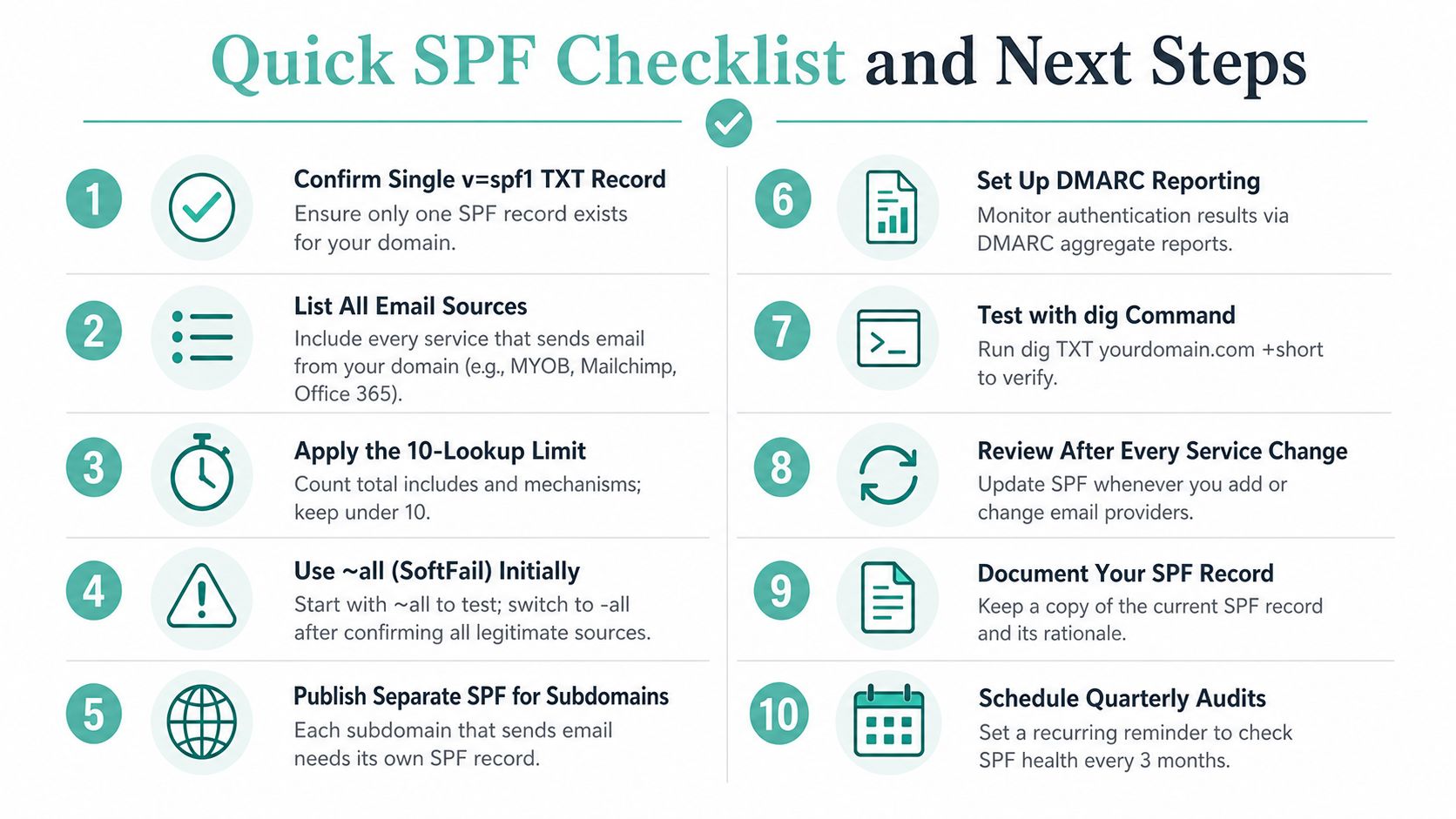
Use this checklist after every significant email-platform change:
- Confirm one record: Check that only one TXT record begins with
v=spf1. - List senders: Record every legitimate source, such as MYOB, Mailchimp and Office 365.
- Review lookups: Keep DNS-querying mechanisms within the SPF limit of 10, as described by Australian SPF validation guidance at HostBible.
- Choose the policy: Use
~allwhile testing, then move to-allafter confirming legitimate sources. - Cover subdomains: Publish a separate SPF record for every subdomain that sends mail.
- Enable DMARC reports: Add an aggregate reporting mailbox and review authentication results.
- Run a command check: Use
dig TXT yourdomain.com +shortor the Windowsnslookupalternative. - Recheck changes: Test after adding, removing or migrating a provider.
- Document the record: Store the current value and its rationale in a shared runbook.
- Schedule reviews: Put a quarterly SPF audit on the calendar.
Set up DKIM with each sending provider and publish DMARC with a cautious starting policy and an aggregate mailbox. The Queensland Government's email domain security guideline supports staged DMARC adoption with reporting, which helps you identify legitimate senders before stronger enforcement.
If your team needs a broader reference for configuring mail services across platforms, AgentStack's email domain configuration documentation is useful alongside your registrar and provider instructions. Bookmark an SPF validator, save each dated result and make the check part of your routine rather than treating it as a one-time repair.
UpTime Web Hosting can help Australian businesses manage cPanel DNS, email hosting and SPF, DKIM and DMARC configuration as their sending services change. Visit UpTime Web Hosting to review local hosting and support options, then arrange a record check before your next provider migration.