You've got too many logins riding on one password, one phone, and one tired memory. That's the usual shape of the problem for an Australian small business, a shared mailbox, a cPanel account, a WordPress dashboard, and one person who thinks they'll “set up 2FA later”. Don't. The Australian Cyber Security Centre says privileged accounts should use multifactor authentication, and Cyber.gov.au tells small businesses to prefer an authenticator app or hardware security key over SMS. If you lock down the right accounts today, you stop a simple password theft from turning into a hosting takeover. For the local security baseline, start with UpTime Web Hosting's small business cyber security guidance.
Table of Contents
- Why Two-Factor Authentication Matters for Your Australian Business
- Choosing the Right 2FA Method for Your Team
- Enabling 2FA on cPanel and WordPress
- Securing Webmail, SSH and RDP Access
- Designing Recovery So You Never Get Locked Out
- Operational Best Practices for Ongoing 2FA Hygiene
- Putting It All Together and Common Questions

Performance you can feel, backed by clients who depend on it. Read how our support and uptime create long‑term customer success.Power Your Business with Better Hosting
Why Two-Factor Authentication Matters for Your Australian Business
A lot of Australian SMBs only think about 2FA after something goes wrong. A staff mailbox gets reused somewhere it shouldn't, the hosting account gets logged into from a random location, or the one developer who knew everything leaves with the only authenticator app on their phone. That's not an edge case. That's ordinary business risk.
Two-factor authentication adds a second check after the password. A password proves what you know, while the second factor proves you also have the approved device or security key. That extra step doesn't make accounts invincible, but it changes the game enough that a stolen password is no longer enough on its own.
Australian guidance is blunt on this. The ACSC says privileged accounts should use multifactor authentication, and Cyber.gov.au recommends an authenticator app or hardware security key instead of SMS for small business accounts. That matters because your hosting login, your admin mailbox, and your cloud tools are privileged accounts in practice, even if nobody labels them that way.
Implementation burden is also worth facing early. A usability study on 2FA setup found participants took a mean of 314 seconds to complete setup, with a standard deviation of 114 seconds, a range of 174 to 555 seconds, and only a 68% mean successful completion rate Rice University usability study. That's a decent reminder that setup isn't hard, but it isn't frictionless either, which is exactly why you should do it before you're under pressure.
Practical rule: If an account can change passwords, read mail, manage billing, or publish a site, it gets 2FA before anything else.
The rest of this guide is built around the accounts Australian businesses use, not some abstract enterprise stack. You'll cover cPanel, WordPress, webmail, SSH, and RDP, then finish with a recovery plan that stops one lost phone from becoming a business outage.
Choosing the Right 2FA Method for Your Team
There are four methods most Australian SMBs will realistically use. Only two deserve serious attention for business accounts, and the ACSC's preference is clear enough that there's no reason to dance around it. Start with an authenticator app or a hardware security key. Keep SMS as a fallback only where you have no better option.
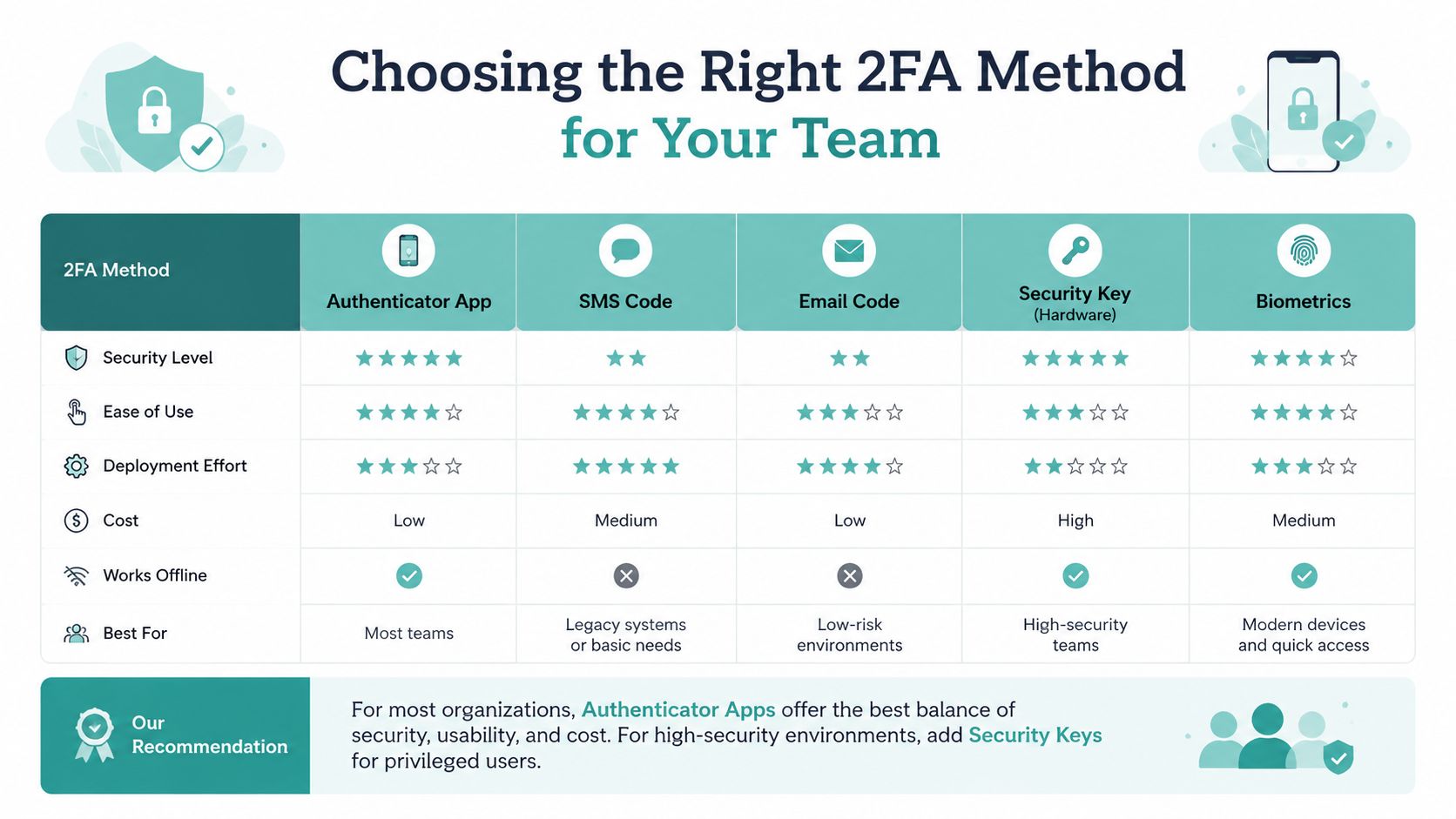
MFA methods compared for Australian SMBs
| Method | Security | Lockout Risk if Phone Lost | Cost | ACSC Preference |
|---|---|---|---|---|
| SMS codes | Weakest of the common options | Medium | Low | Not preferred |
| Authenticator app | Strong, practical default | Medium | Low | Preferred |
| Hardware security key | Strongest day-to-day option | Low if you keep a spare | Higher upfront | Preferred |
| Platform prompts from Apple, Google, Microsoft | Good for account ecosystems | Medium | Low | Useful, but account-specific |
SMS looks easy until a SIM swap or number change hits. Then the business learns how fragile it is. Authenticator apps are the sensible default because they're cheap, fast to roll out, and a good fit for a managed phone the owner or admin controls. Hardware keys cost more, but they cut down the pain of device loss and should be used for the accounts that can take the business down.
Platform-built factors from Apple, Google, and Microsoft are useful, but they're tied to those ecosystems. They're not a replacement for proper setup on hosting, email, or admin portals. They're a layer, not the whole plan.
The core trade-off is simple. SMS is convenient but weak, apps are the best balance, and hardware keys are what you want on your crown jewels. For a typical UpTime customer, my recommendation is plain: start with an authenticator app on a phone the owner controls, then add a hardware key for the cPanel or WHM admin account once the basics are live.
If your team uses Microsoft tools, keep the reset process handy. The Microsoft Authenticator reset guide is worth bookmarking before anyone loses a phone.
Host your website with our 5-star rated, cPanel website hosting plans.
Super fast servers, with security included and hosted in your choice of Australian Data Center.
View cPanel Plans
Enabling 2FA on cPanel and WordPress
Your first two targets are the accounts you touch every day. If an attacker gets into cPanel or your WordPress admin, they can change files, plant malware, and lock you out fast. Set these up first, with recovery codes stored properly and backup access planned before you switch anything on. That matches the ACSC and Cyber.gov.au approach, which treats account hardening as basic hygiene, not an optional extra.
cPanel first, because it controls the hosting stack
Log in to cPanel, open Security, then Two-Factor Authentication. Scan the QR code with your authenticator app, enter the six-digit code to confirm, then save the recovery codes somewhere safe, not in email and not in a random notes app. If you manage a hosting account through cPanel on UpTime's knowledge base, use that process as your starting point.
Keep the setup tight. The job is to stop a password leak from becoming a hosting compromise, and cPanel is the panel that controls files, databases, and service settings. If you are the only person with admin access, use an authenticator app you control and keep the recovery codes offline.
WordPress second, but only after the hosting account
If your site is hosted and the host enforces 2FA on the dashboard, turn that on. If the site is self-managed, install a plugin such as Two Factor or WP 2FA and enable it for every administrator. If the site also uses a WordPress.com login, switch on 2FA there as well.
Practical rule: Do not stop at the WordPress login if the cPanel admin user is still password-only. Attackers will usually go for the account that gives them the broadest control.
For a hosted WordPress install, the sensible flow is simple. Turn on cPanel 2FA first, then lock WordPress admin next, then test a fresh login from a private browser window. If the login works, the recovery codes are stored, and you are not relying on memory, the job is done.
Keep the focus on the admin account, not the content editor roles. That is where the risk lives.
Securing Webmail, SSH and RDP Access
A lot of Australian SMBs lock the front door and leave the side doors open. cPanel gets 2FA, then webmail, server access, and Windows admin paths stay password-only. Fix those next. An attacker who lands in email or remote admin has room to move, so follow ACSC and Cyber.gov.au guidance from the start and treat every account that can reach your hosting stack as part of the same lock-down plan.
Webmail needs the same treatment as hosting
Turn on MFA inside the email account settings in cPanel so a stolen mailbox password cannot be used on its own. Then set up a strong app password for IMAP and SMTP on phones and Outlook where the mail client needs it. That keeps the mailbox protected without breaking day-to-day mail flow.
A mailbox often becomes the reset channel for everything else. If someone takes it over, they can trigger password resets across hosting, cloud services, and billing systems. Treat webmail as a control point, not a side account.
SSH should be key-based, not password-based
For Linux servers, generate an SSH key on the workstation, upload the public key through cPanel's SSH Access, and require key-based login on the server. If the VPS supports it, add an authenticator-app TOTP through a PAM module as a second factor. That gives you something stronger than a password alone and removes the easy-entry path that brute-force attacks love.
For server operators using UpTime's Windows server management guidance, the principle is the same even though the implementation differs. Reduce exposure, remove weak login paths, and make admin access deliberate. Windows admin access should be managed with the same discipline as Linux shell access, because both can hand over the whole box.
RDP should never be left hanging in plain sight
For Windows and ASP.NET hosting, switch the RDP listener away from the default port where possible, require Network Level Authentication, and front the server with a VPN or a hardware-key protected gateway. Do not rely on obscurity alone, but do not leave the default setup in place either.
Use this as your order of operations:
- Webmail first: Turn on account-level MFA and use app passwords where the mail client needs them.
- SSH next: Prefer keys, then add TOTP if the server stack allows it.
- RDP last: Wrap it in a gateway or VPN and never leave admin access open without stronger controls.
For hosted mail and server recovery procedures, the email account recovery guidance is the support note you want handy before someone is locked out. For hosted mail and server recovery procedures, the recovery section later in this guide covers the process you want ready before a lockout hits.
Designing Recovery So You Never Get Locked Out
A Sydney bookkeeping firm owner restores a new phone from iCloud, opens Microsoft Authenticator, and finds the work account has vanished. The cPanel login now wants a code that isn't there, the office mailbox is tied to that account, and the business is stuck waiting for support while customers keep emailing. That's not a security failure. It's a recovery failure.
Recovery has to be designed, not improvised
The first rule is straightforward but essential. Store recovery codes in a password manager and on paper in a safe, never in plain email. The second rule is to register at least two factors, such as a phone plus a hardware key, or a phone plus a platform recovery email. The third rule is to document who holds which factor for shared admin accounts, and who can authorise a reset.
OWASP treats recovery codes, backup factors, and secure reset workflows as part of multifactor authentication design, not as an optional extra. That's the right framing. If you don't plan for recovery, you've only half-built the control.
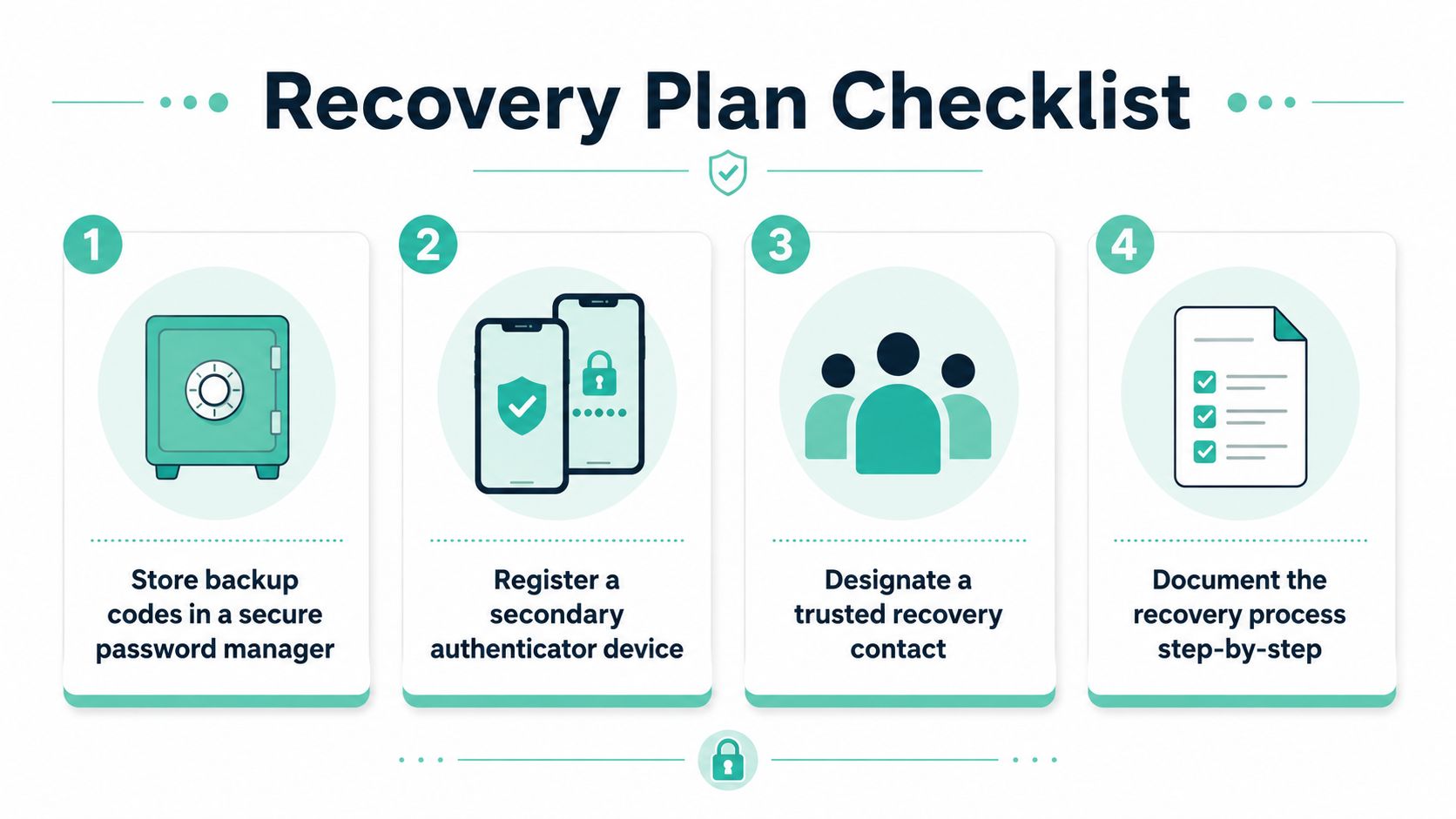
Make recovery testable, not theoretical
Run a recovery login on a non-critical account every quarter. Don't wait for a real phone loss to discover that nobody knows where the backup code lives or who can approve the reset. A five-minute test now beats a three-hour outage later.
The email account recovery process should be part of your internal support notes if your business relies on a single mailbox or a shared admin inbox. That's especially true for owner-managed companies where the same person often controls billing, email, and hosting.
Keep one clean rule on paper. If a code, key, or backup email isn't documented, it doesn't count.
That sounds strict because it is. The goal isn't to make recovery convenient. The goal is to make it reliable when someone drops a phone, leaves the business, or wipes an authenticator app by accident.
Register your new domain name at competitive market prices including free domain add-ons like privacy, DNS Hosting, Custom Nameservers and Forwarding.
Always the best price and no nasty renewal price hikes.
Register A Domain Name
Operational Best Practices for Ongoing 2FA Hygiene
2FA isn't a one-time project. It's a control you run. If you let staff add accounts without MFA, or you never review who still has access, the setup drifts back towards risk faster than most owners expect.
Start with a default rule: every new account gets 2FA at creation, not later. Then run a quarterly review of which staff hold factors on which accounts. Offboard factors immediately when a contractor or employee leaves, and keep an internal register showing where each recovery code lives.
The method choice matters again. SMS is the weakest practical option, so don't leave critical accounts on SMS if you've got a better path. Move business-critical logins, especially cPanel/WHM admin, the billing account, and the domain registrar login for your .au identity, to hardware keys where possible. That cuts the risk of one lost phone taking out the whole stack.
For a local business, the support path matters too. If a customer gets locked out after enabling 2FA on a hosting account, use UpTime's 1300 support line and ticket workflow so recovery is handled through a real account-verification process, not by guesswork. A secure control needs a secure recovery channel.
Use this as your ongoing checklist:
- Default on: Require MFA on every new service and every new staff account.
- Review quarterly: Check who has access, which factor they use, and what backups exist.
- Offboard fast: Remove factors the same day someone leaves.
- Register everything: Keep a live record of backup codes, recovery contacts, and spare keys.
If your team can't tell you where the backup lives, the backup isn't operational. That's the standard.
Putting It All Together and Common Questions
Roll it out in this order this week. First, protect the domain registrar and cPanel. Second, lock down webmail and WordPress. Third, handle SSH, RDP, and any cloud accounts. Last, do the recovery pass and write down the offboarding rule so nobody leaves with a still-active factor.
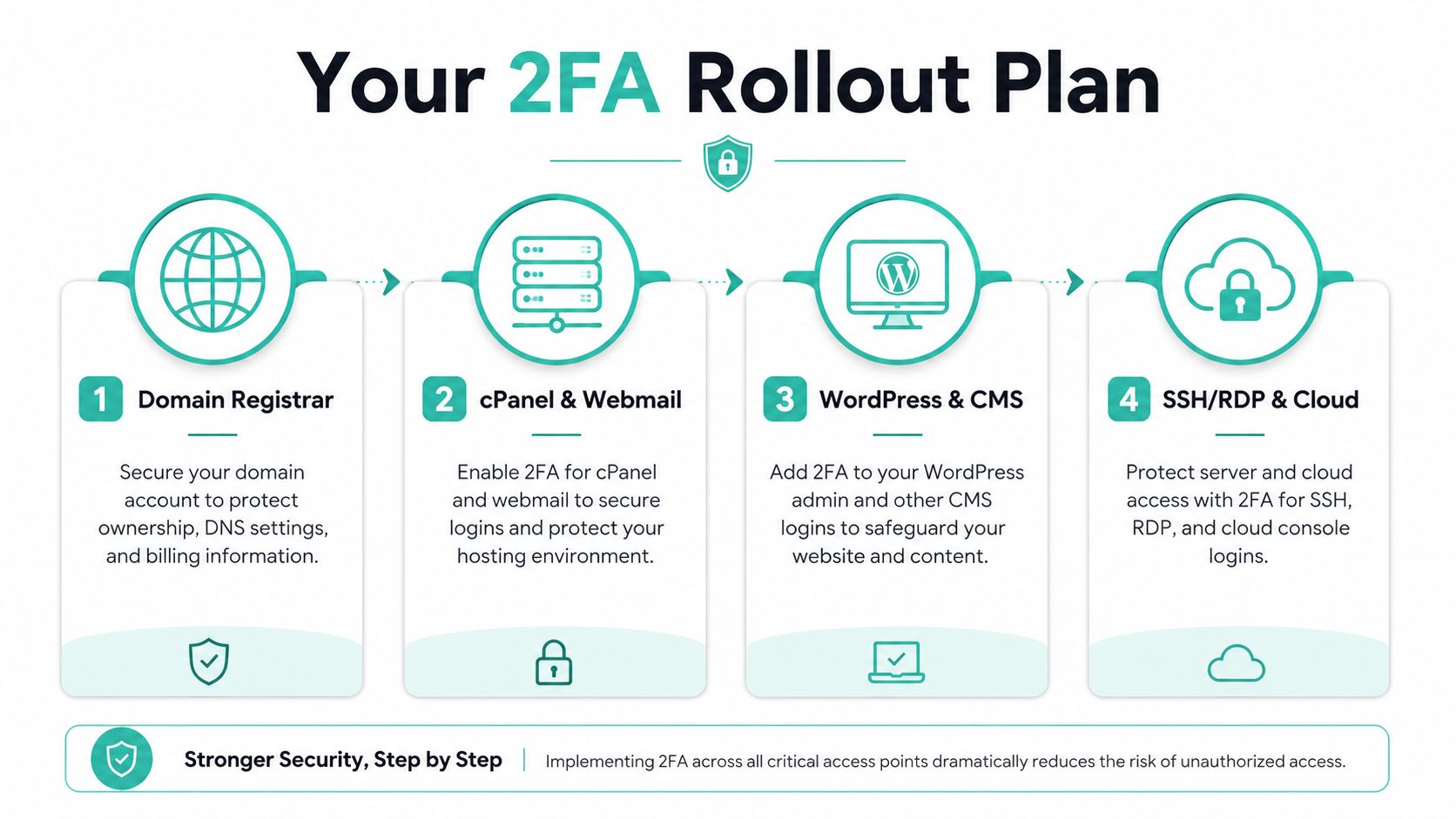
A simple rollout order you can keep on a desk
- Domain registrar first. If someone takes this over, they can reroute the whole business.
- cPanel and webmail next. That locks the hosting and the inbox.
- WordPress after that. Close the site admin path.
- SSH, RDP, and cloud tools last. Finish the back doors and remote access points.
Common questions owners ask
Do I need 2FA on a small brochure site with no logins? Yes, on the hosting account. The public site may be simple, but the hosting control panel is not.
What if I lose my recovery codes? Contact UpTime support with ownership proof and work through the recovery process. Don't rely on memory or old emails.
Are hardware keys overkill for a five-person business? Not for the admin account. That one account usually has enough power to justify the extra control.
The easiest mistake is waiting until after a breach to treat this seriously. Don't do that. Enable 2FA on the accounts that matter today, write the recovery process down, and make it part of how your business runs.
If you want this done on hosting that's built for Australian businesses, with local support and a clear path for account protection, visit UpTime Web Hosting and get your hosting, email, and admin access locked down properly. Their local team can help you choose the right setup, apply it to the right accounts, and keep the recovery path practical when something goes wrong.