That startling "Your connection is not private" warning can be a real showstopper, but it's actually a critical safety feature built right into your web browser. Think of it as a digital security guard, stopping you at the door when it can't be 100% certain a website is who it claims to be.
This whole process hinges on something called an SSL (Secure Sockets Layer) certificate.
An SSL certificate is a tiny data file that acts like a digital passport for a website. When it's installed correctly on a web server, it activates the familiar padlock icon and the HTTPS protocol you see in your address bar. This creates a secure, encrypted link between the server and your browser. If you want to dive deeper into how this works, check out our guide on the differences between HTTP and HTTPS.
When you see that error, it means your browser tried to do a security check—often called an "SSL handshake"—and something went wrong. The cause can be anything from a simple hiccup to a more serious issue:
- The website’s SSL certificate might have expired.
- The certificate could be set up for a different website address.
- Your browser might not recognise or trust the organisation that issued the certificate.
This warning is there for a good reason: it protects you from "man-in-the-middle" attacks, where a third party could be trying to intercept the information you're sending to the website. The financial fallout from insecure connections is no joke, either. The average cost of a single data breach in Australia is a staggering $3.35 million, a figure that really drives home why these security checks are so important.
Where’s the Problem Coming From? A Quick Diagnosis
Before you can apply the right fix, you need to figure out if the problem is on your end (your computer or browser) or with the website itself. It’s the first question to ask.
This simple flowchart can help you quickly trace the source of the issue and point you in the right direction.
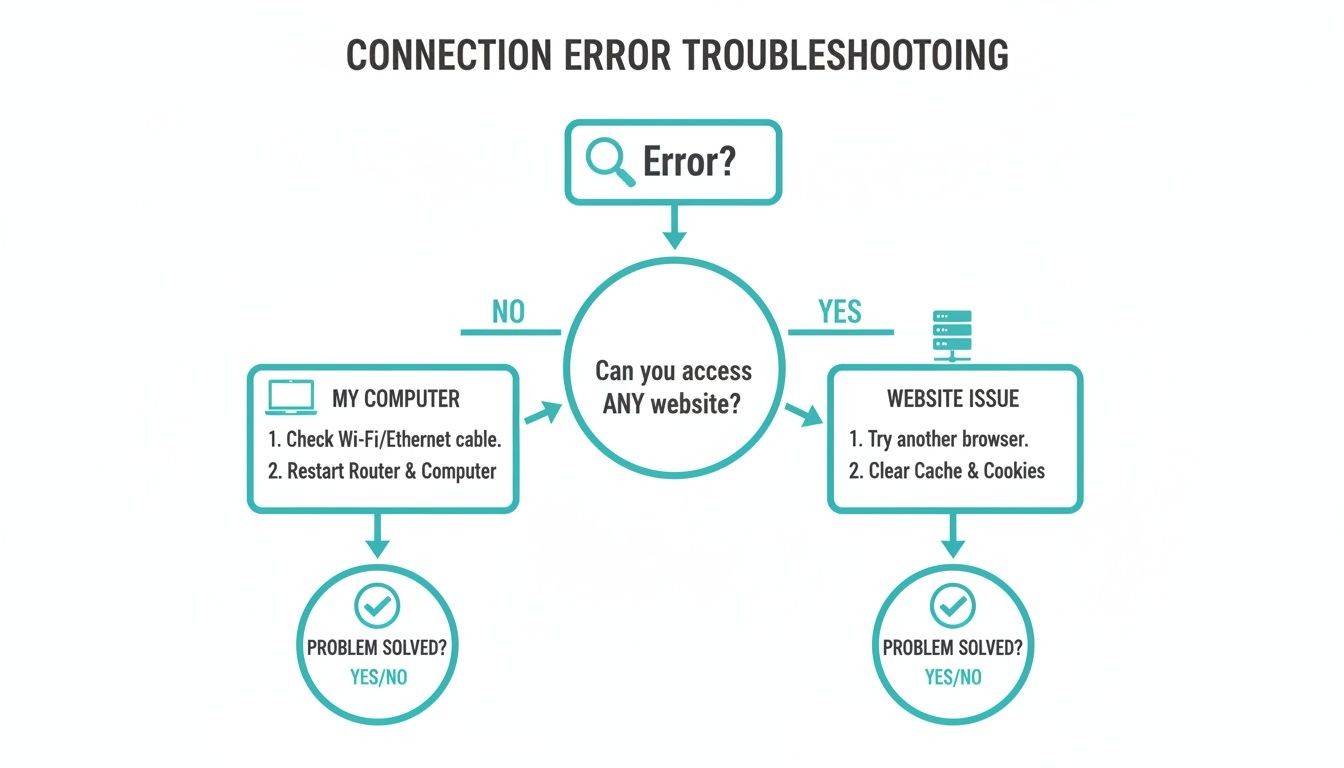
As the diagram shows, the troubleshooting path splits right away. Depending on the context of the error, you'll either start by checking local settings on your device or investigating the website's server configuration.
To make things even easier, we've put together a quick diagnostic table. Use it to match your symptom to the likely cause and find the exact section in this guide to sort it out.
Quick Diagnostic: Your Connection Is Not Private Fix
| Symptom | Potential Cause | Who Can Fix It | Jump to Section |
|---|---|---|---|
| The error appears on all HTTPS websites you visit. | Local device/browser issue (e.g., system clock). | Site Visitor | Fixes for Site Visitors |
| Only one specific website shows the error. | Website's SSL certificate or server issue. | Site Owner / Developer | Fixes for Website Owners |
| The error appears on a company network or public Wi-Fi. | Network is blocking or filtering HTTPS traffic. | Site Visitor / Network Admin | Check Your Wi-Fi & Network |
| Your browser says the certificate is expired or invalid. | The SSL certificate on the website has expired. | Site Owner | Check SSL Certificate Validity |
| The site works on mobile but not on your desktop (or vice versa). | A local browser cache or firewall issue. | Site Visitor | Clear Browser Cache & Cookies |
| Your website's address has a "www" mismatch in the error. | Certificate doesn't cover all domain variations. | Site Owner | Run a Server Test |
This table should give you a solid starting point for getting that secure connection back up and running.
Quick Fixes for Website Visitors
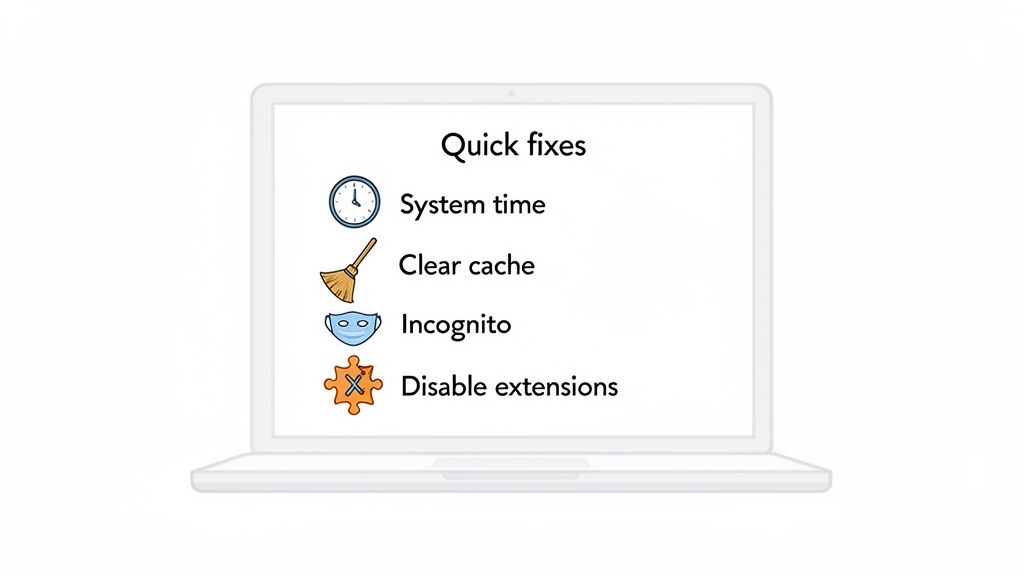
If you've hit the "Your connection is not private" roadblock while trying to visit a site, don't panic. More often than not, this isn't a sign of a major security breach. It's usually caused by a simple misconfiguration on your own device.
Before you start thinking about complex server-side issues, let's run through a few practical steps that can get you back online securely in just a few minutes. These quick checks often resolve the problem without needing to do anything more complicated.
Synchronise Your System Clock
It sounds almost too simple to be true, but one of the most common culprits is your computer's date and time being out of whack. Every SSL certificate has a strict expiry date, and if your system clock is incorrect, your browser can't properly verify the certificate's validity.
Practical Example: Imagine a website's SSL certificate is valid from January 2024 to January 2025. If your computer's clock is accidentally set to December 2023, your browser will see the certificate as not yet valid and throw the privacy error.
Here's the quick fix:
- On Windows: Right-click the clock on your taskbar, choose "Adjust date/time," and toggle on both "Set time automatically" and "Set time zone automatically."
- On macOS: Head to System Settings > General > Date & Time, and make sure "Set date and time automatically" is enabled.
This simple tweak ensures your device is synced up with the global time servers that are used to validate SSL certificates. Problem solved.
Clear Your Browser Cache and Cookies
Your browser is designed to be efficient, storing bits of data from websites you visit to help them load faster next time. This stored data, or cache, can sometimes cause headaches when it becomes outdated or corrupted.
If a website has just renewed or updated its SSL certificate, your browser might still be clinging to the old, invalid information from its cache. This creates a conflict and throws up the error.
A cluttered browser cache is like trying to open a newly changed lock with an old, expired key. Clearing it gives your browser a fresh start, forcing it to fetch the latest security information directly from the website's server.
You can usually find the option to clear your cache and cookies in your browser's settings menu, typically under "Privacy and Security" or "History." This forces your browser to download a fresh copy of the site, including its shiny new security certificate. For detailed instructions, check your browser's official support page: Google Chrome, Mozilla Firefox, or Microsoft Edge.
Use Incognito Mode to Diagnose the Problem
Here's a great pro tip for troubleshooting: try opening the website in an Incognito or Private window. This special mode loads the page without any of your existing cache, cookies, or browser extensions getting in the way.
If the site loads perfectly in Incognito mode, you've pretty much confirmed the issue is on your end—either with your browser's stored data or a misbehaving extension.
This helps you pinpoint the cause without having to nuke all your browsing data straight away. If it works, your next move should be clearing the cache or checking your extensions. Occasionally, a simple DNS glitch can also be the culprit; you can learn more about what happens when your DNS is not responding in our guide. Disabling extensions one by one is also a great way to see if a specific add-on is interfering with your secure connections.

Performance you can feel, backed by clients who depend on it. Read how our support and uptime create long‑term customer success.Power Your Business with Better Hosting
Essential Checks For Website Owners
As a website owner, seeing the "Your connection is not private" error isn't just a minor glitch for your visitors—it's a massive red flag. It tells the world your site's security might be compromised, which can instantly kill trust, turn away customers, and even hurt your search engine rankings. You need to act fast to protect your reputation and your users.
This isn't just about best practices anymore; it's a fundamental requirement. With Australia's cybersecurity market expected to hit $19.3 billion by 2033, it's clear that solid digital security is non-negotiable for any business. Your website is your digital front door, and it needs to be secure.
Use an SSL Checker for a Quick Diagnosis
Before you start digging around in your hosting control panel, the first thing you should do is get an unbiased, outside opinion on your SSL setup. Free online tools like SSL Shopper's SSL Checker are perfect for this. Just type in your domain, and within seconds, you'll get a detailed health report on your certificate.
These checkers are brilliant because they instantly spot the usual suspects causing privacy errors, like:
- An SSL certificate that has simply expired.
- A domain name mismatch (e.g., the certificate covers
yourdomain.com.aubut notwww.yourdomain.com.au). - An incomplete certificate chain, which means a browser can't verify your certificate against a trusted source.
This SSL Checker report shows a clear, "all good" status, with green ticks indicating the certificate is valid and trusted.
If you see any red crosses on your report, you’ve found your problem. It tells you exactly what needs fixing, saving you a ton of guesswork.
Common Scenarios and Actionable Steps
In my experience, this error often pops up right after a significant change to a site. Have you recently moved your website to a new host or just renewed your plan? That's prime time for SSL configurations to go haywire. The certificate might not have been transferred correctly or re-issued as part of the move.
Another classic culprit is an expired certificate. While many hosts, including us here at UpTime Web Hosting, provide a free AutoSSL feature that handles renewals for you, that's not a universal guarantee. Having a basic grasp of how SSL works is essential for any site owner. If you're a bit fuzzy on the details, our guide on what an SSL certificate is and why you need it is a great place to start.
Pro Tip: Even if you have auto-renewal enabled, set a calendar reminder for one month before your SSL certificate expires. It’s a simple trick that gives you plenty of breathing room to make sure the renewal goes through smoothly, avoiding any last-minute panic.
Getting your SSL certificate right is also a cornerstone of good SEO optimization best practices. Search engines favour secure sites, so a valid certificate helps your rankings and builds trust with users. Ultimately, a secure connection is a non-negotiable part of a healthy, high-performing website, and these server-side checks are your first line of defence in providing a safe experience for every visitor.
Getting Hands-On: Fixing SSL Issues in cPanel and WordPress
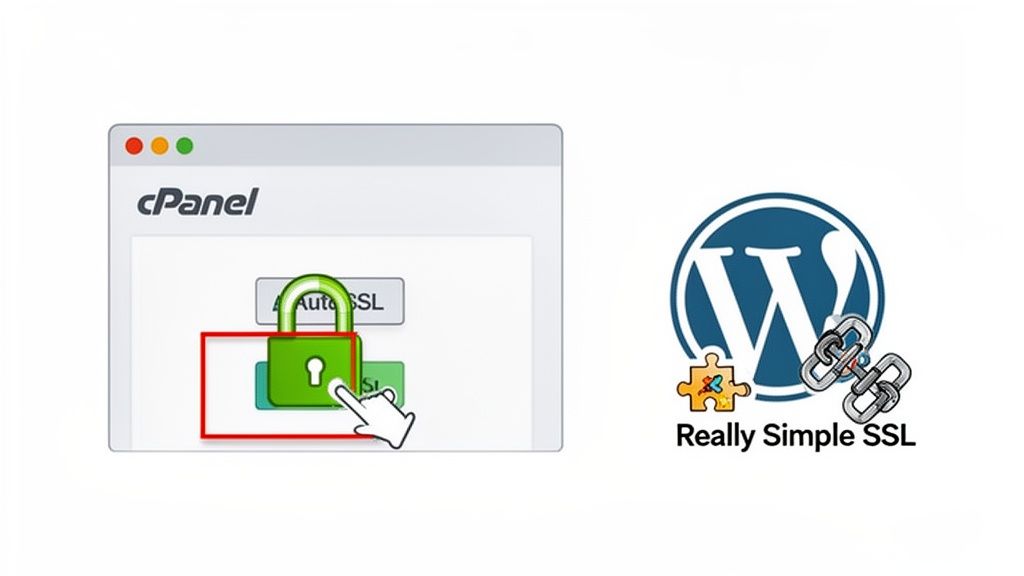
Alright, if the basic browser checks didn't do the trick, it's time to roll up our sleeves and head into your hosting environment. For most of our clients, this means a quick trip into either cPanel or the WordPress dashboard. Don't worry, these tools are designed to give you direct control over the common culprits behind SSL errors.
Getting this right is a non-negotiable part of modern web security. The scale of cyber threats in Australia is staggering, with some reports suggesting an attack happens every second. In fact, Australia sees 732 breaches per 100 people, which is nearly triple the global average. A leading cause? Simple technical security slip-ups. This makes a properly installed SSL certificate one of your most important lines of defence.
Your Go-To Fix: Running AutoSSL in cPanel
For most website owners using cPanel, the simplest solution is usually built right in. All UpTime Web Hosting plans come with AutoSSL, a fantastic feature that automatically handles SSL installation and renewal for you. But sometimes, especially after moving a website or changing your domain, it needs a little nudge.
You can easily trigger this yourself. Just log in to cPanel and find the SSL/TLS Status tool. Inside, you'll see a list of your domains and their current certificate status. If a domain is showing an error or doesn't have a certificate, simply tick the box next to it and hit the "Run AutoSSL" button. For a step-by-step walkthrough, you can consult our knowledge base article on running AutoSSL.
The WordPress Problem: Tackling Mixed Content
So, your SSL certificate is valid, but you're still getting that dreaded warning. What gives? This is almost always a case of "mixed content," a classic headache for WordPress site owners.
It happens when your site loads over a secure HTTPS connection, but some elements on the page—think images, scripts, or fonts—are still being pulled in via old, insecure HTTP links. Browsers see this as a security risk and immediately throw up a warning flag. Fixing this is a critical part of maintaining a professional online presence, and it's something we focus on with our specialised Australian WordPress hosting on cPanel.
Key Takeaway: A mixed content error means your security chain has a weak link. Even a single insecure HTTP resource is enough for a browser to distrust the whole page, scaring off customers and hurting your brand's credibility.
You've got two excellent ways to sort this out.
Install a dedicated plugin: Tools like Really Simple SSL were created for this very purpose. Once you install and activate it, the plugin scans your site and automatically reconfigures your settings to force everything over HTTPS. It fixes most mixed content issues with just a couple of clicks.
Do a database search-and-replace: For a more permanent and thorough fix, you can update every insecure link directly in your database. A plugin like Better Search Replace makes this easy. You just need to search for all instances of
http://yourdomain.com.auand replace them withhttps://yourdomain.com.au. This catches everything, including old image paths and internal links you added years ago.
While you're fixing these SSL issues, it’s absolutely vital to make sure you have properly configured 301 redirects from the old HTTP version of your site to the new HTTPS one. This tells both users and search engines to always use the secure version, preventing duplicate content penalties and stopping future connection errors in their tracks.
Host your website with our 5-star rated, cPanel website hosting plans.
Super fast servers, with security included and hosted in your choice of Australian Data Center.
View cPanel Plans
Advanced Troubleshooting for Technical Users
When the usual fixes don't cut it, the "your connection is not private" error often points to something deeper in your site's infrastructure. For developers and the more technically minded, this means it's time to look at services like Content Delivery Networks (CDNs), firewalls, and security headers—the powerful layers sitting between your server and your visitors. While these tools are fantastic, they can easily cause stubborn SSL issues if they're not configured just right.
A very common culprit I see is a misconfigured CDN, like Cloudflare. CDNs do wonders for performance, but their SSL settings can be a real trap. For example, setting Cloudflare's SSL/TLS mode to "Flexible" sounds easy, but it only encrypts the connection between the user and Cloudflare. The link from Cloudflare back to your server is left wide open and unencrypted, creating a mismatch that can trigger those frustrating privacy errors and give you a false sense of security.
Navigating CDN and Firewall Complications
The setting you're almost always looking for in Cloudflare is "Full (Strict)," which guarantees encryption from end to end. Another potential roadblock is a Web Application Firewall (WAF) getting in the way of the SSL handshake. Sometimes, a WAF can be a bit too aggressive, mistakenly flagging legitimate traffic and disrupting the certificate validation process, which is when the browser throws up the error. A quick way to diagnose this is to temporarily disable the WAF and see if the problem disappears.
Expert Insight: Don't forget that CDNs cache everything, including your SSL certificate. If you've just renewed or reinstalled a certificate on your server, you absolutely have to purge the CDN cache. If you don't, the CDN will keep serving the old, invalid certificate to your visitors.
Understanding HSTS Preload Issues
Perhaps the most persistent and difficult issue to pin down comes from HTTP Strict Transport Security (HSTS). HSTS is a security header that essentially commands browsers to only ever communicate with your site over HTTPS. If you've gone a step further and submitted your domain to the HSTS preload list—a list hardcoded into major browsers—you've created an unbreakable HTTPS-only rule.
Practical Example: If you enable HSTS and then your SSL certificate expires, visitors will be completely blocked. Their browser remembers the HSTS rule and will refuse to connect insecurely, offering no "proceed anyway" option. This makes a small SSL error a site-wide outage. You can check your site's HSTS status at hstspreload.org.
When you're juggling complex setups with multiple subdomains, looking into a wildcard SSL certificate can seriously simplify your life and help prevent these kinds of mismatches. Nailing these advanced settings is the final piece of the puzzle in providing a secure, error-free experience for every user.
Your 'Connection Is Not Private' Fix FAQ
That big, scary “your connection is not private” error can be a real head-scratcher. Below, I’ve answered some of the most common questions our clients ask, giving you straight, simple answers to get you back on track.
Is It Safe to Proceed to a Website With This Error?
Honestly, it’s a huge risk and I’d strongly advise against it. When your browser throws up that warning, it’s basically saying, "I can't verify that this website is who it claims to be."
Any information you send—passwords, credit card details, you name it—could be snatched up by someone snooping on the connection. While it could be a harmless technical glitch, it could just as easily be a serious security threat. The only exception? If you’re a developer working on your own site in a controlled environment. For everyone else, it’s best to just stay away.
Why Does This Error Only Happen on My Wi-Fi Network?
If you're only seeing this error on one specific Wi-Fi network, the problem almost certainly lies with that network's setup. This happens all the time on public Wi-Fi at cafes or airports, where their login portals often mess with secure SSL connections before you’ve signed in.
At home, the culprit could be your router’s settings, an overzealous antivirus program that’s inspecting your web traffic, or even parental controls. A quick troubleshooting tip is to restart your router. If that doesn't work, try temporarily disabling your security software to see if the issue disappears.
How Often Do I Need to Renew My SSL Certificate?
The industry standard for public SSL certificates is a validity period of 398 days (which works out to about 13 months). But if you’re an UpTime Web Hosting client, you can pretty much forget about this. Our automated systems handle it all for you.
Our AutoSSL feature, which comes standard with our hosting plans, renews your free certificate well before it ever gets close to expiring. This means your website gets continuous, uninterrupted security without you having to lift a finger. You can read more about it in our knowledge base article on SSL management.
Can an Expired SSL Certificate Affect My SEO Rankings?
Absolutely, and it can hit you hard. Google uses HTTPS as a clear ranking signal, so a security warning from an expired SSL certificate is a massive red flag.
Think about it from a user's perspective: they land on your site and are greeted with a scary warning page. Most will leave immediately, sending your bounce rate through the roof. This signals to search engines that your site is either inaccessible or untrustworthy, which can lead to a noticeable drop in your search rankings over time. Keeping your SSL certificate valid is non-negotiable for both user trust and SEO.
Tired of wrestling with SSL errors and hosting headaches? Let UpTime Web Hosting take care of your website's security for you. Our reliable Australian hosting plans come with free, automatically renewing SSL certificates, 24/7 expert support, and top-tier performance to keep your site fast, secure, and always online. Explore our plans today at https://uptimewebhosting.com.au.