When you see a 'DNS not responding' error, it’s like your internet's address book has suddenly gone blank. The error simply means the translation from a website name (like yourbusiness.com.au) to a computer-readable IP address has failed. For your business, this isn't just a minor glitch; it's a full stop to your online operations.
What a DNS Error Means for Your Business
Think of the Domain Name System (DNS) as the internet's phone book. When you type a website address into your browser, DNS looks it up and finds the matching IP address—a string of numbers that tells your computer where to find the website's server. A "DNS not responding" message is your browser telling you it couldn't get a reply from the phone book, so it has no idea where to go.
This failure can pop up for all sorts of reasons, often starting right at your desk. For a business, the consequences are immediate and disruptive. It’s not just one person being unable to browse the web; it’s a breakdown in the digital supply chain your company relies on every single day.
The Immediate Business Impact
When DNS fails, the ripple effect is huge. Your team might be completely cut off from the tools they need to function, bringing productivity to a screeching halt. The impact often includes:
- Inaccessible Cloud Services: Your staff may be unable to log into critical SaaS platforms like Microsoft 365, Google Workspace, Salesforce, or your accounting software. For example, a marketing manager can't access Canva for a social media post, or the sales team is locked out of HubSpot, halting all lead management.
- Email Outages: Communication grinds to a halt. Your team can't send or receive emails, and worse, customers might not be able to reach you. This is especially true if DNS issues affect your mail server's records, which is why learning how to set up your domain email correctly is such a vital preventative step.
- Unreachable Company Website: If the problem is widespread, your own customers might see a DNS error when trying to visit your site, costing you sales and damaging your brand's reputation for reliability.
The following flowchart helps visualise the first steps in figuring out whether the problem is localised to a single device or is affecting your entire network.
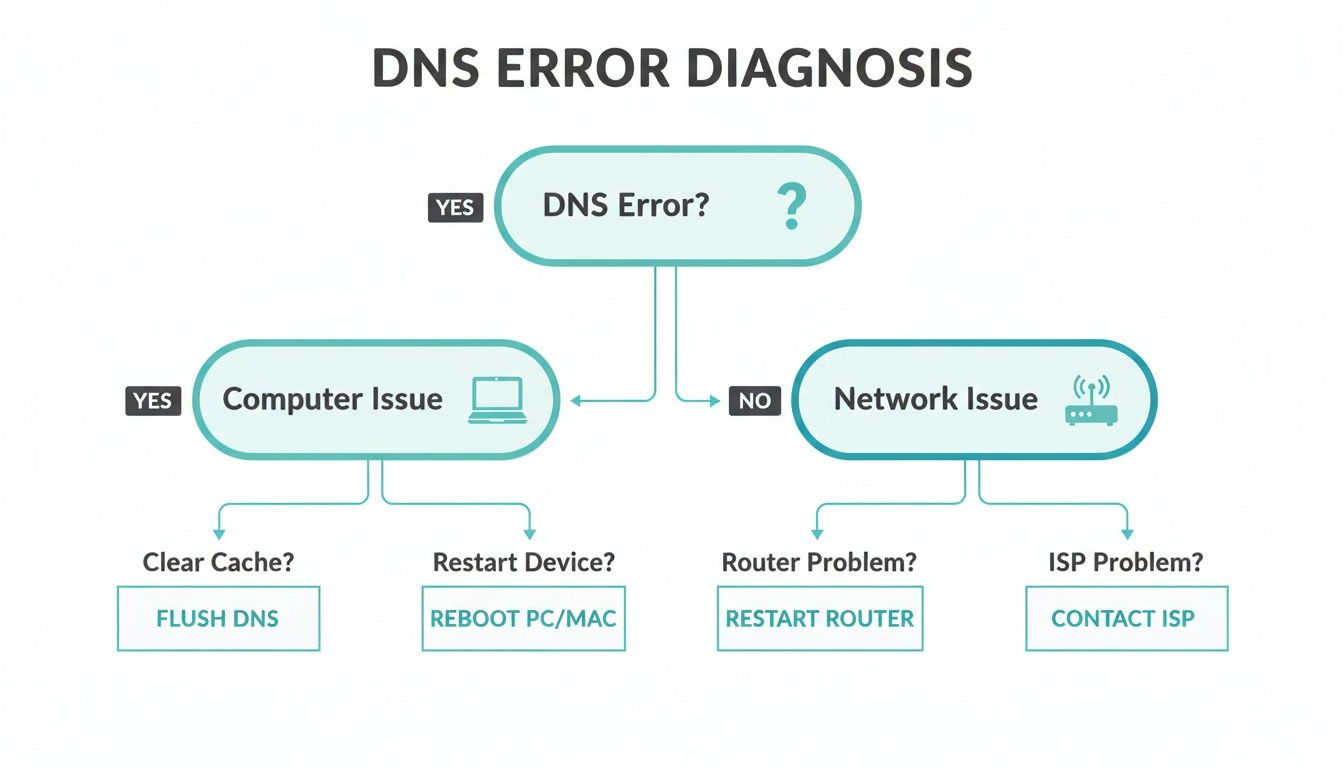
As you can see, the key is to determine the scope of the issue first. This simple diagnostic step quickly narrows down the potential causes and puts you on the fast track to a resolution.
Common Culprits Behind the Error
Before we start fixing things, it helps to understand what's probably gone wrong. The problem isn't always some complex server meltdown; in many cases, it’s a simple misconfiguration. Most of these errors fall into one of two buckets: client-side issues (your computer or network) or server-side issues (your ISP or a DNS service provider).
To help you get started, here’s a quick rundown of the most common reasons you'll see a DNS error.
Common Causes of DNS Not Responding Errors
| Problem Area | Common Reason | First Step to Check |
|---|---|---|
| Single Device | Corrupted local DNS cache or outdated network drivers. | Can other devices on the same network access the internet? |
| Entire Office Network | Router needs a reboot or has incorrect DNS settings. | Is the problem affecting both Wi-Fi and wired connections? |
| External Service | Your ISP's DNS servers are down or overloaded. | Check your ISP's status page for any reported outages. |
| Domain Configuration | Old or conflicting DNS records at your domain registrar. | Review your domain's DNS settings for any incorrect entries. |
This table should give you a good starting point for identifying the source of the trouble.
A common scenario we see involves conflicting DNS records. For instance, a business might switch website hosts but forget to remove old, default DNS entries from their domain registrar. This creates a conflict that DNS servers can't resolve, leading to intermittent or total connection failures.
Some of the most frequent causes we encounter are:
- Local Device Problems: An outdated network driver, an overzealous firewall, or a corrupted local DNS cache on a single computer can stop it from reaching the internet.
- Router Misconfiguration: If multiple devices are offline, the issue often lies with the office router. It might have the wrong DNS server settings or simply need a reboot to clear its memory.
- ISP Outages: Sometimes, the problem is completely out of your hands. Your Internet Service Provider's (ISP) own DNS servers might be having a temporary outage, affecting all their customers in your area. You can usually confirm this by checking a service like Aussie Outages.
By understanding these potential points of failure, you can move from frustration to action. The next sections will walk you through how to methodically troubleshoot and fix these issues, starting with your own computer and working outwards to your network and beyond.

Performance you can feel, backed by clients who depend on it. Read how our support and uptime create long‑term customer success.Power Your Business with Better Hosting
Fixing DNS Issues on Your Computer
When that dreaded "DNS not responding" error pops up, your first instinct might be to blame your internet provider. But hold that thought. More often than not, the problem is much closer to home—right on your own computer.
Many DNS glitches are localised, stemming from a hiccup on your device rather than some massive internet meltdown. Before you even think about restarting routers or calling support, let's walk through a few simple, yet incredibly effective, fixes you can try right now. These steps are all about clearing out old, stale data and giving your machine a fresh start.
Clear Your Local DNS Cache
Think of your computer's DNS cache as its short-term memory for websites. To speed things up, it remembers the IP addresses of sites you've recently visited. But just like our own memory, it can sometimes get things wrong. If a website's IP address changes, your computer might keep trying to connect to the old, outdated location.
Flushing your DNS cache is the digital equivalent of a clean slate. It’s a completely safe process that forces your computer to look up the correct address for every website, and it solves a surprising number of DNS headaches.
- On Windows: Pop open Command Prompt or PowerShell, type
ipconfig /flushdns, and hit Enter. You'll get a quick confirmation message. - On macOS: Open the Terminal and run this command:
sudo dscacheutil -flushcache; sudo killall -HUP mDNSResponder. You will be prompted for your password. - On Linux: In the Terminal, type
sudo systemd-resolve --flush-caches. The exact command can vary a bit depending on your distribution, but this one works for most modern systems.
Once you’ve run the command, quit your web browser completely, reopen it, and try visiting the site again. If it loads, a corrupted cache was your culprit. Easy fix! For more detailed, OS-specific instructions, you can check knowledge bases like Microsoft's guide for Windows or Apple's support pages.
Manually Change Your DNS Servers
If flushing the cache didn't do the trick, the next stop is your DNS servers. By default, you're using the ones provided by your Internet Service Provider (ISP). While they usually work fine, they can get overloaded, slow down, or even have temporary outages. A brilliant troubleshooting step is to temporarily switch to a public DNS provider.
These services are often faster, more reliable, and built for performance. Two of the most trusted names in the game are:
- Cloudflare DNS: Known for its blistering speed and strong focus on privacy.
- Primary:
1.1.1.1 - Secondary:
1.0.0.1
- Primary:
- Google Public DNS: A rock-solid, reliable alternative that’s been around for years.
- Primary:
8.8.8.8 - Secondary:
8.8.4.4
- Primary:
Changing these settings tells your computer to bypass your ISP's servers and use these instead. It's a fantastic diagnostic tool—if switching solves the problem, you’ve just confirmed the issue lies with your ISP's DNS. You can find out more about how Cloudflare’s service works on their 1.1.1.1 information page.
This is what Cloudflare's landing page looks like, highlighting its core offerings of speed and privacy.
The screenshot clearly shows the primary (1.1.1.1) and secondary (1.0.0.1) DNS addresses, making it easy for users to find the information they need to reconfigure their network settings.
Pro Tip: Manually setting new DNS servers isn't a permanent change. You can always switch back to your ISP's automatic settings later. But it’s a good idea to keep Cloudflare's or Google's addresses handy—they're an excellent tool to have in your back pocket for future troubleshooting.
Temporarily Disable Other Network Connections
Sometimes, the DNS error isn't coming from your main Wi-Fi or Ethernet connection at all, but from a conflicting one. Software like Virtual Private Networks (VPNs) and virtualisation tools (like VMware or VirtualBox) create their own virtual network connections. If they don't shut down cleanly, they can leave your computer's network settings in a tangled mess.
A classic example is disconnecting from a VPN, but the software fails to properly restore your original DNS settings. Your computer is left trying to send requests through a tunnel that no longer exists, and of course, it fails.
The fix is to temporarily disable these extra connections to see if they're the source of the trouble.
- Check for Active VPNs: First, make sure any VPN client you use is fully disconnected and the application is closed. Don't just minimise it to the system tray.
- Disable Unused Adapters (Windows): Head to
Control Panel > Network and Sharing Centre > Change adapter settings. You’ll see a list of all your network connections. If you spot any from VPNs or virtual software that you aren’t using, right-click on them and select 'Disable'. - Check Network Locations (macOS): In
System Settings > Network, you can manage different network "locations". Ensure you're using the right one for your current setup and that no old VPN configurations are interfering.
By disabling everything except your primary internet connection, you eliminate any potential software conflicts. If the website now loads, you've found your culprit. You'll likely need to reinstall or reconfigure the problematic software to prevent it from happening again.
Troubleshooting Your Router and Network Connection
If your entire office suddenly gets kicked offline, the problem is almost never on a single computer. When multiple devices show a "DNS not responding" error at the same time, you can stop messing with individual machines and turn your attention to your central network hardware. This is where your router takes centre stage.
More often than not, a simple reboot is all it takes to get everyone back in business.
This isn't just an old IT myth; there's a solid reason it works. Your router is a mini-computer with its own processor, memory, and operating system. Over time, its memory can get clogged up, internal processes can hang, or a small software glitch can bring everything to a halt, causing DNS lookups to fail. Unplugging it for a full 60 seconds forces a complete power cycle, clearing out the RAM and letting all its processes restart from a clean slate.
Go Straight to the Source: Configure Router DNS
While changing DNS settings on one computer is a great diagnostic step, it’s not a realistic fix for an entire office. A far more permanent and efficient solution is to configure the DNS settings directly on your router.
Making the change here means it will automatically apply to every single device that connects to your network—laptops, desktops, smartphones, even the office printer.
To get this done, you’ll need to log into your router’s administration panel.
- Open a web browser and type your router's IP address into the address bar. This is usually
192.168.1.1or192.168.0.1. - You'll be asked for a username and password. If you haven't changed them, they’re often printed on a sticker on the router itself (think
adminandpassword). - Once you’re in, hunt for a section labelled "Internet," "WAN," or "DNS Settings."
- From there, you can switch from your ISP's default DNS to a public one like Cloudflare (
1.1.1.1) or Google (8.8.8.8), just as you would on a single computer.
By tackling this at the router level, you ensure consistent, reliable DNS resolution for everyone without having to touch each device. It’s a much more scalable approach for any business network.
Keep Your Router's Firmware Updated
A router's firmware is its core software, and just like any software, it needs updating. Manufacturers release firmware updates to patch security holes, improve performance, and fix bugs. An outdated firmware version can absolutely be the root cause of persistent "DNS not responding" errors, as bugs in the network stack can lead to all sorts of instability.
Most modern routers let you check for and install updates right from the admin panel. Look for a section called "Firmware Update," "Router Update," or "Administration." Enabling automatic updates is a brilliant way to ensure your network's brain is always running the latest, most stable software available.
We often see businesses running on firmware that's several years old. This not only exposes them to security risks but can also cause strange performance issues that are hard to diagnose, including DNS failures. Making a firmware check part of your quarterly IT maintenance is a simple but powerful preventative measure.
Isolate the Problem By Bypassing the Router
Finally, if you’ve rebooted, reconfigured DNS, and updated the firmware, but the problem just won't go away, you need to figure out if the router itself is faulty. The best way to do this is to take it out of the equation entirely.
Find your main internet modem—the box your ISP provided that your router plugs into—and unplug the Ethernet cable that connects it to your router. Now, take that same cable and plug it directly into the Ethernet port of a laptop.
If you can suddenly browse the internet without any DNS errors, you’ve confirmed the problem lies with your router. It might be on its last legs and in need of replacement. If, however, the "DNS not responding" error continues even with a direct connection, the issue is almost certainly upstream with your Internet Service Provider.
Understanding the different IP addresses assigned in these scenarios can also offer clues; you can learn more about the role of a static vs. dynamic IP address in our detailed guide.
Host your website with our 5-star rated, cPanel website hosting plans.
Super fast servers, with security included and hosted in your choice of Australian Data Center.
View cPanel Plans
Diving Deeper with Diagnostic Tools
When you've tried the usual fixes—rebooting the router, flushing the DNS cache—and you're still stuck, it's time to roll up your sleeves. To get to the bottom of a stubborn "DNS not responding" error, you sometimes need to look under the bonnet and gather some hard data. This is where a couple of simple command-line tools can give you a crystal-clear picture of what's really going on.
Having this information on hand is incredibly powerful. It changes the conversation with your ISP or hosting provider from a vague "my internet is broken" to a very specific "I can't resolve domains, but I can reach IP addresses directly." This kind of detailed feedback helps support teams figure out the problem much, much faster.
Before you pick up the phone, it's always a good idea to check our UpTime Web Hosting network status page to see if we're already on top of a known issue.
Isolating the Problem with Ping
The ping command is your best mate for quick network diagnostics. It's a straightforward utility that sends a tiny data packet to a server and listens for a reply. Its real magic is in how it can test your connection using both domain names and direct IP addresses, helping you zero in on the cause.
Here’s how you can use it to confirm a DNS-specific fault:
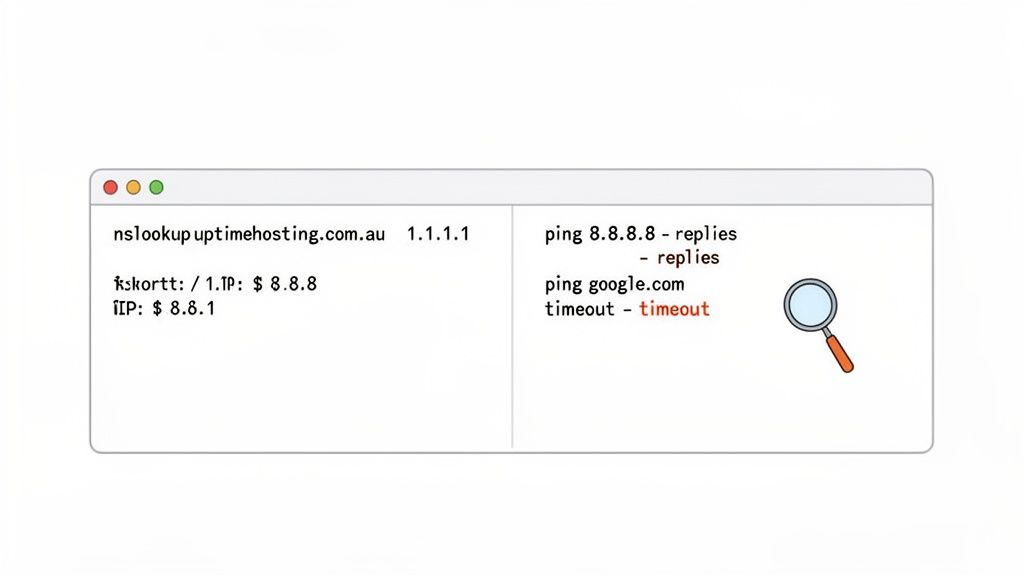
- First, ping a well-known IP address. Open your command prompt (on Windows) or terminal (on Mac/Linux) and type
ping 8.8.8.8. This sends a request straight to one of Google's public DNS servers, completely bypassing the need for a domain name lookup. - Next, ping a domain name. In the same window, type
ping google.com. This time, your computer has to use DNS to find Google's IP address before it can send the packet.
If the first command works but the second one fails, you've found your smoking gun. It proves your internet connection itself is fine; the breakdown is happening during the DNS translation step. You've successfully isolated the problem to DNS.
This simple two-step test provides concrete proof of a DNS failure. When you contact support, being able to say, "I can ping 8.8.8.8 but not google.com," gives them exactly the information they need to start troubleshooting from their end.
Testing Specific DNS Servers with Nslookup
The nslookup tool (which stands for "name server lookup") takes things a step further. It allows you to ask a specific DNS server to find a domain for you. This is perfect for checking if your ISP's default DNS servers are flaky, while a public alternative like Cloudflare's is working fine.
Let's say you can't get to uptimehosting.com.au. You can use nslookup to test it against Cloudflare's public DNS at 1.1.1.1.
- Open your command prompt or terminal.
- Type
nslookup uptimehosting.com.au 1.1.1.1and hit Enter.
This command tells your computer to ignore its usual DNS settings and query Cloudflare directly. If it comes back with a valid IP address but you still can't browse the site, it’s a very strong indicator that the DNS servers configured on your computer or router are the problem. This is precisely why switching to a public DNS server is often such an effective temporary fix.
The need for these diagnostic tools is growing. In Australia, the market for DNS tools generated USD $28.6 million in 2024 and is on track to reach USD $57.1 million by 2030. This highlights just how vital DNS resilience has become, especially for businesses that remember major incidents like the 2020 Telstra DNS outage. You can dive deeper into the growth of the Australian DNS tools market in this detailed report from Grand View Research.
Preventing Future DNS Issues for Your Business
Fixing a "DNS not responding" error is a great feeling, but the real victory is stopping it from ever happening again. If you're only ever reacting to DNS problems, you're always just one tiny mistake away from your website going dark. A proactive strategy, on the other hand, builds resilience right into your online operations, protecting both your revenue and your hard-earned reputation.
It all starts with picking the right partners and getting a handle on the basics of your domain's configuration. You don't need to become a DNS wizard overnight. It’s more about putting a few simple best practices in place to cut down on risk from the get-go.
Choose a Hosting Partner with Robust Local Infrastructure
For any Australian business, where your DNS is managed really matters. Recent analysis has shown that Australia's DNS infrastructure is only moderately resilient, largely because so many businesses rely on US-based cloud giants for their DNS services. This creates a geographical weak link that can leave local companies vulnerable to outages happening on the other side of the world. You can read more on these vulnerabilities in this DNS resilience research paper.
Working with a provider like UpTime Web Hosting is a smart way to sidestep this problem. Our network of servers spans Sydney, Melbourne, Brisbane, and Perth, which means your DNS requests are handled right here in Australia. This not only speeds things up by reducing latency but also gets rid of those risky single points of failure, keeping your website and online services fast and online for your local customers.
Understand Your Core DNS Records
While you don't need to memorise every type of DNS record, knowing the main players is vital for heading off future trouble. Think of them as the fundamental signposts that tell the internet how to find and interact with your domain.
- A Record: This is the most basic one. It points your domain name (like
yourbusiness.com.au) to a specific server IP address. Simple. - CNAME Record: A "Canonical Name" record acts as an alias. It points a subdomain (like
www.yourbusiness.com.au) to another domain name instead of an IP address. - MX Record: Your "Mail Exchanger" records are critical. They tell the internet where to deliver your company's email. If these are wrong, your emails just won't show up.
A simple typo or misconfiguration in one of these records is one of the most common reasons for DNS errors. Making a habit of checking them, especially after you've moved to a new provider, is a non-negotiable preventative step.
A classic mistake we see all the time is a business updating its A record for a new website but completely forgetting to check the MX record. The new site looks great, but suddenly their email stops working. It’s a perfect example of how interconnected these simple records are.
Safeguard Your Business Email with Authentication Records
For just about every business, email is mission-critical. These days, just having the right MX record isn't enough to guarantee your emails get where they need to go. To make sure your emails are delivered reliably and don’t end up in someone’s spam folder, you absolutely must have modern email authentication records set up correctly.
These records act like a digital passport, proving to other mail servers that an email is legitimate and actually from your domain. To avoid DNS issues with your most critical services, understanding the importance of proper DNS configuration for business email is key.
There are three records you can't go without:
- SPF (Sender Policy Framework): This is a list of all the mail servers that are officially allowed to send email for your domain.
- DKIM (DomainKeys Identified Mail): This adds a digital signature to your emails, which lets the receiving server check that the message hasn't been altered in transit.
- DMARC (Domain-based Message Authentication, Reporting & Conformance): This record tells other servers what to do if an email fails the SPF or DKIM checks – either send it to quarantine or reject it completely.
At UpTime Web Hosting, our managed hosting is built to protect your DNS integrity. We offer expert help to get these records configured perfectly and provide comprehensive cybersecurity and data protection to defend against threats like DDoS attacks, which often target DNS to knock businesses offline. In the end, proactive monitoring and a secure foundation are your best defence against the next "DNS not responding" headache.
Frequently Asked Questions
Even after you've fixed a "DNS not responding" error, it's natural to have a few more questions. Getting your head around the finer points of DNS is one of the best ways to confidently manage your business's online presence. Here are some straightforward answers to the questions we hear most often from our clients.
We've put together a list of common questions people have after dealing with DNS issues. Take a look below for some quick answers.
| Question | Short Answer |
|---|---|
| Can a VPN cause DNS errors? | Yes, absolutely. A VPN reroutes your traffic, and if it disconnects or its own DNS servers are slow, it can easily trigger a DNS error. |
| How often should I flush my DNS? | Only when you need to. It's not regular maintenance. Flush it when you can't reach a site you know is online to clear out bad data. |
| Why can't I send emails? | Email depends entirely on DNS to find the recipient's mail server. If DNS is down, your email client has no address to send to, so delivery fails. |
Hopefully, those quick answers help. For a bit more detail on each, read on below.
Can a VPN Cause DNS Errors?
Yes, a VPN is one of the most common culprits behind DNS errors. It's designed to funnel all your internet traffic—including your DNS requests—through its own private servers for security.
That process is great until the VPN connection suddenly drops, or its own DNS servers become sluggish or unresponsive. When that happens, your computer is left trying to send requests down a tunnel that's no longer there. This leads directly to a "DNS not responding" error, even if your main internet connection is working perfectly fine. Turning off your VPN should always be one of the first things you try.
How Often Should I Flush My DNS Cache?
There’s really no need to flush your DNS cache on a set schedule. It’s not routine maintenance; think of it more as a go-to troubleshooting step when something feels off.
The perfect time to flush your cache is the moment you can’t get to a website you’re pretty sure is actually online. It’s a simple, harmless reset that tells your computer to throw out its old, potentially wrong IP address info and grab a fresh copy. This one action often fixes issues caused by a stale or corrupted cache entry, no other steps needed.
Why Can I No Longer Send Emails During DNS Problems?
Your email client is completely reliant on DNS to work properly. To send an email, your software first has to look up the recipient's domain to find its Mail Exchanger (MX) record. That record is what tells your email client the exact address of the mail server that handles emails for that domain.
If DNS isn't responding, your computer simply can't find where to deliver the email, and it will fail every time. This dependency is also why having correctly set up authentication records is so critical. The "2026 DNS crisis" has been a huge wake-up call for Australian businesses. With major providers now strictly enforcing email authentication, we're seeing nearly 17% of legitimate business emails fail to deliver simply because of DNS misconfigurations. As detailed in this breakdown of the DNS crisis's impact on business emails, incorrect SPF and DMARC records can now stop your emails dead in their tracks.
One of the most critical mistakes we see is someone moving a domain to a new host without checking that all DNS records, especially for email, have been copied over correctly. This can cause days of communication blackout and serious disruption to a business. Our guide on executing a seamless domain name transfer helps you steer clear of these exact problems.
By getting familiar with these common scenarios, you'll be in a much better position to diagnose and even prevent future DNS errors, keeping your business running smoothly.
At UpTime Web Hosting, we provide reliable, secure, and fast local Australian hosting designed to keep your business online. Our expert local support and robust infrastructure help you prevent DNS issues before they start. https://uptimewebhosting.com.au